Categories
How To

How To Download And Save YouTube Videos Externally On Any Device?

YouTube is undeniably one of the first preferences for users when we speak of online video sharing platforms. The search giant had also introduced a dedicated app for this service for both Android and iOS devices packed with some advanced user-friendly options.

The Google-owned video streaming service has been getting fare share of updates which has improved the user experience overall. However, the provision to download a specific video externally on any device remains missing.

Have you also been struggling with downloading YouTube videos on your smartphone’s external microSD card or internal storage to access it without an app or offline? If yes, you don’t have to worry as this article will guide you with the ways to do so.

How To Download YouTube Videos Offline In The App Itself?

While the company hasn’t provided the option to download YouTube videos directly on a device’s external or internal memory, it does have allows you to save any video in the app’s offline directory. Take a look at the steps:

Step 1: Open the YouTube app on your smartphone (Android or iOS). Make sure you are logged in with your registered Google account.

Step 2: Play the video you would want to save to the app’s offline directory.

Step 3: Locate the ‘Download’ tab below the video seek bar along with the ‘Like’, ‘Dislike’, and ‘Share’ options. Click on the downward arrow and select the resolution in which you want the file to be saved.

Step 4: Once the video is saved you can visit the ‘Downloaded’ video section on the app to access an offline video playback later. Notably, you won’t require any internet connection to play the downloaded videos at any given point in time as offline playback is supported here.

How To Download YouTube Videos Externally On Any Device?

As mentioned earlier, there is no direct way offered by the YouTube app or the desktop version to download videos externally in a device’s gallery or microSD card. However, there are third-party mobile apps as well as websites that help with this task.

Steps To Download YouTube Videos On Smartphones Using Mobile App

Step 1: On your Android smartphone, open Google Play Store and download the “Video Downloader: All Video Downloader” app.

Step 2: Complete the installation.

Step 3: Open the YouTube app and play the video you want to download offline.

Step 4: Now, click on the ‘Share’ option and copy the video link from the next tab.

Step 5: On the Video downloader app, paste the link and hit download. Select the resolution to determine the video quality for later.

Steps To Download YouTube Videos Using Third-Party Websites

Step 1: Open Google Chrome or any other web browser of your preference on your mobile or laptop/PC.

Step 2: Visit savefrom.net and repeat steps 4 and 5 as mentioned above.
Categories
How To

How To Connect Smartphones To Laptops/ PCs Using Both Wired, Wireless Technology?

Smartphones have gradually paved the way in the modern-day lifestyle. We bet it is hard for most of you to imagine even a single day without these handheld devices. You get a plethora of options if you step out to buy a new smartphone. And most of the available options are technologically advanced which has increased our reliance on these devices.

One of the useful features to date is the provision to connect a mobile to a laptop or PC. Specifically for data transfers such as images, videos, audio, and other documents. While the steps for this aren’t tricky, some users might come across some difficulties with the same. You can connect a smartphone to a laptop or PC using the old school wired connection or using the latest wireless technology. The steps for both are mentioned below. Take a look:

How To Connect Smartphone To Laptop/ PC Using Wired Connection

Before you start with this procedure, make sure you have the supported data cable (Type-C or microSD depending on the phone’s model).

Step 1: Connect both the laptop and PC using the supported data cable.

Step 2: Unlock your smartphone and slide down the notification bar (Android device for reference here).

Step 3: Click on the “Transfer files” option.

Step 4: Allow the required permissions on your laptop or PC. You’ll see the notification for the same at the bottom right of the taskbar. Select the “Open folder to view files” option.

Step 5: Now, you will be able to see all the files and folders on your smartphone. From here, you can transfer data from your smartphone to a laptop/PC or copy files from the system in the smartphone’s onboard memory.

How Can You Pair Smartphone To Laptop/PC Using Wireless Connection?

If for some reason you don’t have access to your smartphone’s data cable, you still can go ahead with the connection. Thanks to the wireless technology which modern days smartphones are equipped with. But you need to download a third-party app from Play Store or App Store on Android and iOS devices respectively. We are mentioning the steps performed on an Android smartphone.

Step 1: Go to Google Play Store and search the “AirDroid: File and Remote Access” app.

Step 2: Download the app (around 45MB) and complete the installation process.

Step 3: Now, create your account and follow the on-screen steps to toggle on the Wi-Fi connection between both devices.

Step 4: Once the connection is established, you can easily transfer the required files from your smartphone to your laptop or vice versa.

Categories
How To

How To Get Extra 4GB Data With Airtel Prepaid Plans: See Here All Details

With an aim to retain its existing user base, Airtel is increasing its data benefits with prepaid plans. The telecom operator has increased data benefits with three plans that are priced at Rs. 479, Rs. 549, and Rs. 699. Notably, these prepaid plans will now provide 4G data coupons.

The new development comes soon after telecom operators increased tariffs of prepaid plans. In addition, Airtel starts providing an extra 2GB of data with Rs. 350 plans. The extra 4G data have been launched for the company’s users and it will not be available on other recharge mediums. However, to recharge the number users have to head to the recharge option on the application.

Airtel 4GB Data Coupons: Check Details

Airtel Rs. 359 Prepaid Plan

Let’s start with the Airtel Rs. 359 plan, where users will get 2GB of data per day along with an extra 2GB of data coupons. In addition, users will get unlimited calls along with 100 messages per day for 28 days.

Airtel Rs. 479 Prepaid Plan

Moving to the Airtel Rs. 479 plan, where users will get 1.5GB of data daily, along with 4G data coupons, unlimited calling, and 100 messages per day for 56 days.

Airtel Rs. 599 Prepaid Plan

India’s second-largest telecom operator Airtel is providing 2GB of data per day, 100 messages per day, and unlimited calls. In addition, this pack offers 4GB of data coupons. 

Airtel Rs 699 Prepaid Plan

Lastly, there is a pack of Rs. 699 plan, where users will get 3GB of data daily and an extra 4GB of data coupons. This pack comes with 56 days validity. In addition, this pack offers 100 messages per day and unlimited calling. 

Apart from these benefits, users will get three months of Apollo membership, Amazon Prime Mobile Edition access, one year course from Shaw Academy, Wynk Music access, and Rs 100 cashback on FASTag. 

Categories
How To

How To Get Free Eros Now Access With BSNL Postpaid Plans

In order to give a tough fight to private telecom players, state-run telecom operator BSNL has started providing content benefits with postpaid packs. Notably, the company has joined hands with Eros Now, which offers content in several languages, such as Marathi, Bengali, Tamil, Kannada, Malayalam, Telugu, Gujarati, and Punjabi.

The content app offers 12,000 movie titles, music videos, short-form content, premium originals, and more. Besides, the app is free and is available for Android and iOS users.

Eros Now With BSNL Prepaid Plans

It is worth noting that Eros Now is also available with BSNL prepaid plans that are priced at Rs. 78, Rs. 98, Rs. 298, Rs. 333, and Rs. 444 packs. These packs come with a period of eight, 24 days, 54 days, 45 days, and 60 days. It includes Eros Now access, where users will get access to unlimited music, trailers, short-form videos, and music videos.

The Rs. 2,399 pack of the telecom operator also provides Eros Now access for 425 days. It includes unlimited data; however, the speed will be reduced to 80 Kbps after 3GB of data ends. In addition, the telecom operator offers 100 messages per day to all networks, BSNL Tunes, and content from Eros Now for the same period.

BSNL Postpaid Plans With Eros Now Subscription

Moving to the postpaid plans of the company, the first pack of Rs. 199 is providing unlimited calls, 25GB of data, and a data rollover facility up to 75GB. The second postpaid plan will cost you Rs. 399, where users will get 70GB of data along with a rollover facility up to 210GB and unlimited calling. However, it should be noted that these packs do not offer family connections.

The other plan is the line is priced at Rs. 525, where users will get 85GB of data along with a data rollover facility up to 255GB. This pack also offers extra SIM without free data and SMS. The last plan in the line will cost you Rs. 798, which offers 50GB of data and a rollover facility of up to 150GB.

Furthermore, this pack ships two extra connections along with unlimited calling. 50GB of data, and 100 messages per day. Notably, all postpaid packs of BSNL provide 100 messages per day.

Categories
How To

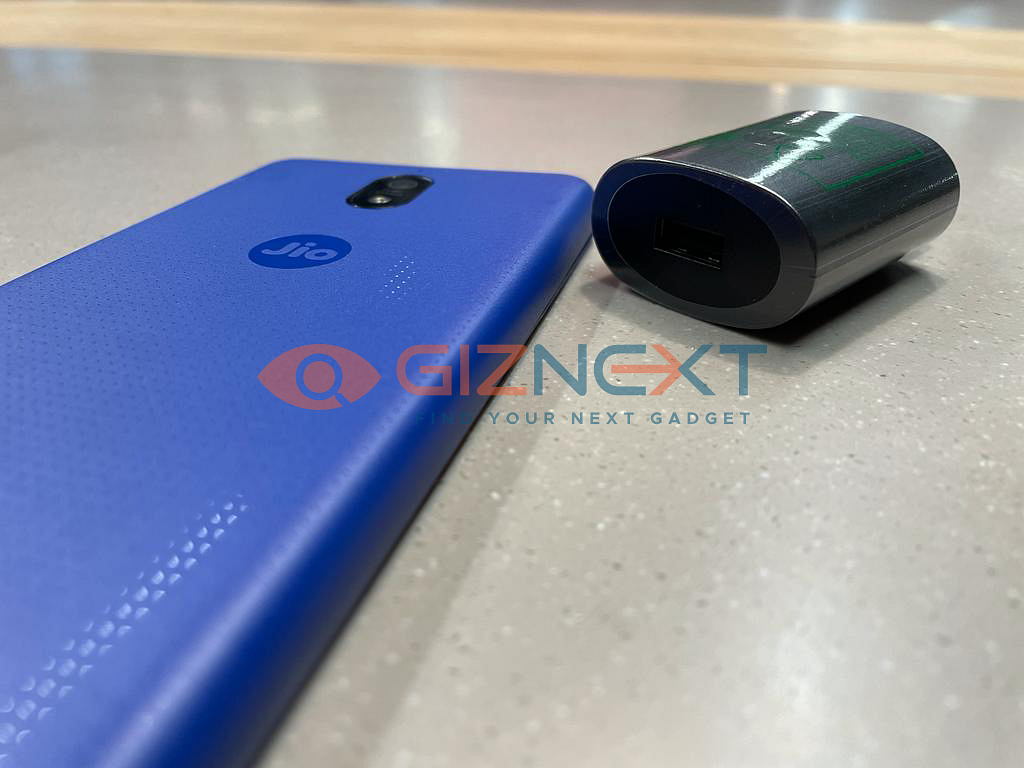
JioPhone Next Booking: Here’s How To Do It Without Registration

JioPhone Next, the most affordable 4G smartphone launched by India’s largest telecom operator, is now available on the Reliance Digital website. Earlier, buyers have to do the registration via JioMart to purchase the device. Notably, the JioPhone Next device comes with a 13MP rear camera, 5.45-inch screen size, and Snapdragon 215 processor.

In case, buyers want to purchase JioPhone through the company’s website, then they have to follow these steps.

Steps To Purchase JioPhone Next

Step 1: Buyers have to visit the https://www.jio.com/next website.

Step 2: Now, they have to tap on the I’m interested option and enter the details like name and mobile number to get the OTP.

Step 3: After entering the OTP, buyers have to click on the validate option.

Other Ways To Purchase JioPhone Next

In addition, the company said that buyers can send a message on the number 70182-7018. After that, buyers have to pick up the JioPhone Next from the JioMart Digital store. However, now users don’t have to register to purchase a smartphone.

JioPhone Next Specifications

The smartphone comes with a Qualcomm Snapdragon 215 processor. The device sports a 5.45-inch HD+ display and Corning Gorilla Glass protection. It also has 2GB of RAM and 32GB of storage that can be increased up to 512GB via a microSD card.

The device runs Pragati OS that is based on Google Android 11 (Go Edition). It also has a 3,500 mAh battery, a 13MP camera at the back, and 8MP front-facing selfie camera. The JioPhone Next also supports regional language support, web pages translation, special camera filters, and screen reader.

JioPhone Next Price

The Jiophone Next is available on Reliance Digital at Rs. 6,499. In addition, the device is available with EMI plans with Rs. 305.93 per month that also includes data benefits.

However, customers should note that these will make the smartphone more expensive than purchasing the handset upfront and buying separate data plans. In addition, Reliance Digital is providing a 10 percent discount to Yes Bank Credit cards holders, 7.5 percent off to American Express credit cards holders, and 5 percent off to ICICI Bank debit and credit users on JioPhone Next purchase.

Categories
How To

How To Download And Use WhatsApp On Jio Phone? Step By Step Guide

Despite the onset of modern days smartphones, feature phones remain a hit amongst a large segment of the audience. If we speak of the Indian market, Jio Phone is what tops the charts. The brand’s latest offering, i.e, the Jio Phone Next is an Android-powered device that will let you use most of the third-party apps like WhatsApp.

However, there are still some limitations with the previous-gen models that run on the KaiOS; specifically with the Google services including the digital assistant. But one of the major services which every feature phone user looks out for is WhatsApp.

And if you haven’t been using this service yet on your Jio Phone or are unaware of the steps to download and install then this article is what you need to go through. We are listing down the steps that you can perform easily to get started with WhatsApp on Jio Phone. Let’s take a look:

How To Download WhatsApp On Jio Phone Easily?

Before you proceed with the steps, you need to make sure your Jio Phone/ Jio Phone 2 is updated to the latest available version of the KaiOS. We’ll start with the steps to update the latest firmware version of the Jio Phone.

Step 1: Unlock your Jio Phone/ Jio Phone 2 and head to the Settings menu.

Step 2: From the settings tab, go to the “Software update” section.

Step 3: Update your KaiOS if there is any new version available, otherwise, make sure you already have the latest version.

Step 4: Once your device’s firmware is updated to the latest, you just need to download/access WhatsApp from the App store.

Step 5: If in case WhatsApp isn’t installed already on your device you can download it from the App store on Jio Phone.

Step 6: Complete the installation process and open the app directly via the App store’s page. You can also launch the app from the app drawer of your respective handset.

Step 7: Now, you need to complete the registration or login process for WhatsApp to be up and running on your device. For this, you need to open the app and accept the “Terms and Conditions”. Click on “Agree”.

Step 8: All you need to do is follow the on-screen steps to complete the registration process. The first and most important step here is to add the mobile number with which you want to use the WhatsApp services.

Step 9: Click on “Ok” to allow WhatsApp to verify your mobile number.

Step 10: Enter the six-digit security code on the next screen. Notably, you will receive this security code on the number you entered on the previous page.

Step 11: Complete the WhatsApp setup by entering your name and adding your profile picture. You will now be able to use WhatsApp on your respective Jio Phone.

Categories
How To

How To Convert YouTube Videos To MP3 On Smartphones, Laptops/PCs?

Google over the years has garnered a huge user base with the plethora of services it offers to the consumers. And it’s not just the search engine that is getting all the popularity. YouTube is one such platform by Google which is a hit amongst the masses all across the globe. The video hosting service is available for both smartphone as well as laptop/ PC users and offers the provision to not just play content but also upload.

Not just entertainment and gaming videos, YouTube also has a huge music library and you can find tons of music videos on this platform. There might have been scenarios where you would have wanted to download your favorite audio track into your device for offline access.

However, the only provision offered by YouTube is to download the video file on the offline directory of the app. And if in case you login to the app/ website using a different account, you’ll automatically lose access to that song or file. The better alternative is to convert the video file to audio which you can later play from your preferred music player. And you can do this both on smartphones as well as laptops/ Pcs. So, how can you convert YouTube video to mp3? This article makes it easy for you:

Steps To Convert YouTube Video To Audio Using Smartphones

To convert YouTube video files to audio on smartphones you need a third-party app. There are a plethora of apps on both Android and iOS devices that you can download and use. But make sure the app that you have selected has over 4-star ratings and good audience feedback. The steps mentioned below are with reference to Android devices.

Step 1: Head to the Google Play Store and download the “Music Downloader.MP3 Player.YouTube” app. Complete the installation process.

Step 2: This app’s homepage is somewhat similar to YouTube’s home page. You’ll be able to download the popular playlists apart from your files.

Step 3: Click on any song or video from the list or type the video you wish to download in the search bar.

Step 4: You will see the download option on the right side of the video thumbnail. Click on it.

Step 5: Once the download is complete, the will be available for offline playback on your device. It is worth adding that you don’t need any additional steps to convert the video file to mp3 audio. All the steps are automated making them easy to use. You can also share the converted audio files later via WhatsApp and other supported apps.

How Can We Convert YouTube Videos To MP3 Using Laptops/ PCs?

Just like smartphones, several dedicated websites let you convert YouTube videos to mp3. You can not only save these audio files on your drives but also transfer them to any other desired device. YTMP3, 320YTMP3, and ytop1 are a few examples. The steps listed below have been performed on the YTMP3 website.

Step 1: Open any web browser on your laptop/ PC and type in YTMP3.cc in the search bar. You can directly Google for results. We have performed the steps on Google Chrome.

Step 2: On a separate tab, open YouTube and go to the video that you want to convert into mp3. Copy the video link.

Step 3: Now, toggle back to the YTMP3 webpage and paste the link.

Step 4: You’ll now get the “mp3” and “mp4” options. Select the former and click on the “Download mp3” option. The mp3 audio file will be saved in the “Downloads” folder on your laptop/PC.

By performing all these aforementioned steps you can easily convert YouTube videos into mp3 files. You just need a smartphone or laptop/ PC and a working internet connection and you are good to go.

Categories
How To

How Can You Download COVID-19 Vaccination Certificates On Smartphones?

COVID-19 has been undeniably one of the worst virus outbreaks in recent times which not just affected the Indian population but global as well. It has been over a year and we all are still gripped with the fear of this deadly virus. The health system across the globe has been struggling to put an end to the menace. Thanks to the medical experts, we have got the vaccination does against the coronavirus.

India like other nations also started the inoculation drive for COVID-19 vaccination this year. A large number of the Indian population has been administered vaccine doses by now. The Indian government had also introduced dedicated apps for the reservation of vaccine doses as well as downloading certificates. If you are traveling abroad, you might require the latter.

If you are in India, you need to get two doses to be fully vaccinated. Covishield and Covaxin are the primary vaccines that are authorized by the Indian government and available across all the dedicated health centers across India. If you already have received both your vaccine jabs, then you must have received a print-out of the certificate from the vaccine center where you got your last jab.

However, if in case for some reason you haven’t received the certificates, you can download them on your smartphones for easy access later. This article has all the steps which you can follow to download the COVID-19 vaccination certificate. Let’s take a look:

How To Download COVID-19 Vaccination Certificate On Smartphones?

Before we proceed with the steps, we would like to highlight that the steps can be performed on two of the dedicated apps. Arogya Setu and CoWIN are the apps authorized by the Indian government for the same.

Step 1: For the Arogya Setu app, first download and install the app on your respective Android and iOS devices.

Step 2: Complete the registration process by entering your mobile number and other details shown on the app screen.

Step 3: Now, go to the Cowin tab which you can locate on the top right corner of the app’s homepage.

Step 4: You will get several options on this page. Select the “Vaccination certificate” option.

Step 5: On the “Download Certificate” page, enter the “beneficiary reference ID” which you must have received from the vaccination center.

Step 6: Click on the “Get Certificate” option and you are good to go.

Categories
How To

How Can You Delete Telegram Account: Here’s Your Step By Step Guide

If there’s one instant messaging application which has been given WhatsApp a hard run is Telegram. This platform serves the audience with some extra set of features that WhatsApp is still missing out on. One of the major factors that have got this app popular in the instant messaging space is the end-to-end encryption that keeps the user data secured from hacks.

This has been WhatsApp’s USP for a long, but following the announcement of its new privacy policy a major chunk of users started considering other apps. Telegram along with Signal was amongst the top preferences. Similar to WhatsApp, Telegram is also available for desktop users along with Android and iOS platforms.

Getting started is as easy as downloading the app on your respective smartphones and registering via mobile number. However, there might come some situations where you would need to delete your Telegram account.

Considering there’s no direct way you can delete your registered account from the Telegram app, you might have struggled in such scenarios. But you don’t need to worry as we will guide you with the correct steps to get it done. Take a look:

How Can You Delete Your Telegram Account?

Step 1: To delete your Telegram account you need to make sure you have access to a laptop or desktop.

Step 2: Open any web browser on your laptop/ PC such as Google Chrome or Mozilla Firefox.

Step 3: Now, open Telegram and head to the deactivation page. You can also click on this link to get redirected to the Telegram’s account deactivation page directly.

Step 4: You will be asked to enter the registered mobile number associated with the account you are planning to delete. Enter the 10 digit number along with the country code prefix. For India, you need to use +91.

Step 5: Click on the “Next” tab to proceed with the account deletion process. Once you click on it, a confirmation message will be sent to the number entered.

Step 6: All you need to do is enter the code received on your registered mobile into the deactivation page on Telegram web.

Step 7: Out of the three options namely API development tools, Deactivate account, and logout, select the “Deactivate” option.

Step 8: The next page will show you the warning message stating all the saved data including chats and media will be lost. Notably, this data is unretrievable at later stages. So, make sure you have taken all the necessary backups before hitting on “OK”.

Categories
How To Tech Gadgets

How To Download Facebook Videos On Android, iOS Devices; Step By Step Guide

Nowadays, social media apps have become a one-stop destination for not just entertainment but also news and other information. The social media platform is being upgraded consistently with new features making it more user-friendly for the masses. One of the most popular Facebook features is the vast video library where not just professional but user-generated content is also being uploaded frequently.

Facebook’s video section also has received several upgrades over the last few years and the company has added the provision for live and short videos besides the standard video uploads. But as is the case with the majority of the social media platforms, you might experience some difficulties downloading a Facebook video directly on your smartphone’s internal/ external memory.

If you have been struggling to find the correct way to download a Facebook video offline to your smartphones, we will be helping you out in this article. Take a look at the steps:

Steps To Download Facebook Videos On Android Smartphones

The Google Play Store has numerous options if you try to search Facebook video downloading the app. You can opt from free as well as paid versions of the third-party apps for the same. Advanced Download Manager, Video Downloader for Facebook, and Video Downloader and Video Saver are a few of the apps that you can download on your Android smartphones to easily download desired Facebook videos on your respective devices. We are taking the Video Downloader and Video Saver app for reference and mentioning the steps for the same below.

Step 1: Go to the Google Play Store and download the aforementioned app that weighs around 17MB in size.

Step 2: Complete the installation process.

Step 3: Once you are done, you will see the supported social media platforms from where you can download any Facebook video on your device’s memory. Instagram, Twitter, Dailymotion, and Vimeo are some of the apps you’ll find on the app’s dashboard.

Step 4: Click on Facebook and sign in using your credentials.

Step 5: As soon as your Facebook homepage is opened, play the video you want to save offline on your device.

Step 6: Click on the download option next to the video and the file will be saved on your Android device.

How Can We Download Facebook Videos On Apple iPhones?

The steps aren’t much different than what is listed above for the Android devices. You can download Facebook videos on iOS devices using third-party apps.

Step 1: Visit the Apple App Store and download related apps such as Video Downloader For Facebook, FileMaster, and Tube Downloader.

Step 2: Download and install the app on your respective iPhones.

Step 3: Repeat steps 4, 5, and 6 as mentioned for Android smartphones and you are all set.