Say hello to Shweta, a tech fan who's hooked on keeping up with all things tech. When she's not exploring the latest gadgets, she's diving into a good book, clicking photos as an amateur photographer, or enjoying classic movies and music. With her love for both tech and creativity, Shweta adds her own touch to tech news in a way that's easy to understand and enjoy.
Let’s face it. We all take multiple pictures from the same viewpoint to get the best shot. However, we frequently overlook deleting those identical or similar photographs. And deleting them has always been a tedious task on the iPhone.
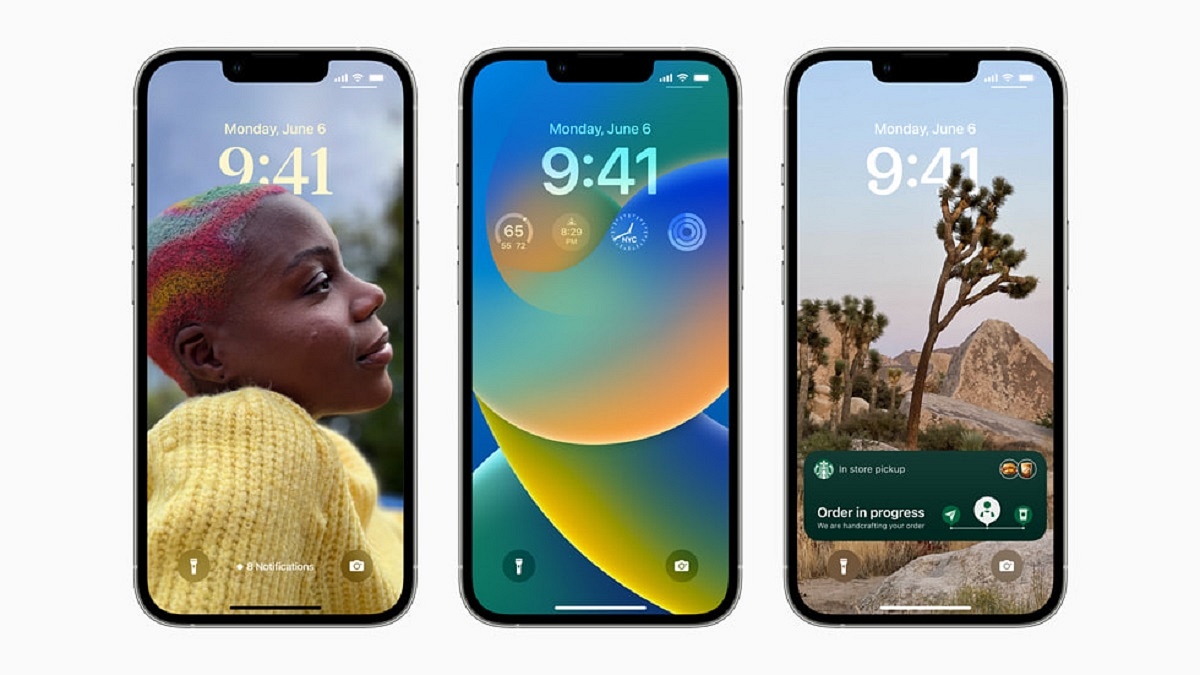
Well, iOS 16 will bring quite a few cool features to iPhones. While the majority of features are concerned with the UI’s design, such as the redesigned lock screen and battery level, the OS also offers a few more useful functions that you might not immediately notice until you dig deep.
The ability to delete those duplicate images from your iPhone is one such feature that you might not be aware of or may have only heard about. With this new feature available on iOS 16, deleting duplicate photos has become a lot easier. Apart from this, you can also merge two or more images into one and save a lot of space on your Apple iPhone.
How To Delete Duplicate Photos On iPhone?
In this article, we will help you learn how to get rid of duplicate images on your iPhone. All you have to do is follow these simple steps to delete duplicate photos:
Step 1: On your iPhone, open the ‘Photos’ app.
Step 2: On the bottom right-hand corner, tap on the ‘Albums’.
Step 3: Scroll down until you see the ‘Utilities’ section.
Step 4: Click on ‘Duplicates’. Now, you will see all the duplicate images stored on your iPhone. Scroll down and see which duplicate or identical photo you want to delete. Deleting/Merging all as the OS’ AI pretty much detects similar images accurately.
Step 5: Then, tap on the ‘Merge’ button.
Step 5: Select the images you want to ‘merge’ and the duplicate photos will be deleted.
That’s it. Photos app’s built-in tools allow you to remove duplicate photos. Note that you need an iPhone running iOS 16. A public beta is available for download, but it has certain bugs and Apple has warned about them. Or just wait for the iOS 16 rollout in September.
Who says that smartphones should not be used near water? Numerous smartphones across price segments are on the market today that can endure rain or a careless fall into a puddle.
Water resistance has recently risen to the top of the list of features for almost all high-end mobile phones. The best waterproof smartphones provide end-to-end protection against dust and water ingress which is a crucial feature for a mobile phone these days. So, this article can serve as your guide if you want to buy the best waterproof mobile phone in India.
Apple iPhone 13 Pro Max
One of the main reasons people adore Apple’s iPhone 13 Pro Max, which is perhaps the company’s most expensive phone to date, is that it is waterproof. It has a massive 6.7-inch XDR OLED screen. It is powered by the company’s brand-new A15 Bionic chipset. The iPhone 13 Pro Max is available for sale at Rs. 118,900 in India.
Xiaomi Mi 11 Ultra
The Xiaomi Mi 11 Ultra has an IP68 rating, making it water resistant for 30 minutes for up to 1.5 metres. It has a 6.81-inch AMOLED 3D curved display with QHD+ resolution. The display can refresh at a rate of up to 120Hz. Powered by the Qualcomm Snapdragon 888 processor, it has 12GB RAM and up to 256GB UFS 3.1 storage. The Xiaomi Mi 11 Ultra will cost you Rs. 69,999.
Apple iPhone SE (2022)
With an IP67 rating, the Apple iPhone SE (2022) can withstand up to 3 feet (1 metre) of water for 30 minutes. It has a 1,821mAh battery and an Apple A13 Bionic CPU for power. The handset comes with 256GB of internal storage and 3GB of RAM. Additionally, it provides 2G, 3G, and 4G LTE connectivity. The starting price of the Apple iPhone SE (2022) in India is Rs. 41,900.
OnePlus 9 Pro
The OnePlus 9 Pro features a large display, powerful hardware, and decent cameras. Additionally, the phone has an IP68 classification, meaning it is waterproof for up to 1.5 metres for 30 minutes. It has a 6.7-inch AMOLED curved display with QHD+ resolution, LTPO backplane technology, and 120Hz refresh rate support. Powered by the Qualcomm Snapdragon 888 processor, the Oneplus 9 Pro is available at Rs. 49,999.
Samsung Galaxy S20 FE 5G
With an IP68 rating, the Samsung Galaxy S20 FE 5G is protected against the incursion of water and dust. The Galaxy S20 FE can withstand a 30-minute submersion in water up to 1.5 metres deep. It sports a 6.5-inch Full HD+ Super AMOLED display that supports a 120Hz refresh rate and is HDR10+ certified. The Samsung Galaxy S20 FE 5G can be purchased online for Rs. 36,990.
Do you enjoy playing word games? If so, then you must be familiar with the Wordle game that has taken the world by storm. But if you’re not familiar with this intriguing word game, we can explain it to you.
Wordle is one of the most popular word games available online. It has a massive fan base and is owned by The New York Times. Given that it’s free, it’s ideal for those lazy days when you just want to unwind on your couch and play a couple of quick games.
How To Play Wordle?
With its daily puzzle to predict a five-letter word correctly out of six possibilities, Wordle is the world-famous, entertaining, and engaging game. It comes with words on a daily basis. Here’s how to play:
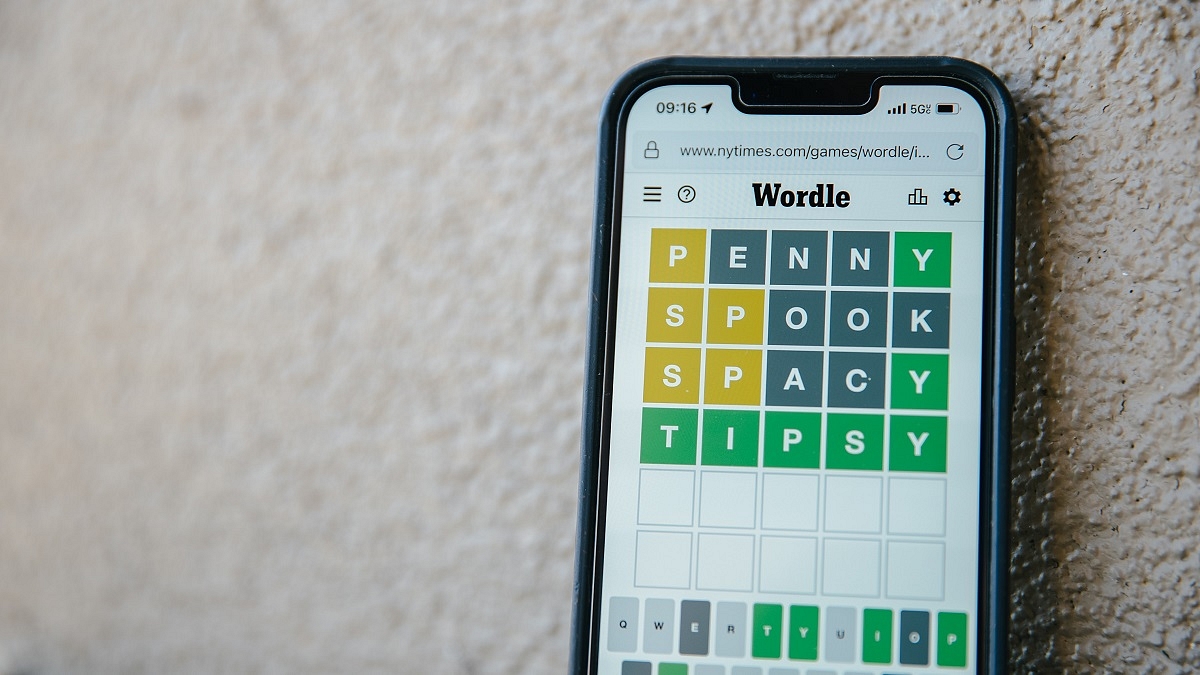
You will have six chances before you succeed or fail to guess a five-letter word that is different every day. You will receive a green-colored hint for each correct guess you make in the word’s right position.
If you guessed a letter correctly but it was positioned incorrectly, it will be indicated in yellow. If you choose the wrong letter, your turn will become grey.
Any alphabet that is missing from the word will be highlighted in black to let you know.
To submit your guess, press the enter key after making your guess. It should be remembered that the tiles’ color will change after each guess to indicate how accurate your prediction was.
Answers will never be plurals and letters can be used twice or thrice in a word.
As the game is becoming incredibly popular for its winning streaks among many users, Wordle maintains track of its players’ playthrough numbers and win or loss percentages.
Where To Play Wordle?
There isn’t a Wordle app. To play it, you need a web browser. One needs to open the New York Times Games site and play the game.
Although the Wordle website originally hosted the game, which was designed by its founder Josh Wordle, the New York Times eventually acquired it in February of this year. The best part about Wordle is that you can completely concentrate on your guessing game without being distracted by any adverts.
‘Call of Duty’ is one of the most well-known first-person shooter games ever. It can be challenging for COD fans to choose which games rank among the best. Whoever you question about the best Call of Duty games is likely to give you a different response. So, if you’re having trouble choosing which COD game to download and play, don’t worry. In this article, we have listed some of the best Call of Duty games that you should consider playing.
Call of Duty 4: Modern Warfare
Without a doubt, the COD series’ high point is ‘Call of Duty 4: Modern Warfare’. This was a revelation when it came out and is now without a doubt a classic, setting the bar for all new entries. Players are still drawn in by the tempting combination of compulsive unlocks, outstanding map design, and potent feedback. If you only ever play one ‘Call Of Duty’, make sure it is none other than ‘Modern Warfare’.
Call Of Duty: Modern Warfare 2
In addition to having some of the best Call of Duty multiplayer maps, ‘Modern Warfare 2’ also succeeded in keeping gamers interested with a compelling narrative. Building on the success of the original Modern Warfare, MW 2 follows the core characters as they deal with Viktor Makarov, a Russian ultranationalist who wants to start a war between the United States and Russia. Even nearly 13 years after its initial release, Modern Warfare 2 still performs remarkably well overall.
Call of Duty: Black Ops
Without a doubt, ‘Call of Duty: Black Ops’ is the developer’s best in the series. This spy thriller set during the Cold War has high-quality voice acting from Sam Worthington, Gary Oldman, Ed Harris, James C. Burns, and Ice Cube. The Cold War era turns out to be the ideal setting for Call of Duty, with its moral ambiguity having the potential to shock at times and its flawless usage of The Rolling Stones giving it a feel that none of the previous games have.
Call Of Duty (2003)
Sometimes the original manages to surpass much of what came after it. The original ‘Call of Duty’ was a 2003 PC game, therefore its high rating speaks volumes about the original’s quality. Yes, it did give rise to a massive brand, but that franchise later strayed from its original direction. The Call Of Duty 1 stands here in the list on its own merits.
Call of Duty: Warzone
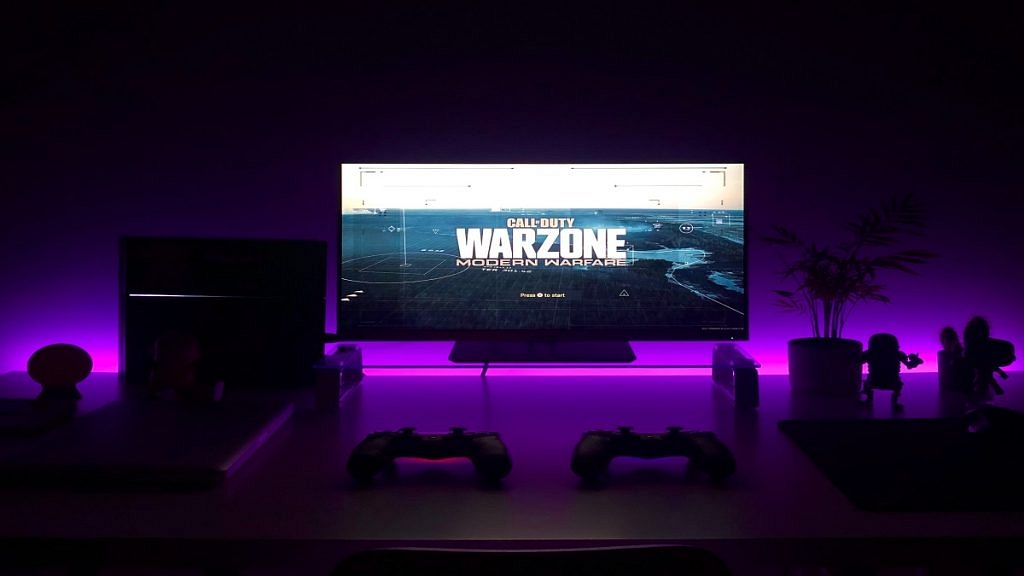
The ‘Call of Duty: Warzone’ has rapidly turned into one of the most popular since its introduction in March 2020, when the pandemic began to impact people everywhere. Proficient in holding 150 players at a time, it’s the home of Call of Duty‘s second attempt to capture the hearts of the Battle Royale crowd.
How much RAM does your computer have? How about upgrading slots that are available? Well, having the option to add extra memory down the road will help you futureproof the device and improve its performance depending on your workload.
While Windows does give you all the information you require about your computer, finding what you need can be a difficult task for many. In this post, we have detailed a few ways to check available RAM slots in Windows laptops/PC. Let’s check them out:
How To Check RAM Slots Via Task Manager
Step 1: On your computer, launch task manager. Tap on ‘Task Manager’ by performing a right-click on the Windows icon in Windows 11. Simply right-click the taskbar in Windows 10 and tap on Task Manager from the menu.
Step 2: Click on ‘Performance’ once you open the ‘Task Manager’.
Step 3: Click ‘Memory’. On the bottom right, in front of the ‘Slots used’, you ought to see the available RAM slots.
How To Check RAM Slots Using System Information
System Information is another simple way to view the RAM specifications. All you have to do is:
Step 1: Click on the Start menu.
Step 2: Now, search for ‘System Information’.
Step 3: Click on the ‘Best match’.
Step 4: Scroll to find Installed Physical Memory (RAM) and Total Physical Memory.
This will provide you with all the essential details you require regarding your installed RAM. Using the System Information tool, you can also discover other PC system specifications.
How To Check RAM Slots Through Third-Party App
To view the available RAM slots, we’ll use the CPU-Z app. Using a third-party app like CPU-Z allows you to see a lot more information than just the RAM slots.
Step 3: Then, click on the drop-down menu under Memory Slot Selection.
This will show you the available RAM slots on your computer/PC. If you have four RAM slots, you will see four Slot#s, if you have two, you will only see two Slot#s. Using this app, you can also check the RAM type, frequency, etc.
Nowadays, an essential feature in a mobile phone is the ability to take screenshots or to capture in an image what appears on the screen at that precise moment. If we talk about Realme, then it is gradually gaining traction on global markets, so there’s a high possibility you either already own a product from the brand or are eager to do so. However, are you aware of how to take screenshots on your Realme smartphones? We’ll tell you how.
How To Take Screenshot On Your Realme C35
There are many ways to easily take screenshots on your Realme C35 smartphone that are described in this post. The good news is that you don’t need to install any additional apps because this feature is already included in the Android 11 and Realme UI 2.0 operating system.
Method 1: Three Finger Screenshot
Slide your three fingers downward on the screen of your Realme C35 to take a screenshot. Here’s how to do it:
Step 1: Go to Settings on your phone.
Step 2: Tap on ‘Convenience Aid’ and then ‘Gestures & Motions’.
Step 3: Now, enable a three-finger screenshot.
Step 4: After that, swipe your three fingers down on the screen of your phone. That’s it.
Method 2: Use Key Combination
Step 1: Open the screen that you want to screenshot.
Step 2: Now, press the Power Button and the Volume down button simultaneously.
Method 3: Use Smart Sidebar
Step 1: Go to your phone’s Settings.
Step 2: Then you have to head to Convenience Aid.
Step 3: Press the ‘Smart Sidebar’ button.
Step 4: Now activate the ‘Smart Sidebar.’
Step 5: Locate the screen you wish to take a screenshot of, launch the Smart Sidebar, and then click the Screenshot icon.
Method 4: Use Assistive Ball
Step 1: Go to Settings.
Step 2: Then you have to go to Convenience Aid. After that, go to Assistive Ball.
Step 3: Turn on the Assistive Ball now.
Steps To Take A Long Screenshot On Realme C35
You will need to add one more step to the above-mentioned standard snapshot techniques if you wish to take a long screenshot of the current page or a webpage.
Step 1: You need to open the screen you wish to screenshot.
Step 2: Then, take a screenshot using any of the aforementioned techniques.
Step 3: Now click the screenshots you just took.
Step 4: Next, press the ‘Scroll’ button.
Step 5: After the page has automatically scrolled to the location where you wish to take the screenshot, click ‘Done’. That’s it.
WhatsApp allows users to stay connected with friends and family. When we want to know what’s going on around us but don’t want to divulge our identities, however, online anonymity comes into play. The Meta-owned app allows you to hide online status and message delivery data. But did you know that you can also view other people’s status in secret? By default, WhatsApp Status keeps track of who has viewed it. However, there are certain methods you can use to view someone’s status without their knowledge. Wondering how? Read on.
By turning off read receipts or viewing it offline, Android and iOS users can view the WhatsApp Status of their contacts without letting them know. On your phone, you can also check the hidden WhatsApp status folder to avoid viewing the Status directly.
Here’s How To View Other’s Status Without Letting Them Know
Method 1: Turn Of Read Receipts
Step 1: Open WhatsApp on your phone or iPhone and click the three dots icon that is present on the screen.
Step 2: Then, go to ‘Settings’ and head to the ‘Account’ option.
Step 3: To check the advanced features and turn off the ‘Read Receipts’ option, go to ‘Privacy.’
Method 2: Via Phone’s File Manager
Keep in mind that only Android users are allowed to use the feature.
Step 2: Open internal storage and click on WhatsApp
Step 3: Open the media folder and tap on the ‘Status’ folder.
Step 4: Here, you can find all the images that your contacts have posted as WhatsApp Statuses.
In case the folder is not visible, navigate to File Manager settings and enable the ‘Show hidden files’ option. Then, you will be able to see the folder.
Method 3: Switch To Airplane Mode
You can also use Airplane mode on your mobile phone to access WhatsApp status. Here is what to do:
Step 1: Turn off the mobile data of your phone and switch on the Airplane mode.
Step 2: View the status on WhatsApp by heading to WhatsApp. Now, you have the option to see WhatsApp status without letting others know. That’s all.
Matrimonial sites are online platforms designed for individuals seeking to find a spouse
These sites allow users to search for potential partners based on various criteria
Matrimonial apps offer a convenient and accessible way for people to find a compatible partner
Nowadays, marriages are arranged through a variety of free matrimonial apps, which were formerly thought to be made in heaven. The apps offer a simple user experience that makes finding a good match easier. They also secure user privacy and are safe to use.
The best thing to happen to arranged marriages in India is matrimonial apps. There are many matrimony apps available in India and most of them are free. However, for additional features, premium memberships are available for purchase. Here, we’ve compiled a list of the top matrimonial apps for your phone that you could find useful. Also Read | Finding Love? These Are The Best Dating Apps In India You Should Try
Shaadi.com
Shaadi.com is a popular service that claims to make a new match every 2.4 seconds and has 5 million success stories. The app allows users to effortlessly conduct searches based on caste, education, height, religion, astrology, and photographs. There are also paid membership options that offer a range of opportunities, as well as instant messenger options that allow users to talk to people they find interesting. This is a free matrimony app for both Android and iOS.
People frequently use Jeevansathi.com when looking for a life partner who matches their preferences. While the online matrimonial site links millions of individuals, Jeevansathi also has offline Match Point Centers all throughout the country and a dedicated Customer Care team for more in-depth and one-on-one conversations with potential brides, grooms, and/or families. This app provides you with one of the best matchings algorithms.
BharatMatrimony
BharatMatrimony is one of the most popular and reliable matrimonial apps in India. You can browse through lakhs of compatible profiles online with the assurance that your personal information is secure. Additionally, you can try out the Matrimony messenger. This top matrimonial app has won numerous awards and was listed in the Limca Book of World Records for having the most documented marriages online.
Betterhalf.ai has only one goal: to provide a safe environment for those who want to settle down and are willing to take the initiative to locate a compatible life partner of their own choice, at their own pace, and without the direct involvement of parents. It provides users with the quickest matching in the world in a single click. With just one click, it can forecast a user’s behavioral traits, religion, language, salary insights, community, relationship choices, and behavioral attributes.
Notifications help people stay updated with everything that’s happening in the collection of installed apps and services on a Windows PC. But receiving what seems like a continuous stream of notifications can be daunting and exhausting. You have therefore come to the right place if you’re seeking for a technique to turn off notifications in Windows 11, say for a particular app or the OS as a whole.
Windows notifications are enabled by default on most Windows 11 PCs. However, some apps and websites may ask you to turn it on manually. This allows notifications to be sent even if the app is not actively open. These notifications can pile up and eventually become useless. In this article, we will help you learn how to turn off notifications in Windows 11 and reduce distractions like a pro.
Steps To Turn Off App Notifications In Windows 11
Nothing annoys anyone more than a machine telling its users what to do. Microsoft’s suggested notifications for Windows 11 feature promotion are sent out. Although this might be helpful for beginners, power users frequently find it unnecessary and forced. Here’s how to turn them off for good in Windows 11 if you don’t want to get distracted with suggested notifications:
Step 1: Tap the Windows start menu icon at the bottom to get started.
Step 2: Now, click on ‘Settings’.
Step 3: Then, click on ‘Notifications’.
Step 4: Locate the app you want to stop receiving notifications for by scrolling down and looking for it.
Step 5: Now, on the right side, tap where it reads ‘On’ to turn off your notifications.
Step 6: Simply scroll up and click the button next to the word ‘Notifications’ to disable notifications for all apps.
In Windows 11, you can swiftly turn off app alerts for specific apps or for all apps. You can stay focused on the task that you are doing on screen by turning off notifications. We advise you to disable notifications only for certain irksome apps. For example, WhatsApp or Telegram apps like these may delay your work by continuously pushing notifications from channels and groups.
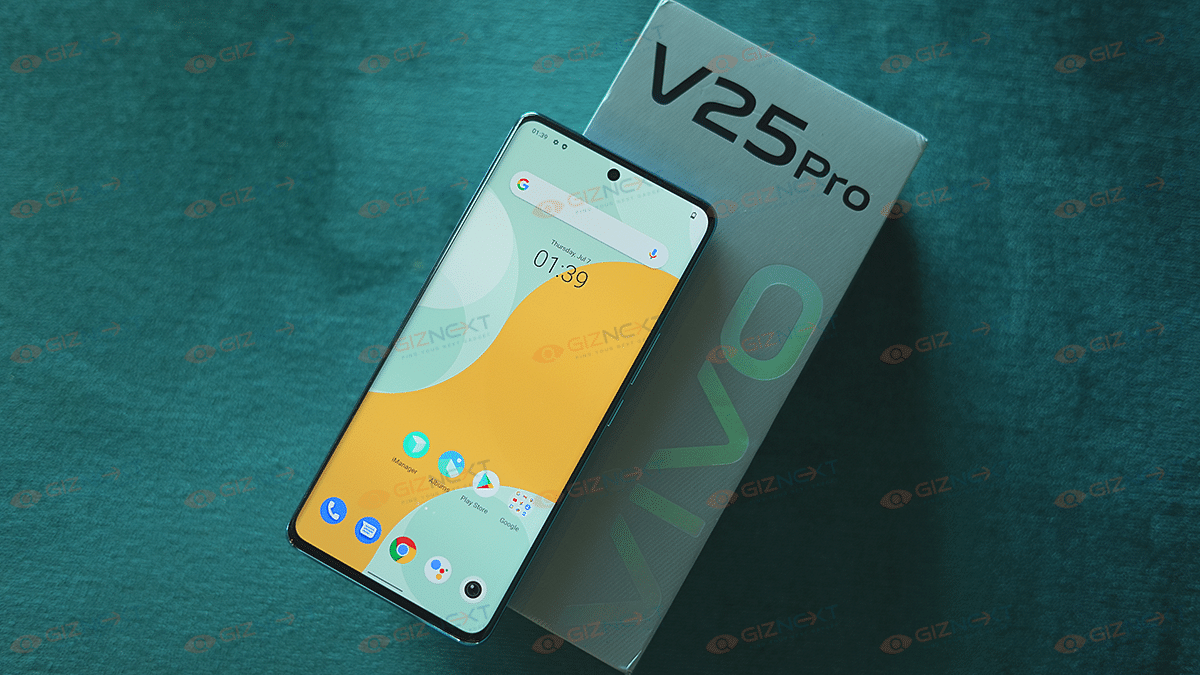
Vivo has introduced the V25 series in India comprising the vanilla V25 and the Vivo V25 Pro. These smartphones remain true to the essence of the V-series and provide cutting-edge hardware and a color-changing back panel in V25 Pro. Selfies are another feature that has been a constant improvement in the V Series.
Vivo has made incremental upgrades to its selfie cameras every year, particularly with its V series. The Vivo V25 Pro offers a curved-edge display, an enhanced chipset, and a good camera. At first glance, Vivo appears to have done well enough to support its pricing point.
So, how does the V25 Pro stack up? Is the phone a good purchase? We have been using the phone for a short while and here is what we think about the phone.
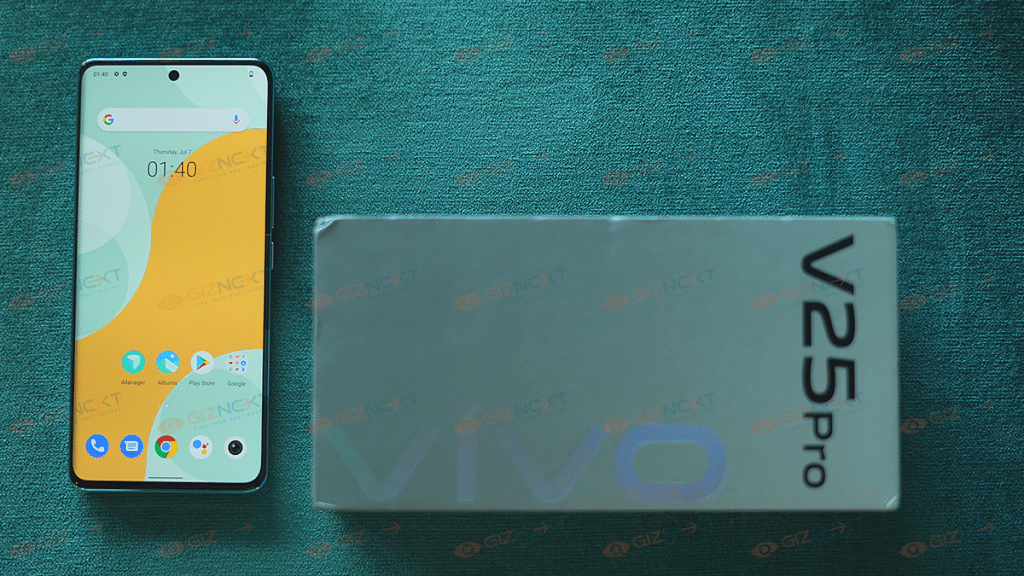
What’s Inside The Box?
Vivo V25 Pro handset (main unit)
USB Type C to Type A Charging cable
66W Charging Brick
SIM eject tool
Quick start guide
Warranty card
Phone case
Design
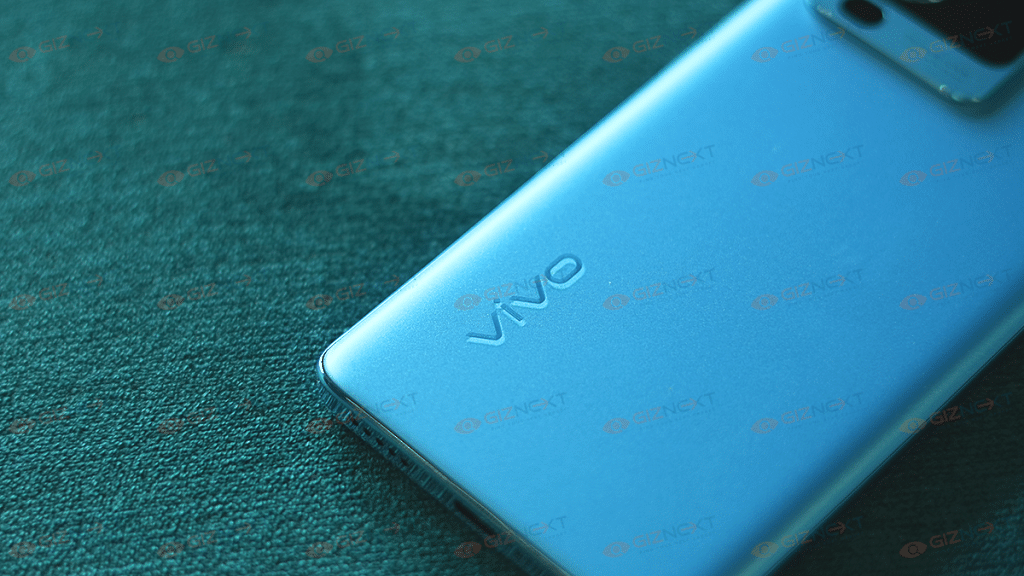
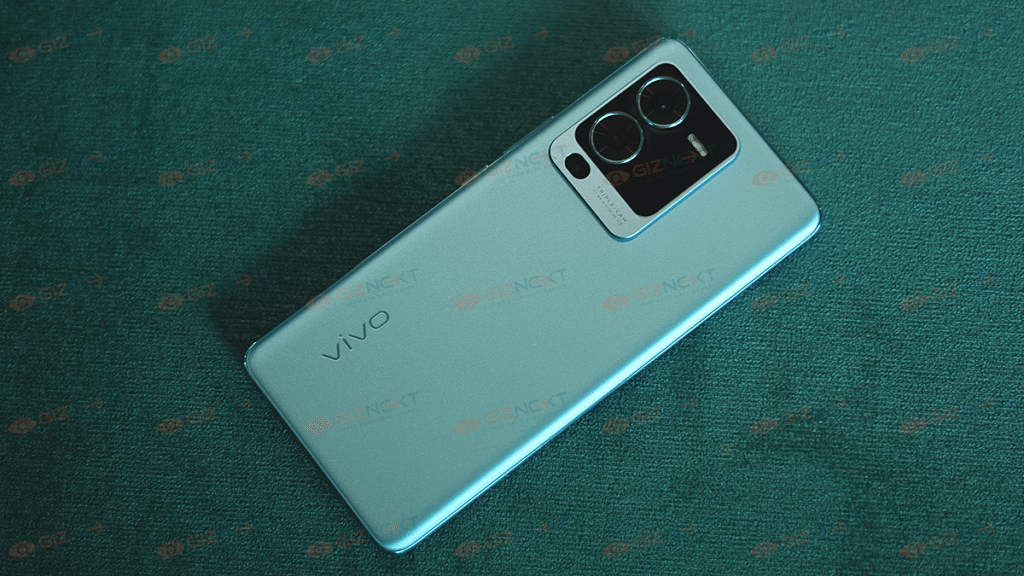
Vivo has done a great job of providing a soft-touch matte finish on the V25 Pro. The handset’s polycarbonate frame has a lustrous, chrome-like finish. Color-changing anti-glare glass, used for the back panel, appears to be effective in preventing fingerprints enhancing the appeal simultaneously. One thing to keep in mind is that only the Sailing Blue finish is capable of changing the color which we are using right now. Additionally, the color-changing feature isn’t as impressive as it was with the V23 Pro from the previous year because it merely shifts from a brighter shade of blue to a darker one under UV radiation.
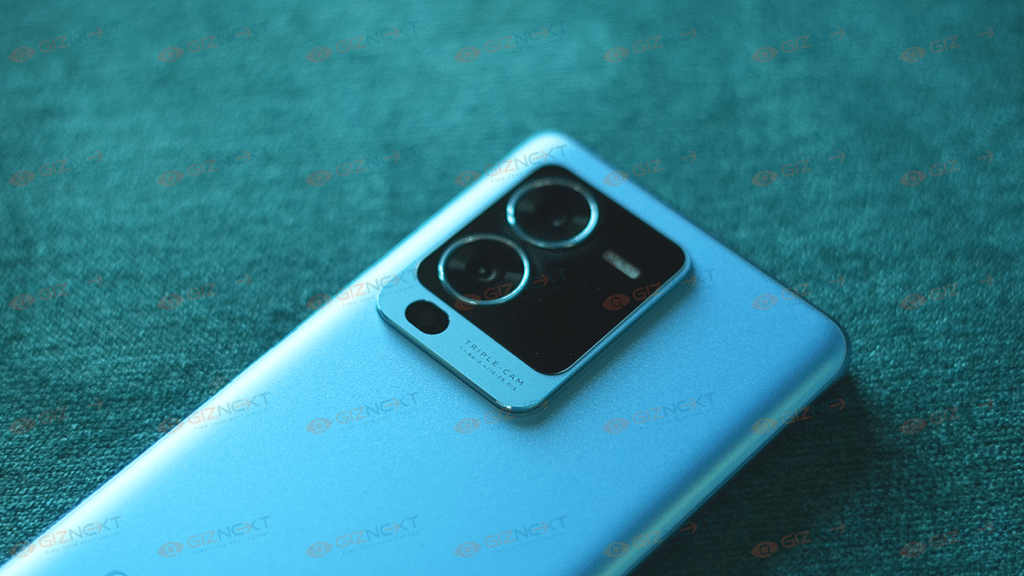
The Vivo V25 Pro has a curved screen, but even the back is curved, giving the device a slim and sleek design while holding. The phone’s back panel has a rectangular bump for the cameras. It has the three sensors aligned vertically, which is nice. The device looks and feels truly premium.
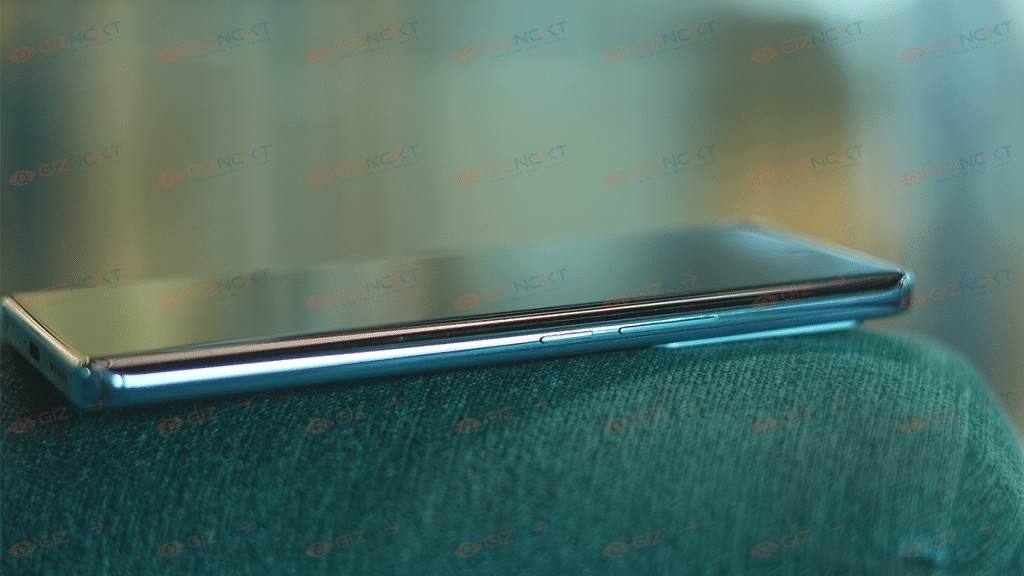
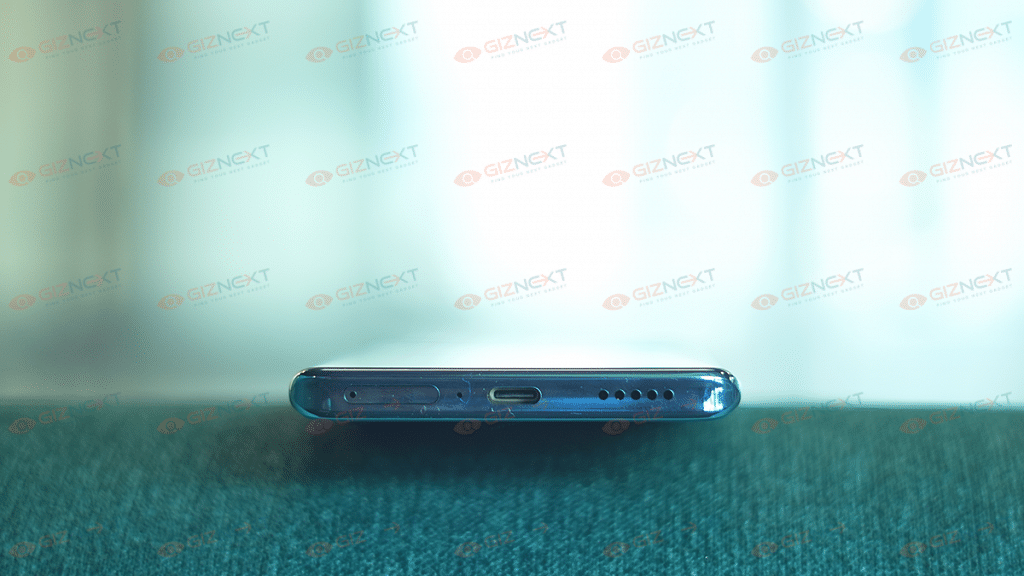
The volume rocker and power button are located on the right side of the handset, whereas the left panel is kept empty. The speaker grille, USB Type-C charging connector, and SIM card slot are all located on the bottom.
Well, the color option of Sailing Blue that we have is what has us most impressed. With curved edges on the side and decent weight distribution, holding the V25 Pro is a delightful experience in itself.
Display
The 6.56-inch, curved-edge display of the Vivo V23 Pro has thin bezels all around it. These days, curved displays are a feature reserved for mostly high-end smartphones and is yet to become a norm with affordable and budget phones. It is an AMOLED panel with a refresh rate of up to 120Hz and a touch sampling of up to 300Hz. This is an improvement over the 90Hz display found on the V23 Pro and should be used for playing video games.
The AMOLED display has good brightness levels and is risk-free for outdoor use. When compared directly to other products in this price range, color reproduction is also passable but can fall short.
With a 100 percent DCI-P3 wide color gamut, the display is also color accurate. Additionally, there are certifications for HDR 10+, Netflix HDR, and low blue light from SGS.
Processor
The Vivo V25 Pro gets the MediaTek Dimensity 1300 SoC under its hood. Our review unit came with an 8GB / 128GB configuration but the RAM 3.0 tech increased the available RAM by an extra 8GB from the ROM.
The smartphone comes with a ‘Game Boost Mode’ with optimization features. Also, it features a linear vibration motor for haptic feedback. The company has also worked on thermals, with the new Bionic Cooling System, featuring liquid cooling.
Since it has the Dimensity 1300 SoC, our gaming experience was quite decent. Apex Legends ran without any stutters at HD graphics and a High frame rate. It has been smooth and fast to navigate the FunTouch OS while doing a bit of gaming, processing images, and other tasks.
As for software, the phone runs Vivo’s Funtouch OS 12 which is based on Android 12. During our initial usage, we did notice plenty of preinstalled third-party apps. There is a ton of bloatware, some of which can be removed and some of which can be disabled.
Camera
Given that it’s a Vivo V series smartphone, the imaging system is quite advanced. The Vivo V25 Pro sports a triple camera system. It features a 64MP main sensor, an 8MP wide-angle sensor, and a 2MP macro sensor. Meanwhile, the selfie shooter is a 32MP unit. It’s interesting to note that the front camera enables tracking eye autofocus and should be able to provide clear photos and videos of the user.
In daylight, the camera clicks nice, detailed photos. Both the rear and selfie cameras effectively use HDR. We also observed some level of consistency in the color tuning of the ultrawide and primary cameras when clicking photos in the daytime.
In low light situations, the processing algorithm has the tendency to smoothen out photos to reduce noise. However, there are some visible grains, which makes the images appear less sharp. Thanks to OIS, the primary camera takes far better nighttime photos than the ultrawide.
The V25 Pro really shines when it comes to selfies. The 32MP camera front snapper captures a good amount of facial details. The images that we clicked from its front camera were crisp and beautiful.
Coming to the videos, the phone can record optically stabilized videos up to 4K resolution at 60fps. However, stabilized ‘Super Night’ films can only be recorded at 1080p at 30fps, while super stable recordings with hybrid stabilization are limited to 1080p at 60fps. Additionally, you cannot use HDR and Super Night settings at the same time.
Battery
The Vivo V25 Pro packs a 4,830mAh battery. We were able to squeeze out about seven and a half hours worth of screen on time during our usage, and in a real-world scenario, it can last an entire day without charging. It also has good standby time, and it only loses about a percent of its battery overnight when it’s not being used.
The battery can be charged with the bundled 66W FlashCharger. This seems slightly lower than the competition. We would have liked to see 80W charging at this price point.
Final Verdict
With features catered specifically to their requirements, the V25 Pro is a selfie enthusiast’s dream. A whole smartphone experience, on the other hand, revolves around striking the ideal balance between cameras, performance, and battery. While the smartphone leaves a little something to be desired when it comes to performance and battery life, it does scores high on design and selfie capabilities.