Categories
Accessories Featured How To

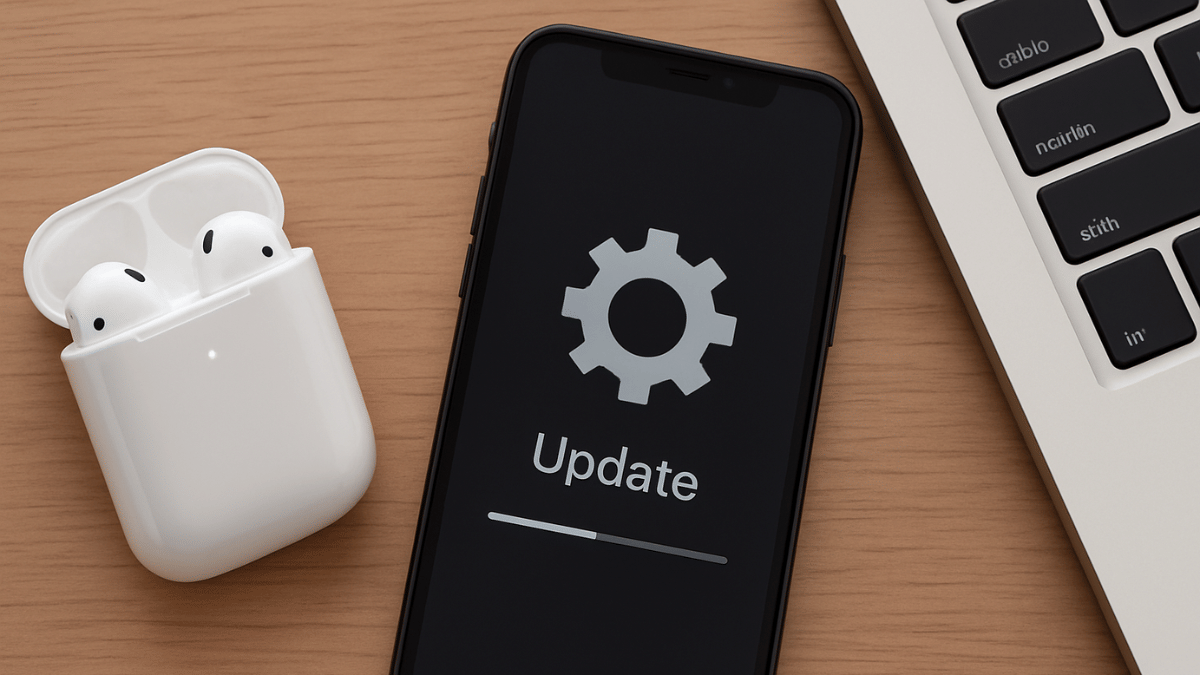
Apple AirPods Maintenance Guide: How To Check And Update AirPods, AirPods Pro Firmware Version

Key Highlights

  • Apple AirPods, AirPods pro firmware update enhances performance
  • Released as OTA
  • Manual steps can be performed to check and update AirPods firmware

Apple is consistent with releasing OTA updates for its mobile devices and gadgets to boost overall performance and security. While OS updates are common for iPhones, iPads, and MacBooks, they also are for rolled out to smart accessories including the Apple Watch and Air Pods TWS. For the latter, it’s rather less talked about with most of you likely being unaware of any firmware rollout for AirPods and AirPods Pro. That wouldn’t be the case going forward. In this guide, we are making it easier for you to check and update your AirPods/ AirPods Pro firmware easily with just a few taps.

For the tech geeks, stay updated with the latest cutting-edge gadgets in the market, exclusive tech updates, gadget reviews, and more right on your phone’s screen. Join Giznext’s WhatsApp channel and receive the industry-first tech updates.

Also Read: Instagram Edits: New Standalone Editing Insta Tool? 10 Easy Steps To Use!

Steps To Check AirPods, AirPods Pro Firmware Version

Step 1: Pair your AirPods with your iPhone

Step 2: Go to the Settings menu on your iPhone

Step 3: Navigate to the Bluetooth Settings

Step 4: Tap on the “i” icon placed next to the AirPod’s name

Step 5: Now, head to the About section where the firmware version will be listed.

Also Read: Summer 2025 Hacks: Use This Basic Air Conditioner Timer Feature With/ Without Remote To Save Electricity Bills

Steps To Update Apple AirPods Firmware To The Latest Version

Step 1: Check the iPhone or iPad’s iOS version. Update it if required to proceed to the next step.

Step 2: Connect your iPhone or iPad or Mac to Wi-Fi and then make sure the AirPods are within range of the device.

Step 3: Pair the AirPods with the iPhone/ iPad/ or Mac.

Step 4: Keep the AirPods in the charging case and ensure the lid is shut.

Step 5: Connect the AirPods’ charging case to a power source

Step 6: Now, wait for at least 30 minutes for the firmware update to be installed

Step 7: Open the charging case and re-pair the AirPods with the iPhone/ iPad or any other compatible device you want.

Step 8: Do verify the firmware version by following the procedure mentioned above

Also Read: WhatsApp Advanced Chat Privacy: How To Add Extra Safety Layer For WhatsApp Chats?

Apple AirPods, AirPods Pro Firmware Update: Why Is It Important?

Apple AirPods and AirPods Pro firmware update are crucial and it is advised that you install the updates once available. All such firmware updates released for AirPods, AirPods Pro, or AirPods Max ensure these TWS earbuds functions properly and the bugs (if any) are fixed. Overall, the firmware updates enhances the AirPods performance by improving the connectivity, optimising battery life, and refine sound output.


Categories
Featured Info TV

Amazon Great Summer Sale 2025: Grab Up To 65 Percent Discounts On New Smart TVs

Key Highlights

  • Up to 65% off on smart TVs from top brands
  • Free 48-hour installation and extra savings with No Cost EMI
  • 10% instant discount on HDFC credit card and EMI till May 7

Looking to upgrade your TV this summer? Amazon’s Great Summer Sale 2025 is the perfect time to bring home the latest smart TVs at amazing prices. With discounts of up to 65 percent on top brands and added bank offers, this sale is a treat for every entertainment lover. From premium 4K QLED TVs to budget-friendly Full HD options, there’s something for everyone. Plus, HDFC credit card users can get up to 10 percent instant discount on credit card and EMI payments. Here are some of the best deals on newly launched smart TVs available during the sale.

Also Read | Redmi 43-in 4K UHD Vs Oneplus TV 43-in 4K UHD Budget Smart TV Comparison: Best TV For Your Living Room

Big Deals On Smart TVs

Smart TV ModelSale Price
TCL V5C SeriesRs. 18,990
Lumio Vision 7Rs. 29,999
Acer V PRO SeriesRs. 32,999
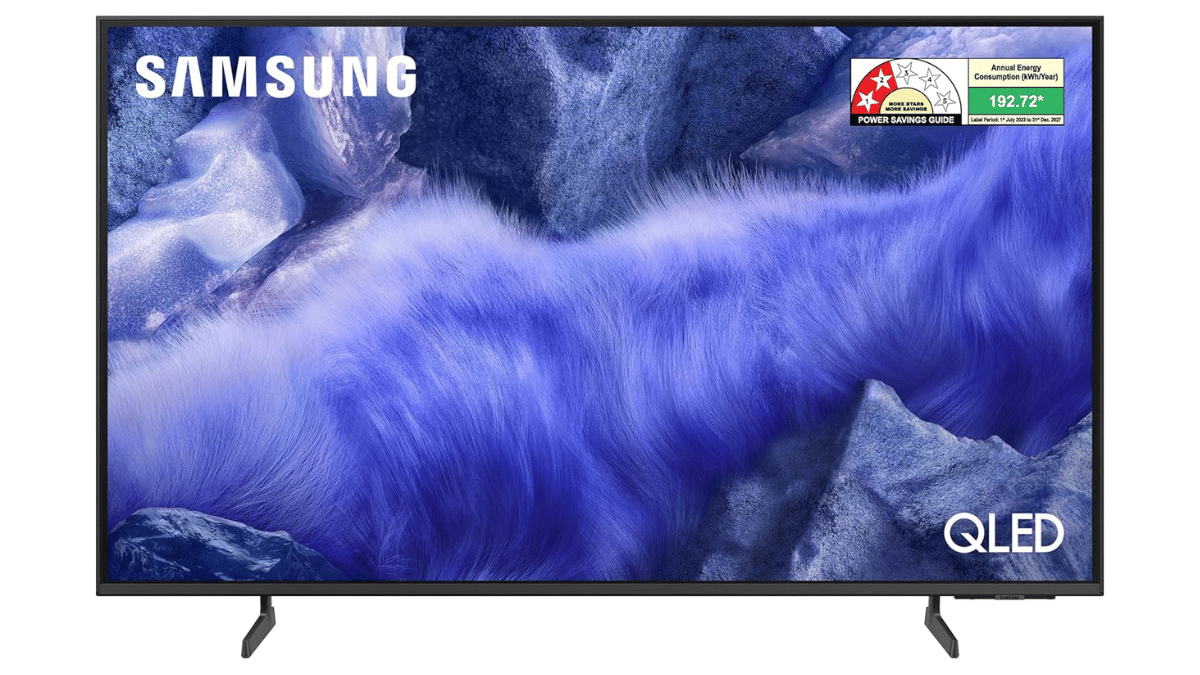
Samsung Vision AIRs. 52,990
VW GQ1 Pro SeriesRs. 59,999

TCL 40-inch V5C Series Full HD Smart QLED TV

  • Offers a rich Full HD QLED display with HDR10
  • Dolby Audio and a sleek, bezel-less design create a luxurious atmosphere
  • Support for Google TV with integrated apps like Prime Video and Netflix
  • Quad-core processor ensures lag-free performance

Lumio Vision 7 43-inch 4K Ultra-HD Smart QLED TV

  • Features the fast BOSS Processor for smooth performance
  • Comes with Mini LED technology, Dolby Vision, and Dolby Atmos
  • Runs on Google TV for seamless streaming
  • Perfect for gaming and cinematic entertainment
  • Extra savings: Rs. 2,500 bank discount + Rs. 3,000 exchange bonus

Acer 55-inch V PRO Series 4K Smart QLED Google TV

  • Google TV and Android 14 on an AI chipset
  • Frameless design with Dolby Vision, Dolby Atmos
  • Dolby Vision and Dolby Atmos are features of the frameless design
  • Supports video calls and personalized content
  • MEMC and HDR10-HLG make visuals smoother and clearer

Samsung 55-inch Vision AI 4K Ultra HD Smart QLED TV

  • Delivers lifelike picture with Pantone-validated colors
  • AI-powered features and Samsung Knox for added security
  • Great for immersive viewing with advanced display tech
  • Comes with up to 12-month no-cost EMI options

Also Read | OLED vs. QLED vs. Mini-LED: Which TV Display Is Best For You?

VW 75-inch GQ1 Pro Series 4K Ultra HD Smart QLED TV

  • Large 75-inch screen with HDR10+ and 4K resolution
  • Includes Dolby Audio, MEMC, and a 2.1 channel system with subwoofer
  • Comprises a 2.1 channel system with a subwoofer, Dolby Audio, and MEMC
  • Voice control without hands and pre-installed OTT apps
  • A top choice for movie buffs and large families.

For the tech geeks, stay updated with the latest cutting-edge gadgets in the market, exclusive tech updates, gadget reviews, and more right on your phone’s screen. Join Giznext’s WhatsApp channel and receive the industry-first tech updates.

Categories
Apps Featured How To

Need Emergency Funds? Here’s How To Apply For Personal Loan Via Google Pay

Key Highlights

  • Google introduces personal loan services for GPay
  • Will help with emergency fund
  • Minimum personal loan amount one can apply for is up to Rs. 30,000

Google Pay is the amongst the most secure UPI apps available for Android and iOS users in India. From making daily payments to monthly bills, Gpay allows it all with just a few taps. GPay is being consistently upgraded to be more than just a basic UPI app that can help users send or receive money. Features like split bills, bank transfer to self and others makes it more user-friendly. But now, Google has introduced a new feature that sets Google Pay apart from the rest in the UPI race. GPY users will now be able to apply for personal loas directly via the app.

For the tech geeks, stay updated with the latest cutting-edge gadgets in the market, exclusive tech updates, gadget reviews, and more right on your phone’s screen. Join Giznext’s WhatsApp channel and receive the industry-first tech updates.

Also Read: GPay Payment Split: Get Done With Hassle Free Bills/ Payment Splits On Android, iOS

Google Pay Personal Loan Feature: Total Loan Amount

Google Pay has released a new personal loan feature for its users. If you are using Google Pay app for UPI services, you can also make use of the personal finance feature. This is something that can be helpful in situations where you need funds for medical or other emergencies.

Coming to the loan services and amount, all the Google Pay users will be able to apply for personal loan services using the app itself. No additional paper work or standing on long queues in a bank would be required to apply for personal loan when using GPay app. Instead, all can be done with just a few taps. This will be an entirely digital process like UPI where customers will be eligible for up to Rs. 10,00,000 or personal loan.

  • Minimum personal loan amount limit: Rs. 30,000
  • Maximum personal loan amount limit: Rs. 40,000
  • Eligibility Criteria: Will depend on the user’s financial profile

If you are wondering about the re-payment of the loan, then you’ll be glad to know that Google Pay is offering flexibility with payments where one can select the timeline for loan repayment. A minimum EMI amount of up to Rs. 2,000 will be applicable for the basic loan amount of Rs. 30,000.

Also Read: Enhance WhatsApp Privacy: How To Blur Images On WhatsApp Mobile, Desktop App

Eligibility Criteria, And Application Process

  • Customer should have a steady source of income (could be self-employment or a jon)
  • Customer should be at least 21 years for personal loan application
  • Bank account should be linked to Google Pay
  • KYC verification should be complete while applying for the loan

Below are the steps to apply for personal loan using Google Pay

Step 1: Open Google Pay app

Step 2: Navigate to the “Manage Your Money” tab

Step 3: Locate the “Personal Loan” feature and tap on it

Step 4: Enter your personal details including source of income

Step 5: Now, upload your KYC documents such PAN and Aadhaar

Step 6: Sign the document digitally

Step 7: Once all the above steps are completed and the loan is approved, the amount will be credited to the linked bank account.

Categories
Apps Featured How To

Facebook Tips And Tricks: How To Save And Download Facebook Live Videos Before Deletion

Key Highlights

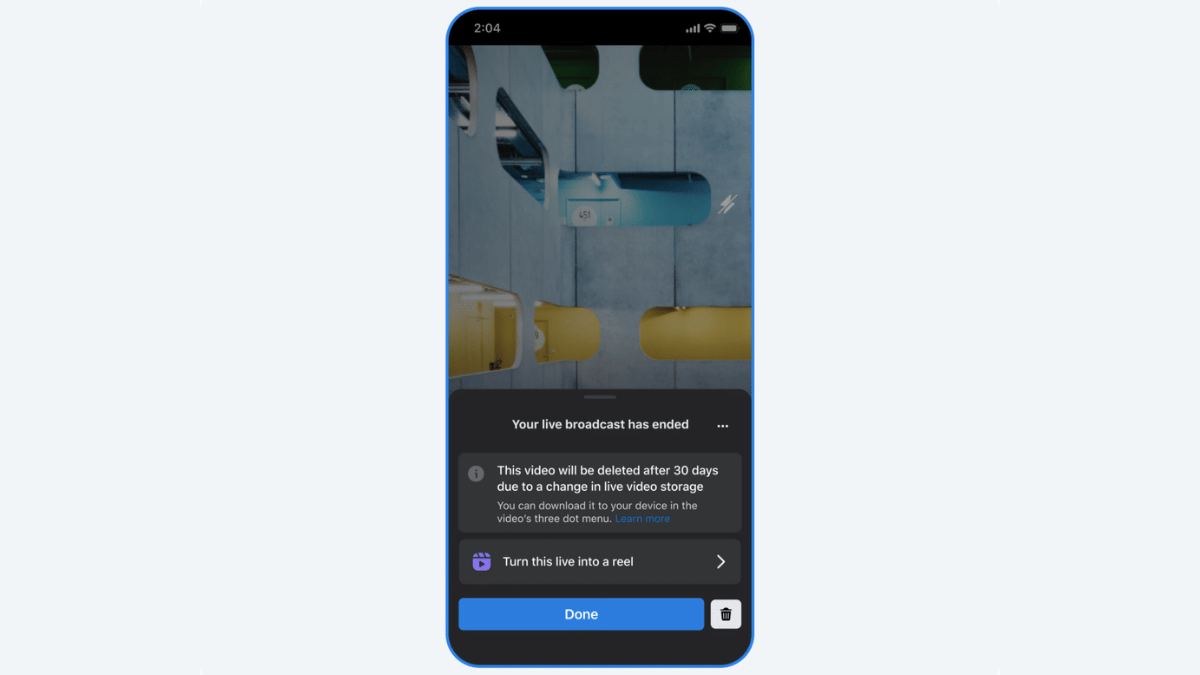
  • Facebook Live videos now gets removed automatically after 30 days
  • Move comes as a part of updated storage policy
  • Bulk download policy available for multiple videos

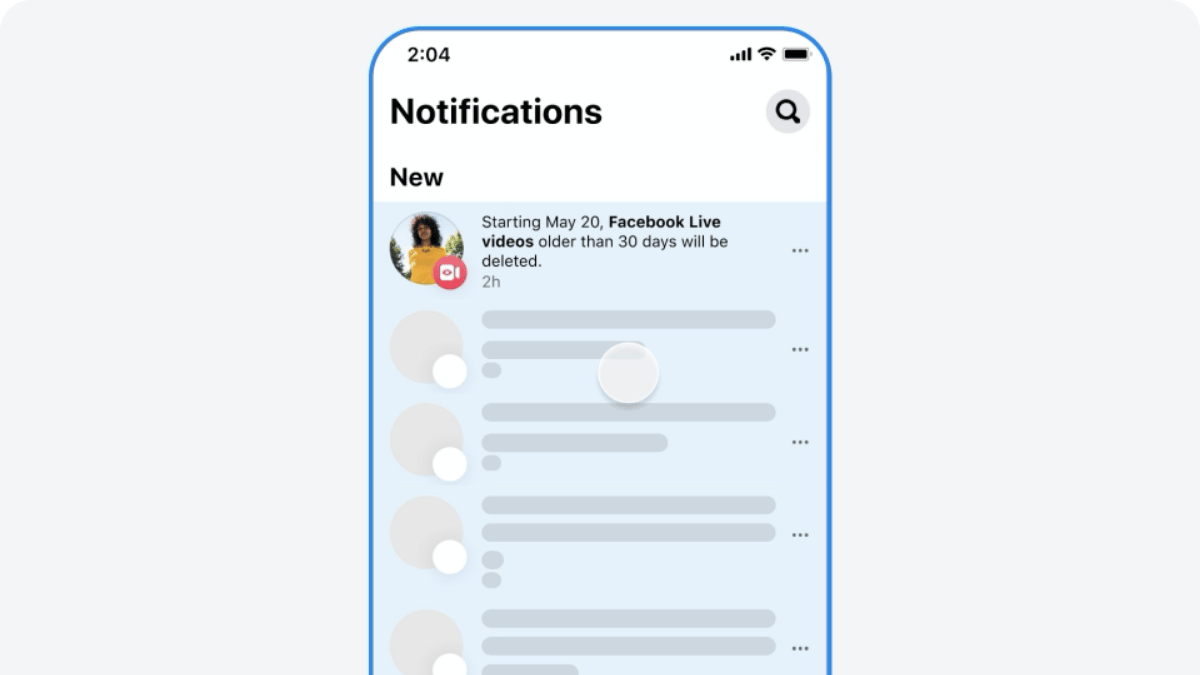
Earlier in February this year, Facebook revised its storage policy guidelines for its platform. One direct impact was the stopping of live video storage on Facebook for unlimited period. After introducing a 90-day grace period to download old live videos library, Facebook has now announced a new timeline of 30 days. If you are frequently going live on Facebook and have a large database of old live videos, you should save it offline or download it. In this guide, we share the steps to do so.

For the tech geeks, stay updated with the latest cutting-edge gadgets in the market, exclusive tech updates, gadget reviews, and more right on your phone’s screen. Join Giznext’s WhatsApp channel and receive the industry-first tech updates.

Also Read: Instagram Edits: New Standalone Editing Insta Tool? 10 Easy Steps To Use!

How To Download Facebook Live Videos Before 30 Days Deletion Timeline (Single Videos)

Step 1: Open Facebook mobile app

Step 2: Visit the Activity centre

Step 3: Locate “Your Live Videos” option

Step 4: Move to Videos or Live tab on your profile, page, or Meta Business suite

Step 5: Locate the video and tap on it for full screen mode

Step 6: Now, tap on the three dots to download the video

Also Read: WhatsApp In-App Language Translation Feature In Works: Update

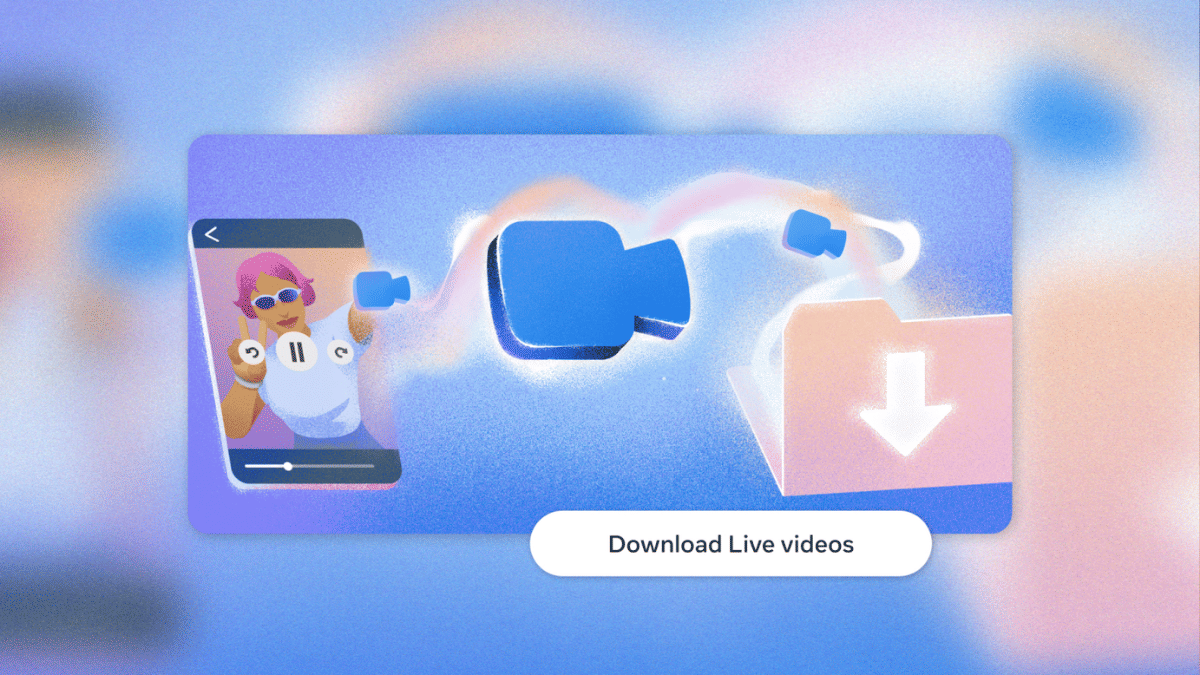
How To Download Facebook Live Videos In Bulk

Step 1: Open Facebook app and tap the notofication for storage policy update to enter into the download flow.

Step 2: Click on “Download Live videos” option

Step 3: Confirm the file download location (smartphone/ tablet, laptop/ pc).

Step 4: Select th date range for the live videos that will be downloaded on the selected device

Step 5: Click “Create File”

Categories
Apps Featured

YouTube Now Allows Premium Subscription Sharing Between Two People: Plan Price, Features

Key Highlights

  • YouTube bringing Premium subscription plan sharing option
  • Will allow sharing Premium plan with family member
  • Pilot phase started already in select regions

YouTube’s growth has been immense in the last few years. What earlier was primarily a free user-oriented entertainment hub is now a full fledged platform for both public and creators. For the former, it’s no more free services and you have to purchase subscription plans to watch ad-free videos for an uninterrupted media watching experience. A new subscription is being introduced that intends to make YouTube premium services more accessible to the users. The two-person subscription sharing feature is what YouTube’s rolling out for the masses that will allow sharing premium subsciption between two users. Let’s dive into the details below:

For the tech geeks, stay updated with the latest cutting-edge gadgets in the market, exclusive tech updates, gadget reviews, and more right on your phone’s screen. Join Giznext’s WhatsApp channel and receive the industry-first tech updates.

Also Read: Exam Results: How To Check CBSE, ICSC, ISC, UPMSP Exam Results Via Digilocker App

YouTube Two-Person Subscription Sharing Plan: What Is It?

YouTube subscription plans starts at a monthly charges of around Rs. 99 (for students going all the way to up to Rs. 299 (for families) allowing single individual or family members get all the premium services. However, it’s only the family pack where you can login and use YouTube on multiple devices. But now, a new subscription is under pilot where YouTube premium subscription can be shared between two people. You can either share your YouTube premium plan’s credential with one of your family member or any friend with this package.

Also Read: Want Free Delivery And Streaming? Here’s How To Join Amazon Prime On Mobile

YouTube Two-Person Subscription Sharing: Plan Costs, Features

YouTube is selling the two-person subscription plan at a monthly charge for Rs. 219. Currently, this subscription plan is under trial phase and is being offered in some select regions. The market where users can access two-person subscription plan includes some parts in France, Hong Kong, India, and Taiwan. Besides, during the pilot phase, the YT music subscription plan will be available at Rs. 149 per month.

Full Subscription Price List

  • YouTube Two-Person sharing plan (latest): Rs. 219
  • YouTube Premium subscription (for students): Rs. 89
  • YouTube Premium subscription (Individual): Rs. 149
  • YouTube Premium subscription (Family): Rs. 299

Features

  • Ad-free playback experience
  • Video offline download option
  • Background video playback option

Also Read: Top YouTube Channels For Exploring Hindu Mythology

Categories
Apps Featured

Telegram May 2025 Updates: Enhanced Group Call Privacy, Automated Business Accounts, And More

Key Highlights

  • Telegram releases multiple new updates with May patch
  • Privacy enhanced for group calls,
  • Automated business accounts and gifts features added
  • New gesture control also introduced

Telegram has just released a bunch of new features for Android and iOS users. The May 2025 update patch for Telegram adds a host of feature that enhances the privacy for group calls, improves gesture navigation, and more. Let’s take a look at all the latest updates that the May 2025 patch brings along for Telegram and how to use them:

For the tech geeks, stay updated with the latest cutting-edge gadgets in the market, exclusive tech updates, gadget reviews, and more right on your phone’s screen. Join Giznext’s WhatsApp channel and receive the industry-first tech updates.

Also Read: How To Use Telegram Without Internet? Top 5 Working Tricks In 2025

Group Calls Enhanced Privacy And Easy Accessibility

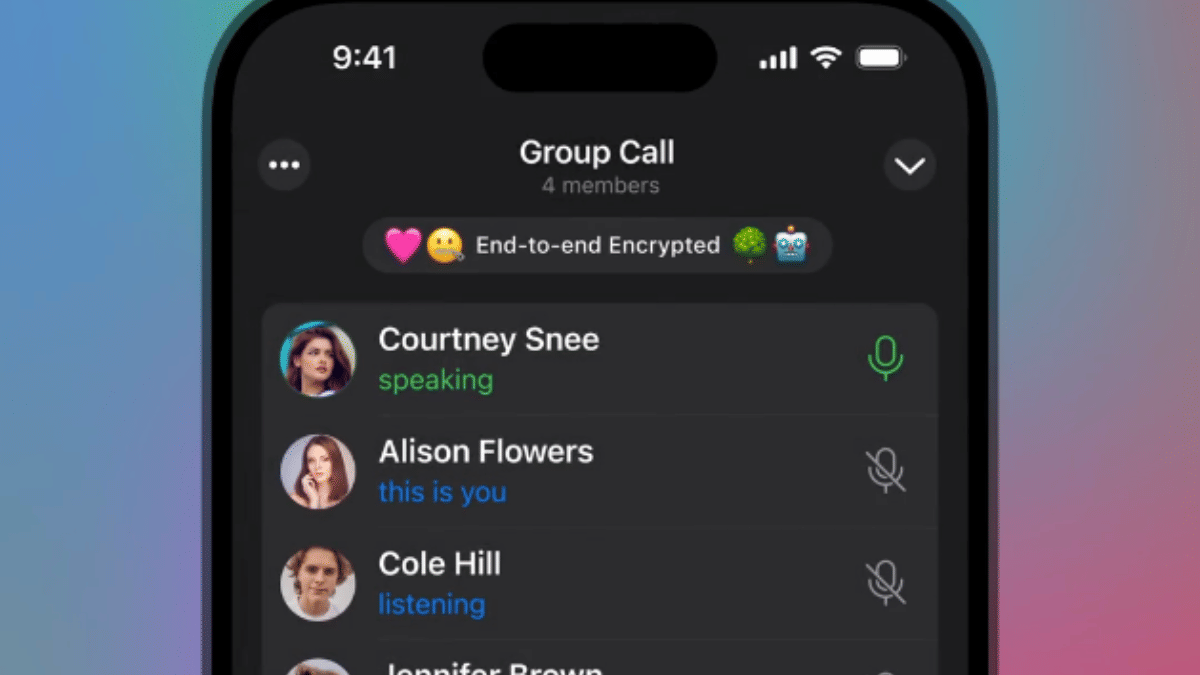
Telegram has made instant group calls more private yet easily accessible with the latest update. Users will be able to make spontaneous group video calls with specific members without leaving the group chat. This will be ideal for professional meetings and calls where the admin will be able to share the screen, media and also invite more members to the call.

  • Up to 200 particpants can be added in any ongoing group call
  • Video, audio, and screen can be shared
  • Invitation to other members or contacts can be sent via a call link or QR code
  • Matching emoji can be used for end-to-end encryption verification

Also Read: WhatsApp Advanced Chat Privacy: How To Add Extra Safety Layer For WhatsApp Chats?

Automated Business Accounts (For Premium Users)

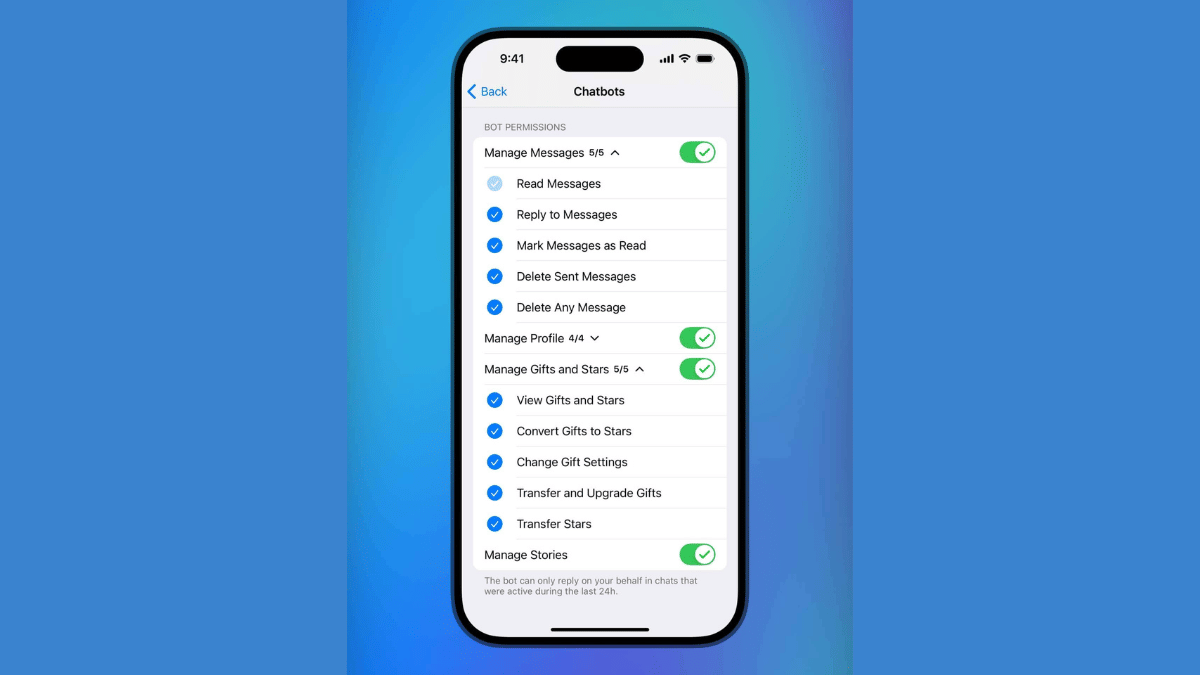
Telegram will now allow integrating third-party bots including AI-driven bots. However, this feature comes only for the premium account holders. This new feature is introduced to help professionals to control, manage, and grow their businesses efficiently. Telegram premium users accessing Automated business accounts will be able to set bots for managing replies, posts, stories, etc.

Also Read: Instagram Edits: New Standalone Editing Insta Tool? 10 Easy Steps To Use!

Updated ‘Gifts’ Settings

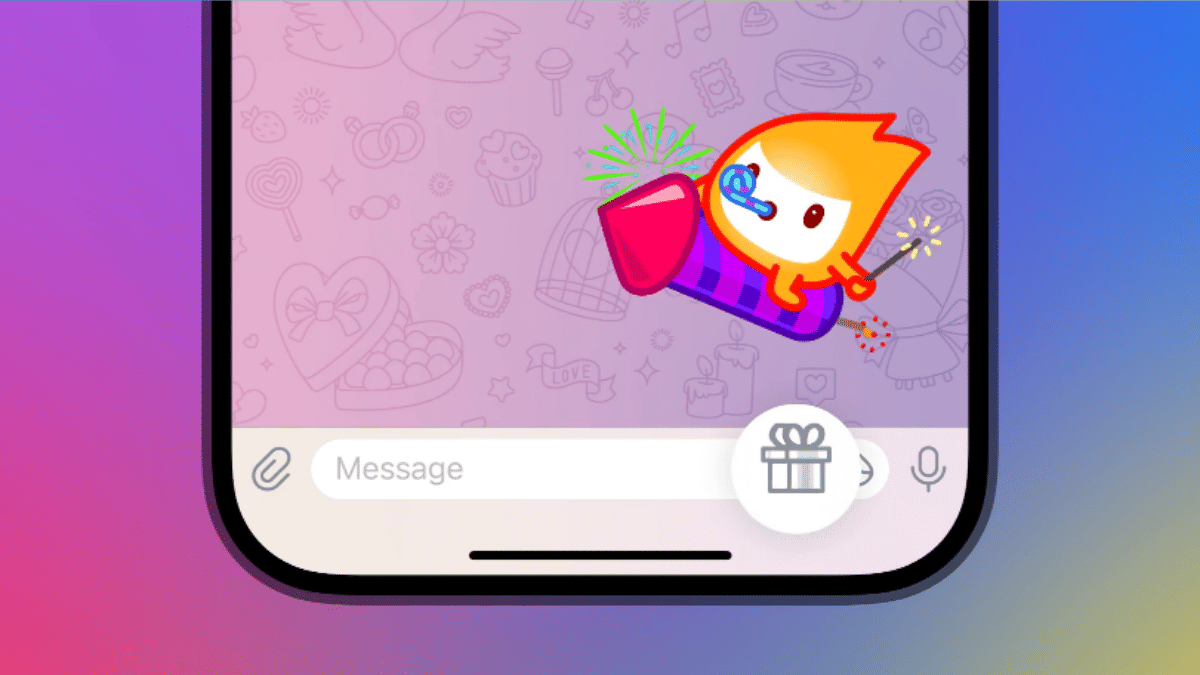
Telegram has its own gifting feature which is being widely used and is now getting easier to manage and control with the latest update. A bunch of customisations have been added such as:

  • ‘Gift’ button can now be added to chats directly
  • Control which gift to be shown at a specific chat
  • Control who and what kind of gift another contact can send

Steps To Manage Gifts In Telegram

  • Open Settings
  • Click on Privacy and Security
  • Tap on Gifts
  • If you want to view individual gifts then instead select My Profile and select Gifts tab
  • Tap on Send Gift once selected

Also Read: Is Telegram Still Private? The Platform To Provide User Data To Governments

Improved Gestures And Controls

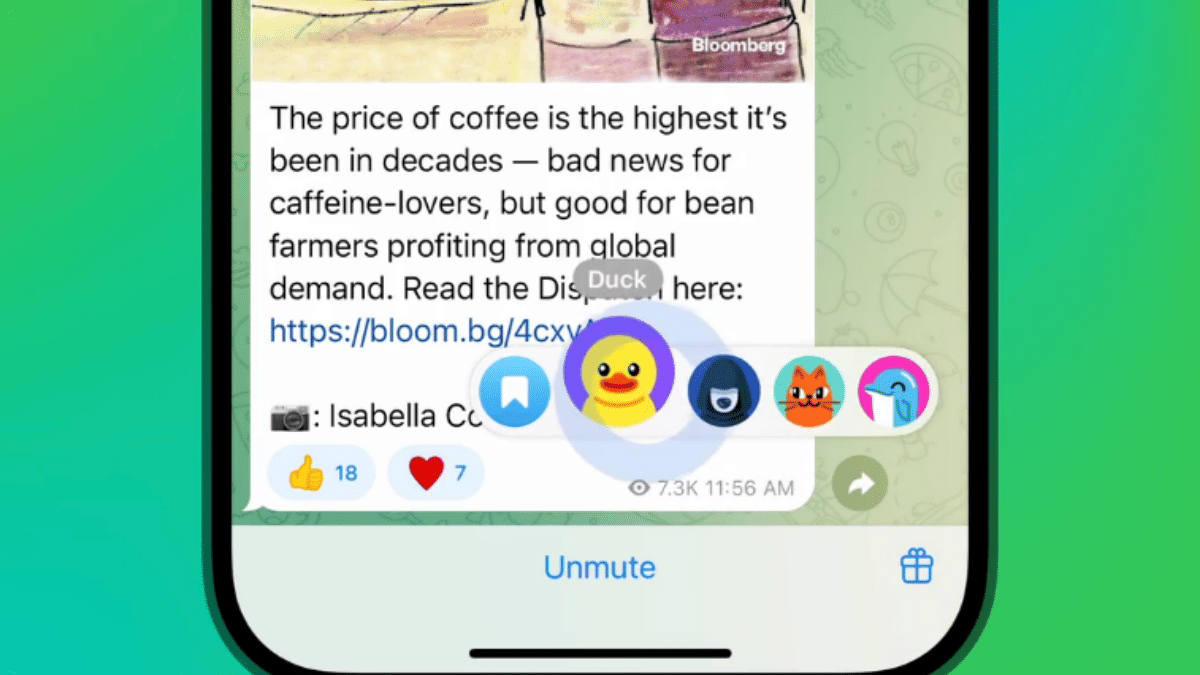
Forward Message (Android and iOS) : Hold on a message and drag the share arrow to forward message

Open Story Editor (iOS): Swipe right on the story list or main chat list to instantly launch the Story Editor tool

Categories
Apps Featured

AI Image Editing Finally Coming For Gemini App:

Key Highlights

  • Google confirms AI Image editor for Gemini App
  • Will allow editing images directly via Gemini app
  • Will support up to 45 different languages
  • Can draft a storyline and provide images for the same

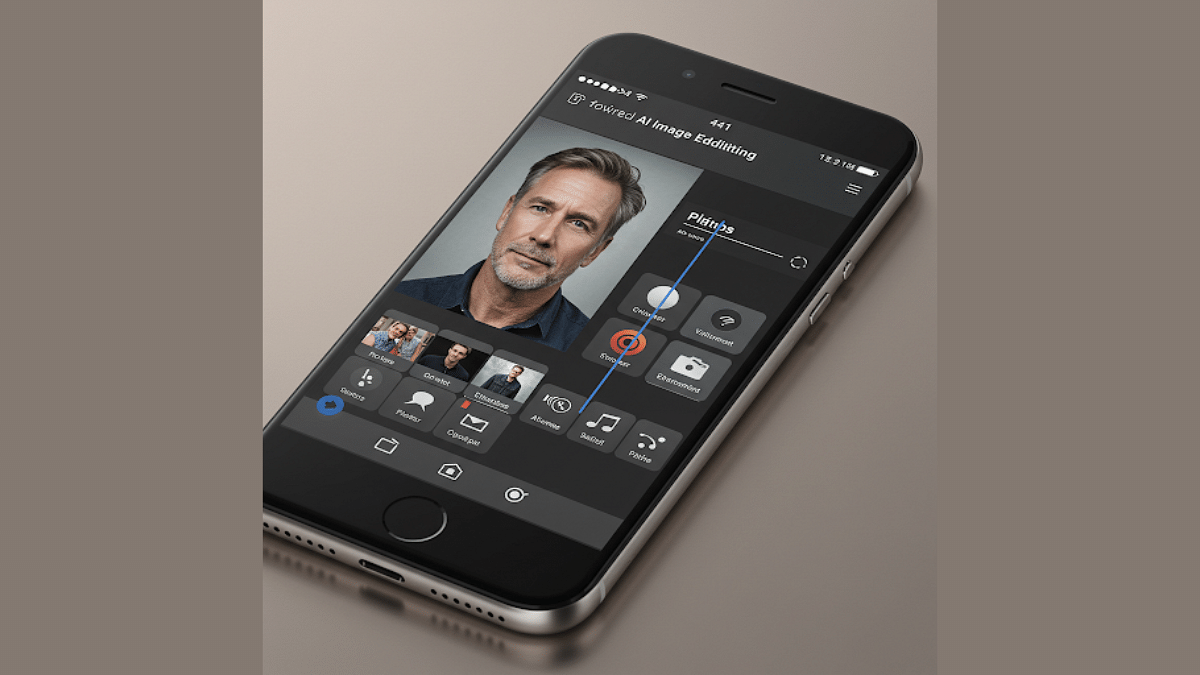
Gemini, the AI chatbot from Google is all set for its next big update and will become one of the most powerful AI tools for image editing. This development comes with Google’s announcement confirming the AI image editing integration in Gemini app. This upcoming feature will definitely be a game changer for Gemini. Here are all the details you need to know:

For the tech geeks, stay updated with the latest cutting-edge gadgets in the market, exclusive tech updates, gadget reviews, and more right on your phone’s screen. Join Giznext’s WhatsApp channel and receive the industry-first tech updates.

Also Read: Exam Results: How To Check CBSE, ICSC, ISC, UPMSP Exam Results Via Digilocker App

Gemini AI Image Editing Feature: When Is The Stable Update Rolling Out?

Google via an official blogpost has announced this new AI image editing feature for Gemini app. While the date for stable update release is not mentioned, it is expected to make its way to all Gemini app users gradually in a phased manner. Once the mass update is complete, users will be able to directly upload images to Gemini app and edit it as per their requirements. No third part app will be required for the same.

Also Read: Gemini Live Camera, Screen Sharing Now Free For All Android Users: How To Use

Gemini AI Image Editing: The Possibilities!

Google is finally adding the native AI image editing to make Gemini a potent editing tool. Besides basic edits, users can do a lot more and even get help with creating storyline on different topics along with images.

Users will get the option to both upload image directly to Gemini app via phone or laptop/ PC gallery and use AI image creation. For the latter, one simply need to give commands as to what are the image requirements, how should the subject be placed, background type, etc.

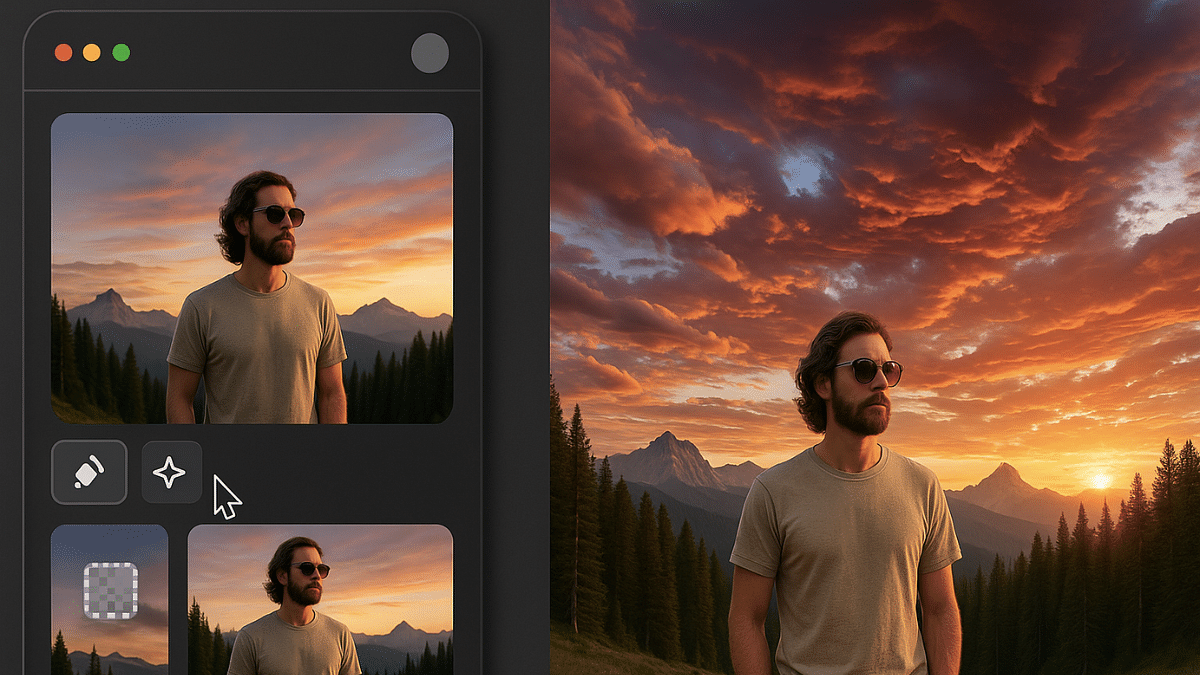
As for the image editing capabilities, users will be able to do basic and advance levels of editing. This surely will make Gemini app more convenient for both general users as well as creators and professionals. From replacing objects to adding a new one and changing the background using AI image editing will be possible once the update is released.

Additionally, this AI image editing feature will allow users to create a storyline using AI and also get images simultaneously on the same storyline. Users will be also be able to give text-based commands or prompts for editing any image that is created using AI or is uploaded from the gallery.

Categories
Auto Tech Featured Info

Soaring Summers, Rising Risks: Best Ways To Protect EVs From Fire Damage And Accidents This Summers

Key Highlights

  • Rising heat in summers can damage EVs
  • Electric vehicles prone to fire accidents in peak summers
  • Battery failures and component heating can also damage EVs in summers
  • Smart charging and parking helps prevent fire accidents

Summer season tends to bring along constant worries for EV owners. Fire accidents related to EVs have been reported frequently despite OEMs using advanced tech including battery management, smart charging, etc. That’s due to the fact that components in an EV, specifically, the battery pack is highly flammable and it’s almost impossible to instantly put it off which can lead to massive damages. This year too Summers right from the beginning have been hot and its getting hotter with each passing week. For the EV owners, we have brought you the tips and tricks to protect your vehicle from fire damages and accidents.

For the tech geeks, stay updated with the latest cutting-edge gadgets in the market, exclusive tech updates, gadget reviews, and more right on your phone’s screen. Join Giznext’s WhatsApp channel and receive the industry-first tech updates.

Also Read: Drive Smart And Safe: List Of Top Electric SUVs With Advanced Safety Features In India In 2025

1. Avoid Parking Your EV And Charging Under Direct Sunlight

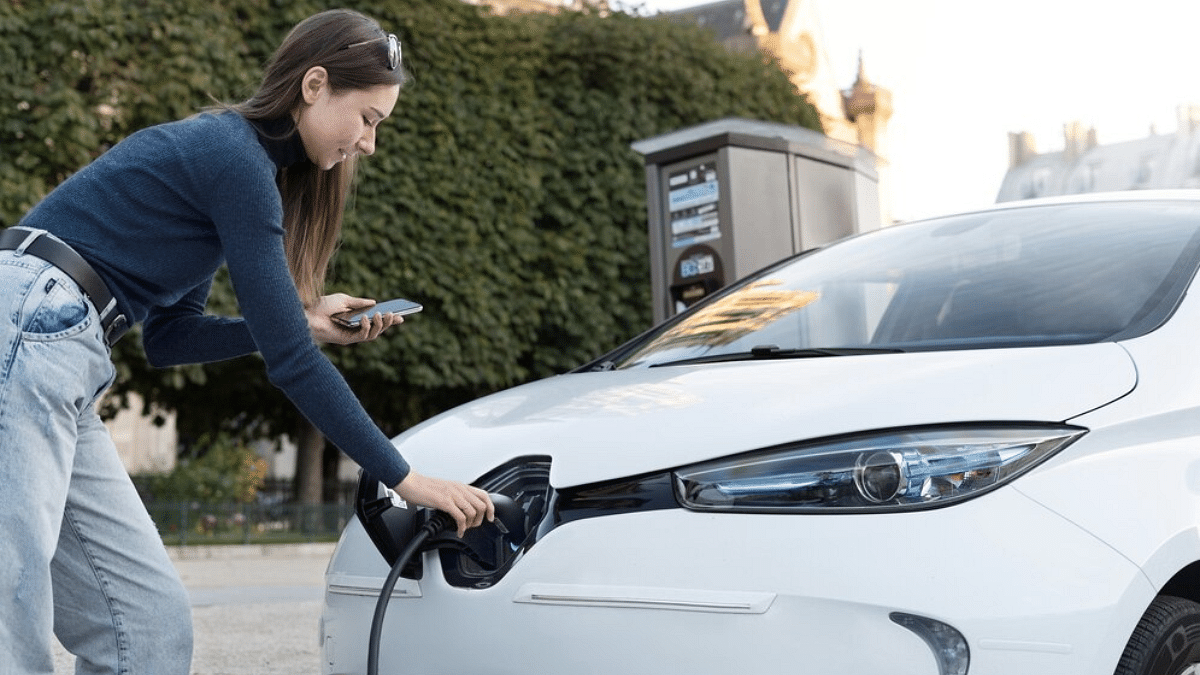
Direct heat on your EV can lead to component failures and also increase the battery’s thermal temperatures. When temperatures are already soaring and you charge the EV under direct sunlight, it can directly impact the battery and could lead it to overheating. This poses risks such as battery blast or fire accidents. Similarly, parking the EV under direct sunlight can eventually lead to increased cabin temperature which can also fuel fire related accidents.

  • Charge your EVs at night or early morning
  • Use shaded charging stations or areas to keep your EV safe from overheating
  • Use sunshade accessories while charging or parking at open space
  • If your EV compatible app as pre-cabin cooling feature use it

Also Read: EV Range Anxiety: How To Locate Nearest EV Charging Station Using Google Maps

2. Avoid Storing Flammable Objects

Whether its an EV or your regular ICE four wheeler, keeping flammable objects inside the cabin could be dangerous. Electronics with flammable batteries, aerosols such as deodorants and perfumes, and electric vapes are amongst such items that can blast and pose fire risks when exposed to heat. Ensure you don’t store any of such item in your EV, specifically if it’s being parked in open under direct sunlight.

Also Read: Best Electric Scooters With Long Range And Affordable Price In India

3. Avoid Overcharging EV Batteries And Use Smart Battery Management Systems

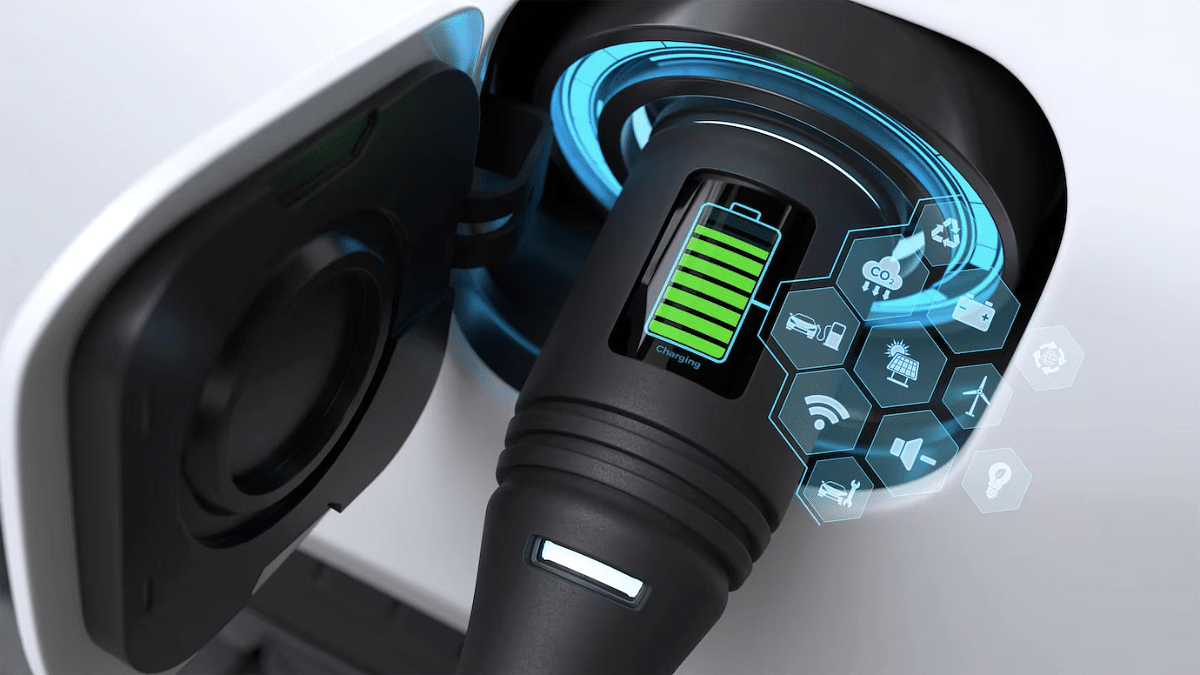
Overcharging batteries can lead to heat up issues which can eventually lead to fire accidents and blasts. This is why it is always advised to not overcharge EV batteries when the temperatures are already at peak. Charging the batteries smartly and not to full 100 percent will make sure there is no additional load or temperature instabilities. Besides, most of the new-age EVs comes with smart battery management tech where the power cuts-off automatically when the battery is charged 100 percent

  • Stick to ideal charging range of 20- 80 percent
  • Avoid full 100 percent charge if afternoon
  • Try using Level 2 smart chargers that comes with built-in thermal management systems

Also Read: Buying Your First EV? How Can You Setup EV Charger At Home

4. Keep A Check For Faults And Error Signs

If your EV’s intrument cluster shows any warning or error sign, don’t overlook it. Rather pay attention and get the issue fixed. Even if there is a small error or issue, it can lead to serious troubles specifically if your EV is running at highways in scorching heat.

  • Don’t try to fix such errors and issues without professional help
  • Pull over and call for road side assistance (RSA) if required

Categories
Featured Info Mobile

Top 5 Effective Tips To Click High-Resolution Low Light Photos Using Smartphone Camera

Key Highlights

  • Mobile camera photography is the new hype
  • Smartphones with multi-camera sensors are standard in the market
  • Dedicated modes available for low-light photography using smartphones
  • More steps listed below

Mobile cameras over the years have evolved drastically. With multiple sensors combined in a smartphone, the point-and-shoot photography experience has reached a whole new dimension. No complicated manual camera settings is now required to get that perfect click if you are using a modern-age smartphone. Most of the modern day mobile cameras are well equipped to handle daylight and night scenes. But for the latter, default settings might not always do the trick. If you too have been struggling to get that perfect low-light clicks then you have stopped by the right place. Here in this guide, we are helping you to make the most out of your smartphone camera and capture high-resolution photos in low-light conditions.

For the tech geeks, stay updated with the latest cutting-edge gadgets in the market, exclusive tech updates, gadget reviews, and more right on your phone’s screen. Join Giznext’s WhatsApp channel and receive the industry-first tech updates.

Also Read: Lenovo Tab K11 Enhanced Edition Review: Fits All Bills?

Tip 1: Switch To Night Mode If Required

Night Mode is a dedicated mode available commonly in smartphone’s default camera app. It’s functionality is to make use of computational photography to process high-quality low light images. It does so by merging multiple frames while making the final output brighter than the default settings in low-light conditions.

  • Reduces grains and noise in the final output
  • Might require a tirpod or stable surface to keep the phone still during image processing

Also Read: 5 Tips To Avoid Smartphone Overheating

Tip 2: Use Manual Focus And Focus Lock

One of the common issues that you will experience while capturing a low-light shot is the focus loosing out. You should consider adjusting the focus manually instead os using the auto focus mode. Also, lock the focus on the subject to get that perfect frame during night photography.

Also Read: Enhance WhatsApp Privacy: How To Blur Images On WhatsApp Mobile, Desktop App

Tip 3: Consider Switching To Pro Mode And Adjust Exposure/ ISO/ Shutter Settings Manually

Pro mode helps you capture that perfect night shot. You can manually adjust the exposure settings and shutter speeds for the high-res output. Just for reference, lower ISO levels and slower shutter speeds generally gives better output with low-light shots.

  • ISO Range: Set it between 200- 400 initially. Check the output and increase if required.
  • Shutter Speed: Should be lower ranging between 1/4 to 1/2 seconds.

Also Read: Best Selfie Camera Apps For Android

Tip 4: Ensure Camera Lens Is Clean

A common mistake that stops us from getting better quality images. While the camera lens might look clean, it could have a fine layer of dust or fingerprint that can easily ruin the image/ video quality. Ensuring camera lens is clean will definitely improve the image quality overall. Only use a soft cloth that too gently to clean the camera lens. Make it a practice every-time before you capture a shot.
Also Read: Best Apps To Detect Hidden Camera For Android And iOS

Tip 5: Stick To RAW Format For Better Editing

If you can edit photos, then clicking any photo in low-light in RAW format will make it easier to edit later. Overall details retention is higher in the RAW format as compared to JPEG or any other format. Besides, you can later use dedicated editing tools such as Adobe Lightroom, Snapseed, Canva etc., to further refine the quality.

Categories
Apps Featured How To

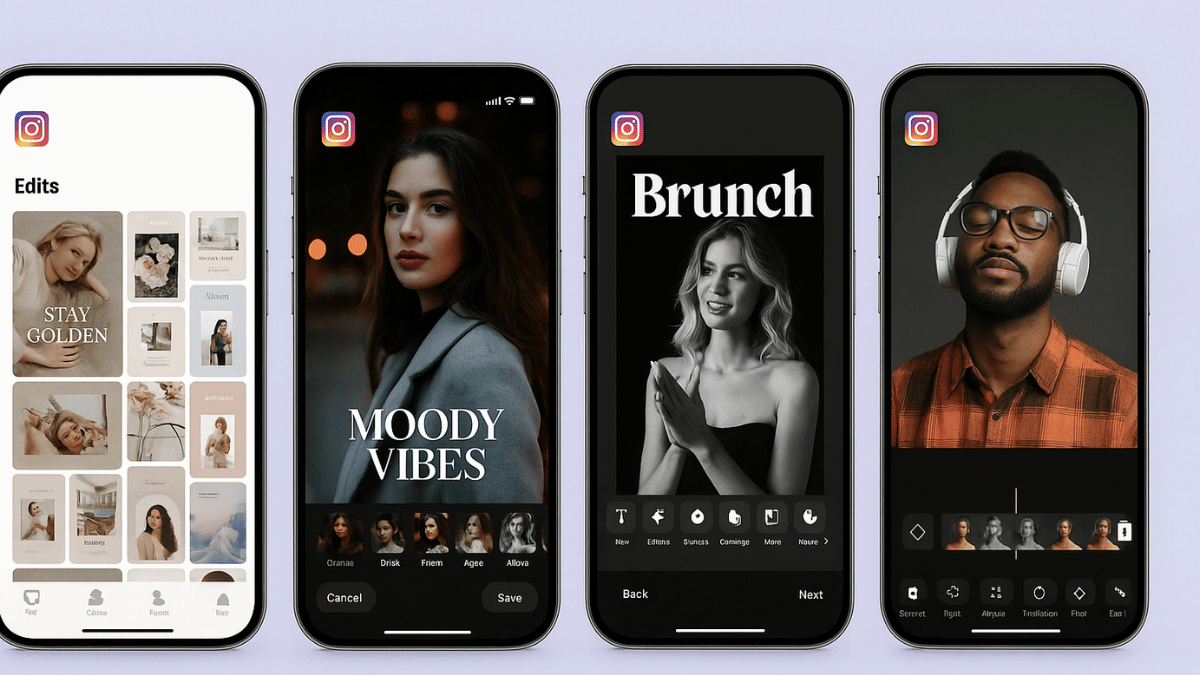
Instagram Edits: New Standalone Editing Insta Tool? 10 Easy Steps To Use!

Key Highlights

  • Instagram launches standalone editing app called Edits
  • Introduced for both Android and iOS platforms
  • Allows editing videos for reels and more directly

Instagram has emerged as one of the most used platforms for social media engagement. It is one of those multimedia sharing apps where when can get as creative as they can with photo and video uploads. And to provide a consistent and diverse experience, new updates frequently makes way to this social media platform. A new feature rather a standalone app has now been introduced by Instagram that brings along a whole range of comprehensive editing tools for video/ photo editing and also monitoring performance of the uploaded content. What is this latest Instagram Edits app and how can you utilise it as a editing tool and a performance analyser simultaneously. We explain in this article:

For the tech geeks, stay updated with the latest cutting-edge gadgets in the market, exclusive tech updates, gadget reviews, and more right on your phone’s screen. Join Giznext’s WhatsApp channel and receive the industry-first tech updates.

Also Read: How To Use Instagram’s New Song Lyrics Feature In Reels: A Step-By-Step Guide

What Is Instagram’s Edit App?

Instagram Edits is the latest Meta-developed app that has been designed to help content creators to improve their quality of content being uploaded on the platform. This AI-backed app brings along a host of features ranging from AI-backgrounds, green screen, sound and visual effects pre-set, and more.

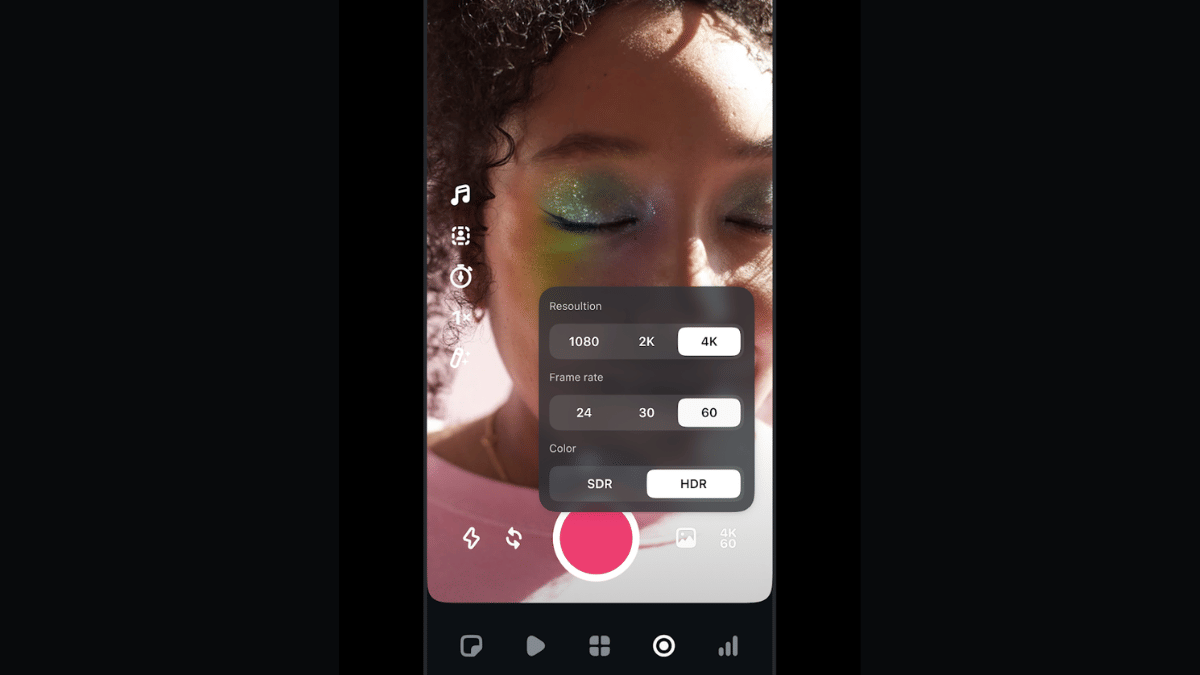
Instagram Edits will also allow users to remove background from a video and replace it with another in real time. Besides using pre-recorded footages from the gallery, Instagram Edits allows recording directly via the app where the videos can be recorded to up to 4K resolution@60fps. Edits currently supports shooting and recording videos of up to 10 mins.

Also Read: Instagram Top Hacks: How To Enable or Disable Sensitive Content From Home Feed

How To Download And Use Instagram Edits On Android and iOS

Step 1: Open Google Play Store or Apple App store on your smartphones

Step 2: Enter Instagram Edits in the search bar and tap on Install

Step 3: Open the Instagram Edits app

Step 4: Use your existing Instagram user ID and password to log-in

Step 5: To start a new project, tap on “+” icon.

Step 6: You can either import an existing video or image for the gallery or start a new recording. Tap on the capture icon for the latter.

Step 7: Toggle between the different lenses and apply if you want while recording a new clip

Step 8: Now, edit the video using AI-backgrounds, filters. You can also merge clips, use transition effects, add music, etc.

Step 9: Once done, tap on Export.

Step 10: You can share this edited video directly on Instagram and Facebook without switching the app.