Categories
Featured Info Mobile

OnePlus 13: What To Expect From The Upcoming Flagship Smartphone

Key Highlights

  • OnePlus 13 may launch with Snapdragon 8 Gen 4
  • Expected 6,000mAh battery with fast charging
  • Likely priced over Rs. 60,000, launching late 2024

OnePlus is getting ready to release the OnePlus 13, its newest flagship device. According to reports, China may see the release in October or early November. With its exciting new features, this much awaited smartphone is sure to become one of the most talked about devices of the year.

Also Read | OnePlus 11 5G Full Review: A Step Ahead In The Right Direction!

Expected Launch Date

Rumors suggest that OnePlus could unveil the OnePlus 13 either in October or early November. The launch is expected to be a significant event in China, where OnePlus has historically launched its high-end smartphones.

OnePlus 13: Expectations
Design, Display

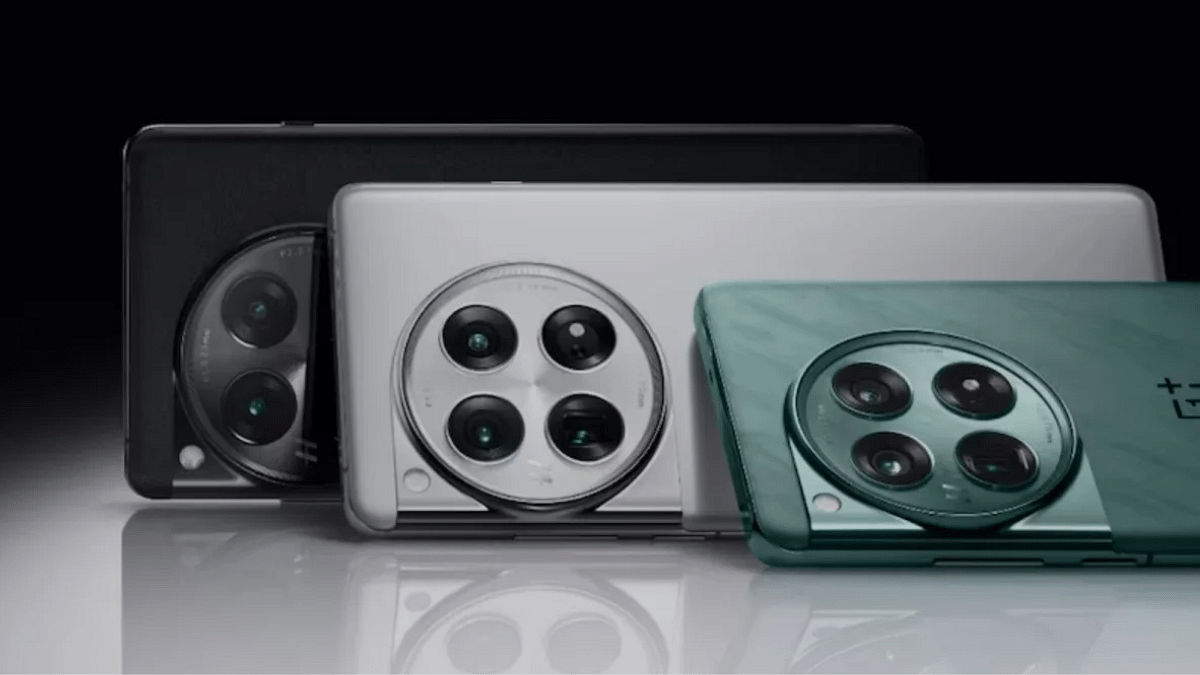
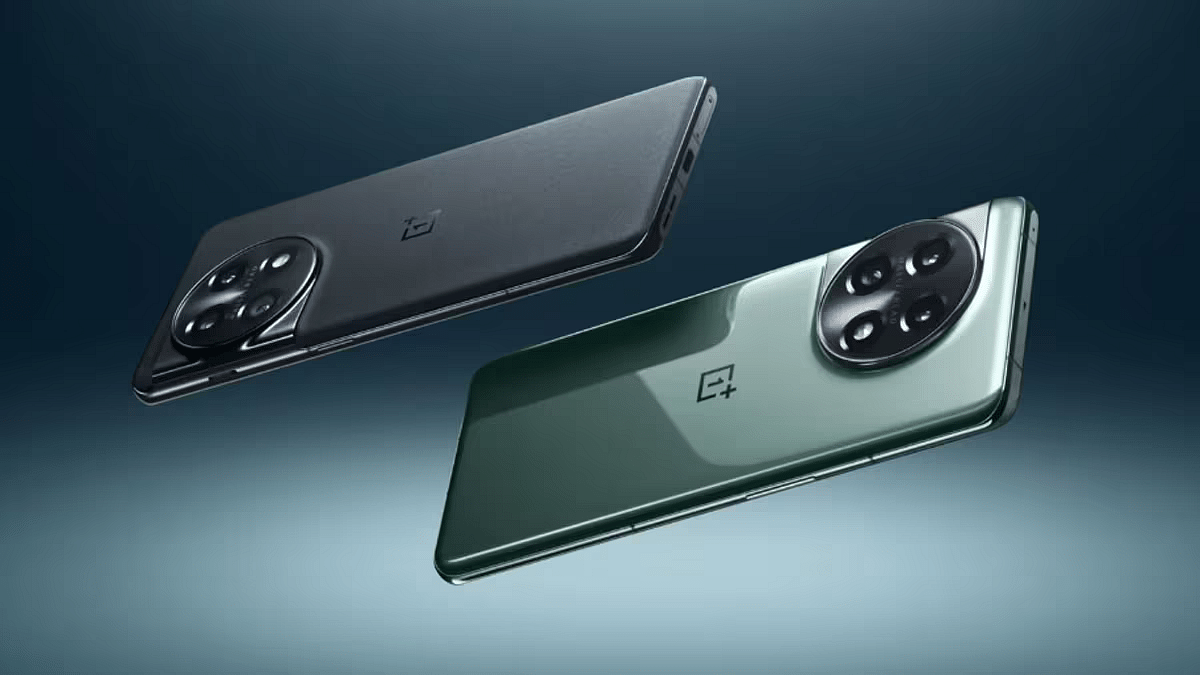
  • Design language similar to the OnePlus 12
  • Large circular camera island with a high-end sandwich design of glass and metal
  • Possible introduction of a quad-curved display
  • Enhanced aesthetics and immersive viewing experience
  • Large 6.7 or 6.8-inch 2K display with a 120 Hz refresh rate expected
  • Brighter and more color-accurate screen
  • Potential protection by the latest version of Corning Gorilla Glass

Performance, Hardware

  • Qualcomm Snapdragon 8 Gen 4 chipset is expected to be included
  • Oryon-architecture-based CPU for great single-core and multi-core performance
  • Rumored up to 16GB of RAM and up to 1TB of internal storage
  • Aimed at users demanding high performance and storage capacity

Camera Capabilities

  • Triple camera setup similar to the OnePlus 12
  • 50 MP primary sensor
  • 64 MP telephoto lens with 3x zoom
  • 48 MP ultrawide camera
  • Expected improvements in image processing

Battery, Software

  • Anticipated 6,000mAh battery, the biggest in a OnePlus device to date
  • Support for a minimum of 100W fast charging
  • Possible omission of wireless and reverse wireless charging
  • Likely to run on Android 15-based OxygenOS 15
  • Four years of major updates and six years of security patches

Also Read | OnePlus Nord CE4 Lite 5G Smartphone Review: Balanced Features For Everyday Use

Expected Price And Availability
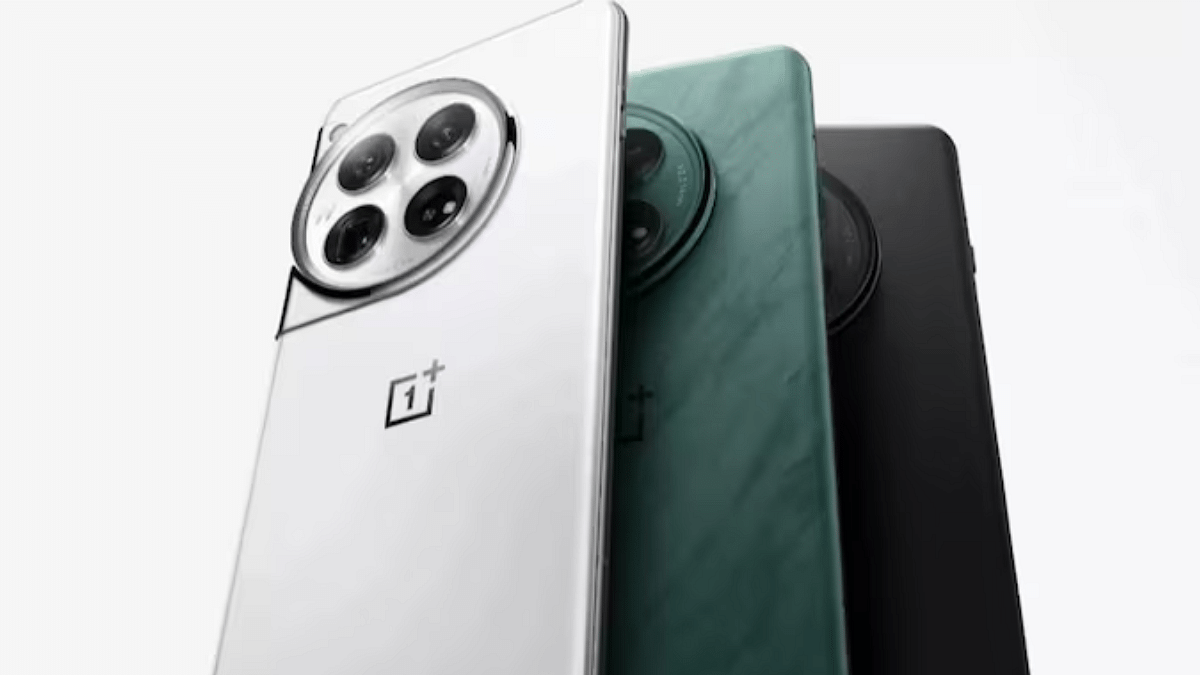
In India, the OnePlus 13 is expected to be priced above Rs. 60,000, with multiple storage variants available. If the rumors are to be believed, we can look forward to its official launch in November or December.

For the tech geeks, stay updated with the latest cutting-edge gadgets in the market, exclusive tech updates, gadget reviews, and more right on your phone’s screen. Join Giznext’s WhatsApp channel and receive the industry-first tech updates.
Categories
Apps Auto Tech Featured

Enhance WhatsApp Security: How To Protect IP Address On WhatsApp Calls And Silence Unknown Callers?

Key Highlights

  • WhatsApp allows securing IP address during a voice call
  • Dedicated privacy settings have to be enabled
  • Muting unknown callers is also an option

From two-factor authentication to view once messages , the privacy features on WhatsApp ensure you get a safer platform for your personal and professional conversations. It’s not just the text messages that get these security layers. For the audio and video calls too, WhatsApp provides a secure environment to the users. For instance, WhatsApp has added the provision for the users to protect the IP address while making a voice call and also lets users silence unknown callers. The steps for the same are mentioned below:

For the tech geeks, stay updated with the latest cutting-edge gadgets in the market, exclusive tech updates, gadget reviews, and more right on your phone’s screen. Join Giznext’s WhatsApp channel and receive the industry-first tech update

Also Read: Unable To Connect AirPods With MacBook: How To Fix AirPod And MacBook Pairing Issues?

Steps To Protect IP Address During WhatsApp Calls

This feature helps safeguarding the IP address of a user’s device from other users during WhatsApp voice calls. In this feature, the voice calls aren’t connected directly which helps masking the IP address which the call’s receiver won’t be able to see.

Step 1: Launch WhatsApp app on your smartphone or tablet

Step 2: Click on the More (three dots) option from the top of the app’s homepage

Step 3: Tap on the Settings menu

Step 4: Click on Advanced option

Step 5: Enable the Protect IP address in calls.

Also Read: Google Play Store Update: How To Download And Update Multiple Apps In One Go

How To Silence Unknown Caller On WhatsApp

WhatsApp lets users make phone call to the saved contacts. However, even if there isn’t a number saved in your contacts, you can get the calls from the same user. By modifying the privacy settings, you either can block a spam or unknown number or silence it. After muting the unknown callers, you automatically enhance the privacy levels on your device and be less bothered with the stranger calls.

Step 1: Open WhatsApp mobile app on your smartphone

Step 2: Tap on the three dots (More) option

Step 3: Click on the Settings menu

Step 4: Tap on the Calls option

Step 5: Enable the ‘Silence unknown callers’ option

Categories
Apps Featured Info

Google Updates Circle to Search With Automatic QR And Barcode Scanning

Key Highlights

  • Circle to Search now auto-scans QR codes and barcodes
  • A chip directs users to the website with one tap
  • Rolling out to devices like the Galaxy S23 Ultra

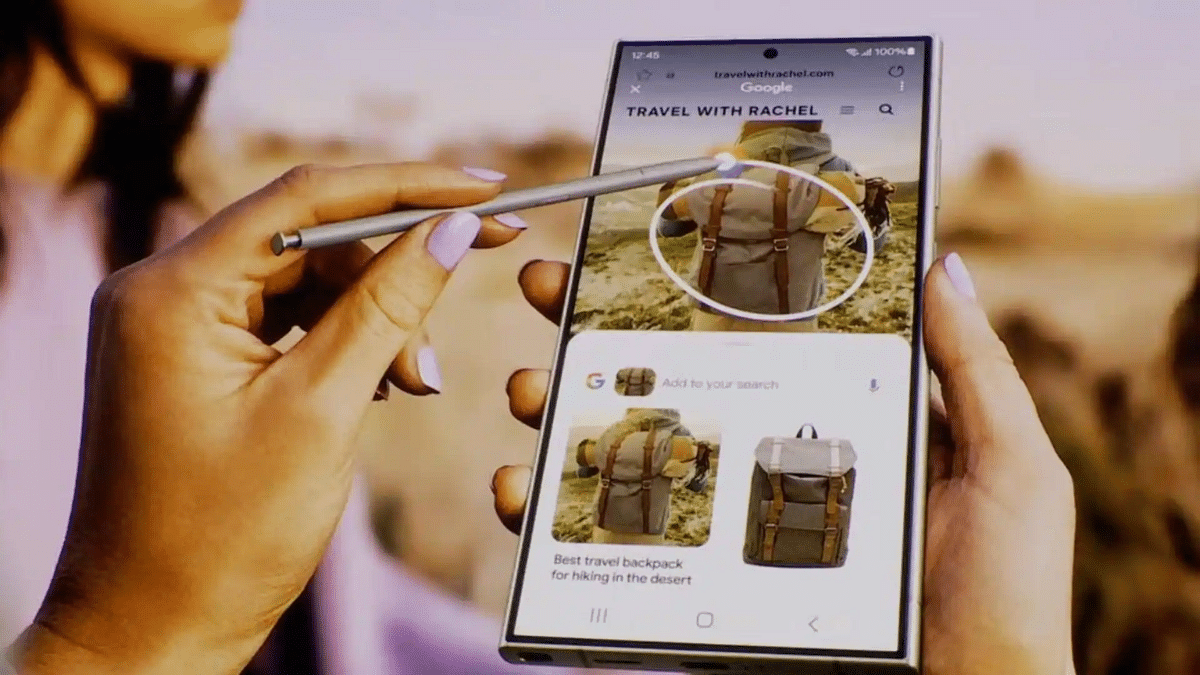
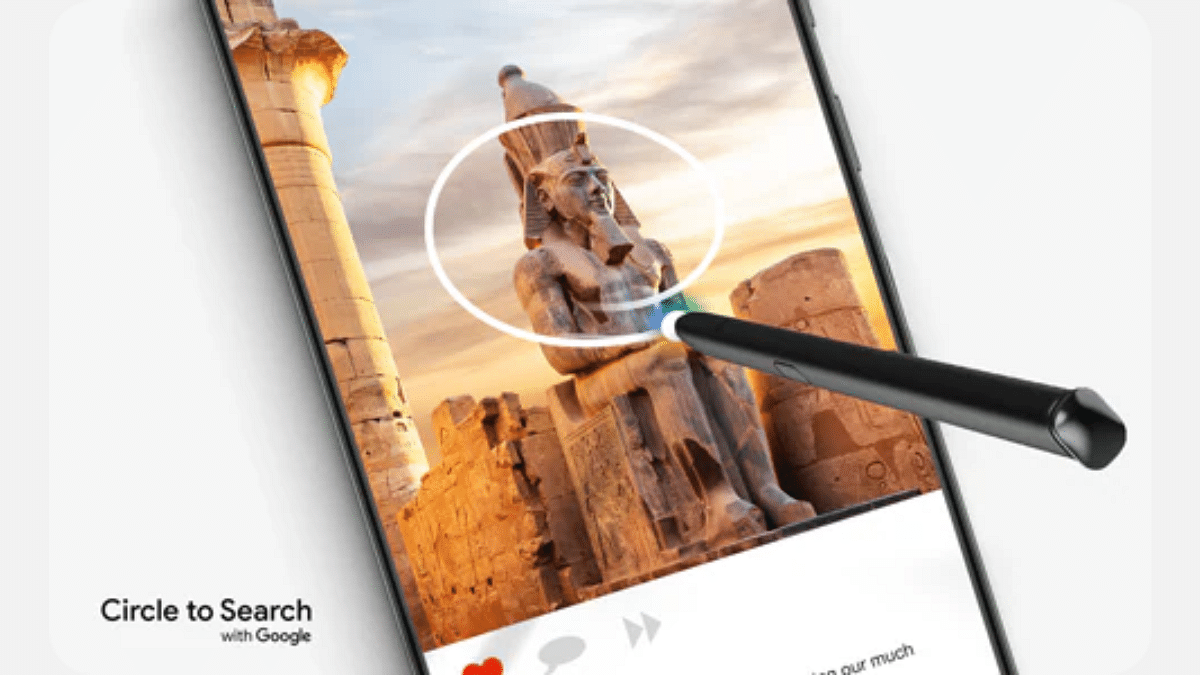
Google’s feature Circle to Search continues to grow. Now, its latest update adds a new functionality that is bound to make information gathering even easier. This feature, which allows users to search for information by circling objects on their screens, now includes automatic scanning of QR codes and barcodes. This means users can quickly access relevant websites or details without extra steps.

Also Read | How to Use Google Circle to Search: Your Step-by-Step Guide

How Circle to Search Scans QR Codes And Barcodes

With the new update, Google’s Circle to Search feature automatically detects and scans any QR code or barcode visible on your smartphone screen. This feature simplifies the process of accessing websites or product information associated with these codes.

For example, if you have a QR code displayed on your phone, you no longer need to manually circle it within the app. Instead, Circle to Search will automatically recognize the code and provide a handy chip on the screen. This chip serves as a shortcut. This allows you to visit the linked website or retrieve information with just a single tap.

Improved User Experience

The introduction of this automatic scanning feature may seem like a minor update, but it improves the user experience by saving time and reducing effort. Earlier, users had to manually draw a circle around QR codes or barcodes within the Circle to Search app, which could be a bit tedious. Now, with this automated scanning, getting the desired information is quicker and more convenient. Moreover, this feature aligns with Google’s broader strategy of integrating AI and machine learning into its ecosystem.

Also Read | How to Draft Emails with Voice in Gmail: A Step-by-Step Guide

Availability And Rollout

Initially, Google revealed the QR code and barcode scanning feature for Circle to Search back in July 2024. However, there was no immediate confirmation regarding its release for the stable version of the app. Now, the feature is finally being rolled out to multiple devices, including the popular Samsung Galaxy S23 Ultra.

For the tech geeks, stay updated with the latest cutting-edge gadgets in the market, exclusive tech updates, gadget reviews, and more right on your phone’s screen. Join Giznext’s WhatsApp channel and receive the industry-first tech updates.
Categories
Apps Featured How To

Android Tips And Tricks: How To Create Your Selfie GIF And Send Via Google Messages

Key Highlights

  • Google Messages can be used to send multimedia messages
  • One can also create a selfie GIF on Google Messages
  • Option available with newer version of Android

Android is currently the most powerful OS which is driving modern-age smartphones and tablets. Each year, Google releases a new version of Android with several enhancements and upgrades so that masses get the best experience with its usage. Over the years, all the Google apps and tools have got advanced with the latest technologies allowing for a refined user experience overall. With the Android OS, calling and messaging experience is also taken to whole new level. You now don’t have to solely rely on your mobile networks for calling/ SMS. Rather this can be done if you have an active internet connection on your device.

Also, sending multimedia messages has become easier than ever with Google-powered devices. You don’t need a third party app to share photos or videos with your friends or families. The same can be done using the standard Google Messages app. Yes, you read that right. The option to send multimedia messages including pics and short videos can be accessed on Google Messages. And to make messaging more fun, Google Messages also let you create a GIF of your selfie which you can later share with any contact. Interested in knowing the steps? Read on below:

For the tech geeks, stay updated with the latest cutting-edge gadgets in the market, exclusive tech updates, gadget reviews, and more right on your phone’s screen. Join Giznext’s WhatsApp channel and receive the industry-first tech update.

Also Read: YouTube Music To Apple Music: Here’s How To Transfer Your Playlists With Ease

Steps To Create And Share Selfie GIF Using Google Messages

Step 1: Unlock your smartphone from which you wish to send your selfie as a GIF

Step 2: Go to the Google Messages app and open it

Step 3: Start a new conversation or open the conversation window where you want to send the selfie GIF

Step 4: In the message compose box, you’ll see a bunch of options including the camera. Tap on it. It’s worth adding that this feature will be available with the newer Android versions.

Step 5: Tap and hold the Camera icon placed next to the message type box.

Step 6: You will see a countdown window which essentially will be the buffer for you to get prepared for the selfie.

Step 7: The selfie video will be recorded automatically.

Step 8: Once the GIF is captured, simply tap on the Send icon to share the selfie GIF with the contact.

It’s worth adding that these selfies captured in the Google Messages can’t be edited. Instead, you’ll need to tap on the Restart button for the new recording. Furthermore, the selfie GIF that is recorded by the Google Messages has only 3 seconds of duration. The GIFs will be saved on the device’s camera roll which you can access later from the Photos or gallery app.

Categories
Featured Info Laptop

Amazon Gaming Fest Sale 2024: Up To 70 Percent Off On Popular Gaming Laptops

Key Highlights

  • Amazon Gaming Fest is live until September 5
  • Up to 70 percent off on gaming laptops
  • 10 percent instant savings when using an SBI credit card

This festive season, Amazon is leveling up the gaming experience with its Gaming Fest. The sale is live until September 5. Gaming enthusiasts have a golden opportunity to upgrade their gadgets with top gaming laptops from popular brands like Asus, Dell, HP, Lenovo, and MSI. Additionally, customers can enjoy up to 10 percent instant discounts on SBI credit card and credit card EMI transactions.

Also Read | Best Gaming Laptops For Premium Gameplay Sessions

Deals On Top Gaming Laptops

Let’s take a closer look at some of the top gaming laptops available during Amazon’s Gaming Fest:

Gaming LaptopPrice
HP Victus 15 Gaming LaptopRs. 79,990
Dell G15-5530 Gaming LaptopRs. 78,490
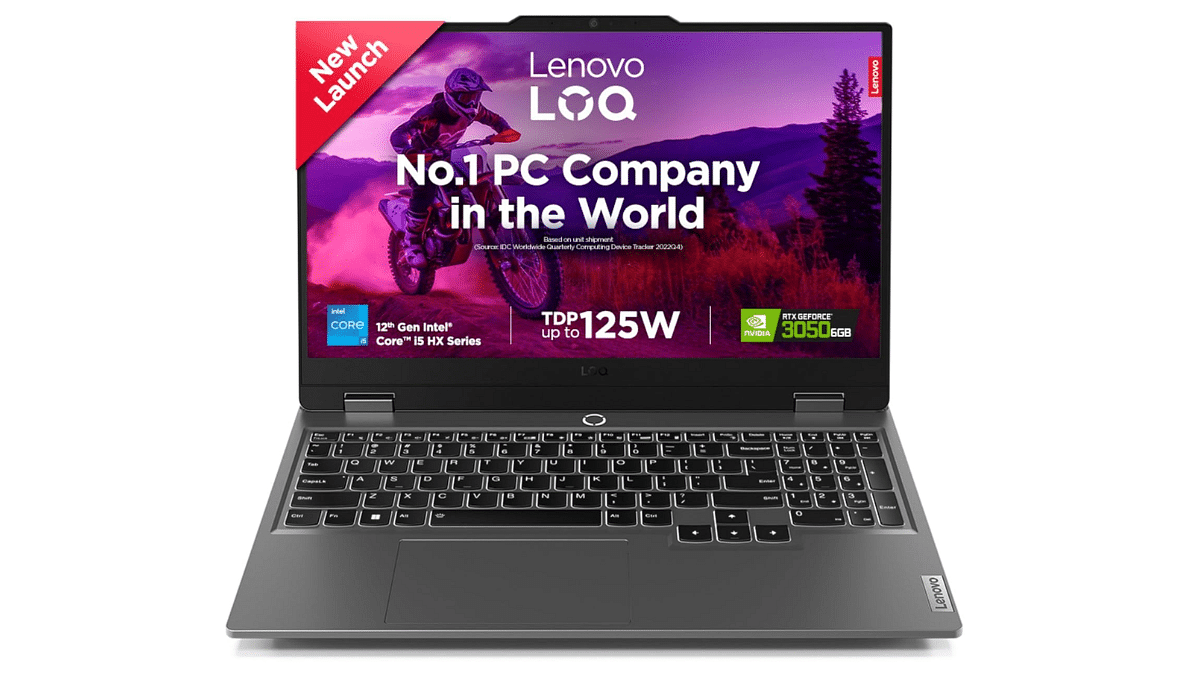
Lenovo LOQ Gaming LaptopRs. 69,490
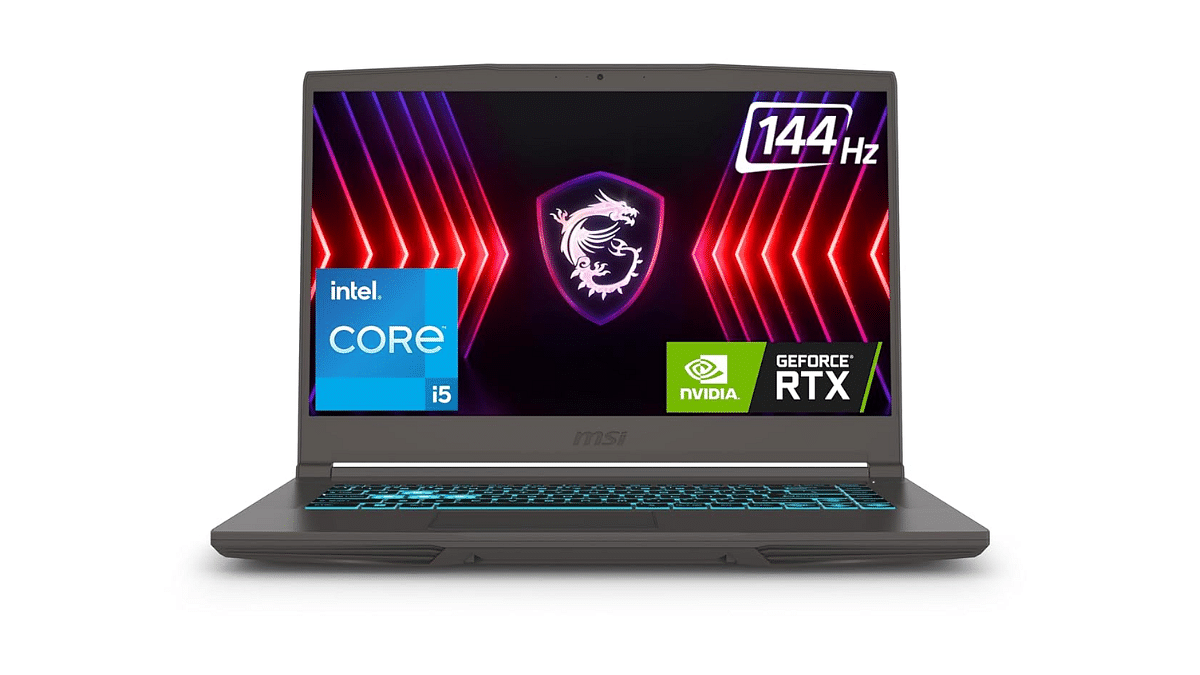
MSI Thin 15 Gaming LaptopRs. 62,990
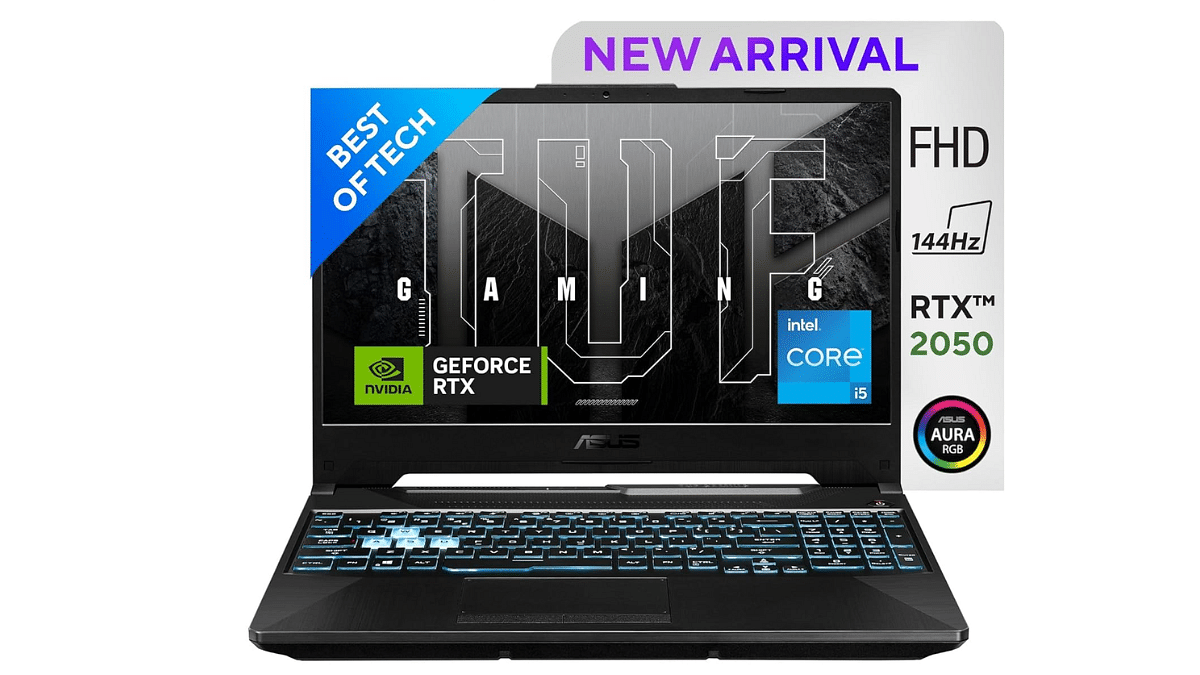
Asus TUF F17 Gaming LaptopRs. 52,528

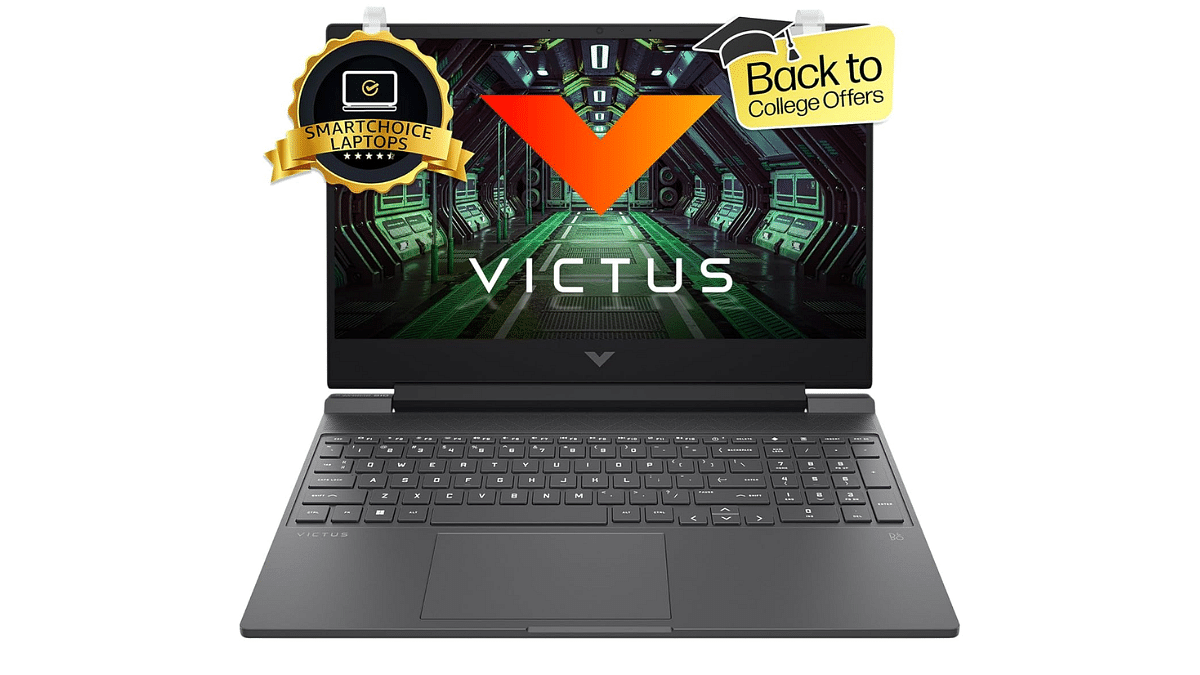
HP Victus 15 Gaming Laptop

For gamers seeking a balance between performance and value, the HP Victus 15 gaming laptop is an ideal choice. It comes with a 13th generation Intel Core i5 processor, RTX 4050 GPU, FHD display with a 144Hz refresh rate. This laptop is perfect for both casual and competitive gaming.

Display15.5-inch
Hard Disk512GB
CPUCore i5
RAM16GB
OSWindows 11 Home
Special FeatureAnti-Glare Screen
Graphics CardDedicated
ColorsSilver

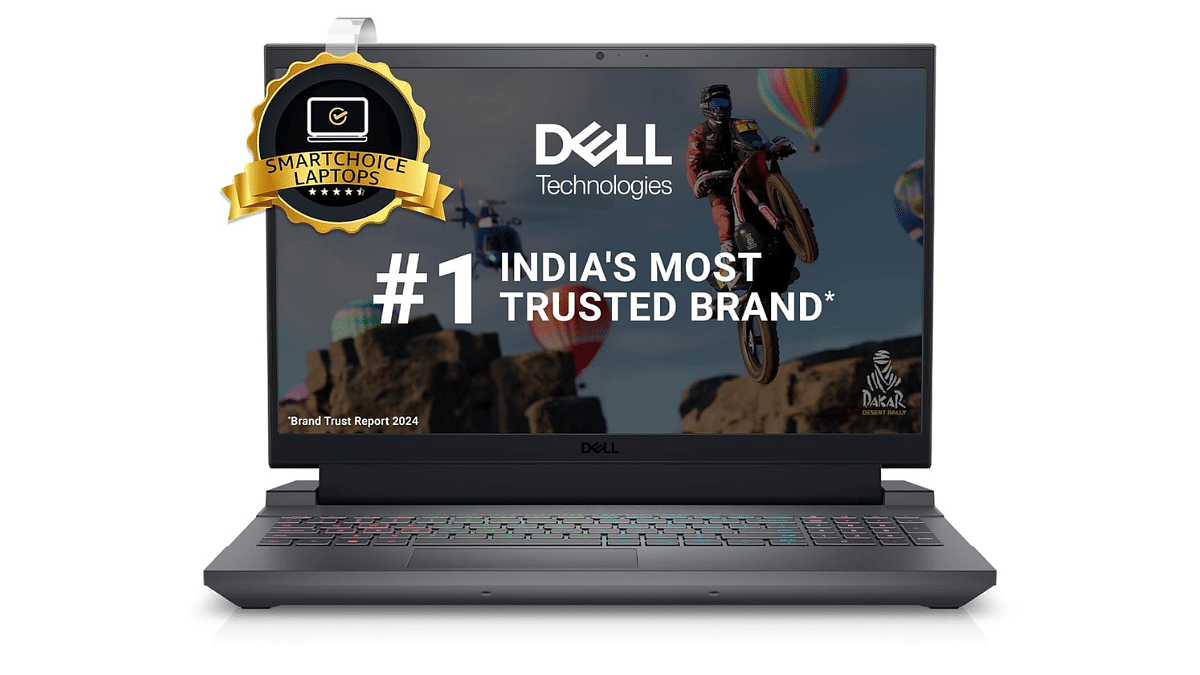
Dell G15-5530 Gaming Laptop

The Dell G15-5530 gaming laptop is a powerhouse. It has an RTX 3050 GPU, a 13th generation Intel Core i5 processor, and other features. Its 120Hz refresh rate FHD display offers a sharp visual experience.

Display15.6-inch
Hard Disk1TB
CPUCore i5
RAM16GB
OSWindows 11 Home
Special FeatureBacklit Keyboard
Graphics CardDedicated
ColorsDark Shadow Gray

Lenovo LOQ Gaming Laptop

The Lenovo LOQ gaming laptop offers a great gaming experience with its 12th generation Intel Core i5 processor. Its FHD display with a 144Hz refresh rate ensures crisp visuals and fluid gameplay.

Display15.6-inch
Hard Disk512GB
CPUCore i5
RAM16GB
OSWindows 11
Special FeatureAnti-Glare Coating
Graphics CardDedicated
ColorsLuna Grey

MSI Thin 15 Gaming Laptop

Performance and mobility are key features for gamers who choose the MSI Thin 15 gaming laptop. For those who wish to enjoy gaming while on the road, it is ideal.

Display15.7-inch
Hard Disk512GB
CPUCore i5
RAM16GB
OSWindows 11 Home
Special FeatureThin
Graphics CardDedicated
ColorsCosmos Gray

Also Read | Top Four Best Gaming Laptops under Rs 50,000 in India – HP, Acer, Xiaomi, Lenovo

Asus TUF F17 Gaming Laptop

The Asus TUF Gaming F17 laptop features an 11th generation Intel Core i5 processor, RTX 2050 GPU, 8GB RAM, and a 512GB SSD. This combination ensures smooth gameplay and quick load times.

Display17.3-inch
Hard Disk512GB
CPUCore i5
RAM8GB
OSWindows 11 Home
Special FeatureHD Audio, Anti-Glare Coating, Backlit Keyboard
Graphics CardDedicated
ColorsGraphite Black

For the tech geeks, stay updated with the latest cutting-edge gadgets in the market, exclusive tech updates, gadget reviews, and more right on your phone’s screen. Join Giznext’s WhatsApp channel and receive the industry-first tech updates.
Categories
Accessories Featured How To Laptop

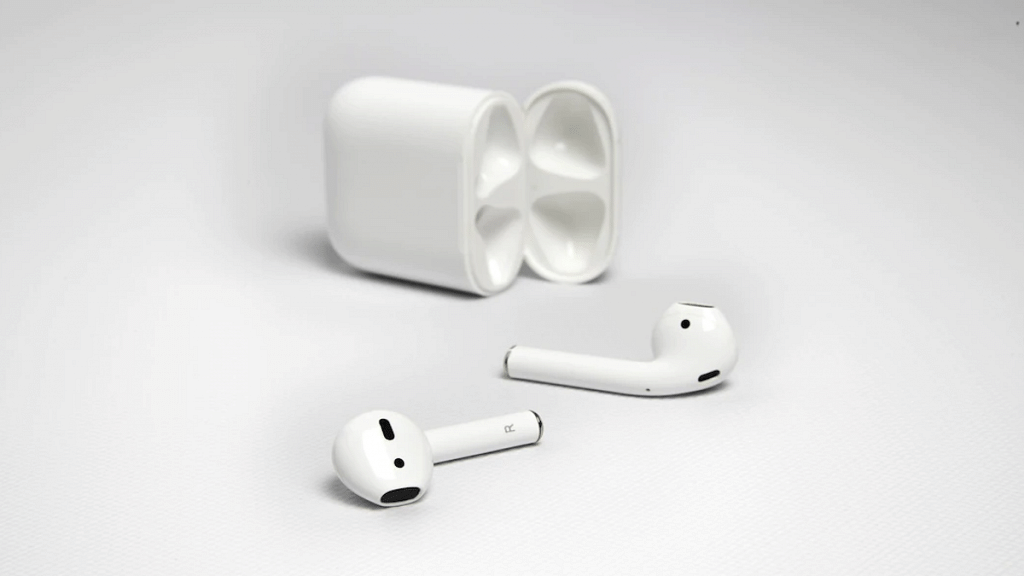
Unable To Connect AirPods With MacBook: How To Fix AirPod And MacBook Pairing Issues?

Key Highlights

  • Apple AirPods offer wide compatibility with a variety of gadgets
  • AirPods compatibility with MacBook is swift
  • Pairing issues if there can be fixed manually

Apple is amongst the top favorites when we speak of consumer tech brands specifically smartphone OEMs with a niche for premium product range. The Apple iPhone series is the world’s most powerful smartphone lineup today so is the MacBook laptop series which is also taking care of the premium end consumers. Besides smartphones and tablets, Apple has also created its expertise with audio products and has been the first in the lot to introduce the concept of truly wireless earbuds with the AirPods.

Apple AirPods offer a wide range of connectivity and can be paired up with mobile devices beyond iOS, PadOS and MacOS. Of course, the pairing is seamless with the Apple devices running on these platforms. While the pairing process of AirPods with iPhone and other Apple products is swift, there could be scenarios when you experience pairing issues with your AirPods and MacBook. What can be done in such situations? Are there any troubleshooting steps that you can perform to connect AirPod with MacBook? We have listed the steps for a quick fix below:

Also Read: Google Play Store Update: How To Download And Update Multiple Apps In One Go

How To Fix AirPods And MacBook Pairing Issues

If you are experiencing connection issues while pairing your AirPod with MacBook, you can perform a few steps for a fix. But before you proceed, ensure the MacBook with which the AirPod is being paired runs on the latest macOS version. You can manually update the OS version and then perform the remaining steps.

Step 1: Power on your Apple MacBook

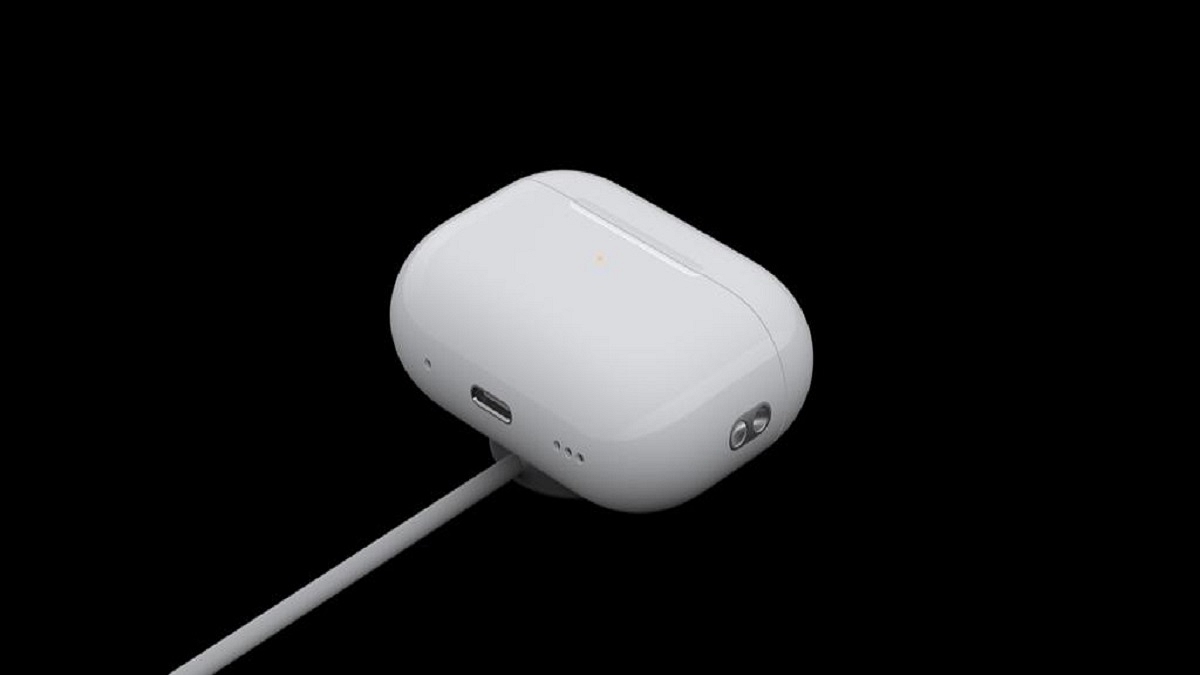
Step 2: Get the AirPods that you need to connect with the MacBook and put them inside the charging case. Ensure both earbuds are getting charged.

Step 3: Now, on your MacBook go to the Apple Menu and select System Settings.

Step 4: Tap on Bluetooth.

Step 5: Select the AirPods as the audio device if the they are already connected to the MacBook.

Step 6: If the AirPods show up as connected but they aren’t working, you will need to remove it from the paired list. Tap on the X to delete the AirPods from the connected devices list.

Step 7: Now, put the earbuds back in the case and close the lid for 15 seconds. Re-open the case’s lid after 15 seconds.

Step 8: You will now need to tap a hold the setup button on your AirPod’s charging case for 10 seconds. Wait for the white LED to flicker which will be an indication for the active pairing status.

Step 9: Bring the charging case with the AirPods inside right next to the MacBook. Make sure the lid is open.

Step 10: Complete the on-screen steps for the pairing.

Step 11: You might need to reset your AirPods if the aforementioned steps don’t fix the pairing issue. And if still the issue persists, you might need a service center visit.

Categories
Apps Featured How To

Google Play Store Update: How To Download And Update Multiple Apps In One Go

Key Highlights

  • Play Store now allows downloading multiple apps at the same time
  • Update your Play Store app to start downloading multiple apps
  • You can also update multiple apps simultaneously

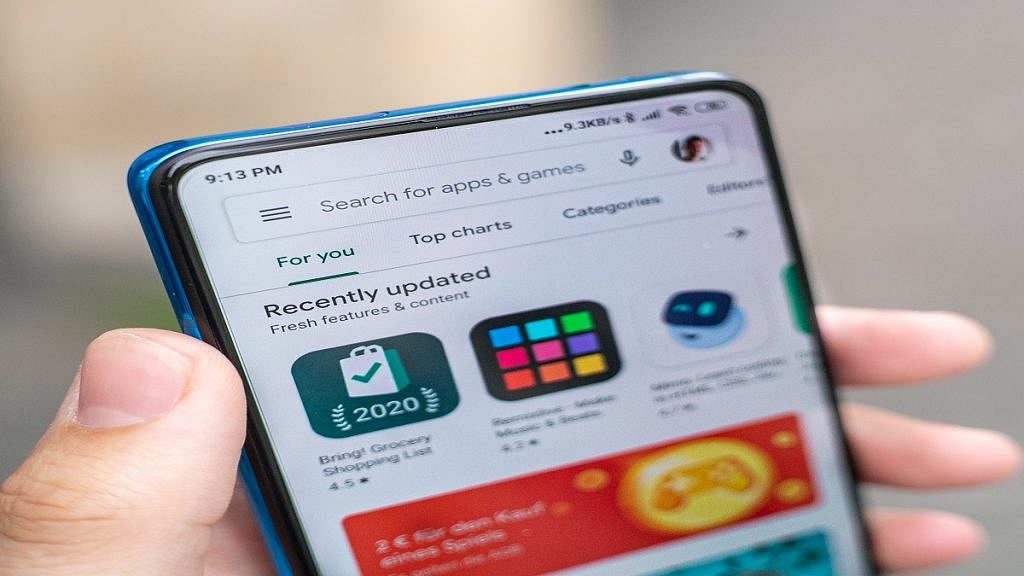
Have you ever been frustrated by the slow process of downloading and updating apps on your Android device? Well now, you will be delighted to know that the Google Play Store has finally introduced a new feature. Until recently, the Play Store allowed only one app to download at a time, making the process really slow especially when installing multiple apps. Now, the Google Play Store has rolled out a new feature that will let you download and install up to three apps simultaneously.

Also Read | Google Play Store Alternatives: Best Android App Store Substitutes For Google Play

How To Download Multiple Apps In Google Play Store

Step 1: Firstly, you have to make sure that your Google Play Store app is updated to the latest version.

Step 2: Now, go to the Play Store for the first app you want to download and open its page.

Step 3: Click on the Install button to start downloading the first app.

Step 4: After that, without waiting for the first download to finish, search for the second app and tap Install. Do the same for a third app.

Step 5: Now, all three apps will download and install simultaneously, saving you time.

This update meaningly reduces waiting time. This is very useful when setting up a new device or refreshing your current one with new apps.

Steps To Update Multiple Apps On Google Play Store

Not only can you can download multiple new apps at once, but you can also update your existing apps simultaneously. Here’s how:

Step 1: Open the Play Store and click on your profile picture in the top right corner.

Step 2: Select My Apps & Games from the menu.

Step 3: In the Updates tab, you will see a list of apps that have pending updates. Simply tap Update All, and the Play Store will update up to three apps at the same time.

Also Read | How To Lock Play Store On Your Android Phones? Ways To Enhance Privacy With Google Play Store

This new feature brings Google Play Store on par with other app stores. This offers user a more efficient and user-friendly experience. Whether you are setting up a new phone or just keeping your apps up-to-date, this update will save you time and hassle.

For the tech geeks, stay updated with the latest cutting-edge gadgets in the market, exclusive tech updates, gadget reviews, and more right on your phone’s screen. Join Giznext’s WhatsApp channel and receive the industry-first tech updates.

Categories
Featured How To Mobile

Android Tips And Tricks: How To Maximize Battery Health And Reduce Battery Drain

Key Highlights

  • Android OS offers battery optimizations
  • Dedicated battery saver mode helps with extra backup
  • Battery drainage can be controlled with different steps

Android OS is currently the most advanced mobile operating system. Developed by Google, Android has been the driving force behind smartphones and tablets and off late is powering new-generation smart TVs, and also automotive in the form of Android Auto. With Android OS, you can get done with a whole range of customizations and optimizations on your smartphones. From display, audio, to performance, Android OS allows optimizing various features on the device.

Battery backup is one such crucial element which can be optimized using the Android OS. In fact, if you own an Android smartphone or tablet, you can keep a check on the battery drain status of your device and can easily fix if there are some issues. What all can you do to maximize the battery backup of your Android device and how can you avoid battery drainage. We have shared the tips and tricks below:

For the tech geeks, stay updated with the latest cutting-edge gadgets in the market, exclusive tech updates, gadget reviews, and more right on your phone’s screen. Join Giznext’s WhatsApp channel and receive the industry-first tech update

Also Read: MG Windsor EV Pre-Bookings Starts In India: Wait! There’s A Catch

Android Battery Saver Tips: What All You Do To Reduce Battery Drain And Extend Its Life?

  • Disable any active screen saver: By turning off any active screen saver, you can get an extended backup on a single charge.
  • Activate Auto Brightness and reduce high brightness levels: The screen brightness levels of your Android smartphone is a determining factor for the battery consumption which when reduced consumes lower power.
  • Restrict apps that consume battery extensively: Mobile apps that drain battery faster when restricted helps with an extended battery life
  • Enable Dark theme: You can activate the Dark theme on your Android devices. With darker app backgrounds, the battery consumption becomes limited.
  • Limit active internet connection usage: By keeping the internet connections deactivated when not in use, the device gets an extended battery life. You can enable directly disable Wi-Fi, Bluetooth, and mobile new when not in use and also activate the airplane mode for the same.
  • Disable GPS and Location services when not required: If you deactivate the GPS and location services, the battery drainage is low. This is another quick setting that you can toggle off for saving battery.
  • Use dedicated power saving mode: This will come in handy when your device is almost out of juice and has only limited battery percentage remaining. Enabling this mode will ensure battery drainage is at the lowest speeds.
  • Avoid keeping the device’s screen active: You need to avoid performing those actions that keeps the screen awake. For instance, if a video playback is going on and the device is not in use, it will drain the battery faster. Hence, it is advised that you keep the phone’s screen locked when not in use without any screen saver or similar apps running in the background.
  • Always use official power adapter: Charging you device with a non-compatible or a different company’s charger can have effect on your device’s battery health. Hence, ensure to use the power adapater that ships with your device.

By using these settings, you can easily keep a check on the battery health of your Android smartphone/ tablet and reduce excessive drain. These steps will also help with improving the battery health overall and extend its life cycle.

Categories
Auto Tech Featured

Bajaj Chetak Blue 3202 E-Scooter With 137 km Range Arrives In India: Starts At Rs. 1.15 Lakh

Key Highlights

  • New Bajaj Chetak Blue e-scooter launched
  • Listed on official website starting at Rs. 1.15 lakh (ex showroom)
  • Will be available via Flipkart
  • Offers up to 137 km range delivery

Bajau Auto has added yet another Chetak e-scooter model to its portfolio. After the 2024 Chetak Blue, the company has listed the Chetak 3202 e-scooter model on its official India website. The latest entrant comes with a starting price below Rs. 1.20 lakh and will be made available via Flipkart in the country.

For the tech geeks, stay updated with the latest cutting-edge gadgets in the market, exclusive tech updates, gadget reviews, and more right on your phone’s screen. Join Giznext’s WhatsApp channel and receive the industry-first tech updates.
Also Read: MG Windsor EV Pre-Bookings Starts In India: Wait! There’s A Catch

Bajaj Chetak Blue 3202 E-Scooter Powertrain And Features

Bajaj Chetak 3202 e-scooter has been loaded with a similar powertrain as the Chetak Premium model. It is integrated with a 3.2 kWh battery under its hood. As per the website listing, the Chetak 3202 electric scooter can deliver a ride range going all the way up to 137 km per charge. This is a massive increase from the 126 km per charge range as offered by the Premium variant.

The Chetak Blue 3202 e-scooter model is capable of proving such a high riding range with the use of the new battery cell technology. The design of the Chetak Blue 3202 falls in line with the existing models with the focus being on comfort. Just like the remaining Chetak e-scooter models, the Chetak Blue 3202 also will be available with the TecPac package. However, there will be an additional cost for this package.

Also Read: Tata Curvv EV Deliveries Finally Kickstarts In India: What About The Delayed Waiting Period?

Bajaj Chetak Blue 3202 E-Scooter Price In India And Color Options

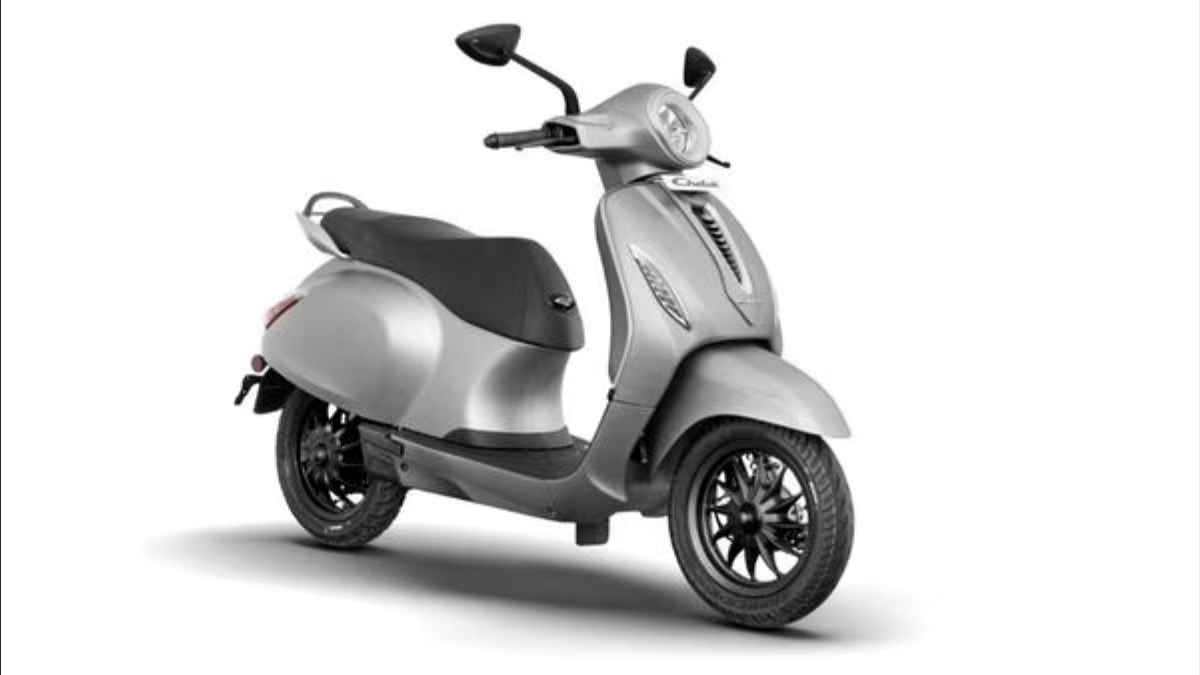
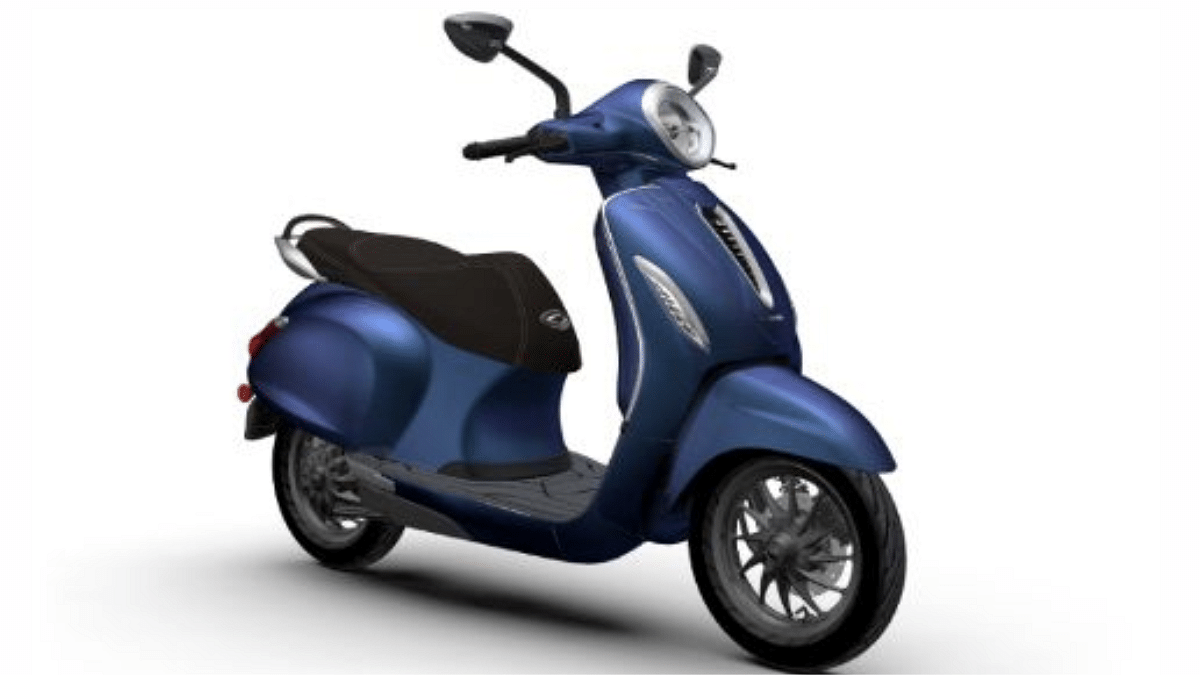
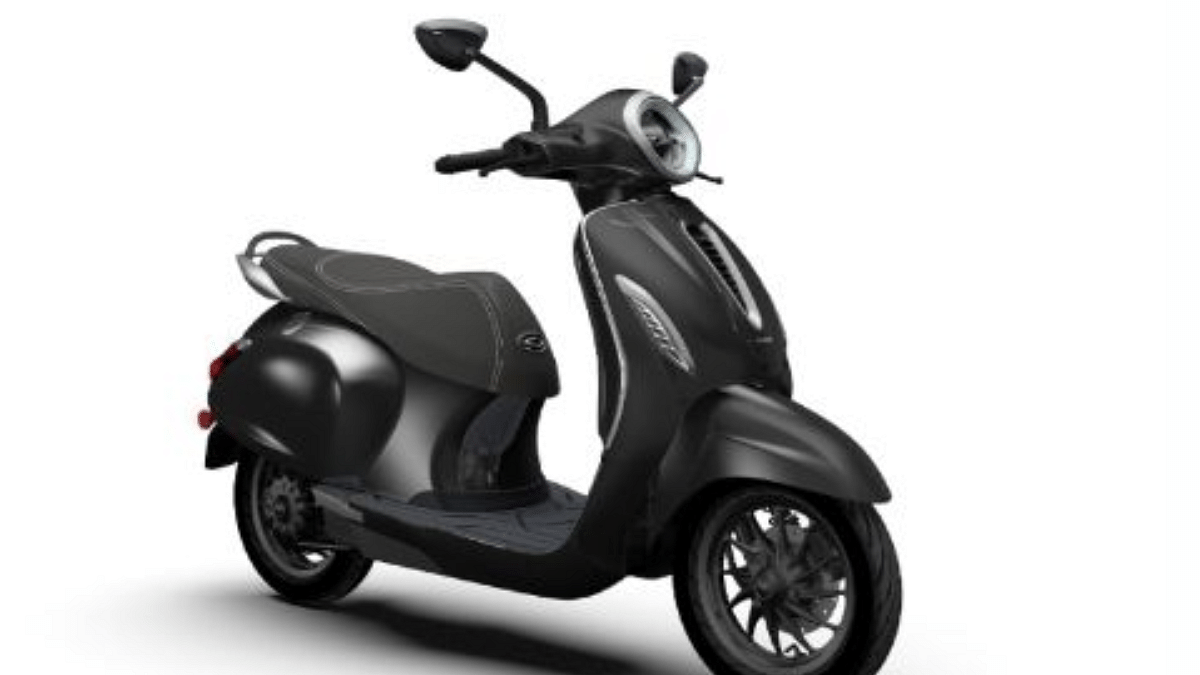
The Bajaj Chetak Blue 3202 is slightly expensive than the 2023 Chetak Blue variant, but still gets an affordable pricing of Rs. 1.15 lakh (ex showrom). Pre-bookings for the Chetak Blue 3202 e-scooter have already kickstarted. The company is taking pre-registrations at its official India website. Buyers will need to pay a booking amount of Rs. 2,000 for the pre-orders. This e-scooter is also launched in multiple color schemes including Brooklyn Black, Indigo, White, Metallic, Matte Coarse Grey, and Cyber White.

Categories
Apps Featured How To

YouTube Music To Apple Music: Here’s How To Transfer Your Playlists With Ease

Key Highlights

  • Transfer your YouTube Music playlists to Apple Music easily
  • Only user-created playlists can be transferred
  • Changes post-transfer won’t sync between platforms

Good news for YouTube Music users. You can now transfer your favorite playlists over to Apple Music. How? The answer is Google’s playlist portability feature. This is a significant step-forward in cross-platform compatibility. It will allow users to seamlessly transition between music streaming services without having to lose their carefully curated collections. This feature is a game-changer, whether you are thinking about switching or just want to check out Apple Music’s offers without having to start from zero.

Also Read | Google To iOS: How To Transfer Google Contacts Directly To iPhone

How To Transform Your Playlists From YouTube Music To Apple Music

The process of transferring your playlists is simple. But before you begin, there are a few things you should consider. Firstly, make sure that your Apple Music subscription is still active. The transfer would not be possible without it. Here are the simple steps that can help you move your playlists:

Step 1: Start by heading over to your Google Account Dashboard.

Step 2: Scroll down to the YouTube section, either under ‘Recently used Google services’ or ‘Other Google services.’ After that, select ‘Transfer Data’ to start the process.

Step 3: You will be prompted to select the specific playlists you want to move. Remember, only playlists you have created personally can be transferred. Saved playlists from other users cannot be copied.

Step 4: Choose Apple Music from the drop-down menu as your destination platform. Click on Continue.

Step 5: To complete the transfer, you must log into your Apple Music account and provide Google Takeout permission. You will receive an email with a link to access your playlists on Apple Music after the process is complete.

Important Details To Remember

Keeping in mind these two crucial points is essential. To start with, this is a one-time transfer. Following the transfer, any changes that you make to your playlists on YouTube Music or Apple Music won’t sync between the services. Additionally, Google suggests using third-party services like Soundiiz or TuneMyMusic if you wish to move your playlists to other music services that do not offer this feature natively.

Also Read | Need To Transfer iPhone Data To Your Laptop? A Step-by-Step Guide On How To Do It

The partnership between Google and Apple is not just one-way. Apple Music users can also transfer their playlists to YouTube Music. The process is similar and involves visiting Apple’s Data and Privacy page and following the on-screen instructions.

For the tech geeks, stay updated with the latest cutting-edge gadgets in the market, exclusive tech updates, gadget reviews, and more right on your phone’s screen. Join Giznext’s WhatsApp channel and receive the industry-first tech updates.