Categories
Featured How To Mobile

Listen To Radio On iPhone For Free: Follow These Steps

The practice of listening to radio stations on smartphones is a thing of the past. Nowadays, with the availability of streaming services for music, few people use their phones for radio. There is a workaround, though, if you want to use your iPhone to listen to the radio.

Because the iPhone lacks a built-in AM or FM tuner, unlike certain Android devices, you cannot use it to dial into any local radio stations. You are not, however, out of luck. In this article, we will help you learn how to listen to the radio on your Apple iPhone for free. Without much ado, let’s get to know how you can listen to your favorite radio stations on your iOS device.

How To Listen To Radio On iPhone For Free?

When Cupertino-based tech giant Apple unveiled its Apple Music streaming service in 2015, it also founded Beats 1. It is an internet radio station that you can listen to for free in the Music app that comes with your iPhone.

How To Listen To Radio On iPhone Via Broadcast Radio?

With an Apple Music subscription, you can access a variety of additional online streaming stations via the Music app. Many broadcast radio stations can be played on iPhones thanks to Siri and the Broadcast Radio feature on Apple Tunes. Simply adhere to these easy instructions:

Step 1: On your iPhone, go to Siri.

Step 2: Say your favorite Radio station’s name.

Step 3: Click on ‘Search’ and in the search field, enter the name of the station.

Step 4: Tap on any one of the Radio channels appearing in the search results.

Step 5: In the Radio tab, select a station under the Local Broadcasters or International Broadcasters option by tapping Radio and swiping up.

It should be noted that listening to broadcast radio requires an Apple Music subscription. However, not all nations or areas have access to this feature. Neither all the stations are accessible in all regions or countries.


Categories
Apps Featured How To

Change Language Settings In WhatsApp: Here’s How To Do It

Let’s face it. WhatsApp is the first name that comes to mind when we consider chats and conversations. The Meta-owned app is available in over 40 languages and up to 60 on Android all around the world. But as a general rule, it adheres to the language of your phone. For instance, WhatsApp will automatically switch to Hindi if you change the language of your phone. There are a total of 11 regional languages supported by WhatsApp in India.

However, you can manually change the app’s preferred language if you just want WhatsApp to be available in your language. But only the Android app and select markets have access to this feature. As for iPhone users, they need to change their device’s language for the changes to reflect inside WhatsApp. The steps are as follows:

How To Change WhatsApp Language On Android?

Step 1: On your Android mobile phone, open WhatsApp.

Step 2: On the top right corner of the screen, tap the three dots.

Step 3: Now, click on Settings.

Step 4: Go to the Chats option below Account on this page.

Step 5: Tap on App’s Language available on the lower screen.

Step 6: Then, change the language of your WhatsApp as per your choice.

The languages used in your nation will be available to you in WhatsApp’s language settings. If you are in the US, you will see Spanish as the first option. Meanwhile, people in India speak, read, and write in a wide variety of languages. But you can select any language when setting up your WhatsApp account for the first time.

How To Change WhatsApp Language On iPhone?

You must adjust the language settings on your iPhone if you wish to use WhatsApp in Hindi or any other language: All you have to do is:

Step 1: On your iPhone, navigate to the Settings app.

Step 2: Go to General.

Step 3: Tap on ‘Language & Region’ and choose ‘Hindi’.

Drag the Hindi slider to the top to replace the English slider after setting the preferred language order, which also includes Hindi. You can change WhatsApp’s language option in this way by choosing Hindi as your preferred iPhone language.

Categories
How To Mobile

How To Check Your Smartphone Offers 5G Services Or Not: See All Steps Here

Reliance Jio became the number one telecom operator in the recently concluded 5G spectrum auction. And, the services are expected to start soon according to PM Modi; however, once the services will start, the demand for the 5G smartphones is likely to increase at a CAGR of six percent.

Besides, the shipment of the 5G devices is expected to reach 600 million by 2026 from 300 million in 2021. This means that the adoption of the 5G smartphones will increase in the next four years and to fulfil the increased demand all smartphone makers in India have already started launching 5G devices. But, in case you want to know that your device is 5G compatible, then you should follow these steps.

Steps To Check That Your Phone Is 5G Compatible Or Not

Step 1: First, open the settings of the smartphone. Tap on the Wi-Fi and Network option.
Step 2: Now, tap on the SIM and Network option. Then, you have to open the Preferred network type option to see all technologies. And, if it supports 5G services, then it will be listed there.

Reliance Jio Might Launch 5G Services On August 29th, 2022

It is worth noting that India’s largest telecom operator Reliance Jio is expected to launch its 5G services at its upcoming annual general meeting, which is scheduled for August 29th, 2022. Apart from that, several reports claim that the company might bring its 5G smartphone on the same day.

Notably, the 5G smartphone has been developed by Google and it is likely to be priced under Rs. 10,000.

5G Spectrum Auction: Reliance Jio, Airtel, Vodafone-Idea, And Adani Data Network Pay First Instalment

For The unaware, Jio acquired 24,740MHz in the 5G airwaves, while Airtel managed to garner 19867.8MHz of the spectrum and Vodafone-Idea acquired 3300MHz of the spectrum. All these telecom operators and Adani Data Network have paid Rs. 17,873 crores as a part of the initial part of the spectrum payment.

Moreover, Reliance Jio paid Rs. 7,864.78 crores, while Vodafone-Idea has cleared Rs. 1,679.98 crores, and Airtel has paid Rs. 8312.4 crores, which is four annual instalments in advance. On the other hand, the Adani Data Network has cleared Rs. 18.94 crores.

Categories
Featured How To Mobile

iOS 16 Tips And Tricks: Learn How To Delete Duplicate Images On iPhone

Let’s face it. We all take multiple pictures from the same viewpoint to get the best shot. However, we frequently overlook deleting those identical or similar photographs. And deleting them has always been a tedious task on the iPhone.

Well, iOS 16 will bring quite a few cool features to iPhones. While the majority of features are concerned with the UI’s design, such as the redesigned lock screen and battery level, the OS also offers a few more useful functions that you might not immediately notice until you dig deep.

The ability to delete those duplicate images from your iPhone is one such feature that you might not be aware of or may have only heard about. With this new feature available on iOS 16, deleting duplicate photos has become a lot easier. Apart from this, you can also merge two or more images into one and save a lot of space on your Apple iPhone.

How To Delete Duplicate Photos On iPhone?

In this article, we will help you learn how to get rid of duplicate images on your iPhone. All you have to do is follow these simple steps to delete duplicate photos:

Step 1: On your iPhone, open the ‘Photos’ app.

Step 2: On the bottom right-hand corner, tap on the ‘Albums’.

Step 3: Scroll down until you see the ‘Utilities’ section.

Step 4: Click on ‘Duplicates’. Now, you will see all the duplicate images stored on your iPhone. Scroll down and see which duplicate or identical photo you want to delete. Deleting/Merging all as the OS’ AI pretty much detects similar images accurately.

Step 5: Then, tap on the ‘Merge’ button.

Step 5: Select the images you want to ‘merge’ and the duplicate photos will be deleted.

That’s it. Photos app’s built-in tools allow you to remove duplicate photos. Note that you need an iPhone running iOS 16. A public beta is available for download, but it has certain bugs and Apple has warned about them. Or just wait for the iOS 16 rollout in September.

Categories
Apps Featured How To

WhatsApp Account Banned? Here’s How To Remove WhatsApp Ban From Your Account

Key Highlights

  • If your WhatsApp account is temporarily banned, you will see a message stating that your account is blocked.
  • Following are the steps that the user can follow to ban from your account.

WhatsApp is a commonly used messaging application by Android and Apple iPhone smartphone users. The app’s popularity isn’t just limited to India but also the global region. The privacy-oriented end-to-end encryption platform makes it the most secure for all types of conversations. WhatsApp is stringent with its privacy policies and in recent years has started blocking accounts if found of any fraudulent activities.

If in case, you see a message from WhatsApp the next time you launch the app stating your account is “Temporarily banned”, you might not be able to use the application for messaging. What can you do in that case and how can you get the ban on your WhatsApp account revoked? Read on here for the steps:

Also Read: Now Use WhatsApp In Picture-In-Picture Mode: Feature Available For iOS Beta Users

Why Do WhatsApp Bans Users’ Accounts?

WhatsApp in most cases imposes a ban on any user account for violating its terms and services or for using the unsupported WhatsApp version including GB WhatsApp and WhatsApp Plus. If you have been using any of the moderated versions of WhatsApp, your account getting banned is highly likely. Since WhatsApp doesn’t support such third-party apps, you will have to start using the official version to get the ban removed.

Steps To Switch To Official WhatsApp App From Mod Versions?

Step 1: You can start the process to switch to the official WhatsApp app, you will have to wait for the temporary ban to be removed. You will see a timer that will show the length of the ban on your account.

Step 2: If you are using GB WhatsApp, click on the More tab.

Step 3: Select the Chats option.

Step 4: Tap on Back up chats.

Step 5: Now, open the Phone settings menu.

Step 6: Click on Storage.

Step 7: Select the Files option.

Step 8: Locate the GB WhatsApp folder. Press and hold it to select it.

Step 9: From the top right corner, select the More option.

Step 10: Rename this folder to WhatsApp.

Step 11: Go to the Google Play Store and then download the official WhatsApp application.

Step 12: Complete the installation process and start using WhatsApp. Make sure you restore the data before setting up the app.

Also Read: WhatsApp To Allow You To Use The App On More Than One Phone Soon
Categories
Featured Gaming How To

Wordle: Know How And Where To Play This World-Famous Game

Do you enjoy playing word games? If so, then you must be familiar with the Wordle game that has taken the world by storm. But if you’re not familiar with this intriguing word game, we can explain it to you.

Wordle is one of the most popular word games available online. It has a massive fan base and is owned by The New York Times. Given that it’s free, it’s ideal for those lazy days when you just want to unwind on your couch and play a couple of quick games.

How To Play Wordle?

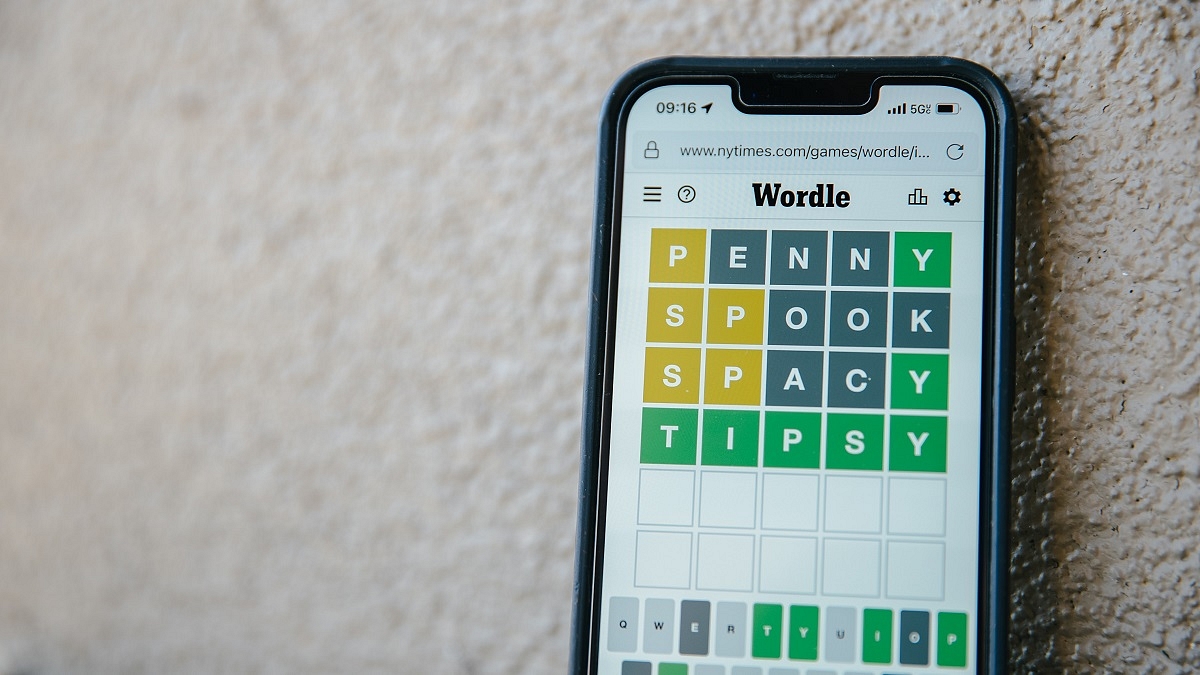
With its daily puzzle to predict a five-letter word correctly out of six possibilities, Wordle is the world-famous, entertaining, and engaging game. It comes with words on a daily basis. Here’s how to play:

  • You will have six chances before you succeed or fail to guess a five-letter word that is different every day. You will receive a green-colored hint for each correct guess you make in the word’s right position.
  • If you guessed a letter correctly but it was positioned incorrectly, it will be indicated in yellow. If you choose the wrong letter, your turn will become grey.
  • Any alphabet that is missing from the word will be highlighted in black to let you know.
  • To submit your guess, press the enter key after making your guess. It should be remembered that the tiles’ color will change after each guess to indicate how accurate your prediction was.
  • Answers will never be plurals and letters can be used twice or thrice in a word.

As the game is becoming incredibly popular for its winning streaks among many users, Wordle maintains track of its players’ playthrough numbers and win or loss percentages.

Where To Play Wordle?

There isn’t a Wordle app. To play it, you need a web browser. One needs to open the New York Times Games site and play the game.

Although the Wordle website originally hosted the game, which was designed by its founder Josh Wordle, the New York Times eventually acquired it in February of this year. The best part about Wordle is that you can completely concentrate on your guessing game without being distracted by any adverts.

Categories
Featured How To Laptop

How To Check Available RAM Slots On Windows: A Step-By-Step Guide

How much RAM does your computer have? How about upgrading slots that are available? Well, having the option to add extra memory down the road will help you futureproof the device and improve its performance depending on your workload.

While Windows does give you all the information you require about your computer, finding what you need can be a difficult task for many. In this post, we have detailed a few ways to check available RAM slots in Windows laptops/PC. Let’s check them out:

How To Check RAM Slots Via Task Manager

Step 1: On your computer, launch task manager. Tap on ‘Task Manager’ by performing a right-click on the Windows icon in Windows 11. Simply right-click the taskbar in Windows 10 and tap on Task Manager from the menu.

Step 2: Click on ‘Performance’ once you open the ‘Task Manager’.

Step 3: Click ‘Memory’. On the bottom right, in front of the ‘Slots used’, you ought to see the available RAM slots.

How To Check RAM Slots Using System Information

System Information is another simple way to view the RAM specifications. All you have to do is:

Step 1: Click on the Start menu.

Step 2: Now, search for ‘System Information’.

Step 3: Click on the ‘Best match’.

Step 4: Scroll to find Installed Physical Memory (RAM) and Total Physical Memory.

This will provide you with all the essential details you require regarding your installed RAM. Using the System Information tool, you can also discover other PC system specifications.

How To Check RAM Slots Through Third-Party App

To view the available RAM slots, we’ll use the CPU-Z app. Using a third-party app like CPU-Z allows you to see a lot more information than just the RAM slots.

Step 1: Download and Install CPU-Z on your PC.

Step 2: Launch the CPU-Z app and click on SPD.

Step 3: Then, click on the drop-down menu under Memory Slot Selection.

This will show you the available RAM slots on your computer/PC. If you have four RAM slots, you will see four Slot#s, if you have two, you will only see two Slot#s. Using this app, you can also check the RAM type, frequency, etc.

Categories
Featured How To Mobile

How To Take Screenshot On Realme C35: A Step-By-Step Guide

Nowadays, an essential feature in a mobile phone is the ability to take screenshots or to capture in an image what appears on the screen at that precise moment. If we talk about Realme, then it is gradually gaining traction on global markets, so there’s a high possibility you either already own a product from the brand or are eager to do so. However, are you aware of how to take screenshots on your Realme smartphones? We’ll tell you how.

How To Take Screenshot On Your Realme C35

There are many ways to easily take screenshots on your Realme C35 smartphone that are described in this post. The good news is that you don’t need to install any additional apps because this feature is already included in the Android 11 and Realme UI 2.0 operating system.

Method 1: Three Finger Screenshot

Slide your three fingers downward on the screen of your Realme C35 to take a screenshot. Here’s how to do it:

Step 1: Go to Settings on your phone.

Step 2: Tap on ‘Convenience Aid’ and then ‘Gestures & Motions’.

Step 3: Now, enable a three-finger screenshot.

Step 4: After that, swipe your three fingers down on the screen of your phone. That’s it.

Method 2: Use Key Combination

Step 1: Open the screen that you want to screenshot.

Step 2: Now, press the Power Button and the Volume down button simultaneously.

Method 3: Use Smart Sidebar

Step 1: Go to your phone’s Settings.

Step 2: Then you have to head to Convenience Aid.

Step 3: Press the ‘Smart Sidebar’ button.

Step 4: Now activate the ‘Smart Sidebar.’

Step 5: Locate the screen you wish to take a screenshot of, launch the Smart Sidebar, and then click the Screenshot icon.

Method 4: Use Assistive Ball

Step 1: Go to Settings.

Step 2: Then you have to go to Convenience Aid. After that, go to Assistive Ball.

Step 3: Turn on the Assistive Ball now.

Steps To Take A Long Screenshot On Realme C35

You will need to add one more step to the above-mentioned standard snapshot techniques if you wish to take a long screenshot of the current page or a webpage.

Step 1: You need to open the screen you wish to screenshot.

Step 2: Then, take a screenshot using any of the aforementioned techniques.

Step 3: Now click the screenshots you just took.

Step 4: Next, press the ‘Scroll’ button.

Step 5: After the page has automatically scrolled to the location where you wish to take the screenshot, click ‘Done’. That’s it.

Categories
Apps Featured How To

WhatsApp Tips And Tricks: How To View Someone’s Status Secretly

WhatsApp allows users to stay connected with friends and family. When we want to know what’s going on around us but don’t want to divulge our identities, however, online anonymity comes into play. The Meta-owned app allows you to hide online status and message delivery data. But did you know that you can also view other people’s status in secret? By default, WhatsApp Status keeps track of who has viewed it. However, there are certain methods you can use to view someone’s status without their knowledge. Wondering how? Read on.

By turning off read receipts or viewing it offline, Android and iOS users can view the WhatsApp Status of their contacts without letting them know. On your phone, you can also check the hidden WhatsApp status folder to avoid viewing the Status directly.

Here’s How To View Other’s Status Without Letting Them Know

Method 1: Turn Of Read Receipts

Step 1: Open WhatsApp on your phone or iPhone and click the three dots icon that is present on the screen.

Step 2: Then, go to ‘Settings’ and head to the ‘Account’ option.

Step 3: To check the advanced features and turn off the ‘Read Receipts’ option, go to ‘Privacy.’

Method 2: Via Phone’s File Manager

Keep in mind that only Android users are allowed to use the feature.

Step 1: Go to file manager on your mobile phone.

Step 2: Open internal storage and click on WhatsApp

Step 3: Open the media folder and tap on the ‘Status’ folder.

Step 4: Here, you can find all the images that your contacts have posted as WhatsApp Statuses.

In case the folder is not visible, navigate to File Manager settings and enable the ‘Show hidden files’ option. Then, you will be able to see the folder.

Method 3: Switch To Airplane Mode

You can also use Airplane mode on your mobile phone to access WhatsApp status. Here is what to do:

Step 1: Turn off the mobile data of your phone and switch on the Airplane mode.

Step 2: View the status on WhatsApp by heading to WhatsApp. Now, you have the option to see WhatsApp status without letting others know. That’s all.

Categories
Featured How To Laptop

Disable App Notifications In Windows 11: Here’s How To Do It

Notifications help people stay updated with everything that’s happening in the collection of installed apps and services on a Windows PC. But receiving what seems like a continuous stream of notifications can be daunting and exhausting. You have therefore come to the right place if you’re seeking for a technique to turn off notifications in Windows 11, say for a particular app or the OS as a whole.

Windows notifications are enabled by default on most Windows 11 PCs. However, some apps and websites may ask you to turn it on manually. This allows notifications to be sent even if the app is not actively open. These notifications can pile up and eventually become useless. In this article, we will help you learn how to turn off notifications in Windows 11 and reduce distractions like a pro.

Steps To Turn Off App Notifications In Windows 11

Nothing annoys anyone more than a machine telling its users what to do. Microsoft’s suggested notifications for Windows 11 feature promotion are sent out. Although this might be helpful for beginners, power users frequently find it unnecessary and forced. Here’s how to turn them off for good in Windows 11 if you don’t want to get distracted with suggested notifications:

Step 1: Tap the Windows start menu icon at the bottom to get started.

Step 2: Now, click on ‘Settings’.

Step 3: Then, click on ‘Notifications’.

Step 4: Locate the app you want to stop receiving notifications for by scrolling down and looking for it.

Step 5: Now, on the right side, tap where it reads ‘On’ to turn off your notifications.

Step 6: Simply scroll up and click the button next to the word ‘Notifications’ to disable notifications for all apps.

In Windows 11, you can swiftly turn off app alerts for specific apps or for all apps. You can stay focused on the task that you are doing on screen by turning off notifications. We advise you to disable notifications only for certain irksome apps. For example, WhatsApp or Telegram apps like these may delay your work by continuously pushing notifications from channels and groups.