Categories
How To Mobile

How Can You Easily Recover Accidentally Deleted Data On Realme Smartphones?

Key Highlights

  • Use a reliable data recovery tool designed for Realme devices
  • Enable USB debugging in the developer options to establish a connection with the tool
  • Scan the device and initiate data recovery to retrieve the deleted files successfully

The smartphone industry is consistently evolving across the globe over the last decade. Numerous brands have forayed into this market in recent years supplying the demands of different categories of the audience. One such comparatively newer smartphone brand is Realme. The Chinese smartphone brand started its innings as Oppo’s former subsidiary and is now flooding the markets with affordable as well as premium handsets.

Realme Android phones are loaded with features and allow us to perform all the basic as well as high-end tasks. And in most cases, we rely on our devices for storing data. Be it audio, video, and other documents, the inbuilt as well external device storage on Realme phones make data storage easier. Also Read | OnePlus Factory Reset: How To Use Recovery Mode In OnePlus Phones To Wipe All Data


However, there are scenarios where you might have accidentally deleted some important files or documents. They are n number of possibilities that might cause accidental data loss on your Realme handsets. But are there any ways to recover lost data on Realme Android phones? Well, the answer is yes. Below are the ways to recover lost files or accidentally deleted data on Realme phones?

How Can You Recover Lost And Deleted Files On Realme Android Phones?

Step 1: The most crucial step that you need to perform is to back up the required files and documents on your respective Realme handsets. You can toggle on the backup settings from the Settings menu. You can search the ‘Backup and reset’ option from the device settings menu and switch it on.

Step 2: You can also create an additional backup on Google Drive. This will make sure you don’t lose your data even if the in-house ‘Backup and Restore’ settings are not toggled on or aren’t working properly for some reason. You need to go to the “Google Account” option from the setting menu and select the specific account for backup. Make sure the “Account Sync” option is also toggled on.

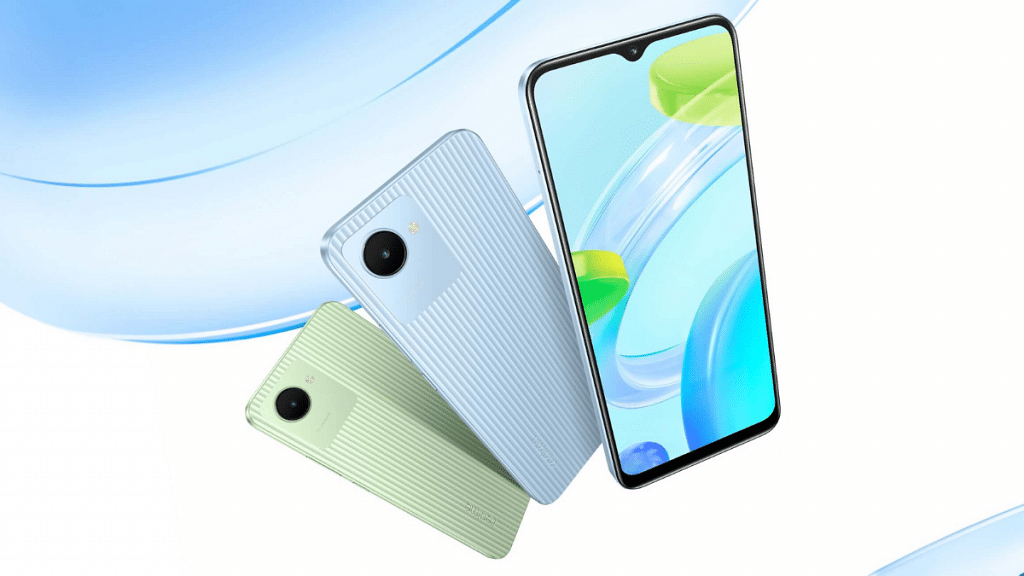
Step 3: Using third-party apps such as Android Data Recovery or EaseUS Data recovery tools. These data recovery apps can be downloaded via Google Play Store or official websites and are quite potent with data recovery. Such apps are one of the best options to restore accidentally deleted files on not just Realme but smartphones from other brands as well. Using all the aforementioned methods, you can get back your deleted images, video, and audio files, along with other formats of documents and even call logs, messages, and contacts.

Also Read | Recovery Mode In Vivo: How To Use Recovery Mode In Vivo Phones To Wipe Data And Fix General Issues


Categories
How To Mobile

Is Your Oppo Phone Slowing Down? Here Are The Steps To Improve Speeds And Get Rid Of Lags

Key Highlights

  • Multiple factors hamper the performance of a smartphone
  • Insufficient storage capacity is one of the reasons for the slow speed of your phone
  • Cleaning the memory can do the trick

Smartphones have become more of an essential commodity than just being a gadget over the last decade. The market today is all about Android and iOS smartphones. The former has a larger consumer base with multiple brands catering to the masses. Oppo is one of the most popular brands which is consistent with smartphone launches in the market. The Chinese tech giant is known for introducing feature-packed devices that offer a premium user experience despite pocket-friendly pricing.

A lag-free user experience has always been the highlight of Oppo phones. However, you might have experienced some random issues with performance such as slow speeds abrupt app crashes and device warm-up with your respective Oppo phones. That generally is the case after months or in some cases years of usage.

 If slow speed is your concern with any of your Oppo handsets, you have landed at the right place. This article is centered around the steps to speed up the performance of laggy Oppo phones? You don’t have to perform any tricky steps to pump up the speeds on your older Oppo handsets. Just follow the steps below:

How To Speed Up Old Oppo Phones Easily?

There are various factors that hamper the performance of your Oppo smartphone. One of the major reasons is the insufficient storage capacity or old cache logs. Cleaning the memory or removing the unused heavy-sized apps does the trick most of the time. In some cases, viruses also affect the speed performance, so a thorough clean-up using an authentic Antivirus app saves the day. There are a bunch of additional steps that you can perform manually. Take a look:

Step 1: Close multiple apps running in the background and restart the device if required. This works if your device is not too old and might be slowing down with heavy RAM and ROM usage.

Step 2: Uninstall unnecessary large-sized third-party apps. This will free up some additional space from the device memory for efficient performance.

Step 3: Remove unwanted junk and cache files that slow down your Oppo phones. To do so, you can head to Tools (icon you can locate on the home screen) > Phone Manager > Clean Up Storage. Hit ‘clean’ after the last step and you are good to go. Note, these steps are for ColorOS 7.0 and above. Older ColorOS versions also have similar steps.

Step 4: Timely check for firmware updates. You can set the updates to automatic. However, manually checking them is a fool-proof solution that will enhance the performance delivery.

Categories
How To

How To Toggle On Dark Mode On Facebook Mobile App: Step By Step Guide

Key Highlights

  • Facebook has evolved with the newer versions of Android and iOS mobile OS
  • Facebook joined the race of apps to support Dark mode
  • Toggling on the Dark Mode from your phone’s settings might not work

Social media platforms are the new norm amongst smartphone users all across the globe. We rely on these online platforms to stay updated with the latest happenings and remain entertained on the go. Facebook, recently rebadged as Meta is one of the most popular social media platforms in the online space. It is serving not just desktop users but also Android and iOS smartphone users.

Over the last few years, the company has made numerous changes to make it more user-friendly. Several features have also been added over the course of the last few years for a better experience. And all the improvements haven’t been just restricted to the web portal but also to Android and iOS apps. New customizations have also been a part of Facebook’s (Meta) overhaul in recent years. Also Read | Facebook Tips And Tricks: Here’s How You Can Easily Change Facebook Profile Name

Facebook has also evolved with the newer versions of Android and iOS mobile OS. And ever since Google released Dark Mode for Android devices, Facebook joined the race of the apps to support this feature. Currently, if you are using the Facebook app with the default skin layout, you see a white-blue theme on the mobile app.

But if you are a fan of the Android’s Dark mode, this light theme might not do the trick for you. Toggling on the Dark Mode from your Android phone’s settings might also not work. So, what exactly is the procedure to turn on the Dark Mode for the Facebook app. We have listed down the steps below to make it easy for you. Take a look:

How Can You Turn On Dark Mode For Facebook Mobile App?

Step 1: Open the Facebook app on your respective smartphones and login using your credentials.

Step 2: From the app, click on the menu tab (three horizontal lines) placed on the top right corner.

Step 3: Scroll down to the bottom of the page and locate the “Settings & Privacy” option. Tap on it and select “Settings”.

Step 4: On the next page, you’ll be able to see “Dark Mode”. Click on it.

Step 5: Now, select “On” to permanently toggle on the Dark Mode or click on the “Use system settings” for the app to toggle on/off this setting as per the device.

Also Read | Facebook Tips And Tricks: How To Create And Upload Facebook Reel Videos

Categories
Featured How To Mobile

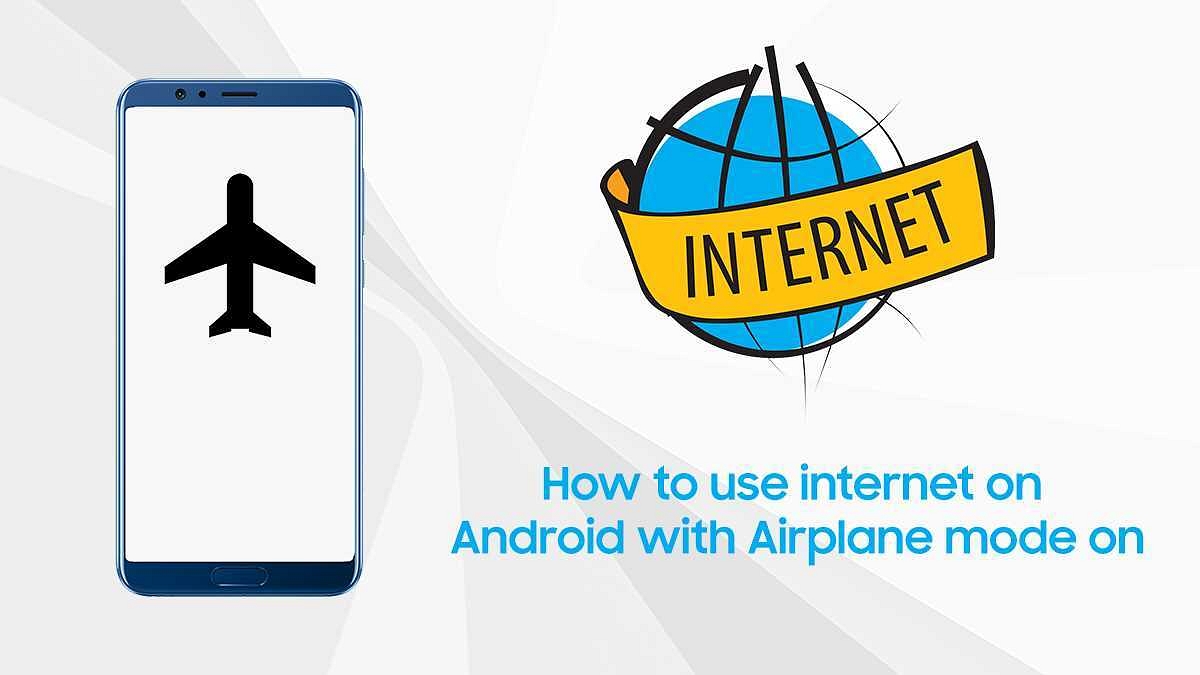
How To Use Wi-Fi And Mobile Internet While In Airplane Mode On Android?

Key Highlights

  • Wi-Fi and mobile internet technologies have improved over the past few years
  • Smartphones now support the latest Wi-Fi technologies
  • Both Wi-Fi and mobile internet are commonly available on modern Android and iOS devices

Not just mobile internet, Wi-Fi connectivity has also evolved over the last few years. You can see smartphones enabled with the latest Wi-Fi technologies allowing for a fast browsing experience and smoother high-resolution video playback at OTT platforms. The availability of both Wi-Fi and mobile internet is a common feature across Android and iOS devices nowadays.

Also Read | Lost Reliance Jio SIM Card? Here’s How To Block And Resume Your Jio Number

You can either use mobile internet or Wi-Fi to get connected to the online space. The latter comes in handy in regions when you don’t have good mobile net connectivity or are running out of data balance. It also helps you get connected to the internet when you toggle on the Airplane mode on your smartphones.

But what if you come across situations where you need to deliberately toggle on the Airplane mode and need to use the internet, but Wi-Fi is also unavailable (since that’s the workaround most are aware of). Well, you would be surprised to know that most smartphones would allow you to use mobile internet even if the Airplane mode is on. Don’t worry if you aren’t aware of the procedure, it isn’t super tricky. Take a look below:

Also Read | Dell Wi-Fi Not Working? Here Are Some Quick Fixes For Dell Laptop/ PC Wireless Network Issues

How To Use Internet With Airlane Mode On?

Step To Use Internet In Airplane Mode Via Wi-Fi

Step 1: This is the easiest way to use the internet when your smartphone’s Airplane mode is on. Just drag down the notification bar on your respective devices and click on the ‘Wi-Fi’ option.

Step 2: Click on the desired network you want your handset to connect. If the network is already saved on your device it will connect automatically, otherwise, enter the network SSID and password for authentication. That’s all you need to do to toggle on the Wi-Fi when the Airplane mode is on.

Also Read | 100+ Best Instagram Hashtags For Boys, Male Social Influencers

Steps To Use Internet (Mobile Data) In Airplane Mode

Step 1: Make sure you have toggled on the Airplane mode on your respective devices.

Step 2: Open the dialer app and dial *#*#4636#*#*.

Step 3: A testing page will open up with three different options namely “Phone information1”, “Phone infirmation2”, and “Wi-Fi” information. Select the Phone information 1 or 2 depending on the SIM whose mobile data you want to use in Airplane mode.

Also Read | Buying New Smart TV? List Of Best 32-inch Smart TVs Under Rs. 10,000 In India In 2023

Step 4: Once you click on the Phone info 1 or 2, another settings page will open up where you need to scroll down to the Mobile Radio Power option. Toggle this on along with the VoLTE provisioned and Video Calling provisioned placed right below the Mobile Radio Power option.

Step 5: Scroll further down to the “More” tab. Click on it.

Step 6: You will see another option “Enable Data Connection”. Tap on it and voila, you can now start browsing the internet even with the Airplane mode on.

Categories
How To

Instagram Tips And Tricks: How Can You Schedule Reels Videos Using Android, iOS?

Instagram is one of those instant photo-sharing apps which became an instant hit amongst the smartphone audience. The Meta-owned photo-sharing app is popular not just amongst Android but also iOS users. With numerous features added over the last few years, its popularity is simply on the rise. The app became one of the easiest resorts for TikTok users in India once a ban on the app was imposed due to China-links. This was when the brand added Reels as one of the new features to upload short videos.

Instagram Reels have been a major success factor for the Meta-owned social media app. It is currently one of the most used platforms by professional as well as amateur content creators to showcase their talents. With different tools and options, it becomes easier for the users to improve the quality of their videos before uploading.

This is another factor that makes it quite popular amongst the audience all across. But most of the time, users are only aware of the option to upload a video instantly. In some instances, you might have to schedule a video for the next day or later. This comes in handy for the content creators who might not have access to the internet or have a busy schedule but don’t want their audience to miss out on their feeds.

Most of you must be aware of the steps to upload any reel directly from the mobile gallery or once you have created it using the mobile app itself. However, scheduling requires some different process. You can perform the steps via both Android and iOS Instagram mobile app. Take a look at the steps below:\

Steps To Schedule Instagram Reels Videos On Android, iOS Smartphones

Step 1: Open the Instagram app on your respective devices and go to the reels tab.

Step 2: Now create or upload your Instagram Reels videos by clicking on the ‘+’ tab.

Step 3: Complete the remaining process such as adding effects or frames to the reels or adding a cover image.

Step 4: Add the desired captions. Note, you can also search for suitable captions using the “Find Captions” option. Add the remaining data such as hashtags, etc.

Step 5: You will see the option “Schedule”. Toggle it on and set the desired timer. Your Instagram Reels video will go live on your social feed on the timeline you have scheduled.

Categories
How To Tech News

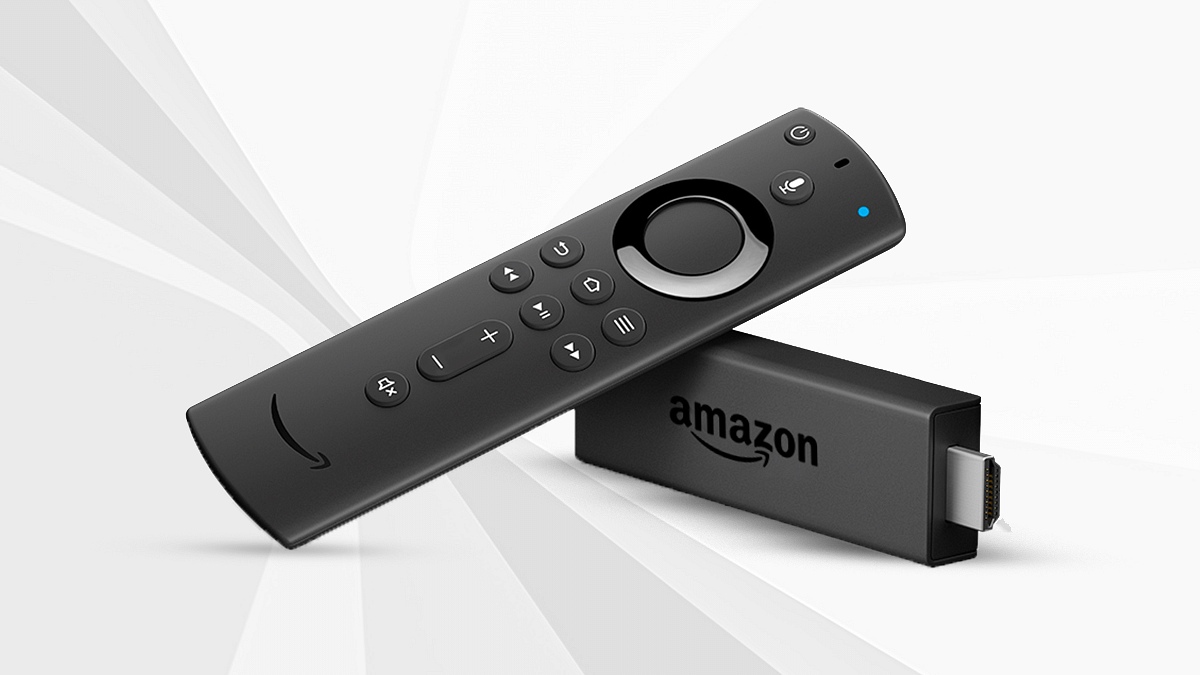
How To Get Amazon Fire TV Stick Free From BSNL Bharat Fiber, DSL Broadband, And Air Fibre Packs

In order to attract customers to its platform, Bharat Sanchar Nigam Limited (BSNL) has announced the launch of a new offer. The New Year Offer 2022 has been launched for Bharat Fiber, DSL Broadband, and Air Fibre customers in the country.

Under this new offer, the state-run telecom operator BSNL is providing Amazon Fire TV Stick from Rs. 999 plan. The scheme is already listed on the company’s website, but there is a catch. The can is available for those who can pay or apply for the annual advance payment scheme through BSNL Boss Portal.

The company also said that users who are using below Rs. 999 plan, then they have to upgrade to the plan above Rs. 999. The same offer is also accessible on the Selfcare portal or the Customer Service Centers (BSNL CSCs).

“The competent authority has decided to offer bundled ‘Amazon Fire TV stick lite’ under annual subscription of DSL/Fibre/AirFibre Broadband plan having monthly charges of Rs. 999/- & above in all the circles. The plan change request has a lower FMC than Rs. 999/- shall not be entertained during the lock-in period of an annual subscription,” BSNL noted on its website.

BSNL Offering Google Smart Devices

This is not the first time when the telecom operator announced this offer. Earlier, a state-run telecom operator announced that it is providing Google Smart devices at a discounted price on the annual internet plans.

Under that offer, users are getting Google Nest Mini and Google Nest Hub smart devices at Rs. 99 and Rs. 199 respectively. However, this offer is available for users who have cleared 12 and 13 payments in advance. Furthermore, this offer is available for users who are using Rs. 799 and above internet plans per month.

BSNL Rs. 499 Internet Plan Details

Meanwhile, the company has revised its Rs. 499 internet plan, reports Kerala Telecom. Additionally, the telecom operator is providing 1000GB of data along with 50 Mbps speed without any extra charge. Besides, the plan offers 50 Mbps download speed until 200GB; however, after that, the speed will be reduced to 2 Mbps once the speed ends.

Categories
How To Mobile

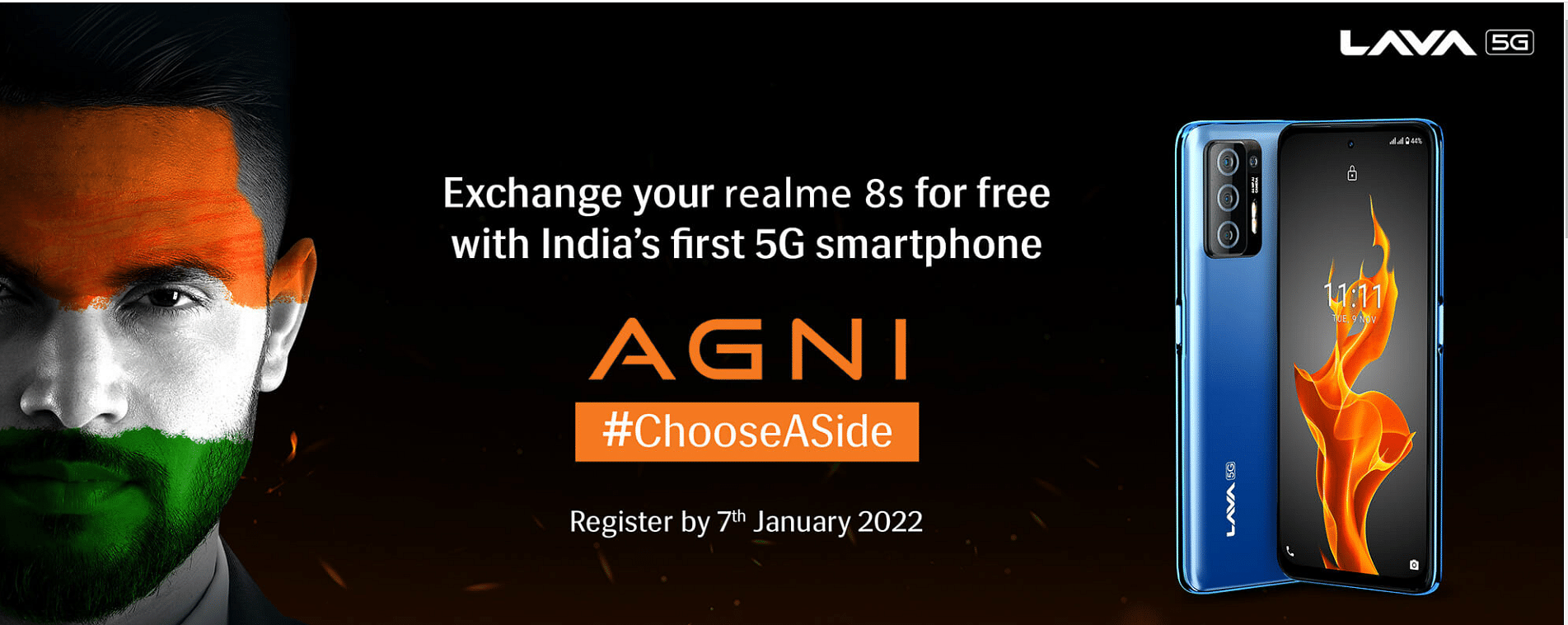
Lava Agni 5G Smartphone: Here’s How To Get It Free

Lava, which has recently launched its first 5G smartphone in India, has announced a new offer to new customers. Under the offer, the company is providing its 5G smartphone for free if you are using the Realme 8s device. But to avail that offer you have to register yourself on the company’s website.

Steps To Get Lava Agni 5G Device

Step 1: First, you need to visit the company website and tap on the banner https://www.lavamobiles.com/agni-5g-activity/

Step 2: After that, you to fill in your details like your full name, mobile number, email ID, address, state, city, and pin code.

Step 3: Tap on the exchange now option, then you will get a call from the company to fix the appointment for the exchange.

Step 4: You will get Lava’s first 5G device.

Lava Agni 5G: Specifications

For the unaware, Lava has launched its first 5G smartphone in November last year. The Lava Agni 5G smartphone runs Android 11 OS. It has a 6.78-inch full-HD+ display along with a hole-punch design and 90Hz refresh rate.

It is powered by the MediaTek Dimensity 810 processor and has 8GB of RAM. In addition, the device features a quad rear camera setup, including a 64MP primary sensor, 5MP wide-angle shooter, 2MP depth sensor, and a 2MP macro shooter. Besides, there are several modes, such as Pro Mode, AI Mode, and Super Night.

Categories
How To

KineMaster Mod APK: How To Download And Use On Android For Free?

Google’s Android OS has improved the user experience widely over the last decade. The availability of numerous third-party apps is one of the prime reasons for the Android platform’s popularity amongst the audience.

Video editing or photoshop is one such activity that has been made possible with smartphones and dedicated apps. You’ll get a myriad of options if you search for a third-party video editing app on Google Play Store. From paid to free versions, you’ll get it all on the Google Play Store.  And since we are speaking of the video editing apps, Kinemaster is one of the most popular ones which you can download and use on Android smartphones.                     

The version available on Google Play Store is shining with 4.3 stars and weighs around 63MB in size. But you’ll have to make in-house purchases to use all the advanced video editing tools and effects. The additional costs for tools and services on Kinemaster start at Rs. 56 and goes all the way up to Rs. 2,321.

However, if in case you are a content creator or make/edit videos out of a hobby and are using want to use this app for free, we have got a workaround for you. Do note that there isn’t any authentic way to use the Kinemaster app on your Android smartphones. Also, it is advised to avoid using this app if you plan to use it for long term.

As for the steps, you would need to download the Kinemaster Mod app. Notably, this version isn’t available on the Google Play Store. Therefore, you can only use it by downloading the APK file from an external source. You can check the steps below:

What Are The Steps To Download Kinemaster Mod APK File On Android Smartphone?

Step 1: Open any web browser on your Android smartphone (we are using Chrome as a reference) and search ‘Kinemaster Mod APK free download’. You’ll get multiple web pages with dedicated links to download Kinemaster app. We have added one of the links to make it easy for you.

Step 2: Tap on the “Download APK” option.

Step 3: Once the file is downloaded on your respective Android devices, go to the settings menu and head to the apps section.

Step 4: You need to select ‘unknown sources’ and then go back to the file manager.

Step 5: Complete the installation process and once done, you’ll be able to use the Kinemaster Mod app for free.

Categories
How To Tech News

How To Get Free Netflix, Amazon Prime, And Disney+ Hotstar Access With Vodafone-Idea Plans

Vodafone-Idea has become very active in terms of launching new offers for its customers, especially prepaid users. However, this time India’s third-largest telecom operator launched offers for its postpaid users. Notably, Vodafone-Idea has started providing access to three leading apps, such as Netflix, Amazon Prime, and Disney+ Hotstar.

This offer is valid on the company’s flagship packs, where all users are required to register themselves for six months. However, Vodafone RedX plans are priced over Rs. 1,000.

For the unaware, the REDX postpaid plan is priced at Rs. 1,099 and the other two postpaid plans are priced at Rs. 1,699 and Rs. 2,299.

Vodafone-Idea Rs. 1, 099 RED X Plan: Details

The Vi Rs. 1,099 plan is providing unlimited data, and 100 messages per month. The flagship postpaid plan also offers unlimited calling, Amazon Prime, and Vi & TV access. In addition, this plan offers Netflix, Amazon Prime, and Disney+ Hotstar access for one year. Besides, this plan offers access to domestic and international airport lounges four times without any extra cost.

Vodafone-Idea High-End Plans

The company offers two plans in this segment that are priced at Rs. 1,699 and Rs. 2,299. The Rs. 1,699 postpaid plan offers unlimited calling, STD, and local. In addition, the company offers unlimited data along with 100 messages per day, which means 3000 messages per month.

This pack also ships annual access to Amazon Prime, Netflix, and Disney+ Hotstar with the primary connection. The second connection will provide Vi Movies and TV app access. Additionally, the company is providing access to international and domestic lounges for four times in the year.

Besides, the company offers an international roaming pack for seven days, which is close to Rs. 2,999 and free airport lounge access for four times in year along with one international for the primary users along with special ISD rates to only 14 countries like the UK, US, and more.

Categories
Apps How To

UPI Payment Without Internet: Check All Steps And Details Here

Unified Payment Interface (UPI) allows users to make bill payments and transfer money to another bank account instantly through applications. Notably, India is far ahead of several countries in terms of using UPI modes to make payments. In fact, it is one of the easier ways to make payments.

However, India is struggling in terms of providing good connectivity to several areas like hill stations, where connectivity is the big issue. So, in that case, you have to pay in cash or look for other ways to clear the bill.

Well, there is a way to clear dues or payments via UPI without the internet. For the uninitiated, UPI is also available for users who are not using the internet on mobile devices, which means basic handsets. But, to use UPI mode without the internet, you have to dial *99# USSD code on your device.

Steps To Register For *99# USSD Code

Step 1: First dial *99# from the registered mobile number.
Step 2: Now, you have to tap on the bank account and type the last digit of the debit card.
Step 3: Then, write the expiry date and enter the UPI PIN. Now, you are allowed to use the service.

Steps To Transfer Money Using *99#

Step 1: First you have to dial *99# from your mobile number.
Step 2: The options will appear on the screen and after that, you have to dial 1 to select send money and tap on reply.
Step 3: The screen with options will appear and now you have to dial 1 to select “Send Money”, then click on reply.
Step 4: To send money you have to dial 1 for the mobile number and 3 for the UPI, 4 for the saved beneficiary. However, to send money you have to dial 3.
Step 5: Now, you have to write the amount you want to transfer and enter the UPI PIN.
Step 6 : Once the amount is deducted you will get a message from the bank and transaction has been completed.