Categories
How To Tech News

How To Stop “File Too Large For Destination Drive” Error Message With USB Flash Drives In Windows

Our current generation is living a fast-paced lifestyle. With the constant time constraint, our reliability on smartphones and other compact gadgets has increased over the last decade. Laptops and PCs are also playing an important factor in the modernization of the new generation. Along with portable devices, our dependence on compact digital accessories is also surging.

But what remains unreplaceable is the USB flash drive or pen drives that you have been using for data transfers and data storage from laptops and PCs. These small-sized devices are a must keep if you own a laptop or a PC. Despite their tiny sizes, you are able to store large multiple large-sized files in one place.

It’s as simple as copy-pasting any document or file on USB flash drives. However, you might have experienced one issue while transferring files or copying data from a laptop or PC with an error message popping up “File Too Large For Destination Drive”. This must be troubling you with new flash drives despite additional space available.

This is the case with Windows-powered laptops and PCs where you get to see an error message while transferring copying data from source to destination drive. It should come as a respite for you that modifying some settings can resolve this issue. So, how can you fix the file too large destination error issue with flash drives and Windows powered-laptop and PCs? Below are the steps:

How To Stop ‘File Too Large For Destination Drive Error Message’ While Copying Data From Laptop/ PC To USB Drives?

By making some changes to the USB drive’s settings, this data copy error issue could easily be resolved You would need to change the FAT 32 file system to NTFS. The steps to get done with the procedure are listed below:

Step 1: Try formatting the USB drive. This might automatically change the flash drive settings to NTFS from FAT 32. Right click on the flash drive icon and complete the format process.

Step 2: You would need to do some manual changes in the settings if the device format is unsuccessful or it doesn’t modify the settings. For this, right-click on the USB drive icon from my computer and tap on ‘File System’.

Step 3: Now, from the drop down menu select NTFS.

Step 4: Click on the save option.

The above method will fix the “File too large for destination drive” issue with USB drives. You will be able to transfer files sized above 5GB without any future errors.

Do let us know your thoughts in the comment section below. You can also follow GizNext Tech Enthusiast Telegram group and GizNext Tech Enthusiast WhatsApp group for more such technology tips and tricks.
Categories
How To Printers Tech News

Printer Showing Offline In Microsoft Windows: How To Get Printer Status Online?

Despite the onset of smartphones and tablets, laptops and PCs are irreplaceable when it comes to high-end computational tasks. There are numerous tasks that can be performed using laptops and PCs and not modern days smartphones. If even if the latter offers some kind of provisions for such tasks, the experience might not be as swift as on laptops and PCs.

If we speak of examples, it would be printing documents for which most of us would essentially route to a laptop or desktop. Microsoft’s Windows OS is the primary driving firmware in most of the modern days computing gadgets. It has been since along. The print command has also been present with all Microsoft Windows OS in the last few years which has been improved to fulfill the requirements of modern-day users.

You don’t have to rely on giving offline commands to any connected printer with your Windows-powered, laptop or PC. The same can be done remotely. Microsoft has also re-customized the printing tool services and now you can check the status of a printer (connected or disconnected).

You would always see a connected printer’s option while giving a print command from your laptop or PC. However, there are instances when you might see an ‘offline’ tag despite the printer being hooked to the respective laptop or PC. So, what should you do in such scenarios? How can you get back the printer online in your Windows laptop or PC? Below are the steps:

How Can You Get Back Your Printer Online In Windows Laptop/ PC?

Before you start with the manual steps on the laptop or PC, make you have checked all the connecting cables and power supply. Sometimes, loose cable connections might show your printer’s status offline. Apart from the loose cable connections, also check for the power supply of the socket with which the printer is plugged in. Try changing the socket if required. If in case these physical checkups doesn’t resolve the issue try with the manual steps listed below.

Step 1: From the Windows start menu, open the control panel settings.

Step 2: Go to the ‘Devices and Printers’ option and select ‘See What’s Printing’ option.

Step 3: You will now see the ‘Printer’ option in the next window’s menu bar. Once you select it you’ll see the ‘Printer online’ option. Click on it and you are good to go.

However, if the aforementioned manual steps also doesn’t work and you are sure there is no hardware defect with the printer or the connected laptop or PC, you can try uninstalling and re-installing the printer driver package. You need to have authenticated system files for the same.

All you need to do is remove the printer driver package from the control panel’s ‘Program and  Features’ option. Once you are done with the uninstallation process. Re-install the printer’s supported drivers via disk drive, USB, or online methods.

You will see the printer status back online once the drivers are re-installed properly. However, if despite all your efforts your printer isn’t showing an online status, you should consider consulting authentic service centres to resolve the issue.

Categories
How To Mobile

iPhone 13 At Rs. 50, 900 In India: Here’s How To Get It

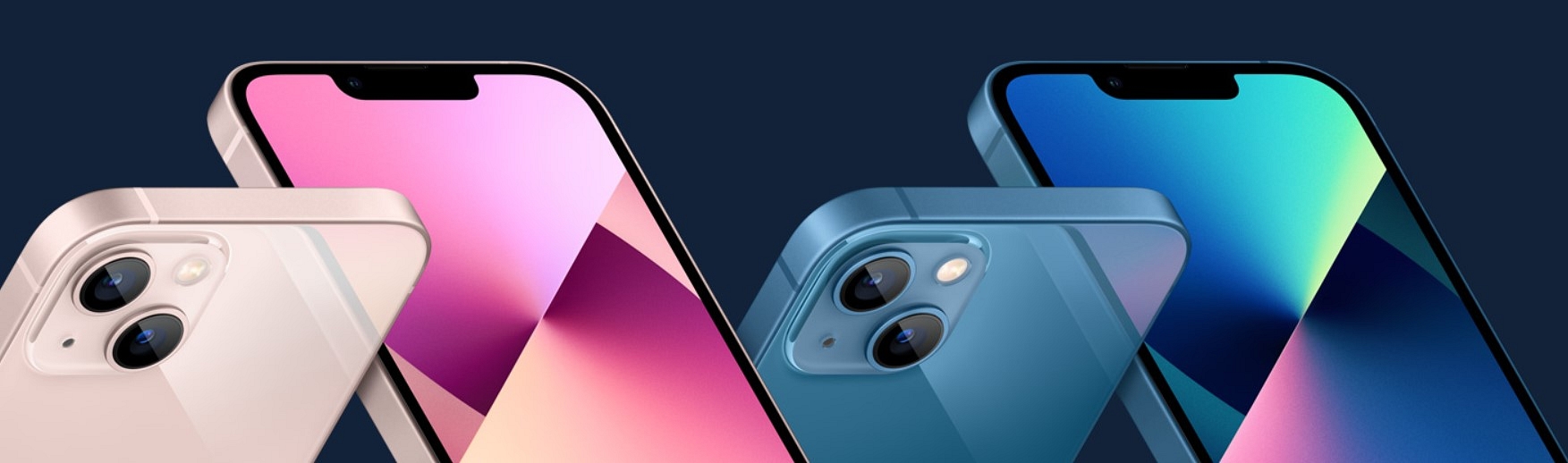
If in case you are planning to buy or upgrade your existing smartphone to iPhone 13, then there is good news for you as iStore has launched an offer on the same. Notably, iStore, which is an authorized store of Apple is selling a 12GB variant of the iPhone 13 for Rs. 50,900 instead of Rs. 79,900.

For the unaware, the iPhone 13 was launched in September last year and the series includes the vanilla variant, iPhone 13 Pro, and the iPhone 13 Pro Max. Notably, the company is planning to launch a new device this year; but still, the launch might take place in September or October this year. However, the deal seems good as the 128GB variant of the iPhone 13 is available for Rs. 50,900 as against Rs. 79,900 in India.

iStore Offers On iPhone 13

The authorized store of Apple is providing Rs. 5,000 discount along with Rs. 6,000 cashback to users. In addition, the cashback offers include ICICI Bank debit and credit cards, SBI credit cards, Kotak bank debit, and credit cards.

Additionally, iStore is providing an exchange bonus on your old device, where you will get Rs. 18,000 as exchange value. But, if you trade for iPhone 11, iPhone XR, and iPhone 12, then you will get high value. Besides, the company said that if your phone is physically damaged, then you will not get the actual amount after the verification.

It is important to note that the iStore is not only providing discounts and cashback on the 128GB variant as it is available on the 256GB and 512GB models. Furthermore, the 256GB storage of the iPhone 13 will be available at Rs. 60,900 as against Rs. 89,900. The 512GB variant will cost you Rs. 80,900. The deal is also available on MyImagineStore, Aptronixindia, and FutureWorld.

.

Categories
Apps How To

Facebook Tips And Tricks: How To Disable Comments On A Facebook Post/ Page?

Key Highlights

  • Facebook has become a popular social media platform for both general users and professionals from various industries
  • The platform offers features like creating dedicated groups or pages for a wider audience reach
  • Content creators and professionals can enhance security and control by turning off comments on Facebook posts or pages

Facebook has marked its name in the social media space ever since its debut. The platform has gradually become a one-stop destination for not just general users but also professionals from different industries. Facebook has improved its services over the last few years and has made its platform secure for the audience. Also Read | Want To Hide Your Online Status From Friends On Facebook? Here’s How

Facebook, now known as Meta offers users the provision to create dedicated groups or pages for a larger audience reach. While Facebook itself is a secure platform to use, there are instances where unwanted profiles break into the security loops and turn out to be a menace to a general audience as well as content creators.

And one of the easiest ways that let any content creator or professional get a wider reach to the audience is by creating good quality posts and sharing them across different pages or social groups. Moderators of such pages are given the authority to control the activities on any socially shared posts on Facebook.

One of the handy features that post or page moderators have access to is the ability to turn off comments. This helps the users to keep unwanted or creepy and abusive content at bay. Turning off comments in a Facebook post or page enhances the overall security of the users associated with it. Below are the steps with which you will be able to turn off comments on any Facebook page or post.

Also Read | How To Edit Facebook Photos Via Mobile, Desktop App Directly

How To Stop/ Block Comments On Any Facebook Post Or Page?

Step 1: Go to the Facebook app on your respective smartphones or log in to the web version using your credentials.

Step 2: If you are a moderator of a page, you have the authority to make changes to any post shared on your Facebook page by you or any other member. You need to go to the post whose comments you wouldn’t want to appear.

Step 3: On the post, click on the three horizontal lines menu option. You will locate it in the top right corner of the post.

Step 4: You will be given several options including Edit post, Delete post, Turn off Notification, Turn Off Translation, and Turn off commenting.

Step 5: Select the last ‘Turn Off Commenting’ option to block users from adding new comments to a post. Note, once you select this feature the comment section won’t be visible in general public view. Also, none of the users will be able to post new comments.

Also Read | Want A Blue Tick On Facebook? Here’s How To Get Verified Today

Categories
Apps How To Tech News

WhatsApp Web Tips And Tricks: How To Use Multiple WhatsApp Accounts On Laptops/PCs?

Key Highlights

  • WhatsApp is an end-to-end encrypted instant messaging application available for Android and iOS users
  • Multiple account support on one device is yet to be released for Android, iOS, and desktop version
  • Using a separate web browser is one of the tricks to use more than one account on WhatsApp web

WhatsApp is undeniably the most preferred instant messaging service for smartphone users (Android, iPhone) across the globe. However, the Meta-owned messaging app has been serving desktop users as well as the WhatsApp Web version. The set of features such as the ability to send GIFs, media, contacts, and location, amongst others are available on the desktop version as well.

The availability of numerous user-friendly features along with privacy-centered end-to-end chat encryption makes WhastApp a go-to messaging app for laptop/ PC and smartphone users. Likewise the mobile app, you need one registered mobile number to get started with the WhatsApp web.

Also Read: How To Upload WhatsApp Status In High Quality (Images, Videos) On Android, iOS?

But what WhatsApp isn’t yet allowing users is the ability to use multiple accounts on the web version on a single app. What can you do in such cases? Well, there are a few workarounds with which you can use more than one WhatsApp account on a single laptop or PC. Following are the methods:

Also Read: WhatsApp Web Video Calling On MacBook Laptops: Step By Step Guide

How To Run More Than One Account On WhatsApp Web?

There is no direct way with which you can operate multiple WhatsApp accounts on the web version or a single PC or laptop. However, this doesn’t stop you from using several accounts on WhatsApp web simultaneously while using a laptop or PC. One of the easiest ways is to use a separate web browser altogether and launch WhatsApp web with a different account or mobile number.

If in case you are using Google Chrome or Safari as your default web browser on your respective Windows and macOS laptops/ PCs, launch a different app and get started with WhatsApp (use a different account here). Mozilla Firefox, Internet Edge are some of the options for Windows users.

Also Read: Want To View Instagram Story Secretly Without Notifying Contacts Or Followers: Here’s How

But if in case you would want to use two different WhatsApp Web accounts on the same browser, then you can do so with incognito mode. Using the incognito mode on any Web browser is a way to start a new session altogether. The credentials required to log into the WhatsApp web account wouldn’t be stored in incognito mode. Hence, you can sign in using a different account to the WhatsApp web version on the same web browser.

Also Read: How To Check Number Of Sim Cards Registered On Your Name And ID: How To Block Unauthorized SIM Cards Issued On Your Name?

Categories
Apps How To Tech News

Facebook Reels: What Is It? How To Create And Upload?

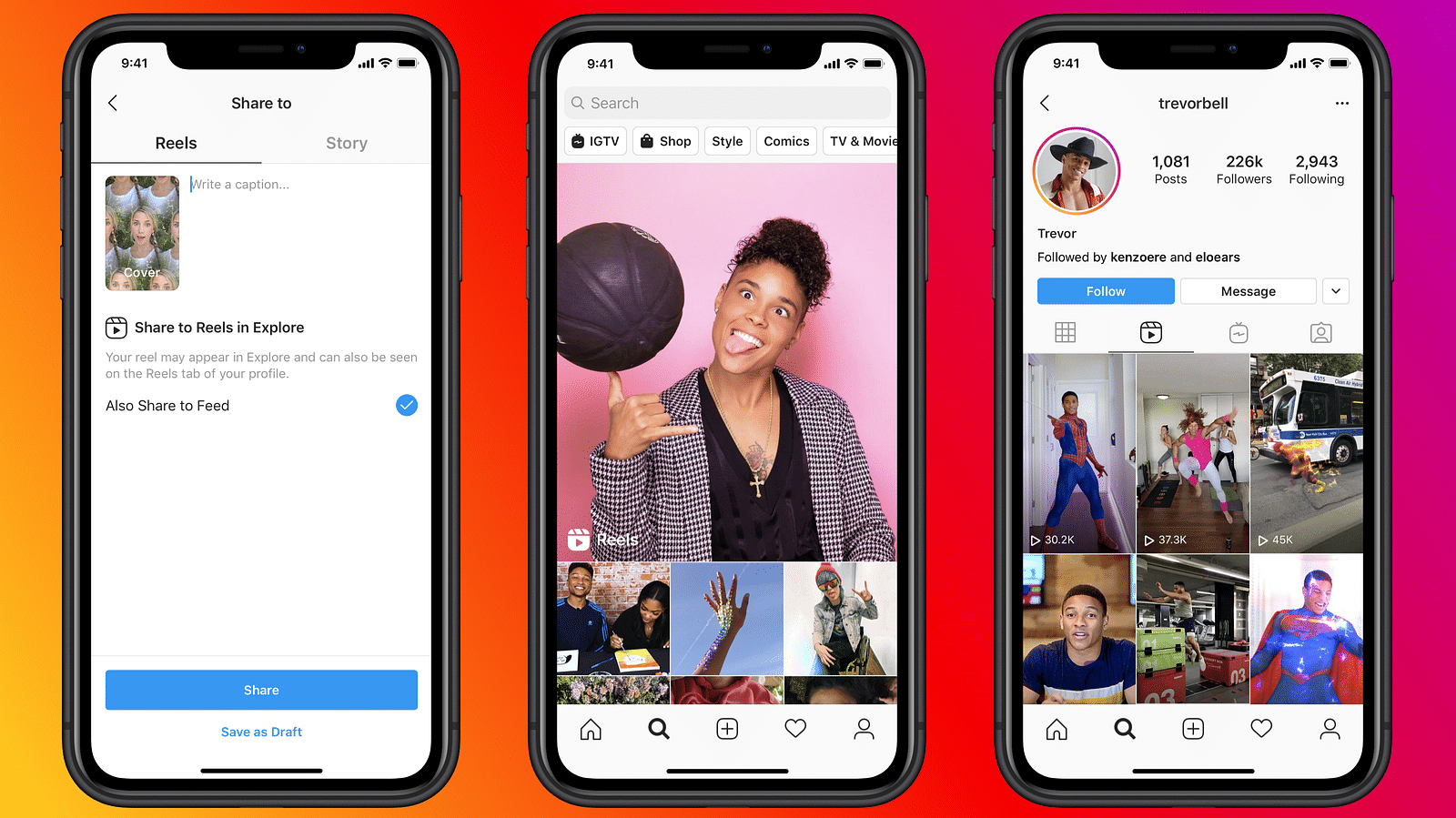
Facebook now called Meta has been the game-changer in the social media market. The company started this online service from the desktop version (for windows and Mac) and had later expanded its venture to the Android and iOS mobile operating systems with a dedicated app. Of late, the brand has been borrowing some features from its other social media arms such as Instagram and Facebook. Reels which is currently a hit amongst content creators on Instagram is one of such features which has made its way to the standard Facebook app.

Announced back in December 2021, Facebook Reels is a rip-off of Instagram’s Reel option allowing users to create and upload short-format videos. So, how exactly do you use the Facebook Reels option to showcase your talent? Read on to know:

Facebook Reels: What Is It? How Is It Different From Instagram Reels?

As mentioned above, Facebook Reels is nothing but the company’s new service for the masses to create and upload short videos. You can also use a series of clicked shots and edit them into a short video. It isn’t any different from what Instagram offers. It is worth mentioning that Facebook Reels is available for both desktops as well we mobile operating systems (Android and iOS). Creating and uploading Facebook Reels isn’t much of a hassle either. Take a look at the steps:

How To Create And Upload Facebook Reels Videos?

If you haven’t yet accessed the Reels section, you can do so by clicking on the menu (three horizontal lines) option. Select ‘Reels’ to get started.

Step 1: Once you are on the Reels section on Facebook, you will be able to see the ‘Create’ tab in the top right corner. Tap on it.

Step 2: You will need to grant access to the Facebook camera to create and share Reels. Click on ‘Allow Access”.

Step 3: You can either record a new video using the Facebook camera app or use previously captured images or videos.

Step 4: Now, add desired effects such as music, frames, etc.

Step 5: Select ‘Next’ once done with the video editing part.

Step 6: To increase the reach, add a good description (short) and then select the audience type for your video.

Step 7: Click on “Share” to upload your Facebook Reel.

Categories
Apps How To Tech News

Reliance Jio Long-Term Prepaid Plans For Disney+ Hotstar: Here’s How To Activate

Reliance Jio has announced the launch of two new premium plans to offer Disney+ Hotstar access to its users. These premium prepaid plans are priced at Rs. 1,499 and Rs. 4,199. The long-term plans offer unlimited calling and data benefits. So, let’s take on the benefits of the newly launched plans.

Reliance Jio Rs. 1,499 Long Term Plan Details

India’s first telecom operator Reliance Jio offer Disney+ Hotstar access for one year. The 2GB of data per day for 84 days. Also, the Rs. 1,499 plan comes with unlimited calling and 100 messages per day. Besides, this pack offers Jio apps access.

Reliance Jio Rs. 4,199 Long Term Plan Details

The Rs. 4,199 plan is an expensive plan and it provides 3GB of data per day, 100 messages per day, and unlimited calling. This pack also ships complimentary access to the Disney+ Hotstar app for one year. In addition, this pack offers Jio application access like users are getting Jio prepaid plans. But, to access both premium plans, you have to follow these steps.

See All Steps To Activate Reliance Jio’s Disney+ Hotstar Long Term Plan

Step 1: First, you have to recharge your number with Rs. 1,499 and Rs. 4,199 plan, then you will get a unique Disney+ Hotstar Premium coupon code on your MyJio account.
Step 2: Then, you have to use the same coupon to get to avail the access to the Disney+ Hotstar Premium membership for one year.
Step 3: After that, you have to activate the subscription and for that, you have to visit https://www.hotstar.com/in/subscribe/promo.

Categories
Apps How To

WhatsApp Web Global Voice Note Player Feature Under Testing: How To Use?

WhatsApp is one of those apps which has eventually made its way to every other available smartphone in the market. Its reign is expanded across both the Android and iOS mobile OS ecosystems. The Meta-owned instant messaging service has been consistently updated with new features for a better user experience. A desktop version of the app is also available for laptop and PC users.

The company has been experimenting with new features with the WhatsApp Web version as well. All of the special tools and services that are available on the WhatsApp Android and iOS app are gradually being added to the WhatsApp web. One of such features being tested for WhatsApp web is the global voice note feature. This audio playback feature is one of the recent releases and earlier made its way to the WhatsApp iOS version.

WhatsApp Web Voice Note Feature: When Is It Coming?

As per WAbetainfo, the WhatsApp Web version will soon receive the global voice note player. The company is currently testing this new feature for the WhatsApp desktop version with the beta version 2.2204.5. A stable update is yet to be released for the WhatsApp web that will add the audio message playback tool.

Currently, WhatsApp has not announced the exact date or timeline when it plans to launch a stable update adding the global voice note player to the web version. But, it’s expected to be made available once the company is done removing all the bugs and issues with this feature.

How To Use WhatsApp Web Voice Note Feature?

The steps to use the global audio note player on WhatsApp Web wouldn’t be different from the mobile version (both Android and iOS). Once the stable version is released, this option will be added at the bottom of the chat list window. This feature will highlight the newly received voice note along with the DP of the sender.

With this option, users will be able to listen to the voice messages or the audio notes in the background. Users will also be able to operate other apps while listening to the voice notes without the audio playback getting paused. This is one of those features which WhatsApp web users have been asking for since a while and is finally making its way to the masses.

Do let us know your thoughts in the comment section. You can also follow GizNext Tech Enthusiast Telegram group and GizNext Tech Enthusiast WhatsApp group for latest tech updates.

Categories
How To

How To Transform Your Smartphone Into A Custom Wi-Fi Router?

Smartphones are one of the most powerful gadgets in the modern days market. Despite being pocket-sized, these hand-held devices have changed the entire game of mobile phone usage. You aren’t solely limited to voice calls, web surfing, media playback, and whatnot; smartphones are getting powerful with all the advancements in the tech industry.

Internet usage is something most users can’t do without when we speak of smartphones. And we aren’t entirely relying on mobile internet to get connected to the web. Smartphone OEMs have integrated modern days smartphones with Wi-Fi technology that allows for wireless connectivity with home routers.

But are you aware you can also transform your smartphone into a custom Wi-Fi router? This is handy in situations where you need to give internet access to nearby devices such as laptops and other smartphones and tablets. This function is available in most devices in the form of Wi-Fi hotspots.

Not just an additional internet source, your smartphone can also act as a booster with this feature at the hour of need. So, how do you turn your Android smartphone into a custom Wi-Fi hotspot? Read on to know:

How To Turn Your Android Smartphone Into A Personal Hotspot/ Wi-Fi Router?

Step 1: Go to the settings menu on your respective Android devices.

Step 2: Locate the “Wi-Fi” hotspot or Wi-Fi tethering option. The feature might have a different name depending on the smartphone OEM. Also, in most modern-day smartphones, this option is available in the notification bar itself.

Step 3: Make the necessary changes. This includes updating a new password and allowing the type of connections.

Step 4: Once you have updated the desired password, toggle on this option.

Step 5: Once you switch on the Wi-Fi Hotspot option, your handset will work as a mobile router for the nearby devices.

It is worth noting that the handset makes use of mobile data to supplement the connected devices with internet connectivity. Therefore, it is advised to keep a check on the data balance so that you don’t run out of it when required for yourself. Also, once the other device is done using the internet, you can switch this function off to save data.

Do let us know your thoughts in the comment section. You can also follow the GizNext Tech Enthusiast Telegram group and GizNext Tech Enthusiast WhatsApp group for more technology updates.

Categories
Accessories How To

One Earbud/ AirPod Not Delivering Audio: Here’s How To Fix

Key Highlights

  • TWS earbuds are all hype in the audio accessories market
  • Apple was amongst the first to introduce a fully true wireless earbuds
  • Single earbuds not working is a common issue

TWS earbuds are the latest hype in the portable audio market. The concept got popularized with the first-gen AirPods where Apple changed the game for the wireless audio industry.  Not just Apple, but other mainstream players and including several smartphone brands are flooding the market with new TWS earbuds.

Using a TWS earbud has simplified the music-listening experience; in fact, has improved it overall. No more hassles of tangled wires and it’s just as simple as plug-n-play. The TWS earbuds functionality is majorly dependent on Bluetooth wireless technology. A synchronized pairing process with the earbuds and a compatible device (smartphone, tablet, etc.) does the trick.

While the TWS earbuds bring a futuristic design to the table, there’s one of the common issues prevailing since the beginning. That’s one of the earbuds not working issue which you also must have experienced at some point if you have owned a TWS earbud. This random issue could have popped up despite any accidental drops or external damages. If that’s the case, read on to know some of the quick fixes that can save you a service center visit.

Also Read: Wings Phantom 345 TWS Gaming Earbuds Review: Trendy And Affordable

How Can You Fix One Earbuds/ AirPod Not Working Issue?

Quick Reboot To Fix Single Earbud Not Working Issue

Often, a quick reboot fixes the single earbuds/ AirPod not working issue. This works if the connected device is somehow going unresponsive with the TWS earbuds pairing and isn’t able to process necessary commands accurately. If in case, restarting the smartphone doesn’t resolve the issue, you can give the second method a try.

Re-Pair The TWS Earbuds/ AirPods With Compatible Device

Try re-pairing your TWS earbuds with another available smartphone, tablet, laptop, or other compatible devices. If you are able to hear the audio equally on both earbuds, the issue could be with the device you were earlier pairing with. However, if the issue persists, it could be due to some other factors. Notably, if in case the earbuds/Airpods are working fine with other device and not the one you are trying to pair with then delete the paired device from the previous handset’s Bluetooth setting and restart with fresh pairing.

Check Battery And Hard Reset If Supported

Low battery levels are often one of the reasons that hamper the performance of TWS earbuds. Ensure battery levels are adequate to get rid of issues with connectivity. If you own a premium range of wireless earbuds or AirPods, you also get the provision for a hard reset. This will restore the device settings to default and help fix no audio issue with a single earbud.

Do let us know your thoughts in the comment section. You can also follow GizNext Tech Enthusiast Telegram group and GizNext Tech Enthusiast WhatsApp group for more technology tips and tricks.