


Key Highlights
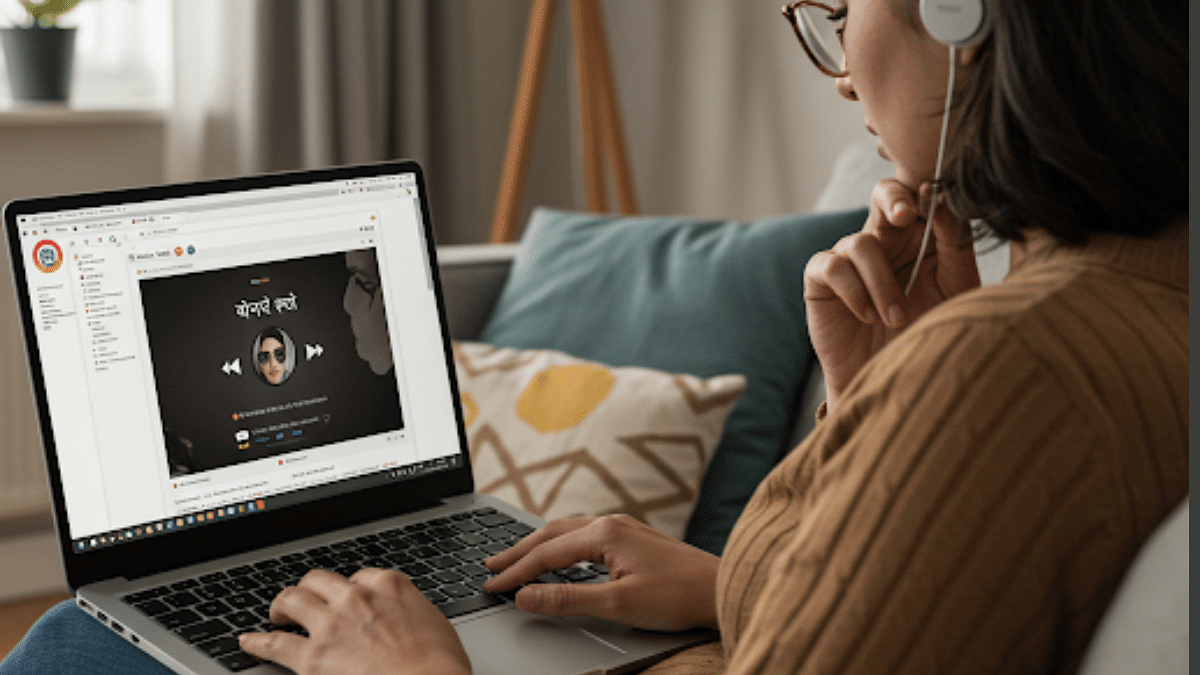
- Google Chrome Listen Page feature allows web page read outs
- Multiple language including Hindi supported
- Cuts down on hassle of reading an entire page
- Feature available for Chrome desktop version as well
Google has been making its eco system easily accessible to the masses. And by adding on multi-lingual support with its apps and services, the search giant is further making the masses tech savvy. Google Chrome, the globally popular web browser is one such example where Google has added multiple language support making it convenient for the users across the globe. Chrome also has a user-friendly feature called “Listen to this Page” which auto-reads content from a website verbally making it convenient to understand content from a website in English or any other language that the user understands. Both mobile and desktop version of Google Chrome offer this text-reading feature; now, in Hindi too. Here in this article we are guiding you with the steps to read any web page on Chrome in Hindi:
For the tech geeks, stay updated with the latest cutting-edge gadgets in the market, exclusive tech updates, gadget reviews, and more right on your phone’s screen. Join Giznext’s WhatsApp channel and receive the industry-first tech update.
Also Read: How To Use Telegram Without Internet? Top 5 Working Tricks In 2025
How To Use Chrome “Listen to this Page” Feature To Read Out Webpage Content In Hindi (Android, iOS)
Step 1: Open Google Chrome app on your Android or iOS devices
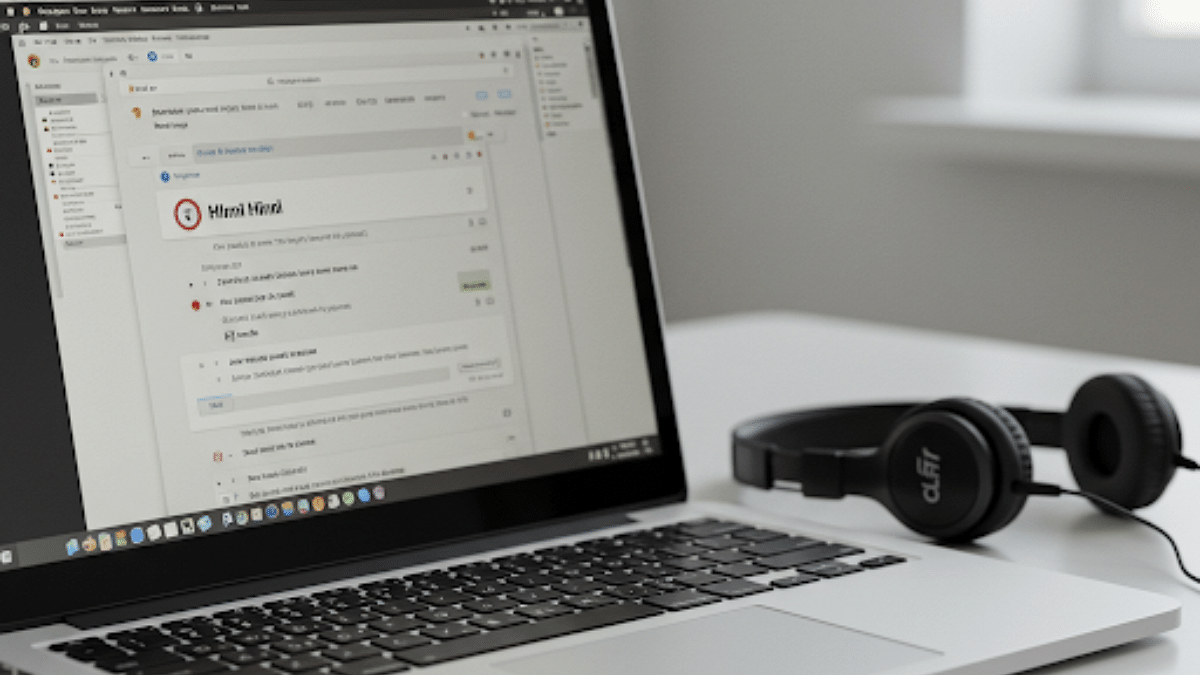
Step 2: Launch the web page that you want to listen in Hindi
Step 3: Tap on the Menu (three dots icon)
Step 4: Locate the “Listen to this page” option
Step 5: Select the language Hindi if you recieve a prompt for the language preference.
Also Read: Instagram Account Hacked? Immediate Steps To Take If Instagram Account Is Compromised
Steps To Listen Chrome Webpage In Hindi On Laptops/ PCs (Desktop version)

Step 1: Open Google Chrome web browser on your laptop or PC
Step 2: Visit the web page that you wish to listen to in Hindi
Step 3: Tap on the three-dot menu from the top-right corner of the web page
Step 4: Click on “Listen to this page” option
Step 5: Set Hindi as the preferred language type
Note: You can use Chrome extensions such as Read Aloud if the update for Listen to this Page has not been seeded.
Also Read: Enhance WhatsApp Privacy: How To Blur Images On WhatsApp Mobile, Desktop App
Any Privacy Concerns With This Feature?

This feature on Google Chrome has least impact on your privacy or safety. Unless you are using this feature to read out content from any explicit web page at a public place. Ensure using headphones or earphones in such scenarios. Also, no data is being shared with any third party app or developer, hence privacy remains intact.

