Categories
Apps Featured

Looking For The Best Cloud Storage? These Apps Stand Out In 2025

Key Highlights

  • Google Drive and OneDrive offer great value
  • Dropbox is ideal for professionals
  • iCloud works best for Apple users

Nowadays, cloud storage is no longer a luxury, it’s a necessity. Whether you’re backing up precious memories or managing professional files, choosing the right cloud storage app can make all the difference. With so many options available, which app offers the best value for your money in 2025? Here, we have compared the top cloud storage platforms to help you find the one that fits your needs best.

Also Read | NAS (Network-Attached-Storage) Explained Via Synology BeeStation

Apple iCloud
For Apple users, iCloud offers flawless syncing across all devices.

  • Free Storage: 5GB
  • Paid Plans: Starts at Rs. 75 per month for 50GB
  • Top Features: iPhone backups, synced photo library, and keychain access
  • Best For: iPhone, iPad, and Mac users
  • Bonus: Bundled in Apple One subscription

Google Drive
Google Drive continues to be a favorite, especially for those already using Android or Google Workspace.

  • Free Storage: 15GB
  • Paid Plans: Starts at Rs. 130 per month for 100GB (Google One)
  • Top Features: Real-time collaboration via Docs, Sheets, and Slides, easy Gmail integration
  • Best For: Students, freelancers, and collaborative teams
  • Bonus: Google Photos storage counts here, too

Microsoft OneDrive
If you are a Windows user, OneDrive offers a highly integrated experience, especially with Microsoft Office apps.

  • Free Storage: 5GB
  • Paid Plans: Starts at Rs. 149 per month for 100GB
  • Top Features: Built-in with Windows, automatic photo and video backup
  • Best For: Professionals and Office 365 users
  • Bonus: Microsoft 365 subscription includes 1TB OneDrive storage

Also Read | SSD vs HDD for Laptops: Ultimate Guide to Choosing the Right Storage

Dropbox
Dropbox remains a solid choice for those who value reliability and compatibility across different platforms.

  • Free Storage: 2GB
  • Paid Plans: Starts at Rs. 850 per month for 2TB (Plus Plan)
  • Top Features: Smart sync, file versioning, easy sharing
  • Best For: Creatives and businesses handling large files
  • Bonus: Integrates with tools like Slack, Zoom, and Adobe

The best cloud storage app depends on what you prioritize, be it security, seamless syncing, or affordability. Choose smart and stay backed up in 2025.

For the tech geeks, stay updated with the latest cutting-edge gadgets in the market, exclusive tech updates, gadget reviews, and more right on your phone’s screen. Join Giznext’s WhatsApp channel and receive the industry-first tech updates.
Categories
Auto Tech Featured

Ampere Reo 80 E-Scooter Launched In India: No Driving Licence/ Registration Required

Key Highlights

  • Greaves Electric launches Ampere Reo 80 e-scooter
  • Budget e-scooter priced below Rs. 60,000
  • Up to 80 km range delivery
  • No driving licence required

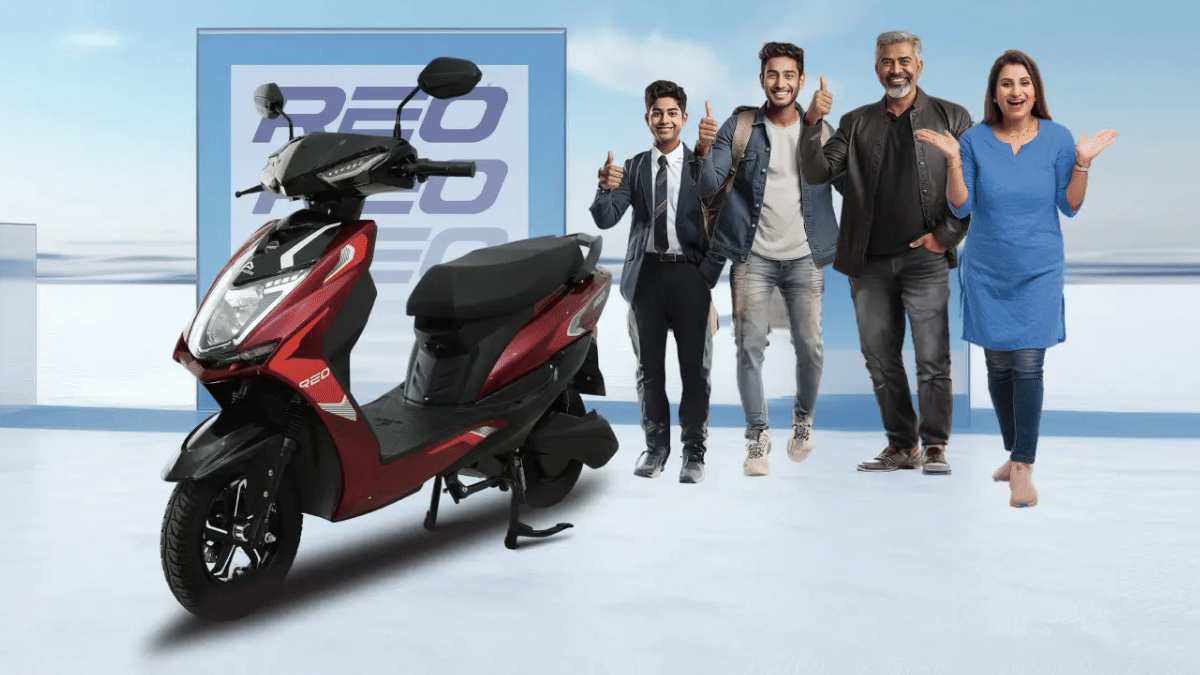
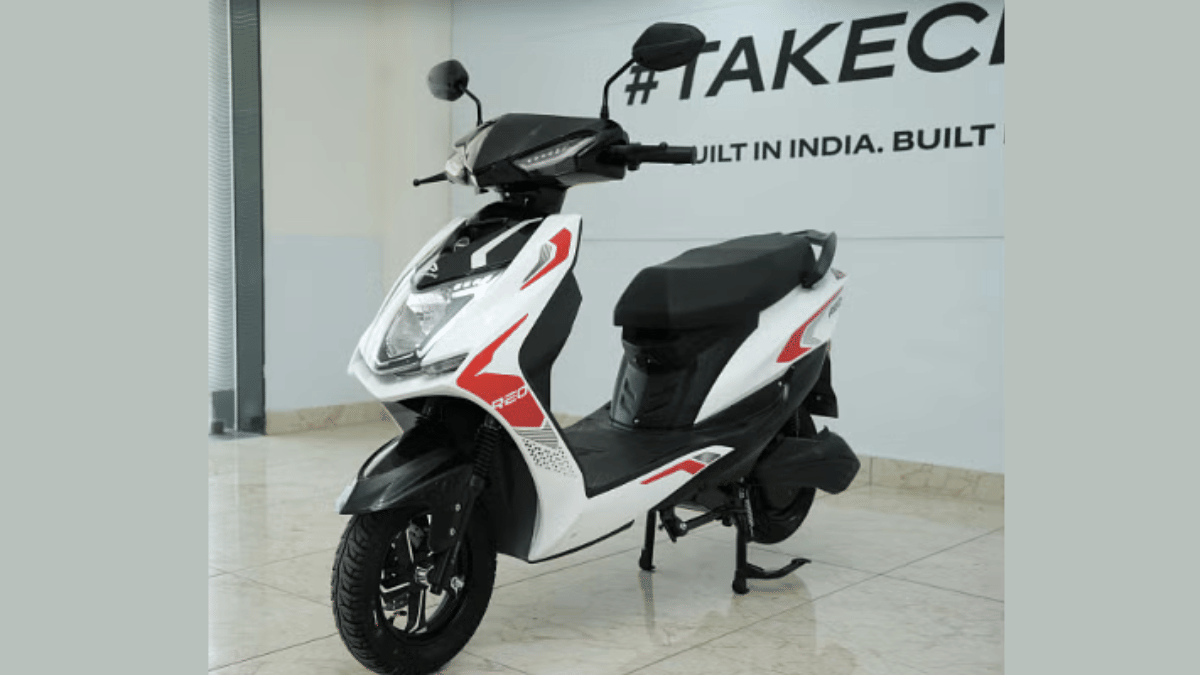
Greaves Electric Mobility has added another new budget electric scooter to its portfolio. The new model introduced by the E2W startup is the Ampere Reo 80 which is targeted at students and senior age group. Greaves is targeting the mass market with its product lineup that includes the Ampere e-scooter series. With a price tag under Rs. 60,000, the latest Ampere e-scooter model needs no licence to drive and also no registrations for its ownership.

For the tech geeks, stay updated with the latest cutting-edge gadgets in the market, exclusive tech updates, gadget reviews, and more right on your phone’s screen. Join Giznext’s WhatsApp channel and receive the industry-first tech update.

Also Read: Ola Electric Hyperdelivery Announced: Quick Speed Bookings And Deliveries Of Ola E-Scooters

Ampere Reo 80 Powertrain And Features

Ampere Reo 80Powertrain
Battery TypeLFP
Range80 km
Top Speed25 kmph
PriceRs. 59,900

Ampere Reo 80 is launched as an upgraded version of the standard Ampere Reo electric scooter. It’s a lightweight low-speed electric scooter which is suitable for school and college going youngsters. With a top speed of just 25 kmph, it is a safe commute option.

This also means no valid driving licence is required to ride it on the roads and also no registrations is required for the purchase. It is equipped with a LFP battery which as per the brand can deliver up to 80 km of range on a single charge.

The battery capacity is not specified, but the range delivery is ideal for daily city commutes. For braking, this low-speed electric scooter uses disc brakes at the front and drum brakes at the rear. It also offers modern set of features such as a colored LCD display for battery stats and ride dynamics. There is also keyless start option available with the Reo 80 e-scooter.

Also Read: Zelio Little Gracy Electric Scooter Launched: No Licence Required To Ride It!

Ampere Reo 80 Electric Scooter Price In India

Ampere Reo 80 electric scooter is introduced with an asking price of Rs. 59,900 in India. Customers will get black, blue, red, and white color options for the Reo 80 e-scooter. Deliveries will be commencing starting this month itself across all major Indian cities.

Categories
Apps Featured How To

Instagram Reels In WhatsApp? Here’s How To Watch Them Using Meta AI

Key Highlights

  • WhatsApp users can now watch Instagram Reels via Meta AI
  • The feature is limited but offers quick entertainment within the app
  • Just update WhatsApp, tap the Meta AI icon, and ask for Reels

Instagram Reels have taken over our screens, and now, thanks to Meta AI, you don’t even need to leave WhatsApp to watch them. Whether you are in the middle of a chat or just killing time, you can now enjoy trending Reels directly in your WhatsApp app. This new feature blends AI magic with social entertainment, giving you quick access to your favorite content in seconds. Curious to know how it works? Here’s a quick step-by-step guide to get started in no time.

Also Read | Instagram Tips And Tricks: How To Share Music/ Songs As DMs With Friends On Instagram

How To Watch Instagram Reels In WhatsApp Using Meta AI

Step 1: Make sure your WhatsApp is updated to the latest version on Android or iOS. This feature only works on the most recent update, so check the app store before you begin.

Step 2: Open WhatsApp and look for a glowing blue-pink animated circle above your chat list. That’s the Meta AI icon. Tap on it to launch the feature.

Step 3: You’ll be directed to a chat-like interface, similar to any WhatsApp conversation. At the bottom, there’s a text box where you can type your prompt.

Step 4: In the chat, type something like “Show me Instagram Reels” and hit send. Within seconds, a handful of Instagram Reels will pop up right in the chat.

Step 5: Tap on any of the Reels shown to start watching them directly within WhatsApp. No need to switch apps.

Want Reels From A Specific Creator?

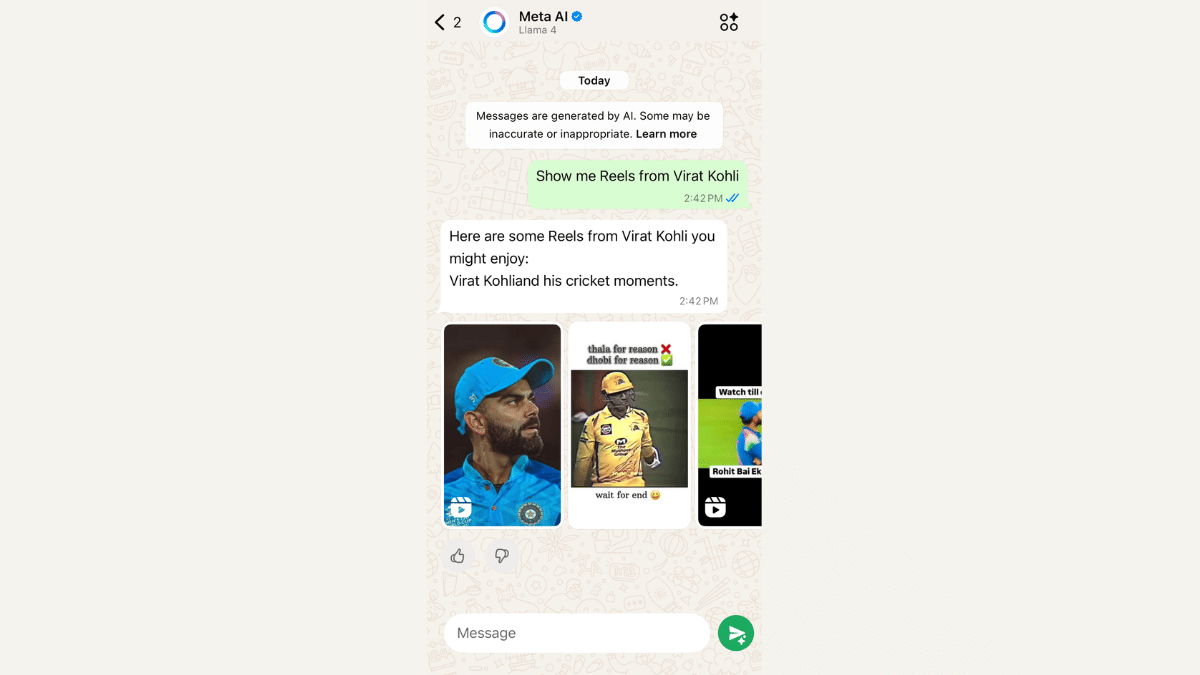
For this, you just need to type the creator’s name in the prompt.  For example, “Show me Reels from Virat Kohli”, and Meta AI will try to fetch the latest or trending Reels from that account.

Also Read | Want To Stand Out On Instagram As A Car Enthusiast? Check Out These 100+ Ideas

Important Note Before You Start

To access this feature, users must agree to Meta’s terms for chatting with businesses and bots on WhatsApp. Without that, Meta AI won’t work, and you won’t be able to access Reels.

For the tech geeks, stay updated with the latest cutting-edge gadgets in the market, exclusive tech updates, gadget reviews, and more right on your phone’s screen. Join Giznext’s WhatsApp channel and receive the industry-first tech updates.

Categories
Auto Tech Featured How To

Android Auto Customization: How To Change Wallpaper With And Without Smartphone

Key Highlights

  • Android Auto screen can be customized
  • Allows transforming screen as per preference
  • Changing wallpapers and adding app shortcuts popular custmization choices

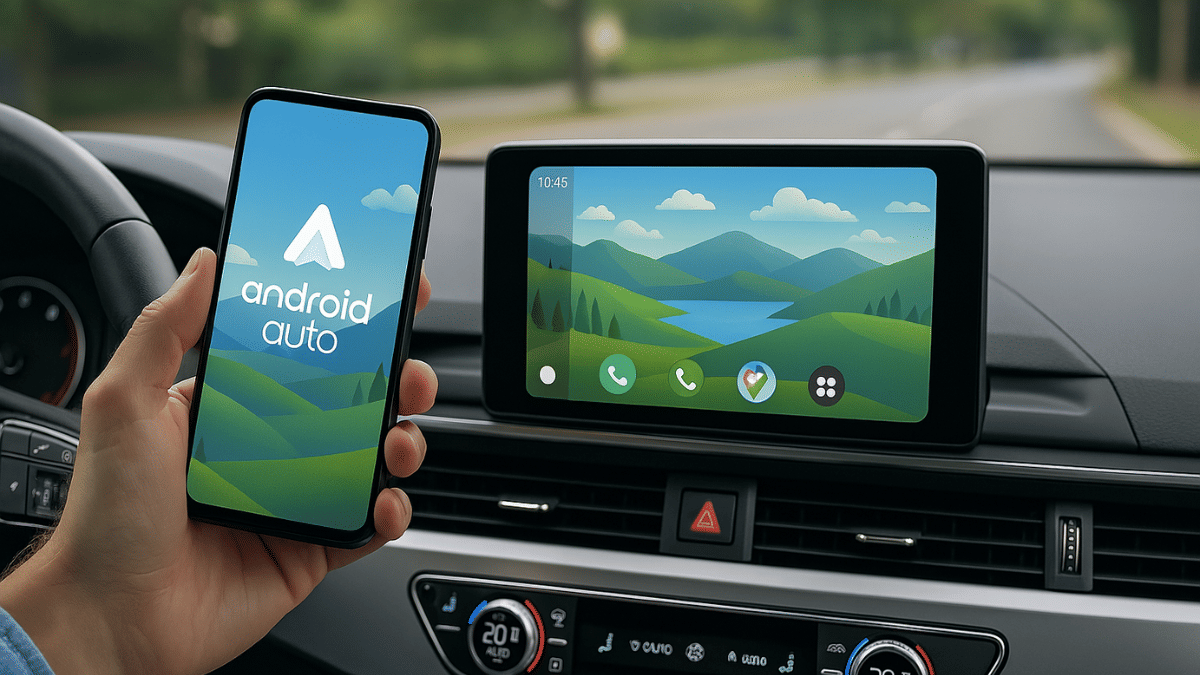
Android Auto has definitely addressed the long due upgrade in four wheeler cabins. The car infotainment system which certainly hasn’t been the most strongest aspect of a car design in the past years have evolved to a full fledged navigation and entertainment hub. These modern digital infotainment system takes the driving experience to a whole new level. Now, you don’t have to solely rely on your smartphone for navigation and media playback when you ate driving an Android Auto loaded car. From mirroring your smartphone apps to allowing users customize the home screen, all can be done with just few taps. We are exploring the ways to customize Android Auto’s home screen by changing wallpapers and adding shortcuts. Read on to find out the steps for the same:

Also Read: Forgot Your ATM Card? Don’t Worry! Here’s How To Withdraw Cash From ATM Using Smartphone

Method 1: Steps To Change Android Auto Background Using Smartphone

This is the easiest way to change the Android Auto screen’s wallpaper. In this method, the Android Auto screen mirrors the wallpaper of the paired smartphone’s screen. Additionally, you can use the smartphone gallery to change the wallpaper on Android Auto screen.

  • Step 1: Unlock your smartphone
  • Step 2: Tap and hold on any empty space on the home screen. This will open up the Wallpaper settings.
  • Step 3: Click on Wallpapers and Styles
  • Step 4: Click on Change Wallpaper

The updated wallpaper on your smartphone will now reflect on the Android Auto Home screen.

Also Read: How To Use Telegram Without Internet? Top 5 Working Tricks In 2025

Method 2: Steps To Change Android Auto Background Without Smartphone

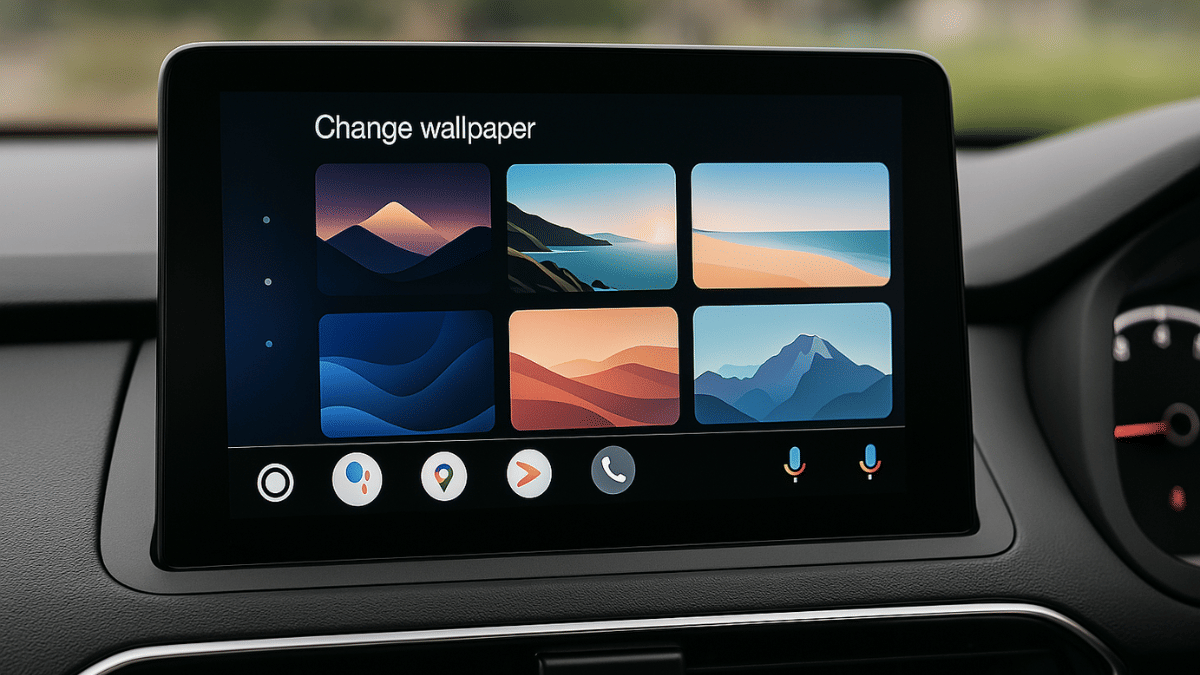
If you don’t wish to mirror the same wallpaper as your smartphone on Android Auto’s screen, you can use the built-in extensive range of wallpapers as well. Note, you won’t be able to set any custom image clicked from your phone as the wallpaper if you are going with this method. But the

  • Step 1: From the Android Auto app’s home screen, open the Settings menu
  • Step 2: Navigate to Wallpapers settings
  • Step 3: A list of wallpapers will show up on the screen. Tap on the wallpaper that suits your mood.

Pro Tip: You can also enable Dark Mode using the Settings menu on Android Auto app.

Categories
Apps Featured

Best Security Apps In 2025: Protect Your Phone And Data Now

Key Highlights

  • Cyber threats are rising in India, making data protection crucial
  • Security apps help protect your device, passwords, and online activity
  • Tools like Norton, Kaspersky, and ExpressVPN offer strong digital safety

Nowadays, protecting your personal data is more important than ever. With growing cyber threats and identity theft in India, strong protection on your phone or laptop is now essential. Whether you’re a student, working professional, or entrepreneur, your data is always at risk without the right tools. Here are five essential security apps every Indian user should install today to keep their data safe and secure.

Also Read | Online Safety: Eight Essential Cybersecurity Tips For Kids

Norton 360

Norton 360 is one of the most trusted names in digital security and is ideal for users looking for a complete package. It offers antivirus protection, a secure VPN, dark web monitoring, and even parental controls.

  • Real-time threat protection from viruses and malware
  • In-built VPN for secure online browsing
  • Identity theft monitoring on the dark web
  • Cloud backup to secure sensitive files

Kaspersky Mobile Security

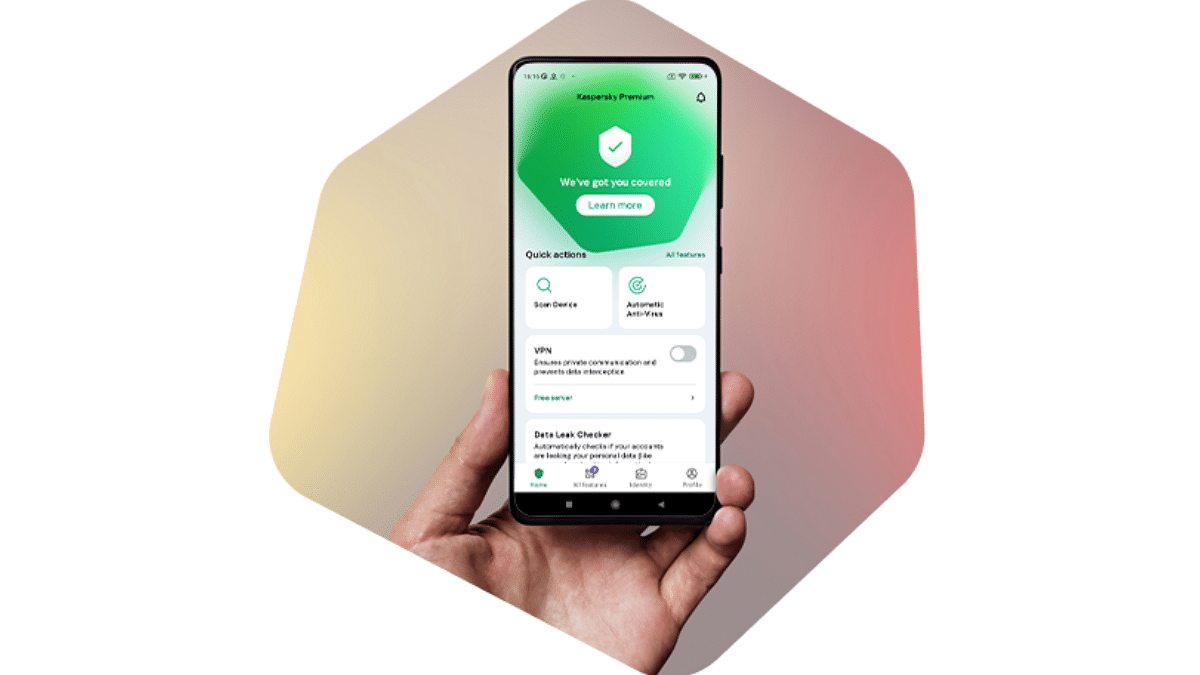
Kaspersky’s Android app is a solid choice for Indian users who need strong anti-malware protection and minimal performance lag. It’s easy to use, lightweight, and highly rated.

  • Anti-theft tools to track and lock lost devices
  • Malware scanner with auto-cleanup
  • App Lock to secure your private apps
  • Call filter and phishing detection

Bitdefender Mobile Security

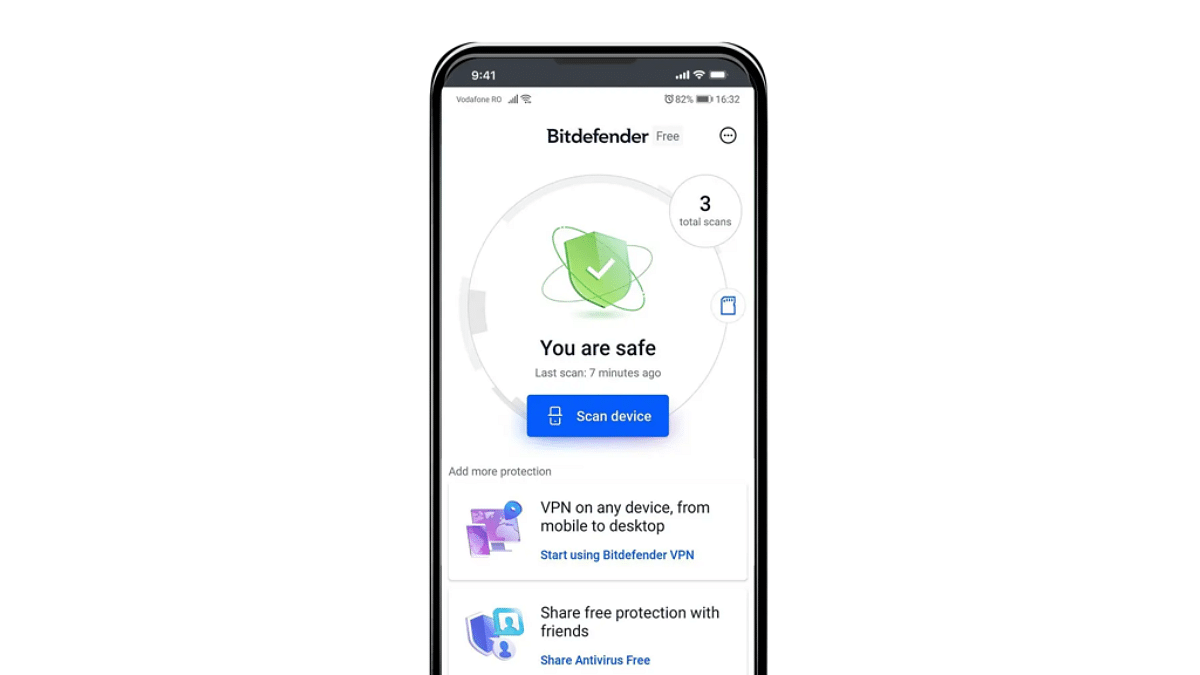
Bitdefender is perfect if you’re looking for advanced security without slowing down your device. It runs quietly in the background and offers great protection for banking apps and personal data.

  • Web protection against phishing and fraud
  • Minimal battery and data consumption
  • Built-in VPN for private browsing
  • Account privacy checker for data leaks

Also Read | Step Into Safety: Learn How To Change Your UPI PIN On Google Pay And PhonePe

ExpressVPN

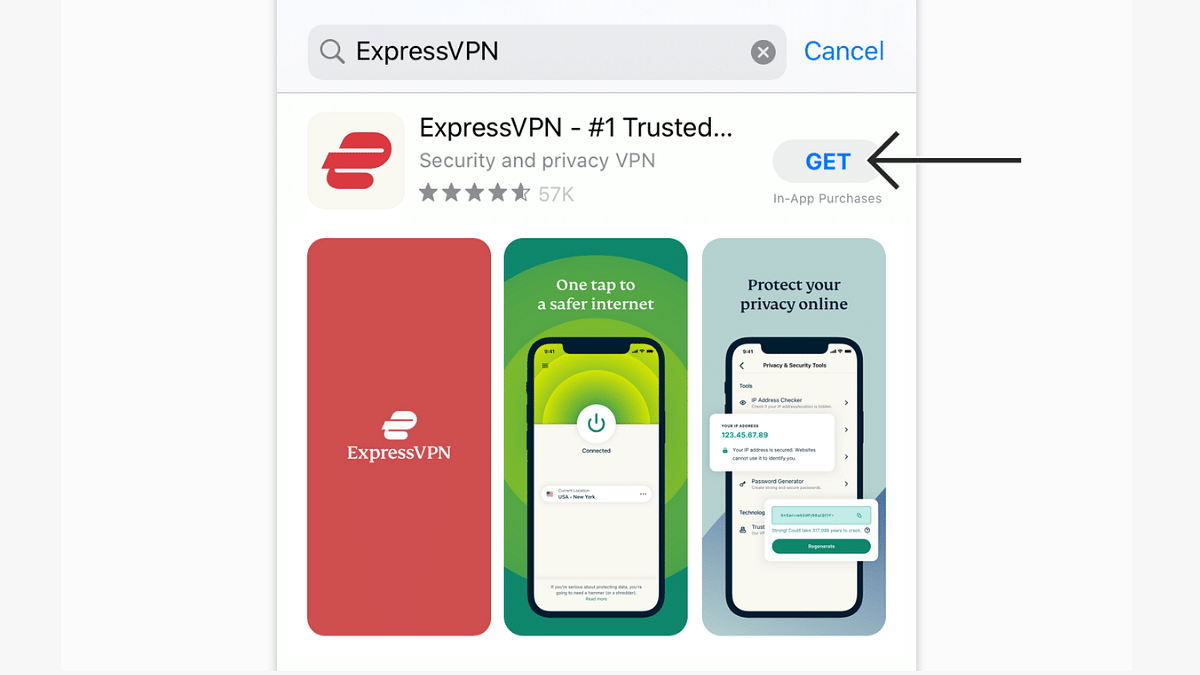
If you frequently use public Wi-Fi or travel often, ExpressVPN is a must-have. It hides your IP, encrypts your data, and keeps trackers at bay.

  • High-speed VPN with 3,000+ global servers
  • AES-256 encryption for full privacy
  • Works with Netflix, banking apps, and more
  • 24/7 customer support and India-friendly UI

Protecting your digital life is no longer optional. Start using them today and stay one step ahead of cyber threats.

For the tech geeks, stay updated with the latest cutting-edge gadgets in the market, exclusive tech updates, gadget reviews, and more right on your phone’s screen. Join Giznext’s WhatsApp channel and receive the industry-first tech updates.

Categories
Apps Featured How To

How To Use Telegram Without Internet? Top 5 Working Tricks In 2025

Key Highlights

  • Telegram is the closest rival to WhatsApp
  • Allows instant messaging, media sharing, audio, and video calling
  • Can be used without internet
  • Limited functionality without active internet connection

While WhatsApp is the most common instant messaging app for Android users, Telegram with a similar end-to-end encrypted platform has made its mark in the instant messaging app space. It’s one of the most versatile apps offering some advanced messaging, calling, and media sharing features. As with other instant messaging apps, you need an active internet connection to use all the features offered by Telegram. But what if we tell you, there are a few ways with which you can use Telegram services even without an active internet connection? And the steps aren’t tricky too. Here in this article we are sharing the methods that will help you use Telegram without an internet connection.

For the tech geeks, stay updated with the latest cutting-edge gadgets in the market, exclusive tech updates, gadget reviews, and more right on your phone’s screen. Join Giznext’s WhatsApp channel and receive the industry-first tech update.

Also Read: How To Use WhatsApp Without Internet And Your Primary Device: Step By Step Guide

Can You Really Use Telegram Without Internet?

Well, directly no; but with workarounds, definitely. Features like schedule messages, multi-device sync, Bluetooth/ Hotspot file sharing, etc. can help with get the work done when there is no active internet. You can use these features on Telegram mobile app which comes handy when you are in not network zone-like situations. Let’s breakdown the methods with which you can use Telegram without internet on your smartphones.

Also Read: Accidentally Deleted Your Favourite Game Or Mobile App With Active Progress: Here’s How To Restore On Android

Method 1. Via Scheduled Messages Option

This is just like WhatsApp, where you can pre-schedule a text message for any of your contact on Telegram. Besides texts, you can also schedule media messages to both single contact, groups, or Telegram channel. This feature is useful for businesses where one can stay connected with clients while travelling or in a no internet zone.

  • Step 1: Open Telegram mobile app and go the the contact, group, or channel where you want to schedule the message.
  • Step 2: Compose the message and long press on the Send icon
  • Step 3: Select the “Schedule Message” option.
  • Step 4: Set the time, date for the message to be sent
  • Step 5: Click on Send

Also Read: Measure Distance Between Two Points With Pinpoint Accuracy On Google Maps: How To Guide

Method 2: Via Multi-Sync Option

This is another feature which is similar to WhatsApp. Using the Multi-Sync option, you can access your Telegram account on a different device (it could be another smartphone, laptop, or PC). Once you log in to the other device using same Telegram account, all the messages and media gets sync in real time. This feature is useful when the primary device on which Telegram is being used is either running out of battery or has some technical issues.

Also Read: No Microsoft Account? No Problem: Here’s How To Install Windows 11 Your Way

Method 3: Use Draft And Sync Mode On Telegram

This is another way that allows you using Telegram app services without a working internet connection. Using this method, you can essentially prepare drafts in advance (for both messages and media) beforehand. Once the internet connection has resumed, the messages in draft will be sent automatically by Telegram.

Also Read: Call Merge Scam Alert: Here’s How To Stay Safe From OTP Fraud

Method 4 Via: Use Telegram Bots

Another effective way to use Telegram’s messaging service without an active internet connection is by making use of bots. There are dedicated Telegram bots that can help you execute certain commands like queue or schedule messages for later period. Once the bot have been enabled, the messages in queue will be sent without working internet connection.

Also Read: Three Effective Ways To Restore Deleted Games And Apps On Windows 11 Laptops And PC: How To Guide

Method 5: Media File Transfer/Sharing Via Bluetooth/Mobile Hotspot (Business Nearby Feature)

This is one those advanced features that helps you use Telegram with no internet. Using this option, one can share files and media to nearby users. This feature is called Business Nearby and it allows file transfers over mobile hotspot and Bluetooth. Designed essentially for businesses, this feature is helpful if you want to share media files. To use this feature it is critical for you to create a business account.

Categories
Auto Tech Featured

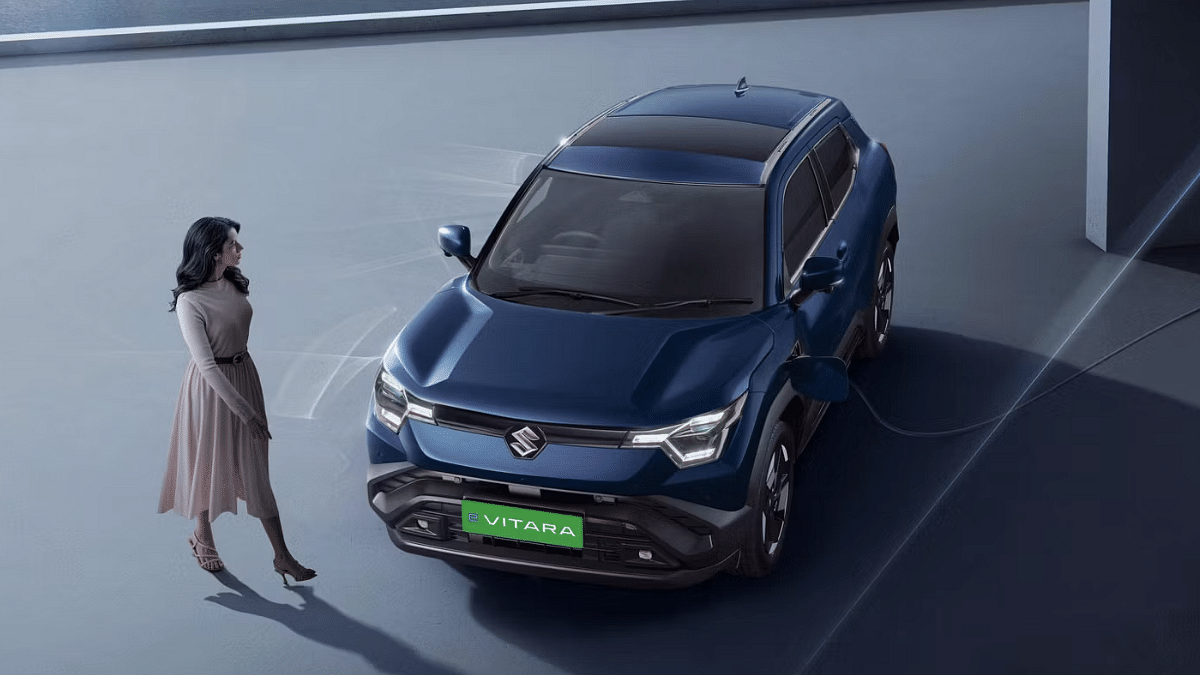
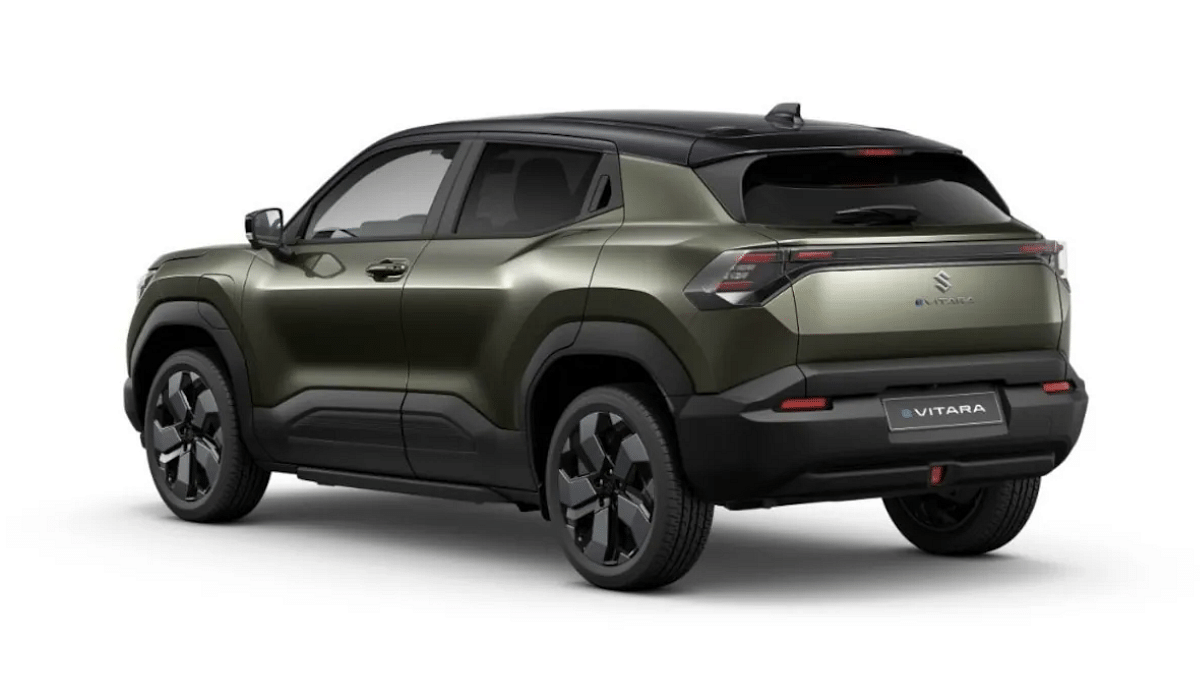
Maruti Suzuki E-Vitara E-SUV India Launch Likely In May: Bookings Started

Key Highlights

  • Maruti e Vitara could be launched next month
  • Has been previewed at the Bharat Global Mobility Expo 2025
  • Pre-bookings have commenced in India

Maruti Suzuki e Vitara seems to finally inching towards its official launch. The first Maruti e-SUV’s India arrival was confirmed with its showcasing at the Bharat Global Mobility Expo 2025. Several reports indicated e-Vitara’s India’s launch sometime in 2025. Seems like finally have a date now.

For the tech geeks, stay updated with the latest cutting-edge gadgets in the market, exclusive tech updates, gadget reviews, and more right on your phone’s screen. Join Giznext’s WhatsApp channel and receive the industry-first tech update.

Also Read: Ola Electric Hyperdelivery Announced: Quick Speed Bookings And Deliveries Of Ola E-Scooters

Maruti Suzuki e Vitara India Launch Date Out?

Maruti Suzuki e Vitara has been subject to several leaks even after its showcasing at the Auto Expo 2025. Now, the company is said to have set the launch date for the e Vitara next month in India. Maruti is currently tight lipped with the developments and is yet to announce the official launch date for e Vitara in India. But since the timeline tipped is May 2025, we might hear some official confirmation soon.

Also Read: Week 14 2025 EV News Wrap Up: New Electric Scooter Launch, Upcoming EV Roadmaps, And More

Bookings Commenced In India

Maruti Suzuki has stated taking pre-registrations for the e Vitara. Maruti had previously confirmed the e Vitara will be sold in two different battery pack options. Also, the first e-SUV from the company will be sold via new exclusive premium dealerships in the country. The price range for the e-Vitara is anticipated to start under Rs. 20 lakh. And it’s expected to rival models like the Creta EV and the Nexon, Curvv EV in the country.

Also Read: Drive Smart And Safe: List Of Top Electric SUVs With Advanced Safety Features In India In 2025

Maruti Suzuki e Vitara Battery, Range, Features

Maruti will be launching three trims of e Vitara including Delta, Zeta, and Alpha. This first e-SUV from the brand will come with FWD drivetrain with the Delta variant featuring a smaller 48.8 kWh battery, while the Zeta and Alpha will sport a bigger 61.4 kWh battery pack. Ventilated front seats, automatic climate control, power-adjustable driver seat, reclining seats, and auto-dim IRVM are some of the features it will offer. Safety dynamics on the e-Vitara will be handled by 360° camera, seven airbags, and ADAS Level 2 suite.

Categories
Apps Featured

Work Smarter In 2025: Four Best Productivity Apps For Your Smartphone

Key Highlights

  • Boost productivity with these powerful apps
  • Perfect for work, study, and planning
  • Easy to use and free to download

Your smartphone isn’t just a device for calls and selfies, it’s your personal assistant, work buddy, and life organizer. But with thousands of apps on the Play Store and App Store, choosing the right productivity tools can feel overwhelming. Don’t worry, here we’ve curated a list of powerful productivity apps that can truly help you work smarter, stay focused, and get more done every day. Here are the must-have productivity apps that every smartphone user should install.

Also Read | Love Music? Check Out The Five Best Apps In India

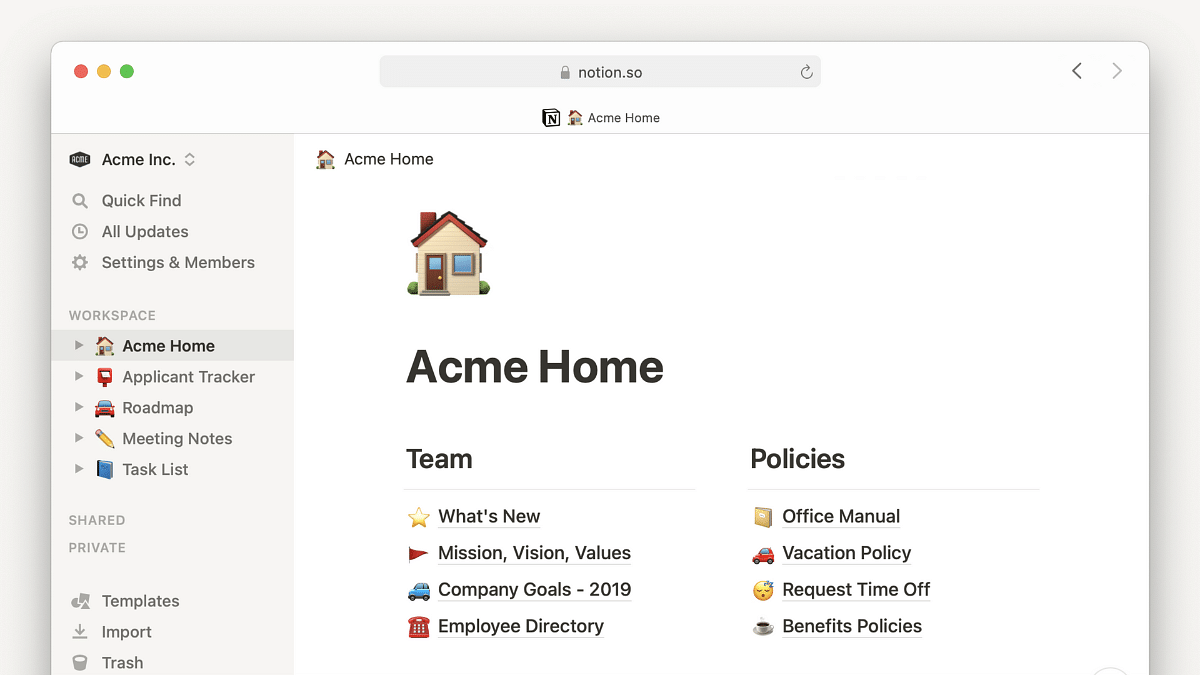
Notion: All-in-One Workspace

If you’re juggling tasks, ideas, and to-do lists, Notion is your new best friend. It helps to:

  • Combines notes, tasks, calendars, and databases in one app
  • Ideal for students, professionals, and teams
  • Create pages for projects, daily planners, and more
  • Cloud-sync ensures everything stays updated across devices

Forest: Stay Focused, Beat Phone Distraction

Can’t stop checking your phone? Forest helps you fight phone addiction in a fun and eco-friendly way. It helps to:

  • Grow a virtual tree as you stay focused
  • Timer-based sessions to build concentration habits
  • Rewards you with real trees planted through the app
  • Ideal for students and professionals working remotely

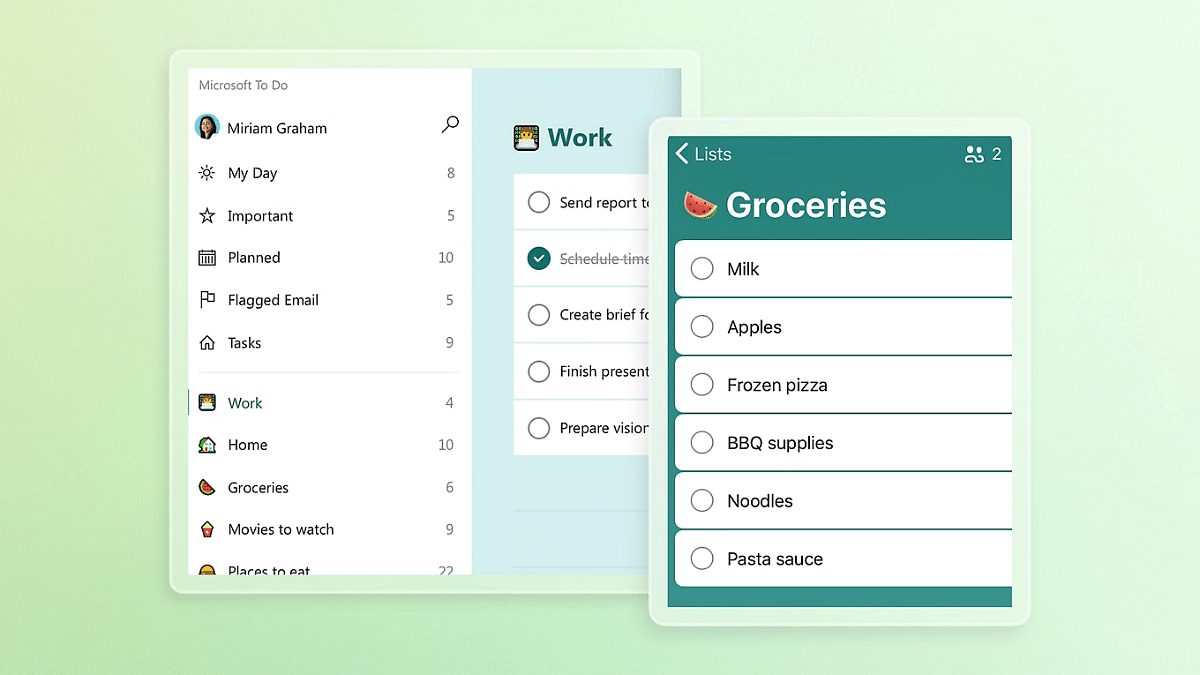
Microsoft To Do: Smarter Task Management

Looking for a reliable to-do list app? Microsoft To Do bring clarity to your day. It helps to:

  • Plan your day with “My Day” feature
  • Create tasks with due dates, reminders, and subtasks
  • Integrates with Outlook and other Microsoft tools
  • Lightweight and intuitive design

Also Read | Best Apps And Tools To Download High Quality Instagram Status On Any Phone

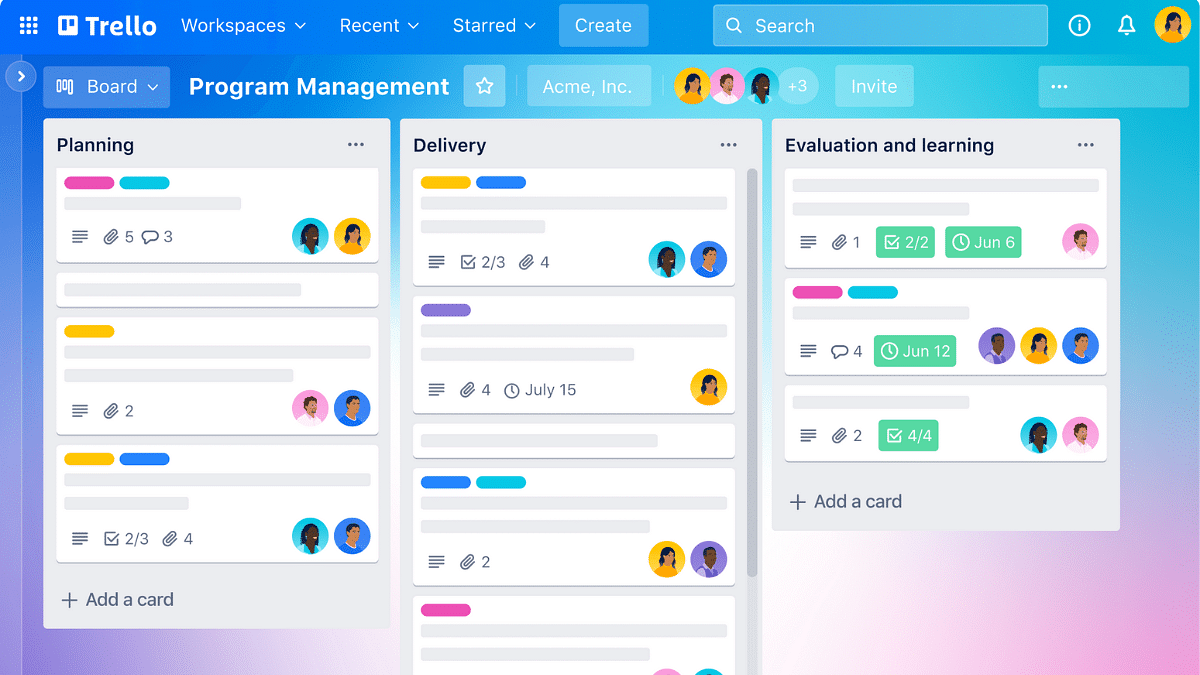
Trello: Visual Project Planner

Whether it’s managing a work project or planning a holiday, Trello keeps you on track.

  • Board and card system for visual task management
  • Add checklists, deadlines, team members, and attachments
  • Syncs across all devices and supports team collaboration
  • Highly customizable with Power-Ups and automation

Productivity isn’t about doing more, it’s about doing what matters, better. These apps are designed to help you take control of your time, streamline your routine, and boost your focus. Install them today and turn your smartphone into your smartest productivity partner.

For the tech geeks, stay updated with the latest cutting-edge gadgets in the market, exclusive tech updates, gadget reviews, and more right on your phone’s screen. Join Giznext’s WhatsApp channel and receive the industry-first tech updates.
Categories
Featured How To Laptop

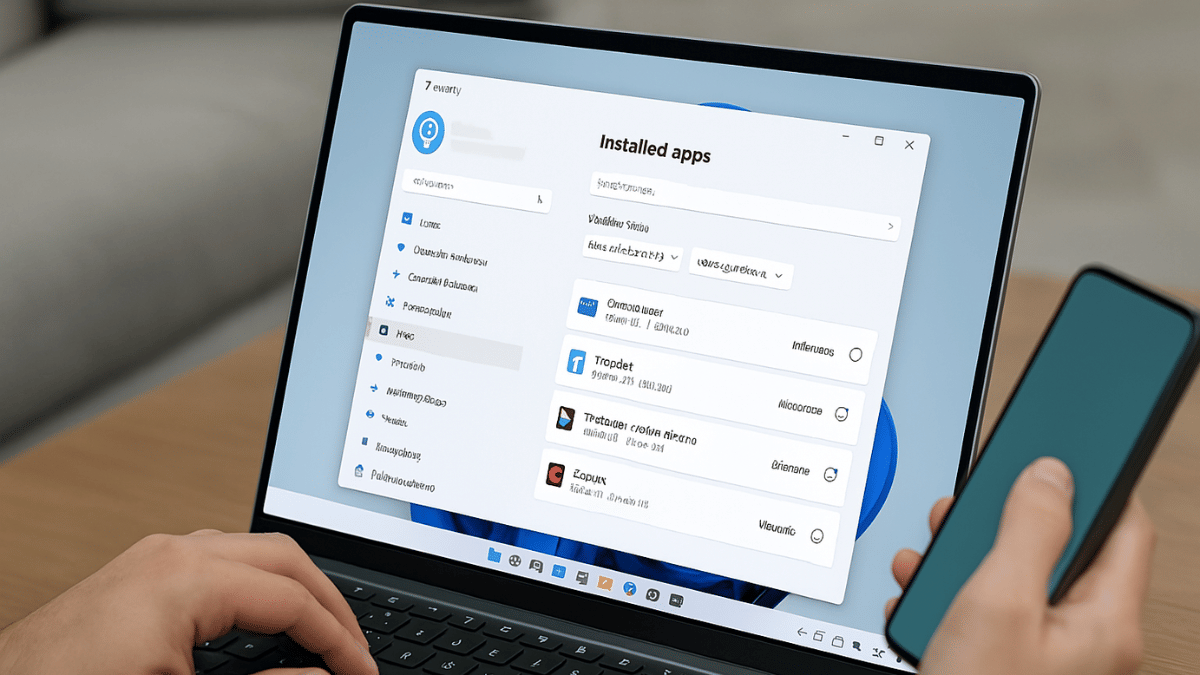
Three Effective Ways To Restore Deleted Games And Apps On Windows 11 Laptops And PC: How To Guide

Key Highlights

  • Windows 11 offers extensive app and software compatibility
  • Microsoft store allows downloading official PC apps and games
  • Provision to restore accidentally deleted files available
  • Multiple methods for restoring deleted apps and games on Windows 11 listed below

Microsoft has been developing Windows OS ecosystem to meet all user requirements for an efficient PC user experience. Over the last few years, Windows OS has been optimised for enhanced security and smooth work flow. A dedicated space has also been created by Microsoft from where users can download trusted apps and games on their laptops and PCs. Downloading an app or game from Microsoft Store comes with an added advantage of easy restore in case of accidentally deletes. But if you have deleted your favourite app or game from your Windows 11 powered laptop or PC, the Microsoft Store isn’t the only way that can help you restore. Here in this article, we have shared the methods with which you can easily restore your deleted apps and games on Windows 11 PC or laptop.
Also Read: Accidentally Deleted Your Favourite Game Or Mobile App With Active Progress: Here’s How To Restore On Android

Method 1: Head To Official Microsoft Store

If the deleted app or game was downloaded from Microsoft Store, it will be easiest to re-install. Follow these steps:

Step 1: Power on your laptop/ PC

Step 2: From the task bar, tap on the Start menu

Step 3: Open the Microsoft Store app. If you have the shortcut on the desktop, open it directly.

Step 4: Tap on the Profile icon

Step 5: Go to the Library option

Step 6: From the “Not Installed” list, search for the app or game that has been deleted.

Step 7: Tap on Install

Also Read: Measure Distance Between Two Points With Pinpoint Accuracy On Google Maps: How To Guide

Method 2: Via OneDrive

You can restore your deleted apps and games on Windows 11 laptop or PC via OneDrive. Note that this method only works when the File History or OneDrive option has been enabled.

Step 1: Tap on the Start menu and go to the Control Panel

Step 2: Now, Click on the File History option

Step 3: Now, locate the folder where the app data was saved (this could be either in App Data or Program Files folder).

Step 4: Once the app or game’s folder is located, tap on Restore

Step 5: You can also directly log into OneDrive and download or restore the deleted app/ game.

Also Read: No Microsoft Account? No Problem: Here’s How To Install Windows 11 Your Way

Method 3: Via Windows System Recovery Tool

This is a built-in feature offered by Windows 11 which allows resetting the system settings and also recover older files, apps, or games.
Step 1: Power on your laptop or PC

Step 2: Open Settings

Step 3: Head to the System option

Step 4: Tap on About and then select System Protection option

Step 5: Click on the System Restore option

Step 6: Now, select the restore point to the point before which the app was deleted accidentally.

Step 7: Perform the steps mentioned on the screen

Step 8: Wait for the System restore to be completed.

Categories
Apps Featured How To

Accidentally Deleted Your Favourite Game Or Mobile App With Active Progress: Here’s How To Restore On Android

Key Highlights

  • Accidentally deleted apps can be restored
  • Games can also be restored with all progress
  • No subscription or plans re-purchases required with Google linked accounts

Google Play Store is the one stop destination for all mobile apps and games available for the Android users. Be it your favourite social media or messaging app or games, Play Store is the only authentic platform to download and install these apps. Google keeps a constant check on the apps being made available on the platform to keep it free from malware or similar scam apps. Often multiple mobile apps can lead up to clogged device memory which is why uninstalling apps that are not in use is advised. However, this process can lead to you accidentally delete the apps that you are using frequently. It can be a game with certain level of progress or your favorite app containing all your preferred customisations. If you have been in such situation then there’s no need to panic. In this article we are exploring the methods with which you can easily restore your deleted apps or mobile games on your Android smartphones and tablets:
For the tech geeks, stay updated with the latest cutting-edge gadgets in the market, exclusive tech updates, gadget reviews, and more right on your phone’s screen. Join Giznext’s WhatsApp channel and receive the industry-first tech update.

Also Read: Merge Two Different PF Accounts Into One: How To Guide

Steps To Restore Deleted Apps/ Games On Android

Via Google Play Store

This is the easiest way with which you can restore your deleted mobile apps or games. Google keeps a log of the installed apps on your device using the Google account. Just visit Play Store and re-install the app that has been deleted accidentally.

Step 1: On your Android devices, open the∫ app.

Step 2: From the top right corner, click on the Profile icon.

Step 3: You will see a bunch of option, navigate to the Manage apps and devices option.

Step 4: Tap on Manage option

Step 5: From the drop down next to Installed menu, tap on the “Not Installed” option

Step 6: Now, simply search for the app that has been deleted accidentally.

Step 7: Tap on the “Install” option

Step 8: Wait for the app to be downloaded and re-installed on your device

Step 9: Open the app once installed and sign-in back using your registered email address of Gmail account.

Pro Tip: Apps installed using Google Account can be re-synced. This means no need to buy subscriptions again.

Also Read: Incognito Browsing Not So Private! Steps To Check Incognito Mode Browsing History And How To Delete

Steps To Restore System Apps On Android Devices

If you have accidentally system apps or Google apps such as Phone app, clock, gallery, etc., do the following to restore

Step 1: Open Settings menu on your Android devices

Step 2: Navigate to Apps section

Step 3: Select Disabled Apps section

Step 4: Select the app that you want to restore such as Phone, Messages, etc.

Step 5: Click on Enable.

Also Read: Want To Transfer Ola Money Cash To Bank Account? Here’s How To Do It

Steps To Restore Games With Active Progress And Purchases

Most of the modern day games and apps on Google Play Store can be re-synced to previous progress. Also, no new subscriptions or purchases will be required to continue using the services.

Step 1: Open Play Store and download the deleted game or app

Step 2: For games like BGMI, Free Fire, etc., auto restore progress option is available.

Step 3: If the progress isn’t restored, open the game Settings

Step 4: Tap on the Restore from Cloud/ Server option.