Categories
Apps Featured How To

Spending Too Much Time On Instagram? Here’s How To Check The Screen Time And Limit The Usage

Key Highlights

  • Instagram users can track their time spent on the app
  • Check the process here

Instagram, a popular photo and video-sharing app, has a huge fan base. The Meta-owned platform has been used by users all over the world to keep themselves entertained. Instagram users get access to the updates and posts from the people they follow, and the other way around.

However, if your Instagram account is public, anyone can view your posts since they are not just visible to your followers. It is often incredibly entertaining. As a result, there can be times when you navigate through the app’s homepage for several hours without realizing it. Well, Instagram too is worried about how its users use the platform as well. Thus, it released a feature that shows users how much time they are spending using its app.

Read on for information on how to check your Instagram usage if you’re attempting to break an Instagram addiction or simply want to see how much time you are wasting on the platform.

Steps To Know How Much Time You Have Spent On Instagram

Instagram offers a feature to track users’ activity so they can maintain tabs on how much time they spend using the app. The average amount of time spent on Instagram during the previous seven days is visible. How Instagram users can track their usage time is as follows:

Step 1: On your mobile phone, open the Instagram app.

Step 2: Click on your profile or profile picture in the bottom right.

Step 3: Click on the Menu.

Step 4: Tap ‘Your Activity’ and then click on ‘Time’.

By following the above steps, you will be able to see the average time you spent on Instagram in the last week.

How To Set A Reminder To Limit Time Spent On Instagram?

Step 1: Tap on the ‘Profile’ option and click on the three-bar option at the top.

Step 2: After that, tap ‘Your Activity’.

Step 3: Select the time frame for using the app by clicking ‘Set Daily Reminder.’

Step 4: Tap on Set Reminder.

Step 5: Lastly, click on the Ok option. And you are all done.
Categories
Comparison Featured Smart Watch

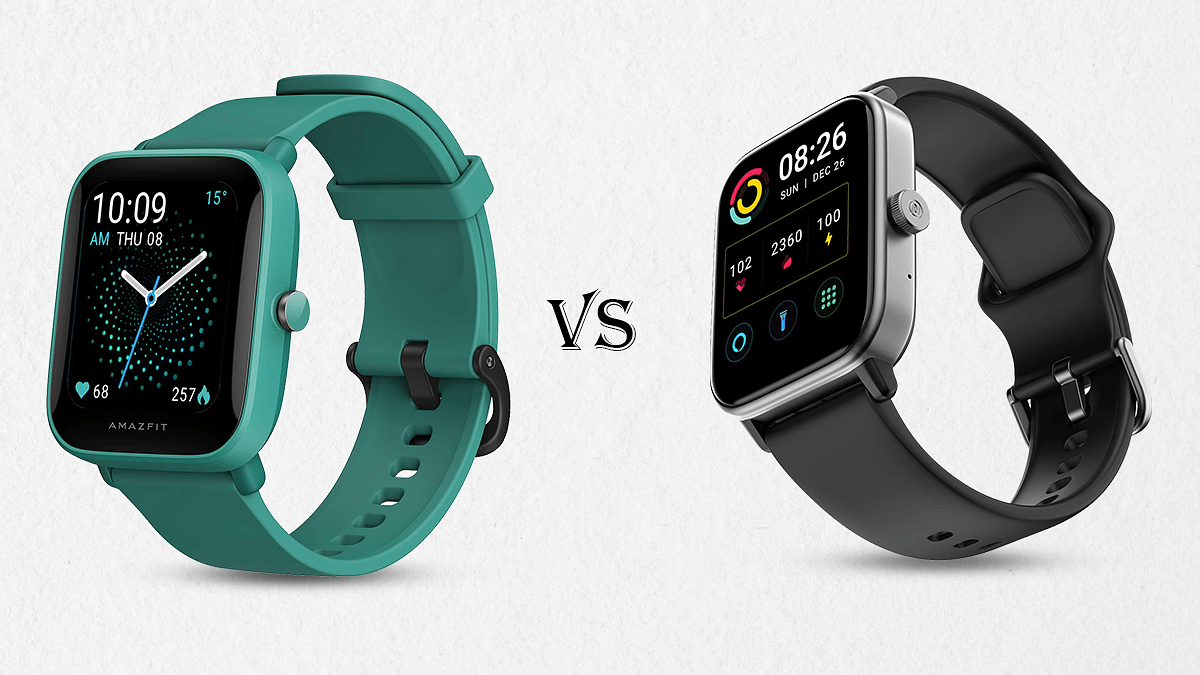
Amazfit Bip U Pro Vs Noise ColorFit Pro 4 Max Smartwatch: Best Pocket-Friendly Smartwatch To Buy In India

Smartwatches are the modern day’s consumer gadgets that have redefined how we keep a track of time. Besides monitoring time, these tech-advanced watches also help us keep a track of our health by monitoring different aspects such as heart rate, blood oxygen, sleep, steps, and other physical activities. In India, we have numerous brands that offer budget as well as a premium range of smartwatches enabled with health features. Some of the advanced watches are also capable of voice calling. We have compared two of the most popular feature-rich budget smartwatches in this article. Take a look:

Display 

The Amazfit Bit U Pro features a 1.43-inches screen which is an IPS LCD panel. It is a color display that operates on a resolution of 302 x 320 pixels. On the other hand, the Noise ColorFit Pro 4 Max offers a bigger 1.80-inches TFT display. This smartwatch’s display operates on a resolution of 240 x 285 pixels which is lower compared to the AmazFit Bit U Pro.

Overall, the Amazfit Bip U Pro offers a higher resolution display panel but the Noise ColorFit Pro 4 Max has a wider screen, which makes it easier to operate on. However, if the Noise ColorFIt Pro 4 Max offered a higher screen resolution, it would easily have taken a lead in the display race.

OS, Features

The Amazfit Bit U Pro operates on real-time operating software (RTOS) and is compatible with both Android and iOS devices. It supports Android  v5+ and above, while the iOS version supported is iOS10.0 and above. The same is applicable for Noise ColorFit Pro 4 Max, which is compatible with Android 6 + and iOS 9 and above.

The Amazfit Bip U Pro has multiple sensors including a PPG Biological Optical sensor, an acceleration sensor, a gyroscope sensor, and a geomagnetic sensor as well. It can also keep a track of your blood saturation level, stress level, sleep quality, and menstrual cycle.

The Noise ColorFit Pro 4 Max is also equipped with a SpO2 sensor, accelerometer, and an optical heart rate sensor and gives you various insights into your body, which includes a sleep monitor, stress monitor, female health tracker, and respiratory rate tracker. 

The Amazfit Bit U Pro offers 60 plus sports modes with high-precision GPS. On the other hand, the Noise ColorFit Pro 4 Max is equipped with a whopping 100 sports modes and has the capability to track multiple sports through the AI running partner. 

Both the watches have fairly the same features to give you regular insights of your health.

Overall, the Noise ColorFit Pro 4 Max offers a holistic tracking experience through the multiple sports modes that it offers. 

Battery Specs Comparison

The Amazfit Bip U Pro is equipped with a 230mAh lithium-ion polymer battery, which can be charged completely in just 2 hours. It can last up to 9 days with typical usage.

The Noise ColorFit Pro 4 Max offers a 300mAh battery, which can be charged completely within just 2 hours and can last up to 7 days with typical usage. 

Overall, the Amazfit Bip U Pro has a longer battery life and both the watches get charged within just two hours. 

Connectivity Aspects

The Amazfit Bip U Pro has GPS-enabled software. However, the ColorFit Pro 4 Max does not come with the GPS feature. The Amazfit Bip U Pro offers support for Bluetooth v5.0 and the Noise ColorFit Pro 4 Max offers support for Bluetooth v5.1, which supports Bluetooth calling as well. 

Which One Should You Choose?

Both the smartwatches offer a similar set of features, however, the Amazfit Bip U Pro operates on a higher screen resolution, has a bigger battery, and is GPS enabled. But, it just has 60 plus sports modes and a bit smaller screen, when compared to Noise ColorFit Pro 4 Max. Overall, the Amazfit Bip Pro is a high-end smartwatch that has slightly better hardware for daily usage.  

Categories
Apps Featured How To

Instagram Hacks: How To Hide Your Instagram Stories From Specific Or Multiple Unwanted Users on Android, iOS

Instagram is currently one of the best platforms for social media enthusiasts. This photo-sharing app owned by Meta has multiple user-oriented features most of which were released in the last few years. Amongst the most popular segments or features of Instagram are the Reels and Stories. Instagram has borrowed some of its trending features from its rivals including Snapchat and TikTok. However, over the years Instagram users are making the most of it and flooding the online space with new content.

With the public (if your account isn’t private). Whenever you upload a story on Instagram it is automatically visible to all of your contacts by default. But thanks to the enhanced privacy aspects, you can also block some of the unwanted users from whom you wish to keep your story upload hidden.

Hiding Instagram stories is one of the best ways to keep stalkers at bay. But you should know the right steps to hide your Instagram story from a specific person of contact added to your follower/ following list. How can you do so? Here in this article, we have listed all the steps. Take a look:

How To Hide Instagram Stories From A Specific Person Or Contact

Using Instagram Android/ iOS App

Step 1: Launch the Instagram application on your respective iPhones or Android smartphones.

Step 2: Tap on the profile option. On both Android and iOS, the profile picture icon is located on the bottom right of the app’s homepage.

Step 3: Click on the menu option (three horizontal lines).

Step 4: Tap on the Settings menu (gear icon).

Step 5: Now, select the Privacy tab.

Step 6: Scroll down to the Story option.

Step 7: Go to the Hide Story option.

Step 8: You can select either one or multiple users from whom you wish your Instagram story to be hidden.

Step 9: Tap on the  backword arrow symbol to go back. The list of users blocked from viewng your Instagram status will be updated.

Step 10: You can also update this list after uploading the Story. Just tap on the three vertical dots option in the Instagram story and select the Hide your story option. Click on Hide and you have blocked all unwanted users from viewing your Instagram story post update.

Categories
Featured How To Smart Watch

Lost Your Smartwatch? Here’s How You Can Find Your Lost Wear OS Watch

Key Highlights

  • Find My Device can help you find your lost Wear OS watch
  • The app is on by default when you set up your watch

What can you do if your watch is lost and the battery is slowly dying while the clock is symbolically and somewhat literally ticking away? Fortunately, Google’s Find My Device app allows you to find Android Wear devices if you ever find yourself in that situation. It only functions with Android Wear 2.0 devices, and its usefulness is constrained in the absence of a speaker. You will, however, be prepared the next time your couch swallows your watch.

It turns out that if you know where to look, it’s not that tough, and Google may have only implemented the capability. However, you can miss it if you don’t already know where to look. We are here to help you learn how you can find your lost wear OS Watch.

Also Read: Amazfit GTR Mini Smartwatch With Massive 20 Days Battery Backup Announced: Price, India Availability

How To Find Your Lost Smartwatch?

These techniques are only effective if your watch’s location feature is enabled. You can use features on your phone to locate your watch because your phone and watch are always connected via Bluetooth. This is how you can find your lost or misplaced smartwatch by following these simple steps:

Step 1: Verify your mobile phone is turned on.

Step 2: Make sure your phone’s Bluetooth is turned on and connected to your watch.

Step 3: Make sure your watch and phone are both signed into the same Google account.

Also Read: Working Trick To Use WhatsApp On Smartwatch: Steps To Install WhatsApp On Your Smartwatch

Step 4: Open a browser on your phone, such as Chrome, type android.com/find into the address bar, and then press the enter key.

Step 5: Sign in to the same Google account you use on your watch.

Step 6: If more than one device appears, choose your watch at the top of the screen.

Also Read: Best Smartwatches You Can Buy Under Rs. 500

Where To Get The Find My Device App?

To be able to use your Android phone or tablet to find your Wear OS watch, you can also install the Find My Device app on your Android device from Google Play Store.

Also Read: Smartwatches Under Rs. 2,000: See List Here

Categories
Featured Info Tablet

Tablet With SIM Card: List Of Top Tablets With SIM Card Slot In India

Key Highlights

  • Multiple Tablet brands have devices with SIM card support in India
  • Realme Pad X 5G, Lenovo Tab P11 Plus, Nokia T20 are a few examples

Like smartphones, tablets have also evolved majorly with the advancement in the technology space. We now have fast and reliable Android and iOS tablets that brings some new hardware technologies to the table for an unmatched user experience. The new-age tablets are also expanding the user possibilities beyond app usage to calling and texting using mobile networks.

And ever since smartphone brands have started populating the tablet market across the global regions, we are getting an increasing number of Wi-Fi+ LTE tablets that support both internets as well as voice calls using mobile networks. Of course, you would need to insert a mobile SIM card to use the mobile internet and general calling/ texting services. In India, we also have multiple such tablets that come with a SIM card slot allowing voice calling and mobile internet usage.

You can use the same SIM cards that you use with your smartphones with these tablets and access the same tariff plans. Upgrading to a SIM-card-supported tablet is good for both professional and general users. If you are already planning for the same, we have got you sorted. The following list has some of the best tablets in India that come with a SIM-card slot. Take a look:

Also Read: Best Android Tablets In India With Both Wi-Fi And 5G Internet Connectivity With Budget-Friendly Pricing

Realme Pad X 5G Android Tablet With Sim Card And Voice Calling Support

The Realme Pad X 5G is one of the most recent Android tablets in India that comes with both Wi-Fi only and Wi-Fi+ LTE options. The LTE variant of the Realme Pad X 5G offers a SIM card slot with which you can easily use any SIM card of your preferred Telecom operator (Vodafone, Airtel, Jio, etc.)

Some of the key features of the Realme Pad X 5G tablet besides the SIM Card support included the premium mid-range Snapdragon 695 5G chipset combined with up to 6GB RAM and 128GB storage and a 10.95-inch LCD screen with 2K resolution. The Realme Pad X 5G is powered by an 8,340 mAh battery that is combined with 33W fast charging support. The Realme Pad X 5G LTE variant (with SIM Card support) can be purchased at Rs. 27,999 in India.

Also Read: Realme Pad X 5G Android Tablet Review: An All-Rounder Mid-Range 5G Tablet

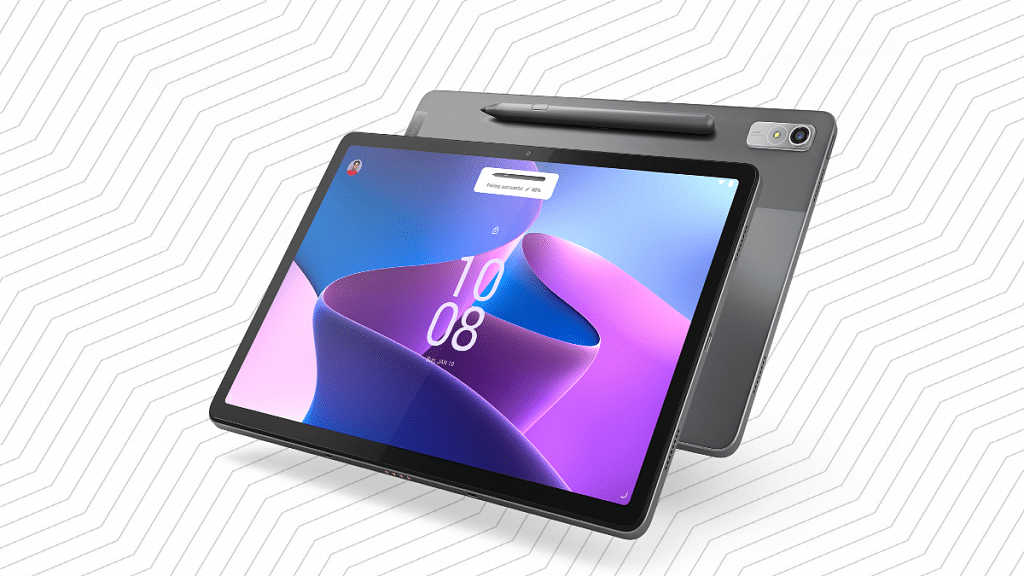
Lenovo Tab P11 Plus LTE Tablet With SIM Card And Voice Calling Support

Lenovo has some of the best tablets to offer to the Indian audience. The Tab P11 Plus LTE variant is one of the best mid-range tablets Lenovo that ships with a SIM card slot. With the Lenovo Tab P11 Plus, you’ll be able to use any compatible SIM card for texting, calling, and mobile internet. This premium mid-range Android tablet draws its power from the octa-core MediaTek Helio G90T chipset which is combined with up to 6GB RAM and 128GB storage configuration.

This tablet offers a single 13MP rear camera and an 8MP front camera for selfies and video calling. It flaunts an 11-inch IPS LCD display and has a 7,700 mAh battery with fast charging support. You can buy the Lenovo Tab P11 Plus starting at Rs. 25,999 in India.

Also Read: Xiaomi Pad 6 Pro Flagship Tablet Top Alternatives: Samsung, Lenovo, OnePlus And More

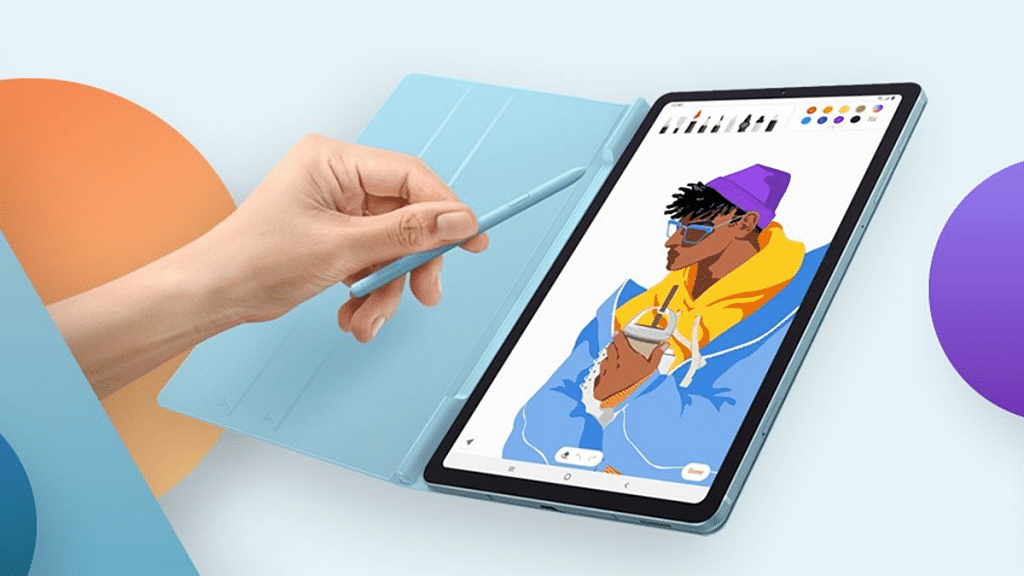
Samsung Galaxy Tab S6 Lite 2022 Sim Card-Enabled Tablet

The Samsung Galaxy Tab S6 Lite 2022 is another popular mid-range Android tablet that comes with a SIM card slot. You will be able to make voice calls and also access mobile internet using any SIM card on this tablet. Samsung has equipped the Galaxy Tab S6 Lite 2022 with the Qualcomm Snapdragon 720G chipset which is mid-range gaming processor.

The Galaxy Tab S6 Lite 2022 model comprises a 10.4-inch TFT LCD display with 2K resolution and 224 PPI pixel density. The tablet features basic camera hardware comprising a single 8MP camera at the rear and a 5MP camera upfront for selfies and video calling. You need to shell out approx. Rs. 29,999 to buy the Galaxy Tab S6 Lite 2022 LTE tablet with SIM card support.

Also Read: Vivo Pad 2: Top Rivals That Compete Against Vivo’s Second-Gen Premium Android Tablet

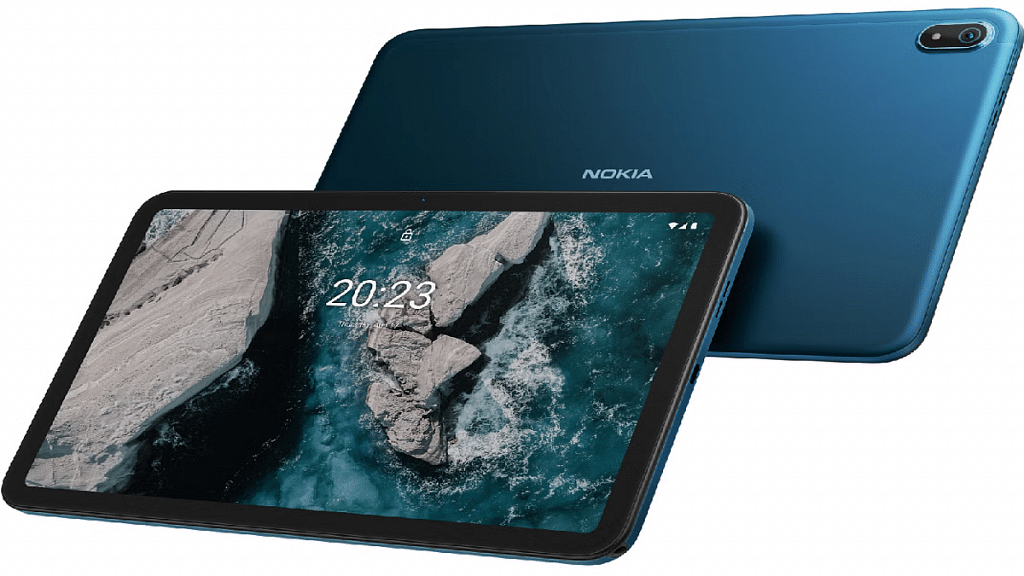
Nokia Tab T20 Wi-Fi+ LTE Tablet With SIM Card Compatibility

The Nokia Tab T20 Wi-Fi+ LTE Android tablet is one of the best options for budget users. This tablet also comes with SIM card support and doesn’t burn a hole in your pockets. Nokia has launched the Tab T20 earlier this year in India with the octa-core Unisoc T610 processor combined with Mali-G52 MP2. The tablet features a 10.4-inch display with a 1200 x 1200 pixels screen resolution. The Nokia Tab T20 Wi-Fi+ LTE can be purchased at around Rs. 17,299 via Amazon in India.

Also Read: Google Pixel Tablet Vs OnePlus Pad Vs Vivo Pad 2: Top Value Flagship Android Tablet In 2023

Categories
Featured Mobile

List Of Upcoming Smartphones With Snapdragon 4 Gen 1 Processor

Key Highlights

  • Qualcomm recently launched Snapdragon 4 Gen 1 chip
  • It aims to offer great performance and multi-day battery life
  • iQOO Z6 Lite is the first phone using the Snapdragon 4 Gen 1

The Snapdragon 4 Gen 1 is the newest mid-range chip from Qualcomm, and it brings more advanced features and more effective designs to affordable Android smartphones.

The Snapdragon 4 Gen 1 is a 6nm chip for affordable mobile phones. According to Qualcomm, the processor “boasts” multi-day battery life as well as a 15 percent CPU and 10 percent GPU performance improvement over the previous iteration. While lacking 4K, this chip offers a 108MP camera. Six Cortex-A55 cores and two Cortex-A78 cores are what make up the processor.

The iQOO Z6 Lite is one of the first smartphones using the Snapdragon 4 Gen 1. In this article, we have compiled the list of upcoming Snapdragon 4 Gen 1-powered mobile phones. Let’s take a look:

Vivo V26e

The Vivo V26e is an upcoming mobile phone expected to be released in December this year. The Qualcomm Snapdragon 4 Gen 1 Octa-core CPU is supposed to power the device. Android v12 is anticipated to run on it. The device will have 256GB of internal storage. The device’s internal storage might also be expanded to 512GB. The expected price of the Vivo V26e in India is Rs. 21,990.

Realme 10i

The upcoming smartphone, the Realme 10i, is expected to debut in India by next year. The Qualcomm Snapdragon 4 Gen 1 Octa-core chipset is probably in it. The smartphone is rumored to be powered by a 5,000mAh battery and run the Android v12 operating system. The Realme 10i is rumored to be available at a starting price of Rs. 25,984.

Xiaomi Redmi 13 Prime 5G

This year is predicted to see the launch of the Redmi 13 Prime 5G from the Xiaomi brand. The Qualcomm Snapdragon 4 Gen 1 processor will power the smartphone. The smartphone is anticipated to include a 6.73-inch IPS LCD Display with a 1080 x 2408 pixel resolution. It is expected to be backed by a 5,100mAh battery. The phone will further run on Android v12. The expected price of the Xiaomi Redmi 13 Prime 5G in India is Rs. 17,990.

Categories
Featured How To Mobile

Lost Or Stolen Mobile: Here’s How You Can Track/ Find, Recover, And Erase Your Lost Mobile Phone

Key Highlights

Lost or stolen mobiles can be tracked easily

You would need to activate Google Find My Feature

Smartphones have gradually become more of a necessity than a luxury. These handheld pocket-sized gadgets have not only shaped modern-day communication but also have opened up vast possibilities with voice and video calling options. When you step out in the market to buy a new smartphone, you have numerous brands as an option. But the ecosystem is widely segregated between Android and iOS.

Smartphone OEMs are focused on not just delivering a premium user experience but also offering a private and secure environment to the users. The brands are lacing their handsets with dedicated physical fingerprint scanners for added privacy in addition to the traditional PIN and password lock. You get smartphones with rear, side, or under display physical fingerprint scanners. But despite every possible security measure, smartphones are still prone to theft. You might have come across stories where mobile snatchers or pickpockets steal smartphones in public transport or crowded spaces.  

Thankfully, smartphone brands are now adding the tracker feature with which you can find your lost mobile. Google’s Find My Phone feature is one such tool that lets you find or locate your lost mobile and also get remote access and erase all data if you think the stored personal data on the phone could be compromised. But the Find my Phone feature isn’t activated by default on your Android smartphones. You would need to perform some manual steps to set it up and use it to find your lost mobile. We have mentioned the ways below:

How To Find You Lost Android Mobile

Steps To Setup Find My Phone Feature On Your Android Phone

Step 1: You first need to install the Google Find My Device application on your smartphone. You can do it via Google Play Store.

Step 2: Sign in to the app using your Gmail email address.

Step 3: You will see the name of the device on which you have set up the Find My Phone feature along with the security options such as Play Sound, Secure device, and Erase device. Once this feature is active, you can follow the steps below to find, lock, and erase your lost mobile phone. Before you start, make sure you are signed in to your Google Account and connected to mobile or WiFi internet.

How To Track, Lock, And Erase Your Lost Mobile Phone

Step 1: Open any web browser and type www.android.com/find.

Step 2: Select the phone which is lost or stolen.

Step 3: You can send a ring notification, lock the device, or erase it.

Step 4: If the device is on, you’ll be able to see its location on the map. The data might not be completely accurate, but you’ll get a rough idea of its whereabouts and where was it seen last.

Step 5: You can tap on the Erase device option if you feel the phone’s data can be compromised by falling into the wrong hands.

Categories
Featured How To Smart Watch

Need To Track Your Medications On Apple Watch? Here’s How To Do It

Key Highlights

  • You can track medications on Apple Watch
  • It lets you input a medication list you take and set a specific reminder schedule for each drug
  • Here’s how the feature works

Unfortunately, it’s all too easy to forget to take your supplements, prescriptions, and vitamins, particularly on days when your regular schedule is entirely ignored. Fortunately, you can help yourself remember to take your medication on time by setting a simple reminder on your iPhone or Apple Watch.

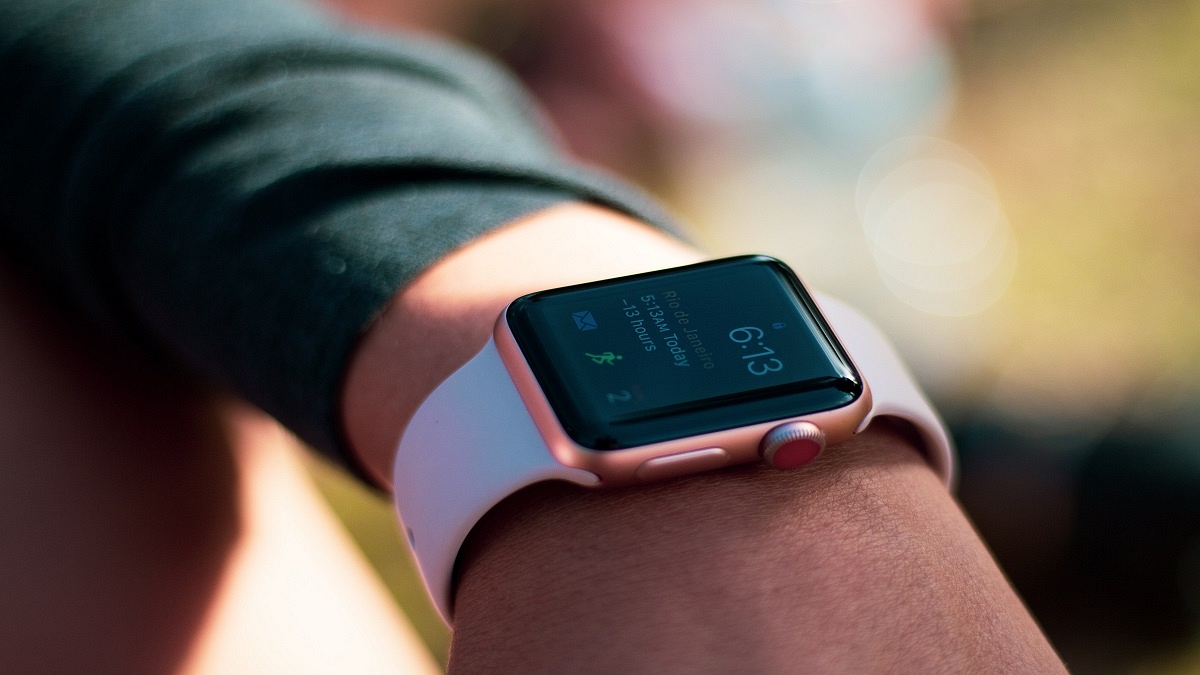
Apple has given the Apple Watch a much-needed capability. Users can keep track of their meds and set up reminders with the new Medications app in WatchOS 9. You can keep track of your pills and log them with reminders in the Medications app on your Apple Watch. Here’s how to configure an Apple Watch medicine schedule.

WatchOS 9 Compatibility

The listed Apple Watch models can download WatchOS 9:

  • Apple Watch SE (2020)
  • Apple Watch Series 4
  • Apple Watch Series 5
  • Apple Watch Series 6
  • Apple Watch SE (2022)
  • Apple Watch Series 7
  • Apple Watch Series 8
  • Apple Watch Ultra

How You Can Track Your Medications On Apple Watch?

According to Apple, based on the schedule you’ve set up in the Health app on your iPhone, your Apple Watch will automatically remind you when it’s time to take your meds. Follow these steps to record your prescriptions:

Step 1: Tap the notification if you have received one asking you to log your prescriptions. If not, launch the Medication app on your Apple Watch.

Step 2: Tap the current medications schedule – the medications you take in the morning, for example.

Step 3: Press ‘Log All as Taken.’ The dosage, the number of units consumed, and the moment you took the medication are all recorded by Apple Watch.

Step 4: Scroll down, select a drug under ‘Your Medications,’ and then select ‘Log’ to record each medication. Under Logged, the name of the drug and the time logged are shown.

Step 5: In order to change the status of a logged medication, you have to tap it, and click on ‘Taken’ or ‘Skipped.’

Step 6: Now, tap on ‘Done.’ That’s all.

Categories
Accessories Featured Info

Amazfit GTR 4 Smartwatch Launched With Bluetooth Calling, 14-Day Battery Life, And 1.43-inch AMOLED Display: Check Here For Price In India

Amazfit has announced the launch of the GTR 4 in India. The GTR 4 smartwatch is the successor of the GTR 3 that is available in the country on Flipkart. Also, the premium smartwatch is available on the Amazon website.

The newly launched smartwatch comes with key health and fitness features. In addition, the smartwatch company also offers two-weeks battery life and Bluetooth calling support. So, let’s take a look at the Amazfit GTR 4 specifications and the price of the smartwatch.

Amazfit GTR 4 Smartwatch: Specifications

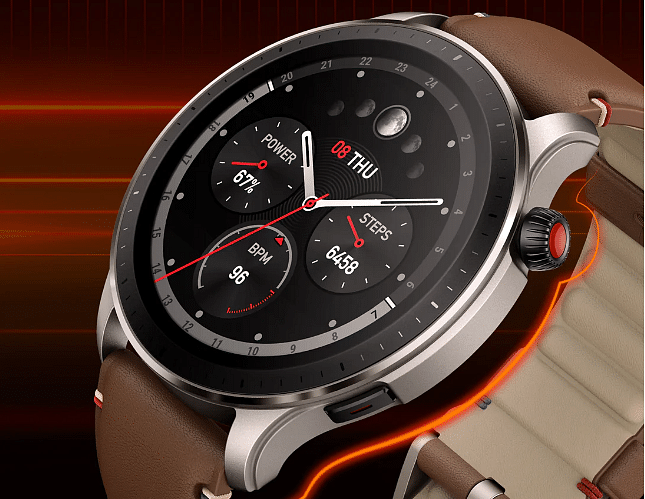
The GTR 4 comes with a circular dial, 1.43-inch AMOLED display, and a 466×466-pixel resolution. It also has an anti-fingerprint coating and tempered glass on the top that will protect the smartwatch against scratches. It also has always -on display support.

The smartwatch support more than 200 watch faces along with the Zepp Health app. The smartwatch runs on the Zepp OS 2.0 so the company can provide a smooth user experience. Besides, the company claims that UI is designed to consume less power.

Plus, users are also allowed to select two app menu styles, vibrant schemes, and natural. Besides, the users are allowed to download third-party apps like GoPro and Home Connect.

Regarding health features, the smartwatch comes with menstrual cycle monitoring, heart rate monitoring, sleep tracking, stress monitoring, and blood oxygen level. In addition, the watch supports more than 150 different types of workouts and automatic workout detection for eight types.

On the battery front, the smartwatch comes with a 475 mAh battery packed inside that claims to provide 14 days of usage with a single charge. Additionally, the smartwatch also supports Bluetooth calling and Fall Detection. Moreover, the devices that are running on Android 7.0 and above, whereas iOS 12 and above are compatible with the GTR 4.

Amazfit GTR 4 Smartwatch: Price

Amazfit GTR 4 is priced at Rs. 16,999; however as per initial offer the buyers can purchase the watch for Rs. 15,299 on Flipkart and and Amazfit e-store.

The newly launched smartwatch is available in Superspeed Black and Racetrack Grey. In addition, the company is providing limited straps to buyers of the GTR 4

Categories
Accessories Featured How To

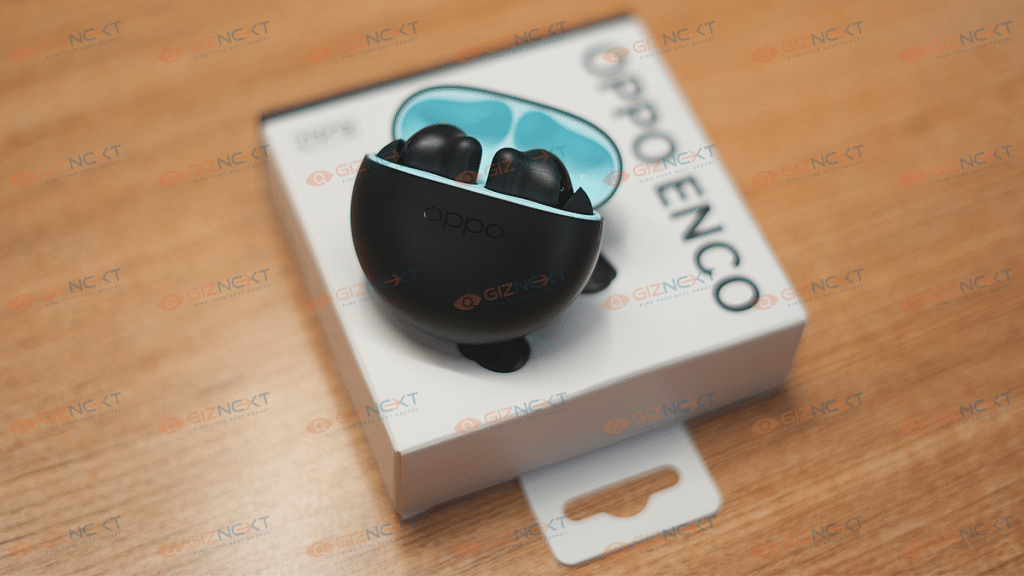
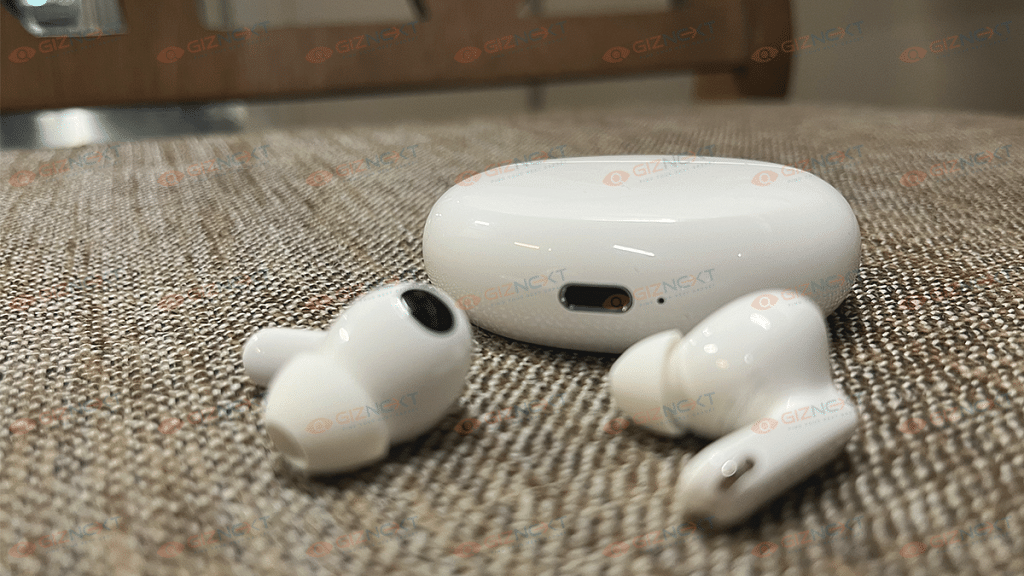
Factory Reset OPPO ENCO TWS Earbuds (All Models): How To Fix Audio/ Pairing Issues With OPPO TWS Earbuds By Factory/ Hard Reset

OPPO is the world’s largest smartphone and accessories manufacturer. The brand has added multiple different IoT-enabled products to its catalog in the last few years. The recently forayed into the tablet market with the OPPO Pad and Pad Air tablet models and has also launched multiple new audio accessories in recent times.

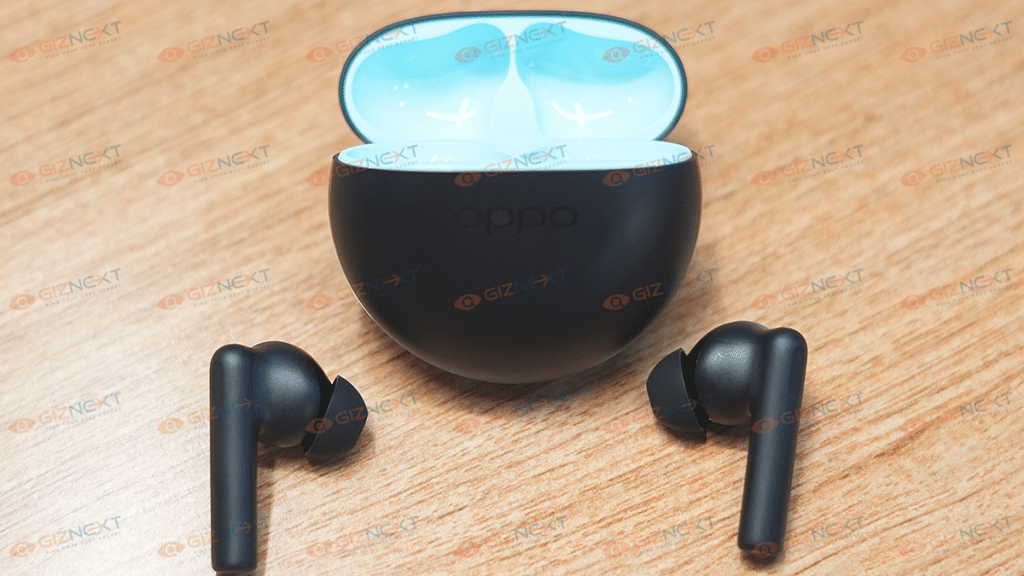
Looking at the surging demands in the TWS (true wireless earbuds) market, OPPO seized all the opportunities with its Enco series. The OPPO Enco series offers both TWS earbuds and neckbands for audio enthusiasts in India as well as the remaining global regions. The OPPO Enco X2 and the Enco Buds 2 are the most recent TWS earbuds from OPPO for the premium and budget-conscious audiences respectively in India.  

OPPO has been consistent with offering a rich soundstage with its Enco series of audio accessories. Even we have tested the audio performance of OPPO Enco lineup and have been impressed with the output. While audio performance is pristine with OPPO’s wireless audio products, they aren’t completely resistant to general connectivity and audio issues.

Also Read: Mivi Duopds K1 Vs Wings Phantom 345 Budget TWS Comparison: Best Earbuds Under Rs. 1,500

You can experience one earbud not working or distortion in one or the other earpiece while the pair is connected to a smartphone or any other compatible device such as a tablet, TV, or laptop. In most cases, it isn’t any hardware issue and can be fixed at home without necessarily paying a visit to a service center or to a nearby store.

We experienced a similar issue with one of the OPPO Enco X2 earbuds where we could consistently hear noise from the left earpiece. The buzzing sound was hampering the listening experience and we could easily tell there was some issue with the earbud’s connectivity settings. Performing a hard reset solved this problem for us.

Yes, factory resetting the TWS earbuds is one of the easiest ways to fix any pairing or audio issue with your OPPO TWS earbuds. You can reset any of the OPPO earbuds the same way we did and fix the relevant issues with audio and connectivity. The steps to factory or hard reset the OPPO TWS earbuds (any model) are listed below:

Also Read: Wings Phantom 345 TWS Gaming Earbuds Review: Trendy And Affordable

How To Factory/ Hard Reset OPPO TWS Earbuds

Step 1: On the smartphone or tablet with which your OPPO Enco TWS earbud is paired, unpair the connection first.

Step 2: Make sure you have also clicked on the Forget device option once you have unpaired the earbuds.

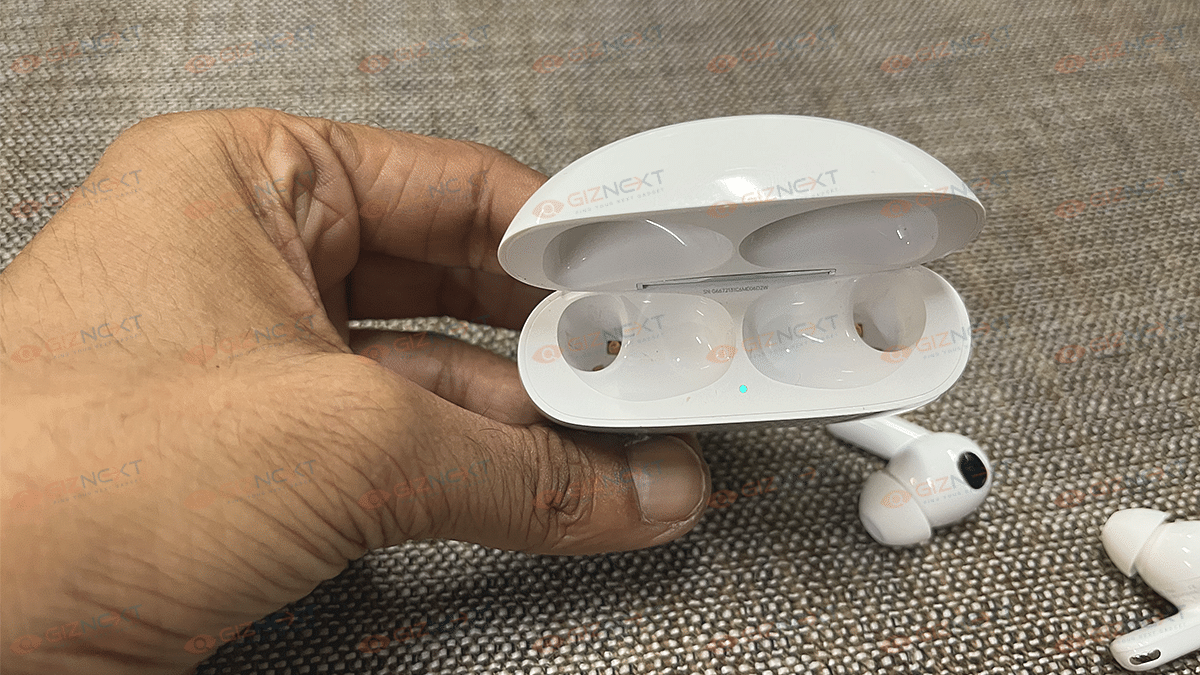
Step 3: Now, locate the pairing button on the OPPO Enco TWS earbuds charging case. Note that the earbuds should be inside the charging case only while you are performing the hard reset.

Step 4: Press and hold the pairing button until the blue LED starts to flicker.

Step 5: Keep pressing the key until the pairing LED starts blinking in red color.

Step 6: Wait until the LED’s color changes back to white/blue from RED.

Step 7: The factory reset of the OPPO TWS earbuds will be complete once you perform step 6.  

Step 8: Re-pair the earbuds with the smartphone or tablet and tune into your favourite music track or movie/show.

Also Read: How Can You Pair OnePlus Buds, Nord Buds TWS With Apple Macbook Laptops (All Models)