Categories
Featured Info Mobile TV

Amazon Prime Day 2022 Sale: Best Deals On Smartphones, TVs, Washing Machines, And More

Amazon’s annual Prime Day sale is back again. It will be a two-day mega event where more than 400 products will be unveiled for sale. There will also be a few new releases on Prime Video as well as some exciting offers with discounts. As part of the same, Amazon will offer a plethora of deals across various categories including smartphones, smart TVs, washing machines, and more. Here are some of the exciting deals and offers across categories that will be available by next week.

Amazon Prime Day 2022: When Does The Sale Start?

Amazon Prime Day sale will kick off on Saturday, i.e., July 23, 2022, at 12:00 AM, and will end the next day on July 24, 2022. During the sale, the customers will get the best offers and great deals, with heavy discounts. Besides, Amazon is also featuring its ‘Wow Deals’ in which you can avail of huge discounts on limited stock products from 4 PM – 6 PM.

Which Cards Will Get You Big Offers?

Credit/debit card holders from ICICI and SBI will receive an additional 10% off. Prime customers who use their Amazon Pay ICICI Bank credit card will receive 5% cashback on Prime Day purchases. The best welcome offer ever for new cardholders will be Rs. 2,200 in rewards and six months of free screen replacement.

Amazon Prime Day Sale: Offers On Smartphones

You can see get up to 40% off on mobiles and accessories. Amazon has revealed some of the offers customers will see on smartphones from multiple brands including Apple, Samsung, Xiaomi, and others. Check out the offers below.

Apple

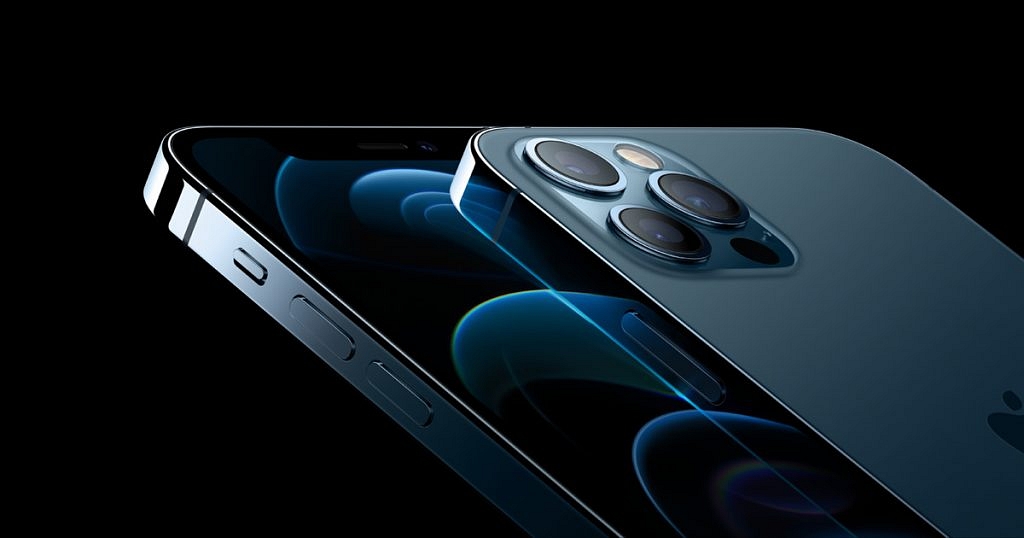
Customers will save up to Rs. 20,000 on select iPhone models, according to Amazon. These models, however, have not yet been revealed. Additionally, Amazon has guaranteed fantastic discounts on the iPhone 13 Pro and iPhone 13 Pro Max models.

Samsung

According to Amazon, the Samsung Galaxy S21 FE will be discounted by up to 30%. Additionally, there will be deals on the company’s M-series phones. This includes Rs. 15,000 off on the Galaxy M52, Rs. 8,000 discount on the Galaxy M53 and M33, and Rs. 5,000 off on the Galaxy M32. Besides, additional discounts will also be valid, likely with certain bank cards.

Xiaomi

During the sale, the Redmi 9-series will start at Rs. 6,899 with additional perks of Rs. 600 when using a coupon. With certain additional bank discounts, the Redmi Note 10 series which includes the Note 10T 5G, Note 10 Pro, Note 10 Pro Max, and Note 10S will be offered for a starting price of Rs. 10,999.
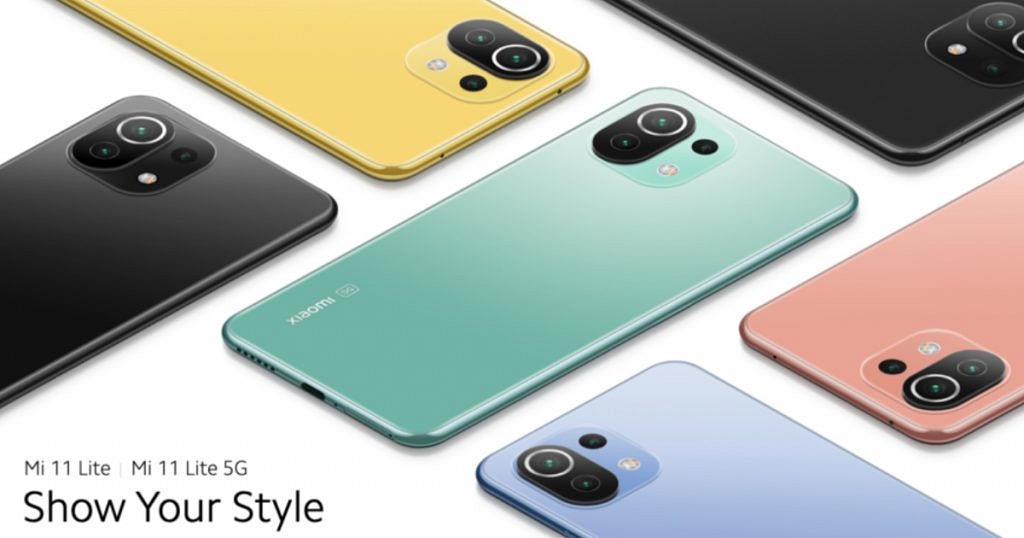
The Xiaomi 11T Pro will be available for Rs. 35,999, while the Xiaomi 11 Lite will cost you Rs. 23,999. With additional offers of up to Rs. 6,000 with bank discounts and coupons, the Xiaomi 12 Pro will cost Rs. 56,999.

Amazon Prime Day Sale: Offers On TV And Washing Machine

During the Amazon Prime Day sale, there will be big discounts on smart TVs and washing machines. You can get discounts on smart TVs going all the way up to 65% with no cost EMI. So far, many great deals and discounts will be offered on various brands including the 4K ultra-HD TVs, Google TVs, Amazon Fire TVs, and more. However, you can also discover great savings on smart TVs by Xiaomi, OnePlus, and many more brands.

On the other hand, the Amazon Prime Day sale is offering the best deals on washing machines. You can get up to 40% off on washing machines across different categories. This includes Fully Automatic Front Load, Fully Automatic Top Load, Semi-Automatic, and Washers & Dryers. Various washing machines with the latest technologies such as inbuilt heater technology, inverter technology, high capacity, and washing machines with WiFi can be purchased on exciting offers during the sale.

Other Deals And Offers

During the Prime Day 2022 Sale, Amazon has also promised a number of other deals. The prices for these items start at Rs. 149 for headsets, Rs. 499 for power banks, Rs. 99 for mobile cases and covers, and Rs. 49 and Rs. 139 for cables and chargers, respectively.

For those who love reading, Amazon Kindle is offering up to 80% savings on e-book purchases in addition to 50% cashback. In addition to this, free shipping on Amazon Fresh goods and discounts of up to 50% are available to Prime members. Also, customers will be able to save up to 55% off on Amazon Echo smart speakers and smart displays during the sale.

Categories
Apps Featured How To

Here’s How You Can Restore Accidentally Deleted Google Drive Files On Android, iOS

Google’s Android ecosystem is quite vast and offers users a whole range of services and tools. If you are one of the Android phone users, you must have accessed the different apps available on the Play Store. You not just get apps from third-party developers but also from the search giant itself. Google has a whole host of useful applications that helps the masses with different tasks. One of such applications offered by Google is the free cloud storage service called Google Drive.

The Google Drive application is available for both Android and iOS users. This storage app lets users save documents and other files on the cloud which can be accessed when required. This app not just allows the provision of storing files but also make necessary changes and share it with other users via different modes. You can delete unwanted files to free up some additional space.

While removing unnecessary files definitely helps with storage management, there are scenarios when we accidentally delete important documents on Google Drive. Thankfully, Google doesn’t permanently delete the files once removed from the app. A 30 days grace period is offered to restore deleted documents on Google Drive. How do you restore accidentally deleted files on Google Drive? Read on the steps below:

Steps To Restore Accidentally Deleted Google Drive Files On Android Phones

Step 1: Launch the Google Drive mobile application on your respective Android devices.

Step 2: Click on the menu option (three horizontal bars).

Step 3: Tap on the Trash/ Bin option.

Step 4: Scroll down to the file that you wish to restore and click on the three dots icon next to it.

Step 5: Select the restore tab. The file will be restored on your Google Drive application.

Steps To Recover Deleted Google Drive Files On iOS Devices

Step 1: Unlock your iPhones and launch the Google Drive app.

Step 2: Repeat the same steps as mentioned above for Android OS.

In addition to Android and iOS devices you can also use Google Drive services on laptops and PCs. You can access all the features that you get on the mobile version. Also, you can restore the deleted files on Google Drive using the desktop version.

Categories
Apps Featured How To

How To Make Your Android Smartphone A Document Scanner? Step By Step Guide

Smartphones are becoming powerful with each passing day. What was earlier used for communication is now capable of delivering a powerful gaming experience and photography experience. The new-generation smartphones are capable enough to replace laptops and PCs to some extent. That’s specifically with the usage of professional tools such as MS office and others.

And the market is majorly dominated by Google‘s Android and iOS devices. The former has a larger ratio due to the affordability factor and also the availability of numerous third-party mobile applications. We now have some of the popular PC apps available for download on the Google Play Store. And you get multiple options if you go to download any such app.

Document scanning is one such key task that a modern-day smartphone is capable of performing. And you wouldn’t require a PC or laptop for the same if you own a new-age Android phone. There are a plethora of Android applications that allow document scanning. But how exactly can you turn your Android smartphone into a document scanner? Here in this article, we have listed all the steps:

How To Scan Documents Using Android Smartphone?

In order to turn your Android smartphone into a document scanner, you will need either need to download a third-party application or use the Google Drive app. If you don’t want to use the dedicated Google app then Adobe Scan and Microsoft Office Lens are the two other popular options. We have listed the steps to use the Google Drive document scanner since this is a pre-installed app on most Android phones.

Step 1: Unlock your Android phone and launch the Google Drive application.

Step 2: On the bottom right corner, you will see the “Add” option. Click on it.

Step 3: Select the “Scan” button.

Step 4: Capture the photo of the document of which you need a scanned copy.

Step 5: Now make the required adjustments to the scanned document.

Step 6: Click on Done.

The process of scanning a document using the remaining two apps, i.e., Microsoft Office Lens and Adobe scan is almost similar. You would need to capture the image of the document and make a scanned copy.

Categories
Featured Info

Xiaomi Smart Speaker With IR Control Unveiled In India: Check Price, Specs

Key Highlights

  • Xiaomi Smart Speaker IR Control has launched in India
  • It comes with far-field mics and has Google Assistant built-in
  • The Smart Speaker IR Control price is set at Rs. 4,999

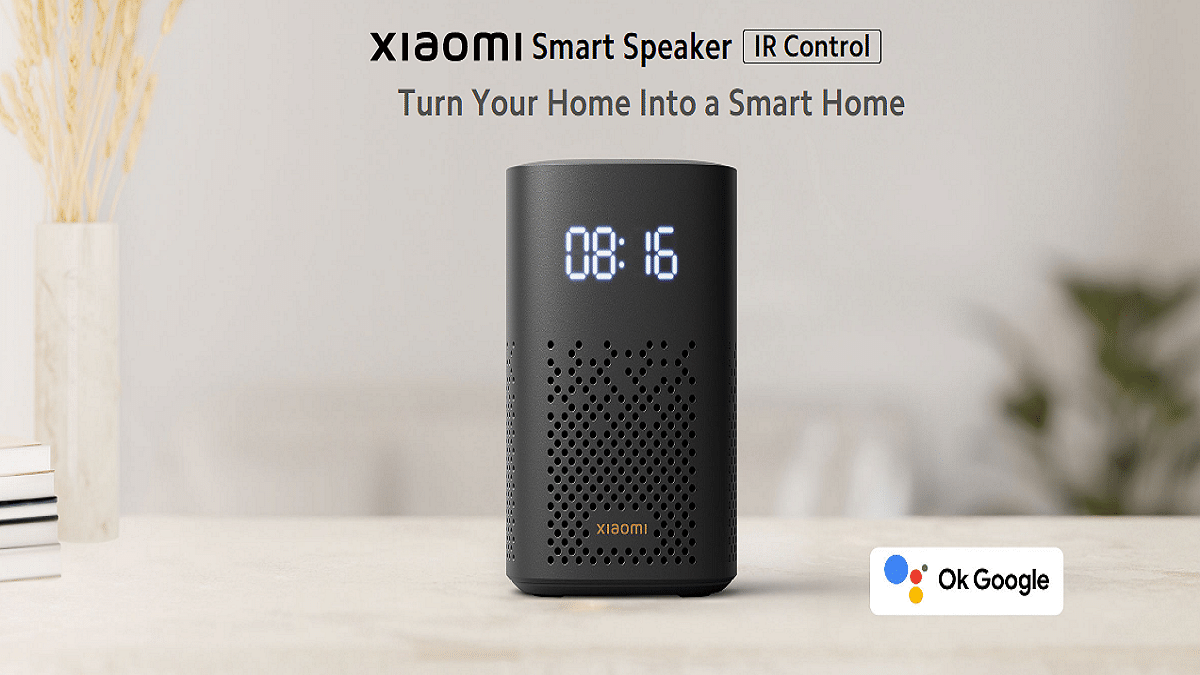
With the launch of the Smart Speaker with IR control in India, Xiaomi has expanded its lineup with yet another cost-effective item. It has taken inspiration from its predecessor’s design. The Google Assistant-powered speaker includes an IR blaster that lets users manage non-smart gadgets and houses a large LED clock. Here is everything you need to know about the newly launched speaker:

Xiaomi Smart Speaker IR Control: Price In India

The Xiaomi Smart Speaker IR control is priced at Rs. 4,999 in India. It can be purchased from mi.com, Mi Home Store, Flipkart, and offline from authorized retail outlets. The smart speaker comes in a single black color option.

Xiaomi Smart Speaker IR Control: Specifications

A 1.5-inch display is included in the new Xiaomi Smart Speaker IR Control. Far-field microphones are another characteristic that makes voice wake-up easier. The speaker also has a capability that lets users connect a second speaker to the device in order to produce stereo sound.

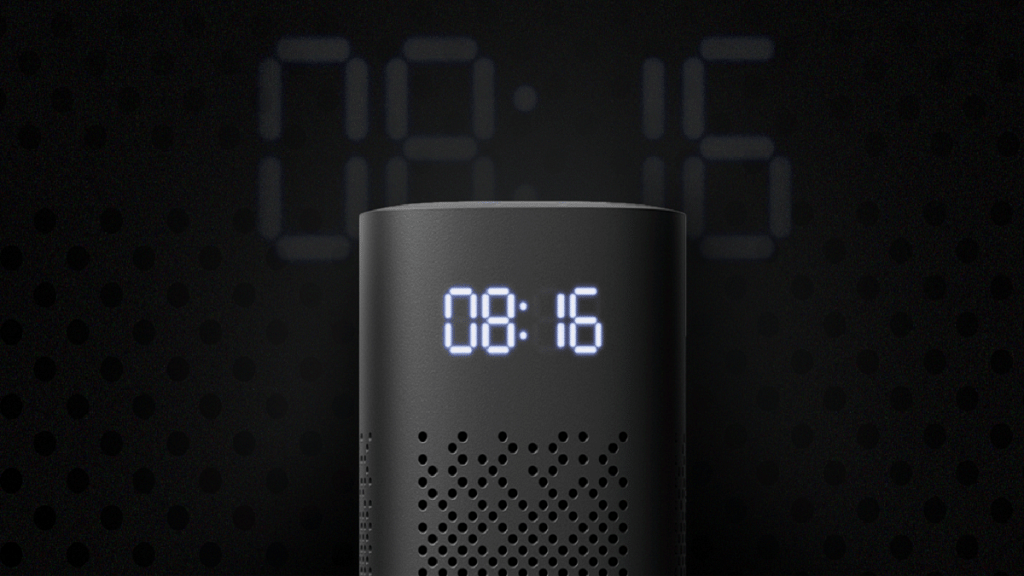
It includes a huge LED digital clock display. Users can also use the functionality to use the speaker as a desk click. In addition to this, the clock has a DND mode that completely hides the time when you are asleep at night. Moreover, the Xiaomi smart speaker’s brightness automatically adjusts brightness in order to match the level of light in the room.

Users can cast content to other compatible devices using the Xiaomi Smart Speaker IR Control’s Chromecast feature. As it is a ’Smart speaker’, it has Google Assistant embedded. This allows the user to control other smart home devices via the assistant.

The IR blaster on the Xiaomi Smart Speaker IR Control will control other smart devices via the Xiaomi Home or Mi Home app on the user’s smartphone. Besides, wireless connections are available via Bluetooth 5.0 on the smart speaker IR Control. As for power, the smart speaker comes equipped with a 12V/1A DC input. Further, it weighs 6.28kg.

Categories
Apps Featured

100+ Best Instagram Names For Kids Influencer

Key Highlights

  • Instagram has emerged as the favorite social media app in India and globally
  • Influencers from all age groups have joined Instagram for a wide audience reach
  • Below are the best Instagram names for Kids Influencer

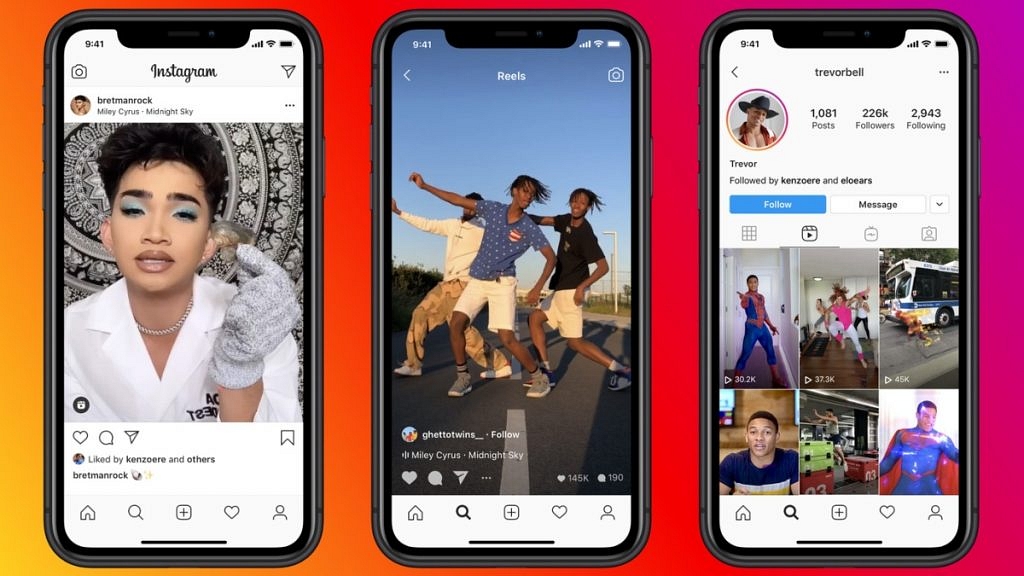
Instagram is the most popular social media platform. Because of its new features like filters, music videos, live options, stories, etc., its popularity is growing every day. And, if you think that the only users on this platform whose images and videos can attract an army of online followers are adults, think again.

Times have changed. Today, kid influencers are beating the algorithm and bringing their best game to the influencing space. And a unique username is crucial if you want to take your Instagram account to the next level. In this post, we have curated a list of the best username suggestions for kids influencers in case you want to join Instagram to inspire your ideas. Take a look:

Also Read: Best Instagram Features That Are Worth Trying

Unique Instagram Usernames For Kids Influencer

AquaLassieFiremon
BabyliciousBizzyFuzzy-bunny
Giggle-bearBunnyBadass
TitanLil’ GuyStrady
RedSweetyLady
RacerShozeeChatterbox
RavenSweetheartVoldypants
ButtercupBlossomTinkerbell

Trendy Instagram Usernames For Kids Influencer

Tiger LilyHazelSmiley
TiggerShiraxEllie-Belly
Tough GuySilly-gooseCheese Ball
Scrappy-dooSweetpeaMs. Fierce
Rainbow BrightSilly-pickleHoney Badger
BubbaSugarplumGem
BearShortcakeBriar Rose
BabbuStretchSuper Stylistic

Catchy Instagram Usernames For Kids Influencers

Cutie Sweety PrincessSwiss Army ManLil Ones Network
Out of this worldButterfly FairiesSmile Buddy
Gossip NetworkDuring SwagDrama Drones
Graceful LightingNinja StrikerTutty Fruity Gorgeous
Glacier ExpressMister MakerKitty Party
Rainbow ShimmerRed Carpet ButterflyCoca Cola
Young The GiantCrazy CrockerSummer Friends
Lion KingHeart ConnectionFriendship Band

Also Read | 100 Best Instagram Name Ideas For Graphic Designers

Cool Instagram Usernames For Kids Influencers

Being A FriendSeven Star LifeBrave & Beautiful
Always & ForeverRavish PleasureLife to express
Treasure Of LifeMagical ShadesForever world living
Network StationFloating LoveHappily ever after
Joy VillaDiamond in the skySwiggy Swine
Passionate FairyStars on earthDzire Tour Lift
Colors of JoyLive RainbowMelody Favorite
Evil AwesomeRise of happinessLive LivoLife

Also Read | 100 Best Instagram Boys Name With Alphabets M To Z

Expressive Instagram Usernames For Kids Influencers

Wings of DesireDragonHoney
PeanutDukeLilozaur
PookieJumpbeeLittle Monkey
Rock StarBruiserLovey
Rollie-pollieWigglesLollypop
RolipazyAmoreInfant
Cocoa PuffPikalchuChild
PlumPumpkinJocko

More Instagram Usernames For Kids Influencer

CountessRogueQueenie
SpikePippinScooby Doo
PeppermintDayseeJazzy
LelolunZippyWiggle-worm
Flo-JoChunky MonkeyFireFly
YogiLadybugGiggles
MusclesLemon DropGiggle Bunny
TeenagerKingJuvenile
Wookie-bearWalo-MaloYoungster
YouthYoungsterZiggy Stardust

Also Read: Need A Cool Instagram Boy Name? Top 100 Instagram Boys Name With Alphabets A To L

The above-mentioned are some of the most unique Instagram usernames for kids influencers. However, we suggest you take inspiration from the list and add your ideas to it as most of these names are already taken.

For the tech geeks, stay updated with the latest cutting-edge gadgets in the market, exclusive tech updates, gadget reviews, and more right on your phone’s screen. Join Giznext’s WhatsApp channel and receive the industry-first tech updates.

Categories
Apps Featured How To

How To Activate Call Forwarding On Android, iOS Smartphones?

Smartphones today are one of the most commonly used commodities of the modern world. With numerous brands competing in the smartphone industry, users are flooded with options to choose from. We now can do much more than simple voice calls and messages with the new mobile phone age. Despite smartphones offering a plethora of services and tools, the primary function till date remains audio calling. Different telecom operators in India offer calling and messaging services.

The advancements in the tech field now allow users to divert calls on different mobile numbers. This is a useful option that comes to the rescue when you wish to avoid some calls or are traveling and might be unreachable due to bad networks or no battery.

Most Android OEMs are now pre-loading the call forwarding feature on their devices that you can use at your convenience. Similarly, Apple iPhones also offer the call forwarding option for you to divert calls on a different mobile number. But how do you start and stop call forwarding on your respective Android and iOS devices? Read on to know:

How To Start Call Forwarding On Android Smartphones?

Step 1: Unlock your respective Android phones and launch the Phone dialer application.

Step 2: Launch the phone application.

Step 3: From the top right corner click on the three dots option.

Step 4: Select the “Settings” option.

Step 5: Now, click on “Call Settings”.

Step 6: Select the “Call Forwarding” option,

Step 7: Set the option as required. You can either set Always Forward, Forward when busy, Forward when unanswered, and Forward when unreached.  

Step 8: You will now get an option to enter the mobile number on which you need to divert the calls.

Step 9: Click on Ok to save the settings.

How To Activate Call Forwarding On Apple iPhones?

Step 1: Open the settings menu on your iPhone.

Step 2: Select the Phone option.

Step 3: Tap on Call forwarding. While performing these steps, you need to make sure you have access to the cellular networks and are within range.

That’s all you need to do to activate call forwarding on your Android and iOS smartphones.

Categories
Featured Gaming How To

How To Download Minecraft On PC And Mobile Phone: Steps Inside

Key Highlights

  • The following article consists the steps to download Minecraft.
  • Visit the Minecraft website and click on the Free Download button to start your download.
  • Once the download is complete, you can launch the game by clicking the “Play” button.

Minecraft offers gamers an immersive gaming experience that enables them to discover limitless worlds. Over ten years after its release, the game still draws a huge player base.

In order to fight the Ender Dragon, players in this game must fend against waves of opponents, construct shelters, and gather food from the environment. To protect themselves from nighttime creatures, people first construct structures. But as the game goes on, players worked together to make beautiful, inventive things.

Minecraft is accessible on a number of devices including consoles, mobile phones, laptops, and PCs. Here is a simple step-by-step tutorial on how to download the free Minecraft game on a computer and mobile phone:

Also Read: Want To Make A Book In Minecraft? Here’s How

How To Download Minecraft On PC

There are two distinct Minecraft game iterations: Minecraft Java Edition and Minecraft for Windows 10 aka Bedrock edition. The latter is a bit more popular and supports cross-platform play that includes Windows, macOS, and Linux. The Minecraft Bedrock edition can be played on Windows 10 PC or laptops.

Minecraft Java Edition: Steps To Download On PC

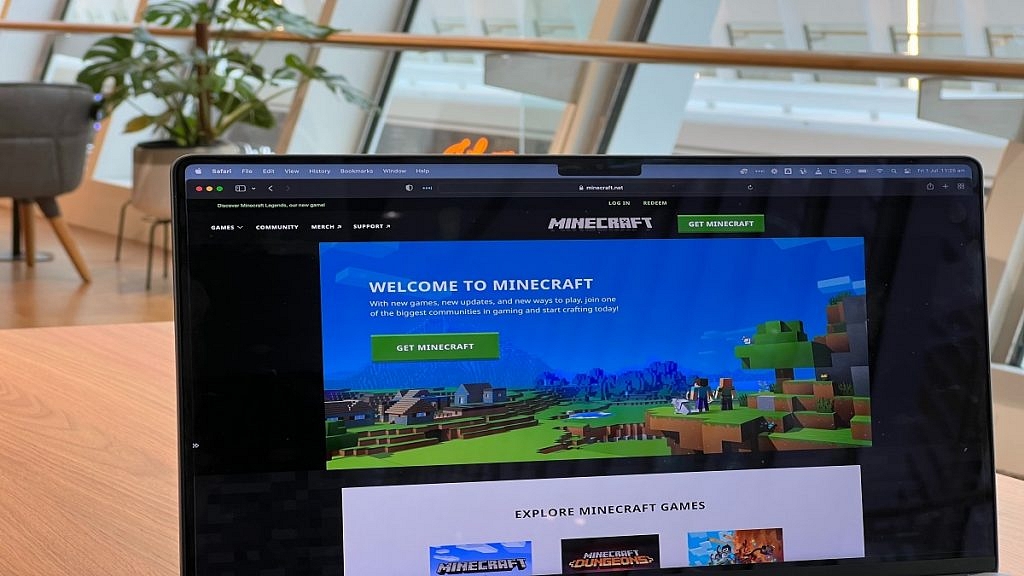
Step 1: Visit minecraft.net on your PC.

Step 2: Select ‘Get Minecraft’.

Step 3: Followed by Platform, choose Computer from the available devices list. Windows, macOS, and Linux are all supported by the Minecraft Java Edition.

Step 4: After that, users of Mac and Linux will be able to purchase Minecraft Java Edition. On the other hand, Windows users will be given two games to buy: Minecraft Java Edition and Minecraft: Windows 10 Edition. Select the option that you want and proceed with payment.

Step 5: Once the payment is done, users will easily be able to download and install the game on their PC.

Minecraft Bedrock Edition: Steps To Download On PC

Step 1: Go to your browser on your PC.

Step 2: Search ‘Minecraft Free Trial’.

Step 3: Tap on the Windows icon.

Step 4: On Microsoft Store, it’ll redirect you to the ‘Minecraft for Windows 10’ page.

Step 5: Now, select ‘Free Trial’.

Step 6: Log in with your Microsoft ID, if you haven’t already.

Step 7: To install the game, open the downloaded file.

Also Read: Want To Make A Book In Minecraft? Here’s How

How To Download Minecraft On Mobile Phone

Similar to PC/laptop, Android users can download the free trial version of Minecraft for smartphones. You can still buy the game’s complete version for Android and iPhone smartphones from the Google Play Store and the App Store, respectively.

The complete version of Minecraft gives you access to a variety of game modes including Creative which has infinite resources, Survival where players must fend off monsters by creating weapons and armory, and Multiplayer which allows players to play with up to 10 others online. Listed are the steps to download the game:

Step 1: Go to Google Play Store for Android and App Store for iOS.

Step 2: Search ‘Minecraft’.

Step 3: Tap on the title which is developed by Mojang.

Step 4: From the store, purchase the game.

Step 5: Click on the install button after the payment is successful. And you are all done!

Categories
Featured How To Laptop

Find The Serial Number Of Your Windows Laptop And Mac: Here’s How

Whether you use a Mac or a Windows computer or laptop, every device in your home has a model and serial number. It shows information such as purchases, manufacturing, or configuration details. If you wish to sell, trade-in, or give away your device, you’ll need these numbers. Additionally, you will require that serial number if you ever need to use your warranty to have the manufacturer repair your device. But where exactly are they located?

Your laptop has been given a special string of numbers and letters called a serial number. Every laptop has a unique serial number. So, while you might never need to know it, it’s still a good idea to know how to find the serial number of your Windows laptop or Mac. Here’s how.

How To Find Your Window Laptop’s Serial Number Via Settings

Checking the Settings page is the best approach to finding the serial number of your Windows computer or laptop. All you have to do is:

Step 1: Open Settings. (You can use Start to search or launch the app.)

Step 2: Tap ‘System’.

Step 3: Now select ‘Above’.

Step 4: You can see the serial number under Windows specifications.

How To Find Your Window Laptop’s Serial Number via Command Prompt

With this technique, we’ll use cmd to run a command that will reveal your Windows PC’s serial number.

Step 1: Open cmd prompt. (To open it, either search for it or use the Windows key + R)

Step 2: Enter the command “wmic bios get serialnumber” at the command prompt.

Step 3: The serial number is now shown underneath the command.

This is to be noted that you will be required to have a working Windows PC with you in order to run the commands.

How To Find Your Mac’s Serial Number

Serial numbers are printed or engraved on your iMac, MacBook, or Mac Mini’s underside. Without having to open or log into your device, this method is the quickest way to check your serial number. The FCC numbers and assembly information are located close to the regulatory markings which also include your Mac’s serial number. Other than this, you can follow the listed steps to check the serial number:

Step 1: Click the Apple logo at the top left corner of the screen.

Step 2: Then click ‘About This Mac’ to quickly open your Mac overview.

Step 3: Your Mac serial number will appear on the last line below Graphics. That’s all.

Categories
Featured Leaks Tablet

Realme To Launch Pad X Tablet On June 26 In India: See All Details Here

Realme is all set to launch the new tablet in the Indian market. The smartphone company has started teasing the upcoming tablet, which is likely to be the Realme Pad X. In addition, the company is planning to bring truly wireless earbuds, a smartwatch, and the company’s first monitor.

It is worth noting that the company is all set to organize its first event called the 5G-led AIoT launch, which means that there will be no phone launch.

In addition, the upcoming products are also listed on the company’s website. In fact, the tablet and smartwatch are also shown in the photo and both products are likely to be the Realme Pad X and the Realme Watch 3.

However, the website did not mention the earbuds’ names and the fourth product is likely to be monitor. But, there are chances that the company might bring smart television from the company.

Realme Pad X Tablet: Specifications

The Realme Pad X tablet will have an 11-inch FullHD LCD, an aspect ratio of 5:3, resolution of 2000×1200 pixels, and a peak brightness level of 450 nits. In addition, the tablet will be powered by a Qualcomm Snapdragon 695 processor that offers 5G connectivity.

You will also find 6GB of RAM and 128GB of storage on the tablet. It runs Realme UI 3.0 for Pad that s based on Android 12 OS. On the imaging front, the device will have 13MP primary camera and for selfies and video chats you will find an 8MP camera.

The front camera supports a 105-degree field of view that is designed for video calls. In addition, you will find four speakers on each side tuned by Dolby Atmos and it is powered by Hi-Res Audio. Plus, the tablet comes with an 8340mAh battery along with a charging speed of 33W.

Categories
Featured Leaks Tablet

Oppo Pad Air To Launch On July 18 In India: See Here For Price And Specifications

Oppo is all set to launch new products in India next week. The company will bring Reno 8 smartphone series and PPO Enco X2 TWS, which has active noise cancellation. In addition, the company announced that the OPPO Pad Air to be launched on the same day.

It is worth noting that the Oppo Pad Air is the second tablet after the Oppo Pad. However, this will be the company’s first Android tablet in India. The tablet is expected to take on the existing Realme, Motorola, and more brands that are available in the affordable segment.

Oppo Pad AirTablet: Specifications And Features

The Oppo Pad Air features a 10.36-inch 2K display and resolution of 2000 × 1200 pixels. In addition, the tablet has a 60Hz refresh rate, 71 percent NTSC color gamut, 83.5% screen-to-body ratio, and 360nits brightness.

It is powered by the Snapdragon 680 processor and paired with 6GB of RAM and 128GB of UFS2.2 storage. It is backed by a 7,100mAh battery unit along with support for 18W fast charging.

In the camera department, you will find an 8MP primary on the back and a 5MP camera on the front for selfies. Additionally, the tablet has a fingerprint scanner and face unlock support.

Moreover, the tablet is 6.94 mm thick and weighs 440 grams. Other features include ColorOS based on Android 12 OS, Wi-Fi 5, Bluetooth V5.1, Type-C port, and a quad-speaker setup with Dolby Atmos.

Oppo Pad Air Tablet: Expected Price In India

As far as pricing is concerned, the 4GB+64GB model of the Oppo Pad Air starts from CNY 1299 which is close to Rs. 15,100. The 6GB+128GB variant is priced at CNY 1699, which is close to Rs. 19,800.

Oppo Pad Air Tablet: Colours Availability

The tablet is available in Grey and Silver color options. Additionally, the tablet is expected to be available on Flipkart.