Categories
Apps Featured How To

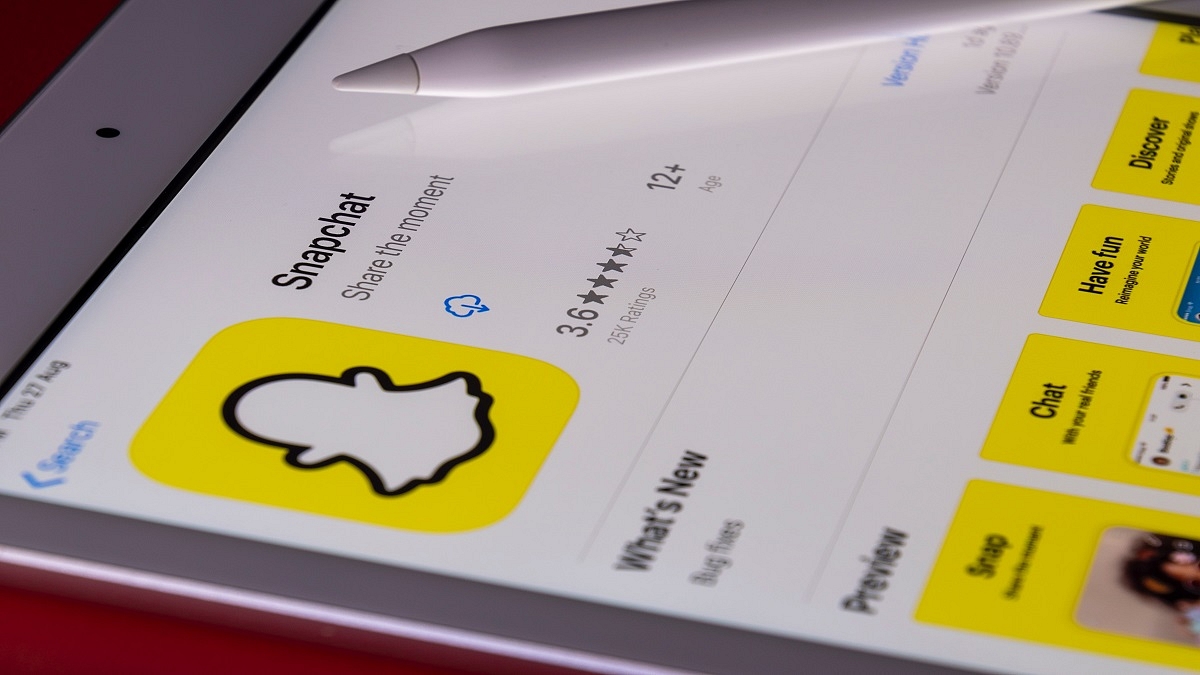
Change Snapchat Username On Android And iPhone: Here’s How

You make a Snapchat account, pick a goofy username, gain followers, and all of a sudden you realize you no longer like your username. That brings you here – to try and modify your Snapchat username.

You choose your username when you first sign up for a Snapchat account. A username is a distinctive identifier that Snapchat uses to identify users. Your display name, which is how you appear on the app, is different from your username. Your display name can be changed whenever you desire. But you can change your username only once a year. We’ll go over how to modify or change your Snapchat username in this post.

Steps To Change Snapchat Username on Android, iOS

Users of Snapchat could previously only modify their display names. For those who are unaware, Snapchat now allows us to change our username. This feature is available for both Android and Apple mobile phone users. As we have mentioned earlier, this can be done only once a year. The steps to change your username on Android or iPhone are the same. Here’s what you should do.

Step 1: On your mobile phone, open your Snapchat app.

Step 2: At the top left corner of the screen, click on Bitmoji to go to your profile.

Step 3: Then, click on the settings icon which is placed at the top right corner.

Step 4: Now, go to the Username section and tap on the change username.

Step 5: Give a new name. Then, to change, click on the ‘next’.

It’s also vital to keep in mind that once you change your username, you cannot change it back. In addition to this, you can modify your Snapchat display name as well as other personal information like your birthday, email address, and mobile number from the settings menu.

When creating a new username, there are certain conditions. For example, there may be restrictions on the number of characters allowed, the character types that can be used, etc. You must adhere to these rules in order to choose a random name. The display name, linked email ID, profile settings, and other critical aspects of your account is unaffected by changing the username.

Categories
Featured TV

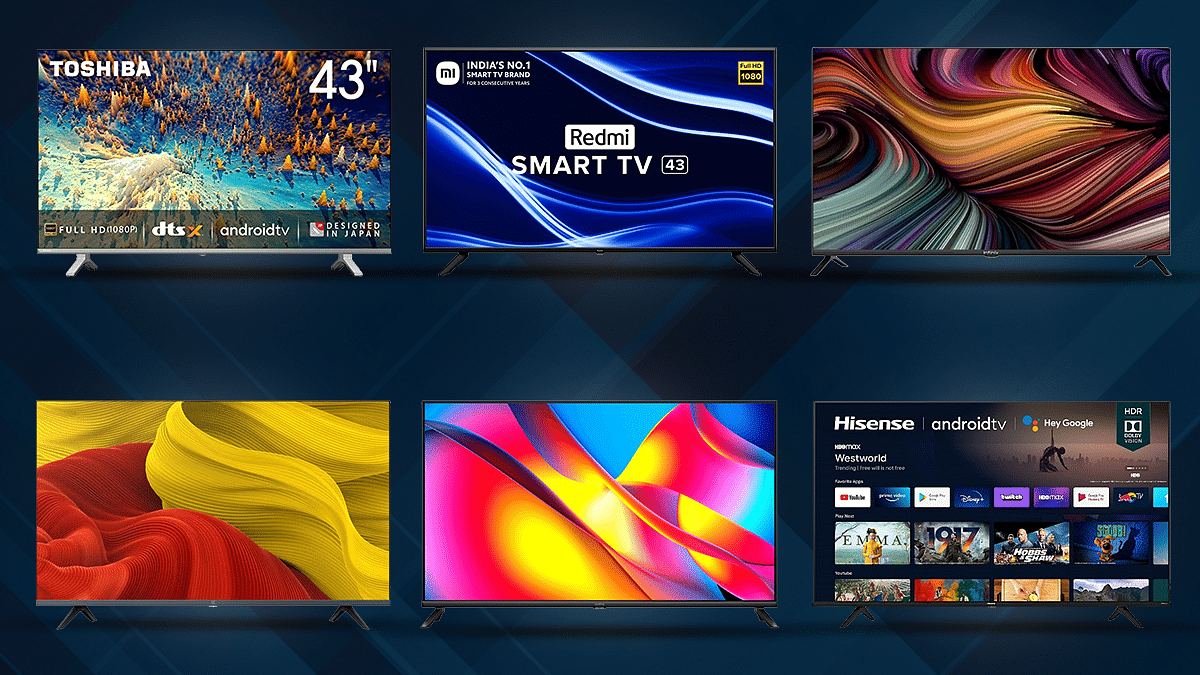
Best 43-Inch Smart TVs Under Rs. 25,000: See All Details Here

Infinix has recently announced the launch of the new smart television under Rs. 9,000. The smart tv comes with a 32-inch screen size HD resolution, 60Hz refresh rate, and more. However, some companies offer a 43-inch screen size under Rs. 25,000. So, in that case, we are listing all smart televisions under the same price range.

Infinix X1 TV 43 Inch: Details

The Infinix X1 TV comes with a 43-inch screen size with Dolby audio, an in-built Box 24W speaker, and a MediaTek quad-core processor with 1GB of RAM and 8 GB of ROM.

The smart television supports Google Assistant, a built-in Chromecast that offers better connectivity. Plus, the smart television provides HDR 10 support and 400 nits brightness. The television is available on the company’s website, Flipkart, and stores for Rs. 21,999.

Realme Smart TV X Full HD

The Realme Smart TV X Full HD comes with a Full HD features a premium Bezel-less Ultra Bright LED Display, 8.7mm, and has 7 display modes, including Movie, Game, Energy Saving, Standard, Vivid, Sport, and User.

The smart television also has Chroma Boost technology that allows you to capture beautiful images and 400+ nits peak brightness. Also, the television comes with a MediaTek 64-bit Quad-Core Processor and runs Android 11 OS. Notably, the smart television is available in two sizes 40 and 43-inch that is the price at Rs. 21,999. It is available on Flipkart. com, realme.com, and stores.

Redmi Smart TV 43-Inch Full HD

The Redmi smart television Full HD features a 43-inch LED panel, 20E speakers along with Dolby Audio support. It is powered by a 64-bit Quad-core processor and runs Android 11 out of the box, and custom PatchWall 4. The smart television

The Redmi smart TV 43-Inch Full HD is already available on the official website, Amazon, and offline stores for Rs. 22,999.

Toshiba Android TV 43V35KP: Details

The Toshiba Android TV 43V35KP features Full HD, 1920 x 1080 Pixels refresh rate of 60 Hz, and 300 Nits. It has a stereo speaker setup that offers a total output of 20W.

It has Bluetooth, Dual-Band Wi-Fi, 43-inch LED Full HD TV, and access to OTT applications like Yes, Netflix, Prime Video, Disney+Hotstar, and Youtube. The smart television is available on Amazon, other channels, and Flipkart. It is priced at Rs. 22,990.

Categories
Featured Gaming

GTA San Andreas Tanker Cheats: Know All Codes For PC And PlayStation

Key Highlights

  • Tank driving in GTA games is thrilling, but obtaining one is challenging
  • Gamers either enjoy the challenge or use cheat codes for instant spawning
  • Cheat codes for spawning a Rhino tank in GTA San Andreas are available for all platforms

One of the most thrilling things a player can do in a GTA game is drive a tank. Getting one of these absurdly powerful vehicles, however, is a quite different matter. Some gamers appreciate the challenge of finding tanks in the games but others prefer to use cheat codes to spawn instantaneously and anywhere they please.

The cheat codes for spawning a Rhino tank in GTA San Andreas are provided in this post for all platforms. PC, PS5, Xbox One/Xbox Series X|S, and the Nintendo Switch are all included in this. Also Read | Best GTA SAN Andreas Cheat Codes For Laptops And PCs: List And How To Use

Spawn A Tank In GTA San Andreas Using Cheat Codes

Depending on their platform, players must enter one of the following cheat codes to spawn a Rhino tank in GTA San Andreas. The Definitive Edition of the game is compatible with this cheat code as well.

DeviceGTA Cheat Codes
PCAIWPRTON / TIMETOKICKASS
Xbox / Xbox 360 / Xbox One / Xbox Series X|SB, B, Left Trigger, B, B, B, Left Trigger, Left Button (White for Xbox players), Right Trigger, Y, B, Y
PlayStation 2 / PlayStation 4 / PlayStation 5Circle, Circle, L1, Circle, Circle, Circle, L1, L2, R1, Triangle, Circle, Triangle
Nintendo SwitchA, A, L, A, A, A, L, ZL, R, X, A, X

GTA San Andreas: Full List Of Cheat Codes For PC

ActionGTA San Andreas Cheat Codes
Spawn Tanker TruckAMOMHRER
Get a chopperOHDUDE
Spawn RhinoAIWPRTON
JetpackROCKETMAN
Spawn LimoCELEBRITYSTATUS
Spawn a Quad bikeFOURWHEELFUN
Spawn DozerITSALLBULL
Spawn a RacecarVPJTQWV
Spawn HydraJUMPJET
Spawn Monster RideMONSTERMASH
Spawn RomeroWHERESTHEFUNERAL
Spawn Stunt PlaneFLYINGTOSTUNT
Spawn HovercraftKGGGDKP
Spawn CadillacRZHSUEW
Spawn RancherJQNTDMH
Spawn Bloodring BangerCQZIJMB
Spawn Garbage TruckTRUEGRIME
ParachuteAIYPWZQP
Health, Armor, $250k, Repairs carHESOYAM
Lung Capacity MaxedCVWKXAM
Infinite AmmoFULLCLIP
Infinite HealthBAGUVIX
Infinite OxygenCVWKXAM
Wanted Level Never IncreasesAEZAKMI
Wanted Level ClearedASNAEB
Wanted Level + 2OSRBLHH
Wanted Level MaxedBRINGITON
Weapons 1, GruntLXGIWYL
Weapons 2, SurgeonPROFESSIONALSKIT
Weapons 3, BerserkerUZUMYMW
Peds Attack Each OtherAJLOJYQY
Peds Attack (Rockets)BGLUAWML
Ninja ThemeNINJATOWN
You are HuntedBAGOWPG
Rural ThemeBMTPWHR
Muscle MaxedBUFFMEUP
SuicideGOODBYECRUELWORLD
FattyBTCDBCB
Vehicle Skills MaxedNATURALTALENT
SkinnyKVGYZQK
Respect MaxedWORSHIPME
Sexiness MaxedHELLOLADIES
Eternal MidnightNIGHTPROWLER
21:00OFVIAC
Attract WomenBEKKNQV
Cloudy WeatherALNSFMZO
00:00 to 12:00XJVSNAJ
SandstormCWJXUOC
Foggy WeatherCFVFGMJ
Sunny WeatherPLEASANTLYWARM
Rainy WeatherAUIFRVQS
Super Sunny WeatherTOODAMNHOT
ThunderstormSCOTTISHSUMMER
Sweet Ride Car TrafficEVERYONEISRICH
Invisible CarWHEELSONLYPLEASE
Reduced TrafficGHOSTTOWN
Flying CarsRIPAZHA
Aggressive TrafficYLTEICZ
Recruit Anyone (9mm)SJMAHPE
Awesome HandlingSTICKLIKEGLUE
Recruit Anyone (Rockets)ROCKETMAYHEM
Hitman Stat LevelPROFESSIONALKILLER
Gangs Rule the StreetsBIFBUZZ
O.S. Car TrafficEVERYONEISPOOR
Chaos ModeSTATEOFEMERGENCY
Country TrafficFVTMNBZ
Nitrous TaxisVKYPQCF
Pink TrafficLLQPFBN
Cars ExplodeCPKTNWT
Black TrafficIOWDLAC
Flying BoatsFLYINGFISH
Green Light TrafficZEIIVG
Float away on impactBUBBLECARS
All Cars Nitrous PoweredSPEEDFREAK
Stormy WeatherBLUESUEDESHOES
Carnival ThemeCRAZYTOWN
Fast ClockYSOHNUL
Funhouse ThemePRIEBJ
Faster gameplaySPEEDITUP
Kinky ThemeBEKKNQV
Slower gameplaySLOWITDOWN
Beach RaveCIKGCGX
Giant BMX HopCJPHONEHOME
Super JumpKANGAROO
Adrenal ModeMUNASEF
Armed PedsFOOOXFT
Riot ModeIOJUFZN
Gang Members EverywhereONLYHOMIESALLOWED
Smash N’ BoomJCNRUAD

Also Read | List Of GTA 5 Cheats Codes For PC, PS4, Xbox Consoles: Here’s How To Use

GTA San Andreas: Full List Of Cheat Codes For PlayStation

ActionGTA San Andreas Cheat Codes
Aggressive TrafficR2, CIRCLE, R1, L2, LEFT, R1, L1, R2, L2
Drive on WaterRIGHT, R2, CIRCLE, R1, L2, SQUARE, R1, R2
All cars have NitrosLEFT, TRIANGLE, R1, L1, UP, SQUARE, TRIANGLE, DOWN, CIRCLE, L2, L1, L1
Cloudy WeatherL2, DOWN, DOWN, LEFT, SQUARE, LEFT, R2, SQUARE, X, R1, L1, L1
All Traffic is Junk CarsL2, RIGHT, L1, UP, X, L1, L2, R2, R1, L1, L1, L1
Chaos ModeL2, RIGHT, L1, TRIANGLE, RIGHT, RIGHT, R1, L1, RIGHT, L1, L1, L1
ATV QuadLEFT, LEFT, DOWN, DOWN, UP, UP, SQUARE, CIRCLE, TRIANGLE, R1, R2
Cars FlyUP, DOWN, L1, R1, L1, RIGHT, LEFT, L1, LEFT
Beach PartyUP, UP, DOWN, DOWN, SQUARE, CIRCLE, L1, R1, TRIANGLE, DOWN
Bounty on Your HeadDOWN, UP, UP, UP, X, R2, R1, L2, L2
Black trafficCIRCLE, L2, UP, R1, LEFT, X, R1, L1, LEFT, CIRCLE
Blow up All CarsR2, L2, R1, L1, L2, R2, SQUARE, TRIANGLE, CIRCLE, TRIANGLE, L2, L1
Faster CarsRIGHT, R1, UP, L2, L2, LEFT, R1, L1, R1, R1
HydraTRIANGLE, TRIANGLE, SQUARE, CIRCLE, X, L1, L1, DOWN, UP
Faster ClockCIRCLE, CIRCLE, L1, SQUARE, L1, SQUARE, SQUARE, SQUARE, L1, TRIANGLE, CIRCLE, TRIANGLE
Hitman in all weaponsDOWN, SQUARE, X, LEFT, R1, R2, LEFT, DOWN, DOWN, L1, L1, L1
Faster Game PlayTRIANGLE, UP, RIGHT, DOWN, L2, L1, SQUARE
Get ParachuteLEFT, RIGHT, L1, L2, R1, R2, R2, UP, DOWN, RIGHT, L1
FattyTRIANGLE, UP, UP, LEFT, RIGHT, SQUARE, CIRCLE, DOWN
Gangs Control the StreetsL2, UP, R1, R1, LEFT, R1, R1, R2, RIGHT, DOWN
Flying boatsR2, CIRCLE, UP, L1, RIGHT, R1, RIGHT, UP, SQUARE, TRIANGLE
Funhouse ThemeTRIANGLE, TRIANGLE, L1, SQUARE, SQUARE, CIRCLE, SQUARE, DOWN, CIRCLE
Foggy WeatherR2, X, L1, L1, L2, L2, L2, X
Full Health, Full Armor, $250,000R1, R2, L1, X, LEFT, DOWN, RIGHT, UP, LEFT, DOWN, RIGHT, UP
Infinite AmmoL1, R1, SQUARE, R1, LEFT, R2, R1, LEFT, SQUARE, DOWN, L1, L1
Peds Attack (guns)X, L1, UP, SQUARE, DOWN, X, L2, TRIANGLE, DOWN, R1, L1, L1
Infinite Lung CapacityDOWN, LEFT, L1, DOWN, DOWN, R2, DOWN, L2, DOWN
Pedestrians Have WeaponsR2, R1, X, TRIANGLE, X, TRIANGLE, UP, DOWN
Insane HandlingTRIANGLE, R1, R1, LEFT, R1, L1, R2, L1
Overcast WeatherR2, X, L1, L1, L2, L2, L2, TRIANGLE
Jump HighUP, UP, TRIANGLE, TRIANGLE, UP, UP, LEFT, RIGHT, SQUARE, R2, R2
Orange Sky and Time Stopped at 21:00LEFT, LEFT, L2, R1, RIGHT, SQUARE, SQUARE, L1, L2, X
Massive Bunny HopsTRIANGLE, SQUARE, CIRCLE, CIRCLE, SQUARE, CIRCLE, CIRCLE, L1, L2, L2, R1, R2
NightR2, X, L1, L1, L2, L2, L2, TRIANGLE
Maximum MuscleTRIANGLE, UP, UP, LEFT, RIGHT, SQUARE, CIRCLE, LEFT
Maximum Vehicle StatsSQUARE, L2, X, R1, L2, L2, LEFT, R1, RIGHT, L1, L1, L1
Maximum RespectL1, R1, TRIANGLE, DOWN, R2, X, L1, UP, L2, L2, L1, L1
Maximum Sex AppealCIRCLE, TRIANGLE, TRIANGLE, UP, CIRCLE, R1, L2, UP, TRIANGLE, L1, L1, L1
Perfect HandlingTRIANGLE, R1, R1, LEFT, R1, L1, R2, L1
Slower Game PlayTRIANGLE, UP, RIGHT, DOWN, SQUARE, R2, R1
Pink TrafficCIRCLE, L1, DOWN, L2, LEFT, X, R1, L1, RIGHT, CIRCLE
SandstormUP, DOWN, L1, L1, L2, L2, L1, L2, R1, R2
Rainy WeatherR2, X, L1, L1, L2, L2, L2, CIRCLE
Reduced TrafficX, DOWN, UP, R2, DOWN, TRIANGLE, L1, TRIANGLE, LEFT
Recruit Pedestrians to GangDOWN, SQUARE, UP, R2, R2, UP, RIGHT, RIGHT, UP
Spawn Bloodring BangerDOWN, R1, CIRCLE, L2, L2, X, R1, L1, LEFT, LEFT
Spawn Monster TruckRIGHT, UP, R1, R1, R1, DOWN, TRIANGLE, TRIANGLE, X, CIRCLE, L1, L1
Spawn CaddyCIRCLE, L1, UP, R1, L2, X, R1, L1, CIRCLE, X
Spawn JetpackL1, L2, R1, R2, UP, DOWN, LEFT, RIGHT, L1, L2, R1, R2, UP, DOWN, LEFT, RIGHT
Spawn DozerR2, L1, L1, RIGHT, RIGHT, UP, UP, X, L1, LEFT
Spawn HunterCIRCLE, X, L1, CIRCLE, CIRCLE, L1, CIRCLE, R1 R2, L2, L1, L1
Spawn Hotring Racer 1R1, CIRCLE, R2, RIGHT, L1, L2, X, X, SQUARE, R1
Spawn Hotring Racer 2R2, L1, CIRCLE, RIGHT, L1, R1, RIGHT, UP, CIRCLE, R2
Spawn RangerUP, RIGHT, RIGHT, L1, RIGHT, UP, SQUARE, L2
Spawn TrashmasterCIRCLE, R1, CIRCLE, R1, LEFT, LEFT, R1, L1, CIRCLE, RIGHT
Spawn Rhino TankCIRCLE, CIRCLE, L1, CIRCLE, CIRCLE, CIRCLE, L1, L2, R1, TRIANGLE, CIRCLE, TRIANGLE
Spawn TankerR1, UP, LEFT, RIGHT, R2, UP, RIGHT, SQUARE, RIGHT, L2, L1, L1
Spawn RomeroDOWN, R2, DOWN, R1, L2, LEFT, R1, L1, LEFT, RIGHT
Spawn Stunt PlaneCIRCLE, UP, L1, L2, DOWN, R1, L1, L1, LEFT, LEFT, X, TRIANGLE
Spawn StretchR2, UP, L2, LEFT, LEFT, R1, L1, CIRCLE, RIGHT
SuicideRIGHT, L2, DOWN, R1, LEFT, LEFT, R1, L1, L2, L1
Vortex HovercraftTRIANGLE, TRIANGLE, SQUARE, CIRCLE, X, L1, L2, DOWN, DOWN
Sunny WeatherR2, X, L1, L1, L2, L2, L2, SQUARE
Vehicle of DeathL1, L2, L2, UP, DOWN, DOWN, UP, R1, R2, R2
Super-PunchUP, LEFT, X, TRIANGLE, R1, CIRCLE, CIRCLE, CIRCLE, L2
Traffic is Fast CarsUP, L1, R1, UP, RIGHT, UP, X, L2, X, L1
Taxis Have Nitrous & Bunny HopUP, X, TRIANGLE, X, TRIANGLE, X, SQUARE, R2, RIGHT
Traffic is country vehiclesTRIANGLE, LEFT, SQUARE, R2, UP, L2, DOWN, L1, X, L1, L1, L1
Wanted Level UpR1, R1, CIRCLE, R2, LEFT, RIGHT, LEFT, RIGHT, LEFT, RIGHT
Wanted Level DownR1, R1, CIRCLE, R2, UP, DOWN, UP, DOWN, UP, DOWN
Weapon Set 1Bat, Pistol, Shotgun, Mini SMG, AK 47, Rocket Launcher, Molotov Cocktail, Spray Can, Brass Knuckles): R1, R2, L1, R2, LEFT, DOWN, RIGHT, UP, LEFT, DOWN, RIGHT, UP
Weapon Set 2(Knife, Pistol, Sawed-Off Shotgun, Tec 9, Sniper Rifle, Flamethrower, Grenades, Fire Extinguisher): R1, R2, L1, R2, LEFT, DOWN, RIGHT, UP, LEFT, DOWN, DOWN, LEFT
Weapon Set 3(Chainsaw, Silenced Pistol, Combat Shotgun, M4, Bazooka, Plastic Explosive): R1, R2, L1, R2, LEFT, DOWN, RIGHT, UP, LEFT, DOWN, DOWN, DOWN

Also Read | Want To Play Modern Warfare 2 On Steam Deck? Here’s How

Categories
Featured How To Mobile Tablet

Sync Your iPhone With iPad Using iCloud: Check Out The Steps Here

The simplest and fastest method of transferring media between your devices is through syncing your iPhone with your PC. Syncing is the method to have the same contacts, music, and images on your iPhone and computer. However, you might also want to sync your iPad and iPhone so that they both have access to the same files and content.

It will be important for you to know how to sync an Apple iPhone to an iPad if you use iOS. When you wish to transfer data to another iOS device, this will be useful. There are several reasons to move data, from protecting data to conserving iPhone memory. In this article, we will help you explain how you can sync your iPhone with your iPad.

How To Sync Your iPhone With Your iPad Using iCloud

Using iCloud to sync files between your Apple devices is the most straightforward method. You can save data on Apple’s servers including documents, images, and music, thanks to iCloud which was first introduced in 2011.

After that, you can access and download your content on iOS, iPadOS, macOS, and Windows devices. Also, the service allows you to back up mobile devices directly for setup as well as restoring purposes.

To get started with the syncing process, you must be logged into iCloud on both devices. Also, make sure both your devices are on the same WiFi network. Here’s how you sync your Apple iPhone with your iPad in these simple steps:

Step 1: On your iPhone, navigate to Settings > Your Name > iCloud.

Step 2: You’ll see a subheading in the iCloud settings screen that reads ‘Apps Using iCloud’. For every app that has data that you want to sync across your iPhone and iPad, tap the slider until it turns green.

Step 3: Repeat this process to sync as many apps as you like and make sure you do the same for your iPad. Otherwise, they won’t sync.

In the App Store, many iOS applications make use of iCloud in order to store data. This process makes their information easy to synchronize across your devices when you download the same app.

Categories
Apps Featured How To

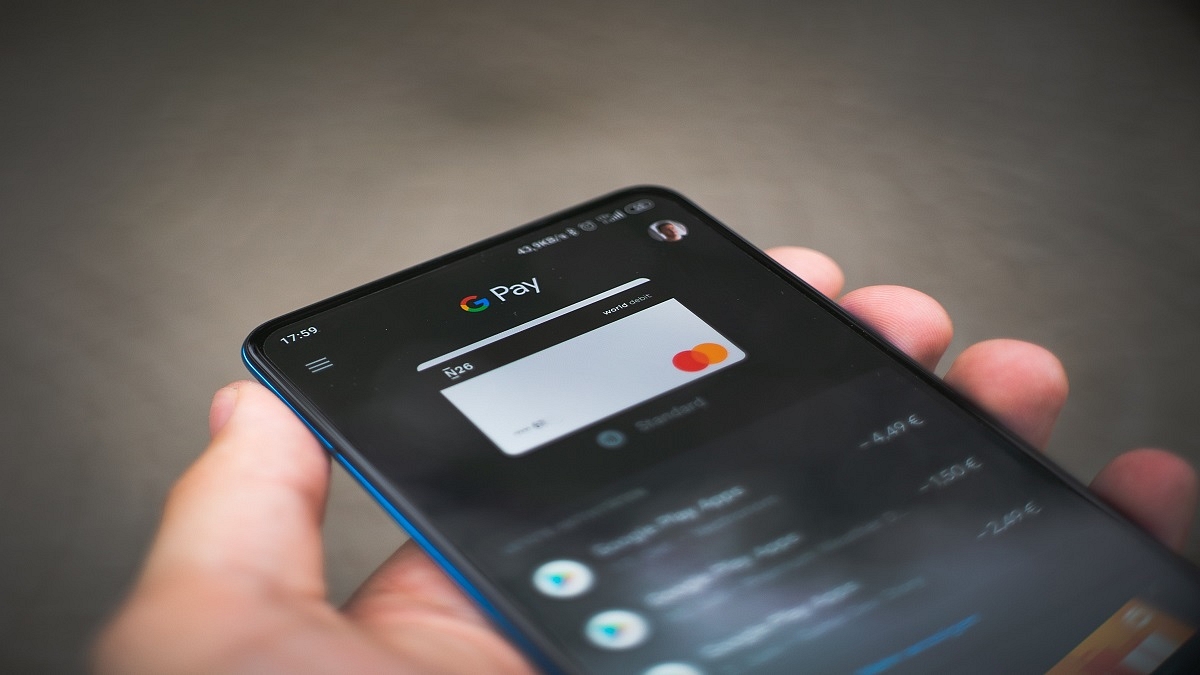
How To Pay Utility Bills Using Google Pay? Here Are The Steps

Google Pay is one of the most popular UPI apps which is being used to conduct online payments using either a phone number or bank account, a QR code, or both. Today, every business, from a flagship grocery shop to a local fruit vendor, takes online payments. By just following a few easy steps, Google Pay enables you to make utility payments online, making the app more useful for you.

Google Pay lets consumers pay for their bills using the mode of payment they are most comfortable with, i.e., UPI or Debit or Credit Card and Wallet. On Google Pay, customers can also pay electricity bills for various electricity boards. So, if you are a Google Pay user and need to pay your utility bills online, here are the steps you need to follow:

How To Pay Utility Bills Via Google Pay

Step 1: Navigate to Google Pay on your mobile phone.

Step 2: Scroll to the bottom of the screen.

Step 3: Locate and tap on the option ‘+ New payment’.

Step 4: Now, select the ‘Bill Payments’ option.

Step 5: Tap the name of the biller from the search results. Then, make payment.

Step 6: Select an account.

Step 7: One of the following options is available: Pay a custom amount. Enter the desired payment amount and tap Make Payment.

Step 8: Pay an available bill. On the bill, tap Pay Bill.

Step 9: Depending on the biller, you can have the ability to select from several bill alternatives. These payment choices can be made for different time periods. Follow the on-screen steps.

Step 10: Once done, view the bill to confirm that the payment was successful.

The amount will be deducted from the primary account that you have set on the Google Pay app.

How To View Bills On Google Pay

You can also view your bills using Google Pay. Listed are the steps you should follow to see your bills:

Step 1: Open Google Pay on your device.

Step 2: Scroll to the bottom of the screen and click on a biller.

Step 3: You will see the list with details of paid and pending bills if any. That’s all.

Categories
Accessories Featured Smart Watch

Amazfit GTS 4 Mini Launched With 1.65-inch AMOLED Display, 120+ Sports Modes: See All Details Here

Amazfit has announced the launch of the GTS 4 Mini smartwatch in India. Notably, this is the company’s fourth smartwatch launch in the row, including Amazfit Bip 3, Amazfit Bip 3 Pro, and Amazfit T-Rex 2. However, the GTS 4 Mini is the first smartwatch in the newly launched series.

The newly launched smartwatch is priced under Rs. 10,000 and will be available for purchase on Amazon later this week. In addition, the smartwatch will have an AMOLED display, Zepp OS, an AMOLED display, and a bunch of health and fitness-related stuff. So, let’s take a look at the details of the smartwatch.

Amazfit GTS 4 Mini Smartwatch: Price And and Availability

The Amazfit GTS 4 Mini smartwatch is priced at Rs. 7,999 in India and will be available from July 16th on Amazon and the company’s official website. However, for the first sale, there will be Rs. 1,000 discount, which means buyers have to pay Rs. 6,999.

Amazfit GTS 4 Mini Smartwatch: Colours Availability In India

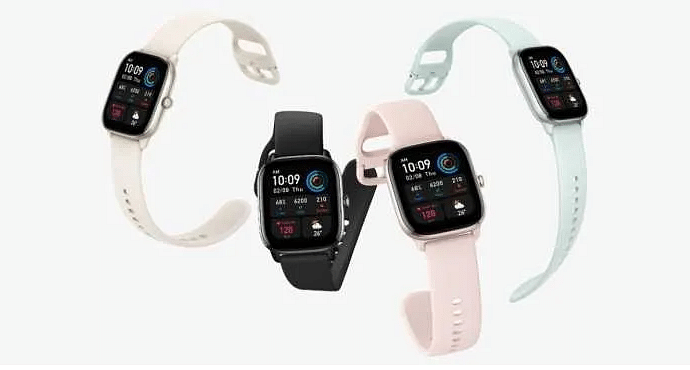
The smartwatch will be available in four color options such as Midnight Black, Flamingo Pink, Mint Blue, and Moonlight White.

Amazfit GTS 4 Mini Smartwatch: Features And Specifications

The Amazfit GTS 4 Mini smartwatch has a 1.65-inch HD AMOLED display along with curved edges and a button on the side to provide access to the menu. The smartwatch comes with a
24 hours heart rate sensor, stress monitoring, SpO2 monitor, and sleep monitoring.

In addition, the smartwatch features 120 sports modes and modes that are recognized as you start the exercise. Also, it comes with a built-in GPS with five satellite positioning systems. Besides, the company claims that the watch can last up to 15 days with a single charge with a 270mAh battery.

Moreover, the smartwatch features a 5ATM rating, light sleep, sleep stages, REM stage, deep sleep, and awake time, and it allows you to track your breathing while you are sleeping. Plus, you will find features like smart notifications from apps, a To-Do list, PAI health score, menstrual cycle tracking, music control, camera, control, phone call notification, and more.

Categories
Featured Leaks Tablet

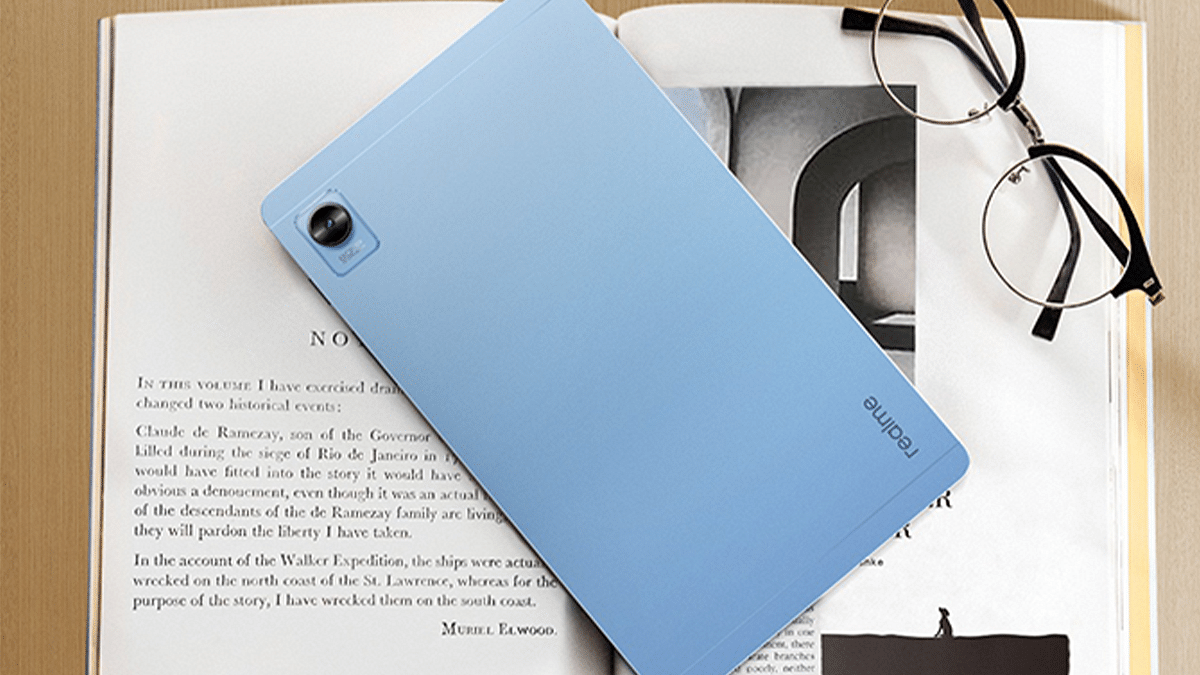
Realme Pad X Tablet Launch: Check Here For Specifications, Price, And Availability In India

Realme is all set to launch a new tablet in India. The upcoming tablet will be known as Realme Pad X and will be available on Flipkart. This development was shared by the vice president of Realme and president of Realme International Madhav Sheth also shared the same update via his Twitter account.

However, he did not share the exact date of the launch and what we can expect from the upcoming tablet. Notably, the same tablet is already available in its home country China.

Realme Pad X Tablet: Specifications

The Realme Pad X comes with the same design as the Realme Pad and has more powerful specifications. The tablet features a 1-inch FullHD LCD with a resolution of 2000×1200 pixels, a peak brightness level of 450 nits, and an aspect ratio of 5:3.

Besides, the tablet is powered by a Qualcomm Snapdragon 695 processor that is a 5G tablet. Also, the tablet comes with 6GB of RAM and 128GB of storage and runs Android 12 OS.

On the imaging front, the tablet will have a 13MP camera on the back and an 8MP camera on the front for selfies and video calls. In addition, the front camera has a 105-degree field of view. Also, it has four speakers, Dolby Atmos, an 8340mAh battery along with a charging speed of 33W.

Moreover, the Realme Pad X is 7.1mm thick and weighs 499 grams. It also supports a smart stylus that will be launched in India.

Realme Pad X Tablet: Expected Price In India

The Realme Pad X tablet is priced at CNY 1,299 which is close to Rs. 15,370. For the unaware, the Realme Pad is the toned-down version and comes with the same price range, which clearly shows that Realme Pad X is a little higher than expected.

Categories
Featured How To Mobile

Got An Infinix Smartphone? Here’s How To Factory Reset It

Your mobile phone may occasionally need to be ‘hard reset’ or ‘factory reset’ for certain features and upgrades to work. One of the most effective ways to resolve the majority of software-related difficulties you might experience on your phone is to hard reset it. Even though it removes all data, it’s not necessarily something you want to do. But it’s priceless and worth every penny.

Perhaps your phone has malware on it, is getting a little clunky and slow, you installed a dud app that interferes with its usability, you encountered problems after installing a system update, or you simply want to start over. Here is a comprehensive article outlining the simplest methods for performing a hard reset on an Infinix phone.

Back Up Your Phone First

Data backup is essential before doing a factory reset on an Infinix phone. If you don’t already know, resetting your device erases all of your data including apps, pictures, contacts, games, and other files, and restores it to its default settings. Everything will be deleted with the exception of the operating system.

There are various ways to back up your Infinix phone locally or in the cloud, in case you haven’t already. Whatever method you select, be sure it is secure and simple to recover from a successful factory reset.

How To Hard Reset Your Infinix Phone From Settings?

The most popular and simple method for factory resetting an Infinix phone is this one. You only need to go to the ‘Settings’ to completely wipe your phone. But this only applies and is suitable only when the mobile phone is still up and running. Like, when you can still access the phone Settings and others. Check out the steps to hard reset your Infinix smartphone via the phone’s Settings app:

Step 1: On your Infinix phone, open the Settings app.

Step 2: Scroll to the bottom and then Select.

Step 3: Simply click on the ‘Reset’ options.

Step 4: Then, tap ‘Erase all data’.

Step 5: Go through what’s on the page, then hit ‘Erase all data’.

Step 6: Now, confirm your pattern/PIN/password.

Step 7: Finally, click on ‘Erase everything’ and sit back until the device reboots successfully. That’s all.

Categories
Featured How To Mobile

How To Screen Record On Your iPhone? Check Out The Steps Here

It’s simple to take a screenshot of a single, still image from the iPhone’s screen. However, there are instances where screen recording is required. Perhaps you want to show your buddies a fantastic trick or a process. If you enjoy playing video games, screen recording can help you show off your prowess by posting videos of your escapades online. Whatever the reasons are, video capturing is essential to completing numerous tasks.

Fortunately, you can save your favorite YouTube videos, make tutorials for your pals, or even record gameplay sequences with the iPhone’s screen recording feature. In this article, we’ll show you how to screen record on your iPhone, along with how to access the video.

How To Enable Screen Recordings On iPhone

You will need to turn on the screen recording feature on your iPhone before you can record your screen. Simply follow the listed steps for the same:

Step 1: On your iPhone, open the ‘Settings’ app.

Step 2: Go to ‘Control Center’ and click on ‘Customized Controls’.

Step 3: Find ‘Screen Recording’ that should be listed in the ‘Include’ section. If it isn’t already there, tap the green + sign next to it to add it to the ‘Include’ section.

In case you want to disable screen recording again, simply return to this screen and click on the red minus sign next to it.

How To Screen Record On iPhone

Once you have turned the feature on, you can screen record on your iPhone by following the below listed simple steps:

Step 1: Open your iPhone’s Control Center by swiping down from the top-right corner of the screen. Alternatively, swipe up from the bottom of the screen if you have an iPhone with a home button.

Step 2: Tap the ‘Record’ button.

Step 3: The ‘Record’ button will turn red and begin to record your actions after a three-second countdown, even if you close the Control Center. The time, which is displayed in the upper left corner, will be red, letting you know that you are still recording.

Step 4: To stop recording, tap the red time indicator at the top left of the screen and then tap “Stop.” You can also open the Control Center and tap the record button again.

Where To Find The Screen Recorded Video?

Step 1: Find the video in the Photos app and then tap ‘Edit’.

Step 2: At the bottom of the screen, tap and drag the arrow at the start of the video to the right. It will become a yellow frame.

Step 3: Size the frame to just include the portion of the video that you want to keep. You can always hit the play button to see whether you like the edit.

Step 4:  Tap ‘Done’ and then ‘Save as New Clip’. That’s all.

Categories
Featured Leaks Tablet

Apple’s OLED iPads Are Set To Release In 2024: Everything You Need To Know

Key Highlight

  • Apple iPads to launch in 2024
  • The iPads will be thinner and lighter
  • They will come with an OLED screen

Apple is reportedly introducing an OLED-display iPad in 2024. The upcoming OLED iPads, according to a recent report, will be lighter and thinner. The Cupertino-based tech giant is working with significant domestic display partners to produce OLED iPad final prototypes. Apple is producing a number of prototypes and iterating the testing procedure frequently.

To recall, Apple and Samsung were working on the development of a 10.8-inch OLED panel last year. But the effort had to be put on hold in Q3 2021.

Samsung is the market leader when it comes to producing OLED panels for smartphones. Besides, Samsung Display is also the principal screen supplier for iPhones. According to GSMArena, Samsung and LG are reportedly developing new OLED screens exclusively for Apple’s upcoming 2024 iPads.

For the iPad OLED panel, Apple will also introduce the first-ever dry etching technology. When creating thin-film transistor (TFT) circuit layouts, display dry etching uses chemical technology to remove extraneous components. The OLED display can be made lighter and thinner thanks to this technique which also reduces the tablets’ overall size.

OLED screens will offer more than just an improvement in image quality. Apple will also reduce the size of the panel, which will lead to a lighter iPad.

Which iPad models would receive the OLED panel is not specified in the report. Apple, meanwhile, has been advancing technology slowly. According to reports, the company developed multiple prototypes and put them through a number of tests. The OLED panel’s final prototypes are now being made by Apple.

Apple iPad With OLED Launch Date Set For 2024

A report from Korea from around a year ago claimed that Samsung was unwilling to provide the specific OLED technology that Apple requested for the iPad. According to that rumor, the delay may have caused the OLED iPad to be released in 2023 or 2024.

According to a fresh report from the same country, Apple will release the first OLED iPad in 2024. As Per ETNews, the OLED iPad will bring a few significant upgrades to Apple’s tablet.