Key Highlights
- Check connections, ink levels, and paper placement regularly
- Restart the printer and cancel stuck print jobs when needed
- Use draft mode for faster printing and clean printheads for better quality
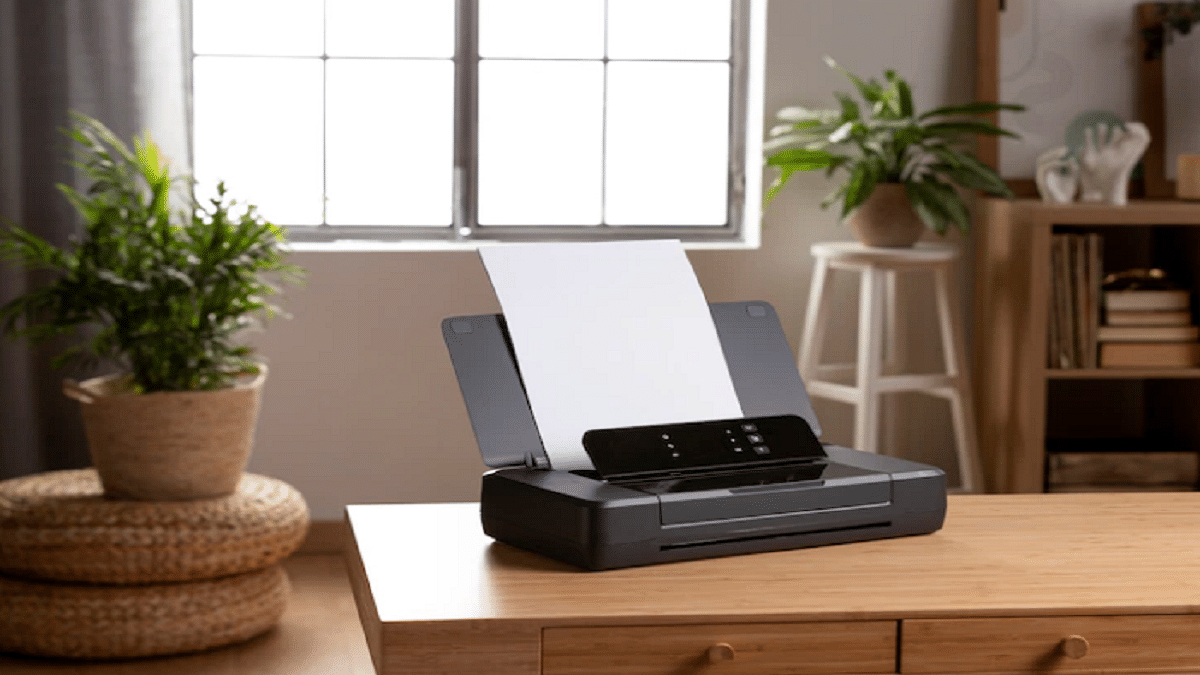
Facing printing issues when you need a document urgently can be really frustrating. Whether you are printing from home or office, some problems seem to pop up often. Thankfully, fixing the majority of them is simple. Here, we will provide you with basic troubleshooting tips for the most frequent printing issues.
Also Read | Thermal Printers: Explore Types, Uses, & Key Features
Printer Not Responding Or Showing Offline

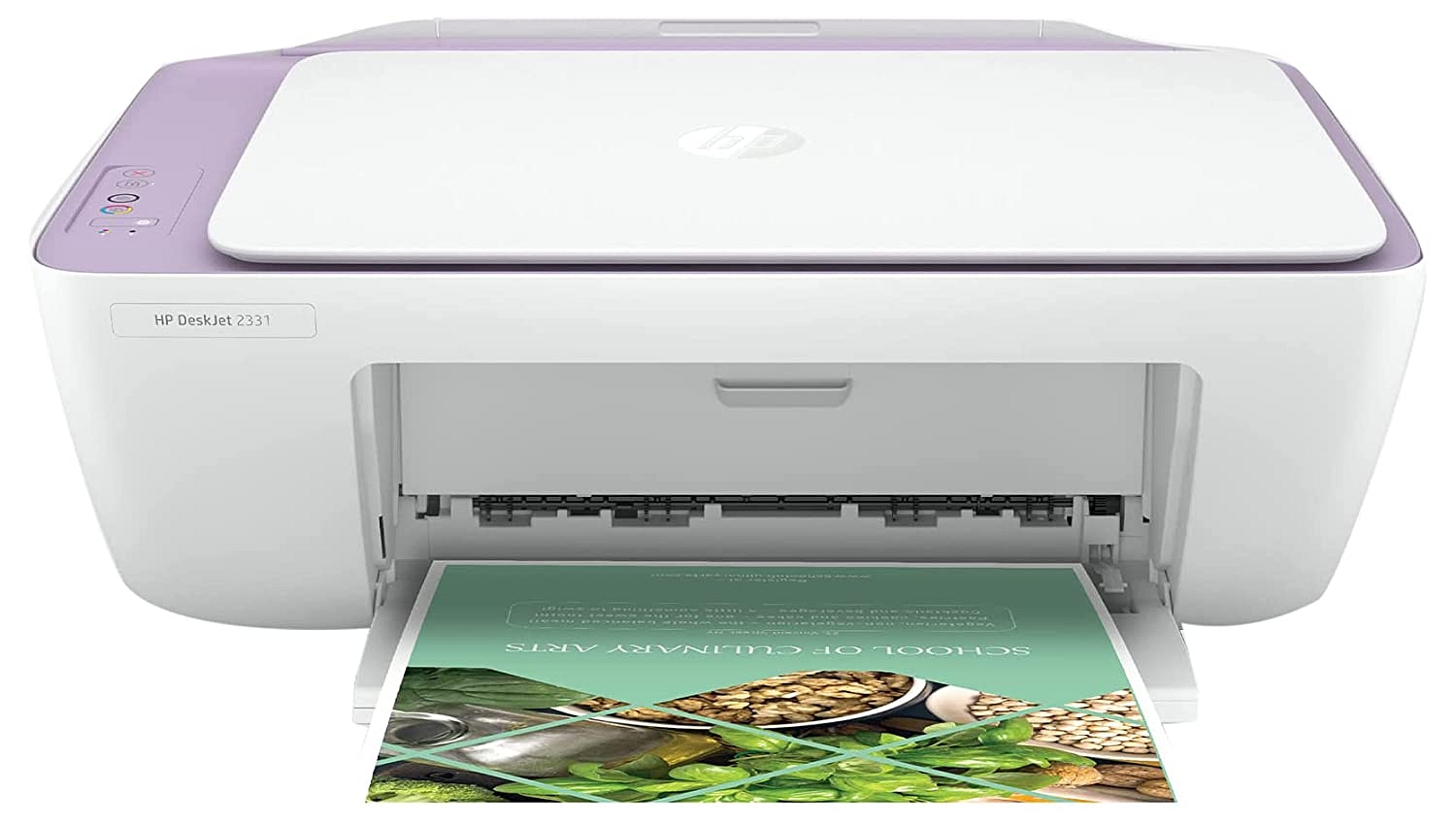
This is one of the most common problems. Your printer may appear offline even when it’s turned on.
How to fix:
- Check that the cable or Wi-Fi connection between the printer and your computer is correct.
- Restart both the printer and computer.
- Verify that your printer is selected as the Default Printer under “Devices and Printers” on your computer.
- If using Wi-Fi, make sure both devices are on the same network.
Paper Jam Issues
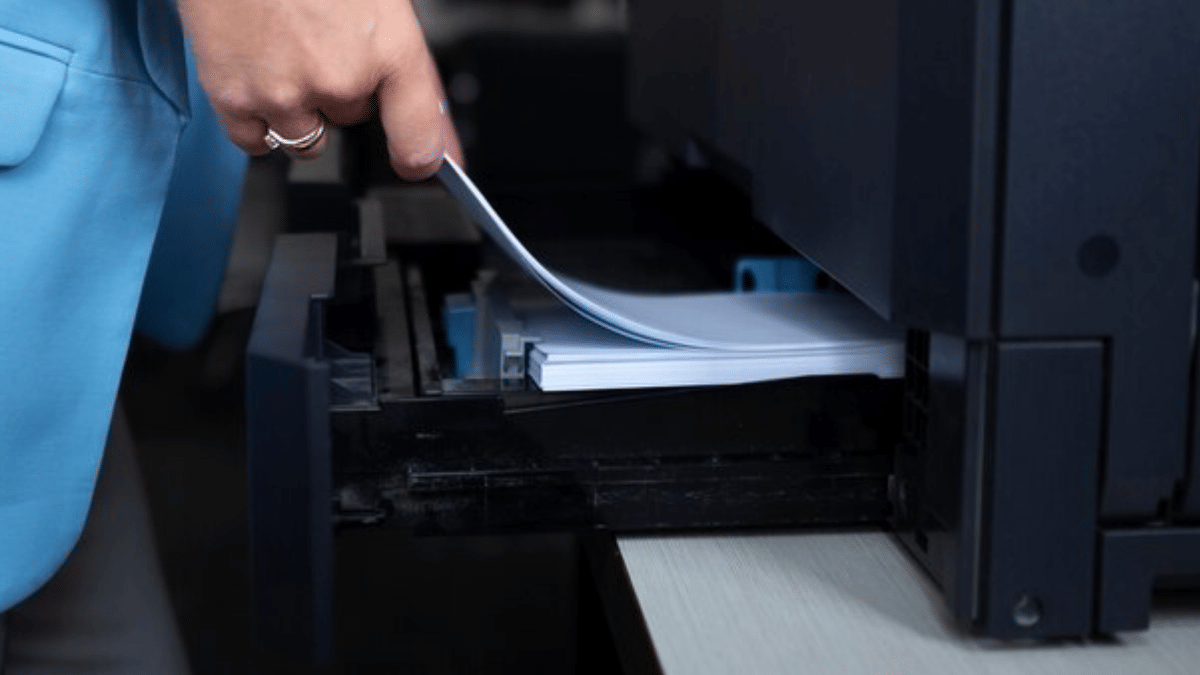
Paper getting stuck inside the printer is a classic problem.
How to fix:
- Carefully remove the jammed paper by opening the printer lid.
- Don’t pull the paper forcefully as it might damage internal parts.
- Check if the paper is loaded properly in the tray and that it’s not too thick or wrinkled.
- Avoid packing the tray with too many sheets and keep it tidy.
Low-Quality Or Faded Printouts

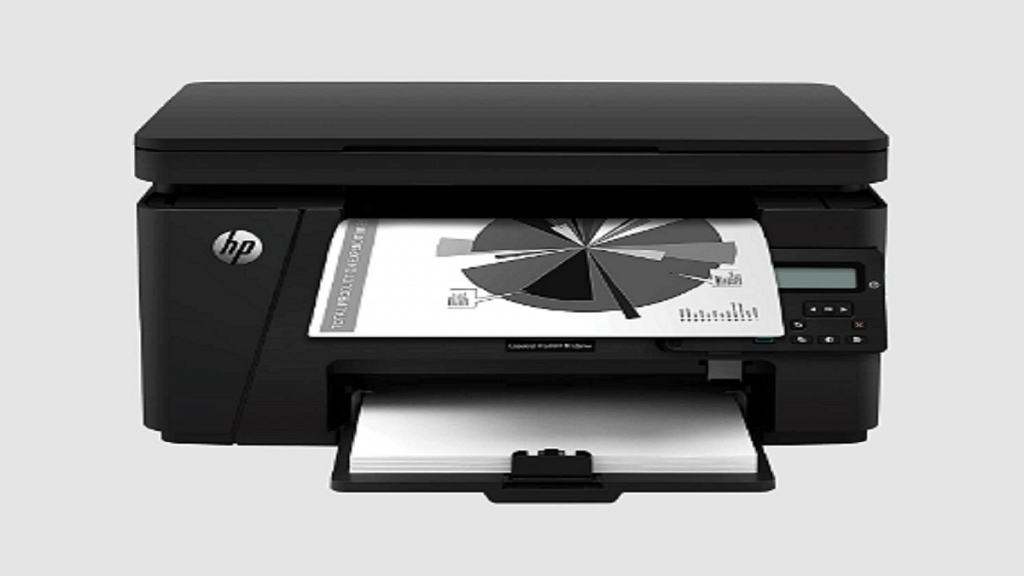
If your prints look too light or have missing spots, the problem might be with ink or toner.
How to fix:
- Verify the toner or ink levels and replace if necessary.
- Use the printer’s maintenance menu to clean the printhead.
- To check that all colors are functioning correctly, try printing a test page.
Slow Printing Speed
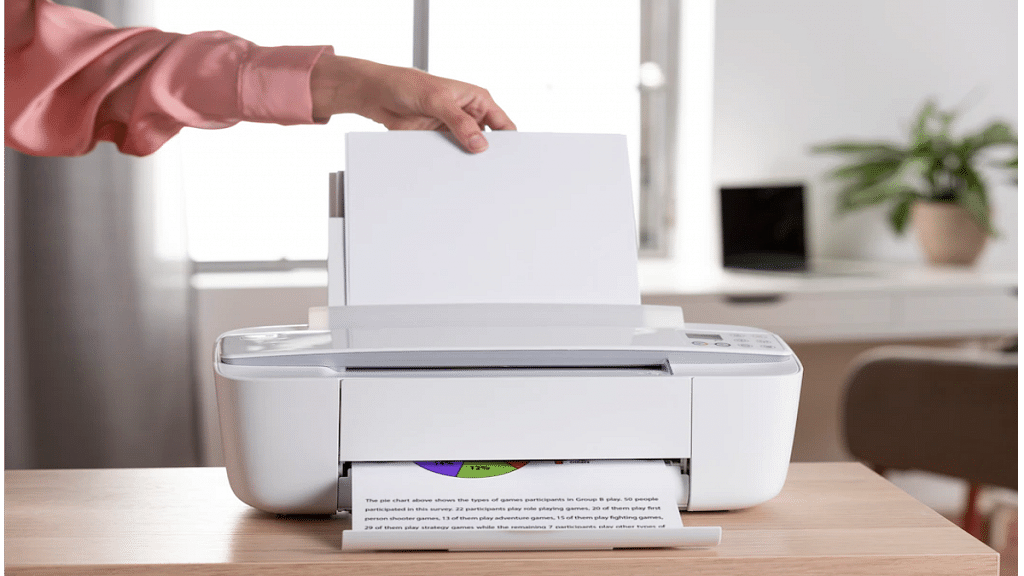
Sometimes, even small print jobs take forever to finish.
How to fix:
- Set the printer to Draft Mode for quicker prints (suitable for non-official use).
- Reduce image quality or remove unnecessary graphics in the document.
- Check if multiple devices are sending print commands at once, it may slow down processing.
Also Read | Top Four Photo Printers Under Rs. 15,000 In India: List Inside
Printer Not Printing At All
Your document shows “printing” status, but nothing comes out.
How to fix:
- Restart the printer after cancelling all print jobs.
- Make sure there is adequate paper and ink in the printer.
- Double-check if the correct printer is selected from the list before hitting “Print.”
Most printing problems have simple solutions. With regular maintenance and basic checks, you can avoid major interruptions. So, next time your printer acts up, try these quick fixes first before calling a technician.
For the tech geeks, stay updated with the latest cutting-edge gadgets in the market, exclusive tech updates, gadget reviews, and more right on your phone’s screen. Join Giznext’s WhatsApp channel and receive the industry-first tech updates.