Categories
Accessories Smart Watch Tablet

Realme Pad X, Watch 3, Buds Air 3 Neo, More Launched In India: All Details

Realme held the ‘Hey Creatives’ launch event today to unveil several artificial intelligence of things (AloT) devices as part of its Realme TechLife brand. The company unveiled its new range of products. The launch event was live streamed on YouTube and the social media channels of the company. Here’s what Realme launched at the event:

Realme Pad X Tablet Specifications

The Realme Pad X features a 10.95-inch LDC display with 450 nits of brightness. It has a resolution of 2000 x 1200 pixels and 16.7 million colors. The tablet is powered by the Qualcomm Snapdragon 695 SoC. The device runs Android 12-based Realme UI 3.0 for Pad. It further comes with features like Limelight (Apple Center Stage knockoff), PC Connect, and split-view to name a few.

The Realme Pad X sports a 13MP single rear camera and an 8MP front camera paired with a 105-degree FOV. Besides, the tablet is backed by an 8,340mAh battery with support for 33W fast charging.

The Realme Pad X also features support for Realme Pencil and Folio keyboard. The tab comes in two color options, i.e., Glacier Blue, and Glowing Grey.

Realme Pad X Price

The Realme Pad X will retail in three variants. The 4GB + 64GB (WiFi-only) variant will be available for Rs. 19,999, while the 4GB + 64GB (WiFi + 5G) version will cost you Rs. 25,999. Besides, the 6GB + 128GB (WiFi + 5G) is priced at Rs. 27,999 in India.

Realme Watch 3 Specifications

The Realme Watch 3 has a rectangular dial shape. It features a 1.8-inch LCD display with horizon curved glass and 500 nits peak brightness. The watch has a curved glass ‘Horizon Curved Glass’ on top of the display. It includes AI environmental noise cancellation (ENC) Bluetooth calling.

With the new Realme Watch 3, Realme has attempted Bluetooth calling for the first time. For a better calling experience, it has an integrated speaker, a smart audio amplifier, and a microphone.

Over 100 watch faces including dynamic and customizable watch faces are included in the Realme smartwatch. More than 110 sports modes including boxing, golf, strength training, yoga, free training, jogging, walking, table tennis, elliptical, trekking, basketball, and others will also be available on it.

Realme Watch 3 Price

In India, the Realme Watch 3 is available at a discounted price of Rs. 2,999. On August 2, 2022, it will be offered for purchase on Flipkart. The watch will come in black and grey color variations.

Realme Buds Air 3 Neo, Buds Wireless 2S Specifications

The Realme Buds Air 3 Neo are TWS earbuds that were earlier launched in China. They are touted to offer a total playback time of up to 30 hours. The dynamic bass drivers in these TWS earbuds measure 10mm in diameter. They have Dolby support and feature AI ENC. The new truly wireless earbuds also support an IPX5 rating for splash resistance.

On the other hand, the Buds Air 3 Neo features an in-canal design with narrow stems. The Realme Buds Wireless 2S feature AI ENC noise reduction and 11.2mm dynamic bass drivers. Dolby Atmos is supported, although it only functions with compatible tablets and smartphones. These are touted to offer 30 hours of music playback.

Realme Buds Air 3 Price

The Realme Buds Air 3 Neo TWS earbuds arrive with a price tag of Rs. 1,999 and will be offered for Rs. 1,699 as an introductory offer. The Realme Buds Air 3 Neo is available in two color options in India, i.e., White and Blue.

On the other hand, the Buds Wireless 2S has a price tag of Rs. 1,499 and its introductory offer will bring the cost down to Rs. 1,299.

Realme Flat Monitor, Smart Keyboard Specifications

Realme Flat Monitor is the company’s first monitor. It features a 23.8-inch Full HD LED display with a three-sided, thicker chin and bezel-less panel. The monitor provides a refresh rate of 75Hz and a response time of 8-millisecond. The overall appearance of the monitor is pretty sleek and modern.

The Realme Smart Keyboard with a 280mAh battery and Realme Pencil with up to a 10.6-hour battery was also a part of today’s launch event schedule.

Realme Flat Monitor Price

The Realme Flat Monitor price in India is set at Rs. 18,999. Realme will soon reveal the monitor’s selling date and it will be available for purchase on Flipkart.
Categories
How To TV

How To Connect Samsung And Other Smart TVs With Wi-Fi Easily: Step By Step Guide

The smart TV market is getting populated across India with multiple brands launching new devices frequently. Samsung, Sony, and LG are the major players in this market known for their premium range of smart TVs. There are multiple other smart TV brands in the country that have a wide portfolio of affordable, mid-range, and flagship-grade TVs.

Samsung is well known for launching feature-rich TVs that can give a theatre-like experience from the comfort of your room. Most of the new-generation smart TVs be it from Samsung or other brands comes with Wi-Fi network connectivity. This allows users to connect the TV with the internet to use all the services including third-party app downloads or streaming content via OTT websites such as Netflix and Amazon Prime videos.

Making an internet connection with smart TVs isn’t a super tricky process. You just have to make sure there is an active internet connection within the vicinity and TV range. Also, you should be aware of the Wi-Fi user ID and password for a successful connection. If you have bought a new Samsung or any other brand’s smart TV and aren’t aware of how to complete the internet connection process, then we have made it simple for you in this article. We have listed down the steps with which you can easily pair your Samsung smart TV with any available Wi-Fi network.

How To Manually Connect A Samsung Smart TV With Internet/ Wi-Fi?

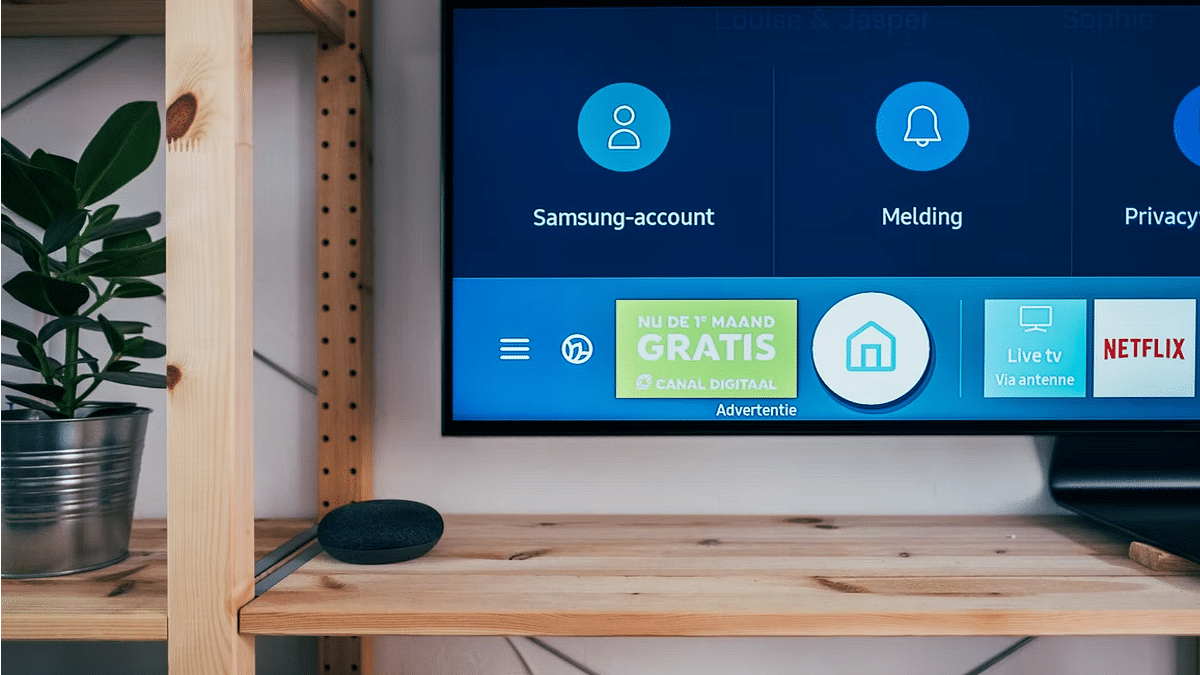
Step 1: Power on your Samsung smart TV and wait until the home screen loads up.

Step 2: Use the TV’s remote to go to the Menu or TV Settings option.

Step 3: Scroll down to the Network menu.

Step 4: Select the Network Settings tab.

Step 5: Tap on the Wireless option. Wait until the TV reads the available connections and shows the list on the screen.

Step 6: Select the Wi-Fi network with which you want to connect your smart TV.

Step 7: Now, you will need to type in the Wi-Fi network password. Hit Done once you have entered the password. That’s all you need to connect your smart TV to the internet.

Categories
Comparison Mobile

Google Pixel 6a Vs OPPO Reno8 Pro Vs Xiaomi 11T: Best Premium Mid-Range Camera Phone In India?

After a long break, Google revamped its smartphone portfolio in India with the launch of the Google Pixel 6a. The latest affordable Pixel handset has been launched with Google’s in-house Tensor chipset and improved hardware features compared to the last model. The Google Pixel 6a has been announced at an asking price of Rs. 43,999 in the country and is one of the most powerful camera phones in the Indian market.

Recently, OPPO also upgraded its photography-centred Reno8 series in the country with two models namely the Reno8 Pro and the Reno8 Pro 5G. The Pro variant goes up against the Google Pixel 6a with its premium hardware features including flagship-grade cameras. Now, both these smartphones are powerful contenders in the premium mid-tier smartphone market.

We are pitting down both the OPPO Reno8 Pro 5G and the Google Pixel 6a alongside the Xiaomi 11T to see which one fairs the competition. This spec-sheet based comparison will also help you decide which is the best buy under Rs. 45,000 price range.

Google Pixel 6A Vs OPPO Reno8 Pro Vs Xiaomi 11T Pro: Display Features Comparison

The display on all three smartphones is high-end in this list. But if you are bent toward a compact form factor then the Google Pixel 6a with a 6.1-inch pOLED display will be the best fit. Both OPPO Reno8 Pro and the Xiaomi 11T Pro flaunt a massive 6.7-inch AMOLED display which is rather best for high-resolution video consumption on the go. The Google Pixel 6a’s display offers 1080 x 2400 pixels screen resolution and a 429 PPI pixel density.

On the other hand, the OPPO Reno8 Pro and the Xiaomi 11T Pro’s display also offer an FHD+ resolution of 1080 x 2412 pixels and 1080 x 2400 pixels respectively. The brightness levels of the Reno8 Pro and the Xiaomi 11T Pro are higher compared to the Pixel 6a. Overall, if you wish to buy a high-resolution big-screen phone, the OPPO Reno8 Pro and the Xiaomi 11T Pro will make for a good pick on this list.

Google Pixel 6A Vs OPPO Reno8 Pro Vs Xiaomi 11T Pro: Camera Configuration

All three phones in this list offer the best photography experience. If you go by the spec sheet, the Google Pixel 6a is packed with a dual-lens camera module comprising a 12.2MP main sensor with an f/1.7 aperture. The main camera on the Google Pixel 6a further supports PDAF (Phase Detection Autofocus), and OIS (Optical Image Stabilization) and is combined with a 12MP additional sensor with an f/2.2 aperture. The Google Pixel 6a’s dual-lens camera module can record both 4K and 1080p videos and have multiple built-in shooting modes.

The OPPO Reno8 Pro 5G shows its camera expertise with the triple rear camera module housing a 50MP main sensor with an f/1.8 aperture with multi-directional PDAF. The primary sensor on the Reno8 Pro 5G is accompanied by an 8MP secondary ultrawide sensor with an f/1.4 aperture and a 2MP macro sensor with an f/2.4 aperture.

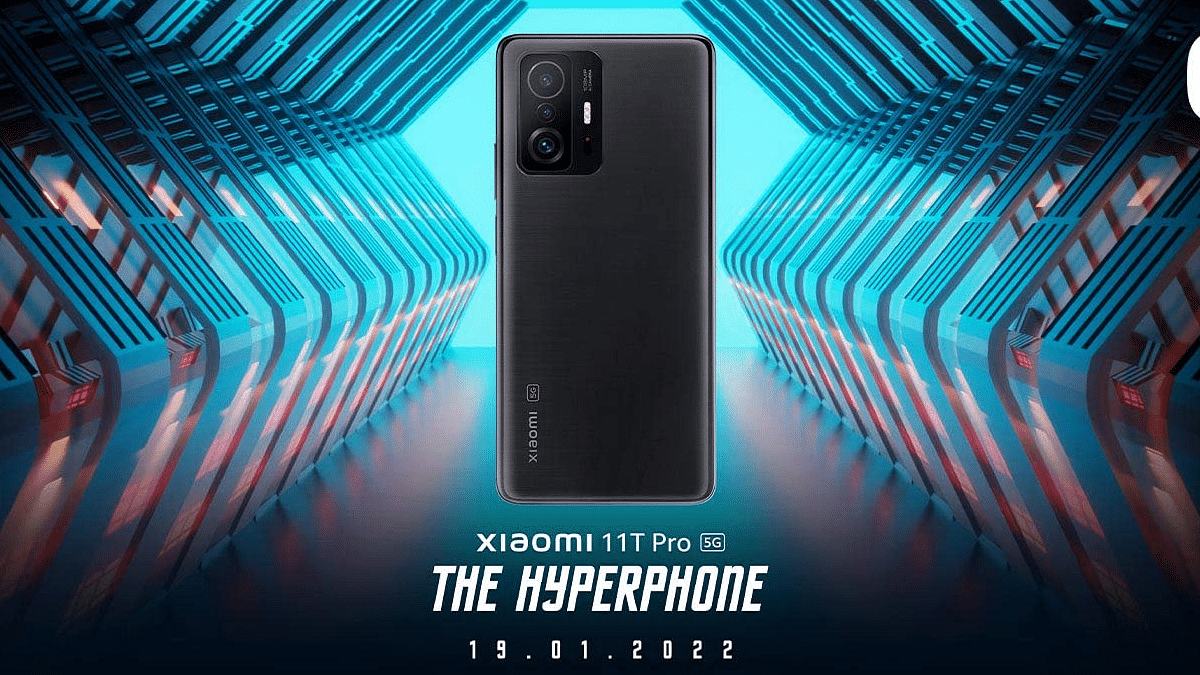
Moving on to the Xiaomi 11T Pro, it has the biggest primary camera sensor of all three. It is packed with a 108MP main camera which has an f/1.8 aperture combined with an 8MP ultrawide sensor with an f/2.2 aperture, and a 5MP macro lens with an f/2,4 aperture. The Xiaomi 11T Pro is capable of recording up to 8K@30fps videos.

Google Pixel 6a Vs OPPO Reno8 Pro Vs Xiaomi 11T Pro: Chipset, Software Comparison

The Google Pixel 6a is packed with the Google custom-made Tensor chipset which is built in 5nm fabrication processor. The octa-core processor is combined with Mali-G78 MO20 GPU which helps with smooth graphics rendering in all scenarios. The Pixel 6a comes with 6GB RAM and 128GB storage configuration which is sufficient for multitasking and gaming without any lags. The Pixel 6a boots on Android 12 OS and offers a stock Android user experience.

The OPPO Reno8 Pro 5G gets its power from the MediaTek Dimensity 8110-5G Max chipset. This processor is also built on 5nm fabrication process which has Mali-G610 MC6 GPU support. The smartphone is capable of delivering powerful performance with no noticeable lags. The chipset on the Reno8 Pro 5G is clubbed with up to 12GB RAM and 256GB storage configuration. This handset also boots on Android 12 OS and has a custom ColorOS interface on top.

The Xiaomi 11T Pro has an equally capable chipset. It is powered by the Qualcomm Snapdragon 888 5G chipset which is based on 5nm fabrication like the remaining two models. The octa-core flagship Qualcomm processor is combined with Adreno 660 GPU for graphics and up to 12GB RAM for multitasking. The Xiaomi 11T Pro firmware is dated compared to the remaining two models in this list, i.e, Android 11 OS topped with MIUI interface.

Google Pixel 6a Vs OPPO Reno8 Pro Vs Xiaomi 11T Pro: Battery, Fast Charging

The battery capacity is the smallest on the Google Pixel 6a. It packs a 4,410 mAh battery unit with 18W fast charging. The OPPO Reno8 Pro 5G has a bigger 4,500 mAh battery unit which is accompanied by 80W fast charging. The Xiaomi 11T Pro has the largest battery in this list which measures 5,000 mAh and is combined with the fastest 120W fast charging. The Xiaomi 11T Pro is the clear winner in the battery race.

Categories
Info Laptop

Second-Hand Laptop: Things You Should Check Before Buying It

The demand for laptops has decreased in the first quarter, as per Gartner and IDC. The IDC report pointed out that 80.5 million laptop shipments were in the same quarter, whereas Gartner shared only 77.5 million shipments during the same period; however, these numbers show a decline of 7.7 percent over the Q4 of the last quarter.

In addition, the prices of laptops have increased due to shortages of components, this has also affected the sales. But, still, if you are looking for ways to buy laptops at pocket-friendly prices or affordable, then you go for second-hand laptops, yes you read it right.

In fact, you’ll be surprised to know that there is a huge market for second-hand laptops in India and in case you are looking for ways to purchase it, then you should know or consider before buying the second-hand laptop.

Things You Should Know Before Buying Second Hand Laptop

It is important to note that before buying any second-hand laptop you need to check the battery health as replacement is expensive. In addition, check that it charges the laptop properly and don’t forget to take the charger from the seller. Also, check the power management settings of the laptop.

Plus, you have to do a proper examination of the body. You need to check the damages on the body as there are chances that they might decrease the life of the laptop. Plus, you also need to see that there is no crack on the screen or the laptop.

Second Hand Laptop In India

Additionally, you need to see or check that screen is in good condition. All angles should visible enough. Moreover, you need to check that the Keyboard and trackpad are in better condition before buying a second-hand laptop. Try to type on the keypad and your comfort level on the same.

Where To Buy Second Hand Laptop

If you want to purchase a second-hand laptop, then you check online websites Quikr, OLX, Amazon, Indiamart, and more. In case, you want to buy a second-hand laptop via offline stores, then you can visit Nehru Place market in Delhi.

Categories
Comparison Smart Watch

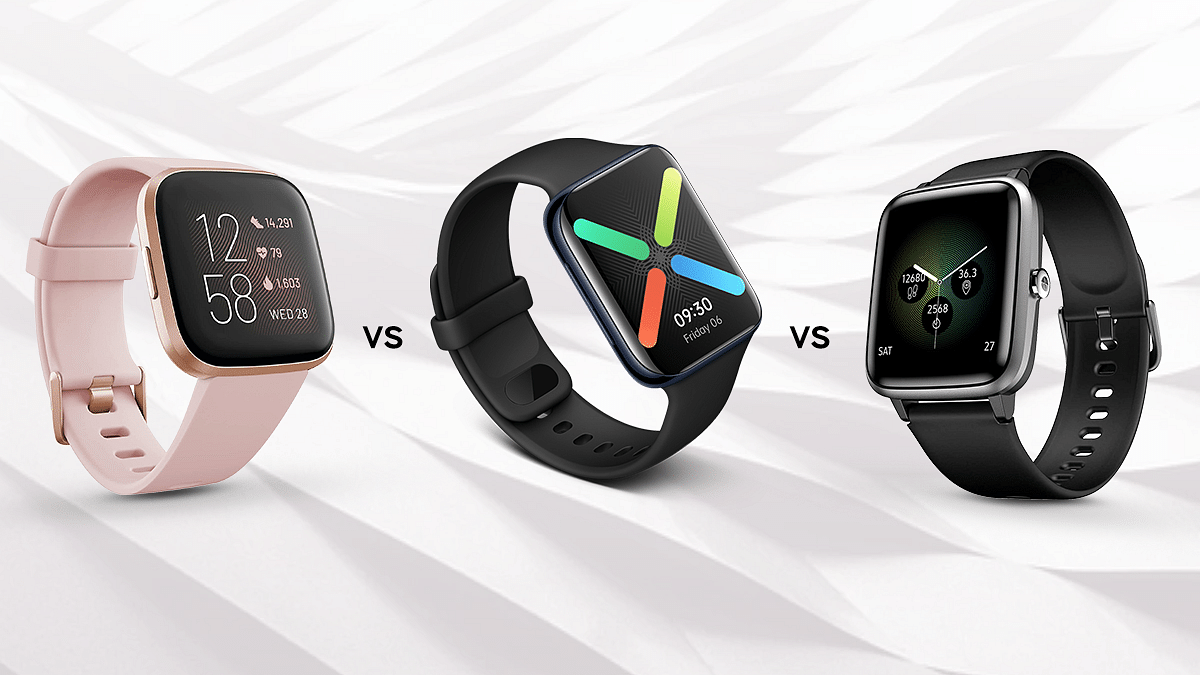
Fitbit Versa 2 Vs OPPO Watch Vs Noise Colorfit Pro 2: Which Smartwatch Wears The Crown?

The requirement for owning a smartwatch is constantly increasing purely due to the convenience that a user is receiving. They allow you to check smartphone messages as well as manage music and keep tabs on your health. You can also track your activities and health with a smartwatch from a number of brands, including Fitbit, OPPO, and Noise.

To assist you in selecting the best smartwatch, we will compare the Fitbit Versa 2, OPPO Watch, and Noise Colorfit Pro 2 in this article. Let’s check out which one you should consider buying:

Design And Display

The face of the Fitbit Versa 2 smartwatch is square and features rounded corners. The band is generally comfortable and the aluminum shell has a good appearance. At this pricing point, the Versa 2’s swim-proofness is a must-have feature.

On the other hand, the OPPO Watch can be mistaken as an imitation of the Apple Watch. The watch is available by the company in two distinct case sizes. While the 46mm model has a dual-curved glass front, the smaller 41mm variant has a flat display.

Moving to the Noise Colorfit Pro 2, it has a simple yet fashionable design. The device is offered in mist grey, teal green, and jet-black colors. The watch has a square touchscreen dial that, when lit up, looks amazing.

In terms of display, the color AMOLED touchscreen on the Fitbit Versa 2 has an attractive appearance. The Versa 2’s settings even allow you to set the display to always-on. While the high-resolution AMOLED display on the OPPO Watch shines brilliantly. Icons beautifully flow off the curved edges and look visually stunning.

Besides, the Noise Colorfit Pro 2 gets 1.3-inch in size with a resolution of 240 x 240 pixels. The display on the Fit Pro is sufficiently bright and offers bright visuals even in sunlight.

Overall, all three watches have a decent design and display. But, the OPPO Watch stands out among the other two in our opinion.

Features And Operating System

The Fitbit Versa 2 is a smartwatch with great features. You can take or discard incoming phone calls on the watch but you cannot make calls from it. It supports swift replies for notifications but only on Android. On the watch, you can also access music streaming services like Spotify or Deezer. You can use the smartwatch to check the weather, set timers, and manage your Echo devices as it supports Amazon’s Alexa.

On the other hand, the OPPO watch is powered by the Qualcomm Snapdragon Wear 3100 processor. It has 1GB of RAM which significantly improves performance. It is compatible with both Android and iPhone smartphones and runs Google’s Wear OS. As for daily activity, it helps you show a breakdown of steps, calories, workout time, and activity sessions throughout the day. The device even ties into a number of OPPO’s watch face complications as well as offers integration with Google Fit.

If we talk about the Noise Colorfit Pro 2, it has a sleep tracking feature that gauges and monitors your sleeping pattern throughout the day. The watch supports physical activities like walking, running, biking, hiking, climbing, treadmill, spinning, and Yoga and the monitoring functions work very well.

Battery And Connectivity

The battery life on the Fitbit Versa 2 is fairly good. It can last two days on a single charge. You can stretch out battery life to even three or maybe four days by disabling the always-on display or turning off push notifications completely.

Moving to the OPPO watch, the battery can last a full day and a bit more which allows for activities such as sleep tracking. On the other hand, the Noise ColorFit Pro 2 comes with a 210mAh battery which is decent for the price. It offers up to 45 days of standby time.

As for connectivity, the Fitbit Versa 2, OPPO Watch, and the Noise ColorFit Pro 2 – all three watches can be paired with an Android smartphone as well as an iPhone.

Price Comparison

The Fitbit Versa 2 is available for around Rs. 15,000 in India. Undoubtedly, it offers an improved display and battery front. No smartwatch comes close to the Versa 2’s battery life or sleep tracking ability at that price. However, its lack of in-built GPS limits its utility a lot. For a premium fitness device, this is an evident oversight.

On the other hand, the OPPO Watch is very well designed and is a full-featured smartwatch running Google’s Wear OS. The 46mm model can be purchased for Rs. 15,999. Besides, the Noise ColorFit Pro 2 price is Rs. 2,599 which is way too low if compared to the other two watches.

The Noise ColorFit Pro 2 is a perfect buy if you are looking for a smart fitness band without shelling out too much money. However, if you can spend more, you can go for the OPPO Watch.

Categories
How To TV

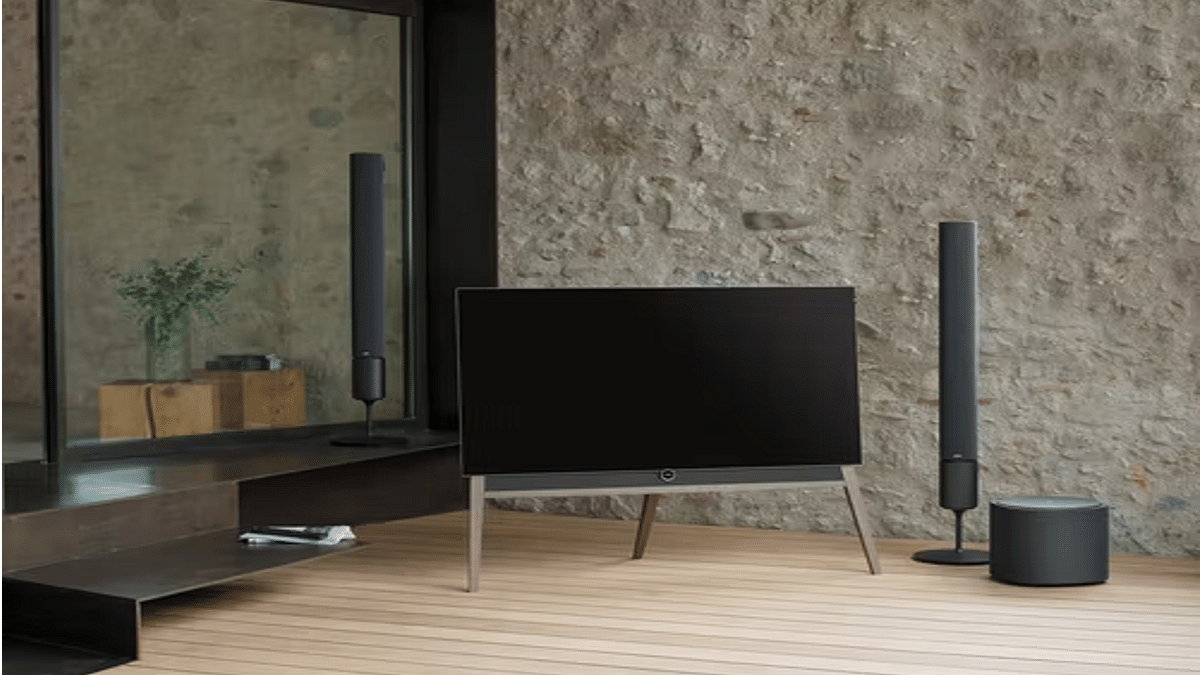
How Can You Pair Or Connect New Wireless Speaker With Any Smart TV? Step-By-Step Guide

In this modern market, gadgets driving our daily lifestyle have become all smart and tech advanced. The current hype is with wireless gadgets be it smartphones, tablets, laptops, and audio devices such as portable speakers and wireless headphones and speakers. Smart TVs are also the trending consumer electronics that have become a common sight in normal households. Besides the major players in the smart TV race, smartphone OEMs are now also catering to the requirements of the audience with feature-rich big-screen TVs.

Smart TVs today offer a plethora of user-oriented tools and features. You can even operate the new-age smart TVs with voice commands using built-in voice assistants such as Google Assistant. Besides, digital voice assistant supports the most useful feature offered by any latest smart TV is the internet connectivity support. You can easily pair up your smart TV with available Wi-Fi connections at your home for seamless content playing with YouTube and other OTT apps.

Most of the modern days smart TVs are also equipped with Bluetooth technology so that users can easily pair any wireless audio product and other accessories such as a new remote. Adding an external portable speaker or a home theatre is a sure-shot way of enhancing the viewing experience with any smart TV. But how do you add an additional speaker to your smart TV?

While making a wired connection is as simple as hooking up the AUX cables, making a wireless connection requires some manual steps. If you are unaware of how to connect a Bluetooth speaker to your smart TV then this article will help you with the same. But before you proceed with pairing a wireless speaker with your smart TV make sure your TV supports wireless connectivity. The remaining steps are listed below:

How To Add Or Pair A New Wireless Speaker With A Smart TV

Step 1: Power on the smart TV and the wireless speaker that needs to be paired together.

Step 2: On your smart TV, go to the Settings menu. You can also take help from the TV’s user manual.

Step 3: Select the Bluetooth or Wireless settings.

Step 4: Click on “Add Device”.

Step 5: The TV display will show the list of available wireless devices in the range. Select the speaker with which you want to pair the smart TV. That’s all you need to complete the audio setup between the smart TV and the speaker.

Categories
How To Laptop

How To Add Handwritten Signature On Google Docs Using Laptops/ PCs?

Laptop and PCs are serving as the primary gadgets to complete all kinds of professional and personal work. While our dependency is gradually shifting towards mobile devices specifically smartphones, the need for computational gadgets isn’t fading anytime soon. In fact, more than PCs laptops are being sold as hot cakes in the modern market. And post the COVID-19 pandemic, a surge has been evident with the laptop usage across the globe. Specifically, the majority of the organizations routing toward the hybrid working module.

You now get dedicated online tools and services to help with any professional tasks. In fact, online meetings have become a new norm across all organizations. There are multiple online tools for meetings and supported services. Google Docs is one of such application that is helping users with easy document management. You now don’t have to deal with carrying around hard copies of any document.

Google Docs is definitely making our lives paper free and it’s now easier for us to get documents printed or shared with different contacts with just a few taps. Google Docs helps with document sharing on a mass level and you also get to make modifications as per requirements.

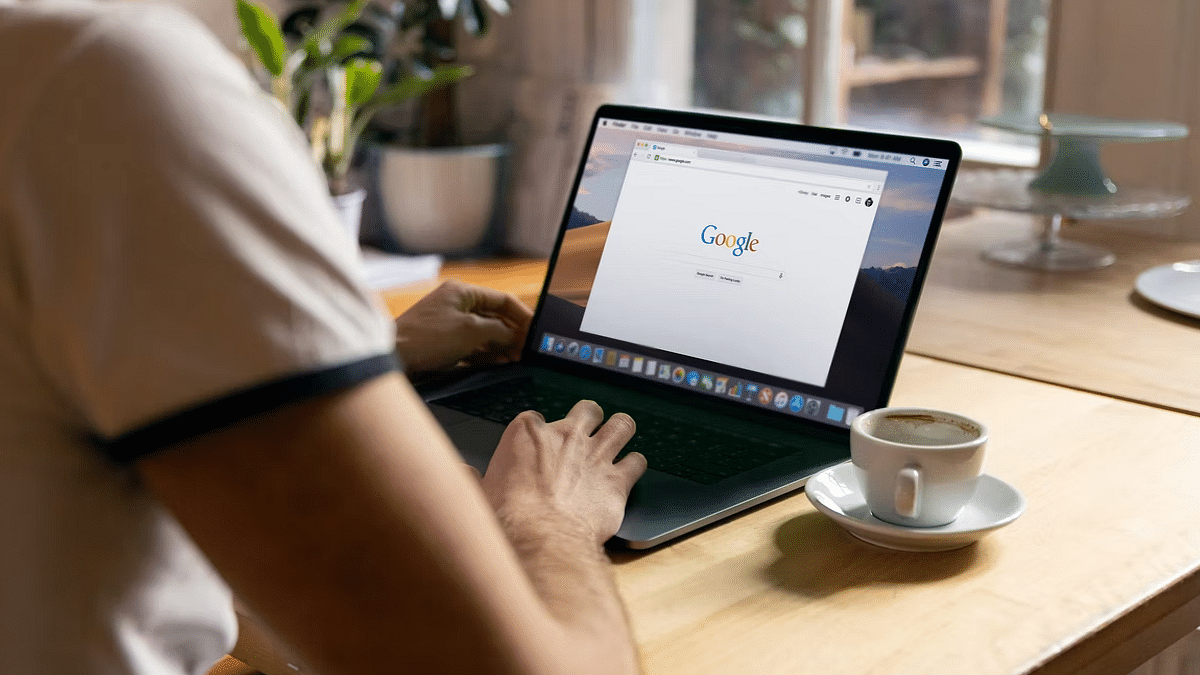
One of the unique features offered by Google Docs is the option to add handwritten signatures. This is essential to verify the authenticity of any document created or shared by you. But there is no direct way as of now with which you can add your handwritten signature on Google Docs using your laptop or PC. But that doesn’t stop you anyhow from adding your own handwritten signature into a Google Doc file or document.

If you own a Microsoft Windows laptop or PC, you can easily edit any PDF file and add your own signature with the help of built-in tools. You can also add your personal signature to all the documents including the ones on the Google Doc with the help of Google Suites’ Scribble feature. Here’s how you can use the Scribble option to add your handwritten signatures on a Google Doc file on any laptop or PC:

Step 1: Open the Google Docs file on which you need to add your handwritten signature.

Step 2: Now, move your cursor to the line or paragraph where the signature is to be placed.

Step 3: From the toolbar, click on insert.

Step 4: Select Drawing.

Step 5: Tap on “+ New” option next and then select the “Line” dropdown.

Step 6: You will now see the “Scribble” option. Click on it.

Step 7: Create your signature using the drawing option.

Step 8: Click Save when you have accurately drawn your signature.

Categories
How To Laptop

Set Up Your Brand-New Laptop Like A Pro: Here’s The Step-By-Step Guide

Key Highlights

  • Most laptops come with Windows 10 and follow a similar setup process
  • Doing the setup right helps avoid future security and performance issues
  • Just follow the steps in order, and it’s simpler than you might think

It may be both thrilling and terrifying to set up a brand-new laptop. However, it’s pretty simple. Most laptops now on the market have Windows 10 installed. Although it can vary depending on the brand, the setup process is generally the same. You’ll avoid security issues and other troubles in the future by doing everything correctly and in the appropriate order the first time. Here is everything you require to set up your new laptop or PC.

Also Read | Top 5 Effective Ways To Protect Laptop From Overheating

Unbox Your Laptop And Plug It In

To get started, open the box and plug in the original power adapter and cables. It could take some time to set up the laptop, so make sure you have enough power to keep it running. On the majority of the most recent laptops, rectangular Type-A connectors have been replaced by USB-C connections. In this situation, just plug the charger into your device’s Type-C connector.

Turn On Your Laptop

Press the power button. On some models, it could be on the right side of the computer or at the upper right corner. Nevertheless, it might be located somewhere else.

The Welcome screen will appear when you first boot up, and Cortana, Microsoft’s virtual assistant, will offer you a voice walkthrough. On some laptop models, she’ll ask you questions, and you can reply with your voice (but keep in mind that this will not work on many laptops). You can adjust the level by clicking the speaker icon at the bottom of the screen if you want to mute her voice.

How To Set Up Your Windows Laptop

Step 1: Select your country or region and then click Yes.

Step 2: Select your keyboard layout. On the ‘Want to add a second keyboard layout screen’, click ‘Skip’.

Step 3: Connect to a Wi-Fi network. Enter your password and click Next. Choose ‘I don’t have internet’ if you don’t currently have a connection to the internet.

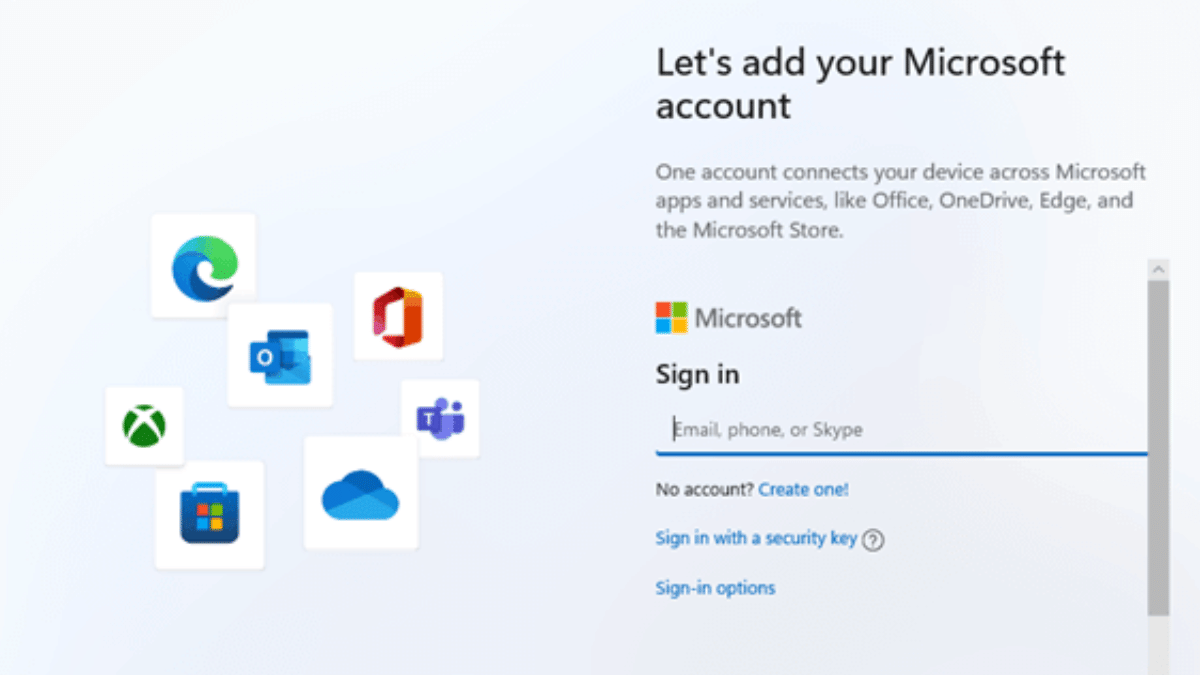
Step 4: Sign in to your Microsoft account. In the ‘Email, phone, or Skype’ box, enter your email address, phone number, or Skype username. Then press Next. Choose ‘Create account’ if you do not already have a Microsoft account.

Step 5: Create a PIN. It is not advised to use your Microsoft account password to login in if you don’t create a PIN. Select Create PIN to create a PIN.

Step 6: Select your privacy settings. Microsoft has every setting enabled by default, but you might want to have a look at them to see if there’s anything you want to turn off. Click the blue slider switch next to a setting to make it inactive. When finished, press the Accept button or tap to proceed.

Step 7: Customize your device. Click ‘Skip’ if you do not wish to customize your device.

Step 8: You might see some steps after this one that doesn’t apply to you. Only if you chose a certain customization option may some of the options shown in this article apply to you. You should skip any steps that you see that don’t match what you are viewing.

Step 9: Connect your phone to your laptop. To access it from your PC, you simply link your iPhone or Android device to your computer. Choose ‘Skip for now’ if you don’t want to connect your phone to your laptop.

Step 10: Whether or not to back up your files to OneDrive is up to you. The option ‘Only save files to this PC’ should be chosen if you don’t wish to backup your files. However, bear in mind that if you select this option, your files can be lost forever.

Step 11: Await the setup’s completion. Just be careful not to unintentionally shut off your PC. You will need to reinstall Windows otherwise.

Also Read | Windows 11 Laptop, PC Reset Guide: How To Perform System Reset Without Loosing Data

Run All Windows Updates

It’s likely that your laptop will automatically download a number of Windows 10 updates, so why not get it over with by forcing them to install manually?

Step 1: In the search box, type ‘updates’.

Step 2: Tap on ‘Check for updates’.

Step 3: If Windows doesn’t automatically search for updates, select the ‘Check for updates’ box. That’s all!

For the tech geeks, stay updated with the latest cutting-edge gadgets in the market, exclusive tech updates, gadget reviews, and more right on your phone’s screen. Join Giznext’s WhatsApp channel and receive the industry-first tech updates.

Categories
Gaming Mobile

List Of Best Gaming Smartphones With Qualcomm Snapdragon Chipset Under Rs. 30,000 In India

India is currently the biggest market for smartphones and related accessories. A large number of players have forayed into the market with user-friendly products at affordable prices. We have done several dedicated listicles to help you decide the best buy for you. Be it smartphones, tablets, laptops, and other consumer electronics gadgets.

We previously shared an updated list of the best Android smartphones with Snapdragon and MediaTek processors for affordable consumers. But if you planning to buy a smartphone that has all the required hardware for high-end gaming performance, this new list will be your guide.

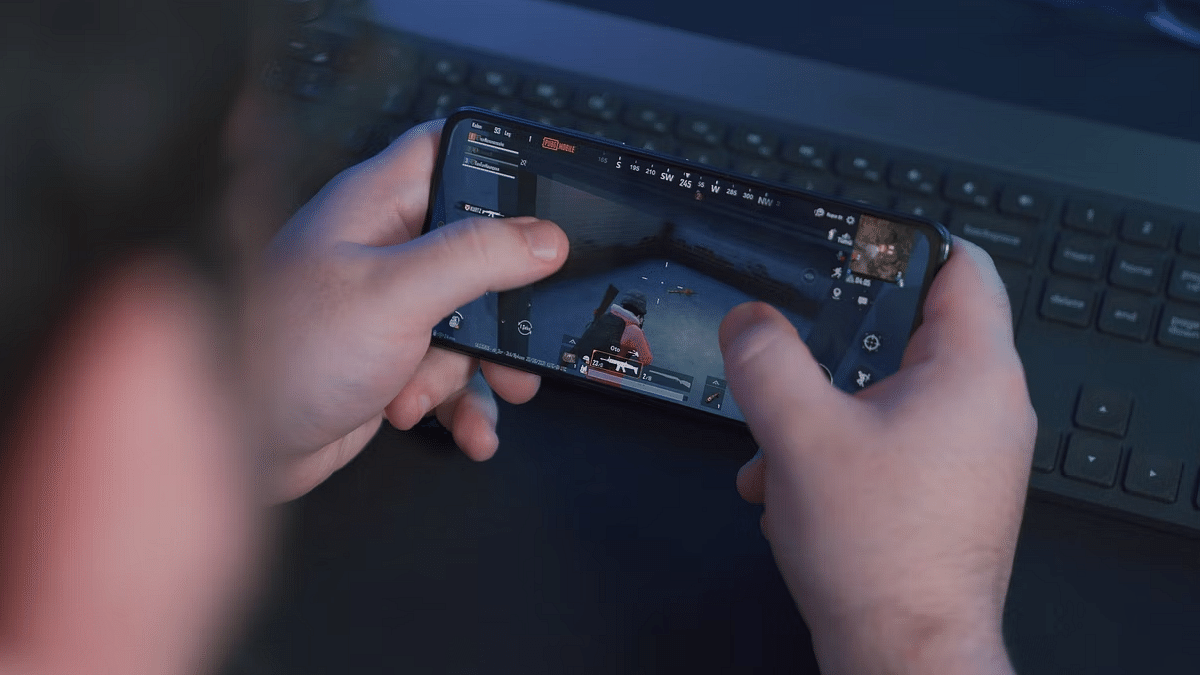
We have curated some of the best smartphones that can deliver an exceptional gaming experience and that too without adding any extra crunch to your budgets. This article has the smartphone models that are game-centric and are priced within Rs. 25,000- Rs. 30,000 price range. The models listed in this article are driven by a Qualcomm Snapdragon chipset. We will also cover the list of best gaming phones under Rs, 30,000 powered by a MediaTek gaming processor. Take a look:

Top Android Gaming Phones With Snapdragon Chipset Priced Between Rs. 25,000- Rs. 30,000 In India

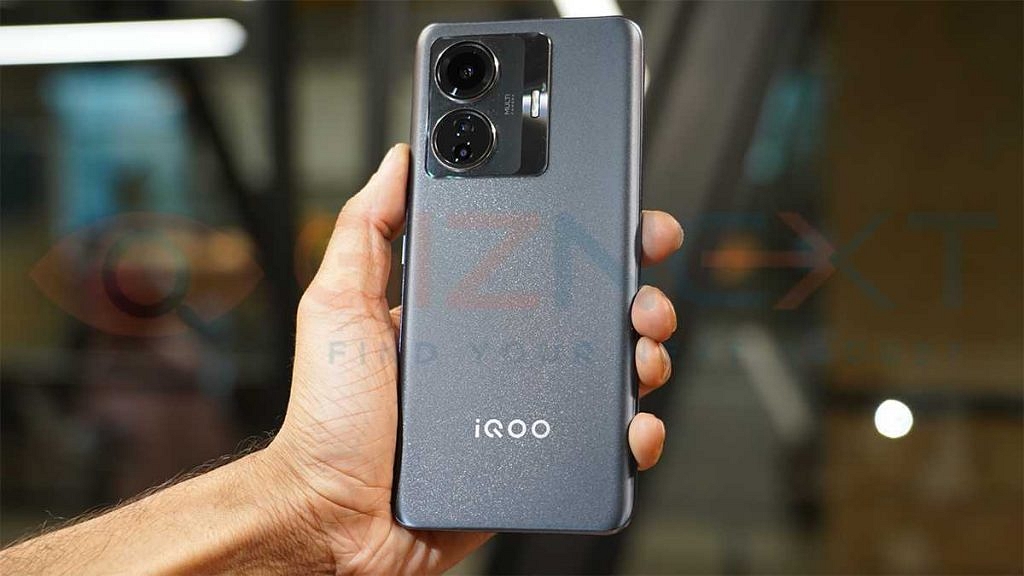
iQOO Z6 Pro 5G Gaming Android Phone

iQOO has created its niece with pocket-friendly Android gaming phones in the market. The iQOO Z6 Pro 5G is one of the most latest gaming handsets by the Chinese tech giant that is priced below Rs. 30,000 in the country. This budget gaming Android phone draws its power from the octa-core Qualcomm Snapdragon 778G chipset with up to 8GB RAM.

The Z6 Pro 5G is packed with a 6.44-inch AMOLED screen which supports 1080p FHD+ screen resolution and 90Hz refresh rate. It offers a 64MP triple rear camera system for primary photography and a 16MP snapper for selfies. The device gets its fuel via a 4,700 mAh battery unit with fast charging support. This handset comes with an asking price of approx. Rs. 23,999 for the base model with 6GB RAM.

Vivo T1 Pro 5G Android Gaming Phone

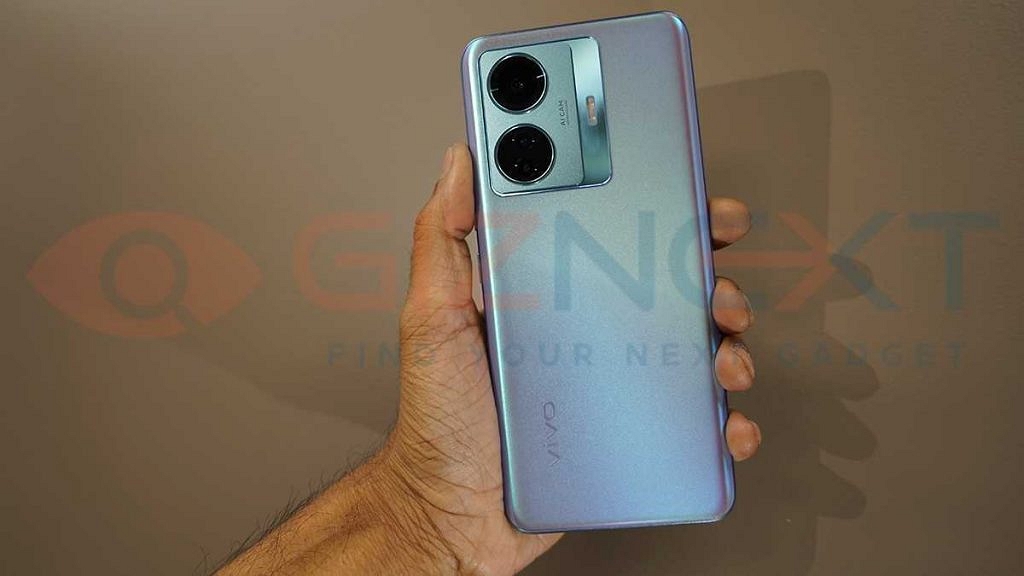
The Vivo T1 Pro 5G is also amongst the latest Android gaming phones announced in the Indian market. The device debuted this year itself in the country and is almost identical to the iQOO Z6 Pro 5G in terms of design and hardware. The Vivo T1 Pro 5G takes care of your gaming requirements with the same Snapdragon 778G octa-core processor as the iQOO Z6 Pro combined with 8GB RAM and 128GB storage configuration.

As the name suggests, this handset comes with a 5G network connectivity for faster internet speeds. The remaining specifications of the Vivo T1 Pro 5G are same as the iQOO Z6 Pro including a 6.44-inch FHD+ AMOLED display with a 90Hz refresh rate and a 64MP triple rear camera module. The T1 Pro 5G is also powered by the same 4,700 mAh unit with 67W flash charging support.

Motorola Edge 30 Gaming Phone With Snapdragon Chipset

The Motorola Edge series is also well known for its premium hardware features at affordable pricing. The Motorola Edge 30 is one of the best Android gaming phones that you can buy in India under Rs. 30,000 price bracket. This Motorola gaming phone is also powered by the same Snapdragon 778G octa-core processor with up to 8GB RAM.

The device flaunts a slightly bigger 6.5-inch screen which is a P-OLED display with a massive 144Hz refresh rate. This is one of the only few handsets with such a high refresh rate in its league. The Motorola Moto Edge 30 uses a 50MP triple rear camera system for optics and a 4,020 mAh battery with Tubo charging technology.

POCO F4 5G Gaming Phone With Qualcomm Processor

POCO has also created its expertise with pocket-friendly gaming smartphones. The POCO F4 5G is the newest release from the brand which is also fully loaded with gaming hardware. The POCO F4 5G is driven by the octa-core Snapdragon 870 chipset which is a premium Qualcomm processor that can handle some extreme gaming titles smoothly.

The POCO F4 5G gaming experience is enhanced with the tall 6.67-inch AMOLED display that supports 1080p FHD+ screen resolution and 120Hz refresh rate. It also has dedicated gaming features and a heat dissipation system for an improved gaming experience each time.

The POCO F4 5G uses a 64MP triple rear camera system and a 20MP selfie snapper. It is backed by a 4,500 mAh battery unit combined with fast charging. The POCO F4 5G price starts at Rs. 27,999 in India.

iQOO Neo 6 Premium Gaming Android Phone

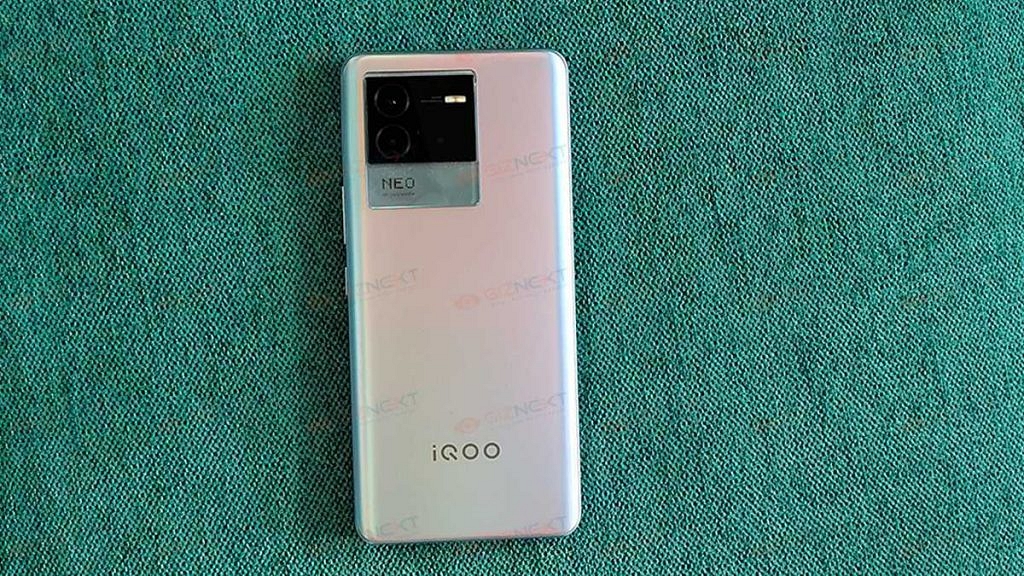
This is another latest premium range gaming Android smartphone by iQOO which is powered by the octa-core Snapdragon 870 chipset. The iQOO Neo 6 flaunts a big 6.62-inch AMOLED screen with 120Hz refresh rate and a triple rear camera system with a 64MP main sensor.

The selfie snapper here is smaller compared to the POCO F series phone at 16MP. The battery capacity on this model is 4,700 mAh paired with 67W fast charging. The price of the iQOO Neo 6 starts at Rs. 29,999 in the country.

Realme GT Master Edition

If you wish to buy a funky yet powerful gaming phone under budget, the Realme GT Master Edition makes for a good pick. It is available starting at around Rs. 24,899 and uses the octa-core Snapdragon 778G chipset for power delivery.

This Realme GT series gaming phone has a 6.43-inch Super AMOLED display with 120Hz refresh rate and an FHD+ screen resolution. For optics, the Realme GT Master Edition has a 64MP triple rear camera module and a 32MP selfie snapper. It uses a 4,300 mAh battery for fuel.

Samsung Galaxy A52 Android Gaming Phone

Samsung also has been catering to the budget audience with its Galaxy A and the Galaxy M series. The Galaxy A52 is the model for those looking for a pocket friendly gaming Android phone under Rs. 30,000 and powered by a Qualcomm chipset. The Samsung Galaxy A52 is powered by the octa-core Snapdragon 720G chipset and sports a 6.5-inch Super AMOLED display with 90Hz refresh rate and an FHD+ screen resolution. The optics on the Samsung Galaxy A52 is handled by a 64MP quad-camera module at the back and a 32MP selfie lens upfront. It is backed by a 4,500 mAh battery unit.

Categories
Info Mobile

Android Tips And Tricks: Here’s How To Make Your Smartphone More Useful

Android is a mobile operating system that is remarkably innovative and powerful. It is loaded with great tips, decent features, and time-saving techniques. The user interface appears to be straightforward enough for casual users who only want to text, call, and utilize their apps. However, there are a variety of power-user options and features buried one or two layers deep in the UI. All you need to do is know where to look.

Here, in this article, we have come up with the best tips and tricks to make your Android smartphone more useful. Let’s check out:

Use Digital Well-Being Feature

The Bedtime and Focus mode of Android 11 is part of the Digital Wellbeing feature. The Bedtime mode silences your phone at a set time and changes the screen to black-and-white, in case you do have to look at the screen after hours. While the Focus mode silences noisy apps’ notifications, a quick and easy way to get relief from disturbances.

Clear App Defaults

When a link opens in an app rather than the browser, it is quite unpleasant. It might be a Facebook page, a tweet, or a YouTube link. You’ll have to wait until your phone switches to a different browser after closing Chrome or your preferred browser. This can be easily fixed by clearing defaults which you can find in your phone’s Settings.

‘OK Google’ Voice Match

On your Android mobile phone, you can start searching for anything at any time just by saying “OK Google.” This works automatically on the home screen as well as in the search box.  However, you can find ‘OK Google’ working everywhere if you go into the search settings.

In the search options, you have to go to Voice > Voice Match. When you enable ‘Access with Voice Match,’ the phone will ask you to say ‘OK Google’ a few times so that it can recognize your voice. Now, from any screen and while the device is awake, you can use the hotword any time.

Try Launchers / Android Themes

Different device manufacturers offer their own unique user interfaces, such as TouchWiz by Samsung. You are using Android, which is well-known for allowing users to personalize its user interface. The default phone screen and its user interface are not very robust or convenient. By installing the alternative launchers, you may customize your Android device’s home screen in a more advanced way and use it more effectively.