Categories
How To Mobile

How To Stop/ Deactivate Airtel, Vodafone, BSNL, JIO SIM Flash Messages On Android, iOS?

Key Highlights

  • Flash messages are short, text-based messages that are designed to grab your attention.
  • Most of these flash messages are promotional.
  • The following steps will help the users to disable any kind of promotional messages on Android phones.

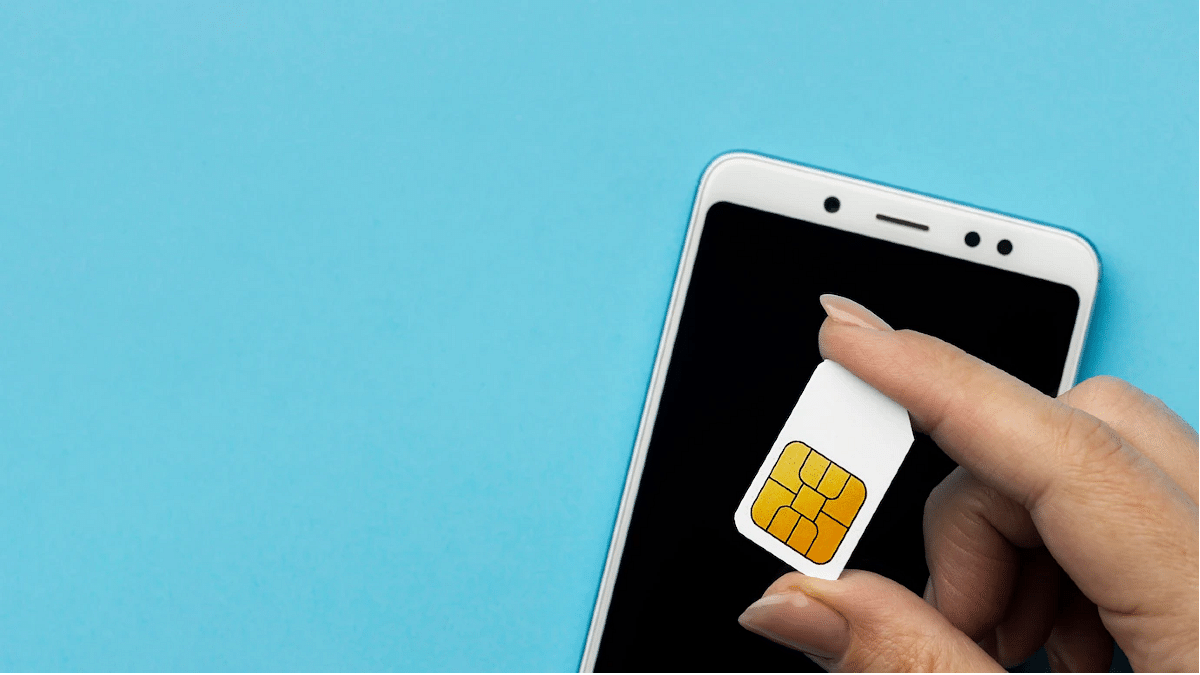
Whether you own an Android or iOS smartphone, it can’t be complete without a SIM card. Not just for smartphones, SIM cards have been the heart and soul of mobile communication from the initial days. Just as smartphone technology is evolving, we have seen developments on a large scale with SIM cards as well. All the large-sized SIM cards are now being replaced with micro and E-Sim.

Using a SIM card with any smartphone is fairly easy. You just have to insert a SIM card from any carrier and take care of the pack recharges to get access to all services. If we speak of the major players in the mobile communication market in India then Airtel, Vodafone, BSNL, and Jio are some names.

Also Read: Airtel Digital TV: How To Add Or Remove Airtel DTH Channels

Now, you can use any of the carrier’s SIM cards with your Android and iOS smartphones. You often don’t get any service messages or calls from the mobile carriers unless your existing plan is getting expired or there are some new services that the brand wants a customer to be aware of. But one of the most annoying messages that you get from Airtel or any other mobile carrier is flash messages.

Is there any direct way in which you can turn off flash messages from Airtel, Vodafone, Jio, and other mobile carriers in 2022? The answer is yes. We have shared fresh methods with which you can easily disable flash messages on any Android and iOS smartphone.

Also Read: Recharge Your Delhi Metro Card Using Airtel Thanks App: Here’s How

How To Disable Airtel Flash Messages On Any Android Smartphone?

The first and direct way to disable Airtel flash messages on your smartphone would be using the SIM toolkit settings on your Android smartphone. This method will work for both Airtel prepaid and postpaid customers.

Step 1: On your Android smartphone, open the App drawer.

Step 2: Locate the Airtel Services app. Tap on it.

Step 3: Select the Airtel Now option.

Step 4: You will get a bunch of options from where you need to click on Start/ Stop.

Step 5: Select the Stop option.

Now, go back to the home screen and start using the smartphone as usual. You will not get any flash messages from Android after completing all these steps. Notably, if you own a Vodafone, BSNL, or JIO SIM card, the steps would remain the same to deactivate flash messages using the carrier app.

Also Read: Airtel Gives The Best Download Speed, Jio Leads In Availability: OpenSignal
Categories
How To Tablet

How To Hard Reset Android Tablet Without Using Volume Button?

Key Highlights

  • Hard resetting Android tablet is required in case of cluttered storage
  • Hard reset also improves slow speed performance
  • Factory rest on Android tablets can be performed without the volume keys

Tablet sales have gradually picked up in the last few years. Even the smartphone manufacturers are now eyeing this market and contributing with capable devices. OPPO, Realme, and Xiaomi are the latest brands that have joined this race in India with affordable and premium mid-range Android tablets.

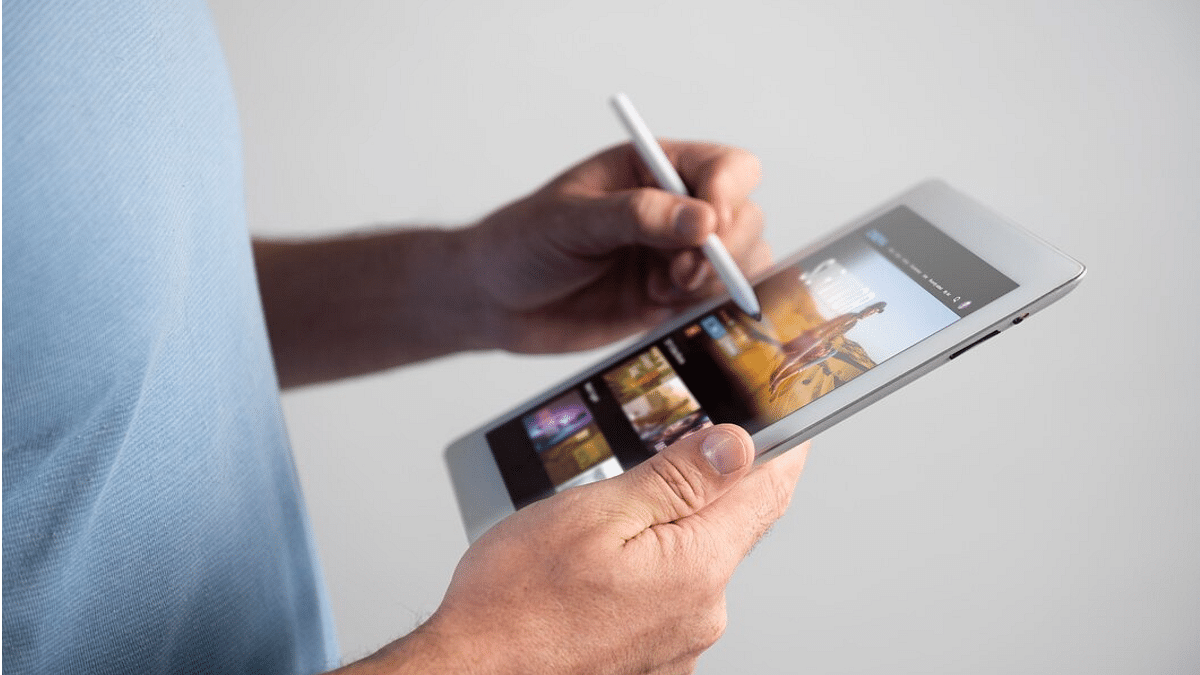
All the brands are focusing on performance delivery with the new-generation tablets. However, the large screen size and support for external accessories such as keyboard and stylus pen have been giving tablets an edge over smartphones. This is specifically when you need a gadget for creative work.

You can easily use any third-party application on your tablet and use it as you would on any smartphone. While the user possibilities are endless, clogging the tablet’s memory could hamper the performance. Performing a factory reset in such scenarios is one of the best ways to boost performance. Most of the new generation tablets have a built-in option to perform a factory reset. We’ll speak of the steps below. These methods will also make it easy to factory reset any Android tablet without a power key. Take a look:

Also Read: Lost Reliance Jio SIM Card? Here’s How To Block And Resume Your Jio Number

How To Factory Reset Android Tablet Without Volume Keys

Before you perform the factory reset on your Android tablet, it is advised to take a backup of the data. This will make sure you don’t lose any of your important data during the factory reset.

Step 1: Unlock your Android tablet and go to the Settings menu.

Step 2: For backup, scroll down to the Backup & Reset option.

Step 3: Click on Backup up my data and complete the data backup process. Note, you can also make required changes to settings for future backup.

Step 4: Once the backup is complete, go back to the Backup and Reset option.

Step 5: This time, select the Factory data reset option.

Step 6: Keep your device battery over 50 percent to make sure the reset process is completed smoothly.

Step 7: Your tablet will reboot once the data rest has been completed.

Also Read: Realme Pad X 5G Android Tablet Review: An All-Rounder Mid-Range 5G Tablet

How To Factory Reset Android Tablet Without Volume Keys Using Recovery Mode

The recovery mode is another way out to hard reset any Android tablet without using any volume key.

Step 1: On your Android tablet, press and hold the Home and the power key simultaneously.

Step 2: Wait until the boot menu pops up. You’ll see a bunch of options including Power off and Restart. Here, you would need to press and hold the Home button again along with the Power off option on the screen. This step will reboot the tablet in Safe mode.

Step 3: Repeat step 1 for the tablet to enter recovery mode.

Step 4: Press the Home button to scroll down to the Wipe Data/ Factory reset option and select it using the power key. Once the reset is complete, your tablet will reboot and you can complete the setup from the beginning.

Also Read: Lenovo Tab P11 Pro (2nd Gen) Tablet Hands On Review: A Fully Loaded Package

Categories
Info Mobile

Best Smartphones With 8GB RAM Under Rs. 15,000 To Buy In India

As smartphone manufacturers add more RAM to them every few months, modern smartphones are becoming more and more RAM-demanding. 8GB of RAM was once regarded as being extremely large for smartphones. It was even considered a lot for computers.

Nowadays, smartphones come with 12GB, 16GB, and even 18GB of RAM. The best 8GB RAM mobiles are available in both mid-range and flagship models. Here, we’ve put up a list of the best phones with 8GB of RAM under Rs. 15,000 if you’re seeking to buy a new one.

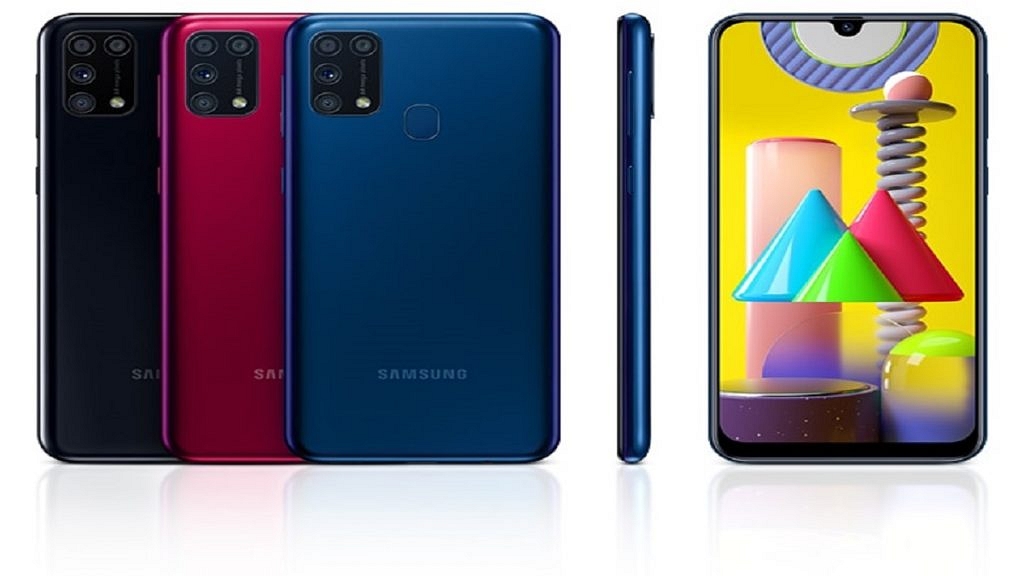
Samsung Galaxy M31

The Samsung Galaxy M31 comes with 8GB of RAM and 128GB of inbuilt storage. It flaunts a 6.4-inch display offering a resolution of 1080 x 2340 pixels. The device is powered by Octa-core Samsung Exynos 9 Octa 9611 processor. In addition to this, the smartphone runs Android v10 (Q) OS and houses a decent 6,000mAh battery. The Galaxy M31 is available for purchase at Rs. 14,999 in India.

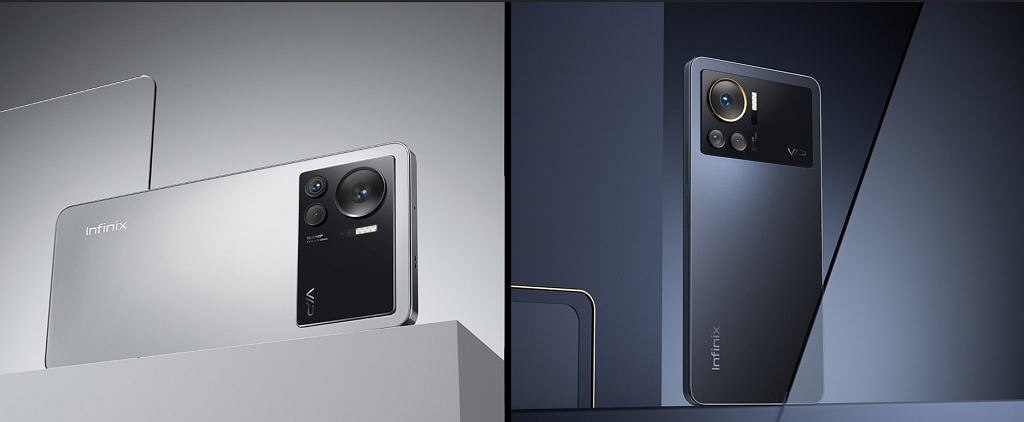
Infinix Note 12 Turbo

The Infinix Note 12 Turbo has 8GB of RAM along with 128GB of internal storage that can be expanded by up to 512GB. The smartphone sports a massive 6.7-inch AMOLED display with 2400 x 1080 pixels resolution. It uses the MediaTek Helio G96 chipset to handle its internal operations. The device houses a battery of 5,000mAh capacity that is compatible with 33W Fast Charging. The Infinix Note 12 Turbo will cost you Rs. 13,999 in India.

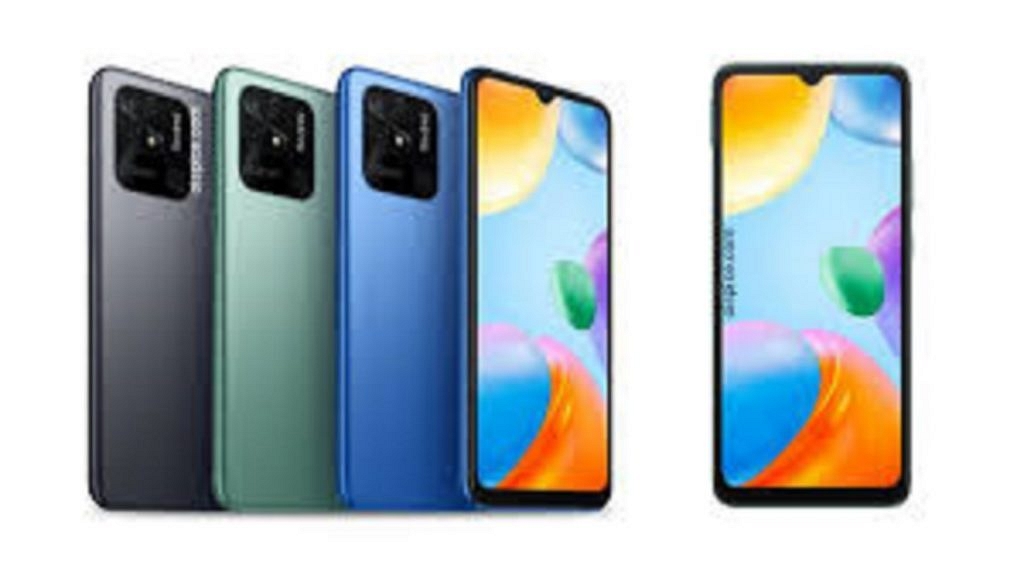
Xiaomi Redmi 10 Power

The Xiaomi Redmi 10 Power is backed by 8GB of RAM and 128GB of internal storage. The phone comes with a 6.71-inch IPS LCD display that includes a resolution of 720 x 1600 pixels. It is further protected by Corning Gorilla Glass v3. The smartphone is equipped with the Qualcomm Snapdragon 680 chipset and Adreno 610 GPU for graphics. As for power, the device has a massive 6,000mAh non-removable battery. The Xiaomi Redmi 10 Power can be purchased for Rs. 14,999 in India.

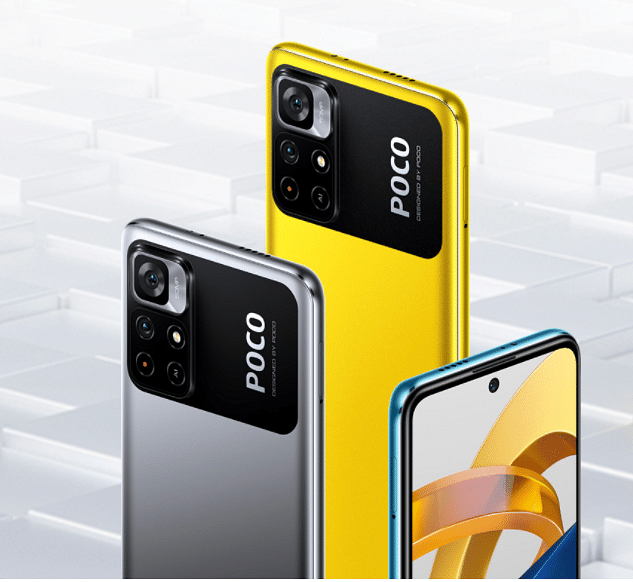
POCO M4 Pro

The POCO M4 Pro 8GB RAM has an expansive RAM technology that allows users to experience a substantial RAM of 11GB. It has a 6.43-inch AMOLED Dot display having a resolution of 1080 x 2400 pixels. The device is powered by the MediaTek Helio G96 chipset coupled with a Mali-G57 MC2 GPU. It further has a 5,000mAh battery capacity that is compatible with a 33W Pro Fast Charging technology. The POCO M4 Pro can be availed online for Rs. 13,999.

Tecno Pova 5G

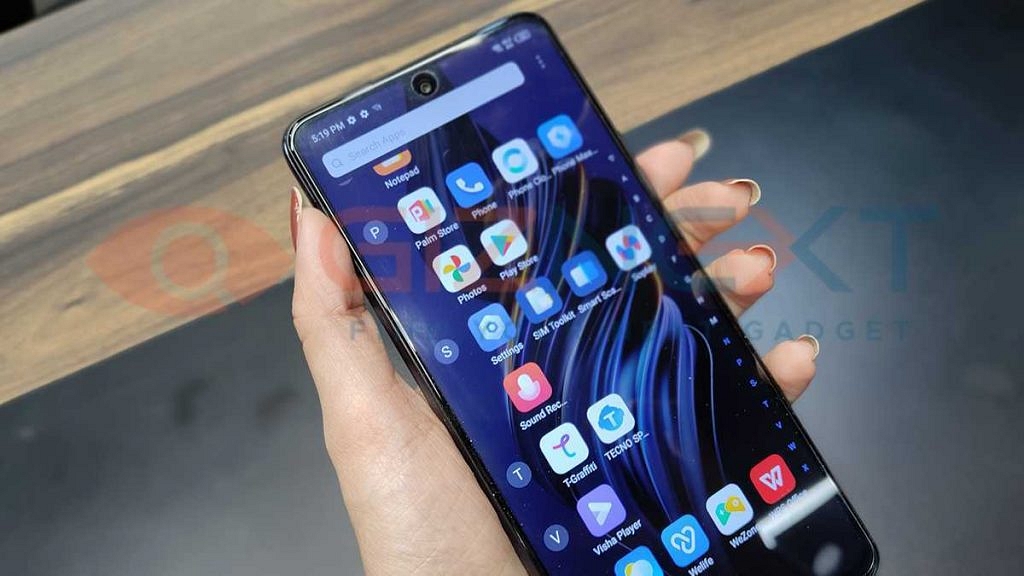
The Mali-G68 MC4 GPU and 8GB RAM are supported by the MediaTek Dimensity 900 MT6877 chipset, which powers the Tecno Pova 5G. The large 6.9-inch bezel-free IPS LCD front screen of the phone has a punch-hole in the center which houses the selfie camera. The device’s massive 6,000mAh 18W Flash provides all of the power it needs to function. The starting price of Tecno Pova 5G is Rs. 15,299 in India.

Categories
Leaks Mobile

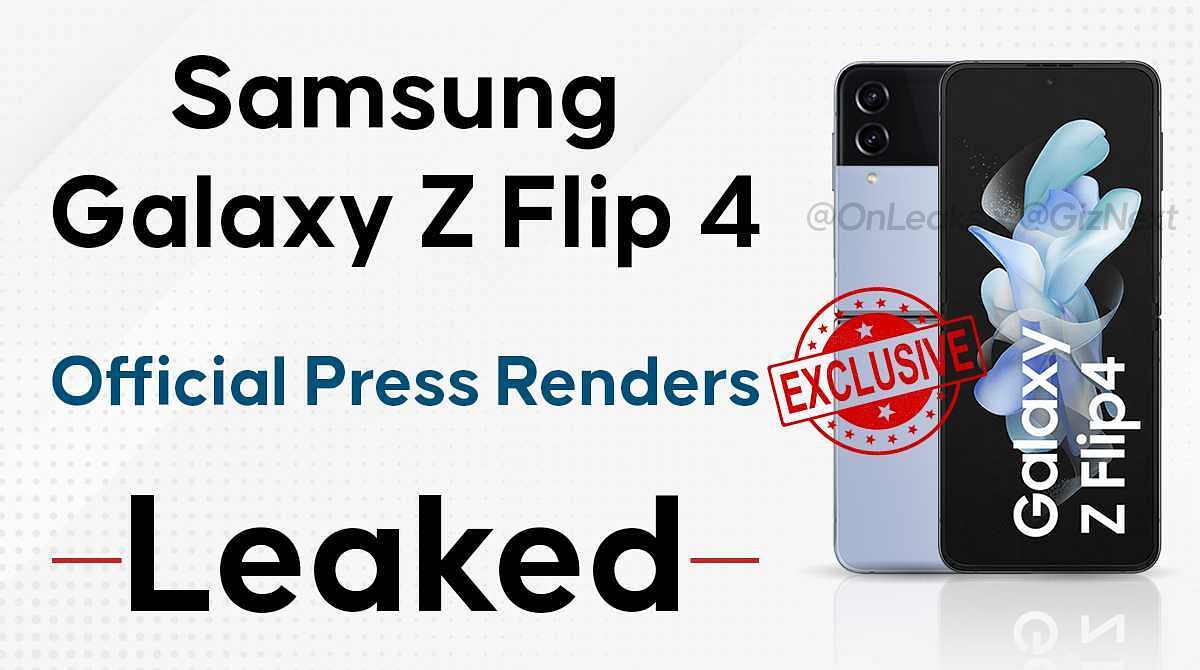
[Giznext Exclusive]: Samsung Galaxy Z Flip 4 Official Press Renders Reveals All Colors, Full Design

Samsung is hosting its Galaxy Unpacked Event 2022 next month. The South Korean tech giant has scheduled the launch event on August 10 where it is expected to introduce the new-generation foldable smartphones including the Galaxy Z Fold 4 and the Galaxy Z Flip 4. We are also expecting the company to release the new version of its flagship smartwatch called the Galaxy Watch 5 series and also the latest TWS earbuds dubbed the Galaxy Buds 2 Pro.

The new-age foldable flagship smartphones are taking the primary center stage at the Galaxy Unpacked Event 2022. With just a few weeks remaining for the official launch, the internet is getting flooded with details related to both the Galaxy Z Fold 4 and the Galaxy Z Flip 4. Contributing to all the leaks is Giznext’s latest exclusive report where we can confirm the exact color variants and the entire design language of the Galaxy Z Flip 4. Take a look:

Exclusive Leak: Samsung Galaxy Z Flip 4 Design  Color Options Are Out

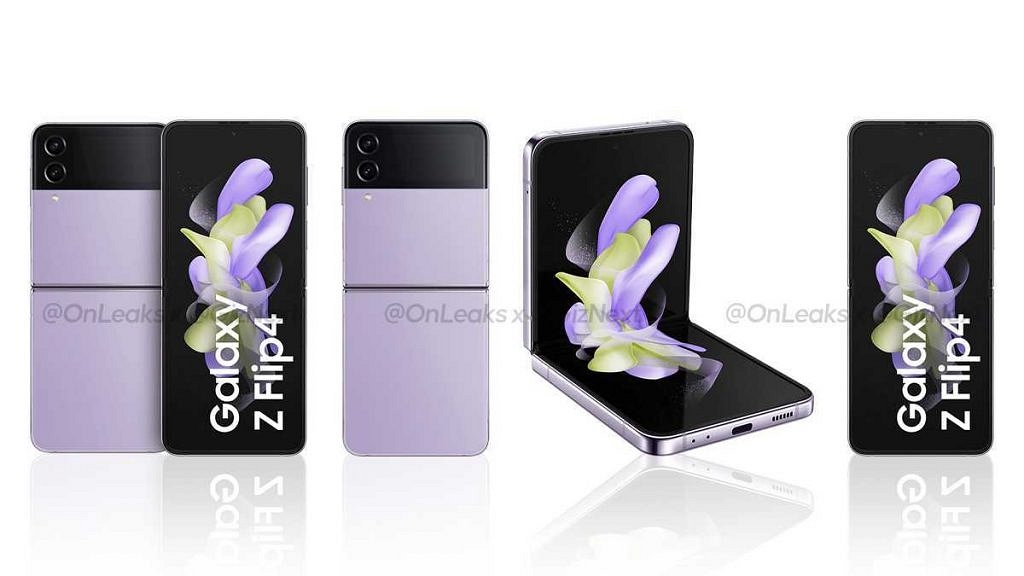
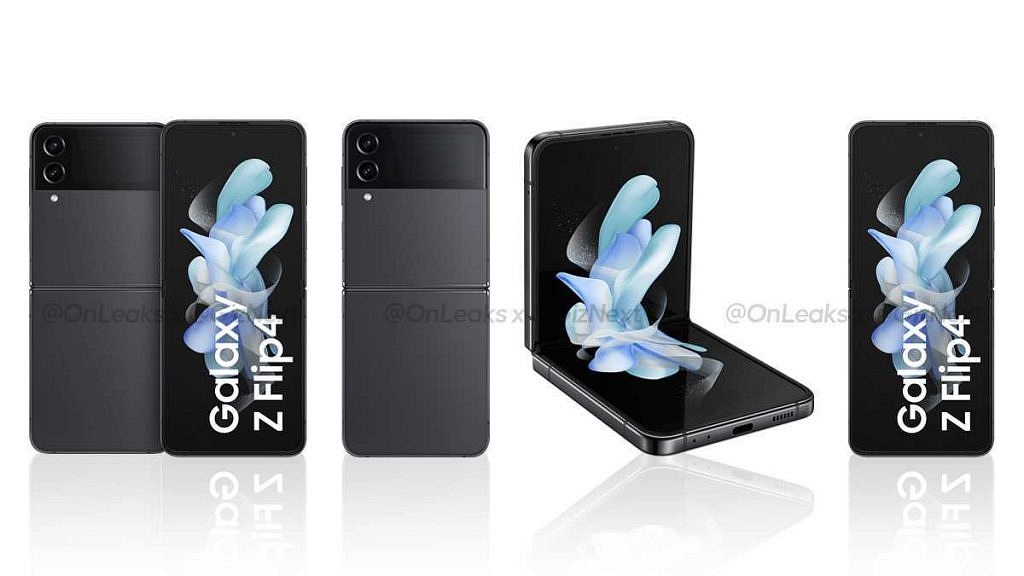
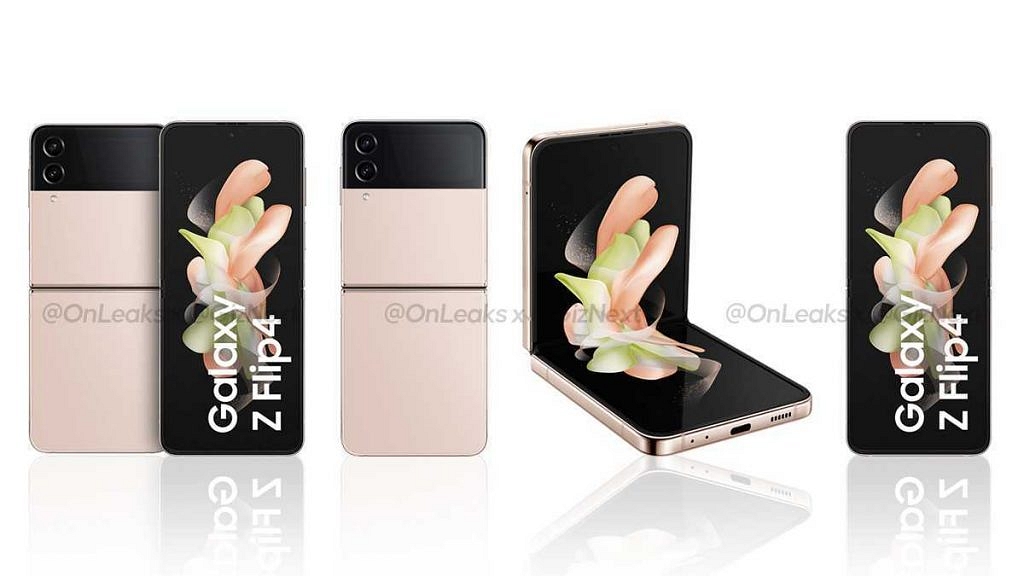
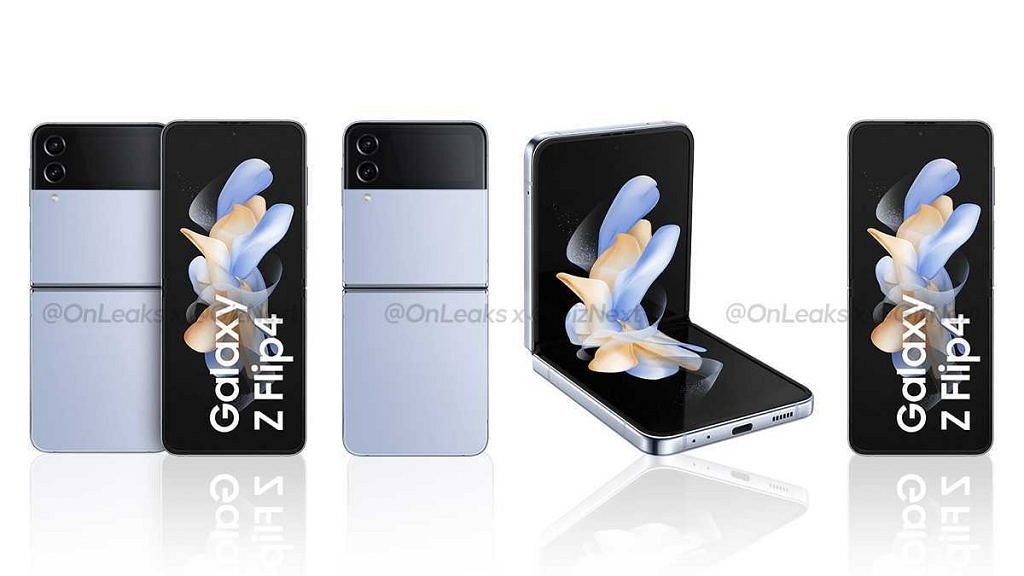
Giznext has once again collaborated with noted tipster Steve Hemmerstoffer @onleaks to reveal the Galaxy Z Flip 4’s official press renders. The render images shared by the tipster show the complete design language of the next Galaxy foldable phone along with the color options. The Galaxy Z Flip 4 will feature the same clamshell foldable design as the previous generation model, i.e., the Galaxy Z Flip 3.

It flaunts the same centrally folding design but a new camera module. The vertical camera strip is placed in the outer top of the handset and painted in black. This adds to a dual-tone effect with design. The outer camera module is seen with two large sensors.

The right panel of the Galaxy Z Flip 4 can be seen housing the volume keys along with another key (likely dedicated digital Assistant), while the SIM card tray is placed on the left. The bottom panel has the USB Type-C port along with the speaker grille.

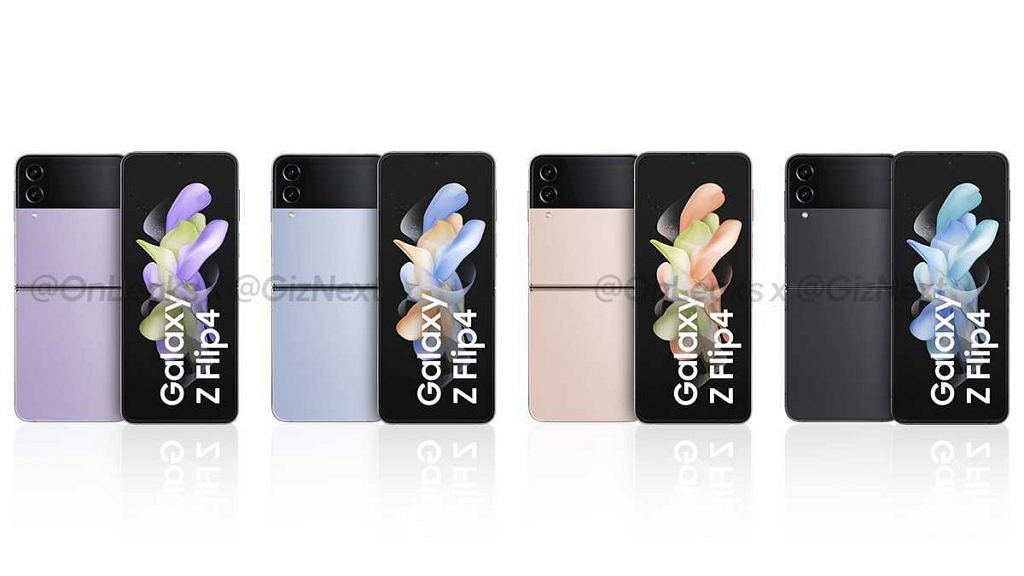
Coming to the color option, our source has suggested as many as four different color options including black, golden, purple, and light blue. These color options are likely to be called Graphite, Pink Gold, Bora Purple, and Blue.

Samsung Galaxy Z Flip 4: Expected Price

As per the recent reports, the Samsung Galaxy Z Flip 4 will be available in three different models including 8GB+ 128GB, 8GB+ 256GB, and 8GB RAM+ 512GB storage options.

The prices tipped are EUR 1,080 (approx. Rs. 88,100), EUR 1,158 (roughly Rs. 94,000), and EUR 1,275 (around Rs. 1,05,000) respectively. Notably, these are the speculated prices and the actual amount could vary post its launch in India.

Samsung Galaxy Z Flip 4: Rumored Specifications

As for the features, it is currently known the Galaxy Z Flip 4 will bring some major upgrades over its precursor, i.e, the Galaxy Z Flip 3. One of the major hardware differences will be the chipset. Samsung is said to use the latest Qualcomm flagship processor, i.e., the Snapdragon 8 Gen 1 Plus to drive the Galaxy Z Flip 4.

The software version could be Android 12 OS topped with a custom One UI interface. The configuration expected is up to 8GB RAM and 512GB storage configuration. The rumors have also suggested a total of three cameras on the Galaxy Z Flip 4. The rear camera module is speculated to ship with dual 12MP sensors, while for selfies, the front camera is said to measure 10MP. The display and battery details are at large at the moment, but we are expecting some more details ahead of the Galaxy Unpacked event 2022.

Categories
Comparison Smart Watch

Xiaomi Mi Watch Revolve Active Vs Titan Smart 2 Vs Amazfit GTR 2e: Which One To Go For?

In addition to being a fancier version of a regular watch, smartwatches have developed into an important accessory for smartphone users. They provide a variety of tracking and fitness capabilities while still looking like conventional watches.

Smartwatches today are capable of tracking a variety of data, including sleep, steps, heart rate, and notification alerts. The best part is that a decent smartwatch doesn’t have to cost a lot of money.

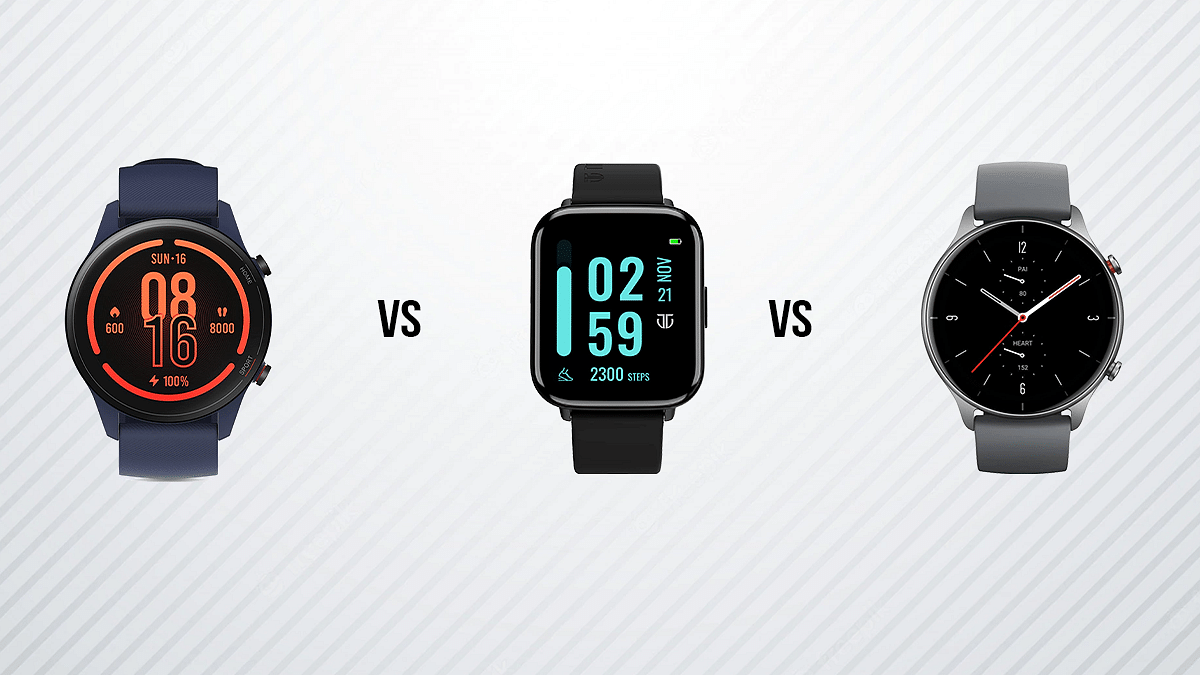
To make it easier for you to decide which smartwatch you should buy, we have come up with this article where we will compare three smartwatches, i.e., Xiaomi Mi Watch Revolve Active, Titan Smart 2 Smartwatch, and Amazfit GTR 2e. Let’s begin:

Design And Display

The Mi Watch Revolve Active has a circular dial that gives a traditional look. A 1.39-inch AMOLED display and 2.5D curved glass are included on top of the frame. The display has a thin bezel with Sport and Home inscribed on it near the two buttons on the right side. The left side is completely blank.

The Titan Smart 2, on the other hand, sports a sizable screen with thin bezels that is fairly acceptable. This 1.78-inch AMOLED display has a responsive touch screen. In general, watches feel sluggish because their processors are weak but this is definitely good.

Now let’s talk about the Amazfit GTR 2e which is a gorgeous smartwatch. It has a 1.39-inch AMOLED display with tempered glass and an anti-fingerprint coating. The watch boasts a borderless 2.5D curved glass display. You can access various features and modes by using the two buttons on the watch’s one side. The smartwatch’s display and color accuracy are quite impressive.

Features And Operating System

The Mi Watch Revolve runs a custom OS. SpO2 tracking on the Mi Watch Revolve Active is a handy tool to have during these times. The Mi Watch Revolve Active lets you keep track of a wide variety of workouts. While you exercise, it continuously displays your heart rate and the number of calories burned. The wearer’s energy and stress levels can also be monitored via the Mi Watch Revolve Active. You can utilize the guided breathing widget on the watch to try to lower your stress levels.

On the other hand, the Titan Smart 2 offers all the functionality of a smartwatch, such as a step counter and blood oxygen levels. It also has breathing reminders, stress monitoring, a period tracker for women, and more. You can even get updates and 100+ watch faces that are growing more in number.

Moving to the Amazefit GTR 2, there are multiple sports modes inside the smartwatch. If you are working out inside your home, you can even activate a mode that’s built into the watch specifically for that. The Amazfit GTR 2e automatically tracks all the steps that you take in a day. Besides, it has a SpO2 sensor that helps to monitor your blood oxygen levels. The Amazfit GTR 2e’s sleep tracking feature is one of its best features.

Battery And Connectivity

In the battery department, the Mi Watch Revolve Active can last less than two weeks on a full charge. If you have the always-on display turned on for a day or two, it will drain the battery slightly quicker. As for connectivity, you need to pair the Mi Watch Revolve Active with a smartphone during the setup process to start using it. Using the Xiaomi Wear app for Android or the Xiaomi Wear Lite app for iOS, you can pair the watch with a smartphone.

Moving to the Titan Smart 2 smartwatch, it’s got BT 5.1 which is decent. It seems average in terms of battery life with a 280mAh battery that lasts for seven days. And yes, it features AOD as well, thus you are not required to keep the display on constantly.

Now, we come to the Amazfit GTR 2e. On a single charge, it could easily run more than 10 days on average. For completely charging the smartwatch, it might take you around two hours.

Price Comparison

The Mi Watch Revolve Active is targeted at those who are regularly on the move. Beige, Blue, and Black are the three color choices Xiaomi gives for the Mi Watch Revolve Active.

Also, the Titan Smart Pro Watch comes packed with features. It delivers on its promises of having an accurate body temperature sensor, blood oxygen monitoring, and a wealth of fitness tracking features. Besides, the Amazfit GTR 2e is almost a perfect smartwatch because it offers a lot for the price it comes for; however, the GPS issue is a big turn-off.

Overall, all three smartwatches are priced under Rs. 10,000 in India. Considering all the things, all three smartwatches give hard competition to each other with the onboard productivity and health features. However, the Mi Watch Revolve Active offers a bigger display experience and better battery life. In our opinion, the Mi Watch Revolve Active makes it a good value for money.

Categories
How To Tablet

iPad Tips And Tricks: What Are The Steps To Create Screen Recording On iPad?

Apple iPads are the top-of-the-line Android tablets that one can buy in the markets nowadays. There are numerous iPad models that you can select depending on your daily requirements. Apple has released different iPad tablet lineups for the masses. Amongst the several available Apple iPad series are the iPad Air, iPad Pro, and iPad Mini. The price range for each Apple iPad lineup is different; so are the internal features.

For affordable audiences as well, Apple has a dedicated iPad lineup, i.e., the Apple iPad Air and the iPad Mini. The iPad Pro models are designed for the premium category users that can’t compromise anyhow on performance. All the iPad tablets are packed with Apple’s newest hardware and software technologies to deliver the best-in-class performance.

You can perform numerous tasks with an iPad. The most common usage to date with Apple or even Android tablets remains web surfing and multimedia playback. These big-screen tablets are also well loaded to handle gaming and complete most of the professional tasks for which you would otherwise have required a laptop or PC.

Now, the capability of any Apple iPad can’t be measured just with the specs. It’s with the functions that you can perform. Grabbing a screen (screenshot) is one of the most common features that every iPad user must have tried using once. But with the advancements in this tech space, Apple iPad users also get the provision to record an entire screen.

We already have shared the procedure with which you can capture a single page or a full-page screenshot on iPads and also save the latter as PDF files. Adding on to the iPad tips and tricks, we have now listed the method with which you can record the entire screen on your iPads. Below are the steps:

How Can You Create A Screen Recording On iPads?

Before we proceed with the steps, we would like to add that you can not only record the screen video but also audio on your iPads.

Step 1: Open the Settings menu on your respective iPads.

Step 2: Click on the Control Center.

Step 3: Tap on “+” icon placed next to the Screen recording option.

Step 4: Now, you will need to launch the Control Center app.

Step 5: Tap on the record option. Make sure you wait for the countdown to begin. It will be a three-second timer following which the screen will start recording.

Step 6: Once you are done, re-launch the Control Centre and select the recording tab or the red status bar on the top of the screen. Click Stop.

Step 7: Now, open the Photos option and select your screen recording that has just been captured.

Categories
How To Tablet

How To Capture A Full Page Screenshot On iPad And Save It As A PDF?

The Apple iPad series is amongst the most powerful tablets available in the market today. Apple has released multiple iterations of iPads in the last few years. Now, you don’t need to empty out your pockets to buy a new Apple iPad. Apple is not only focusing on the premium range tablets but also mid-range iPads that don’t really burn a hole in your pockets.

Apple has been using all the latest technologies with the new-generation iPads. You get more powerful and versatile tablets if you buy the new-generation Apple iPads. Performance delivery is never an issue with Apple iPads. This is one of the biggest reasons why iPads are among the first preferences amongst professionals and users with creative skill sets.

Apple iPads can support almost all formats of documents which makes our lives easier with professional tasks. In one of our previous articles, we explained the steps to capture a screenshot using an Apple iPad.

This time we will be guiding you with another useful trick that will further simplify the process of keeping records in a paperless format. Yes, you read that correctly. This article will be your guide to not only capturing a full-page screenshot on Apple iPad as a PDF file but also the steps to record a screen. Here’s how:

Steps To Take Full Page Screenshot As PDF On Apple iPad

For the Apple iPad With Home Button

Step 1: Unlock your Apple iPad.

Step 2: Now, press and hold the top button and the Home button simultaneously and release instantly.

Step 3: Repeat Step 2 again properly if the screenshot of the page or document isn’t captured.

For the Apple iPads Without the Home Button

Step 1: Press and hold the top button and either of the volume keys and release simultaneously.

The next step is common for both iPad models with or without the Home Button.

Step 1: From the bottom left corner of the home screen, click on the Full Page option.

Step 2: Click on Done to save the screenshot. Select save PDF to files.

Step 3: Now, choose the appropriate location where you want the full page screenshot to save as a PDF file.

Step 4: You can also share the captured full page screenshot as PDF by clicking on the  symbol. You will get the option to share the screenshot PDF via Messages, AirDrop, and Mail.

Categories
How To Tablet

iPad Tricks: How To Capture A Screenshot On Ay Apple iPad?

Tablets are among the top-selling consumer electronics gadgets in the modern markets. Similar to the smartphone industry, Android and Apple iPad tablets hold the major chunk of the market in the tablet industry as well. While Android tablets grab the larger share, Apple iPads aren’t any less popular amongst consumers.

Apple is known for releasing new iPad models and supported OS every year. This year as well, Apple had introduced the iPad OS 16 for the new-generation iPads and the eligible older models. The latest firmware brings several new useful features for easy and improved usage with the iPads. And tablet usage is similar to smartphones in many ways. You can use these large screen gadgets for web surfing, calling (with the LTE models), gaming, and also creative tasks such as designing, etc.


Since the functionality and usage of tablets and iPads are quite identical to a smartphone, the features available are also similar. While using any iPad, you might want to take a screenshot of any document that you are accessing on the web or have received via mail or any other format. Capturing a screenshot on any Android tablet is fairly simple, but are you aware of the procedure to grab the screen on any Apple iPad?

We bet you might have tried capturing screenshots using the Apple iPad and if you haven’t succeeded yet, you don’t have to worry at all. In this article, we are making it super easy for you to grab any screen on your Apple iPad. We also have listed the method to capture a screenshot with iPads. Take a look:

Steps To Capture Screenshot On Apple iPads

Step 1: Unlock your iPad. Go to the page or document whose screenshot you want to capture.

Step 2: if your iPad has the Home button then simultaneously press and release the Home and the top button.

Step 3: For the iPads with no Home button, press and release the top button (placed on the top right edge of the iPad) and any one of the volume keys.

Step 4: You’ll see the screenshot capture on the lower-left of the home screen. Tap on it followed by Done.

Step 5: Select the appropriate option from Save to photos, Save To Files, or Delete screenshot.

Just for reference, upon clicking the Save to Photos, the captured screenshot will be visible in the Screenshot album that you can later access from the Photos app. The second option will save the screenshot to File Manage, while the last option will delete the captured screen.

Categories
Chipset Mobile

Best Smartphones With Snapdragon 888 Chipset To Buy In India

The newest chips in the market might be the Snapdragon 8 Gen 1 and the Snapdragon 8+ Gen 1. However, the Snapdragon 888 chipset is now the one to beat if you’re trying to buy a premium phone with great value.

For all of 2021, the majority of high-end and ultra-premium smartphones were powered by the Snapdragon 888 chipset. Between 2020 and 2022, many Snapdragon 888 smartphones were introduced in India and it is still a great chipset for daily usage. So, we’ve put together this list of the top smartphones using the Snapdragon 888 chipset for you.

OnePlus 9 Pro

The Qualcomm Snapdragon 888 chipset along with Adreno 660 GPU power the OnePlus 9 Pro. It features a 6.7-inch QHD+ AMOLED display that supports up to 120Hz of dynamic refresh rate along with support for HDR10+ playback. The phone has up to 12GB RAM and 256GB storage options. It further runs on Android 12-based OxygenOS 12. The device is equipped with a 4,500mAh battery that supports 65W fast wired and 50W fast wireless charging. The OnePlus 9 Pro is available for sale at Rs. 49,999 in India.

Realme GT 2

Powered by the Snapdragon 888, the Realme GT 2 is a performance-oriented smartphone. It comes with a 6.62-inch AMOLED display with a 120Hz refresh rate, HDR10+ support, and 1300 nits peak brightness. Also, the phone has Corning Gorilla Glass 5 protection. There is also a 5,000mAh battery with 65W fast charging, stereo speakers, and an under-display fingerprint sensor. The Realme GT 2 will cost you Rs. 34,999 in India.

iQOO 9 SE

The iQOO 9 SE comes with a sleek design and is powered by the Snapdragon 888. The phone sports a 6.62-inch 120Hz AMOLED display with 1200 nits peak brightness. The device also features an under-display fingerprint sensor, stereo speakers, and a 4,500mAh battery that supports 66W fast charging. In India, the price of iQOO 9 SE starts at Rs. 33,990 for the 8GB + 128GB model.

Samsung Galaxy Z Flip 3 5G

The Samsung Galaxy Z Flip 3 is a clamshell foldable phone powered by the Snapdragon 888 processor. It features a 6.7-inch Full HD+ resolution AMOLED display with a 120Hz refresh rate. The device also has HDR10+ support along with a 1.9-inch Super AMOLED cover display. Besides, the phone got stereo speakers tuned by AKG and houses a 3,300mAh battery that supports 15W wired charging and 10W wireless charging. The Galaxy Z Flip 3 5G will cost 84,999 in India.

Asus 8Z

The Snapdragon 888 chipset powers the Asus 8Z phone. It has a 5.9-inch Full HD+ Super AMOLED screen with a refresh rate of up to 120Hz, and on top of it is a layer of Gorilla Glass Victus. The dual speakers of the Asus 8Z can play back high-resolution audio. A 4,000mAh battery that supports 30W fast charging is included, and there is an in-screen fingerprint scanner. You can get the phone for Rs. 42,999 in India.

Categories
How To TV

No Network Adapter: How To Connect A Samsung Smart TV To Internet/ Wi-Fi Without Integrated Network Adapter?

Samsung is one of the biggest players in the display industry in the global markets. The brand has gained huge popularity with its high-resolution smart TVs. In India as well, Samsung has a whole range of powerful smart TVs that can easily render 4K and 8K videos besides FHD resolution. Samsung TVs are not just popular for the high-resolution panel that they pack but also for the plethora of features they offer for a premium user experience.

Samsung’s new-age smart TVs are all capable with high-resolution panels, Wi-Fi, and Bluetooth connectivity, and also a whole lot of user-oriented features for an overall improved user experience. We just shared an article detailing the steps to pair any new Samsung smart TV with an available Wi-Fi network.

Now, the steps mentioned in the previous article will work perfectly fine with the smart TVs enabled with a network adapter. But in some cases, the LAN card or the network adapter is missing from the TVs. This is specifically the case with old-generation TVs. What can you do in such scenarios? Is It Possible to connect your Samsung TV with Wi-Fi without a network adapter? Well, the answer is yes. And to do so, you can either use a wireless Wi-Fi card or the WPS Key option.

How To Pair Samsung Smart TV To Internet With WPS

Step 1: The first step is to switch on the TV.

Step 2: Now, with the TV’s remote scroll to the Menu option.

Step 3: From the Menu tab, locate the Network option. Select it.

Step 4: Tap on the Network Settings.

Step 5: Locate the WPS option and move the remote cursor over it.

Step 6: Click Next.

Step 7: Press and hold the WPS button using the remote. Wait for a few seconds to get connected to the internet. This is all you need to do in order to pair your Samsung smart TV to the internet without the network card.

Notably, to make sure you get a successful internet connection with a Samsung smart TV that doesn’t come with a built-in Network access card, you can buy a third-party Wi-Fi receiver that you can easily plug into the USB slot of your TV and complete the internet connection setup.