Categories
Info Tech News

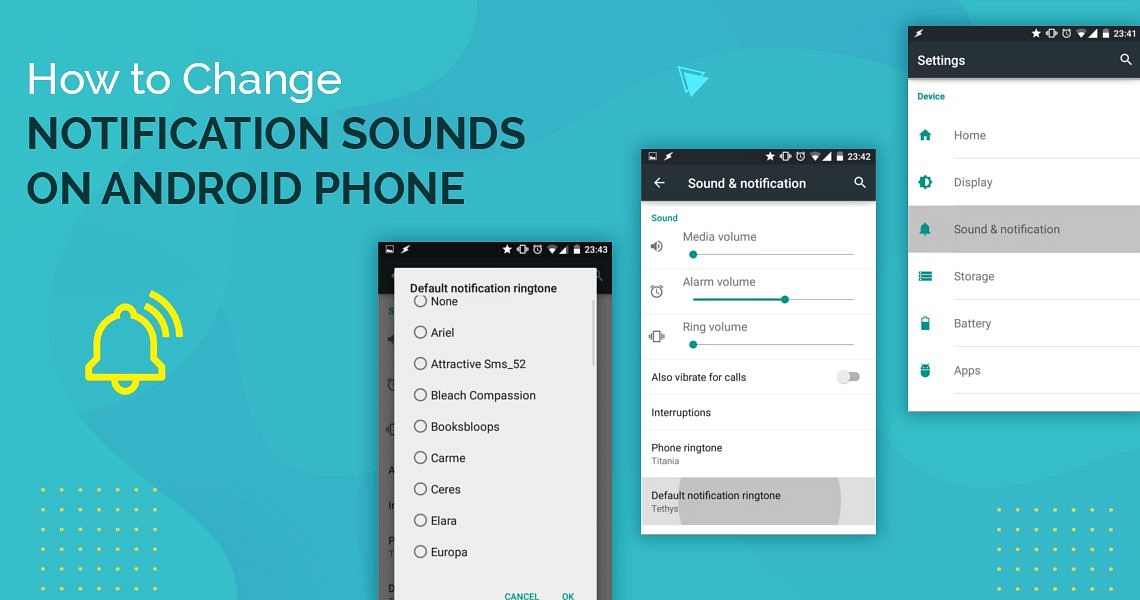
How to change notification sound on an android phone?

The default notification sound on the phones can be confusing and leads to missing an important message. It is easy to change the notification sound for emails, calls, social media, text messages, and any other app on your smartphone. Your smartphone comes with a default notification sound for all your apps and contacts, but you can change them whenever you feel like it, see steps How to change notification sound on an android phone?

Custom ringtone for contacts:

  1. Firstly, open your contact app
  2. Then click on the contact you wish to have a custom ringtone for
  3. If not, then click on the three dots generally present on the top right side of the screen.
  4. There, tap on the ringtone option and then select the desired ringtone from your smartphone.
  5. Click on the Save option, and you have a custom ringtone.

To change the notification sound for all the apps:

  1. Open the settings 
  2. Then click on the option for Apps and Notification

Also read: Fix Incoming Call Not Showing On Screen Android

Then go for the notification option

Click in advance and change the default ringtone.

  1. If you cannot find these options on your smartphone, then search for the “calls,reminders and notification” option
  2. Then click on it and then click on the ringtone option
  3. On the next page, you can select any ringtone and save the changes.

Change notification sound by the app:

  1. Open settings
  2. Click on the option “Apps”. 
  3. Click on “Manage Apps”.
  4. Then click on the app for which you want a customized ringtone, e.g., Whatsapp.
  5. Then go for the additional settings. 
  6. Then click on the notification part and change the tone.

You can also change the notifications by going to the settings of the app itself and click on the notification and change the tone.

To change notification sound in Gmail:

  1. Open Gmail app
  2. Click on the three lines on the top left side of the app
  3. Then scroll down and click on settings
  4. Select your email for which you wish to have different notification
  5. Then click on “Notification sounds”.
  6. Then a message will appear to click on “go to settings”.
  7. Click on “sound”.
  8. Then select the desired ringtone for the notification 
  9. Save the changes, and you are done

How to change the ringtone for calls on Samsung phones:

  1. Open the Settings app and click on “sounds and vibrations”

Click on ringtone


Select any ringtone you wish to apply


  1. And you are done. If the ringtone you want to select is not in the list, then click on the plus sign “+” on the top right side of the screen and select the ringtone from the files stored in your smartphone.

Customize the ringtone for a particular contact in Samsung phones:

  1. Open your Samsung contact app
  2. Then select the contact you wish to have a different ringtone for and edit it.


Then click on “view more” at the end of the screen


Then click on “ringtone” and select the ringtone you desire. If your desired ringtone is not in the list, then click on the “+” sign on the top right side of the screen and select any ringtone saved in your smartphone memory.


For customized ringtones for apps in Samsung, you first have to store the ringtone file in the list. Then, only you will be able to change the single app notification.

Not just the android phones but iPhones also allow the user to have their own ringtone so that they don’t miss out on any important message.:

  1. Open the Settings app on your iPhone.
  2. Then select “sounds and haptics”.


In the subsection “sounds and vibration patterns,” you will find the ringtone section


Click on the ringtone and select the desired ringtone.


  1. A blue mark will be shown on the selected ringtone file.

Every phone provides its user choice to change the default ringtone into the desired one. You just need to look for how. 

Categories
Mobile

Fix ‘Android Process Acore Has Stopped’ Error: Here’sAre The Quick Steps

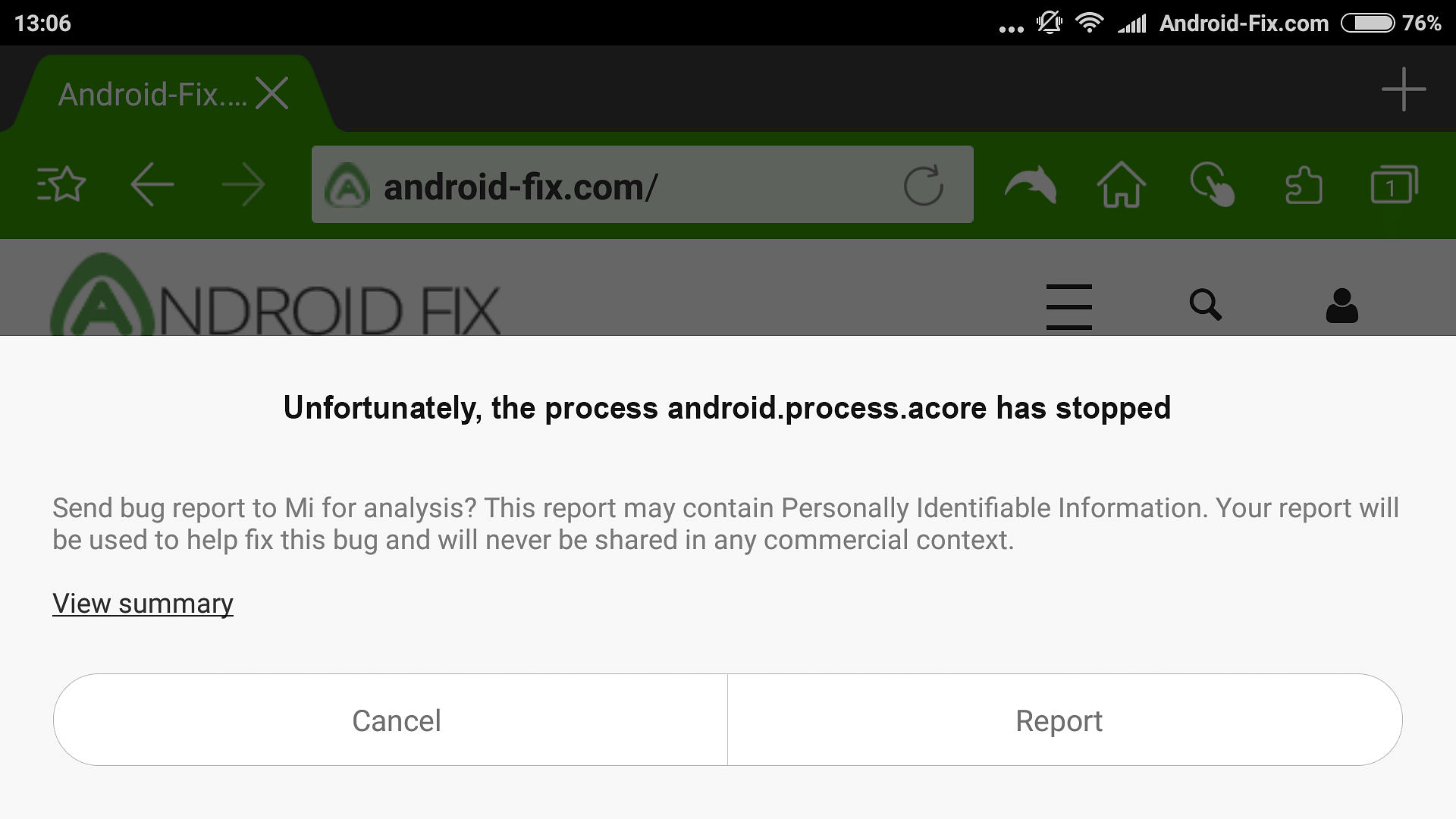
There are plenty of glitches and bugs that start showing as your smartphone gets old. While navigating the contact list or when you try to call someone, if a message pops up showing ‘unfortunately, the process android.process.acore has stopped’, then it may be another bug that can be due to several reasons. To fix this issue, here are some working methods mentioned below:

Check For Updates And Restart Your Device

If the android.process.acore has stopped and shown an error, then start checking for updates and restart your android device. Go to the Google Play Store and check if there is any update pending or not. Update the applications for which updates are available.

Also read: Google Play Pass Launched In India; Offers 1000 Apps And Games

Sometimes the android.process.acore keeps stopping when the apps are not updated for a long time. Once you finish updating all the applications to the latest version, restart your phone. This will probably fix the issue.

Remove And Add Your Google Accounts

Another working trick to fix the android process that has stopped working is by removing all your Google accounts from your smartphone. Go to settings – accounts – Google. All your Google accounts will open. Now remove all your Google accounts from your phone.

This will fix any issues with your contacts or Google accounts that may be the reason that the android.process.acore has stopped. Now restart your Android device and add back all your accounts.

Reset App Preferences To Default

To fix the android.process.acore has ‘stopped’ error, reset your app preferences to default and check if you have disabled any important system app by mistake. Sometimes disabling any system apps may be the reason why the android.process.acore keeps stopping.

To reset app preferences to default, open your phone settings – apps and notifications – manage apps. Now tap on the three dots on the top-right side of the screen, select reset app preferences, and click on the ‘reset apps’ option.

Also Read: Editing Videos On iPhone: Here Are The Best Free Third-Party Video Editor Apps For iPhone And iPad

Clear All Data From Contacts

You can try to clear all the data from contacts to fix the ‘unfortunately, the process android.process.acore has ‘stopped’ error. Clearing all data, including the cached data, will also fix the issue that may have been caused due to some bug or glitch.

To clear all data from contacts, open your phone settings – apps and notifications – manage apps. Now search for ‘contacts’ from the list of applications and open it. Now tap on the ‘clear data’ option at the bottom of the screen. Now tap on the ‘clear all data’ option. 

Check For Software Updates

Sometimes not updating the software can lead to bugs and glitches in the software and might cause problems. If android.process.acore keeps stopping in your smartphone, then check if there is any software update.

To check software updates go to settings – about the phone – check for updates. Download the software update, if any, and restart the device to fix the issue.

Factory Reset Your Device

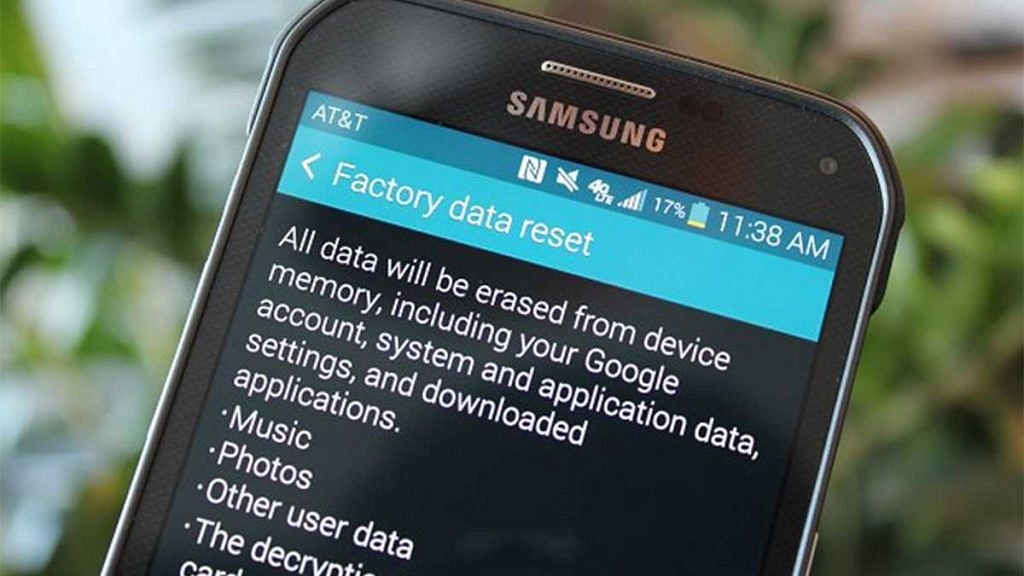
This is the last option to fix the android.process.acore has a ‘stopped’ error. If all the above methods don’t work, then you don’t have any other choice other than to perform a factory reset on your android smartphone.

This will erase all the data, so get a backup of all your data in an external SD card before doing a factory reset. This will reset your android phone to default factory settings and will fix all issues.

Wrapping Up

These were the methods that will fix the android.process.acore has ‘stopped’ error. Follow the steps carefully to get rid of the annoying pop-up appearing on your screen again and again.

Do let us know your thoughts in the comments below. You can follow the GizNext Tech Enthusiast Telegram group and GizNext Tech Enthusiast WhatsApp group for fresh technology updates.

Categories
Info Tech News

How To Unmute An Instagram Story

The worldwide famous social media platform ‘Instagram’ provides you with several tools and features to give you a better user experience while using the application. Instagram gives you the feature to mute someone’s post or stories that you don’t wish to see. 

You can simply unfollow them if you don’t know them or you can mute their story or post and unmute again whenever you wish to. It just takes a couple of minutes to mute and unmute someone’s story or posts. 

If you have muted someone’s story before and now you want to unmute it or someone’s story not showing on the homepage it might be because you have muted their stories by mistake, there are two methods to unmute Instagram stories. Follow the steps mentioned in both methods carefully. 

How to unmute Instagram stories and posts 

To unmute an Instagram story follow the steps mentioned below: 

Method 1: Unmute someone’s story on Instagram directly from the homepage

Step 1: Open the Instagram app or log in from your web browser on your smartphone. 

Step 2: Swipe left the stories of other people till the end on your homepage. Once you reach the end you will see the muted stories with a grey ring around them. Muted stories have a grey ring around them whereas other stories will have a multi-colour ring around them. 

Step 3: Long press the muted story that you wish to unmute. After 2-3 seconds a pop-up will appear on the screen of the homepage. 

Step 4: Select the unmute option from the pop-up below the screen. To confirm if the story is unmuted, look for the multi-colour ring around the story that you unmuted. 

Also read: Read Instagram Direct Messages Without Seen

Method 2: Unmute someone’s story and post on Instagram from the account profile page 

If you don’t see the person’s story or posts on the homepage then simply follow these steps to unmute the story or post on Instagram.

Step 1: Open the Instagram app or log in from your web browser on your smartphone. 

Step 2: Now go to the search option and type their username to head on to their account profile. You can even open their account profile by clicking on the username if their post appears on the feeds of your homepage. 

Step 3: Once you open their profile, tap on the ‘following’ option and a pop-up will appear on the screen. 

Step 4: Now tap on the ‘unmute’ option and another pop-up will open giving you the option to unmute the post and story of that person. 

Step 5: Swipe the bar on the left side to unmute a post or story or both. To confirm if you have successfully unmuted their story, look for the multi-colour ring around their profile picture on their account profile. 

Wrapping Up 

These were the two methods to unmute someone’s story and post. Once you unmute someone’s story and posts, their stories will start appearing on the homepage with other stories and also their posts will start appearing on the feeds of your homepage respectively.

Categories
How To Mobile

Samsung Phone Sensors Secret Codes: What Is It And How To Check?

Key Highlights

  • All Android and iOS smartphones are equipped with multiple sensors
  • Samsung phones also pack secret sensors
  • Secret sensors on Samsung phones can easily be checked

Every smartphone comes with a set of sensors that provide you with additional features. These sensors are installed in smartphones that offer you these additional features. After a certain time, these sensors may start malfunctioning or stop functioning and can provide you with wrong information. Hence, you must check the functioning of these sensors regularly, using Secret Codes To Check Samsung Phones Sensors

Also Read | Secret Codes To Check Chinese Smartphone Sensors

If you have a Samsung smartphone, checking your phone sensors is very easy. Samsung users who own a smartphone manufactured after 2017 can check their smartphone sensors using secret codes to check Samsung phones’ sensors.

Several codes allow Samsung users to check smartphone sensors and several other features like IMEI number, battery status, hardware version, etc. To check your smartphone sensors, you must dial *#0*# in the phone’s dialer.

Also Read | Ways To Hard/ Factory Reset OPPO Smartphones: Step By Step Guide

Steps To Check Samsung Phone Sensors

To check if your phone sensors are working fine, follow the steps mentioned below:

Step 1: Open your phone’s dialer and dial the secret code *#0*#, and the diagnostic mode will open automatically.

Step 2: Now, a list of options will appear on the HwModule Test screen. The list contains all the features of your phone that you can test on your own, including sensors.

Step 3: Now, search for the sensors option and open it to see the list of sensors available on your smartphone.

Step 4: Now click on each sensor to test if your phone’s sensors are working fine.

Also read | No SIM Card Error: How To Fix No SIM Card Detected/ SIM Toolkit Issue With Smartphones

Types Of Sensors And Their Function

Different smartphones offer different sensors depending on the price of your smartphone. Expensive smartphones have more sensors as compared to cheaper ones. The common sensor is mentioned below:

Accelerometer sensor

The accelerometer is the most common sensor installed in every smartphone. It detects the orientation and motion of your smartphone from all three different axes. Select the ‘image test’ or ‘graph’ options to check the working status of the accelerometer sensor.

Also Read | List Of Best Budget 5G Phones Driven By MediaTek Dimensity Chipsets In India

Proximity sensor

The proximity sensor turns off the phone screen when placed close to your ear to avoid accidental touches on the screen and also reduces battery consumption when you are not using your smartphone for a certain time. Place your hand near the front camera of your screen, and the screen turns green, then the proximity sensors are working fine.

Magnetic sensor

The magnetic sensor is usually used to locate the direction when you use a compass on your phone. It measures the earth’s magnetic field to provide you with directions. Click on the ‘self-test option to check the magnetic sensor.

Also Read | Download Music From Instagram To Your Phone: Here’s How

Light sensor

The light sensor gives you information on the ambient light levels around your smartphone and controls the auto-brightness feature on your smartphone. To perform this test, click on the ‘light sensor’ option and select the level of brightness of your phone’s screen from dark to bright.

Wrapping Up

Sensors in your phone are very useful, and you must check if the sensors are functioning fine on a regular basis. If it passes all the tests, then it’s working well. There are different other secret codes to find other secret information about your phone.

Categories
How To Mobile

Incoming Call Not Showing On Android Smartphones? Here’s How To Fix It

Key Highlights

  • You can fix your smartphone’s incoming call notification issues with some simple steps
  • Steps to fix call if not showing on your Android Screen
  • Users can open special app access on their smartphones and fix this issue in just a few minutes

Understanding technology can be a little overwhelming. With so many features, you never know when you mistakenly click on some option that can cause you trouble. Sometimes due to several reasons, your phone screen might not show notifications for incoming calls. Here are the reasons and how you can fix incoming calls not showing on the screen Android.

Restart Your Smartphone

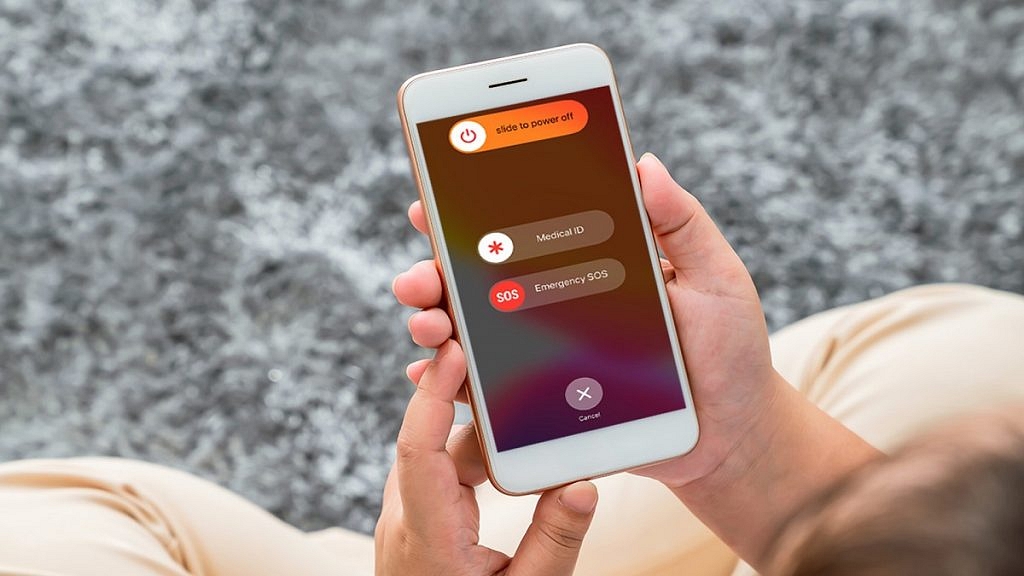
Sometimes there might be a problem with your phone’s software or some lag which can be the reason for incoming calls not appearing on your screen. To fix this issue on your android devices, power off your smartphone and switch it on after 5-10 minutes.

Make a call from another phone to check whether the problem is fixed or not. If the problem continues, then use the next method.

Check DND Mode On Your Smartphone

There might be chances you have turned on the DND mode in your smartphone because of which incoming call notification isn’t showing. It silences every sound, including incoming calls and notifications and turns of vibration except for alarms.

To turn off this feature, go to settings – sounds and notification, look for the DND option, and turn it off. You can also turn off DND directly from the notification.

Also Read: Want A Male Google Assistant Voice On Android Phone? Here’s How To Enable

Enable Call Notification

You might have mistakenly disabled call notifications, which can be the reason why incoming call notifications are not showing. Disabling this feature will not show a notification during an incoming call. To enable this feature open your phone settings and follow the steps.

Step 1: Look for the ‘apps’ option in your phone settings and open it.

Step 2: Then open the ‘manage system’ app and look for ‘call settings’.

Step 3: Open ‘call settings’ and select ‘advanced settings.

Step 4: Open ‘advanced settings’ and check if show call notification is enabled. If not, then enable it to fix the problem.

Enable Special App Access

If you are using another application during an incoming call, the incoming call might not show on the screen, but the phone is ringing. This is because you have not enabled special app access. To enable this feature open your phone settings and follow the steps.

Step 1: Open phone settings and search for the ‘apps’ option and open it.

Step 2: Then click on the ‘manage apps’ and search for the ‘phone services’ option.

Step 3: Now open ‘app permission’ and look for ‘special app access’.

Step 4: Open ‘special app access’ and enable the ‘display over other apps’ option. Now incoming calls will be visible on your screen even when you are using another application.

Reset App Preferences

Sometimes the reason why incoming calls are not appearing on your screen is that you have given preference to other applications over phone services. To fix the issue reset app preference to default, and your notification for calls will appear. Open your settings and follow the steps.

Step 1: Search the ‘apps’ option in your phone settings and open it.

Step 2: Look for ‘manage apps’ and open them.

Step 3: Now click on the 3 dots on the top-right side of the screen.

Step 4: Now select reset app preferences and a pop-up will appear with the ‘reset apps’ option.

Step 5: Tap on the ‘reset apps’ option to reset your app preferences.

Also Read: WhatsApp Security Code: What Is It? How To Get WhatsApp Security Code Notification On Android, iPhones, And Laptop/ PC?

Wrapping Up

These are some of the reasons why incoming calls are not showing on your android screen and how to fix it. Even after using these methods, if the problem continues, then go to a service centre and get your phone repaired.

Also Read | List Of Best Android Phones Priced Under Rs. 8,000 In India

Categories
Info Mobile

Get A Fresh Look: Five Best Free 3D Parallax Wallpapers For Android

Key Highlights

  • Android smartphones offer various customization options, including wallpapers, themes, and ringtones
  • These features allow users to personalize their devices according to their preferences and mindset
  • By exploring these latest trends in wallpapers, readers can discover visually appealing options to enhance their Android smartphone experience

People using Android smartphones must have heard about customizing wallpapers, themes, ringtones, and other options that are available on Android mobile. Some people prefer to set wallpapers and themes according to their mindset, and some people may set wallpapers to have a good mindset. 

In today’s situation, android mobiles play a vital role in everyone’s life. In this article, we have listed the top 3d parallax wallpaper for Android so that people can learn about the latest trends in wallpapers. Also Read | Want To Enhance Your Phone’s Appeal? Here Are The Best 3D Wallpaper Apps For Android Phones

Why Should People Use 3D Wallpapers For Android Mobiles?

Usually, people prefer to set live wallpapers for having a realistic feel on their mobile phones. Likewise, you can see the top 5 3d wallpapers for Android in this article. People can choose the theme of the 3d wallpapers according to their preference so that they can have a personalized feel. 

A Marvel lover may have an interest in downloading and setting his favorite superhero theme, whereas another person might have an interest in downloading devotional themes. So people can choose the theme which they like the most. Themes and wallpapers can be downloaded using the 3d parallax wallpaper app, where people can find lots of themes to fulfill the needs of all the customers.

Also Read | WhatsApp Chat Lock Privacy Feature Released For Android, iOS: How To Lock WhatsApp Chats Using This New Feature?

Five Best Free 3d Parallax Wallpaper For Android Phones

Alone In Forest:

This wallpaper is a theme, where a person walks in a forest alone, and there he can find a road which is filled with trees and colorful flowers. This is a 3d parallax wallpaper that can be downloaded in apps that are available in the play store. The movement of flowers and leaves while moving your mobile can fill your day with happiness. 

The Deep Blue Sea:

This wallpaper showcases a dolphin that lives under a deep blue sea, where people can see a live dolphin rolling and moving on their screen. This dolphin and the picturization of that deep blue sea have made this wallpaper a perfect fit for dark lovers. So people who prefer to set dark wallpapers can prefer to download this.

SunSet:

It’s a wallpaper where people can see a sunset by using an Android mobile. Animations and graphics are real in this wallpaper. Usually, bright wallpaper lovers will love to set this wallpaper. The rolling sunlight on the screen will make your mobile phone bright.

Seven Stones:

Other wallpapers we saw have a theme to impress users, but this wallpaper just has a river filled with water and seven stones to act as a way. The clarity of the picture with the pleasant climate will fit your screen and will give a pleasing effect.

Moms Love:

Elephants are known for their motherly love. Likewise, this wallpaper portrays the love of an elephant towards its younger one. The mother elephant covers the child elephant and makes him walk in the shade, which shows the unconditional love of elephants toward their children.

The Bottom Line

We have seen some 3d parallax wallpapers which fit most Android mobiles. People can choose their preferred wallpaper! Thank you for reading this article.

Also Read | Top Five Features Of Android 14

Categories
Info Tech News

How to avail apple student discount in India?

Apple, as competitive as always, has released its student offer. The “Back-to-school” offer has entered India after being launched in the United States a month before. This offer is valid for all the students who are currently studying in the college or have been admitted recently.

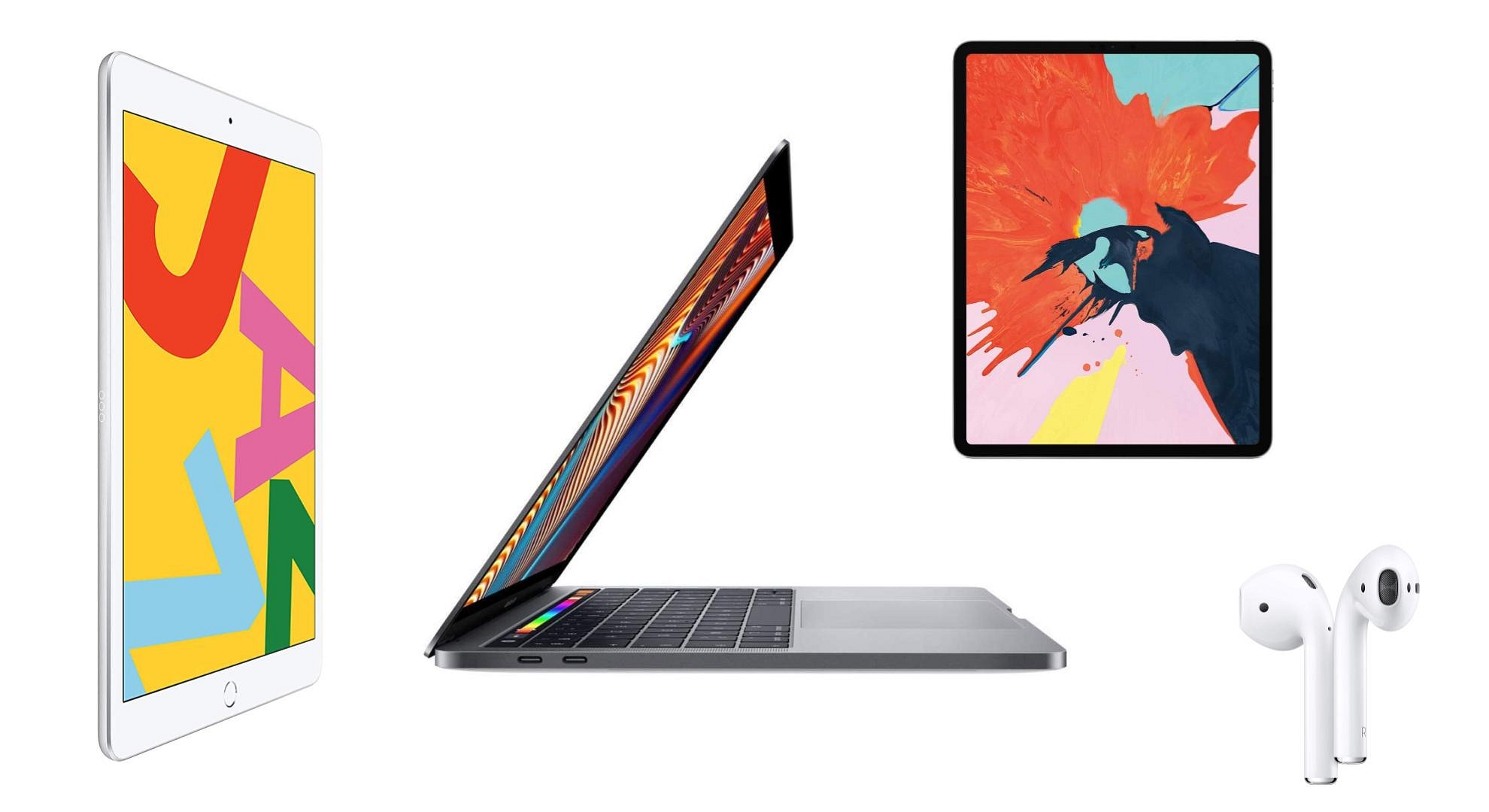
This offer provides the students with a lesser price tag on Mac and iPad and also a set of Apple AirPods as a free gift. The students can customize anything easily without any price tag. The students have to confirm their admission to a university through the unidays link available on the front page. The offer can be availed from the apple official website as well as from the Apple premium reseller store, but only if you fulfill the requirements. Steps How to avail apple student discount in India?

Requirements to avail of the offer:

  1. This offer is valid only for students in classes 10 & above students only. 
  2. The student should have a valid identity card if your institute does not give personalized email addresses.
  3. The student age should be less than 25 years.

The steps for confirming your identity as a student:

  1. Search “apple student discount” on your google chrome

  1. Then an apple store page will open, and there you will find a link “get verified with UniDays”. 
  2. Click on the link, and the next page will open. Press continue.

Also read: Top Three ways to turn on android without using the power button – Details

Then on the next page, you will have to enter your email address with a password of your choice.

Then on the next page, it will ask you for the name of the institution you are registered as a student.

  1. After entering the institution, name and course year press continue.
  2. On the next page, they will ask you for the personalized email address of your institute.

  1. Enter the personalized email address and press “send email”.
  2. Then open your personalized institute email address and click on the verification link in the mail.
  3. If your institute does not provide any personalized email address, then click on the support option available on the page.
  4. Then a page will open titled “verification support”.

How to avail apple student discount in India?

Click on the second option, and the next page asking for the institute identity card will appear.

Click on the first option and upload the identity card. The student needs to upload both sides of the identity card separately.

  1. Click on the check, and the next page will ask for confirmation. Click on “confirm”.
  2. The next page will ask you about the file you uploaded. Select whichever applies to you.

  1. Now, you are all set to start the purchase.
  2. You can select your desired apple product and proceed to check out with the available discount on the website.

If a student is not able to find the name of their institution in the options, then they can select the option “can’t find your institution?” and then they can give the name of their institute and also the personalized email address provided by the institute. You can also ask queries through the chat option available on the web page or by calling them on 000800 040 1966.
If a student wants to avail of the apple student discount India iPad through an offline apple premium reseller store, then they should have an identity card of the institute they are registered in. The offer is for a limited time period only, so hurry up if you want a discounted price tag as well as Apple AirPods.

Categories
How To Tech News

How to fix Youtube App Not Playing Videos Issue Android

Fix Youtube App Not Playing Videos Issue Android, Youtube is a video streaming app where people can upload videos as well as watch them in preferred languages. This is a known factor for many people as most people in today’s situation started using smartphones, which is a key for using youtube. Youtube is the largest video platform app with more than 2 million visitors every month, and for each minute, 500 hours of content has been uploaded on youtube. but sometimes there are issues Fix Youtube App Not Playing Videos Issue Android

At first, youtube was famous for watching videos on laptops and systems where people can see a lot of content on a large screen, but slowly, youtube became famous for android mobile phones because mobile phones can be carried anywhere so that people can watch videos all the time.

Sometimes people can get a message on youtube showing a playback error or the youtube app not loading, and people can also see some other kinds of errors that may happen because of the network issues. This can be solved by following simple steps. In this article, we have mentioned some issues and resolutions for solving that issue.

Fixing Error In Youtube For Android Mobiles

Most people face two types of complaints where one complaint is “there was a problem with the server 400 youtube android”, and the other is “there was a problem with the server 503 youtube android”. 

Read Also: Best ways to test internet speed on your android smartphone

Solving the problem with server 400 youtube android:

Most people face an error code 400, which often disturbs users while watching videos. This may be due to bad network connection or timing and date issues. To solve network issues, it is necessary to check your data connections and reset all the settings to stock, and for correcting date and time, it is necessary to set your mobile phone to automatic mode of setting date and time. 

If the issues persist, then try clearing all the cache data and make sure that youtube is the only app that is running on your mobile phone. If the problem is resolved, then people can just start using the app, or they can click on the clear data button as well to solve the server 400 problem on their android mobile.

Solving The Problem With Server 503 Youtube Android:

People facing this error 503 issues can prefer reseting the complete application and then clearing the watch history videos from your youtube. The most common messages that are displayed are listed below.

  • Connection timeout
  • Corrupted cached data 
  • Server busy 
  • Maintenance 
  • Playlist Queue is too long 

To solve this kind of issue, people can first verify the status of Google servers. Youtube is a reputed company where people will not get any server issues most of the time, but it doesn’t mean that youtube never has maintenance breaks and timeouts. So before starting the procedure, it is necessary to ensure that the problem is not from the service which is provided. 

Visiting official websites can help people in finding the right answer. After this, if the problem persists, then people can prefer to follow the steps mentioned above to recover their youtube application.

Final words

We have seen some basic resetting procedures to recover your youtube application. Hope this article will help in your recovery process! Thank you for reading this article.

Categories
Info Tech News

Read Instagram Direct Messages Without Seen

Instagram gives you various features, from sharing your life moments with everyone to talking with someone over text messages and video calls.

There might be times when you are not in a good mood to reply to text messages, and if you want to read direct Instagram messages without seen or to get rid of annoying messages from strangers, here are some methods that can help you out.

Read Instagram Direct Messages Without Seen

Working methods to read Instagram DMs without seen
  1. Use the restrict feature

Instagram gives you the feature to restrict a person from sending you unwanted messages on Instagram, whether it’s through comments or direct messages. This feature lets you block the bullies or spammers on Instagram.

Using the restrict feature, you have the option whether others can see their comments on your post, their messages get moved to the request section, and you can read their DMs without letting them know you have read.

Steps to use the restricted features:

  • Open Instagram and go to that person’s profile whose message you want to read without seeing.
  • Click on the 3 dots on the top right corner of the screen.
  • Look for the restrict option and click on restrict.
  • Now click on confirm, and now you can read Instagram DMs without letting them know you have read.
  1. Disable WiFi/ Mobile Data

Another working method is to read Instagram messages without marking them, as seen by disabling your WiFi/ Mobile data to read someone’s messages. This method always works for text messages, but sometimes the photos or videos won’t play until you don’t open the chat to download the video.

Also, as soon as you open Instagram again, the messages will be marked as read whether you open it or not.

Steps to use the disable WiFi/ Mobile data method:

  • Open Instagram and load and refresh the messages. Now disable your phone’s WiFi/ Mobile data.
  • Now open Instagram direct messages and read the message without marking them as read.
  • Now close the application and remove it from your background.
  • Now, long-press the application and click on app info. Or you can go to settings – apps – manage apps and search for Instagram.
  • Open Instagram and select the ‘force stop’ option so the app will not get connected to the internet unless you don’t open it.
  • Don’t open Instagram until you aren’t ready to reply to them, or else it will show them you have seen their message.

Also Read: How to fix WhatsApp images not showing in the Gallery – Explained

  1. Using third-party applications

Third-party applications give you the feature to open Instagram direct messages without opening the message. All you have to do is download a trusted and reliable third-party application to secretly read Instagram messages and log in with your account.

You can read the messages without marking them as seen and reply to them whenever you want to. But use these third-party applications at your own risk, as some of these applications can read your data once you log in.

Wrapping up

These were some working methods to read Instagram direct messages without seeing that it works on every smartphone. Follow the steps carefully in each method to apply them carefully.

Categories
Mobile Tech News

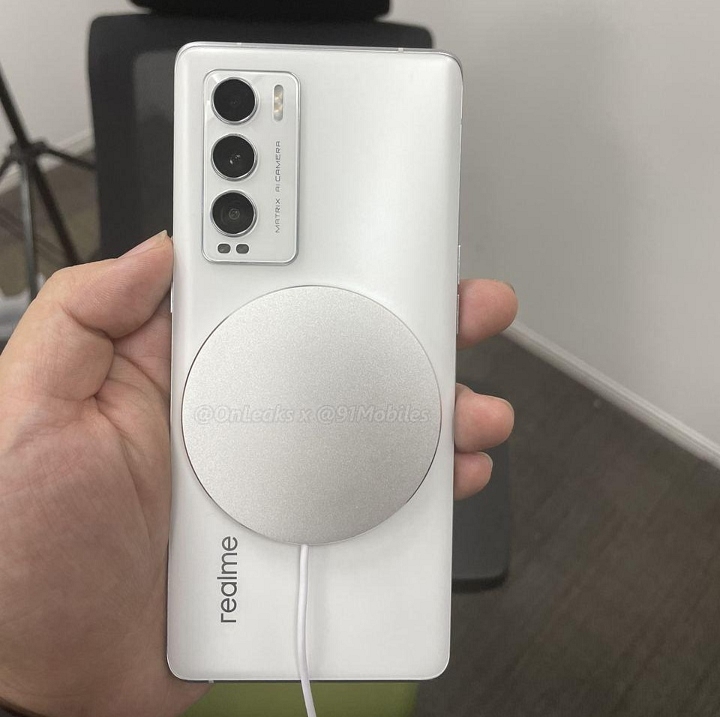
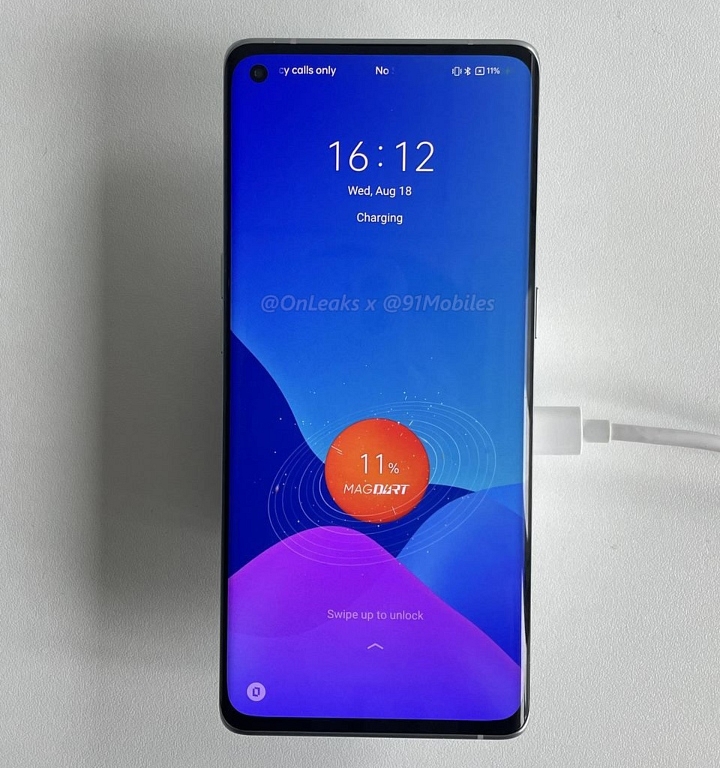
Realme GT Master Edition Prototype With MagDart Leaked In Live Image – All Details

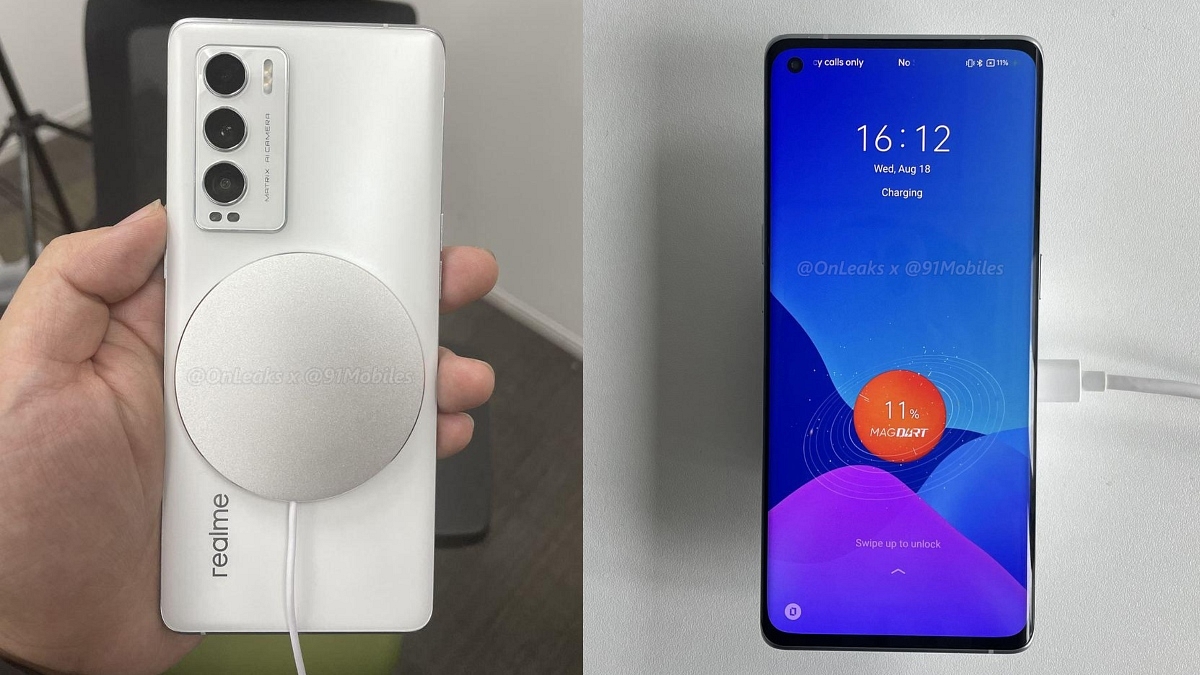
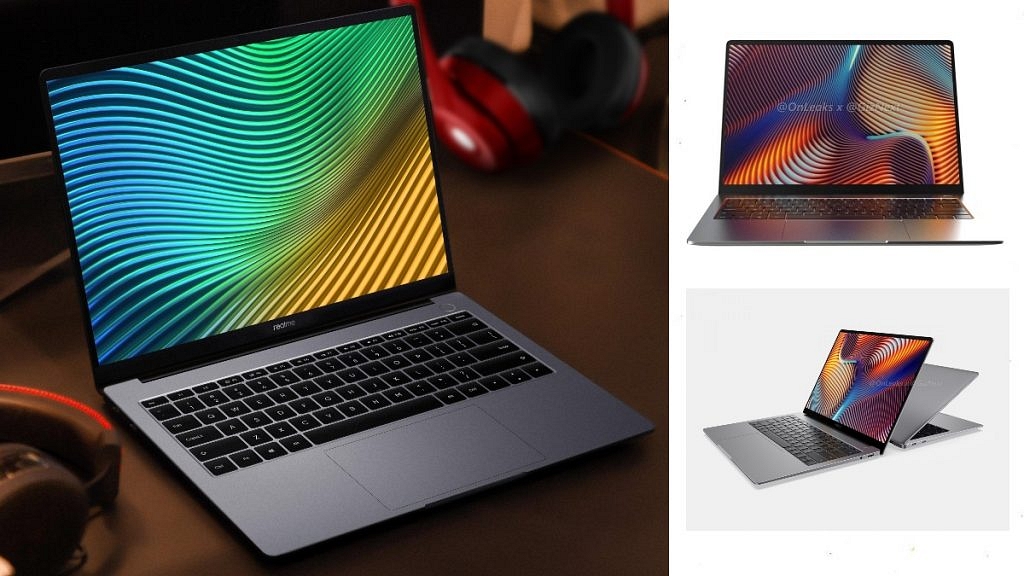
Realme is all set to launch the new Realme Book Slim and the Realme GT Series in India soon. The launch date of these new Realme devices have been officially revealed by the company and it will take place on August 18, 2021, at 12:30 PM. The Realme GT Series will include the Realme GT 5G and the Realme GT Master Edition. Ahead of its official launch, this smartphone has leaked in a live image with the MagDart.

Realme GT Master Edition with MagDart – Images

The leaked live images of the Realme GT Master Edition’s prototype with the Realme MagDart support reveals some interesting details. Just a few days ago, Realme unveiled its MagDart magnetic wireless charging solution which is similar to Apple’s MagSafe. Realme currently only has the Flash concept phone to show how its MagDart system works. But, the company is planning to expand it to some more devices.

Also Read: Realme Book Leaked In Live Images Ahead Of Launch – Check Out Its Expected Price & Specs

The MagDart magnetic wireless charging solution will support a host of Realme devices in the near future but initially, the company plans to start it with the Realme GT Master Edition. A new leaked live image of the Realme GT Master Edition’s prototype supporting MagDart has been recently found online. However, it needs to be mentioned that its current retail model which will be launched in India soon won’t support it.

Realme GT Series – India Launch Details

Realme will launch the new Realme GT 5G, Realme GT Master Edition along with the Realme Book Slim in India on August 18, 2021. The Realme GT Master Edition will be powered by the Qualcomm Snapdragon 778 processor along with up to 8 GB of RAM and 256 GB of internal storage. It will sport a triple camera set-up, the primary sensor being a 64 MP unit. It will pack a 4300mAh battery with 65W fast charging.

Also Read: Samsung Galaxy A52s 5G Images, Specifications and Price Leaked Ahead Of Launch – All Details

So, this was all about the upcoming new Realme GT Series in India. Do you want Realme to offer MagDart support for all its smartphones? Do feel free to share your thoughts with all of us in the comments section below. You can also join our GizNext Tech Enthusiast Telegram group (click via mobile to join) and even the GizNext Tech Enthusiast WhatsApp group which have been curated exclusively for the tech geeks.