Categories
How To Tech News

WhatsApp Images Not Showing In The Gallery? Here’s How To Fix It

Key Highlights

  • Currently, WhatsApp is among the most widely used services for instant messaging
  • Most often, a settings-related issue is to blame for the WhatsApp photographs and videos not appearing in the gallery
  • There are a number of reasons why WhatsApp on your phone can stop functioning

WhatsApp is one of the most popular messaging applications that is widely used to send text messages and share images, videos, and other documents. The app is currently providing messaging services across the Android and iOS mobile ecosystems. Sometimes WhatsApp images don’t show in the gallery. This can be due to a couple of reasons that can be easily fixed. In this article, we have explained How to fix WhatsApp images not showing in the Gallery.

Also Read: How To Download And Use WhatsApp On Jio Phone? Step By Step Guide

Steps To Fix And See WhatsApp Images In The Gallery For Android Smartphones

Received Images Are Not Saved In The Gallery

You must check the media visibility settings in WhatsApp if the received WhatsApp images not downloading in the gallery. Follow the below steps to activate this setting.

Step 1: Open WhatsApp on your smartphone and click on the 3 dots on the top-right side of your screen. A pop-up will appear. From there, select the “settings” option.

Step 2: Once you have opened the WhatsApp settings screen, now click on the “chats” option and look for the “media visibility” option.

Step 3: Now turn on the media visibility options and reboot your smartphone once. Now the WhatsApp images will appear in your gallery.

You can turn on this feature anytime by following the same steps.

Also Read: 100 Best Instagram Names For Food Bloggers To Get More Followers

Sent Images In WhatsApp Are Not Showing In The Gallery
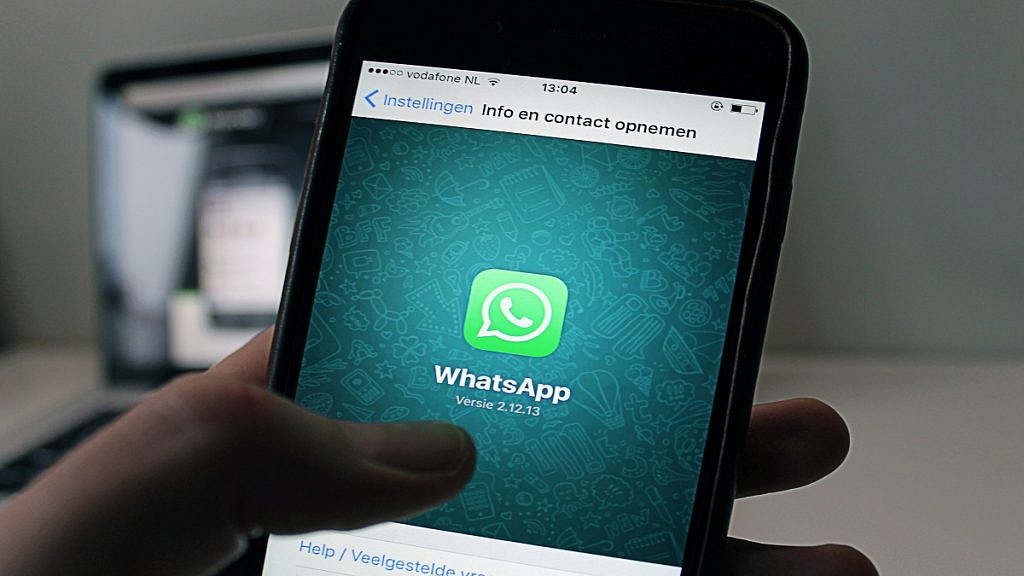
Sometimes people click photos directly from the WhatsApp camera, and when they look for the photo in your gallery, the images are not there. To fix this issue, first, activate the media visibility option from WhatsApp settings. If still, it doesn’t appear, then follow these alternative steps.

Step 1: Open the file manager app on your smartphone. Then, go to settings and enable the “show hidden files” option.

Step 2: Now go back to the internal storage and search for the WhatsApp folder. Now navigate to “media” and then “WhatsApp images”.

Step 3: Now, search for the .nomedia file and delete the file from your smartphone. Similarly, search the .nomedia file in the “private” and “sent” folders and delete it from there as well.

Now reboot your device, and WhatsApp images will appear in your gallery. Ensure that the .nomedia file is not present in the WhatsApp images folder.

Also Read: Lost Reliance Jio SIM Card? Here’s How To Block And Resume Your Jio Number

Steps To Fix And See WhatsApp Images In The Gallery For iOS Smartphones And iPads

Allow Permission To Photos For WhatsApp Images

iOS smartphones don’t allow WhatsApp to download photos in a gallery until you don’t give permission from privacy settings. To allow permission for WhatsApp images to download in the gallery, follow these easy steps.

Step 1: Open the settings option on your iOS devices and navigate to the privacy option.

Step 2: Open the privacy option, search “photos,” and then click on “WhatsApp”.

Step 3: Now select the “all photos” option, and WhatsApp photos will appear in your gallery.

Also Read: Best WhatsApp Status Apps To Download And Use On Android, iOS

Enable WhatsApp To Automatically Store Images In The Gallery
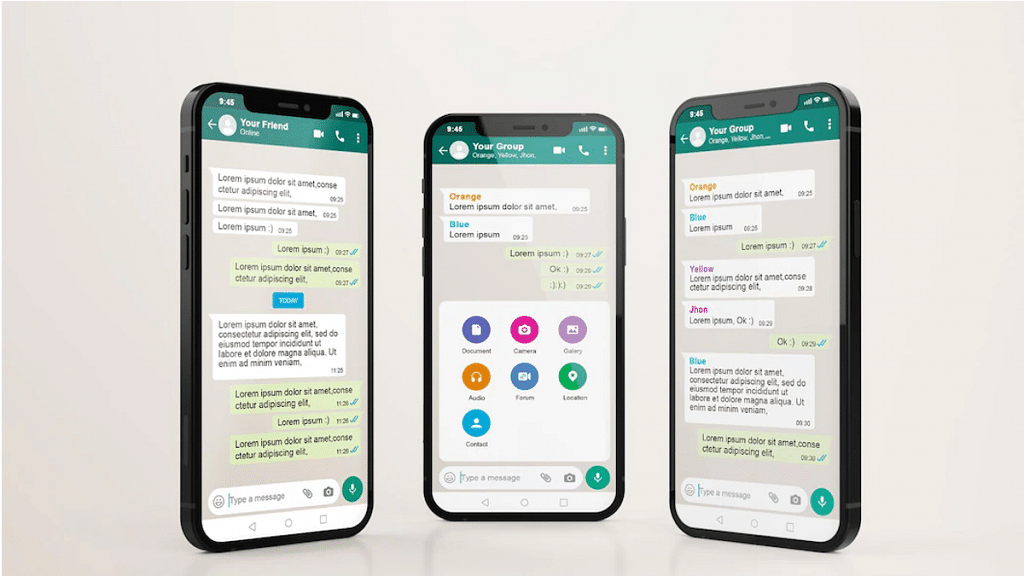
This option is enabled by default on every device, but you can still check once if images don’t show in the gallery. Follow the steps to enable this option.

Step 1: Open WhatsApp on your iOS devices and click on settings on the bottom-right corner of your screen.

Step 2: Now navigate to chat settings and enable the “save to camera roll” option. Reboot your smartphone once, and WhatsApp images will start appearing in your gallery.

Also Read: 100 Gaming Channel Name Ideas For YouTube You Can Use: Here’s The List

Wrapping Up

Firstly, ensure that your WhatsApp application is updated to the latest version and restart your device. If still nothing happens, then here is the solution to fix your problem for both Android and iOS devices.

Also Read: Best WhatsApp Status Apps To Download And Use On Android, iOS
Categories
Info Tech News

Top Three ways to turn on android without using the power button – Details

As technology advances, smartphones offer new features and functions. Even most of the buttons are replaced by on-screen touch buttons or swipe gestures. The power button is still the same hardware button, the most important button to turn on the smartphone. In this article, we have shared the Top 3 common ways to turn on android without using the power button.

Since it is the most frequently used button on a smartphone, there are chances it stops functioning or gets broken. However, if you wish to turn on an android smartphone without using the power button, here is how you can do it.

Top 3 common ways to turn on android without using the power button

1.     Enable screen wake-up gestures or schedule the automatic reboot feature, etc

If your power button doesn’t work or is damaged, you can still turn on the phone with built-in features in your android smartphones like the screen wake-up gestures or schedule the automatic reboot feature.

The screen wake-up gestures activate your screen with gestures like picking up the phone or double tap on the screen. This will limit the use of the power button, and you can turn on the phone without using the power button.

You can even schedule an automatic reboot feature to restart your phone at a specific time. This lets you switch on/off your android device as per the scheduled time without using the power button. Ensure that your phone’s battery is charged enough so that it doesn’t get switched off permanently.

2.     Remap the power button using third-party apps

You will find several third-party applications that will help you to remap the power button to a different button. This is very helpful if the button on your device doesn’t work or function properly.

Assign the power button to the volume button or any other button and select the power button features and allow the permissions to the application to remap the power button of your device.

You can get all the features of the power button on your volume button and can switch on the phone without the power button.

3.     Using ADB Commands

This is a little complicated way to turn on an Android device without using the power button. To perform this method, you must have enabled the USB debugging option, and the default connection mode should be to transfer files.

You need a laptop or a computer and follow these steps.

Step 1: Connect your android smartphone to your laptop or computer with a USB cable.

Step 2: Now, you need to install ABD drivers on your laptop. You will find several tutorials on YouTube to install ABD drivers.

Step 3: After installing the ABD drivers, open the ABD directory. Press shift + right-click together, and a pop-up will appear. Select the “Open PowerShell windows here” option to open the windows PowerShell tab.

Step 4: Write “ABD devices” in the windows PowerShell tab, and the code name of your device and serial number will appear automatically on the tab.

Step 5: Check if the device code name and serial number are correct. Now write ADB reboot and click enter to reboot your android smartphone.

Also Read: Ways to Hide Apps on Android – Check Out These Simple Steps

Wrapping up

These were the few common ways to easily turn on an android smartphone without a power button. This is just a temporary solution if the power button is not functioning. It’s better to visit the service centre to fix the power button and replace it with a new one.

Categories
Info Tech News

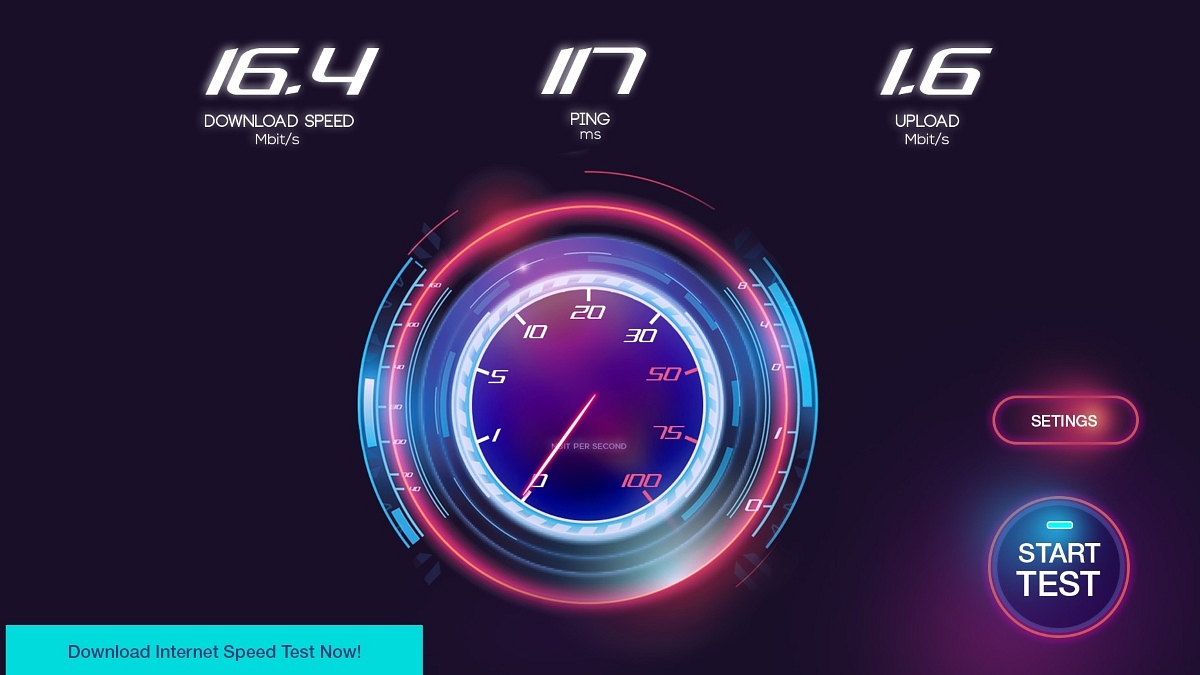
Best ways to test internet speed on your android smartphone

Internet speed testing becomes very important before selecting a network provider for your android smartphone and other devices. Hence, you must test the internet speed on your android smartphone to ensure that you get high-speed internet access at your location.

The best ways to test internet speed on your smartphone

  1. Speedtest

Speedtest is an application for all devices, including Android smartphones. You can test the internet speed on your smartphone within seconds. This application tells you the accurate speed of your internet connection. This application offers you to test any type of internet connection, whether it’s a WiFi or a cellular network.

You can test both the download and upload speed of your internet connection. You can monitor the consistency of your internet connection with the real-time graph on this application. Overall you get detailed stats about your internet connection and easily test the internet speed on your phone. This app is easy to access and can be downloaded from Google Play Store.

  1. WiFi Analyzer

This application is only for WiFi network users. You can test the internet speed of the WiFi network and also modify and optimize the WiFi network using this application. You can see the history of your signal strength and optimize your WiFi network to increase the connection speed and stability of your internet connection.

It supports both 2.4GHz/5GHz and lets you change the Access Point of your WiFi network. You get the option to select from the different channels with different signal strength and shows the traffic on the server. Select the channel with maximum stars to get the maximum internet speed on your WiFi network.

  1. FAST Speed Test

FAST is another application from Netflix to test the internet speed on your android smartphone. This application shows you real-time internet speed in Mbps. It has an easy interface and doesn’t show much information other than the connection speed. This works for both cellular and WiFi networks.

Get a quick and easy internet speed test with the help of this application anywhere in the world. It shows both the upload and download speed of your internet connection and IP address and location of your IP address.

  1. Internet Speed meter

The internet speed meter is an internal feature provided in almost every android smartphone. You have to enable this feature from the settings of your phone. This feature shows you the real-time speed of your internet connection, whether cellular or WiFi networks, on the status bar.

If you just want to see the mobile internet speed, then this is the best feature for you. You don’t have to download any application. Monitor your internet speed easily from the status bar with the help of this application.

Wrapping up

These were the few ways to test the internet speed on your android smartphone and get other details related to your internet network. There are several other applications to test the internet speed, but those might not show you the accurate internet speed. These applications are best-rated and show accurate information about your connection speed.

Categories
Info Tech News

List of Best Online Learning Apps in India – Check Them Out

Learning online rather than attending physical offline classes has become very popular in the current times. It is time-saving, flexible, and has no restraint of place. Plus, online learning provides us with a plethora of courses that might not be available otherwise. It helps us manage our time better and learn at our own pace. Below is a comprehensive list of 5 online learning apps which are considered the best learning apps for students in India.

  1. Vedantu

The word ‘Vedantu’ literally stands for ‘Knowledge Network’ (Veda = Knowledge; Tantu = Network). Vedantu provides students with real-time live classes with online teachers. It uses a special technology called WAVE (Whiteboard Audio Video Environment) in its teaching methodology, which makes the classes interactive. It mainly provides lessons for students from 4th to 12th class in both ICSE and CBSE boards, including test prep modules for JEE (Foundation), PSA, NTSE, etc. So, if you are a school-going student, then Vedanta might be a great option for you.

  1. Khan Academy

You can not talk about online education without mentioning ‘Khan Academy’. The best part about Khan Academy is that it provides online education on various topics for free. Yes, you heard it right! You can study a number of courses on subjects like Maths, Physics, Biology, Computer Programming, Art, Economics, Chemistry, Medicine, History, etc., from the comfort of your home using Khan Academy. It also provides test prep for LSAT, Praxis, and SAT.

  1. ByJu’s

If you are a student, then you must have surely heard of ByJu’s. It is one of the top online learning platforms in India right now! It provides study programs for students from 6th to 12th grade and has also recently launched a K5 app for students of class 4th and 5th. It is one of the best online learning apps with comprehensive content, including previous year papers, notes, and tests, along with proper guidance.

ByJu’s now also provides test prep for JEE, NEET, GATE, CAT, UPSC, IAS, Bank, and Government Exams.

  1. Unacademy

Unacademy is also one of the best online learning apps in India that is very well-known. It is known for its high-profile and well-qualified educators and is especially helpful for those wanting to study for various college entrance and government exams. It provides courses for preparation of class 6th to 12th along with IIT JEE, CLAT, NEET-UG, UPSC, CSE, GATE & ESE, SSC, etc. 

  1. GradeUp

Also known as the GradeStack Learning Pvt. Ltd claims to be India’s largest online test prep app and online platform and is considered one of the best online learning apps by the students connected with it. It provides comprehensive courses with study material, live classes, recorded sessions, mock test series, mentoring, doubt solving sessions, quizzes, etc. It has well-qualified teachers and mentors who can help you prepare for exams like Banking, Railways, SSC, Teaching, GATE, CLAT, JEE, NEET, UPSC, Defence, and various state-level exams.

The apps mentioned above are considered to be the best learning apps in India that you can use to study from the comforts of your home.

Categories
Info Tech News

Ways to Hide Apps on Android – Check Out These Simple Steps

Our smartphones know almost everything about us, some things we might even want to hide from others. There can be important office apps that you would want to hide from kids or simply dating apps that you would rather keep private than having them show up on the homepage. Whatever your need, hiding apps is a simple tool to maintain privacy even while handing over your phone to someone else. So, in this article, we have explained the various ways to Hide Apps on Android.

So, your next question might be – how to hide apps, specifically how to hide apps on android. The first factor that plays a role in hiding your apps on an android device is the brand of the android smartphone you are using. Different brands have different launcher to hide apps. To hide apps on different smartphones using the phone’s in-built launcher, follow the following steps.

Ways to Hide Apps on Android

On a Samsung Smartphone

  1. Go to the Phone’s Settings.
  2. Select the ‘Display’ option.
  3. Click on the ‘Home Screen’ button.
  4. From here, select the ‘Hide Apps’ option. This will take you to the app window.
  5. Select the icons of the apps you want to hide.
  6. Click on the ‘Done’ button.

On a OnePlus Smartphone

  1. Swipe up on the home screen to open the ‘App Drawer’.
  2. Now, swipe to the right. This will open the ‘Hidden Space’ folder.
  3. In the ‘Hidden Space’ folder, click on the ‘+’ symbol on the upper-right corner of the screen.
  4. Select the icons of the apps you want to hide.
  5. Set a password (this is an optional step to maximize security) by clicking on the ‘Enable Password’ button.
  6. Click on the tick-mark button to hide the apps.

On a Huawei Smartphone

  1. Go to the Phone’s Settings.
  2. Click on the ‘Privacy Protection’ tab.
  3. Here, select ‘PrivateSpace’, ‘Enable’ it and follow through the steps to make a private space in your Huawei device.
  4. Log in to your ‘PrivateSpace’.
  5. Download apps that you want to hide in the ‘PrivateSpace’. These apps will then only be visible in the ‘PrivateSpace’ and not the ‘MainSpace’.

On an LG Smartphone

  1. Press and hold an empty area on the phone’s home screen.
  2. Click on ‘Home Screen Settings’.
  3. Now, select the ‘Hide Apps’ option.
  4. Select the icons of the apps you want to hide.
  5. Click on the ‘Done’ button to hide the selected apps.

On a Redmi Smartphone

  1. Tap the ‘Security’ app icon.
  2. In the security app, look for and select the ‘App Lock’ option.
  3. Select the icons of the apps you want to hide.
  4. Confirm the selection to hide the apps.

Other than using in-built smartphone features to hide apps, you can also opt for a third-party app to hide apps android. A great third-party app that you can use to hide apps in your smartphone is Nova Launcher Prime. It is available on the Google Play Store and can be downloaded from there. After downloading Nova Launcher Prime, follow the following steps to hide apps:

  1. Set Nova Launcher Prime as your default app launcher.
  2. Now, open ‘Nova Settings’.
  3. In the ‘Settings’ app, click on the ‘App & Widget drawers’ option.
  4. In the Drawers group, choose the ‘Hide Apps’ option.
  5. Select the apps you want to hide.
  6. Confirm the selection to hide the apps.
Categories
Info Tech News

Know WiFi Password on Android – Detailed in Simple Steps

There are WiFi networks everywhere, and it’s not possible to remember the password for each WiFi network. When you connect with a WiFi network, the password gets saved on your device. So, you can easily view the WiFi password on android if you forget the password of your WiFi network. This method works for only Android 10 and higher versions. Hence, update to the latest version to get this feature. In this article, we have explained how to know the WiFi password on Android.

Steps to know WiFi password on android

Following these steps, you can find other WiFi passwords on android smartphones. To know the WiFi password on android using this method, you have to connect with the WiFi network once, and then only you can find the password and use it to connect your other device.

Step 1: Open settings and then search for the WiFi option. Select and open the WiFi option. In some smartphones, the WiFi option appears on the ‘network and internet’ menu. You can open it directly by long press on the WiFi symbol from your notifications. All androids have almost similar settings, so it will be the same for all android smartphones.

Step 2: Now, after selecting the WiFi option, a new page will open where you can see all available WiFi networks in your neighborhood. Look for the ‘saved networks’ option on the same page. Select the saved network option and open it. A new page will open where you will see the list of WiFi networks you have previously connected with and saved on your android device.

Step 3: Now select the network to find its WiFi password. After you select a network, another page will open where you can find the ‘share’ option on your screen. In some android smartphones, the share option will not show if you are not currently connected with the WiFi network. After you select the share option, you will have to verify it’s you in the same way you unlock your device. Once you verify, a QR code will appear on your screen. The QR code will show you the network’s SSID and password.

Step 4: Now download a barcode scanner from Google Play Store. In many smartphones, it is pre-installed. Open the barcode scanner from another android smartphone and scan the barcode on your screen to connect your smartphone with the WiFi network. The password is also given below the barcode. You can directly copy it from there.

Wrapping up

There are several other applications on Google Play Store that offer you to find other WiFi passwords, but most of these applications are fake and don’t show the correct WiFi password. Sometimes it works if the WiFi network uses a common password. The only way to know a WiFi password is only if you have connected with the WiFi before.

These were the steps to know the WiFi password on an android smartphone. You can use this method if you forget your WiFi password and want to connect it with another device. However, it’s unethical to share the WiFi password of someone else without their permission. You can always ask the owner to connect your device with the WiFi network.

Categories
Laptop Tech News

Realme Book Leaked In Live Images Ahead Of Launch – Check Out Its Expected Price & Specs

Realme is all set to launch its first laptop in India in the coming days. Realme has now finally confirmed that its upcoming laptop will be called the Realme Book Slim and the company has announced its official launch date too. However, ahead of its launch, the all-new Realme Book has now leaked in live images that reveal how this laptop will look in real life. So, in this article, we have shared its expected price, specifications, etc.

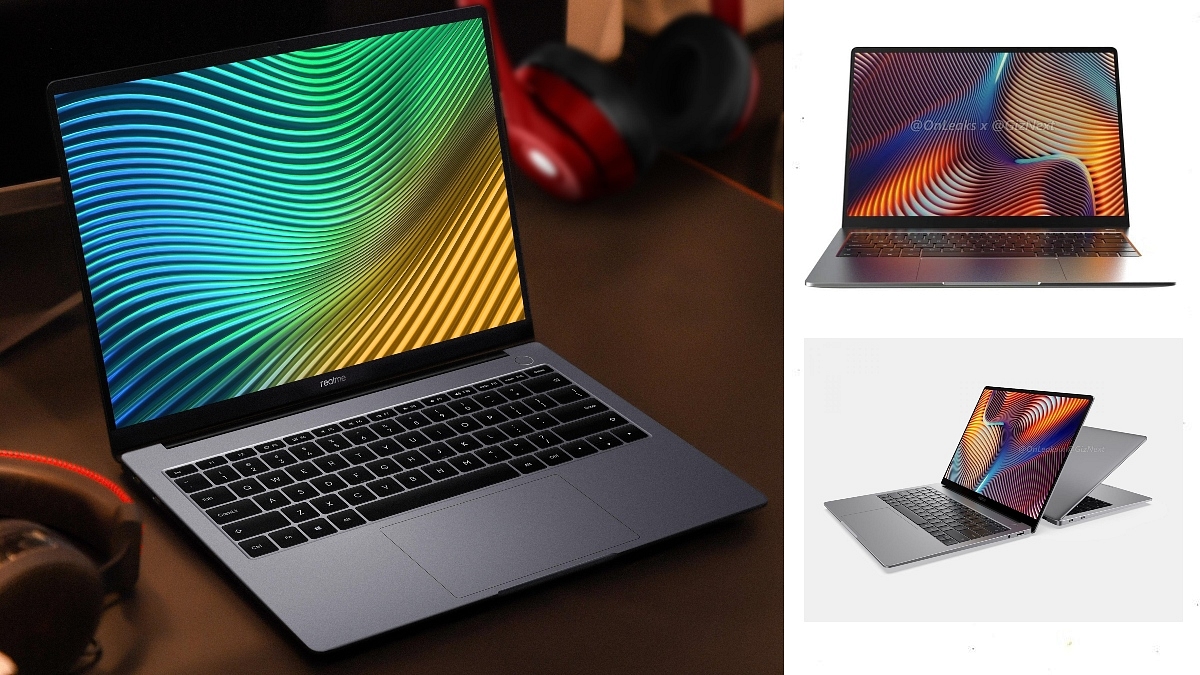
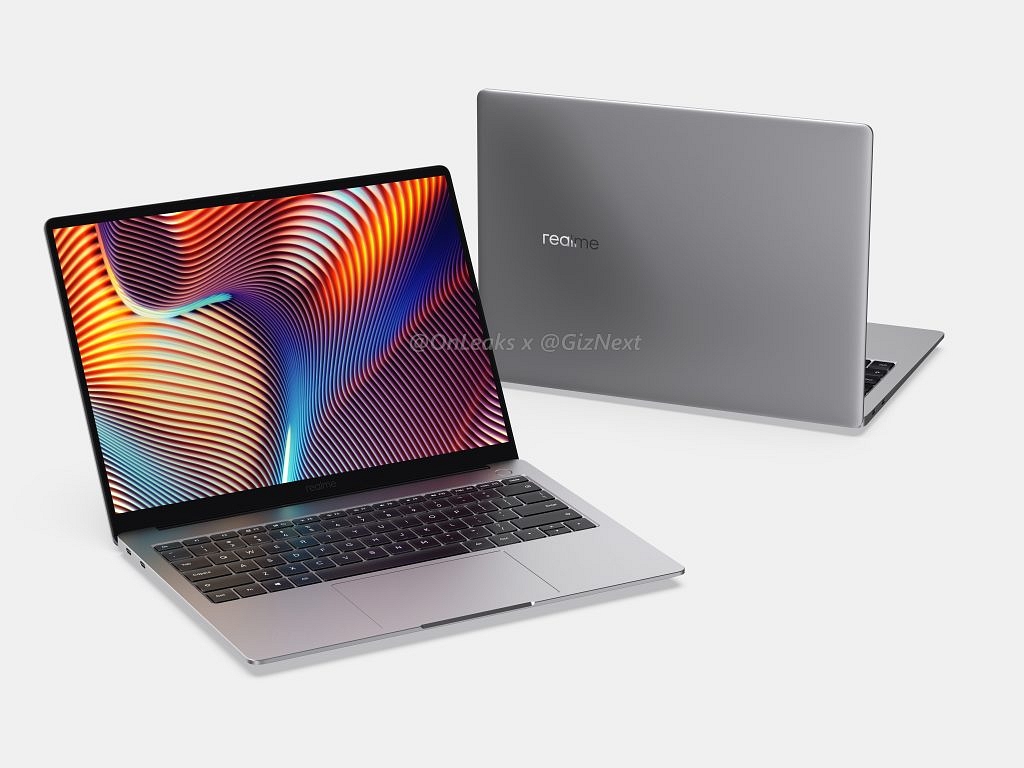
Realme Book – Live Image Leaked

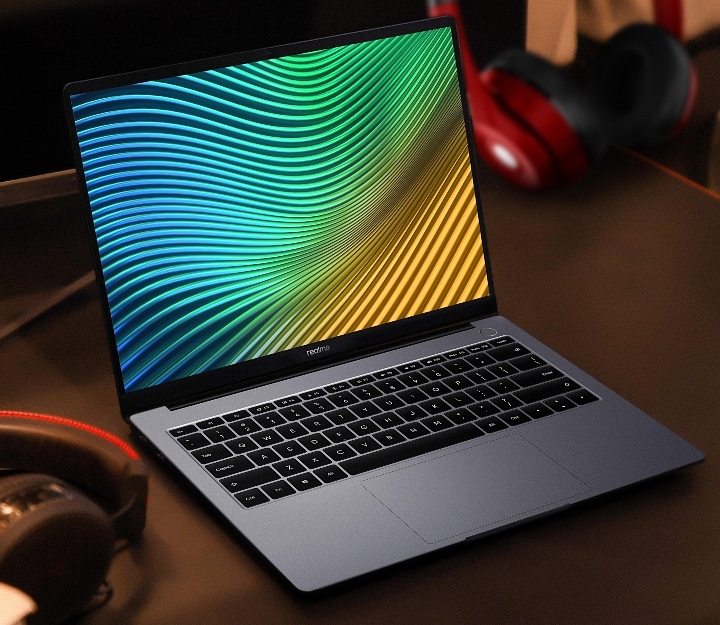
The live image of the upcoming Realme Book clearly reveals that it will resemble the Apple MacBook Air to a great extent. We can see that the laptop gets a metallic finish. It sports an immersive display with thin bezels and Realme branding at the bottom. The image also reveals that it will get a large touchpad and a fingerprint sensor. All in all, the new Realme Book looks promising and it will surely attract a lot of buyers.

Realme Book – Key Specifications

The new Realme Book will feature a 14-inch 2K display with a screen resolution of 2160 x 1440 pixels and a 100 per cent sRGB colour gamut. As per some latest media reports, it will be powered by the latest 11th-generation Intel Core i5-1135G7 Tiger Lake processor with Intel’s Xe graphics. The laptop will sport up to 16 GB of RAM and up to 512 GB of PCIe storage. It might pack a 54Wh battery with 65W fast charging.

Also Read: Samsung Galaxy A52s 5G Images, Specifications and Price Leaked Ahead Of Launch – All Details

Realme Book – Launch Date and Price

Finally, let’s talk about the launch date and price. So, Realme India has now officially confirmed that the new Realme Book Slim will be launched in the country on August 18, 2021. On the very same day, this laptop will be launched in China too. It is expected to be priced in India from around Rs 40,000 for the lower-spec variants. It will be mostly targeted towards college students and young working professionals.

Also Read: [GizNext Exclusive] Realme’s First Laptop Revealed via Stunning Render Images – Specification Details

So, this was all about the upcoming Realme Book. Are you excited about its launch in India? Do feel free to share your thoughts with all of us in the comments section below. You can also join our GizNext Tech Enthusiast Telegram group (click via mobile to join) and even the GizNext Tech Enthusiast WhatsApp group which have been curated exclusively for the tech geeks.  

Categories
Info Tech News

Explained – Working trick to send big files large videos on WhatsApp

WhatsApp is the most popular text messaging application worldwide, but sharing big files and large videos on WhatsApp has always been a problem for almost every user. WhatsApp limits on sharing of files or videos that are over 100 MB, and also, it reduces the video or picture quality whenever you directly send it from WhatsApp. So, in this article, we have explained the working trick to send big files or large videos on WhatsApp.

In this article, you will read about easy working tricks to send large videos or files on WhatsApp. Following these methods, you don’t have to worry about sending large files or compromising on video quality while sharing anything on WhatsApp.

Working trick to send big files large videos on WhatsApp

  1. Using Google Drive

If you are wondering how to send big files in WhatsApp, then use the Google drive trick. It is the easiest way to send big files on WhatsApp. Google Drive is pre-installed on every smartphone, so you don’t have to download any additional applications.

To send big files using Google Drive, open Google Drive and upload the file or video you want to send by clicking on the ‘+’ icon. Then select the file or video you want to upload, and the upload will start in a couple of seconds. Once your file is uploaded, you can copy the link and share it with the person on WhatsApp.

Don’t forget to give access by clicking on the ‘Manage people and links’ option otherwise. Others will not be able to download it.

  1. Using WeTransfer

The second working trick on how to send big files on WhatsApp is by using WeTransfer. WeTransfer is an alternative to Google Drive and allows you to send large videos or files without downloading any additional applications. Simply open your web browser and search for WeTransfer.

This website has a user-friendly interface that will help you to find all the features easily. Open the website and then click on the ‘Add your files’ option and upload the file or video. Then open the file or video, and you will see an option ‘Get a link’. Clicking on that, you will get a sharable link that you can copy and share with the person on WhatsApp.

  1. Using applications like Wondershare Uni-converter, Video compressor Panda, etc.

There are a couple of other applications that you need to download on your smartphones to send big files and large videos on WhatsApp. These apps compress your video to any size and any resolution.

You can compress the size of the video keeping the quality the same, and easily share it on WhatsApp. These applications are easy to use, and just a couple of clicks will convert your video without losing its quality.

Wrapping up

These were a few working tricks to share big files and large videos on WhatsApp. Now you don’t have to worry about sending big files or videos on WhatsApp without compromising on the quality of the video. Using these listed tricks, you can share your files or videos to any platform.

Categories
Info Tech News

How to Remove Your Phone Number from Truecaller – Check It Out

Key Highlights

  • Truecaller is a popular caller ID app for Android and iOS
  • One can check unknown caller names using Truecaller
  • Option to remove name from Truecaller app is possible

In the world of digital advancement, it is becoming extremely difficult to maintain privacy online. That applies to your personal data on apps like Truecaller too. Truecaller is an app that helps you identify the person who is calling you and relevant details about them like their locations just by their mobile number. Although it can be helpful in the case of identifying frauds and scams, it has quite a few drawbacks for someone who wants to retain their privacy. There can be times when your phone number could leak personal information like your name and location, and that can be problematic. 

How to Remove Your Phone Number from Truecaller

So, some questions and concerns might be bubbling up in your head, like – How to unlist my number from Truecaller? How to change my name in Truecaller? And so forth. But don’t worry, you are at the right place. In this blog, we will talk about how to unlist numbers from Truecaller and remove numbers from Truecaller, and even how to delete Truecaller account. Read on to find out How to Remove Your Phone Number from Truecaller.

Before unlisting your number, you need to make sure to deactivate your Truecaller account (if you have one) first. In case you don’t have a Truecaller account, you can directly head to unlisting your phone number.

Also Read- [GizNext Exclusive] Samsung Galaxy Z Flip 3 5G Revealed In Full Glory: Official Brochure & Features

How to Deactivate Your Truecaller Account

On an Android Device:

  1. On Android, open the Truecaller app.
  2. In the app, click on ‘Menu’ (the three-striped button) on the upper-left corner of the screen.
  3. Select the ‘Settings’ option from the Menu List.
  4. Go to the ‘Privacy Center’ in ‘Settings’.
  5. Here, click on the ‘Deactivate’ option to deactivate your Truecaller account.
  6. Finally, confirm the deactivation in the pop-up notification.

Also Read: Stop Call Recording Announcement On Realme Smartphones: Here’s How

On an iOS device:

  1. On an iOS device, go to the Truecaller app.
  2. Click on your profile avatar on the upper-left corner of the screen.
  3. Select the ‘Settings’ option from the list.
  4. Go to the ‘Privacy Center’ in ‘Settings’.
  5. Here, click on the ‘Deactivate’ option to deactivate your Truecaller account.
  6. Finally, confirm the deactivation in the pop-up notification.

How to Unlist a Number from Truecaller

On web:

  1. You can unlist your phone number using a web browser by visiting https://www.truecaller.com/unlisting (Truecaller unlist page link).
  2. On the webpage, type in your phone number in the box (along with the country code).
  3. Solve and enter the Captcha. 
  4. Click on the Truecaller’s ‘Unlist Phone Number’ button.
  5. Confirm the selection in the pop-up notification.
  6. Truecaller will unlist the entered phone number from their searchable database in around 24 hours from the time of your request.

It is important to note that deactivating your phone number will still enable the people you call to see your information. But, it is a good thing that your phone number will be removed from the ‘searchable database’. That is, your personal information will not show up when someone searches your phone number in the search bar of the Truecaller app. So you can rest assured and enjoy that little bit of privacy!

Also Read: Truecaller Tips & Tricks: Check Steps To Turn Off Last Seen Feature On Android

Categories
Mobile Tech News

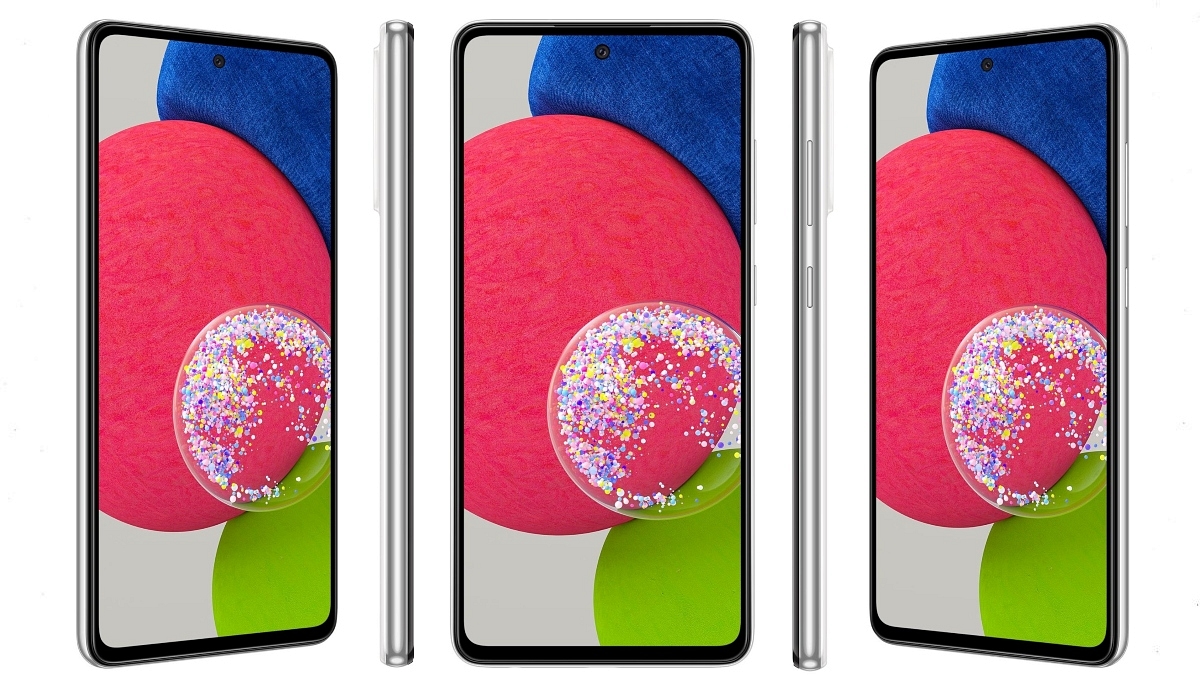
Samsung Galaxy A52s 5G Images, Specifications and Price Leaked Ahead Of Launch – All Details

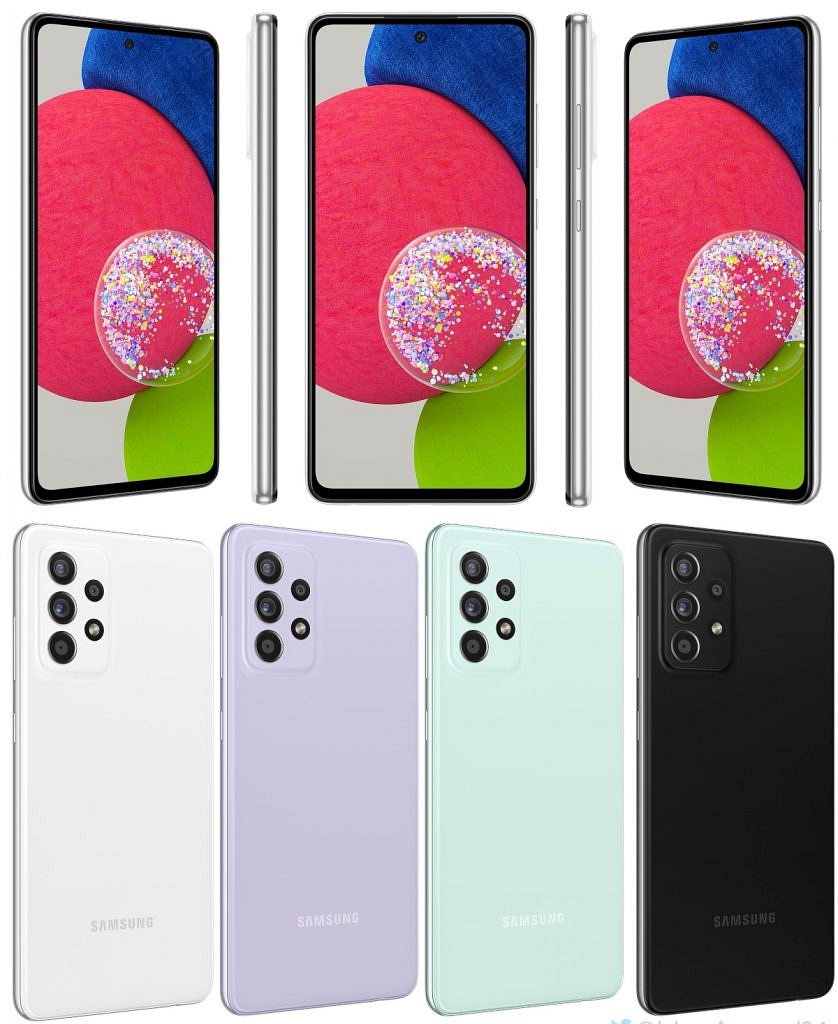
Samsung will soon launch the new Galaxy A52s 5G to expand the Galaxy A52 series. The new Samsung Galaxy A52 5G was globally unveiled in March this year along with the regular Galaxy A52 4G and the Galaxy A72. While the 5G version of the Galaxy A52 is yet to arrive in India, Samsung is now planning to soon launch the Galaxy A52s 5G in the European markets and here are all the details about this device.

Galaxy A52s 5G – Key Specifications

The images, price and specifications of the upcoming Samsung Galaxy A52s 5G have already leaked on the internet. The leaked document reveals that the all-new Galaxy A52s 5G will be powered by the Qualcomm Snapdragon 778G paired with the Adreno 642L GPU. This 5G smartphone might feature a 6.5-inch FHD+ Super AMOLED Infinity-O Display with a 90Hz high refresh rate system and an in-display selfie camera. 

Galaxy A52s 5G – Camera Features and Battery

The exact camera specifications of the upcoming Samsung Galaxy A52s 5G isn’t out yet. However, it will sport a quad-camera set-up at the rear. It might feature a 64 MP primary camera along with a 12 MP ultra-wide-angle lens, a 5 MP macro shooter and a 5 MP depth sensor. At the front, it might get a 32 MP camera for selfies & videos. The Galaxy A52s 5G might pack a 4500mAh battery with 25W fast charging support.

Also Read: [GizNext Exclusive] Samsung Galaxy Z Flip 3 5G Revealed In Full Glory: Official Brochure & Features

Galaxy A52s 5G – Colours, Launch Date and Price

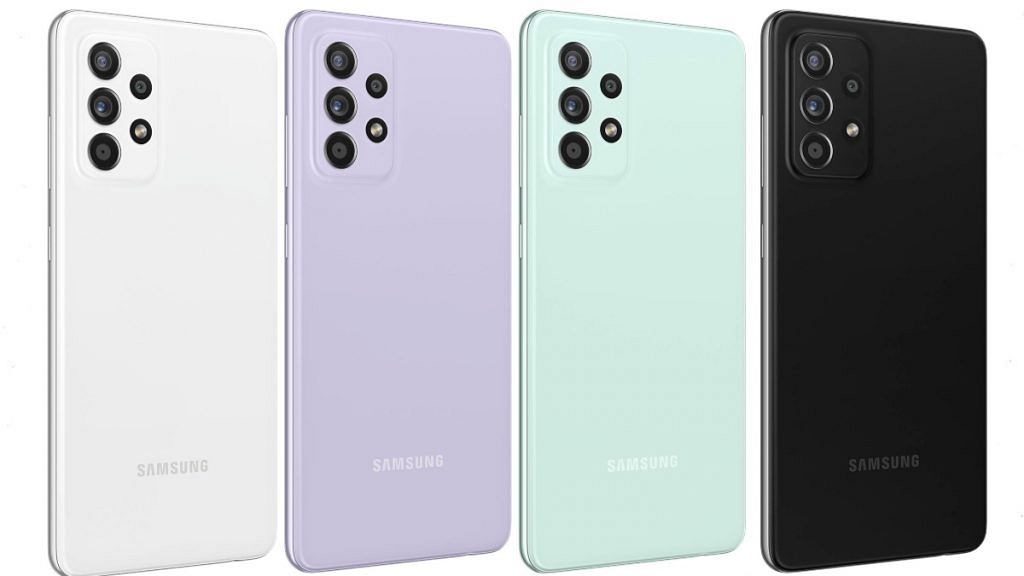
The leaked documents reveal that the new Galaxy A52s 5G will be available in four colour shades. They are White, Green, Purple and Black colour. This new 5G smartphone is expected to be launched in the European markets very soon and as per the leaked pricing, the 6 GB RAM + 128 GB internal storage variant of the Galaxy A52s 5G will be priced at 449 Euros which roughly translates to around Rs 40,000.

Also Read: [GizNext Exclusive] Samsung Galaxy Z Fold 3 5G Revealed In Full Glory: Official Brochure & Features

So, this was all about the upcoming new Samsung Galaxy A52s 5G. Are you excited about its launch and do you want Samsung to launch this new 5G smartphone in India too? Do feel free to share your thoughts and opinions with all of us in the comments section below. You can also join our GizNext Tech Enthusiast Telegram group (click via mobile to join) and even the GizNext Tech Enthusiast WhatsApp group which have been curated exclusively for the tech geeks.