Categories
Featured How To Mobile

Call Merge Scam Alert: Here’s How To Stay Safe From OTP Fraud

Key Highlights

  • Scammers trick people into merging calls to steal OTPs and money
  • Never merge calls with unknown numbers or share OTPs
  • Report suspicious calls to your bank and the cybercrime helpline (1930)

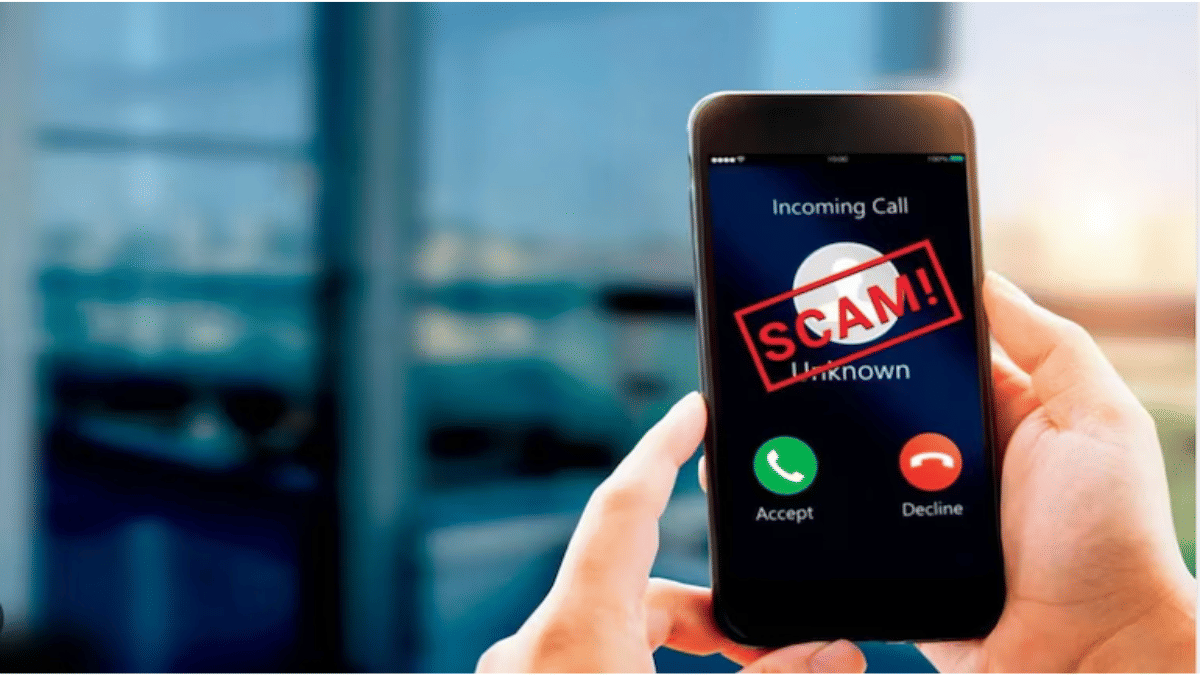
A new scam is on the rise in India. The fraudsters are tricking people into merging calls and unknowingly sharing their OTPs. This allows scammers to complete unauthorized transactions and steal money. Authorities have warned users to be extra cautious and avoid merging calls with unknown numbers. Let’s get to know more.

Also Read | Scammed On The Internet? Here’s How To Report Online Scams Via India’s Cyber Crime Portal

How The Scam Works
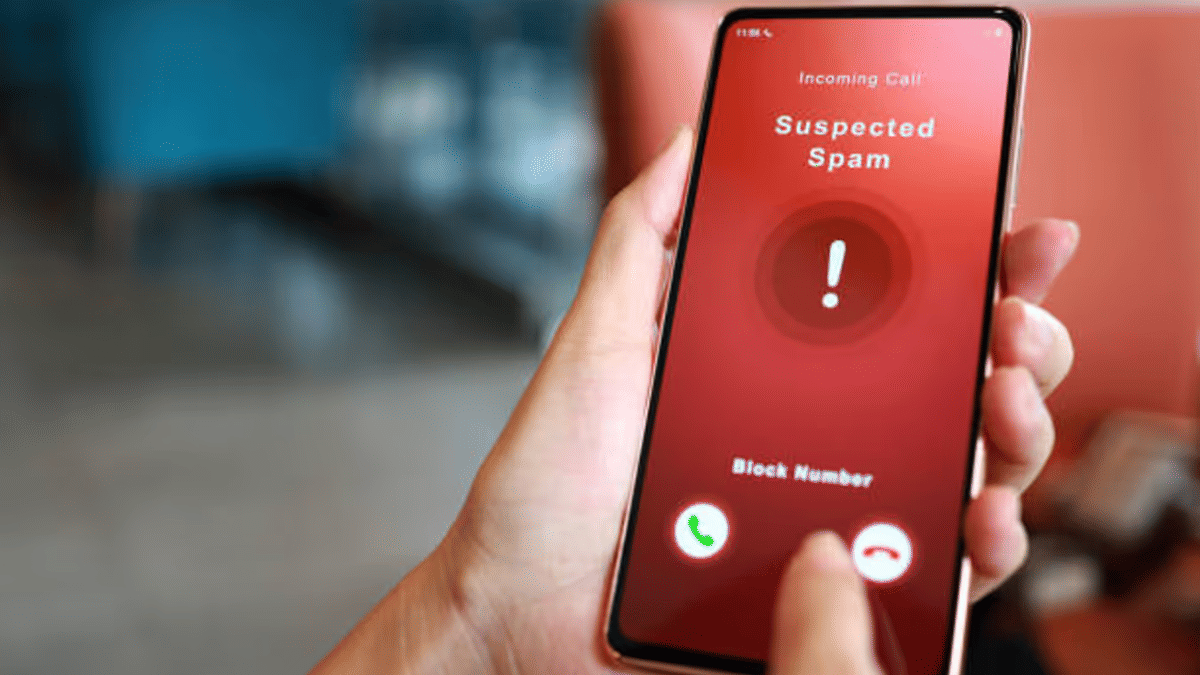
  • A scammer calls, pretending to be a friend or someone who got your number from a known contact.
  • They ask you to merge the call with another number, claiming it’s your friend or a bank representative.
  • The second call is actually an OTP verification call from your bank and the scammer tricks you into sharing the OTP.
  • Once the OTP is shared, the fraudster completes the transaction and steals money from your account.

How To Protect Yourself

  • Never merge calls with unknown numbers: Be cautious when someone asks you to add another caller.
  • Verify the caller’s identity: If someone claims to be your friend or a bank official, call them back on a trusted number to confirm.
  • Report suspicious OTP requests: If you receive an OTP for a transaction you didn’t request, call 1930 (cybercrime helpline) and notify your bank immediately.

Why You Should Be Concerned

A recent survey found that over one-third of people in India have been victims of online scams. According to a report by global analytics firm FICO:

  • 60 percent of people received scam messages.
  • 54 percent knew someone who had been scammed.
  • The number of people losing more than Rs. 8 lakh doubled in 2024 compared to 2023.

What To Do If You Merged A Call With A Scammer?

  • Don’t share any OTPs or personal details.
  • Hang up immediately and contact your bank.
  • Call 1930 to report the scam.
  • Monitor your bank account for suspicious transactions.

Also Read | Fed Up With Scam Calls? Here’s How To Use Chakshu Portal For Reporting Fraud

Stay Safe from Scams

Scammers are finding new ways to trick people, but awareness is the best protection. Never share OTPs over the phone, and always verify calls before taking action.

For the tech geeks, stay updated with the latest cutting-edge gadgets in the market, exclusive tech updates, gadget reviews, and more right on your phone’s screen. Join Giznext’s WhatsApp channel and receive the industry-first tech updates.
Categories
Featured Info Mobile

Fed Up With Slow Internet Speeds? 5 Effective Ways To Boost Your Mobile Internet Speeds (FAQs)

Key Highlights

  • Internet speeds with 5G and 4G networks are the fastest
  • Wi-Fi networks offer stable high speed internet
  • Slow data speeds hampers browsing and streaming experience
  • Resetting network settings can allow improved speeds
  • More steps below

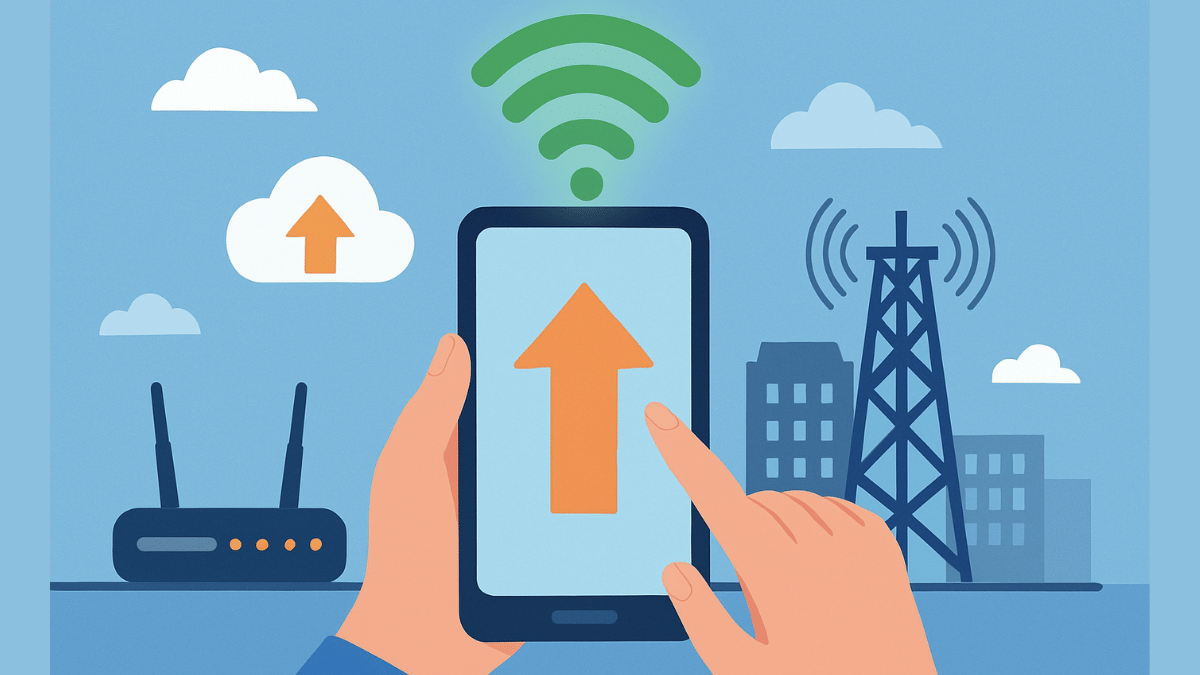
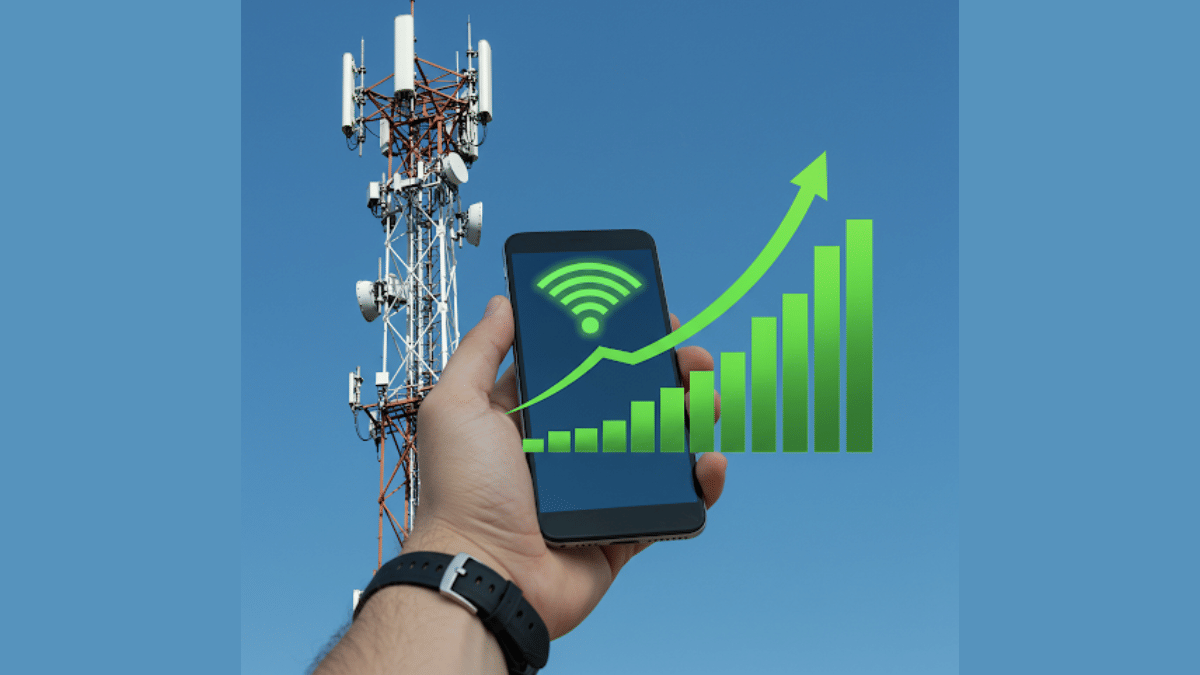
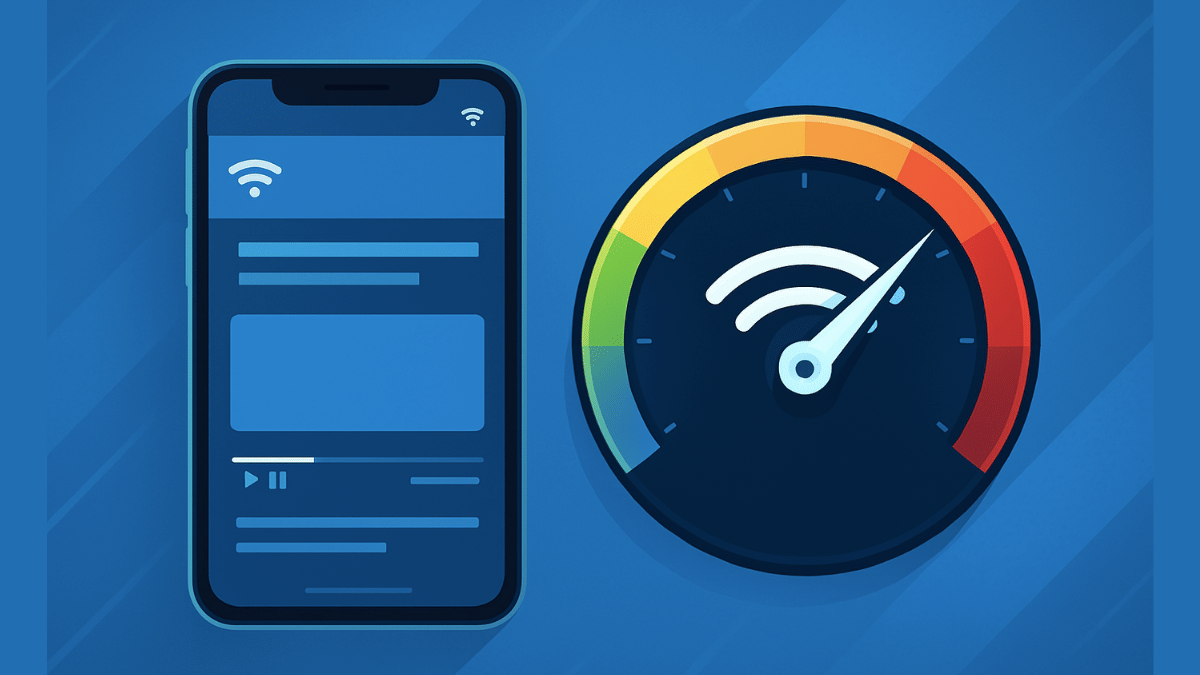
Internet connection today has become more of a necessity than a luxury simplifying our complicated and fast paced lifestyle. It’s impossible to imagine our lives with Wi-Fi or mobile internet, specifically when the digital era is at its boom. And thanks to smartphones, internet is now readily accessible to the masses. High speed internet is also now a reality with faster networks such as 5G and 4G and fibre-optics Wi-Fi connections. But slow internet connection can be frustrating specifically if your are in need of emergency services, or are working remotely, or are in a middle of making a digital payment. What can you do in such situations? Are there any workarounds that can help with enhanced internet speeds? Let’s explore 10 quick ways that can help you fix slow internet speeds.

For the tech geeks, stay updated with the latest cutting-edge gadgets in the market, exclusive tech updates, gadget reviews, and more right on your phone’s screen. Join Giznext’s WhatsApp channel and receive the industry-first tech updates.
Also Read: Forgot Your ATM Card? Don’t Worry! Here’s How To Withdraw Cash From ATM Using Smartphone

Key Reasons For Slow Internet Speeds

General issues such low network coverage, dated firmware and others can slow down the internet speeds.

  • Low Network Coverage: When there is low network reception on your device, it could lead to slow data speeds.
  • Network Congestion: Another common reason for slow internet where number of users increases on a same tower at a given point of time.
  • Multiple Background Apps: If there are multiple apps running in the background, your internet speeds can be affected.
  • Data Throttle/ Pack Expiry: If your mobile data pack is over you might experience slower speeds or no internet connection. Likewise, data throttle which is activated after exceeding the data limit provided by the carrier can also lead to slower speeds.
  • Outdated/ Wrong Network Settings: In case of wrong APN or network settings, data speeds can slow down.

Also Read: Want To Transfer Ola Money Cash To Bank Account? Here’s How To Do It

1. Restart Your Phone

This the classic old method to get back the internet speeds. Switching off and restarting often clears of unused apps and caches and refreshes networks for better internet connectivity and speeds.

2. Upgrade To Faster Network (5G or 4G LTE)

If you still are using older 3G or 2G networks then it’s the time to switch to the latest high-speed 4G or 5G networks. Most of the telecom providers are offering high-speed data packs with 5G and 4G speeds at affordable costs hence switching to a faster network will resolve all the speed-related issues. And if you already have a 5G or 4G SIM just enable the settings on your device.

  • Open settings on your smartphone
  • Go to Mobile Network option
  • Navigate to the Preferred Network Type option
  • Toggle on 5G/ 4G network option

3. Check Network Signal Strength

Low network coverage is another factor for slowing down internet speeds. Check the network status on your devices and move to a different area for better signal reception.

4. Clear Cache & Unnecessary Apps

When your device’s memory gets clogged, it can slow down your phone’s performance and also internet speeds. Hence, it’s advised to clear cache memory to boost phone’s and internet speed.

  • Open Settings menu
  • Navigate to Apps section
  • Click on Storage
  • Tap on Clear Cache

5. Restrict Background App Data

Disabling or restricting background app data helps with restoring high speed internet. You can directly close the apps running in the background that are consuming data. Otherwise, enable the background data restriction.

  • Head to the Settings menu
  • Open Network And Internet
  • Tap on Data Usage setting
  • Enable Restrict Background Data

FAQs

Why is my mobile internet slow even when signal/ network coverage is full?

As mentioned above, general reasons for slow internet speeds despite full networks can vary from congestion on cell towers, expired data backs, data throttles, etc.

Can a VPN connections slow down internet speeds?

Not all VPNs slow down internet speeds. You might experience slower internet speeds if you are using a free VPN service. However, premium VPN services are known to provide faster and secure network connections.

Will Upgrading To 5G Network Help?

Definitely. 5G mobile networks are the fastest and you’ll see noticeable improvements with web browsing and streaming speeds online.

How often should I clear my cache for better speed?

Frequently cleaning cached memory will ensure your device performance remains stable. It will also help with better speeds.

Categories
Featured Info Mobile

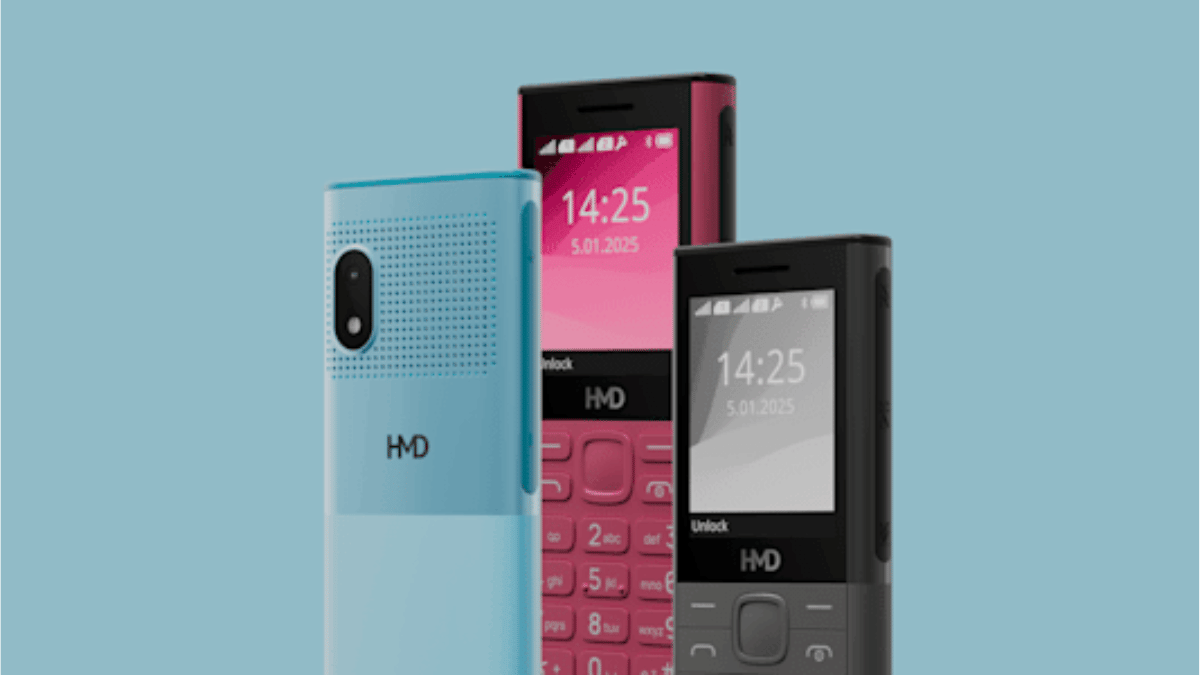
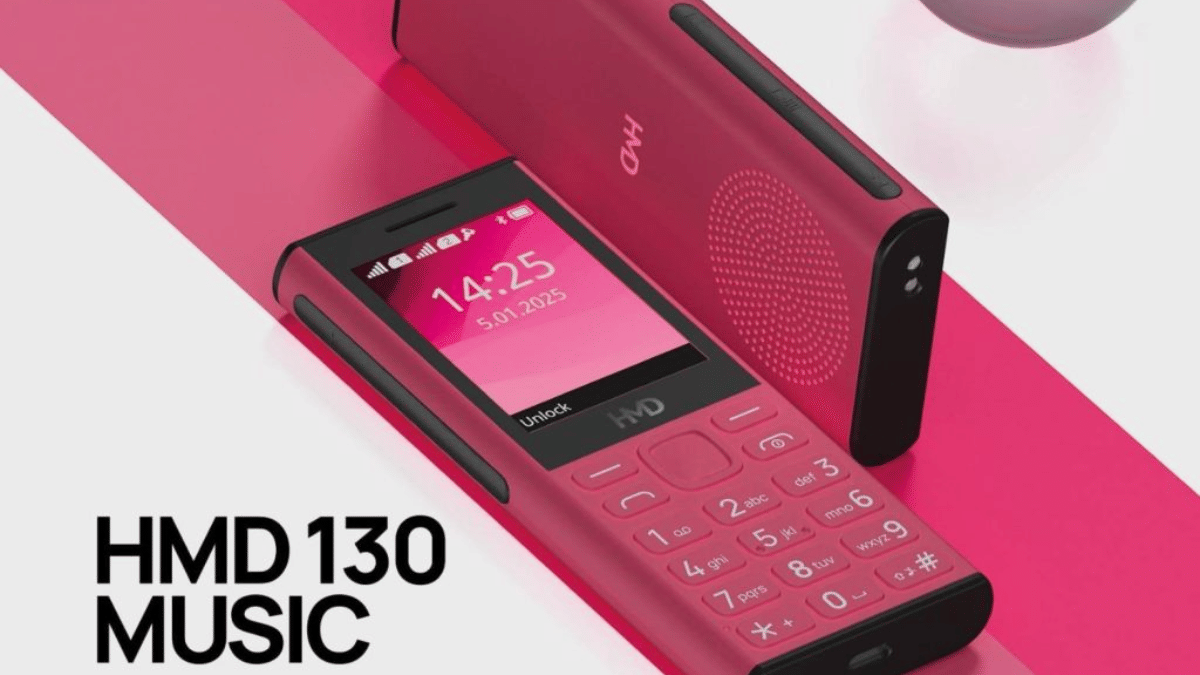
HMD 130 And 150 Music Phones Launched With Loud Audio And Music Controls

Key Highlights

  • HMD launches 130 & 150 Music phones with loud audio and music controls
  • Offers 50-hour playback, fast charging, and UPI support
  • Priced at Rs. 1,899 and Rs. 2,399, available online and offline

HMD Global has introduced two new feature phones, HMD 130 Music and HMD 150 Music. these phones are specifically designed for music lovers. They come with powerful speakers, long battery life, and dedicated music controls. Additionally, HMD is offering a one-year replacement guarantee.

Also Read | Barbie Flip Phone: A Retro Revival In HMD’s Latest Rebranding Move: Details

HMD 130 Music And HMD 150 Music: Features

Durable And Stylish Design

Designed for rugged use, HMD 130 Music And HMD 150 Music feature phone boast reinforced corners and scratch-resistant screens. The HMD 130 Music also includes a dual flashlight for added convenience.

Loudest Audio Experience

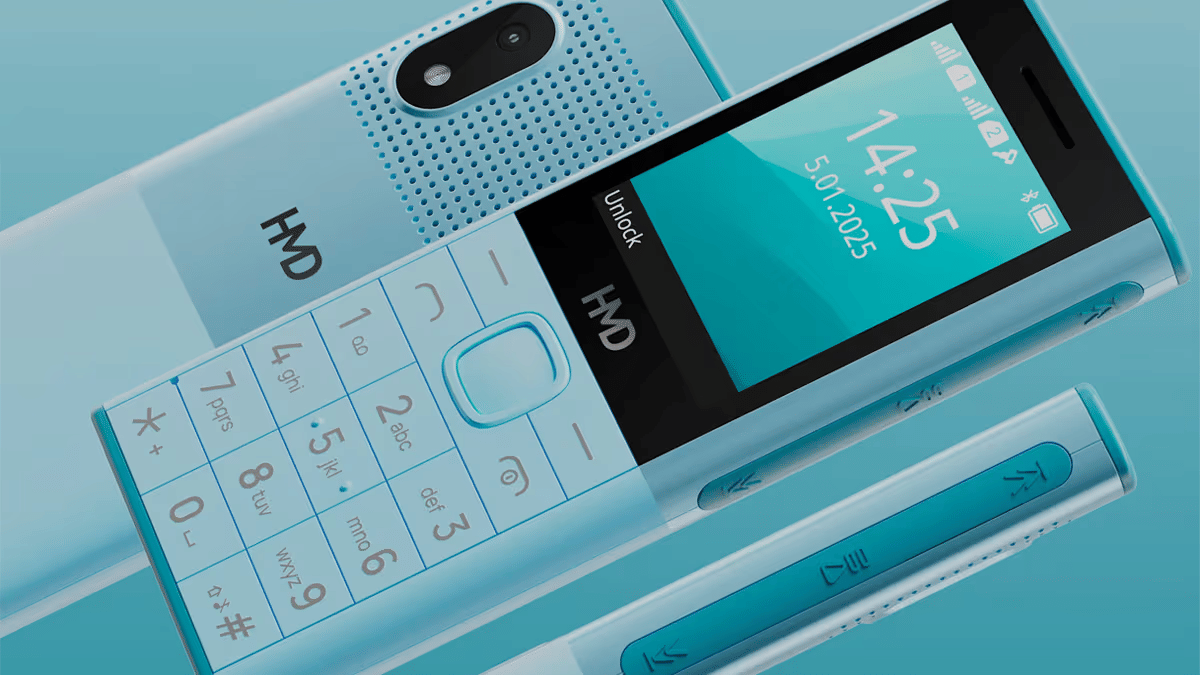
Featuring a large rear speaker, these phones provide crystal-clear sound for both music and hands-free calls. The phone come along with dedicated music buttons and inbox earphones.

Massive Battery With Fast Charging

Equipped with a 2,500mAh removable battery and Type-C fast charging, the phones offer up to 50 hours of music playback and 36-day standby time.

Multiple Entertainment Options

These phones come with wireless and wired FM radio, FM recording, Bluetooth 5.0, and expandable storage which is up to 32GB.

UPI Payment Integration

The HMD 130 Music comes with built-in UPI payment support, while the HMD 150 Music offers a scan-and-pay feature for seamless transactions.

Phone Talker Feature

A text-to-speech solution in Hindi and English enhances accessibility, ensuring ease of use for all consumers.

Strengthening Ties With Cricket

Furthering its connection with the cricketing world, HMD has extended its partnership with Rajasthan Royals as their official smartphone partner for IPL 2025. This partnership underscores HMD’s strategy to engage with Indian consumers through their passion for cricket.

Also Read | Vivo T3 Ultra 5G Smartphone Review: A Flagship Experience For Less?

Pricing And Availability

The HMD 130 Music and HMD 150 Music are available at an affordable price of Rs. 1,899 and Rs. 2,399, respectively. Interested buyers can purchase them via leading retail stores, HMD.com, and various e-commerce platforms.

For the tech geeks, stay updated with the latest cutting-edge gadgets in the market, exclusive tech updates, gadget reviews, and more right on your phone’s screen. Join Giznext’s WhatsApp channel and receive the industry-first tech updates.

Categories
Apps Featured How To Mobile

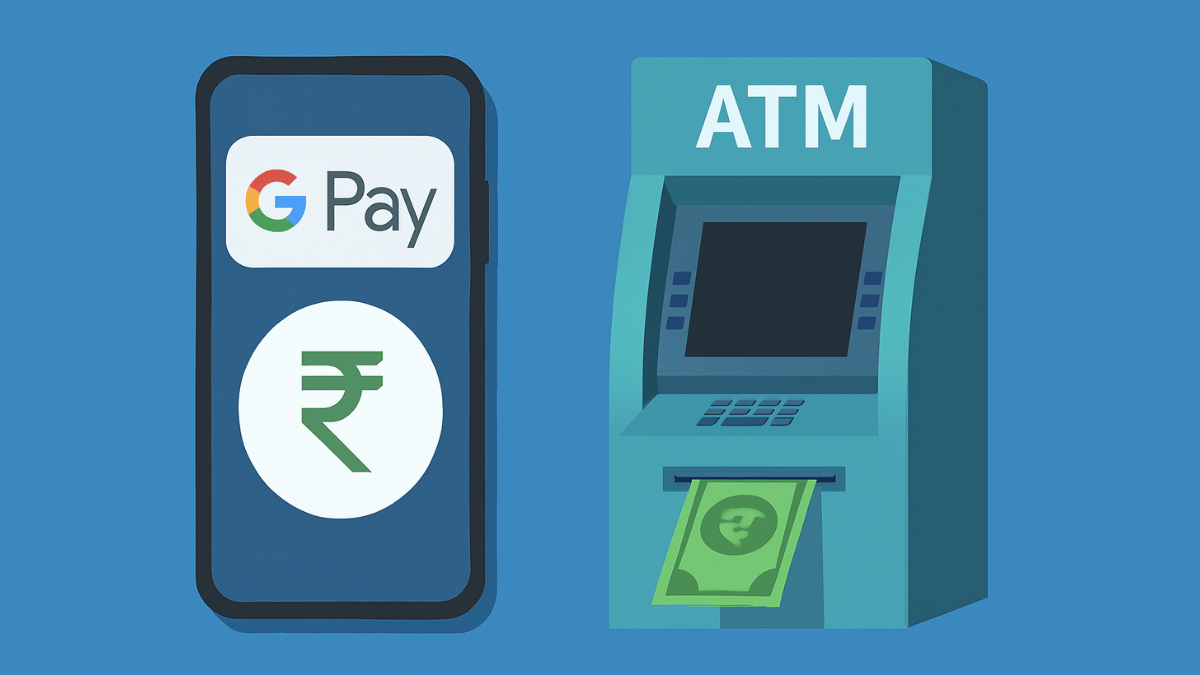
Forgot Your ATM Card? Don’t Worry! Here’s How To Withdraw Cash From ATM Using Smartphone

Key Highlights

  • Cash withdrawal possible without physical cards at ATM
  • Smartphones comes to the rescue here
  • UPI and bank apps used for card-less withdrawals at ATM

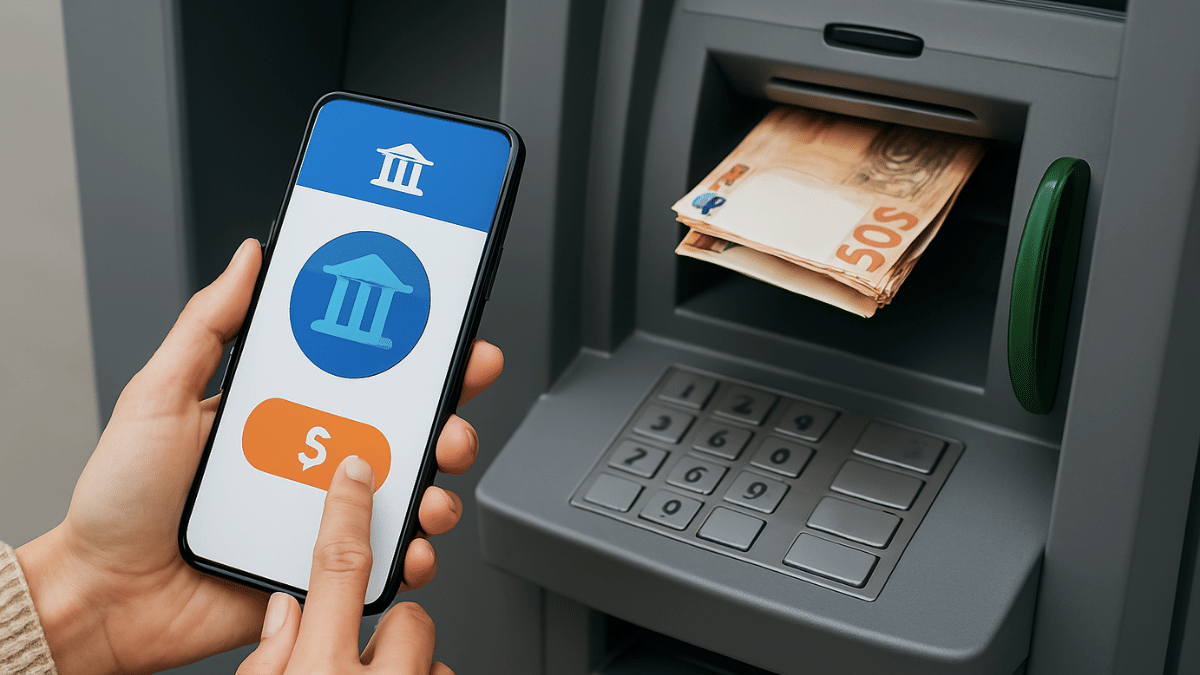
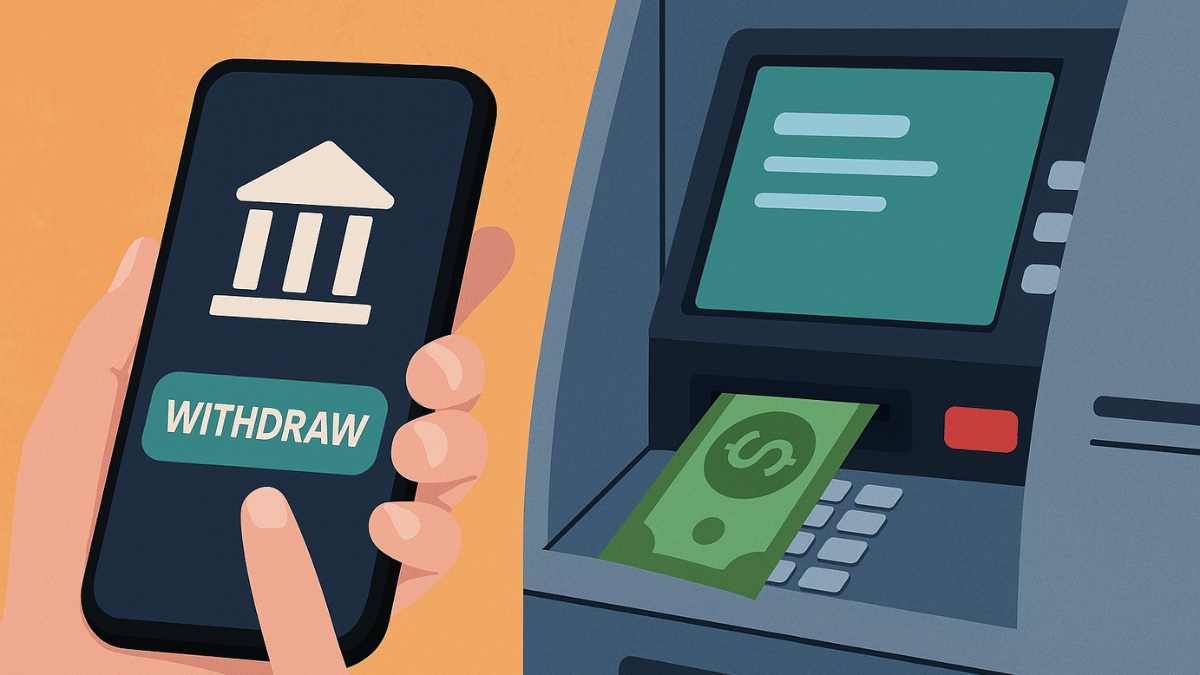
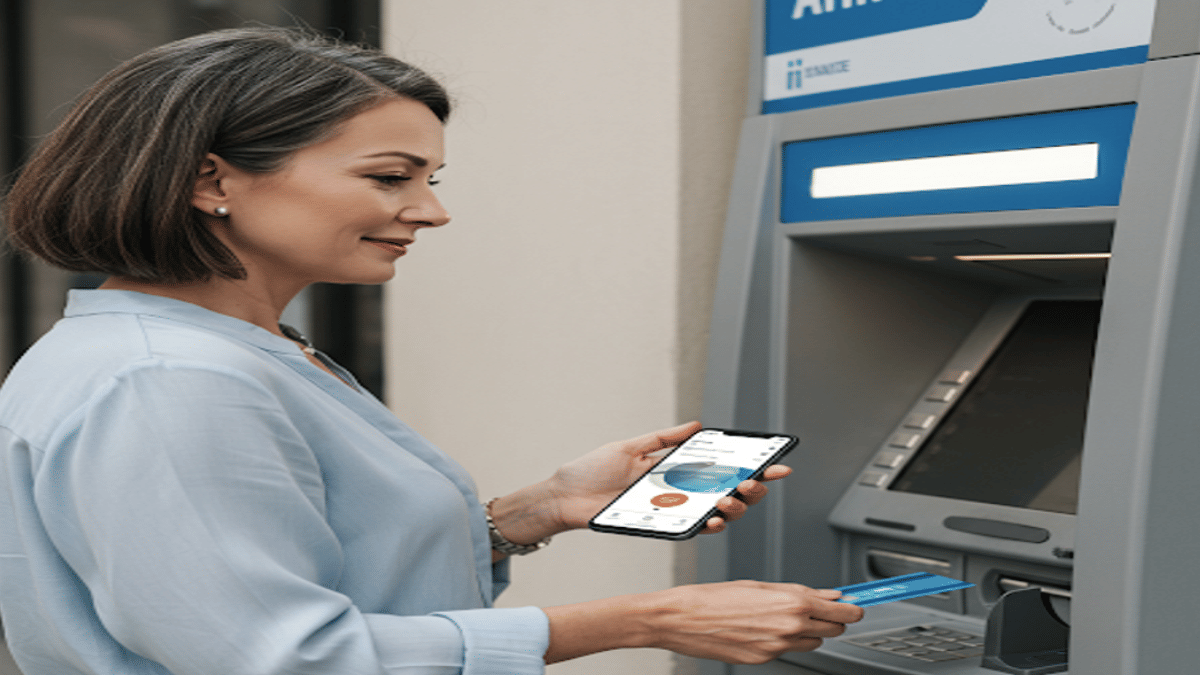
Ever been in a situation where you need to withdraw cash for emergencies and don’t have the ATM card? It’s definitely one of those scary situations that you would wish to avoid. Not any more? Modern day banking have made it easy for account holders to withdraw money from ATM machines without any physical ATM card. All you need now is a smartphone with working internet connection. Here in this guide, we’ll take you through the process of withdrawing money from ATMs with just your smartphones.

Also Read: Ghibli Studio Art Viral Social Media Trend: How To Create Your Own Ghibli Art For Free Without ChatGPT+


Cardless Cash Withdrawal At ATM? Is It Possible?

The answer is yes. You can now easily withdraw cash from any ATM even if you aren’t carrying a physical debit or credit card. All thanks to the digital banking which now is more secure and making lives easier for the masses. By downloading the bank’s mobile app or via UPI apps, cardless cash withdrawals can be done at the ATMs.

Also Read: Want To Transfer Ola Money Cash To Bank Account? Here’s How To Do It

How To Withdraw Money Without ATM Card Using Smartphone

Method 1: Via Dedicated Bank’s Mobile App

Step 1: Download And Install Your Bank’s Mobile App

  • Open PlayStore or App Store on Android and iOS devices respectively
  • Download and install the bank’s mobile app (HDFC, SBI Yono, Axis, ICICI, etc)
  • Log in to your banking account

Step 2: Select ‘Cardless Withdrawal’ Option

  • Go to the menu section
  • Scroll to the cardless cash withdrawal option and tap on it.

Step 3: Enter the Amount That You Need To Withdaw

  • Enter the amount that you want to withdraw as cash from the ATM.

Step 4: Generate OTP/ Transaction Code

  • Wait for the app to generate an OTP which you need at the ATM.

Step 5: Visit an ATM

  • Go to the nearest ATM
  • Ensure the ATM machine supports cardless transaction option

Step 6: Enter the OTP Withdraw Cash Without ATM Card

  • Go to the ‘Cardless Cash Withdrawal’ on the ATM machine’s screen.
  • You need to enter your registered mobile number
  • Enter the OTP/Transaction code generated earlier
  • After confirming the transaction, you can collect the cash

Method 2: Via UPI (Google Pay, PhonePe, Paytm, etc.)

Step 1: Go to a UPI-Enabled ATM

  • Visit a nearby ATM that supports UPI-withdrawal option
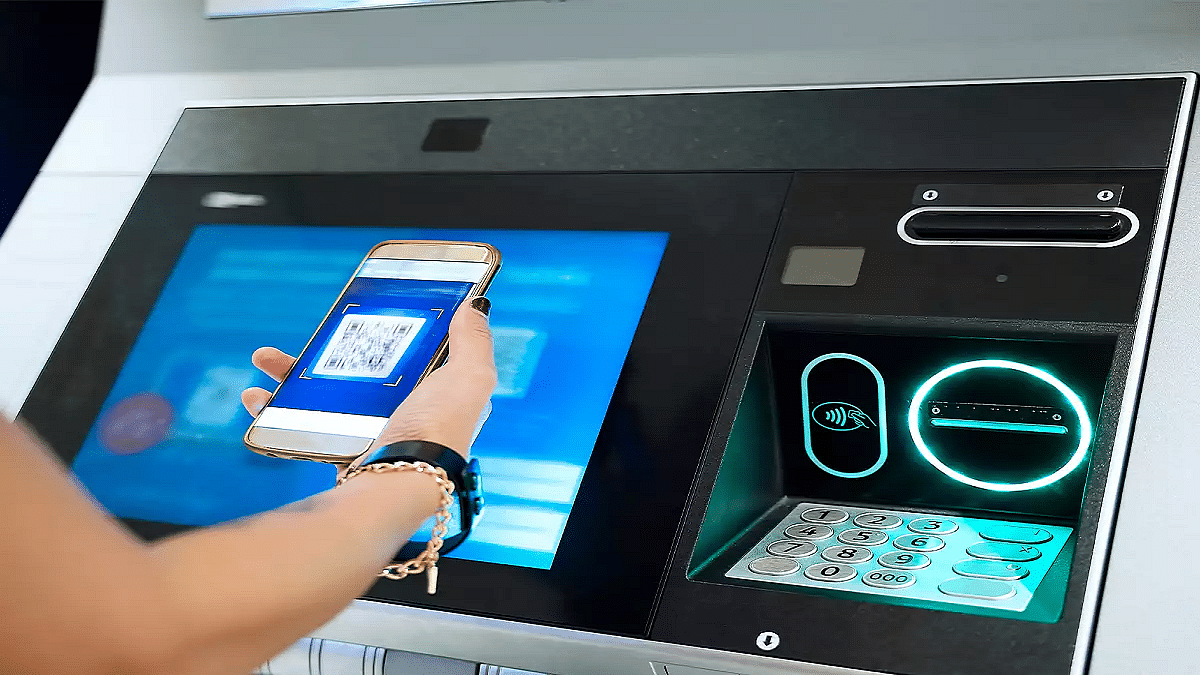
  • These ATM machines will display a QR code scanner on the screen

Step 2: Select ‘UPI Cash Withdrawal’ Option

  • On the screen, locate and select the UPI Cash Withdrawal option.

Step 3: Scan the QR Code

  • A new QR code will be displayed on the ATM screen after performing the above step.
  • Unlock your smartphones and launch the desired UPI app (PhonePe, GPay, Paytm)
  • Navigate to the Scan QR code option
  • Scan the QR code using your smartphone shown on the ATM screen

Step 4: Enter & UPI PIN

  • Enter the amount that you need to withdraw from the ATM
  • Now, enter your UPI PIN to process the transaction.

Step 5: Collect Cash

  • Collect the cash dispensed from the ATM machine.

Also Read: Make WhatsApp Video Calls More Fun: How To Add Filters, Change Backgrounds

What Makes Cardless Cash Withdrawal Practical?

  • Safety From Scams and Card Thefts – Helps with enhanced safety while money withdrawal by ruling out possibilities of card skimming or thefts at the ATM.
  • Hassle Free Cash Withdrawal– Cuts down on hassle of carrying physical ATM cards everywhere and helps with withdrawal even if there is no card.
Categories
Featured Mobile

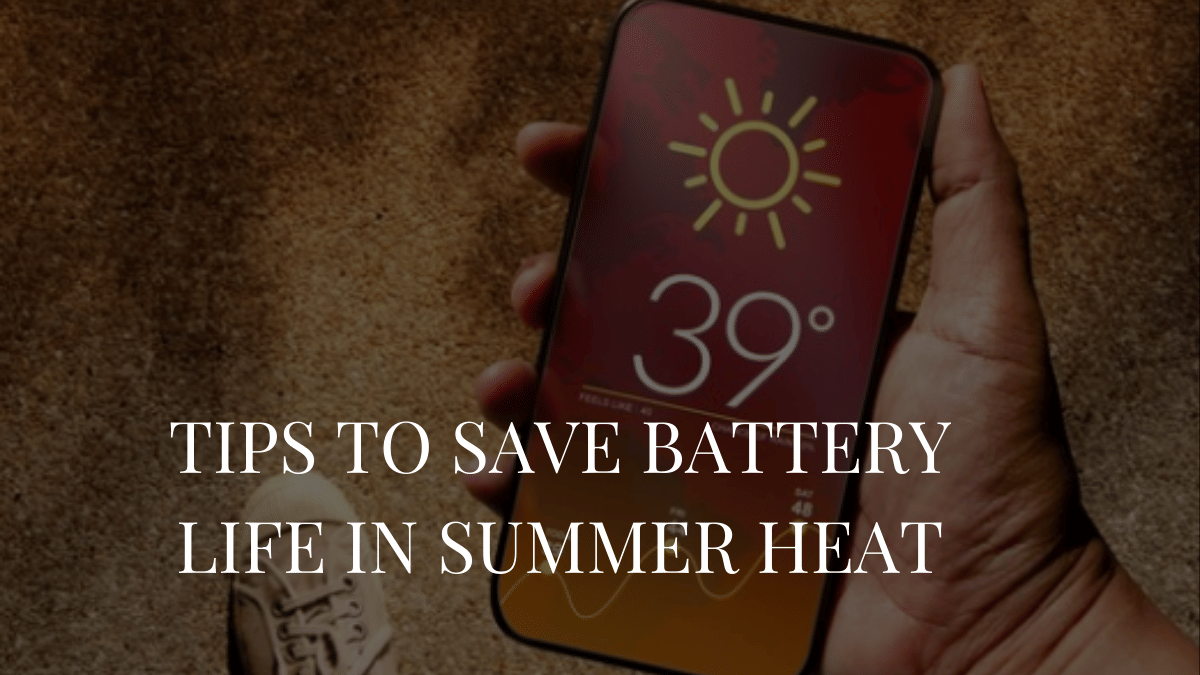
Protect Your Smartphone’s Battery From Summer Heat: Five Must-Know Tips

Key Highlights

  • Keep your phone cool by avoiding heat and direct sunlight
  • Adjust settings like brightness and turn off unused features
  • Charge smartly and close background apps to save battery

In hot weather, smartphone batteries drain faster that makes it challenging for us to stay connected. Excessive heat can degrade battery health, reduce efficiency, and even cause overheating issues. So, if you are struggling with battery life this summer, here are five practical ways to extend it. Let’s check them out.

Also Read | Four Must-Have Travel Gadgets For A Hassle-Free Summer Vacation

Avoid Direct Sunlight And Heat Exposure

Heat is the worst enemy of your smartphone’s battery. Keeping your device cool can significantly improve battery longevity.

  • Avoid placing your smartphone in direct sunlight or near heat sources like car dashboards.
  • Use special cooling cases or heat-resistant covers that help prevent overheating.
  • Turn off unused apps as running multiple apps generates extra heat and drains the battery faster.
  • Avoid gaming or streaming for long periods under direct sunlight.
  • Charging your phone in high temperatures can lead to battery swelling and long-term damage. Charge in a cool environment.

Optimize Display And Brightness Settings

Your screen is one of the biggest power consumers, especially in bright conditions. Adjusting these settings can help save battery.

  • Lower the screen brightness of your smartphone. Manually reduce brightness instead of using auto-brightness.
  • Enable dark mode as it consumes less power, especially on OLED screens.
  • Reduce screen timeout and set the screen timeout to 15-30 seconds to save power.
  • Disable live wallpapers. Animated wallpapers consume more battery.
  • On AMOLED screens, black pixels use less power compared to bright colors. Use a black wallpaper.

Manage Connectivity And Background Apps

Your phone constantly searches for networks and runs background processes. This leads to unnecessary battery drain.

  • When not in use, turn off Bluetooth and Wi-Fi. Keeping these on drains battery even when idle.
  • In poor network areas, use Airplane Mode. A weak signal forces your phone to use more power.
  • Restrict background apps. Disable auto-refresh for apps like social media and email.
  • Disable location services. GPS tracking consumes a significant amount of power.
  • Use battery saver mode. It limits background activity and optimizes performance.

Charge Smartly And Use The Right Accessories

Improper charging habits can shorten your phone’s battery lifespan. Follow these tips for better battery health.

  • Use original or certified chargers. Low-quality chargers can overheat and damage your battery.
  • Keep your battery between 20 – 80 percent for longer lifespan.
  • Don’t overcharge overnight.
  • Frequent partial charging is better than draining the battery completely. It’s better to charge in short bursts.
  • Some smartphones have features that slow charging at night to protect battery health.

Also Read | Stay Cool On A Budget: Four Best Coolers Under Rs. 15,000 For Summer

Reduce Processor Load And Close Unused Features

Your phone works harder in summer due to heat, affecting performance and battery life.

  • Close unnecessary apps. Apps running in the background drain battery even when not in use.
  • Disable 5G if not needed. 5G consumes more power than 4G and Wi-Fi.
  • Lighter versions of apps like Facebook Lite or YouTube Go use less power.
  • Reduce refresh rates. High refresh rate displays drain more battery, switch to 60Hz when possible.
  • Apps that run in the background without use should be removed.

By following these simple yet effective tips, you can keep your smartphone’s battery running longer, even in the scorching summer heat.

For the tech geeks, stay updated with the latest cutting-edge gadgets in the market, exclusive tech updates, gadget reviews, and more right on your phone’s screen. Join Giznext’s WhatsApp channel and receive the industry-first tech updates.
Categories
Featured Laptop

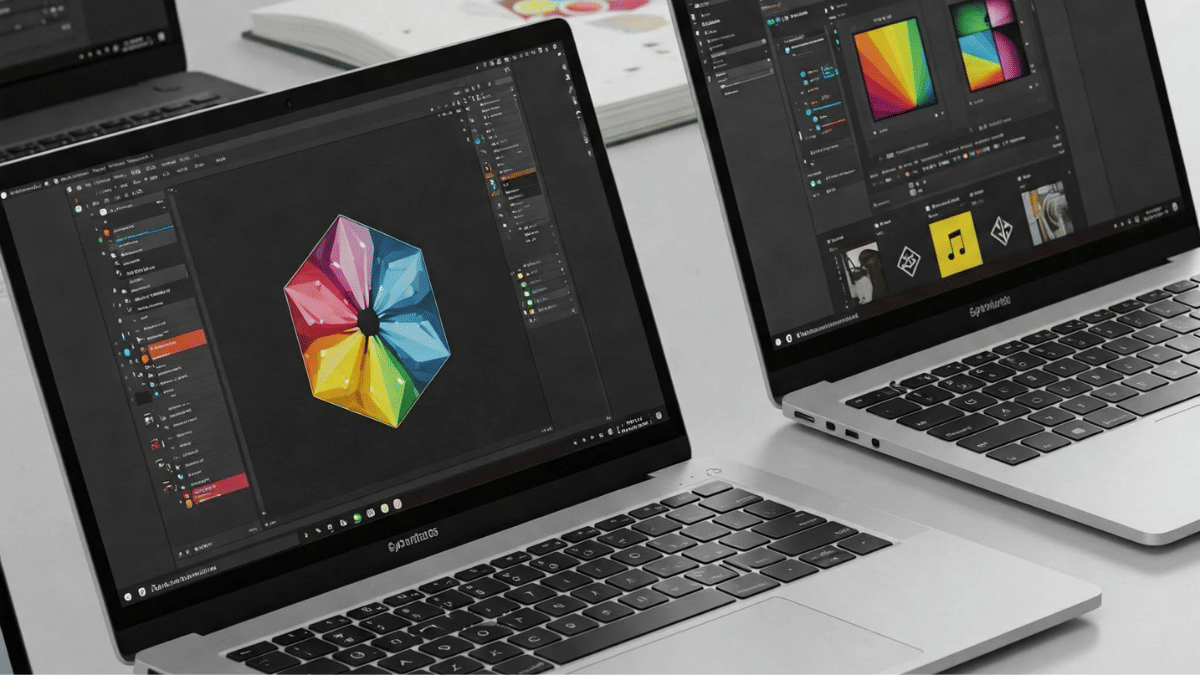
Best Laptops Under Rs. 80,000 For Designers And Creators In India (2025)

Key Highlights

  • Powerful processor and good graphics are key
  • High-quality display and long battery life matter
  • Pick based on your needs, design, editing, or 3D work

If you are a creative professional or an aspiring artist, a powerful laptop is a must for tasks like graphic design, video editing, and digital art. Under Rs. 80,000, you can find decent laptops with high-performance processors, great displays, and strong graphics. Here are four of the best laptops for creativity in India.

Also Read | Best Laptops For Online Learning In India

Top Laptops For Creativity

LaptopsPrice
Apple MacBook Air M1Rs. 62,990
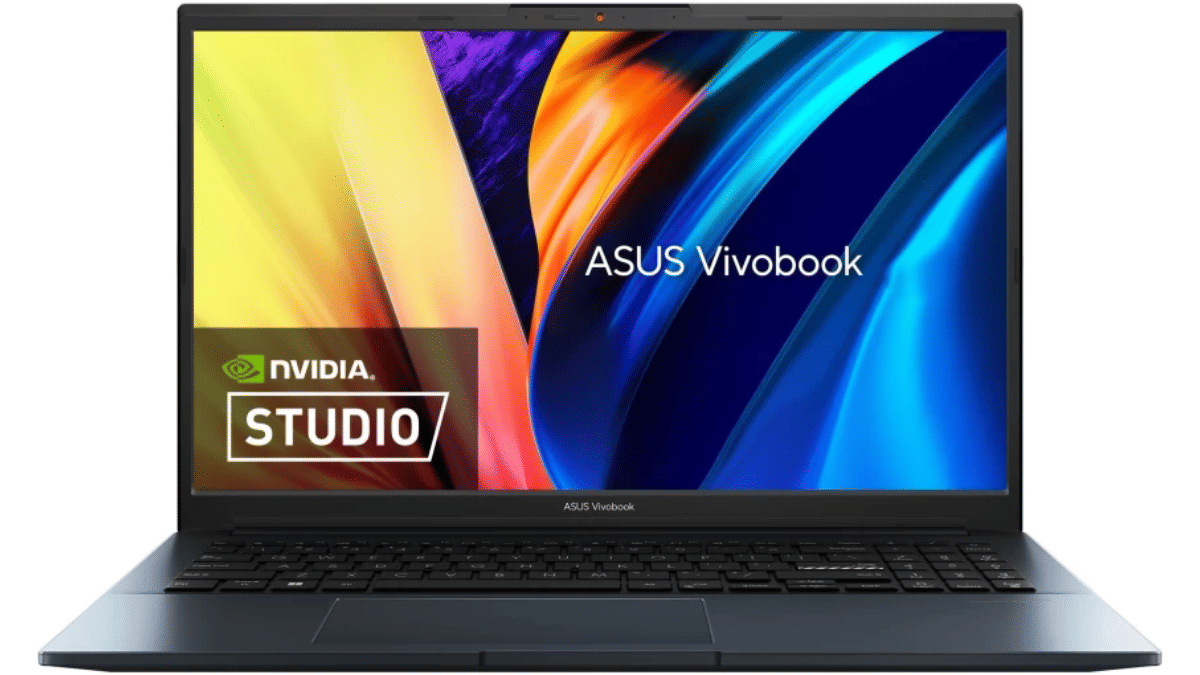
ASUS Vivobook Pro 15Rs. 66,990
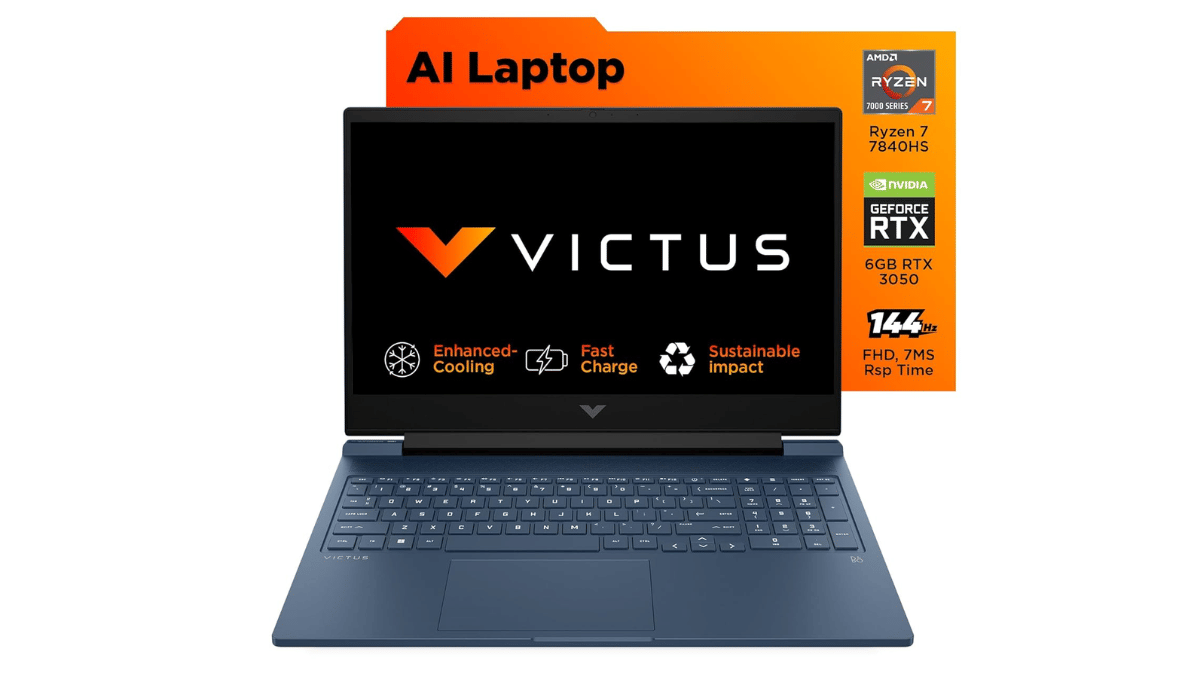
HP VictusRs. 78,490
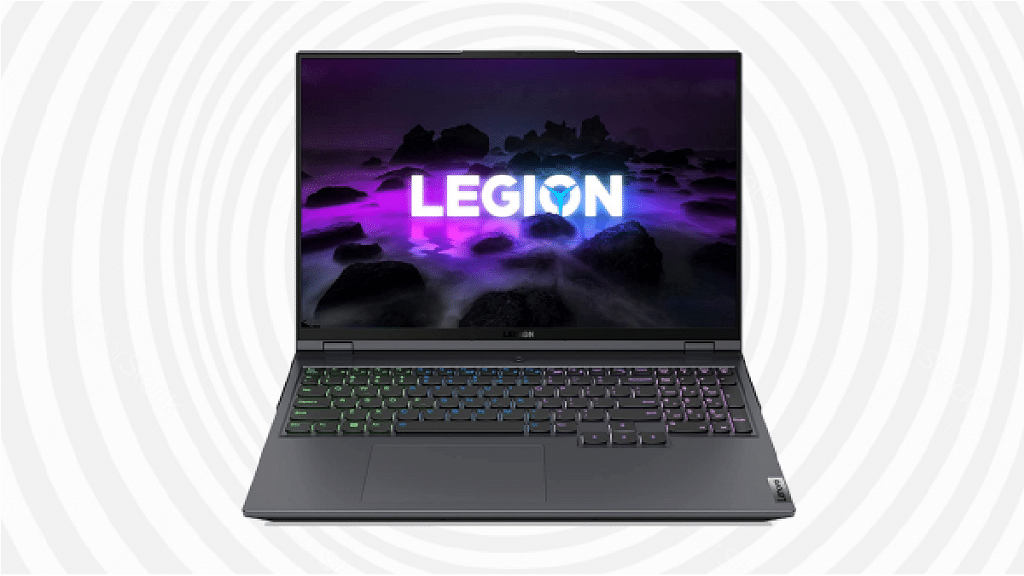
Lenovo Legion 5Rs. 79,990

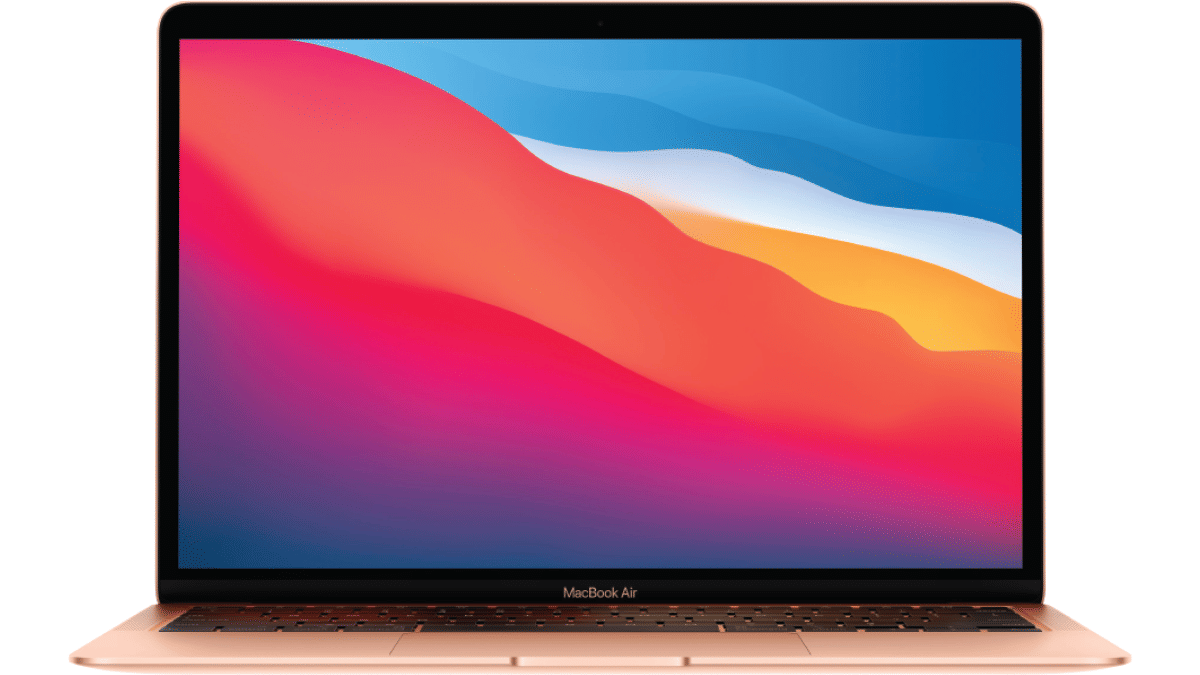
Apple MacBook Air M1: Best For Designers

If you want a smooth experience with macOS and great battery life, this is a top choice.

  • Display: 13.3-inch Retina display with vibrant colors and sharp details.
  • Processor: Apple M1 chip for fast and efficient performance.
  • Battery Life: Up to 18 hours on a single charge.
  • Build & Portability: Lightweight and premium design, easy to carry.

MacBook Air M1 is ideal for graphic designers, illustrators, and video editors using software like Adobe Photoshop, Premiere Pro, and Final Cut Pro.

ASUS Vivobook Pro 15: Best For Video Editing

A powerful option for creatives who need high performance and good display quality.

  • Display: 15.6-inch Full HD IPS-level Panel with 144Hz refresh rate, 250nits, 45 percent NTSC color gamut.
  • Processor: AMD Ryzen 7 4800H for smooth multitasking.
  • Graphics: NVIDIA GeForce GTX 1650 Max Q, great for video editing and 3D work.
  • Cooling System: Efficient thermal management for long creative sessions.

The Full HD display ensures deep blacks and rich colors, making it a great choice for video editors and photographers.

HP Victus S0089Ax: Best For Heavy Graphics And 3D Work

A gaming laptop that doubles as a creative powerhouse.

  • Display: 16.1-inch large screen for better workspace.
  • Processor: AMD Ryzen 7 7840HS for powerful multitasking.
  • Graphics: NVIDIA GeForce RTX 3050 with 6GB VRAM for 3D modeling.
  • Memory & Storage: 16GB DDR5 RAM and 1TB SSD for fast performance.

Great for 3D artists, animators, and those working on heavy creative projects.

Lenovo Legion 5: Best For 3D Artists And Gamers

A high-performance laptop with strong graphics for 3D modeling and animation.

  • Display: 15.6-inch FHD screen with up to 165Hz refresh rate.
  • Processor: AMD Ryzen 5 5600H for high-speed computing.
  • Graphics: NVIDIA GTX 1650 for handling creative software.
  • Cooling System: Advanced cooling to prevent overheating.

This laptop is perfect for 3D modeling, rendering, and even gaming when you need a break.

Also Read | Best Laptops To Buy For Programming In India

Choosing the right laptop depends on your creative needs. Pick the one that suits you best and unleash your creativity.

For the tech geeks, stay updated with the latest cutting-edge gadgets in the market, exclusive tech updates, gadget reviews, and more right on your phone’s screen. Join Giznext’s WhatsApp channel and receive the industry-first tech updates.
Categories
Featured How To Laptop

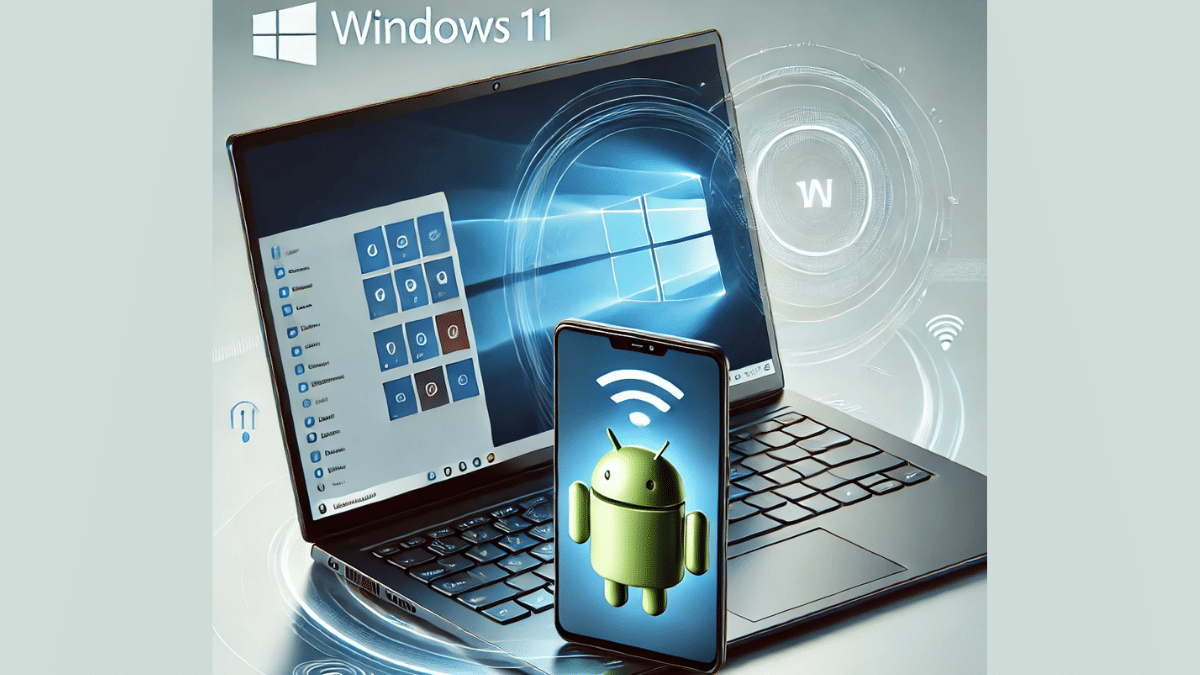
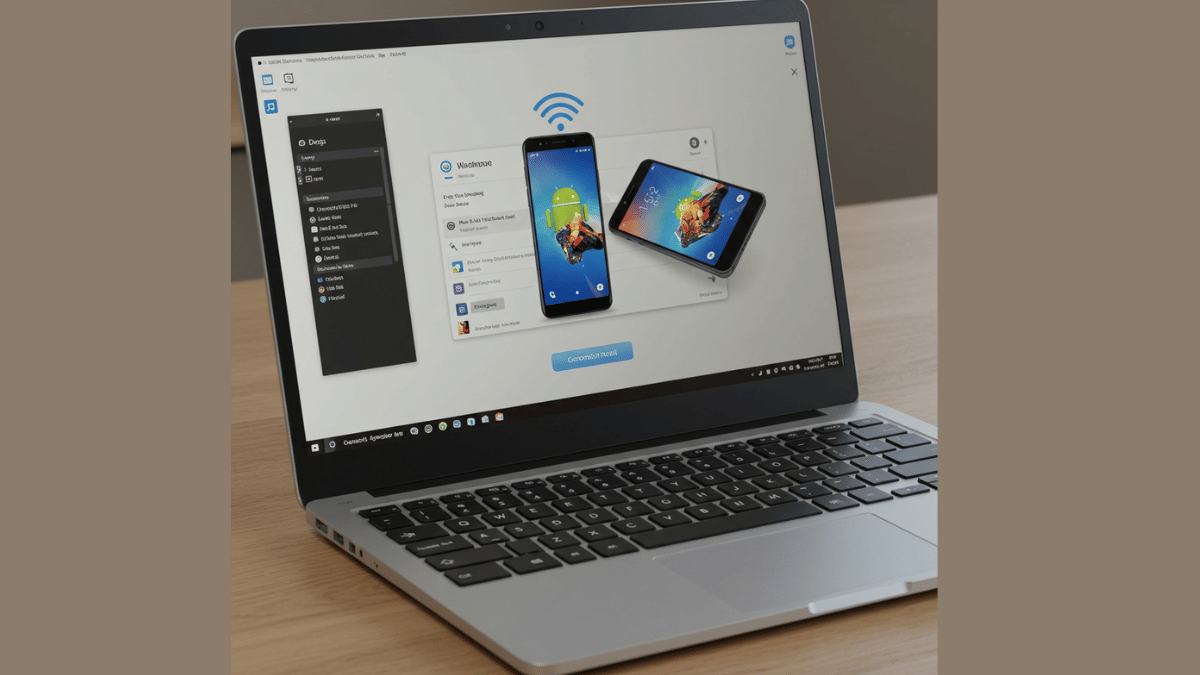
Enhance Your Daily Productivity: How To Pair Android Smartphones With Windows 11 PC, Laptop Without USB Cable

Key Highlights

  • Pairing PC with smartphones can be done via USB cable and wirelessly
  • Wireless pairing requires both smartphone and laptop on the same Wi-Fi network
  • Helps with productivity boost

Smartphones have emerged as the most powerful handheld gadgets. Option to call, text, web browse, gaming, and photography all at once is what makes smartphones more of a necessity these days. These handheld gadgets have also helped us to carry on with the tasks that earlier required a full size PC or a laptop. Still, you can pair an Android smartphone to a Windows 11 PC if you wish to boost your productivity. Pairing Windows and Android device is not just restricted to USB wired connections anymore. A simplified process is now available using which you can connect your Windows machine and smartphone in case of a missing USB cable. Interested in knowing the steps. Read on to find out:

Also Read: Hate Standing In Long Queues: Here’s How To Book Indian Railways Platform Ticket Online

What Is Required?

  1. If you want to transfer documents or media files from your smartphone to Windows 11 PC or vice versa, you can use the standard USB cable connection method.
  2. There is a wireless option available for same that can be accessed using the Phone Link application on Windows 11 OS

Also Read: Worried About Heat And Water Damage? Here’s How To Protect Your Gadgets

Steps To Link Android Smartphone And Windows 11 Laptop Or PC

Step 1: Power on your Windows 11 PC or laptop and connect it to the same Wi-Fi network as your smartphone. (Note, only Android 7 or above devices can be paired with this method).

Step 2: On your Windows 11 laptop/ PC go to the taskbar and type “Phone Link”. Once the application pops up on the window, open it.

Step 3: Select the device type as “Android”

Step 4: Click on the Send notification option. This process will enable the sign-in process for Microsoft account.

Step 5: You will receive a verification prompt on your Android smartphone. Approve it to move to the next step.

Step 6: On your Windows 11 PC/ laptop, you’ll receive a new two digit code. You need to select these two digits on your Android smartphone for further approval.

Step 7: A QR will also be displayed on the Windows 11 device. Scan it using the QR code scanner on your Android phone.

Step 8: A new prompt stating “Link to Windows” will show up followed by another set of code that will be displayed on the laptop/ PC’s screen.

Step 9: Now, allow permission requests from the “Link To Windows” app and set the access permissions as required.

Step 10: Tap “Done” on the paired Android smartphone.

Step 11: Start accessing on your paired devices after clicking the “Continue” option.

Categories
Featured Info Smart Watch

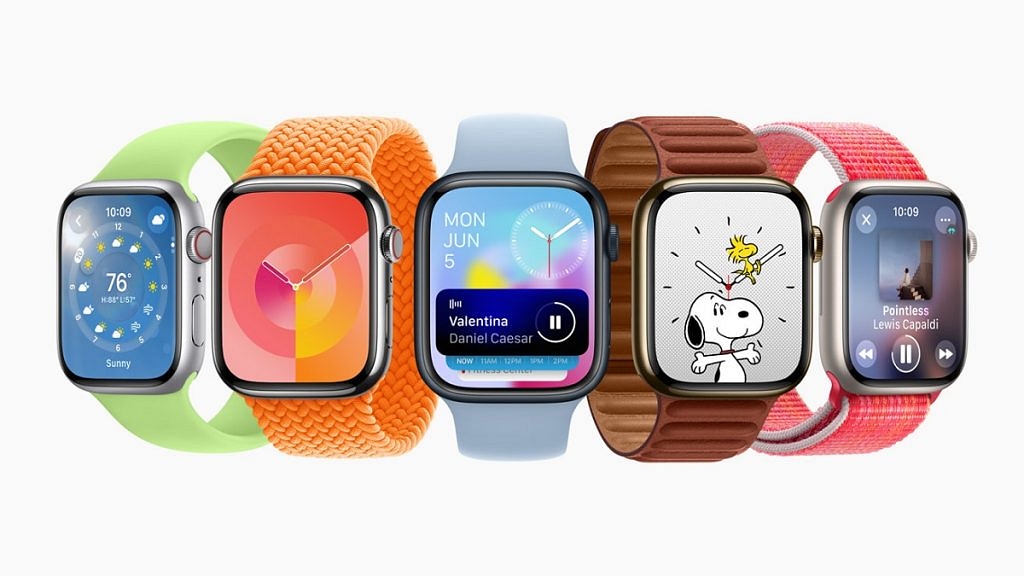
WatchOS 11.4 Update: Apple Watch Alarms Can Now Ring In Silent Mode

Key Highlights

  • Users can allow alarms to play sound even when Silent Mode is on
  • Each alarm has a Break Through Silent Mode option for customization
  • Ensures alarms are heard with both sound and vibration

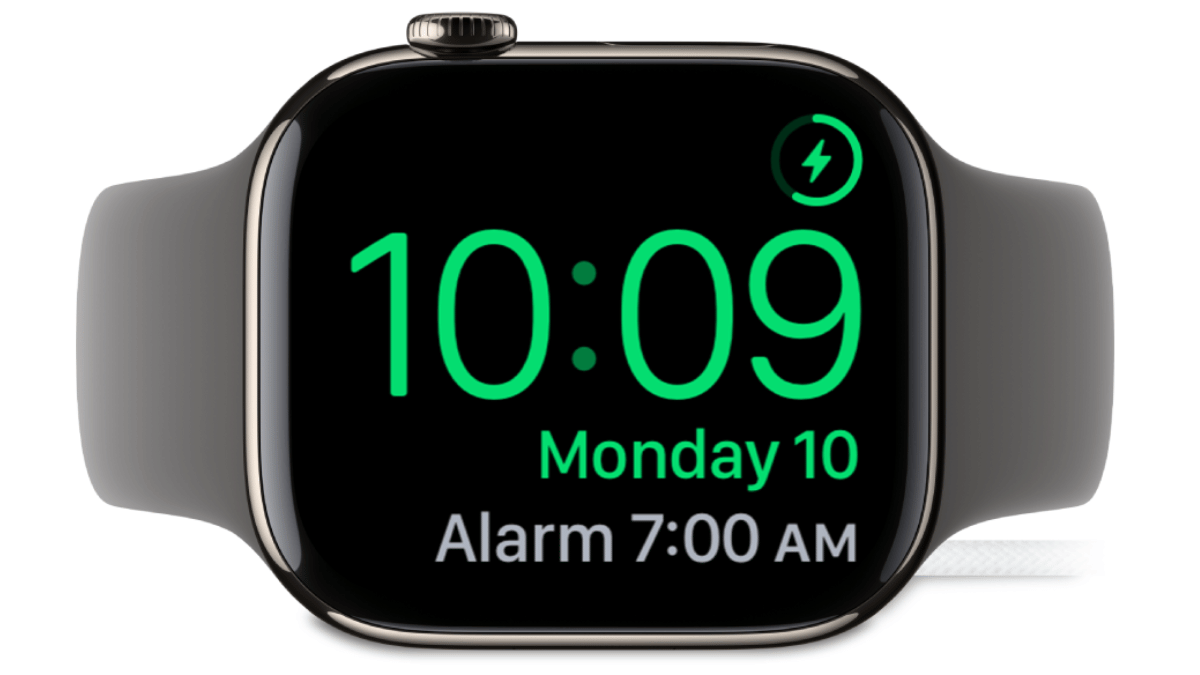
Apple is rolling out a significant update with watchOS 11.4. It introducing an interesting change to Silent Mode on the Apple Watch. Previously, when Silent Mode was activated, all notifications, including alarms, were muted, allowing users to rely only on haptic vibrations for alerts. However, with this update, Apple is now giving users the option to let alarms break through Silent Mode and play sound.

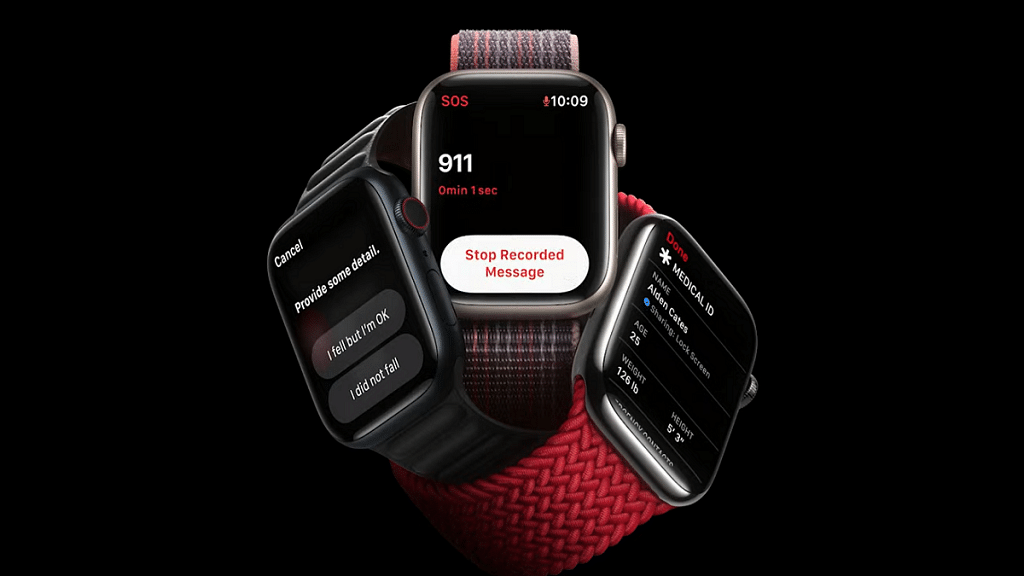
Also Read | Apple Watch Tips And Tricks: How To Use Maps And Find Emergency Services On Apple Watch

What’s Changing In WatchOS 11.4?

This new feature addresses a common issue for Apple Watch users, missing alarms because vibrations alone weren’t enough to wake them up. Let’s take a closer look at what this update means for Apple Watch users.

Alarms Can Now Play Sound In Silent Mode

With the new update, users will have an option to allow certain alarms. For instance, their Sleep Wake Up alarm, to ring even when Silent Mode is on. This means that while other notifications will remain muted, alarms can still make noise.

Individual Alarm Settings

Instead of a blanket setting, Apple is introducing a per-alarm toggle. Each alarm, including the one set for waking up in the morning, will have an option to ‘Break Through Silent Mode.’ When enabled, both sound and haptic vibrations will be triggered when the alarm goes off.

Fixing A Common Problem For Deep Sleepers

Many users rely on their Apple Watch for alarms but even with the strongest vibration setting, some people still sleep through them. This new feature ensures that those who need an audio alert in addition to haptics won’t miss important alarms anymore.

Also Read | Smartwatch Battery Draining Fast? Here’s Five Quick And Simple Fixes

Why This Feature Matters

  • Users can now decide which alarms should be heard, rather than having to disable Silent Mode entirely.
  • Those who struggle to wake up with vibrations alone can now rely on sound without worrying about other notifications disturbing them.
  • The rest of the notifications, like messages and app alerts, will still remain silent.

The new update in watchOS 11.4 brings a small but meaningful improvement to the Apple Watch experience. For those who use their watch for alarms but don’t want constant notifications disturbing them, this change offers the best of both worlds.

For the tech geeks, stay updated with the latest cutting-edge gadgets in the market, exclusive tech updates, gadget reviews, and more right on your phone’s screen. Join Giznext’s WhatsApp channel and receive the industry-first tech updates.
Categories
Apps Featured Info Mobile

New Smartphone? Swiggy Instamart Brings It Home In Just 10 Minutes

Key Highlights

  • Smartphones now delivered in 10 minutes via Swiggy Instamart
  • Available in 10 major cities with more coming soon
  • Wide range of top-brand phones and exciting discounts available

Swiggy Instamart has taken convenience to a whole new level by introducing smartphone deliveries within 10 minutes. Now, getting your hands on the latest mobile phone is as easy and fast as ordering groceries. Here’s everything you need to know about this exciting launch.

Also Read | Top 5 Alternatives To Blinkit For 10-Min Delivery In India

Smartphones Delivered In 10 Minutes

Swiggy Instamart has started delivering a wide range of smartphones from top brands across 10 major cities, including:

  • Bangalore
  • Delhi
  • Noida
  • Gurgaon
  • Faridabad
  • Mumbai
  • Chennai
  • Hyderabad
  • Pune
  • Kolkata

More cities will be added soon as part of the platform’s ongoing expansion.

Popular Models Available Now

Customers can now order some of the most in-demand smartphones, such as:

  • iPhone 16e
  • Samsung M35
  • OnePlus Nord CE Series
  • Redmi 14C
  • OnePlus Nord CE4 Lite

You will also find options from trusted brands like Motorola, Vivo, Oppo, and Realme, covering both mid-range and premium categories.

Fast, Easy, And Seamless Shopping Experience

Swiggy Instamart makes smartphone shopping effortless:

  • Browse easily via the app
  • Choose your preferred model
  • Get it delivered in just 10 minutes

Whether it’s an emergency need or a last-minute gift, this service is designed for ultimate convenience.

Exciting Offers On Mobile Purchases

To make things even better, Swiggy Instamart is offering an exclusive discount:

  • Get 5 percent off (up to Rs. 4000) on smartphone orders above Rs. 11,499
  • Offer applicable on payments made with ICICI Bank Credit Cards

Also Read | Ready To Float And Feast? Swiggy Now Delivering To Dal Lake Houseboats

With this smartphone delivery launch, Swiggy Instamart continues to push boundaries in the quick commerce space. After recently expanding to 100 cities (32 new ones in 2025 alone), this new service adds even more value for millions of users.

For the tech geeks, stay updated with the latest cutting-edge gadgets in the market, exclusive tech updates, gadget reviews, and more right on your phone’s screen. Join Giznext’s WhatsApp channel and receive the industry-first tech updates.
Categories
Featured Mobile

Top Water And Dust Resistant Smartphones Under Rs. 20,000

Key Highlights

  • These smartphones are great picks for summer outdoor use
  • All come with water and dust resistance under Rs. 20,000.
  • Choose based on performance, display, or camera preference

Summer is the season of travel, trekking, beaches, and spontaneous adventures. But your smartphone should be ready to handle it all, be it a sudden splash of water, dusty trails, or a rough day outdoors. Luckily, you don’t need to spend a fortune for a sturdy and adventure-ready phone. Here are some of the best water and dust resistant smartphones under Rs. 20,000 in India that are perfect companions for your summer outings. Let’s check them out.

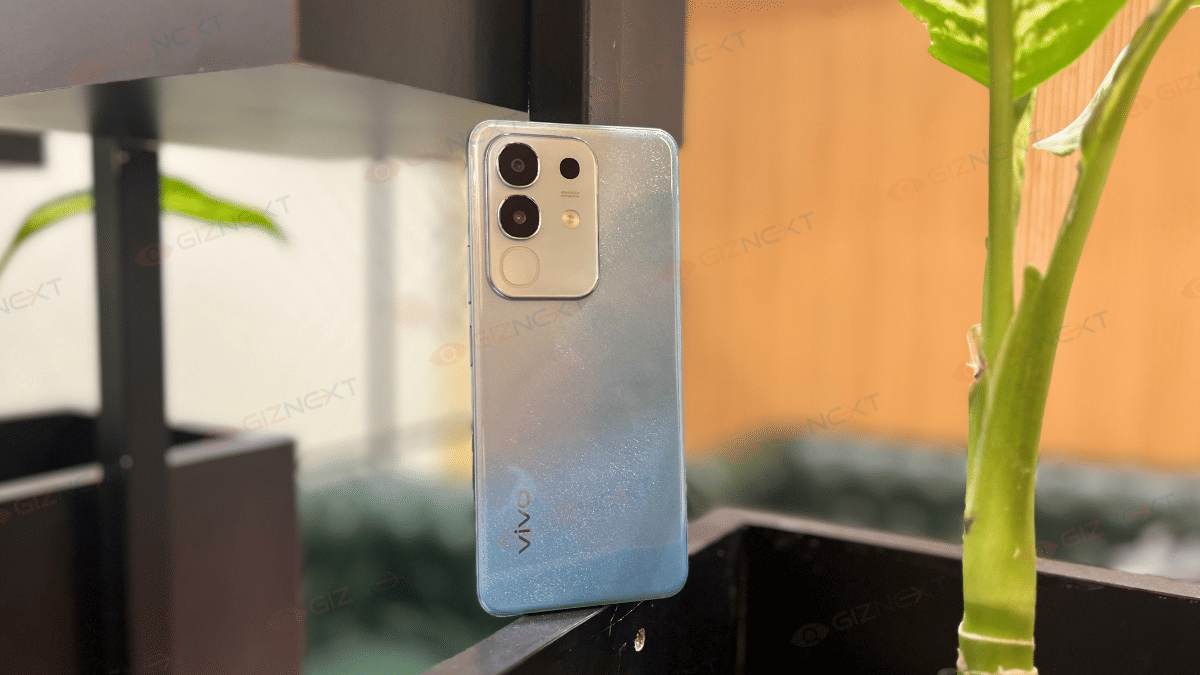
Also Read | Upgrade To A Curved Display: Four Best Smartphones To Buy

Top Water And Dust Resistant Smartphones

ModelPrice
Vivo T4X 5GRs. 13,999
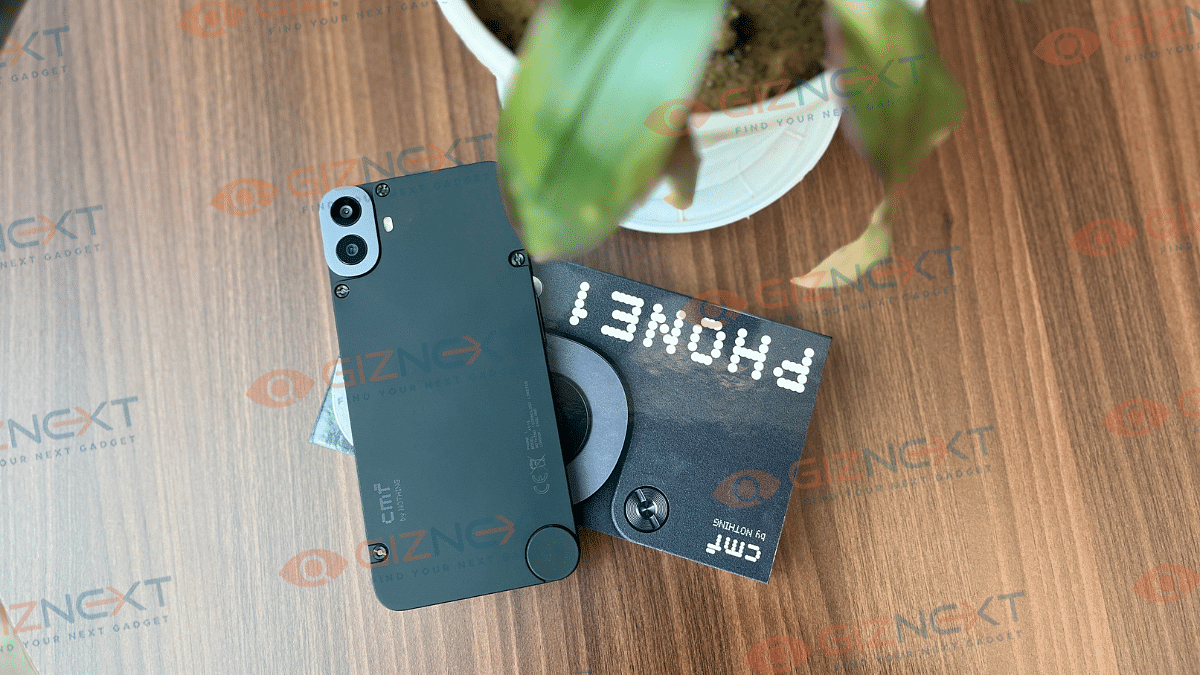
CMF Phone 1Rs. 14,999
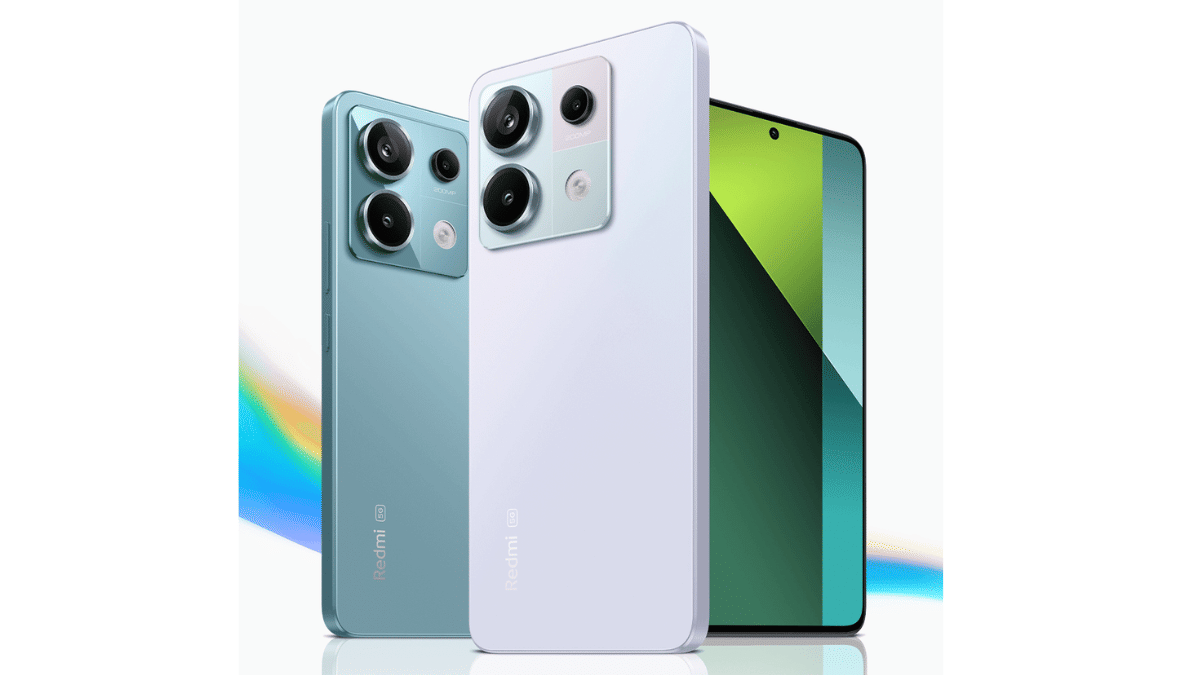
Xiaomi Redmi Note 13 Pro 5GRs. 19,999
iQOO Z9s 5GRs. 20,999

Vivo T4X 5G

Vivo’s T4X 5G is a powerful budget option that also handles everyday dust and water exposure well.

Display6.72-inch IPS LCD, 120Hz Refresh Rate
ProcessorMediatek Dimensity 7300
RAM + StorageUp to 8GB + Up to 256GB
Rear Camera50MP + 2MP
Front Camera8MP
Battery6,500mAh
OSAndroid 15
DurabilityIP64 dust tight and water resistant

CMF Phone 1

Nothing’s sub-brand CMF has brought style and protection together with this modular smartphone.

Display6.67-inch AMOLED
ProcessorMediatek Dimensity 7300
RAM + StorageUp to 8GB + Up to 256GB
Rear Camera50MP + 2MP
Front Camera16MP
Battery5,000mAh
OSAndroid 14
DurabilityDust and splash resistant

Xiaomi Redmi Note 13 Pro 5G

A solid all-rounder with an IP rating and flagship-like display at an affordable price.

Display6.67-inch AMOLED
ProcessorSnapdragon 7s Gen 2
RAM + StorageUp to 16GB + Up to 512GB
Rear Camera200MP + 8MP + 2MP
Front Camera16MP
Battery5,100mAh
OSAndroid 13
DurabilityIP54 dust protected and water resistant

Also Read | Still Love Small Phones? Here Are The Best Smartphones With 5-Inch Display

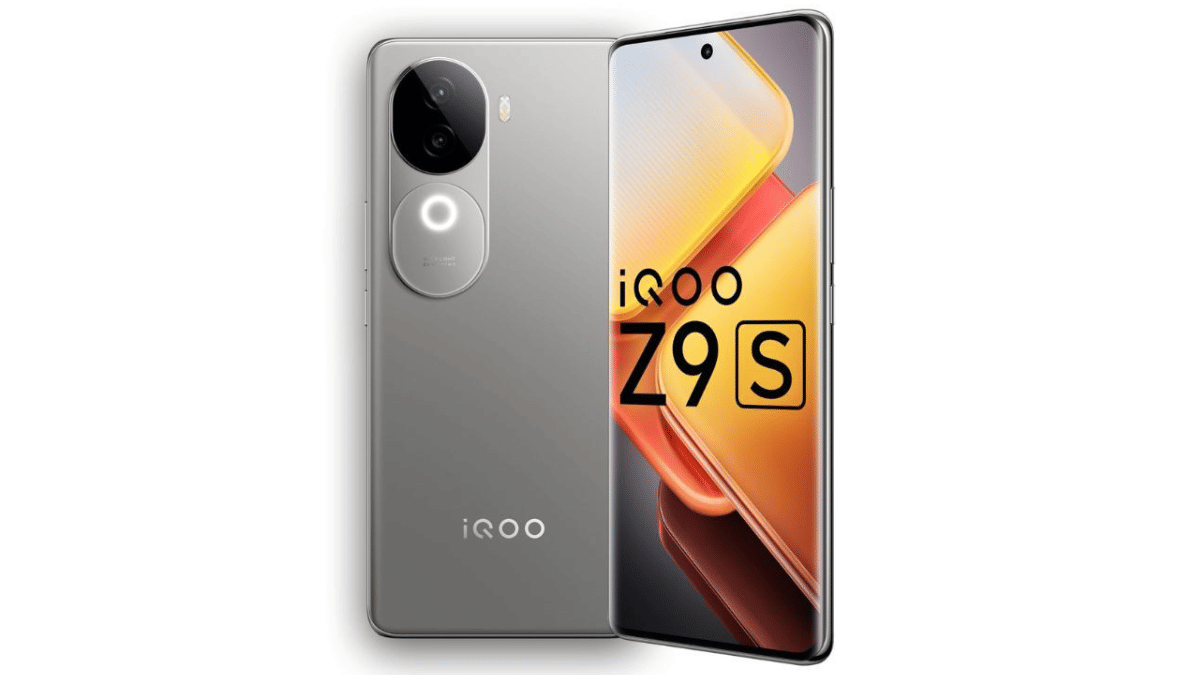
iQOO Z9s 5G

iQOO Z9s is one of the few in the segment offering a certified IP rating for water and dust protection.

Display6.77-inch AMOLED, 120Hz Refresh Rate
ProcessorMediatek Dimensity 7300
RAM + StorageUp to 12GB + Up to 256GB
Rear Camera50MP + 2MP
Front Camera16MP
Battery5,500mAh
OSAndroid 14
DurabilityIP64 dust tight and water resistant

For the tech geeks, stay updated with the latest cutting-edge gadgets in the market, exclusive tech updates, gadget reviews, and more right on your phone’s screen. Join Giznext’s WhatsApp channel and receive the industry-first tech updates.