With the release of iOS 15, many new features have been added and some handy features flew under the radar. This is the case with Live Text, a new feature for iPhone and iPad available as part of iOS 15 and iPadOS 15 respectively. It uses built-in smarts to analyze your photos for text and make them interactive so you can copy, translate, or do anything you can do with digital text on your iPhone or iPad.
How To Enable Live Text On iPad And iPhone
In iOS 15 and iPadOS 15, Live Text is enabled by default. But, in case you disabled it not knowing what it was, here’s how to reactivate this handy feature.
Step 1: Go to Settings.
Step 2: Tap on ‘Camera’.
Step 3: Go to ‘Live Text’ and enable it.
Live Text can recognize information in photos and online images so you can make calls, send emails, get directions, and more with just a tap. Point your camera at a photo or image that contains text and click the Live Text button.
How To Use Live Text In The Camera App
Live Text is also available in the Camera app and when using the camera with other apps like Notes and Reminders. It requires iPhone XS, iPhone XR, or later with iOS 15 or later. To turn on Live Text for all supported languages, you need to follow these steps:
Step 1: Open the Camera app on your iPhone or iPad.
Step 2: Point the camera at the text you’d like to select.
Step 3: When the device detects text, the Live Text feature will be activated, the text will be surrounded by a yellow box, and a new icon will appear in the lower right corner. Click the icon to ‘grab’ the text.
Step 4: Select the section of text you want to use and tap to either Copy, Select All, Translate or Share depending on what you want to do with the text. To select a specific portion of captured text, long press the text to select it. For phone numbers, tap the number on the screen to initiate a call on your device.
Additionally, iPad Pro 12.9-inch (3rd generation) and later models, iPad Air (3rd generation), iPad Pro 11-inch (all models), iPad mini (5th generation), and iPad (8th generation) with iPadOS 15.1 or later are all compatible with Live Text.
Apple has one of the strongest ecosystems with consumer gadgets. The Cupertino giant is all popular amongst the Indian and the global audience with its premium range of iPhones, iPads, MacBook laptops, Apple Watch, and even audio accessories. The Apple iPad tablets are known for offering a premium end-user experience. The iPads have been a preference for users who don’t wish to carry around a bulky notebook yet don’t wish to compromise anyhow with performance.
Apple has been shipping iPads with a powerful set of battery hardware so that the users get a long-lasting backup to complete all tasks. The powerful battery and fast charging hardware also allow the iPads to be the best travel companions. But with time and extensive usage, the battery performance might not be as good as you would generally get with a new iPad.
The fast battery drainage is an issue with not just iPads but also Android tablets and smartphones. In some cases, you might also notice the iPad not charging properly with the charging icon missing as soon as you plug in a charger. There are several ways with which you can improve your iPads battery health and also fix no charging issues without paying a visit to the service center directly. If you are also experiencing frequent issues with iPad charging, then this article will be your guide to fix it:
Check The Accessories: Only Supported Charging Accessories Should Be Used With iPads
Step 1: Do check the charging accessories including the power brick or the charging cable. It should be the genuine accessories that Apple ships for its iPads. It is preferred that you use the charging cable as well as the adapter that ships with the retail box of your iPad or is purchased from authorized service centers.
Step 2: Connect the USB power adapter to your iPad.
Step 3: Complete the connection by pairing the cable with a USB Power adapter that is plugged into the wall outlet (make sure it’s working).
Step 4: If in case the iPad isn’t getting charged using the USB power adapter, try connecting it to the laptop or computer’s USB port. It should be a USB 2.0 or above port. Also, the laptop should not be in sleep mode. If your tablet starts charging, this is a sign you need to replace the power adapter.
Step 4: You can also check the iPad charging using another Apple-certified accessory including a USB hub.
Try Force Start And Other Methods To Check iPad Charging
Step 1: If you already have tried changing the power adapter and the USB cable and still have no results, you can perform a hard reset or force restart your iPad.
Step 2: Before you proceed with the force restart, you need to make sure your iPad’s temperatures are stable. Only if the device isn’t super hot or cold then only go ahead with the restart method.
Step 3: If your iPad doesn’t feature a Home button then first press and instantly release the volume key closest to the top button and then press and release the second volume button.
Step 4: Press and hold the top button. Do this until the iPad reboots.
Step 5: If you own an iPad with the Home button, you would need to press and hold the top or side button and simultaneously press the Home button. Release the keys once the Apple logo shows up on your screen.
Do note that these steps will only resolve issues with the charging when there is no major damage to the circuitry or the charging system on a hardware level. If for some reason your iPad still won’t charge after performing the aforementioned steps, you would need to contact Apple support.
The Apple iPad series is widely popular for its high-end performance and the wide array of user-friendly features. At its WWDC 2022 event, Apple unveiled the new-generation iPad OS 16 with a slew of new upgrades. The brand has also improved privacy with the new iPad OS. The previous-gen iPad OS has also offered a secure ecosystem for the users in terms of privacy. Setting up a passcode is one of the key security features offered by the iPad OS.
Bypassing this passcode feature on any iPad model isn’t an easy task for any unauthorized user that gets access to your tablet without permission. The iPad will get disabled if multiple failed login attempts are made to unlock it. But that can also happen if you have forgotten what passcode you set last and can’t log in to your iPad despite multiple attempts.
Well, resting the iPad passcode is the only option that you are left with in such scenarios. If you aren’t aware of the procedure, we have brought you the solution. But before you attempt to reset your Apple iPad’s passcode, you should be aware that the data stored will be lost. You would need a laptop or computer handy to initiate the process of passcode reset with iPad. If you have previously created a data backup, you will be able to restore the data post the passcode reset process. Now, let’s look at the steps:
How To Reset Passcode On Any iPad in 2022
You would first need to power off your iPad so that you can enter the recovery mode on your iPad. To power off the iPad follow the steps below:
Step 1: Make sure your iPad isn’t connected to any computer or laptop. Unplug it if it’s connected.
Step 2: If you have an iPad model with a Home button then press and hold one of the volume buttons along with the top button simultaneously. Leave the keys once the power off slider pops up on the screen.
Step 3: Power off your iPad using the slider. Don’t proceed to the next steps until one minute. That’ll make sure your iPad has switched off completely.
Using The Recovery Mode On iPads
Step 1: You need to immediately press and hold the correct Home button while connecting the iPad to the computer and laptop. For the models that don’t have the Home button, they need to use the top button.
Step 2: Don’t release the key until the recovery mode shows up on the screen.
Step 3: Now, once the passcode screen shows up, power off your iPad to reboot.
Complete The Reset iPad Passcode Using Computer
Step 1: On your PC or laptop, locate the connected iPad in iTunes or the Finder.
Step 2: You will get two options Restore or Update. Select the former if you wish to restore the iPad and the latter if you want the update.
Step 3: Wait until the entire process is complete and the iPad exits out of the recovery mode screen. Reboot your iPad and you are all set.
India is one of the developing markets for mobile and PC tablets. The contribution is now coming from the major tech giants and smartphone players. A few of the names added to the list are Oppo, Realme, Nokia, and Xiaomi. Other players such as Lenovo and Motorola have already marked their presence in the tablet space and have introduced a plethora of tablets in the last few years.
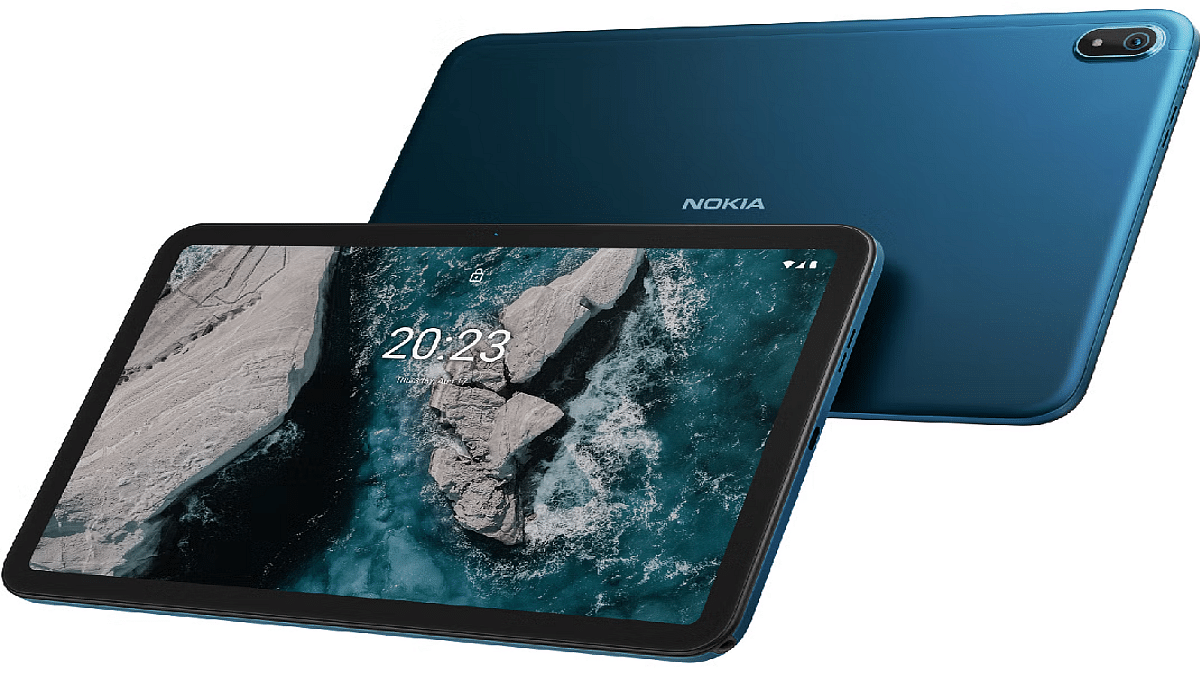
We have multiple choices if we go out to buy an affordable tablet in the Indian market. We have compared several tablets in the mid-range and premium tablets available for sale in the country. This article is for the budget audience who are specifically looking for tablets in the price range between Rs. 10,000- Rs. 15,000. In this list, we have done a spec-sheet-based comparison between the Nokia T20, Moto Tab G20, and the Lenovo Tab K10 tablets. Which budget tablet is a complete package? Read on to know the details:
Nokia T20 Vs Moto Tab G20 Vs Lenovo Tab K10: Display Specifications
The Nokia T20 has been introduced just a few months back in the Indian market with an IPS LCD screen that measures 10.4-inches and supports a pixel density of 224 PPI. The display of the Nokia T20 supports a 2K screen resolution of 1200 x 2000 pixels and has a scratch-resistant coating.
The Motorola Moto Tab G20 also features an IPS LCD screen but it is smaller compared to the Nokia T20 and measures only 8.0-inches. The Moto Tab G20’s display offers a pixel density of 189 PPI and supports a lower screen resolution of 800 x 1280.
The Lenovo Tab K10 flaunts a 10.3-inch display. It is an IPS LCD panel similar to the remaining two budget tablets. The display on the Lenovo K series tablet supports a screen resolution of 1200 x 1920 pixels and has a pixel density of 220 PPI. The panel quality is good on all three models with amole clarity levels and balanced color production. However, the Nokia T20 and the Lenovo Tab K10 will deliver the best performance with video playback due to the higher resolution support.
Nokia T20 Vs Moto Tab G20 vs Lenovo Tab K10: Camera Specifications
The camera hardware is identical on both Nokia T20 and the Lenovo Tab K10. Both these tablets are packed with an 8MP main camera sensor at the back. The main camera on the Nokia T20 and the Lenovo Tab K10 can capture 1080p@30fps videos.
Moving on to the Moto Tab G20, it’s packed with a smaller 5MP main camera at the back which is also capable of recording 1080p@30fps. The selfie camera is also identical on both the Nokia T20 and the Lenovo Tab K10. They both ship with a 5MP selfie snapper.
The Moto Tab G20 has the smallest camera sensor out of the three, i.e., a 2MP lens. Optics are better with the Nokia T20 and the Lenovo Tab K10. You can expect good performance with their cameras in broad daylight.
Nokia T20 vs Moto Tab G20 Vs Lenovo Tab K10: Chipset, UI
Under the hood, the Nokia T20 is packed with the Unisoc T610 processor that is fabricated using 12nm TSMC process. The octa-core Unisoc chipset has Mali-G52 MP2 GPU support for graphics and 3GB/4GB RAM for multitasking. The Nokia tablet offers a storage space of 32GB and 64GB which can be further expanded using a shared microSD card slot.
The Moto Tab G20 features the octa-core MediaTek Helio P22T Procesor which is also based on a 12nm fabrication process and has only 3GB RAM option for multitasking. The Motorola tablet comes with an onboard storage capacity of 32GB.
Lastly, the Lenovo Tab K10 tablet is driven by the MediaTek Helio P22T processor as the Moto Tab G20 with PowerVR GE8320 GPU. The firmware is Android 11 on all three tablets layered with a custom user interface on top.
Nokia T20 Vs Moto Tab G20 Vs Lenovo Tab K10: Battery And Fast Charging
Powering the Nokia T20 is a massive 8,200 mAh battery unit with 15W fast charging support, while the Nokia T20 is packed with a compact 5,100 mAh battery unit. Unfortunately, there is no fast charging support with the Moto Tab G20. The Lenovo Tab K10 has a 7,700 mAh battery unit.
Nokia T20 Vs Moto Tab G20 Vs Lenovo Tab K10 Verdict: The Best Affordable Tablet
The Nokia T20, Moto Tab G20, and Lenovo Tab K10 are good options when you have a budget constraint. All three tablets flaunt a big display with 2K resolution which is suitable for binge-watching shows and movies. The chipset and camera configuration are also decent on all three tablets. You can consider any of the models as a daily driver.
Smartphone OEMs are consistently marking their presence across the tablet industry with new launches. We have seen some of the latest product offerings in the tablet market from popular brands such as Realme, OPPO, and Xiaomi. All three Chinese tech giants have just ventured in the mobile tablet space and have already started populating their product catalogs with new tablet models.
This week Realme refreshed its tablet portfolio with a new 5G tablet called the Realme Pad X 5G. OPPO and Xiaomi have also released their powerful premium mid-tier tablets enabled with 5G network support and flagship-grade Qualcomm Snapdragon chipset.
All three tablet models are versatile and pack internals to complete any given task smoothly. If you had to buy any of the tablet models from this list, which one should you consider? This full comparison between the Realme Pad X 5G, OPPO Pad, and Xiaomi Pad 5 will help you decide.
Realme Pad X 5G Vs Standard OPPO Pad Vs Xiaomi Pad 5: Display Features
The display size is large on all three tablets and the panel type is the same. The Realme Pad X 5G, OPPO Pad, and the Xiaomi Pad 5 offer an IPS LCD screen. The Realme Pad X 5G’s display measure 10.95-inches, whereas the remaining two tablets, i.e., the OPPO Pad and the Xiaomi Pad 5 sport an 11-inch screen.
The display resolution differs on the Realme Pad X 5G compared to the other two models. It supports a screen resolution of 1200 x 2000 pixels, whereas both OPPO Pad and the Xiaomi Pad 5G’s display deliver a 1600 x 2560 pixels resolution. The screen refresh rate is higher on the OPPO Pad and the Xiaomi Pad 5, i.e., 120Hz. The display performance will be slightly better with the OPPO and the Xiaomi tablets.
Realme Pad X 5G Vs OPPO Pad Vs Xiaomi Pad 5: Camera Hardware
Interestingly, all three tablets mentioned on this list are packed with the same camera hardware both at the rear and upfront. Speaking of the optics hardware, the Realme Pad X, OPPO Pad, and the Xiaomi Pad 5 are packed with a big 13MP lens at the back. It is the only sensor you get on these tablets’ rear panels. The primary camera of the Realme Pad X, OPPO Pad, and the Xiaomi Pad 5 can shoot videos of 4K resolution@ 30fps.
Moving on to the selfie camera setup, there is an 8MP snapper with an f/2.0 aperture and 105-degree FoV on all three models. You wouldn’t notice any major difference in the camera performance with the Realme Pad X 5G, OPPO Pad, and the Xiaomi Pad 5. So, you can select any of the models of photography is your primary concern.
Realme Pad X 5G VS OPPO Pad Vs Xiaomi Pad 5: Chipset, UI Comparison
The Realme Pad X 5G uses a Snapdragon 600 series chipset for power delivery, while both OPPO Pad and the Xiaomi Pad 5 are equipped with the Snapdragon 800 series processor. The processor powering the Realme Pad X 5G is the Snapdragon 695 5G chipset.
The octa-core Qualcomm chipset on the Realme tablet employs Adreno 619 GPU to render extensive graphics. It is clubbed with up to 6GB RAM and 128GB storage configuration. As for the OPPO Pad and the Xiaomi Pad 5, they both use the same Snapdragon 870 chipset for performance delivery. The octa-core Qualcomm processor on both these tablets gets Adreno 650 GPU support to render the high-end graphics with ease.
Notably, both these tablets also come with 5G network compatibility as the Realme Pad X 5G. The storage and RAM configuration that you can choose with the OPPO Pad and the Realme Pad X 5G is up to 8GB RAM and 256GB storage. These two tablets get more powerful here with the premium Qualcomm Snapdragon processor and a higher RAM and storage capacity.
But the Realme Pad X 5G gets a few extra pointers for the latest Android 12 OS firmware. The Xiaomi Pad 5 and the OPPO Pad boot on the Android 11 OS. All three tablets mentioned here ship with an in-house user interface.
Realme Pad X 5G Vs OPPO Pad Vs Xiaomi Pad 5: Battery, Fast Charging Technolgy
Rounding off the Realme Pad X 5G’s spec-sheet is the 8,340 mAh battery unit. It gets a super fast 33W charging support. On the other hand, OPPO has used an 8,360 mAh battery unit to drive the Pad tablet. The Xiaomi Pad 5 uses the biggest battery in this lot which has a total capacity of 8,720 mAh. The fast charging speeds with both OPPO Pad and Xiaomi Pad 5 are the same as the Realme Pad X 5G, i.e., 33W.
Realme Pad X 5G Vs OPPO Pad Vs Xiaomi Pad 5: Final Verdict
The Realme Pad X 5G, OPPO Pad, and the Xiaomi Pad 5 are fully loaded Android tablets with 5G network support. The hardware features are also premium on all three tablets. But the display and processor are better on the OPPO Pad and the Xiaomi Pad 5 tablets compared to the Realme Pad X 5G. Out of all three, the Xiaomi Pad 5 takes the lead with its largest battery unit.
iPad is considered essential for most college students
It helps to organise your notes into one app
iPad’s price for students can range from hundreds to thousands
The versatility of Apple’s iPads has increased over recent years as a result of the constant addition of useful features. An iPad is considered vital for most college students. It is still a popular option for one-to-one computing programs. Follow these helpful iPad tips for students whether your school is using these devices for the first time or has been doing so for some time. Let’s check them out:
iCloud Storage
Since Apple has made memory synchronization between devices so easy, you can access all of your data as long as you back up your devices using iCloud. Apart from this, you can also purchase extra iCloud storage on your iPad. With this, you will no longer have to worry about not having enough storage.
Multitasking, Split View
Remember that you can use Split View with the iPad Pro, iPad (5th generation and later), iPad Air 2 and later, or iPad Mini 4 and later. Apple’s Split View aids in productive efficiency and effectiveness. You can use two apps at once using Split View.
App Dock
You can quickly and easily access all of your frequently used applications by storing them in the App Dock. The bar at the bottom is the app dock. By adding your regularly used applications there for quick access, you can personalize your application dock.
Quick Notes For Students
If you need to work on an issue while you’re out and need to jot down anything you learned in class, you can get assistance from your iPad. To write anything down, your iPad will automatically open up notes if you simply tap it with your Apple Pencil.
Notes App Use As Built-In Scanner
Apple enables you to scan documents and create PDFs directly from the Notes app. Open a new document in the Notes app and select the plus sign at the bottom once you have the paper you want to scan in front of you. Press Scan Documents after that.
After that, you can use the Markup tool to add your signature to the page (with either your finger or the Apple Pencil), and you can then save it as a PDF.
Taking And Editing A Screenshot
It only takes two buttons to be pressed simultaneously to take a screenshot. Press the top and volume up bottoms on an iPad with Face ID to take a screenshot. To snap a screenshot on an iPad with Touch ID, simultaneously press the side and home buttons. To edit and share the thumbnail screenshot, tap it. To dismiss it, swipe left.
Copy Items From One Apple Product To Other
Did you know that you can go to your iPad and paste a text you had previously copied from your iPhone? You can copy from your iPhone to your iPad as long as you are connected to the same Wi-Fi network, have Bluetooth turned on, and are using the same iCloud account. Yes, you can email text and pictures from the iPad to the iPhone.
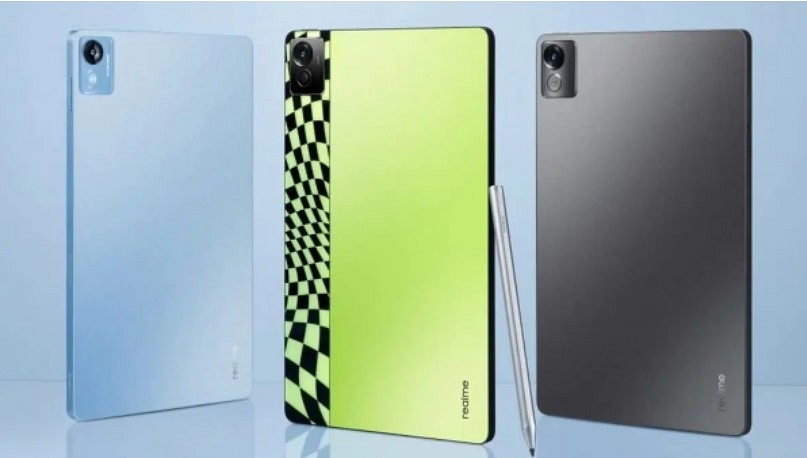
Realme Pad X 5G is the latest competitor in the premium mid-range Android tablet market. Realme has announced its latest 5G tablet this week itself in the country with features such as the Snapdragon 695 5G chipset and a 13MP main camera system. We have compared the Realme Pad X 5G with a bunch of popular Android tablets including the Xiaomi Pad 5, Motorola Moto Tab G70, and also the OPPO Pad Air. In this article as well, we are comparing the Realme Pad X 5G with one of the most popular iPads, i.e., the iPad 9th Gen tablet. We are also throwing in the OPPO Pad Air to compare and see which out of the three tablets makes for the best buy under Rs. 30,000 price bracket in the Indian market.
Realme Pad X 5G Vs iPad 10.2 (9th Gen) Vs OPPO Pad Air: Display Specification
We’ll start this list with the Realme Pad X 5G which is the newest model in the tablet segment in India. The 5G Realme tablet is packed with an IPS LCD screen that is 10.95-inches in size and has a pixel density of 5:3. The Realme Pad X 5G supports a 2K screen resolution of 1200 x 2000 pixels which is perfect for high-resolution video playback. The panel on the Realme Pad X 5G offers s peak brightness levels of 450 nits which makes it decently bright under direct sunlight.
The iPad 9th Gen tablet accommodates a 10.2-inches Retina IPS LCD display. The panel size is slightly small compared to the Realme Pad X 5G. The screen resolution offered by the iPad tablet is 1620 x 2160 which is better than the Realme 5G tablet. The brightness levels here are also higher compared to the Realme tablet at 500 nits.
On the other hand, the OPPO Pad Air features a 10.36-inch display which is an IPS LCD panel like the Realme Pad X 5G tablet. The screen resolution is also the same as the Realme tablet, i.e., 1200 x 2000 pixels. The brightness levels are the lowest with this tablet in this list at 360 nits.
Realme Pad X 5G Vs iPad 10.2 (9th Gen) Vs OPPO Pad Air: Chipset And UI
The Realme Pad X 5G is powered by the Snapdragon 695 processor. This octa-core Qualcomm processor is made on a 6nm fabrication process and has Adreno 619 GPU support for graphics. The Realme Pad X 5G RAM and storage configuration options are 4GB/ 6GB RAM and 64GB/ 128GB storage.
The iPad 9th Gen tablet is powered by the Apple A13 Bionic processor which is built on a 7nm+ process. This is a hexa-core chipset that has Apple GPU (4-core graphics) support. The iPad 9th Gen tablet comes with 3GB RAM and 64GB/256GB storage configuration.
The OPPO Pad Air is a standard 4G tablet powered by the Snapdragon 680 chipset. This octa-core Qualcomm processor is built on a 6nm process and has Adreno 610 GPU support for graphics. The OPPO Pad Air configuration variants are 4GB/6GB RAM and 64GB/128GB storage options. Both Realme Pad X 5G and the OPPO Pad Air rins on the same Android 12 OS with a custom UI on top, whereas, the iPad 9th Gen features iPadOS 15 which is upgradable to iPadOS 16.
Realme Pad X 5G Vs iPad 10.2 (9th Gen) Vs OPPO Pad Air: Camera Specifications
All three tablets in this list feature a single rear and front camera module for photography. The Realme Pad X 5G features a 13MP main camera at the back that can record 1080p@ 30fps videos. On the other hand, both iPad 10.2 (9th Gen) and the OPPO Pad Air feature an 8MP camera at the back.
The camera race is definitely led by the Realme Pad X 5G here. The remaining two tablets are also capable of shooting 4K videos@30fps. Speaking of the selfie cameras, the iPad 10.2 (9th Gen) is the clear winner here with a big 12MP selfie snapper. The Realme Pad X 5G follows the iPad tablet with an 8MP selfie lens. The OPPO Pad Air the last in this list with a 5MP selfie snapper.
Realme Pad X 5G Vs iPad 10.2 (9th Gen) Vs OPPO Pad Air: Battery, Fast Charging
The Realme Pad X 5G employs a beefy 8,340 mAh battery unit with 33W fast charging technology. The iPad 10.2 (9th Gen) has the biggest battery unit on this list measuring 8,557 mAh. The OPPO Pad Air has the smallest 7,100 mAh battery unit with 18W fast charging. For bigger battery backup, you should consider the iPad (9th Gen) tablet.
Realme Pad X 5G Vs iPad 10.2 (9th Gen) Vs OPPO Pad Air Final Verdict: Which One Is The Best?
All three models in this list are suitable for mid-range users. However, the iPad (9th Gen) has a slight edge over the remaining two with a bigger battery and selfie camera. But if you need a mid-tier tablet with the modern 5G network support, the Realme Pad X 5G would be an ideal pick.
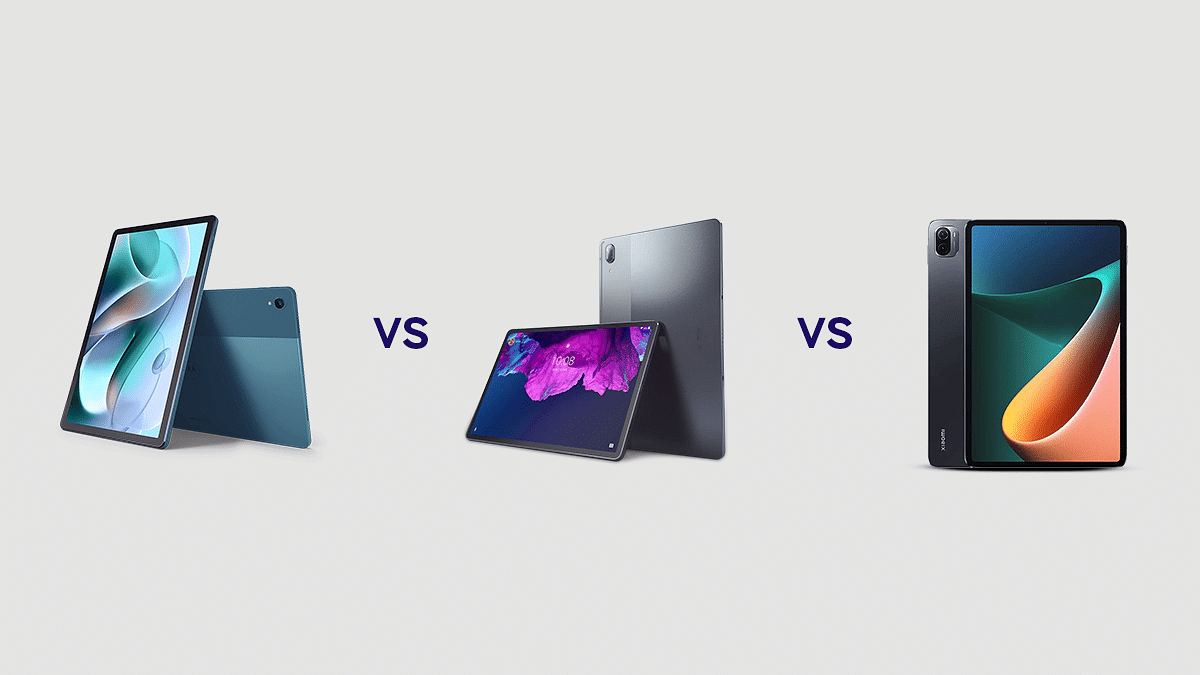
With the launch of the Motorola Tab G70 LTE, Motorola has given everything one could ask from an affordable Android tablet to a capable processor to a fancy design. The table costs Rs. 22,999 and for that price, it appears to be a good deal. However, there are some other tablets with similar features that you can consider at a similar price range. The major competitor of the Moto Tab G70 LTE is the Lenovo Tab P11 and Xiaomi Pad 5.
So, which one should you buy? To find the answer, we have here compared all three tablets, i.e., Motorola Tab G70 LTE, Lenovo Tab P11, and Xiaomi Pad 5, to see which one owns the crown. Let’s check out:
Design And Display
The Motorola Tab G70 LTE is a well-built tablet. It looks more stylish than any other tablet at this price. The metal half has a decent satin green finish while the plastic half has a matte texture. It has narrow bezels. Motorola has put the front camera at the center of the side bezel, which in the landscape layout imparts a laptop webcam-like effect.
The display of the Motorola Tab G70 LTE is 11-inch which is perfect for viewing content. It uses an IPS LCD panel with a 2K pixel resolution and rated brightness levels up to 400 nits. The display is certified for Amazon Prime HD and Netflix HD content. However, the refresh rate remains at the usual 60Hz.
On the other hand, the design of the Lenovo Tab P11 is accentuated by the fabric-clad detachable keyboard and kickstand. It is simple to tuck into a backpack and has a grey finish that makes it appear as though you are holding a notebook. The kickstand is simple to attach using magnets and is simply adjustable to any required angle.
The Tab P11’s 11-inch IPS screen has a 1200 x 2000 resolution. Colors are as bold as they could be for a panel of this type, and images appear clear and sharp. It further has a refresh rate of 60Hz.
Besides, the Xiaomi Pad 5 has a metal frame with flat sides, sandwiched between a glass screen on the front and a polycarbonate sheet at the back. The Gorilla Glass 3 display cover does not readily gather fingerprints.
The Gorilla Glass 3 cover over the display does not attract fingerprints easily. It has a 10.95-inch WQHD+ (1,600 x 2,560 pixel) LCD display along with 120Hz display.
Processor
Motorola is using the MediaTek Helio G90T from 2018 to power the tablet. It has 4GB LPDDR4X RAM and 64GB of uMCP storage. The tablet comes pre-installed with Android 11 and can be upgraded to Android 12. Though, there aren’t any productivity-enhancing features like a sidebar for quick access to apps, numerous floating windows, smarter widgets, or similar touches.
Moving to the Lenovo Tab P11, the tablet uses the Snapdragon 662 CPU under the hood. It includes 128GB of storage and 4GB of RAM. The Android 11 OS on the Tab P11 has been modified with a few enhancements to increase productivity.
The Qualcomm Snapdragon 860 SoC powers the Xiaomi Pad 5 tablet. It has 6GB of RAM. The Xiaomi tablet further runs ‘MIUI for Pad’ which is a customized version of MIUI 13.0.5 based on Android 11.
Camera
The Motorola Tab G70 LTE tablet comes with a 13MP rear camera. It also has an 8MP front camera with a dual-mic configuration that works well during video calls.
On the other hand, the Lenovo Tab P11 has a 13MP of rear camera and is decent enough to take a few photos in well-lit areas. For video calls, the front-facing 8MP camera is adequate.
Both the rear and front cameras on the Xiaomi Pad 5 are 13MP and 8MP respectively. It produces a decent image quality which is a lot better than what you can expect from a tablet.
Battery
The Motorola Tab G70 LTE’s battery life is great without LTE and decent with a SIM card inside. The 7,700mAh battery with generic usage, including 1-2 hours of gaming, and 2-3 hours of social media browsing on Wi-Fi can go up to two days with ease. The 20W TurboPower charger that Motorola includes in the box takes hours to charge.
On the other hand, the Lenovo Tab P11 has a 7,700mAh battery capacity. It has a great battery life for streaming hours of content and can also be recharged quite quickly. Moving to the Xiaomi Pad 5, the 8,720mAh battery can last for a day and a half.
Verdict
In terms of specifications, all three tablets have got it all right for their price segment. They have got a good display, decent performance, and a pretty design. The Lenovo Tab P11 is an affordable Android tablet with an official keyboard. Besides, Xiaomi Pad 5 is built with productivity in mind, which is not commonly found at this price point. However, it lacks 4G/5G cellular capability and is only available as a Wi-Fi model. In our opinion, the Motorola Tab G70 LTE is a good choice to go for under Rs. 25,000.
Realme is one of those smartphone OEMs that has set its foot in the Android tablet market recently. The Realme Pad and the Realme Pad Mini are from the brand’s first lot of tablets that have been catering to the mid-range audience globally. The brand has now been expanding its portfolio in the tablet segment and has released another advanced tablet for the budget-conscious audience called the Realme Pad X 5G.
The latest Realme tablet comes along with 5G capabilities and is equipped with mid-range hardware for all tasks and gaming. With the Realme Pad X 5G, Realme has made several hardware improvements compared to the last lot. But what exactly are the hardware differences between the Realme Pad X 5G and the previous-gen Realme Pad and the Realme Pad Mini models? Here in this article, we have broken down all the pointers.
Realme Pad X 5G Vs Realme Pad Vs Realme Pad Mini: Display Specification Comparison
Realme has used the same IPS LCD panel on all three tablets but has made slight differences in the screen size and resolution (specifically with the low-end Realme Pad Mini model). The latest Realme Pad X 5G flaunts a 10.95-inch screen that has an 82.6 percent screen-to-body ratio. The resolution on this model as well as the standard Realme Pad tablet is the same, i.e., 1200 x 2000 pixels.
The standard model also has a smaller 10.4-inches screen. The difference in the screen size isn’t much between the Realme Pad X and the standard Realme Pad. On the other hand, the Realme Pad Mini stacks below the remaining two models with an 8.7-inch IPS LCD panel with an 81.5 percent screen-to-body ratio.
Notably, the screen resolution is also lower with the Reamle Pad Mini at 800 x 1340 pixels. The display would be suitable for content consumption on all three Realme tablets. However, for better clarity, you would need to opt for the Realme Pad X 5G or the standard Realme Pad.
Realme Pad X 5G Vs Realme Pad Vs Realme Pad Mini: Camera Hardware Comparison
The Realme Pad X 5G brings some major camera improvements over the existing Realme tablets. The Realme Pad X 5G is equipped with a bigger 13MP main camera at the back. For reference, the remaining two Realme tablets including the standard Realme Pad and the Realme Pad Mini are packed with an 8MP main rear camera.
The camera lens remains single with the new model as well. The Realme Pad X 5G like the remaining two tablets is also capable of recording 4K videos@30fps. As for the selfie snapper, the Realme Pad X 5G shares the same 8MP front camera with a 105-degree FoV as the standard Realme Pad tablet. The Realme Pad Mini has a smaller 5MP lens for selfies and video calling. The latest Realme Pad X 5G tablet should be your ideal pick if you wish to get an improved camera performance.
Realme Pad X 5G Vs Realme Pad Vs Realme Pad Mini: Chipset, UI Differences
The Realme Pad X 5G gets all-powerful in this list with the Snapdragon 695 5G processor. The latest Qualcomm chipset that offers a 5G network support is built on a 6nm process and is clubbed with Adreno 619 GPU for graphics. The latest Realme tablet has been announced with up to 6GB RAM and 128GB storage option.
The standard Realme Pad has been launched with the Helio G80 processor which is a mid-range gaming chipset from MediaTek with octa-cores and Mali-G52 MC2 GPU support. The Realme Pad is also available with up to 6GB RAM and 128GB storage configuration.
The Realme Pad Mini uses the Unisoc Tiger T616 chipset which is designed using a 12nm fabrication process and has up to 4GB RAM configuration for multitasking. The Realme Pad Mini has a built-in storage space of up t0 64GB which can be expanded using the microSDXC SIM slot (shared slot).
All three tablets in this list are good with general performance. You’ll have no difficulties using regular apps. However, if you need an advanced tablet with capable camera hardware and a chipset with 5G connectivity, the Realme Pad X 5G will be the best fit.
Realme Pad X 5G Vs Realme Pad Vs Realme Pad Mini: Batteries
The Realme Pad X 5G features an 8,340 mAh battery unit which can give a total backup of almost one full day with moderate usage and a single plug-in. The battery on the latest Realme 5G tablet supports 33W fast charging. The battery capacity is smaller than the standard Reame Pad tablet. It packs a 7,100 mAh battery with 18W fast charging. The Realme Pad Mini has the smallest battery on this list measuring 6,400 mAh and has 18W fast charging support.
Realme Pad X 5G Vs Realme Pad Vs Realme Pad Mini Final Verdict: Which Realme Tablet Model Is Best?
All three Realme tablets are good in some or other ways. The Realme Pad Mini is the best model for users who need a tablet that can handle only basic tasks and offers a big screen. Whereas, the Realme Pad makes for a good option who need a mid-range tablet as their daily driver. The Realme Pad X 5G will be best suitable for users looking for an advanced tablet with premium mid-range features.
Hard resetting Android tablet is required in case of cluttered storage
Hard reset also improves slow speed performance
Factory rest on Android tablets can be performed without the volume keys
Tablet sales have gradually picked up in the last few years. Even the smartphone manufacturers are now eyeing this market and contributing with capable devices. OPPO, Realme, and Xiaomi are the latest brands that have joined this race in India with affordable and premium mid-range Android tablets.
All the brands are focusing on performance delivery with the new-generation tablets. However, the large screen size and support for external accessories such as keyboard and stylus pen have been giving tablets an edge over smartphones. This is specifically when you need a gadget for creative work.
You can easily use any third-party application on your tablet and use it as you would on any smartphone. While the user possibilities are endless, clogging the tablet’s memory could hamper the performance. Performing a factory reset in such scenarios is one of the best ways to boost performance. Most of the new generation tablets have a built-in option to perform a factory reset. We’ll speak of the steps below. These methods will also make it easy to factory reset any Android tablet without a power key. Take a look:
How To Factory Reset Android Tablet Without Volume Keys
Before you perform the factory reset on your Android tablet, it is advised to take a backup of the data. This will make sure you don’t lose any of your important data during the factory reset.
Step 1: Unlock your Android tablet and go to the Settings menu.
Step 2: For backup, scroll down to the Backup & Reset option.
Step 3: Click on Backup up my data and complete the data backup process. Note, you can also make required changes to settings for future backup.
Step 4: Once the backup is complete, go back to the Backup and Reset option.
Step 5: This time, select the Factory data reset option.
Step 6: Keep your device battery over 50 percent to make sure the reset process is completed smoothly.
Step 7: Your tablet will reboot once the data rest has been completed.
How To Factory Reset Android Tablet Without Volume Keys Using Recovery Mode
The recovery mode is another way out to hard reset any Android tablet without using any volume key.
Step 1: On your Android tablet, press and hold the Home and the power key simultaneously.
Step 2: Wait until the boot menu pops up. You’ll see a bunch of options including Power off and Restart. Here, you would need to press and hold the Home button again along with the Power off option on the screen. This step will reboot the tablet in Safe mode.
Step 3: Repeat step 1 for the tablet to enter recovery mode.
Step 4: Press the Home button to scroll down to the Wipe Data/ Factory reset option and select it using the power key. Once the reset is complete, your tablet will reboot and you can complete the setup from the beginning.