


Key Highlights
- Windows 11 laptop/ PC reset helps boost speeds and performance
- Windows 11 laptop, PC can be reset without loosing data
- Can also help with system reboot in case of failed startups
Performance issue is the last ting you want to deal with your laptop or PC. Especially, when you need to complete any crucial task or want to play games. Microsoft with Windows 11 have made it easier to reset laptops and PCs which allows for performance boost and speed improvements. This can be done without paying a visit to the service centres. Often, system reset is asscociated with data loss. That’s not the case with Windows 11 OS. Bonus is, you don’t have to pay a visit to the nearby service centre to reset your Windows 11-powered laptop or PC. In this guide, we’ll take you through the steps to reset your Windows 11 laptop or PC with few simple steps while keeping all data safe.
For the tech geeks, stay updated with the latest cutting-edge gadgets in the market, exclusive tech updates, gadget reviews, and more right on your phone’s screen. Join Giznext’s WhatsApp channel and receive the industry-first tech update.
Also Read: Instagram Reels In WhatsApp? Here’s How To Watch Them Using Meta AI
Is It Possible To Reset Windows 11 PC or Laptop Without Loosing Data?

The answer is yes. Windows 11 OS is more optimised and user friendly compared to previous-gen Windows OS. With Windows 11 OS, it is possible to reset the system without loosing local files and data. But, it’s essential to pick the right option while resetting the PC or laptop.
Also Read: Android Auto Customization: How To Change Wallpaper With And Without Smartphone
Method 1: Windows 11 System Reset Via Settings Menu
Step 1: On your Windows 11 laptop/ PC’s taskbar, click on the Start menu
Step 2: Tap on the Settings menu
Step 3: Scroll to the System menu
Step 4: Go to the Recovery section
Step 5: Click on the Reset this PC option
Step 6: You’ll see two option on the screen including “Keep My Files”, and “Remove EVerything”. You need to select the former to avoid data deletion during the reset.
Step 7: In the next step, you’ll need to select if you wish to re-install program files via “Cloud” or “Local re-install“. Select as per your preference. Note, the former consumes data, hence, ensure your laptop/ PC is connected to Wi-Fi.
Step 8: Tap Next
Step 9: Click on Reset.
Also Read: How To Use Telegram Without Internet? Top 5 Working Tricks In 2025
Method 2: Advanced Hard Reset Option
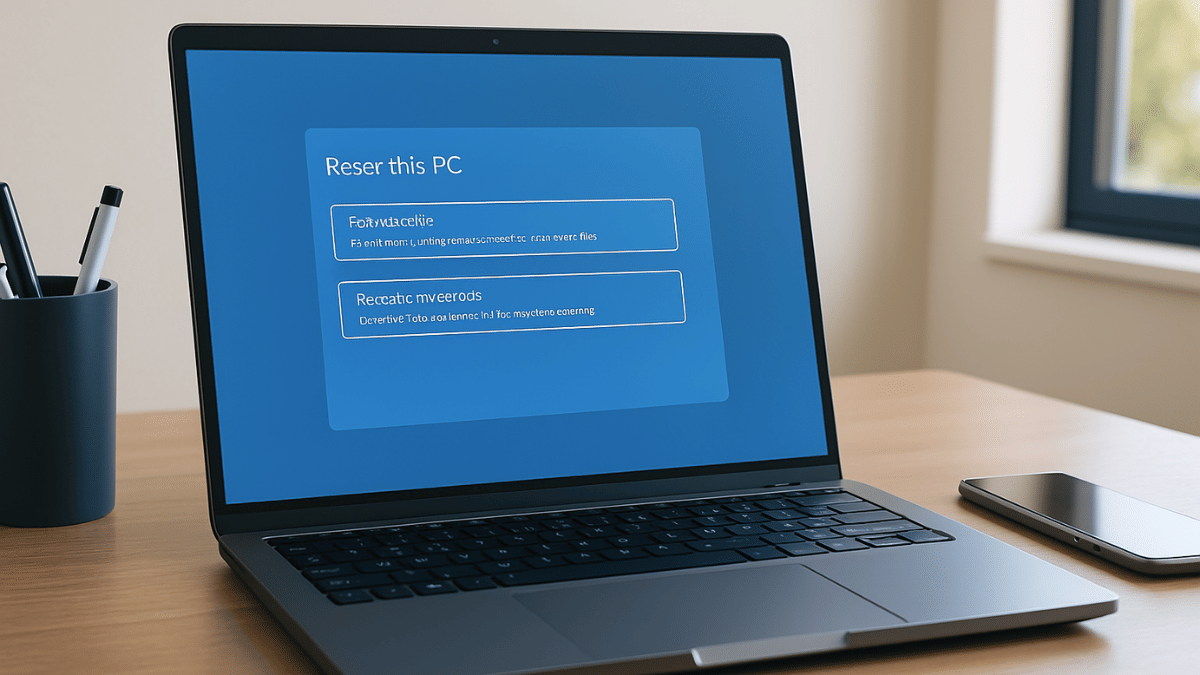
This is the method which works best with resetting Windows 11 laptop and PCs that are unable to boot. Using this method one can reset the laptop or PC to a previous timeline where it was functional.
Step 1: Ensure the laptop or PC is turned off
Step 2: Initiate the boot process. However, press and hold the power button while tapping on Shift key.
Step 3: Tap on the Torubleshoot option
Step 4: Select Reset this PC option
Step 5: Complete the steps shared on the screen and wait for the laptop/ PC to reset.

