
Key Highlights
- Google Maps shows alternate routes for different locations
- App should be updated to fix alternate route not displaying error
- Other fixes listed below
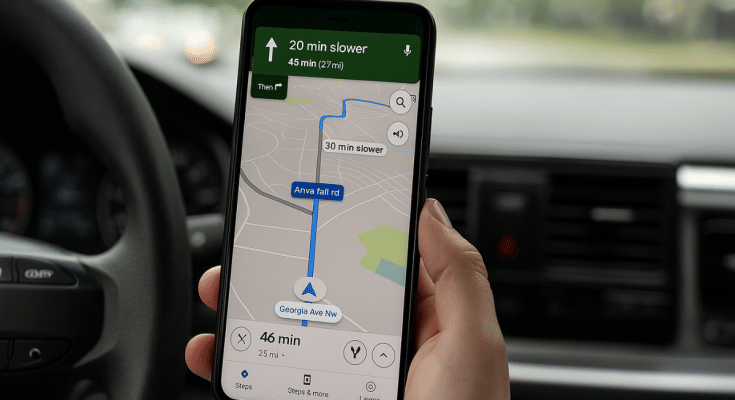
Imagine driving to an unknown destination only to find the road closed and no alternate being showed on Google Maps. It’s an tricky situation specifically if you are out with your family and you are unaware of the routes. But instead of panicking, trying some quick fixes can help you overcome this situation efficiently and swiftly. This also comes as a saviour in situations where’s hectic traffic can extend your travel period. In this guid, we help you fix the alternate routes not showing on Google Maps error.
For the tech geeks, stay updated with the latest cutting-edge gadgets in the market, exclusive tech updates, gadget reviews, and more right on your phone’s screen. Join Giznext’s WhatsApp channel and receive the industry-first tech updates.
Also Read: Transform Your WhatsApp DP: How To Create AI Profile Image, Group DPs On Android And iOS
Quick Fix Guide To Resolve Google Maps Not Showing Alternate Routes Error
Method 1. Check Internet Connections And Restart App
This is the basic fix that you can perform to fix errors with alternate route display on Google Maps. Check if the internet connection is up and running fine, if not re-connect the phone to internet and check if you are now able to see alternate route options. Re-starting the app after force closing can also do the trick.
Also Read: YouTube Music Hacks: How To Share YT Music Playlists With Others On WhatsApp, Email, Etc
Method 2. Re-Caliber Google Maps

Often Google Maps calibration can go off leading to errors with navigations and directions. Re-calibration is the quick fix that you can apply to resolve the error wit alternate route display on Google Maps. Specifically, if you notice the location dot turned grey instead of blue. Just tap on the location dot followed by the caliber option. Move the phone drawing figure-8 pattern. Doing this will re-caliber the Google Maps app’s direction and will fix any navigational error.
Also Read: Windows PC Getting Unresponsive? Here’s How To Emergency Restart Windows Laptops/ PCs
Method 3: Update And Re-Install Google Maps
This is another classic trick to fix any random functional errors with Android apps. The same can be applied to Google Maps where uninstalling Google Maps and re-installing can fix any basic bugs and errors that have been hampering its performance.
Method 4: Ensure Location Services Are Enabled
When location services are disabled, Maps will not be able to identify and suggest alternate routes for the destination and provide real time traffic analysis. Hence, ensure, you have enabled location services so that Google Maps can function properly and display alternate routes.
When Does Google Maps Stops Showing Alternate Routes? Common Scenarios
Why Google Maps May Not Show Alternate Routes
Before jumping into the fixes, it’s important to understand what could be causing the issue:
- Slow/Poor/No internet connection
- Location services disabled
- Calibration errors
- Dated App version
