
Key Highlights
- Facebook Live videos now gets removed automatically after 30 days
- Move comes as a part of updated storage policy
- Bulk download policy available for multiple videos
Earlier in February this year, Facebook revised its storage policy guidelines for its platform. One direct impact was the stopping of live video storage on Facebook for unlimited period. After introducing a 90-day grace period to download old live videos library, Facebook has now announced a new timeline of 30 days. If you are frequently going live on Facebook and have a large database of old live videos, you should save it offline or download it. In this guide, we share the steps to do so.
For the tech geeks, stay updated with the latest cutting-edge gadgets in the market, exclusive tech updates, gadget reviews, and more right on your phone’s screen. Join Giznext’s WhatsApp channel and receive the industry-first tech updates.
Also Read: Instagram Edits: New Standalone Editing Insta Tool? 10 Easy Steps To Use!
How To Download Facebook Live Videos Before 30 Days Deletion Timeline (Single Videos)
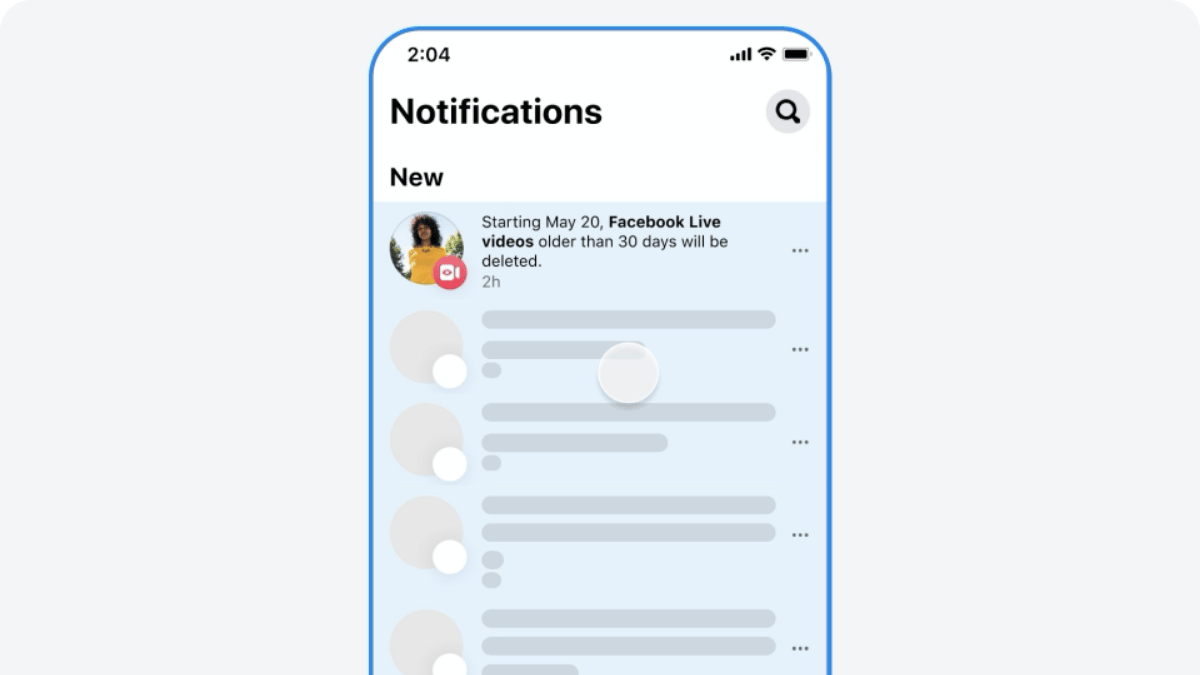
Step 1: Open Facebook mobile app
Step 2: Visit the Activity centre
Step 3: Locate “Your Live Videos” option
Step 4: Move to Videos or Live tab on your profile, page, or Meta Business suite
Step 5: Locate the video and tap on it for full screen mode
Step 6: Now, tap on the three dots to download the video
Also Read: WhatsApp In-App Language Translation Feature In Works: Update
How To Download Facebook Live Videos In Bulk
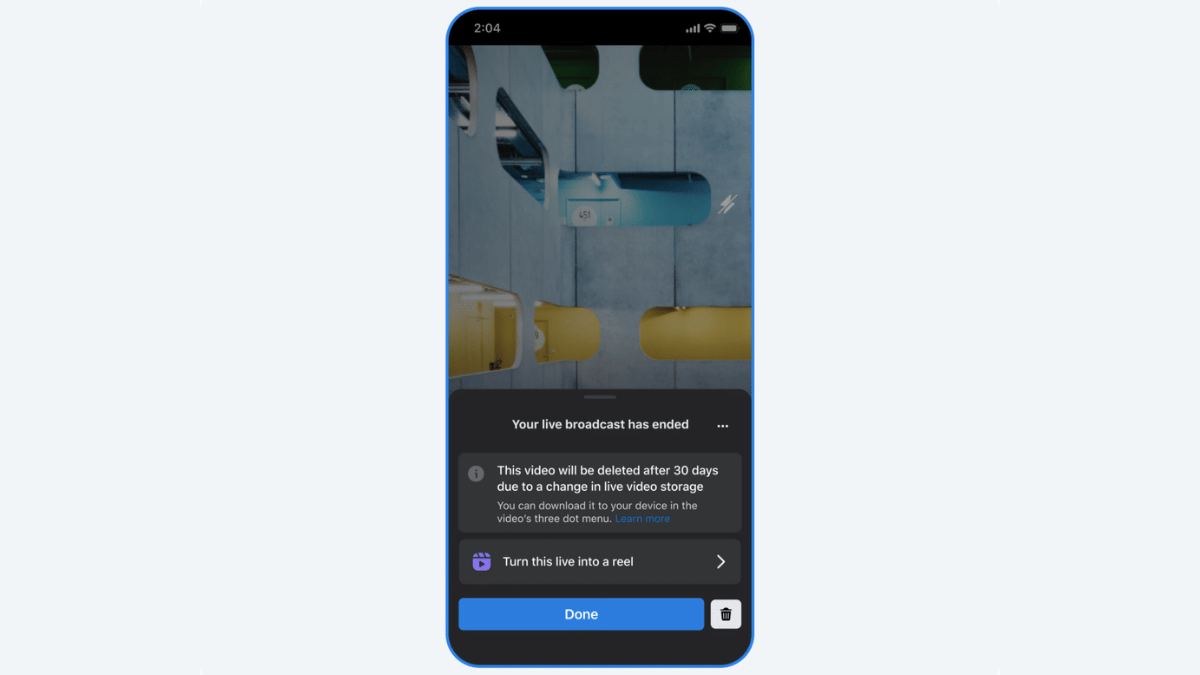
Step 1: Open Facebook app and tap the notofication for storage policy update to enter into the download flow.
Step 2: Click on “Download Live videos” option
Step 3: Confirm the file download location (smartphone/ tablet, laptop/ pc).
Step 4: Select th date range for the live videos that will be downloaded on the selected device
Step 5: Click “Create File”
