
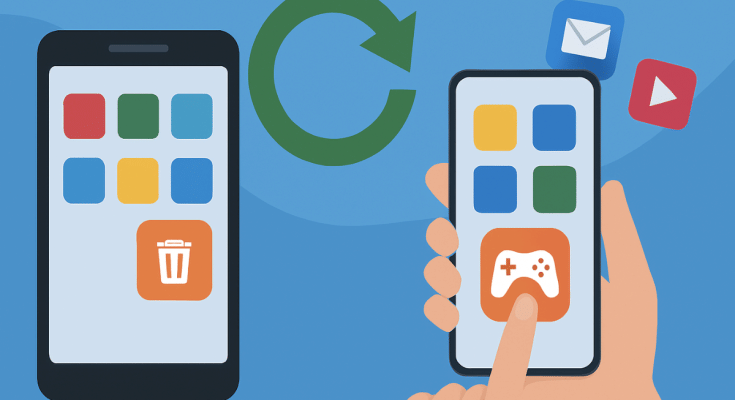
Key Highlights
- Accidentally deleted apps can be restored
- Games can also be restored with all progress
- No subscription or plans re-purchases required with Google linked accounts
Google Play Store is the one stop destination for all mobile apps and games available for the Android users. Be it your favourite social media or messaging app or games, Play Store is the only authentic platform to download and install these apps. Google keeps a constant check on the apps being made available on the platform to keep it free from malware or similar scam apps. Often multiple mobile apps can lead up to clogged device memory which is why uninstalling apps that are not in use is advised. However, this process can lead to you accidentally delete the apps that you are using frequently. It can be a game with certain level of progress or your favorite app containing all your preferred customisations. If you have been in such situation then there’s no need to panic. In this article we are exploring the methods with which you can easily restore your deleted apps or mobile games on your Android smartphones and tablets:
For the tech geeks, stay updated with the latest cutting-edge gadgets in the market, exclusive tech updates, gadget reviews, and more right on your phone’s screen. Join Giznext’s WhatsApp channel and receive the industry-first tech update.
Also Read: Merge Two Different PF Accounts Into One: How To Guide
Steps To Restore Deleted Apps/ Games On Android
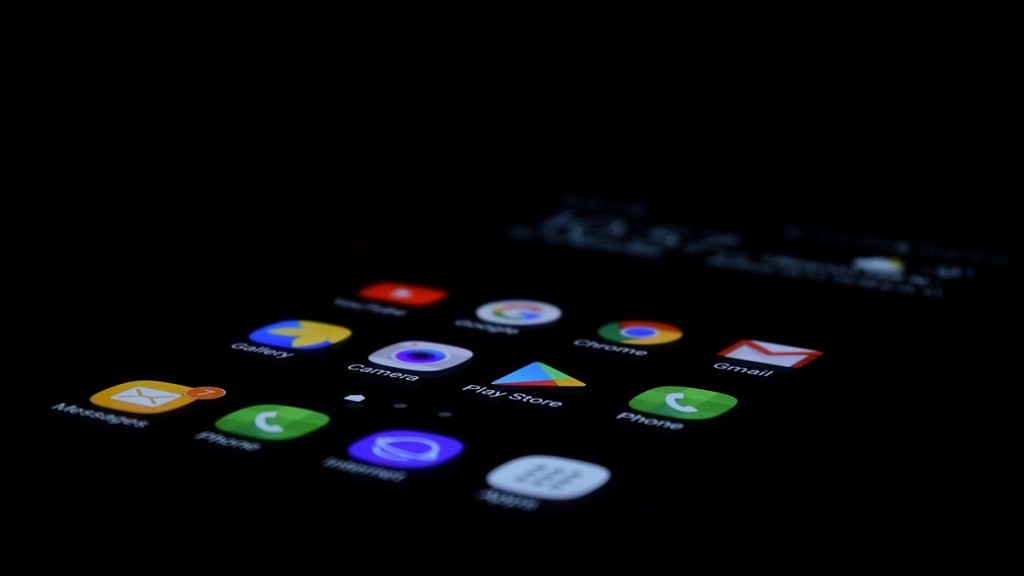
Via Google Play Store
This is the easiest way with which you can restore your deleted mobile apps or games. Google keeps a log of the installed apps on your device using the Google account. Just visit Play Store and re-install the app that has been deleted accidentally.
Step 1: On your Android devices, open the∫ app.
Step 2: From the top right corner, click on the Profile icon.
Step 3: You will see a bunch of option, navigate to the Manage apps and devices option.
Step 4: Tap on Manage option
Step 5: From the drop down next to Installed menu, tap on the “Not Installed” option
Step 6: Now, simply search for the app that has been deleted accidentally.
Step 7: Tap on the “Install” option
Step 8: Wait for the app to be downloaded and re-installed on your device
Step 9: Open the app once installed and sign-in back using your registered email address of Gmail account.
Pro Tip: Apps installed using Google Account can be re-synced. This means no need to buy subscriptions again.
Also Read: Incognito Browsing Not So Private! Steps To Check Incognito Mode Browsing History And How To Delete
Steps To Restore System Apps On Android Devices
If you have accidentally system apps or Google apps such as Phone app, clock, gallery, etc., do the following to restore
Step 1: Open Settings menu on your Android devices
Step 2: Navigate to Apps section
Step 3: Select Disabled Apps section
Step 4: Select the app that you want to restore such as Phone, Messages, etc.
Step 5: Click on Enable.
Also Read: Want To Transfer Ola Money Cash To Bank Account? Here’s How To Do It
Steps To Restore Games With Active Progress And Purchases

Most of the modern day games and apps on Google Play Store can be re-synced to previous progress. Also, no new subscriptions or purchases will be required to continue using the services.
Step 1: Open Play Store and download the deleted game or app
Step 2: For games like BGMI, Free Fire, etc., auto restore progress option is available.
Step 3: If the progress isn’t restored, open the game Settings
Step 4: Tap on the Restore from Cloud/ Server option.
