
Key Highlights
- Android Auto screen can be customized
- Allows transforming screen as per preference
- Changing wallpapers and adding app shortcuts popular custmization choices
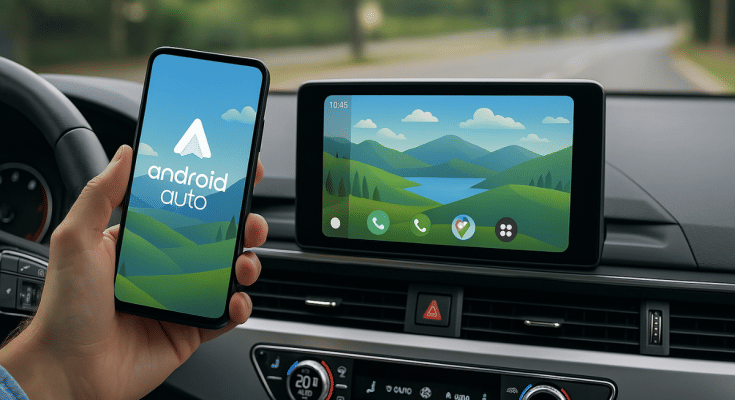
Android Auto has definitely addressed the long due upgrade in four wheeler cabins. The car infotainment system which certainly hasn’t been the most strongest aspect of a car design in the past years have evolved to a full fledged navigation and entertainment hub. These modern digital infotainment system takes the driving experience to a whole new level. Now, you don’t have to solely rely on your smartphone for navigation and media playback when you ate driving an Android Auto loaded car. From mirroring your smartphone apps to allowing users customize the home screen, all can be done with just few taps. We are exploring the ways to customize Android Auto’s home screen by changing wallpapers and adding shortcuts. Read on to find out the steps for the same:
Also Read: Forgot Your ATM Card? Don’t Worry! Here’s How To Withdraw Cash From ATM Using Smartphone
Method 1: Steps To Change Android Auto Background Using Smartphone
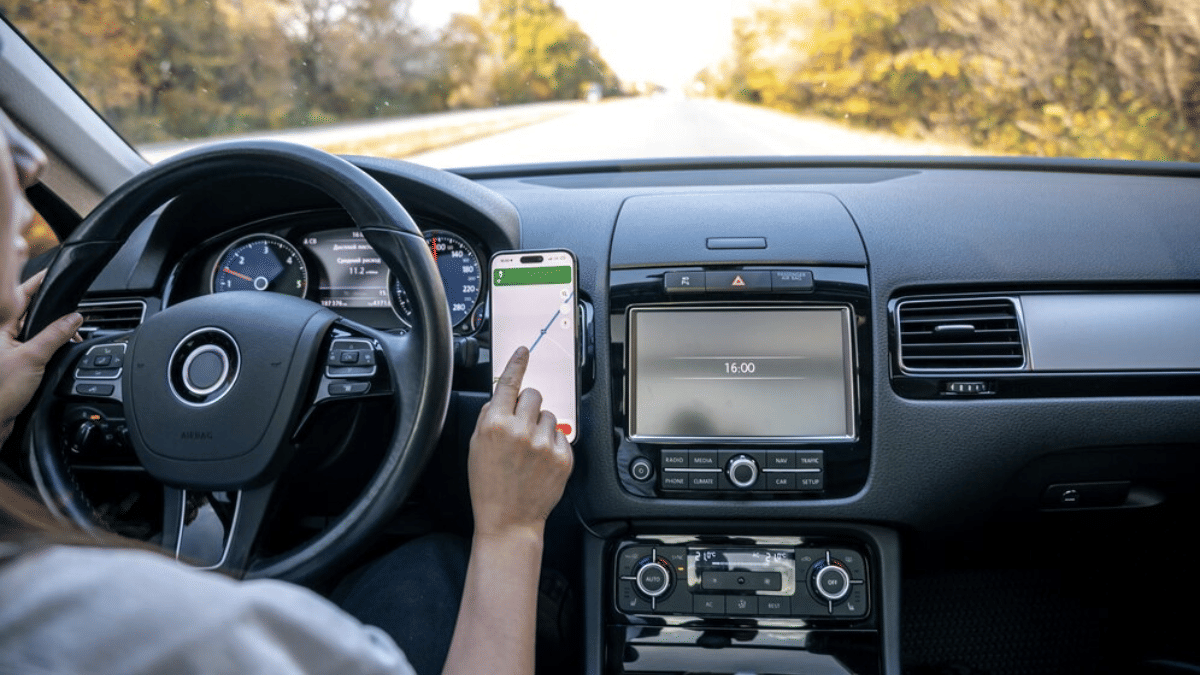
This is the easiest way to change the Android Auto screen’s wallpaper. In this method, the Android Auto screen mirrors the wallpaper of the paired smartphone’s screen. Additionally, you can use the smartphone gallery to change the wallpaper on Android Auto screen.
- Step 1: Unlock your smartphone
- Step 2: Tap and hold on any empty space on the home screen. This will open up the Wallpaper settings.
- Step 3: Click on Wallpapers and Styles
- Step 4: Click on Change Wallpaper
The updated wallpaper on your smartphone will now reflect on the Android Auto Home screen.
Also Read: How To Use Telegram Without Internet? Top 5 Working Tricks In 2025
Method 2: Steps To Change Android Auto Background Without Smartphone
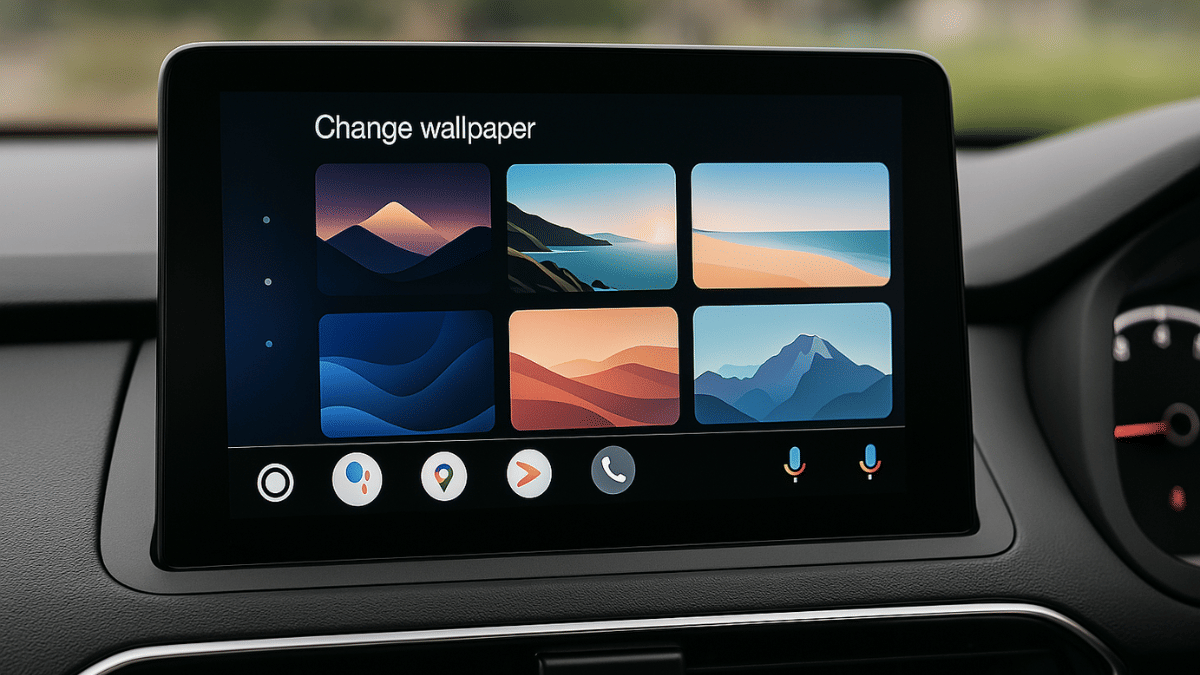
If you don’t wish to mirror the same wallpaper as your smartphone on Android Auto’s screen, you can use the built-in extensive range of wallpapers as well. Note, you won’t be able to set any custom image clicked from your phone as the wallpaper if you are going with this method. But the
- Step 1: From the Android Auto app’s home screen, open the Settings menu
- Step 2: Navigate to Wallpapers settings
- Step 3: A list of wallpapers will show up on the screen. Tap on the wallpaper that suits your mood.
Pro Tip: You can also enable Dark Mode using the Settings menu on Android Auto app.
