As the Assistant Editor, Sandeep is generating tech-oriented content and also monitoring the content published on the website. He has over six years of experience in tech journalism and has expertise in product reviews, news articles, listicles, and media campaigns.
Odyse Evoqis Lite sports-style e-motorcycle launched
Powered by a 60V battery
Delivers 75 kmph top speed and 90 km range
Priced at Rs. 1.18 lakh (ex showroom)
Odysse Electric is one of the fastest growing electric two wheeler startup in India. The brand has stepped up its game once again with the launch of a new budget electric motorcycle in the country called Evoquis Lite. Targeted at the the youth, the latest addition comes with a modern sports styling, a decent range of up to 90 kmph with the price tag below Rs. 1.20 lakh.
For the tech geeks, stay updated with the latest cutting-edge gadgets in the market, exclusive tech updates, gadget reviews, and more right on your phone’s screen. Join Giznext’s WhatsApp channel and receive the industry-first tech updates.
Odyesse Evoquis Lite Electric Scooter Design Highlights
The Odysse Evoquis Lite electric scooters brings along a modern attire which is sports inspired. It gets a sleek profile overall and features clip-on handlebar design. The turn indicators are side-mounted and it has an aerodynamic windscreen, split style seat layout that further adds to its aggressive looks.
Evoquis Lite e-motorcycle draws its power from a hub motor mounted at the rear. This motor pack is linked to a 60V battery which helps this electric motorcycle to achieve a top speed of up to 75 kmph. As for its range, it is said to make a run of up to 90 km on a single charge.
Features range offered by the Evoquis Lite included multiple riding modes, anti-theft, keyless ignition, smart battery management, and motor cut off functionality.
WhatsApp chats are backed by end-to-end encryption safety
New advanced safety layer added called ‘Advanced Chat Privacy’
Can be enabled manually on mobile app
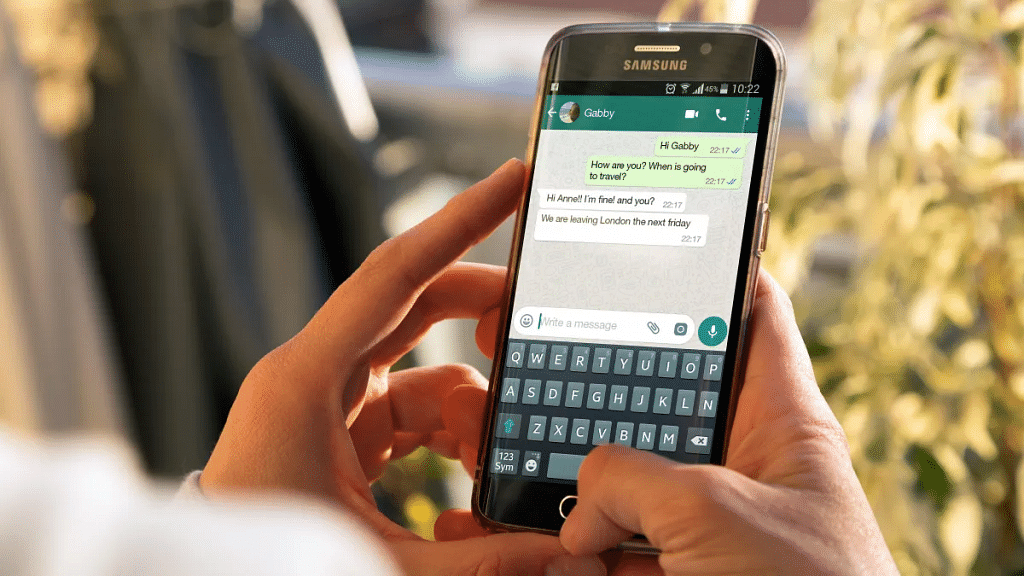
WhatsApp has been stepping up its privacy game ever since its launch. Despite being based on an end-to-end encryption platform, WhatsApp has been constantly upgrading its ecosystem with advanced safety and privacy features. The instant messaging app has received another new feature that will be providing advanced safety to all chats and media messages with a single chat or group. What is this new advanced chat privacy feature and how can you enable this feature:
For the tech geeks, stay updated with the latest cutting-edge gadgets in the market, exclusive tech updates, gadget reviews, and more right on your phone’s screen. Join Giznext’s WhatsApp channel and receive the industry-first tech updates.
WhatsApp has released a new privacy feature called the Advanced Chat Privacy to make conversations more secure and private. This feature has been in works for a while and was spotted via leaks. This new feature will act like an advanced safety layer for your chats where any random person won’t be able to export your chats or media without your knowledge.
The Advanced Chat Privacy feature will also restrict auto-download of media files and also AI tool plug-ins stopping Meta AI features in the selected chats. Advanced Chat Privacy feature on WhatsApp can be enabled with just a few taps on the mobile app. Let’s take a look at the steps below:
Allows seamless money transfers and enhances financial security
Nominee can be added online via EPFO platform
Any family member can be added as a nominee in EPFO
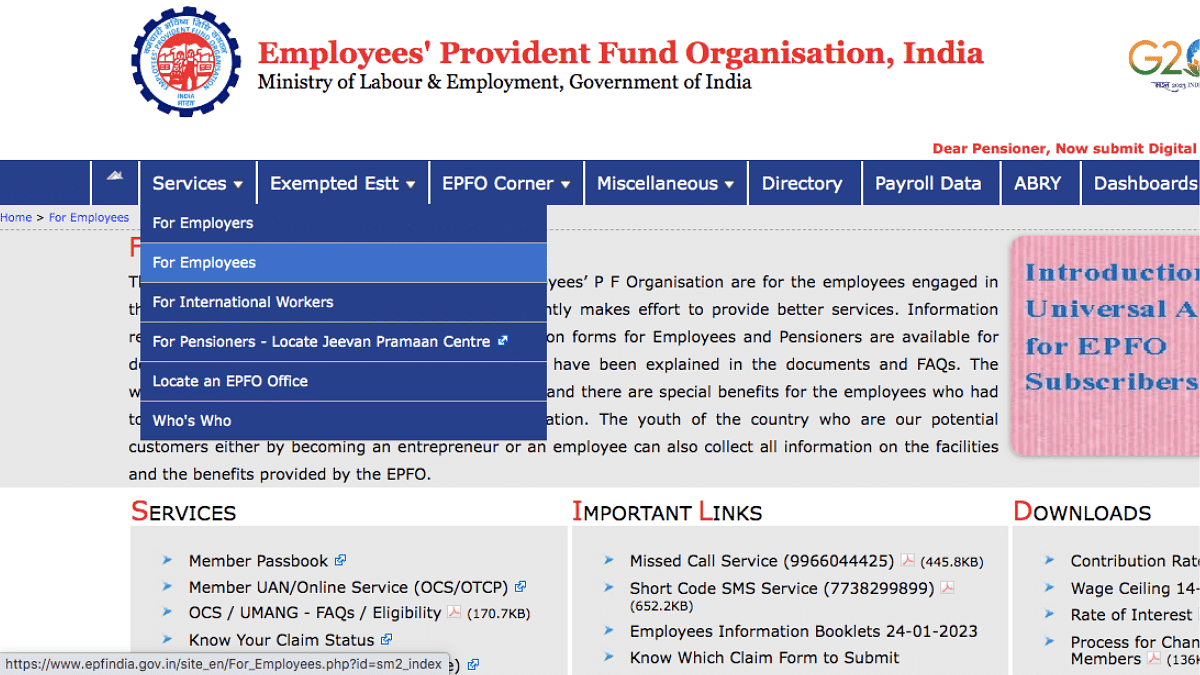
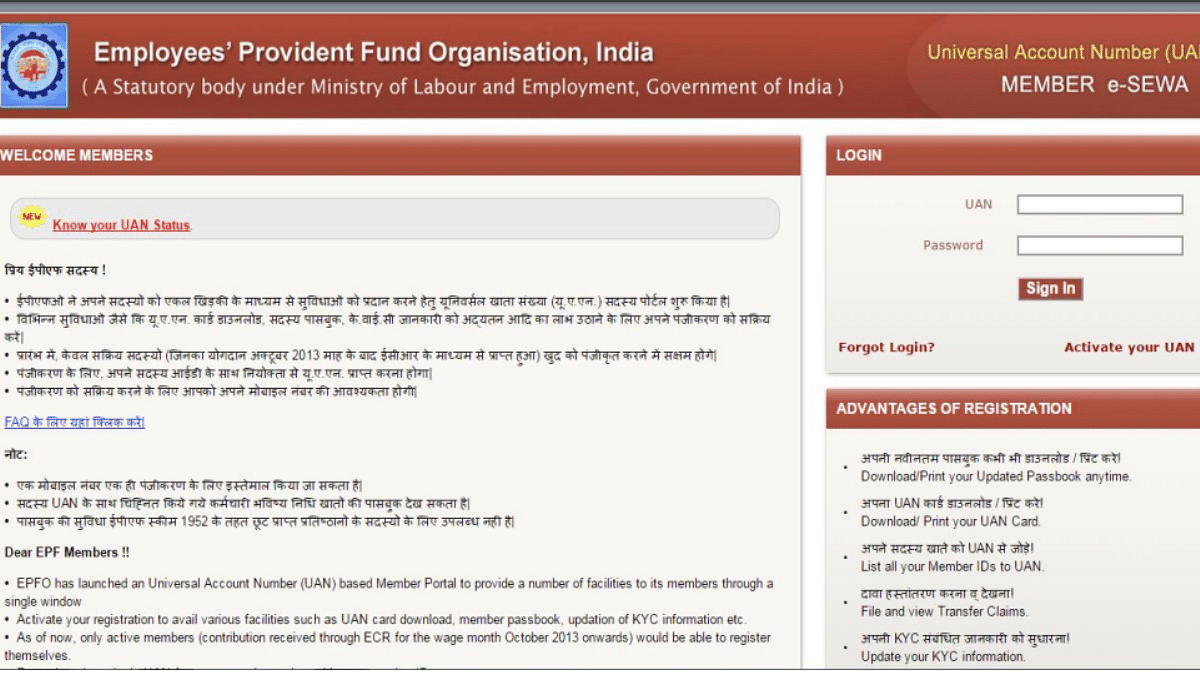
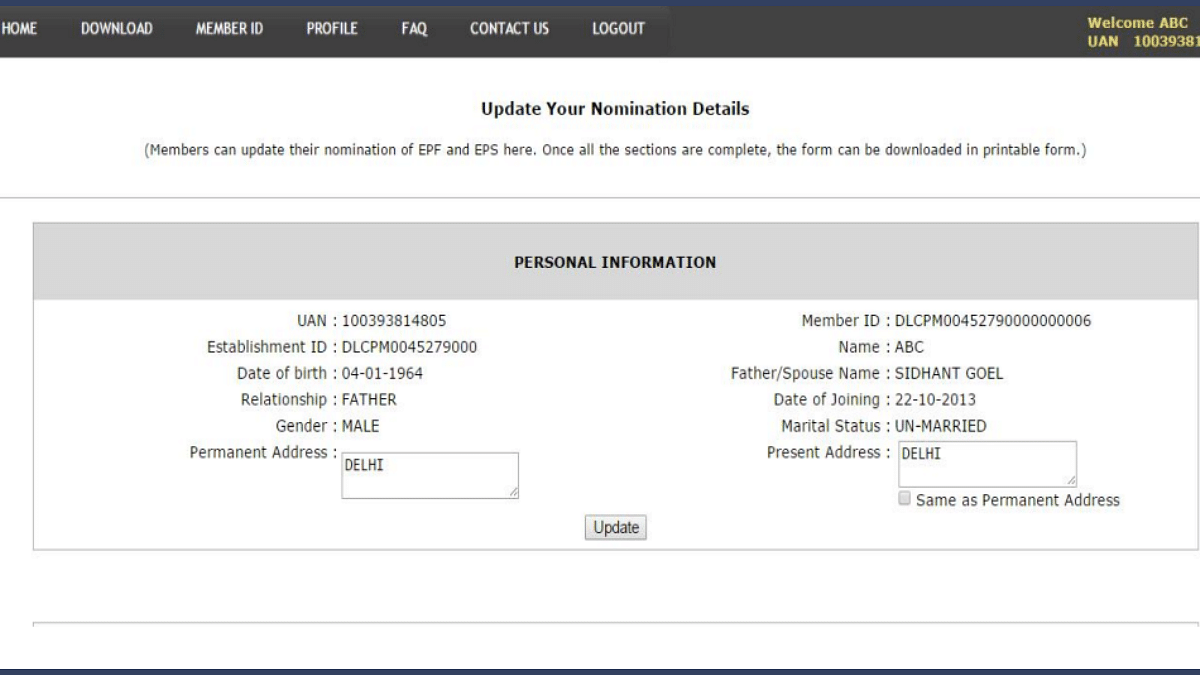
EPF (Employee Provident Fund) is one of the most beneficial services available for the taxpayers in India. Managing and accessing all EPF services is now easier with the official website. Updating profile, linking aadhaar, and much more can be done via EPFO website. Adding nominee is one of such crucial procedure that you should complete if haven’t already. You can add a family member as a nominee to receive funds and more. In this guide, we are sharing the steps to add a family member or your spouse as a nominee to your EPF account.
For the tech geeks, stay updated with the latest cutting-edge gadgets in the market, exclusive tech updates, gadget reviews, and more right on your phone’s screen. Join Giznext’s WhatsApp channel and receive the industry-first tech updates.
Lenovo Tab K11 flaunts premium dual-tone metallic body
Landscape front camera positioning makes it convenient for video calls
Wi-Fi+ cellular 5G network option
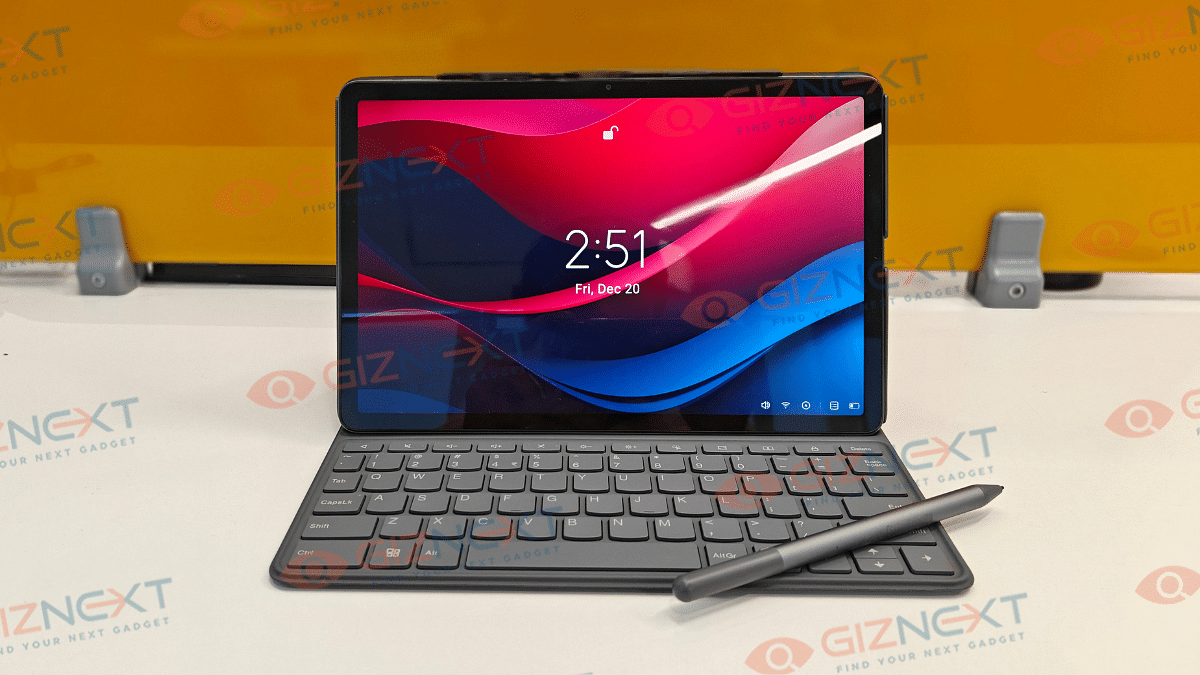
Comes with stylus pen and folio keyboard
Cons
Slow 10W charging speeds
Display comes void of HDR compatibility
Average low-light photography with primary camera
Dated Android 13 OS pre-installed
Lenovo has been at the forefront of PC and laptop industry and the brand has established itself as a strong player in the tablet market too. And its a wide audience segment Lenovo is catering to with its tablets range. Specifically, with the budget segment, Lenovo has been showing off its expertise and is frequently updating the catalogue as well. The Tab K11 Enhanced Edition is one of the newest members in the Tab K series that focuses on productivity and creativity aspects. At Rs. 26,999, the Tab K11 Enhanced Edition seems to be a well-rounded package specifically with the added folio keyboard and the stylus pen. But does it really justify its price tag? Its time to find out:
For the tech geeks, stay updated with the latest cutting-edge gadgets in the market, exclusive tech updates, gadget reviews, and more right on your phone’s screen. Join Giznext’s WhatsApp channel and receive the industry-first tech updates.
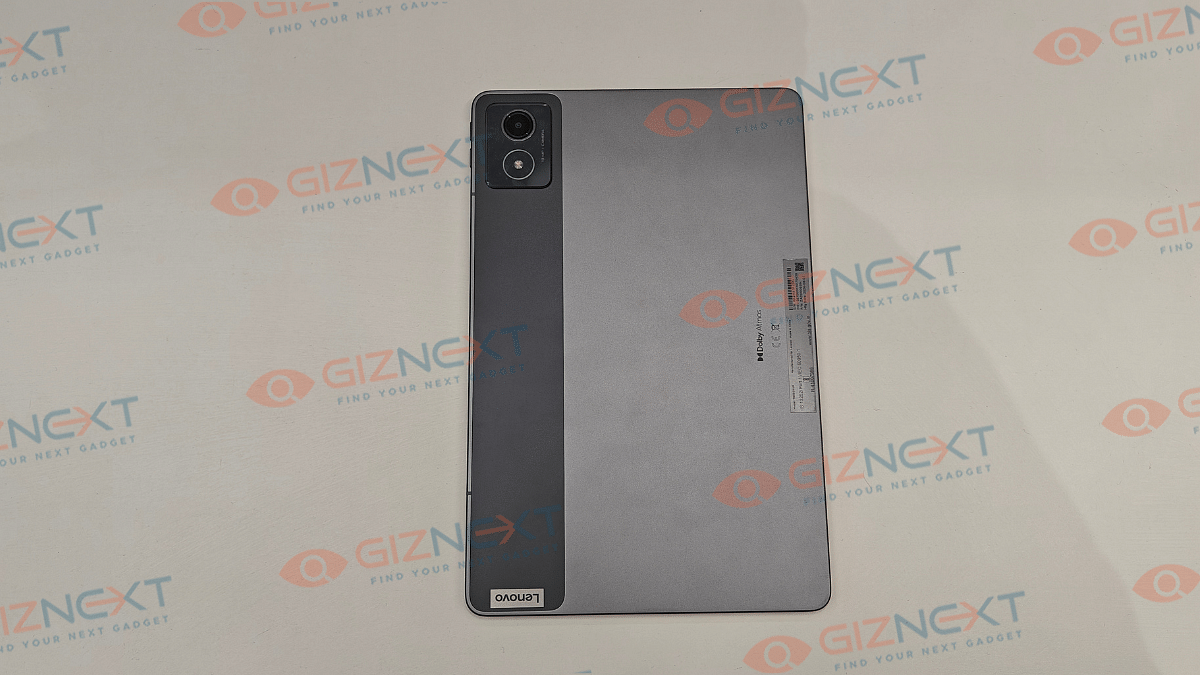
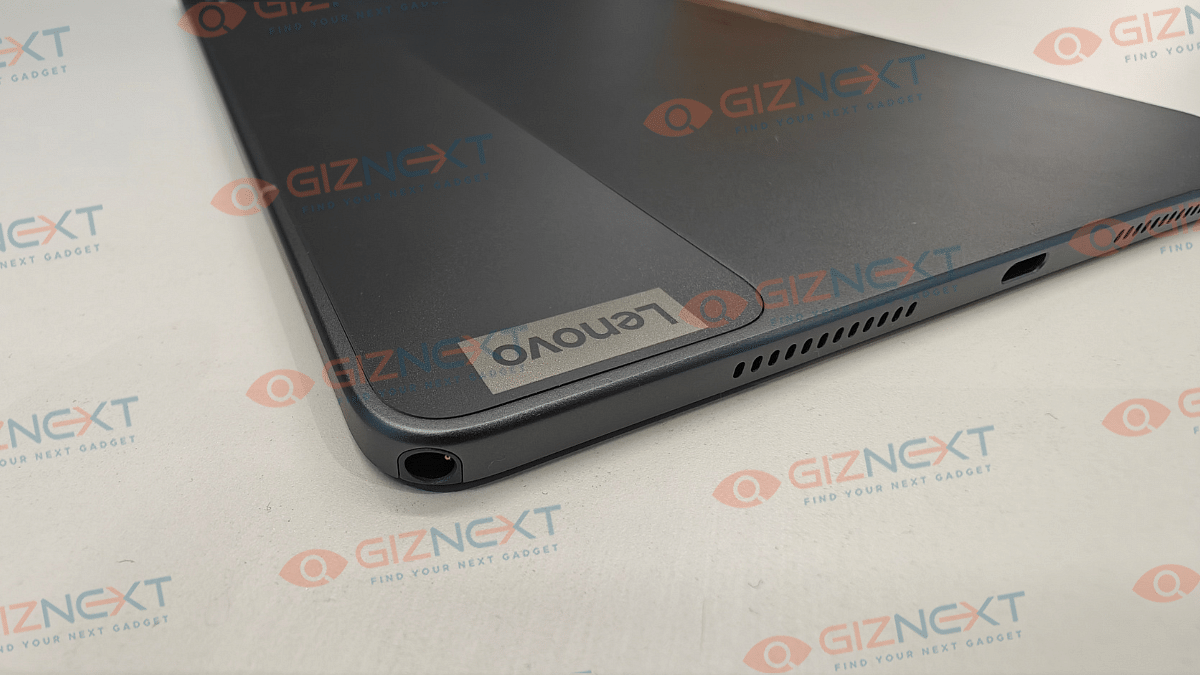
Lenovo has given a familiar design silhouette to the Tab K11 (Enhanced Edition) as its other budget-oriented tablet models. It also has a robust metallic body construction complemented with a dual-tone shade. For refrence, you ca opt from Luna Grey and Seafoam Green shades where we recieved the former for review at Giznext.
A single camera lens is housed inside the rectangular camera island on the top left of the back panel (on the dark gray vertical frosted polycarbonate strip). Right next to the camera island (housing a 13MP primary lens) on the right spine, there are the volume adjusters.
The flat frame-lightweight design along with the full-metal chassis gives confidence to hold and use the tablet with single hand. But eventually, you’ll have to use both your hands for extensive and creative tasks considering the tablet’s big form factor. Bottom panel includes a USB Type-C port sandwiched in between the speaker grilles and the stylus pen slot (on the top right bottom corner).
The Tab K11 comes void of any physical fingerprint scanner, but it offers Face Unlock as added privacy besides the standard PIN and Password protection. Summing it up, the Tab K11 Enhanced Edition while sporting a conventional design is practical for daily usage with its slim, lightweight rugged profile.
Lenovo Tab K11 Enhanced Edition has a substantially large display panel that measures at 11-inches. It is a standard LCD panel as is the case with most of the budget segment tablet. Panel specs offered by the Tab K11 Enhanced Edition includes an FHD screen resolution of 1200 x 1920 pixels and a 90Hz refresh rate. The display has Widevine L1 certification but comes void of Dolby Vision and HDR compatibility.
While two of these crucial display aspects are missing, it doesn’t mean the panel quality is compromised. The colors produced by the Tab K11 Enhanced Edition’s screen are good. The clarity levels are also satisfactory despite it being the conventional LCD screen.
The Tab K11 Enhanced Edition’s display offers 400 nits peak brightness levels. While you won’t face any difficulties with the brightness levels indoors, you might struggle a bit to view content outdoors under direct/ harsh sunlight. That’s one of the few shortcomings with the screen here.
Lenovo Tab K11 (Enhanced Edition) like most of the budget and mid-range tablet’s is equipped with a single rear and a single front camera setup. The sensors are also standard where the rear panel accommodates a 13MP lens with AF (Autofocus), while at the front there is an 8MP snapper with FF (Fixed Focus) and front flash.
Optics hardware with tablets aren’t as evolved as with smartphones. However, the imaging setup on all the tablets are suitable for basic usage. The same is the case with the Lenovo Tab K11 (Enhanced Edition), where the 13MP rear snapper is apt for capturing stills, scanning documents, and similar tasks. Overall clarity offered by the primary camera is decent.
That said, the selfie snapper upfront integrated in a landscape positioning is makes it convenient for video calling or conferencing. So if you need a device majorly for online conferences and don’t wish to invest heavily into a laptop, this tablet could serve the purpose well.
Lenovo Tab K11 (Enhanced Edition) is powered by the Helio G88 chipset. This MediaTek processor has standard 4G network support and is powering a majority of low-end and entry-level Android devices. The Helio G series focuses on refining the gaming and overall performance experience which we found to be true to some extent with the Tab K11 (Enhanced Edition).
You get this tablet with 8GB LPDDR4X RAM and 128GB eMMC 5.1 storage space. Storage expansion to up to 1TB is also possible via an external microSD card. This means no storage crunch issues even if you store large sized files and documents on this tablet.
The Helio G88 chipset performs well when you throw basic tasks at it which can range from general web browsing to streaming videos on YouTube and OTT platforms. You wouldn’t notice any major lags or frame drops with the basic tasks mentioned above. However, we found the tablet struggling slightly when there is any extensive game or app launched.
The app launch isn’t instant; specifically if there are multiple apps opened in the background already. The same feedback is with gaming where lightweight titles don’t experience any lags, but on the other hand, extensive game play can feel jittery at times. That said, it still is potent as a daily driver if you use it for moderate apps and games.
Lenovo Tab K11 (Enhanced Edition) Accessories (Stylus and Keyboard)
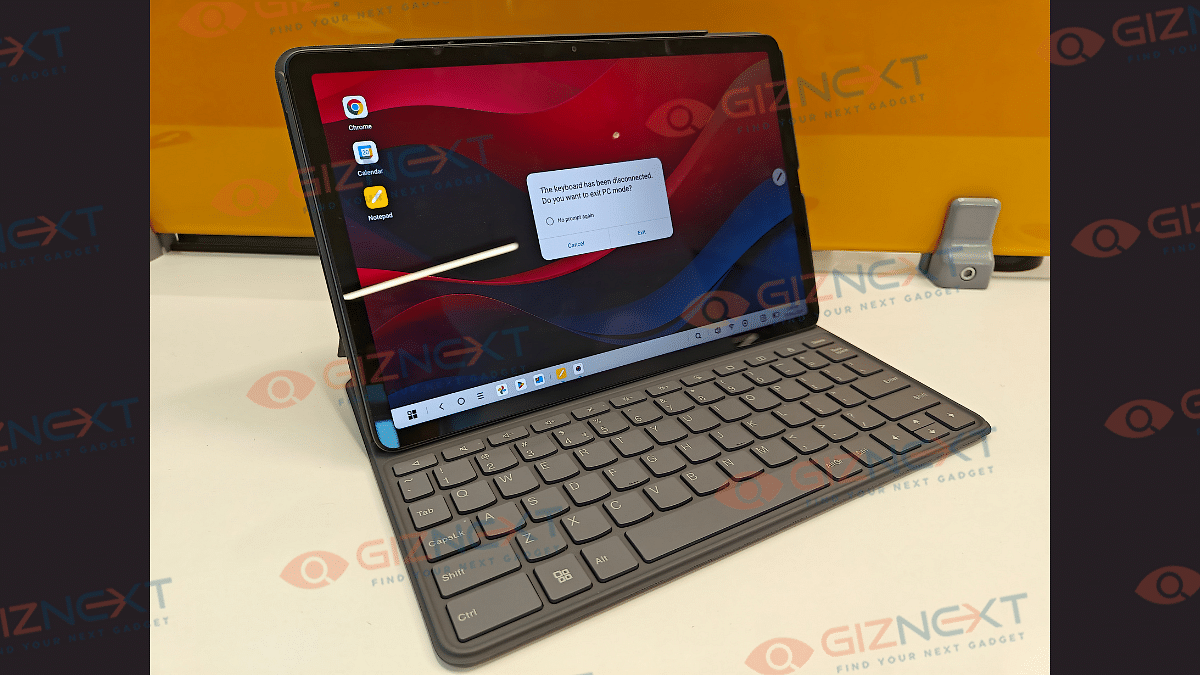
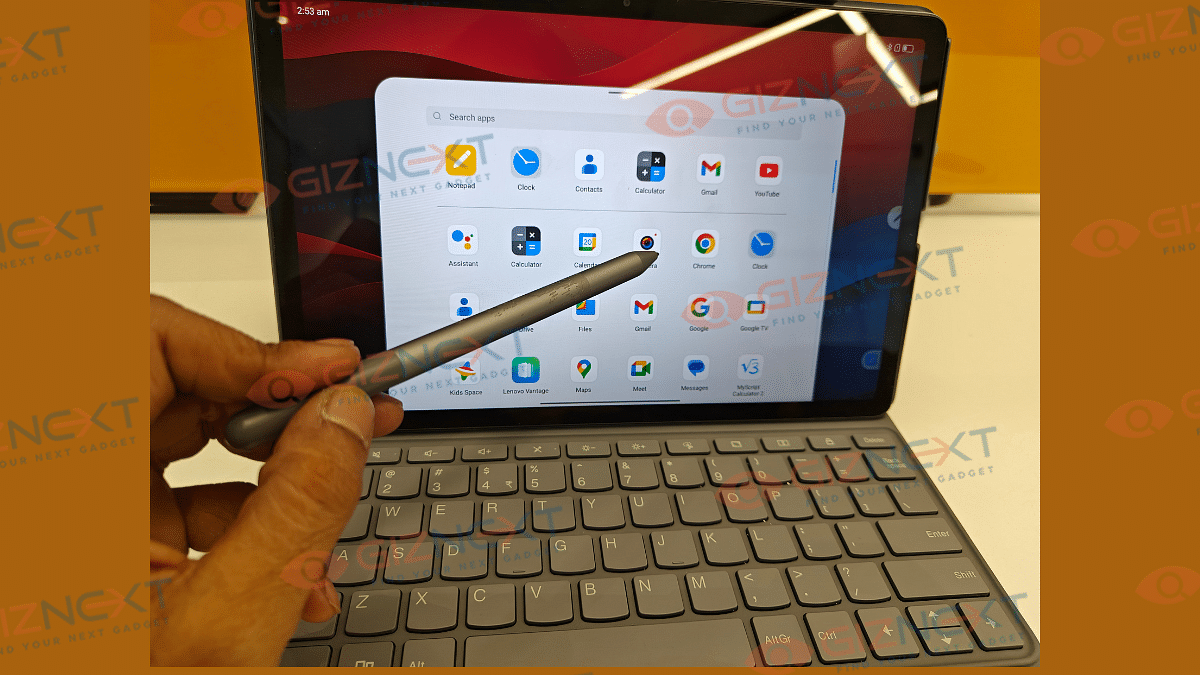
The Lenovo Tab K11 (Enhanced Edition) ships with a stylus pen and a Folio keyboard out-of-the-box. These added accessories definitely adds worth to this product. The stylus pen does’t get magnetic charging feature rather it uses a single AAA battery to power up. The thicker pen design allows ideal grip for writing and sketching. There is also a Palm rejection feature which functions well with taking notes.
There are dedicated apps to use with stylus such as Nebo (converting handwritten texts) and MyScript calculator that allows working on handwritten notes and equations. There are additional pen tips included with the stylus pen that can be replaced and used in case the default tip stops functioning properly.
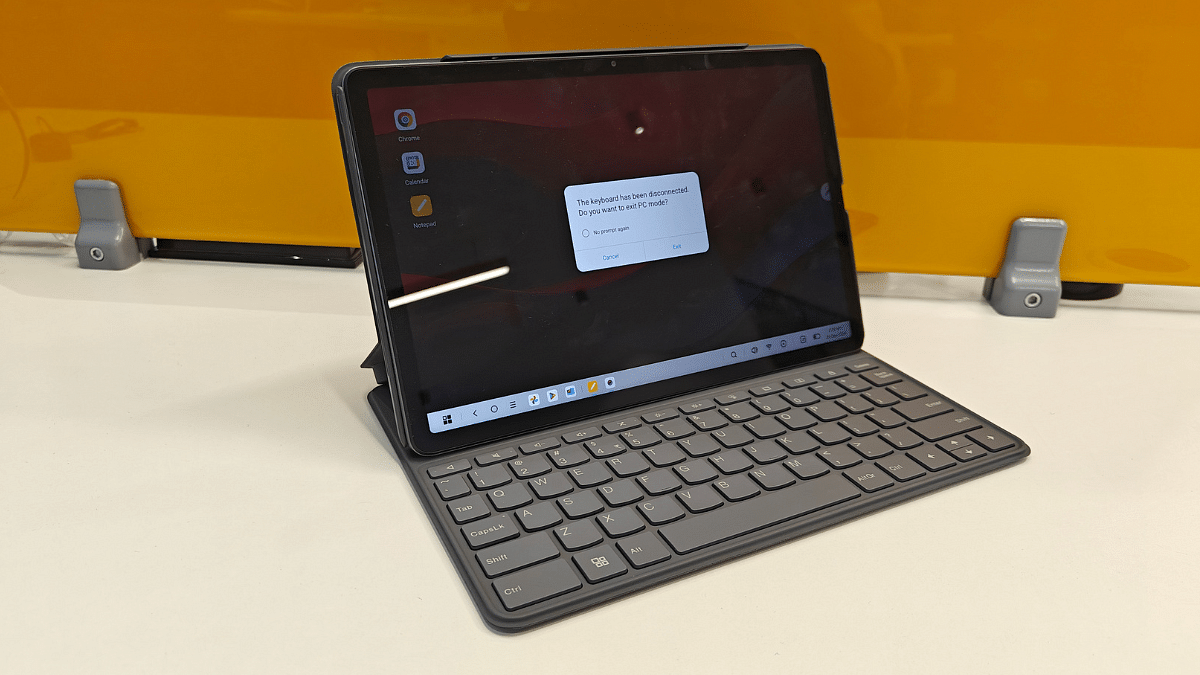
Another important accessory that the Tab K11 (Enhanced Edition) ships with is the Folio keyboard. It latches on magnetically to the tablet via pogo pins. Keyboard’s functionality is good and you will find the keys nimble to press.
Backing up the Tab K11 (Enhanced Edition) is a 2-cell 7040 mAh (Li-Ion) battery pack. The big battery module tucked inside the slim tablet body is decent with backup. It is capable of lasting an entire day with a single charge with extensive usage.
You won’t necessarily need an additional plug in until the next day. Expect the battery backup to extend to up to two days if you use it lightly with basic tasks such as browsing and online conferencing. Media playback and gaming if done extensive will drain the battery by the end of the day. This brings us to the charging speeds, the Tab K11 (Enhanced Edition) comes with 10W charging support. It takes close to 4 hours to charge this tablet from 0- 100 percent.
Lenovo Tab K11 (Enhanced Edition) Final Verdict: Worth Buying?
Lenovo Tab K11 (Enhanced Edition) is a well rounded package overall in the budget segment. It justifies its price tag with its robust build, vibrant screen, and the stylus pen/ folio keyboard accessories. This tablet is suitable for working professionals and students who need a daily use tablet for tasks such as online conferencing, taking notes, and media playback, etc. It wouldn’t be wrong to say that the Tab K11 (Enhanced Edition’s) added accessories is what gives it an edge over the standard version and the counterparts in this segment.
Features 50MP dual rear cameras and 16MP front camera
Price in India starts at Rs. 17,999
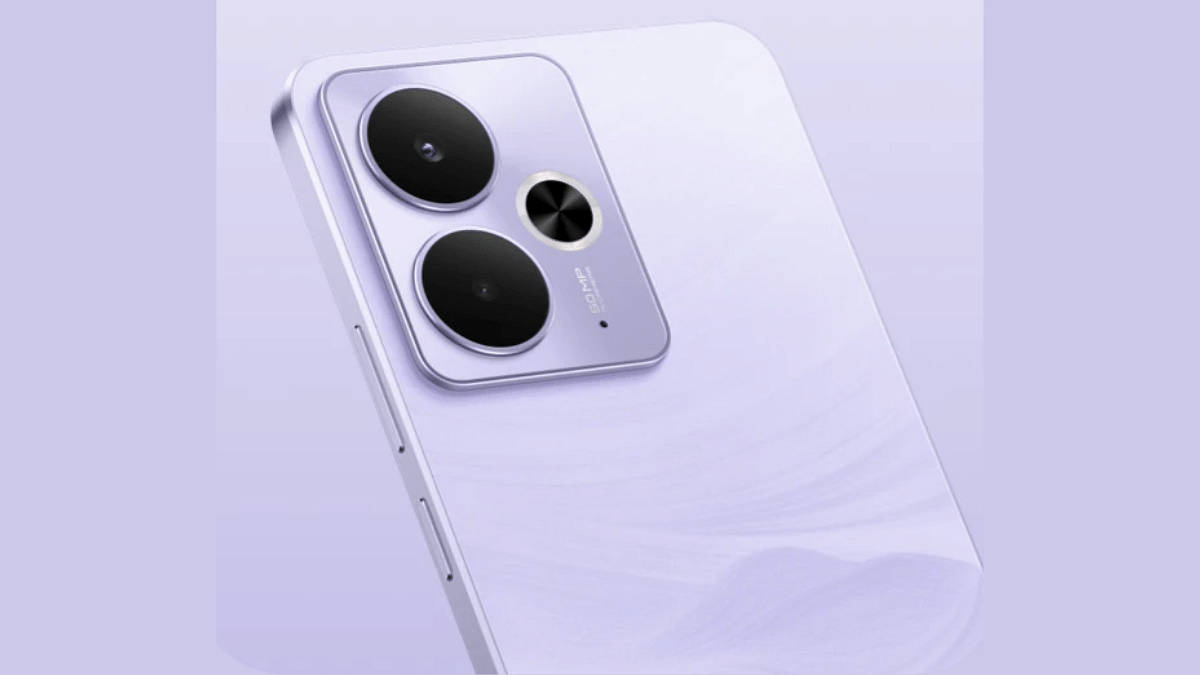
Realme has launched another new number series handset for the mid-range consumers in India. The latest member added to the Realme 14 series is the Realme 14T which is also a 5G-enabled handset with a starting price under Rs. 20,000. Realme 14T 5G is introduced with features like the Dimensity 6300 chipset, a 120Hz AMOLED display, 50MP dual rear cameras, and a massive 6,000 mAh battery combined with 45W fast charging. Here are the top highlights of the Realme 14T 5G in India:
For the tech geeks, stay updated with the latest cutting-edge gadgets in the market, exclusive tech updates, gadget reviews, and more right on your phone’s screen. Join Giznext’s WhatsApp channel and receive the industry-first tech updates.
Increased temperatures can hamper laptop’s speed and overall performance
Dust and dirt, extensive usage, battery degradation common reasons
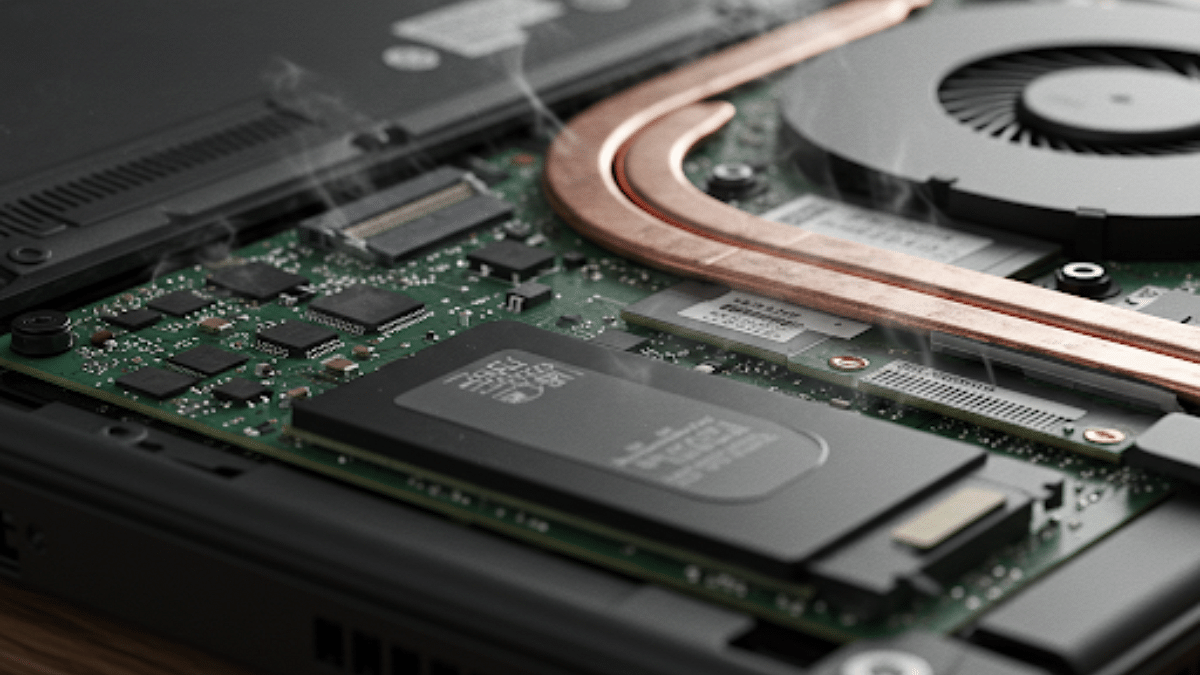
Soaring summer temperatures is something that affects both human and machines. Increased workloads often leads to machines break down due to high temperatures with continuous operations. The same applies to laptop and PCs where extensive usage in peak summers can lead to frequent crashes, app shutdowns, and more. Excessive heat can even lead to damages further affecting the performance of your laptop. If you already are experiencing frequent laptop heat up and shut down issues due to the same, here’s the guide to fix this issue. We have listed top 5 effective methods that can help you fix laptop heat up issues without paying a visit to service centre.
For the tech geeks, stay updated with the latest cutting-edge gadgets in the market, exclusive tech updates, gadget reviews, and more right on your phone’s screen. Join Giznext’s WhatsApp channel and receive the industry-first tech update.
Top Effective Methods To Protect Laptop From Overheating
Method 1: Restrict App Running In Background (Extensive or Heavy apps)
Try to keep all the unused apps and software closed when not in use. Closing down unnecessary apps running in the background not only ensure swift performance but also keep your laptop’s temperature steady. It is one of the effective ways to ensure the laptop doesn’t get heated up with continuous usage.
Try using laptop with a cooling pad or a stand. You can buy a USB-powered cooling pad if your laptop usage is extensive. These pads and stands allows with a lifted placement of the laptop which further helps with proper airflow to keep the temperatures stable. These stands and cooling pads are ideal for extensive gaming and similar tasks that requires heavy processing.
Often clogged air vents of a laptop also leads to increased temperatures. Hence, it is advised to keep your laptop’s vents clean to allow proper air flow. Also, try using laptop on a flat hard surface instead of your lap, bed, or blankets for long. Doing this can block the air vents and the air flow hampering speeds and overall performance.
Method 4: Ensure All Apps And Software Are Updated To Latest Version
Older OS and software versions can also lead to laptop overheating. Downloading the latest updates ensure your device doesn’t lag with performance and also maintain stable temperature levels.
Method 5: Uninstall Unnecessary Apps And Softwares
Remove or uninstall any app of software which is not in use. Specifically, if the app size is large and it takes up extra storage space. Also, try setting up and using your laptop in a cool room to keep the components functioning well.
Multiple language support to be included such as Spanish, Hindi, Russian, Arabic, etc.
WhatsApp is the most commonly used messaging app available globally for Android and iOS devices. Meta-owned instant messaging app offers an end-to-end platform for chatting, audio/ video calling, and media transfers making it private and secure for all conversations. Over the years, WhatsApp has benefited numerous businesses globally and the brand is consistently adding on new features to further improve its ecosystem. To help its users overcome any language barrier, a new feature is getting tested. Yes, you read that right, WhatsApp is finally bringing a native language translation app on its platform; a feature that has been in demand since long. Here’s how you can use the latest in-app language translation feature on WhatsApp:
For the tech geeks, stay updated with the latest cutting-edge gadgets in the market, exclusive tech updates, gadget reviews, and more right on your phone’s screen. Join Giznext’s WhatsApp channel and receive the industry-first tech update.
WhatsApp In-App Language Translation Feature: Stable Rollout?
WhatsApp’s language translation feature currently undergoing testing. The company has not released a stable update to add the in-app language translation feature to WhatsApp mobile app yet. However, the feature has been spotted in the WhatsApp beta build 2.25.12.25 which confirms its imminent arrival. WhatsApp could release the stable version of this update in the coming months after verifying the feature works fine and is free from any technical glitches.
How To Use WhatsApp Native Language Translation Feature
As of now, WhatsApp’s native language translation app can be used only if the WhatsApp version is as above (2.25.12.25). Once the stable update is released, users will be able to translate language using the app itself on a mass level.
That said, reports indicate that once this feature is added to WhatsApp, users will be able to translate language from the downloaded language pack. WhatsApp will also allow users to set automatic translation option for specific chats besides the standard manual translation option. As for the list of languages, WhatsApp will allow users to translate languages in Arabic, Hindi, Russian, Spanish, and Portuguese (Brazil).
Google Chrome Listen Page feature allows web page read outs
Multiple language including Hindi supported
Cuts down on hassle of reading an entire page
Feature available for Chrome desktop version as well
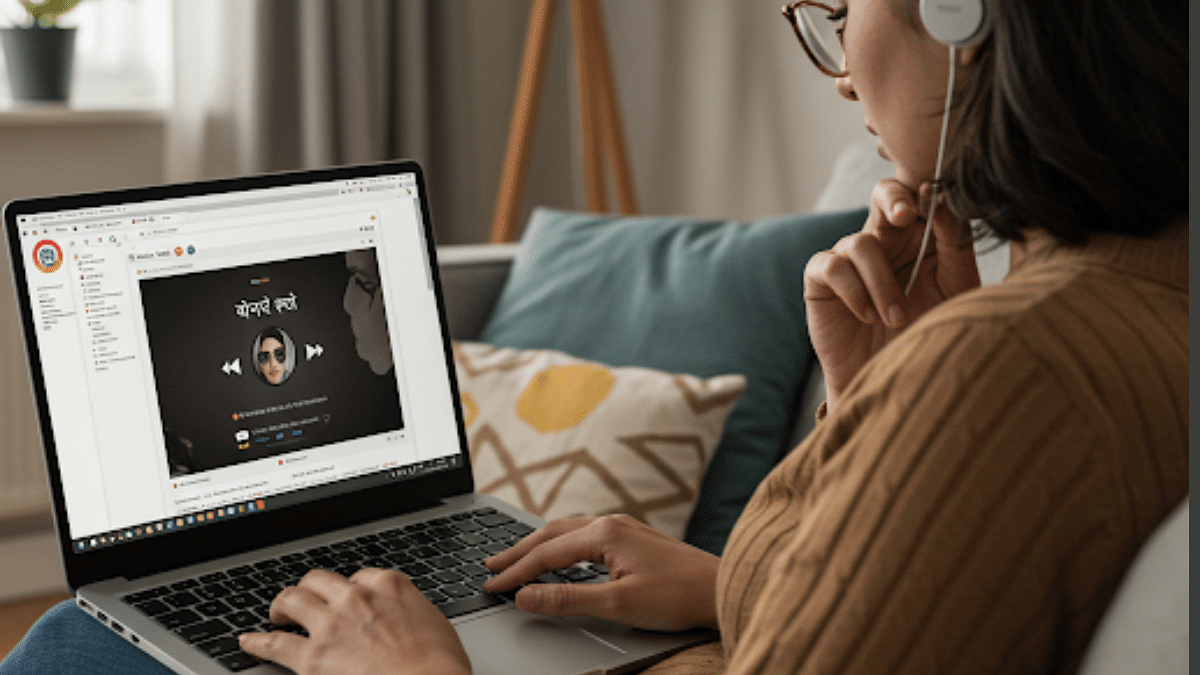
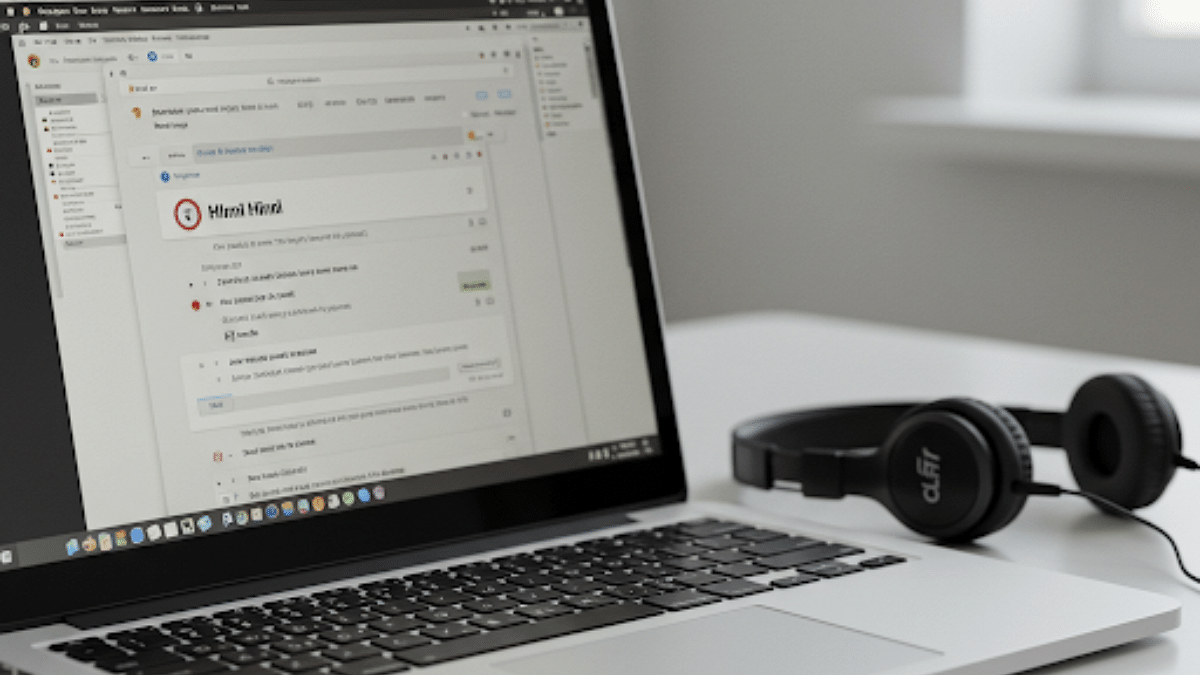
Google has been making its eco system easily accessible to the masses. And by adding on multi-lingual support with its apps and services, the search giant is further making the masses tech savvy. Google Chrome, the globally popular web browser is one such example where Google has added multiple language support making it convenient for the users across the globe. Chrome also has a user-friendly feature called “Listen to this Page” which auto-reads content from a website verbally making it convenient to understand content from a website in English or any other language that the user understands. Both mobile and desktop version of Google Chrome offer this text-reading feature; now, in Hindi too. Here in this article we are guiding you with the steps to read any web page on Chrome in Hindi:
For the tech geeks, stay updated with the latest cutting-edge gadgets in the market, exclusive tech updates, gadget reviews, and more right on your phone’s screen. Join Giznext’s WhatsApp channel and receive the industry-first tech update.
This feature on Google Chrome has least impact on your privacy or safety. Unless you are using this feature to read out content from any explicit web page at a public place. Ensure using headphones or earphones in such scenarios. Also, no data is being shared with any third party app or developer, hence privacy remains intact.
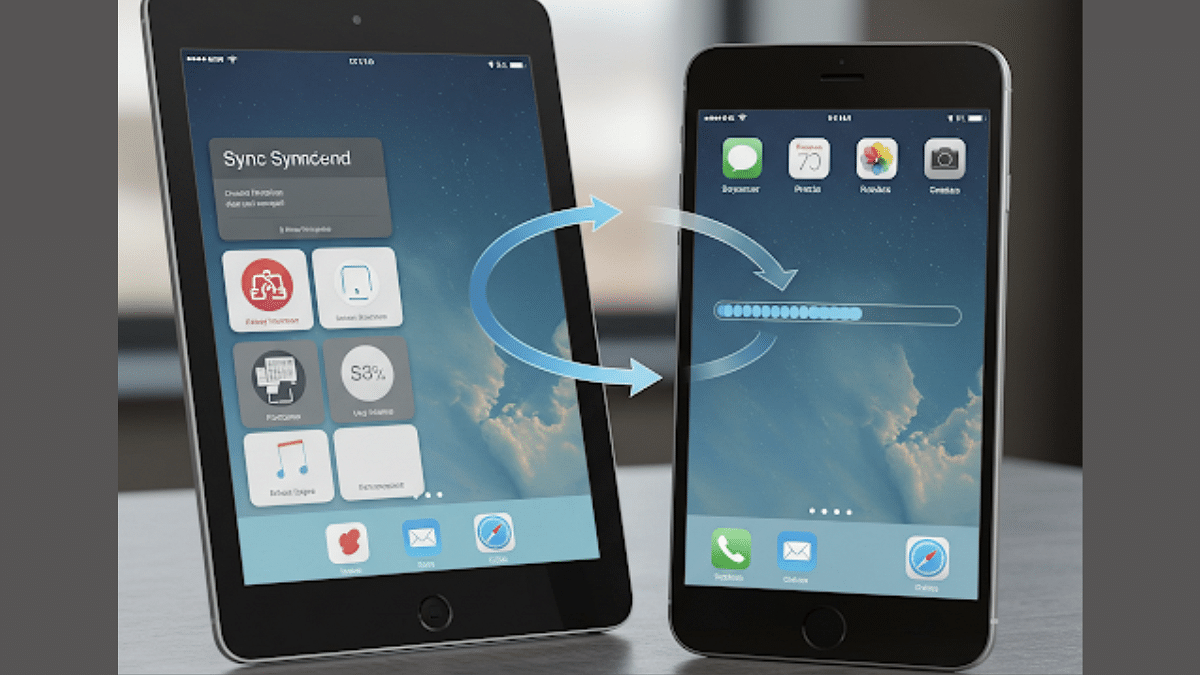
Apple allows iPhone and iPad syncing for seamless user experience
Synced devices gets calls/ messages together
Safari can also be synced on iPhones and iPads simultaneously
Photos, contacts, calendar, and notes are also synced
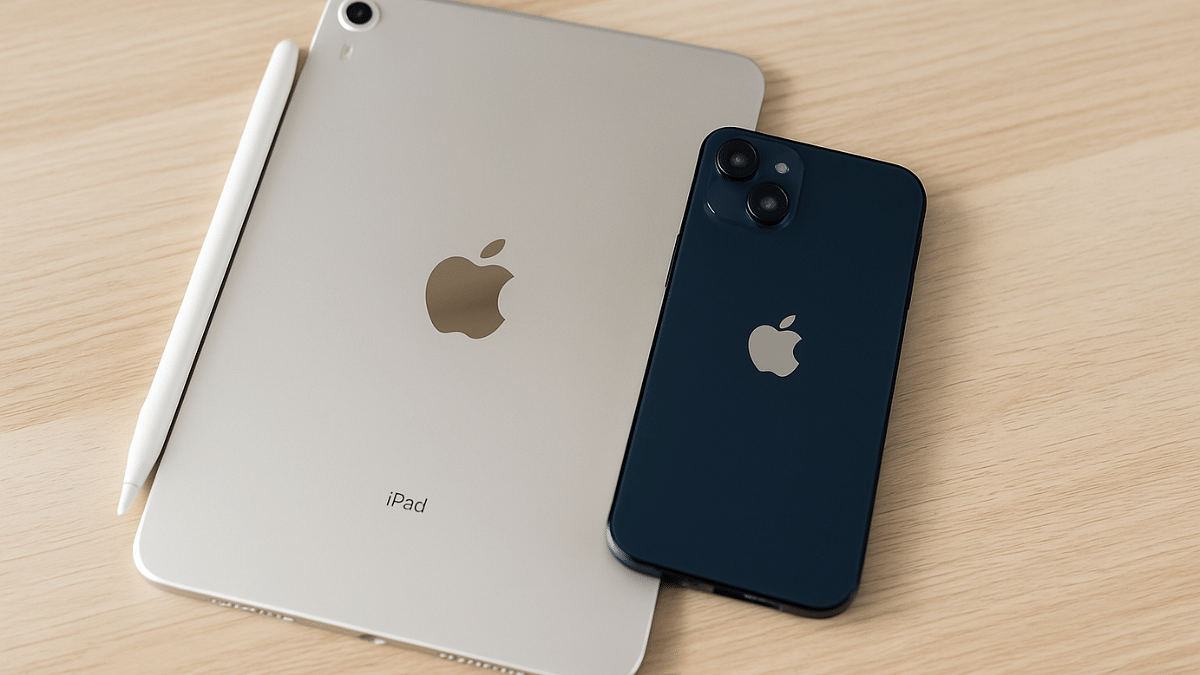
Apple has one of the strongest ecosystems where the Cupertino giant offers a seamless user experience across iPhones, iPads, and MacBooks. Staying connected simultaneously on multiple Apple devices with same Apple ID helps with the same. If you own both an iPhone and a iPad, you can sync both these gadgets together to sync calls, messages, browsing tabs on Safari, notes, contacts, and much more. In this guide, we are sharing the steps with which you can sync your iPad with iPhone.
For the tech geeks, stay updated with the latest cutting-edge gadgets in the market, exclusive tech updates, gadget reviews, and more right on your phone’s screen. Join Giznext’s WhatsApp channel and receive the industry-first tech update.
How To Sync Apps And Data On iPad and iPhone Without iCloud?
If you don’t wish to use iCloud to sync your iPad with iPhone, you can also use alternative methods listed below:
Method 1: Via AirDrop
Use this option to transfer and share apps data and files across iPad and iPhone seamlessly. This option allows instant data transfer wirelessly.
Method 2: Via Third Party Apps
You can also use Google Drive and similar apps to sync and transfer data on your iPad and iPhone.
Method 3: Via iTunes or Finder Sync
If you are transferring data such as books, music, and movies via Mac or PC to your iPad and iPhone, iTunes and Finder Sync options helps you with the same.
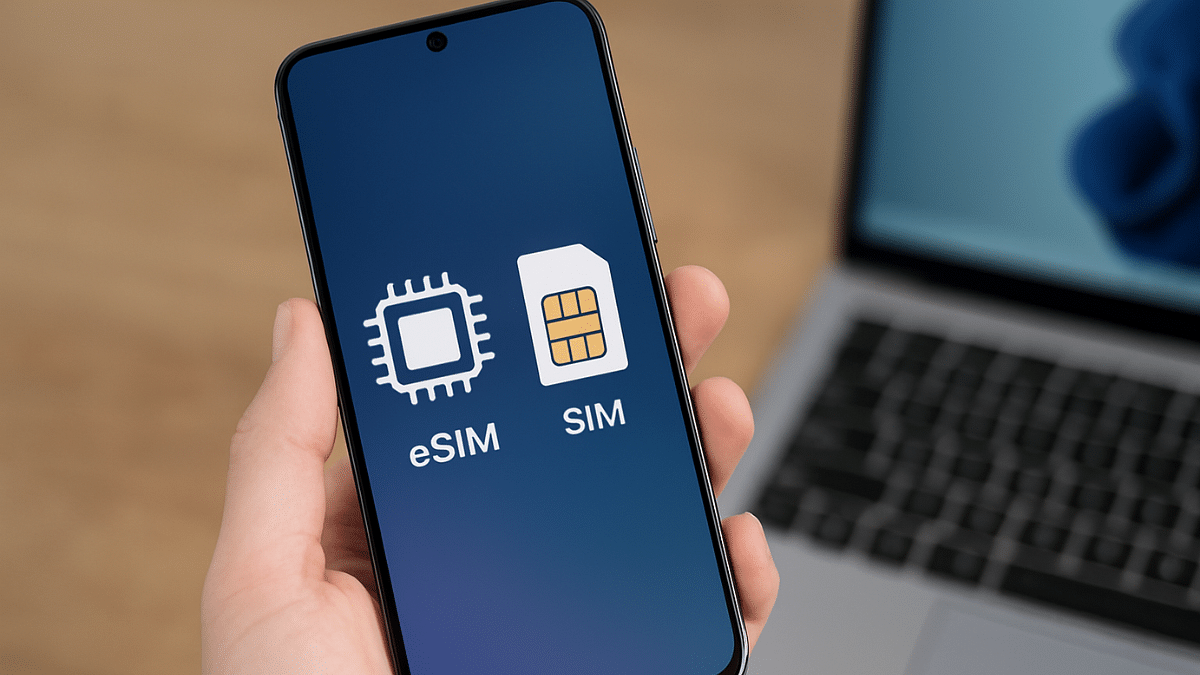
eSIM allows using cellular services without physical SIM card
Can be used with flagship-grade smartphones
eSIM can be enabled on both Android and iOS devices
Cellular services are now more efficient and reliable making communication and internet services accessible event at the remote places. Physical SIM cards have also become tinier and faster offering 5G networks for high-speed internet connectivity. But gradually eSIM (embedded SIM) technology is taking over the traditional SIM cards. This technology has made it possible to use all the carrier services such as calling, messaging, internet usage without using a physical SIM card. We previously broke down the differences between an eSIM and a physical SIM card. In this guide, we are listing down the steps to activate an eSIM on Android and iOS smartphones.
For a while Pan 2.0 scan has been reported widely by the Indian citizens. A new sophisticated scam targeted at tax payers and other Indian citizens, the Pan 2.0 scam is a big threat that we are breaking down in this article. Alongside, we will also share the steps with which you can stay safe from Pan 2.0 scam.