Categories
Apps Featured How To

Major WhatsApp Update: Now Add Music To Your WhatsApp Status On Android, iOS

Key Highlights

  • WhatsApp allowing option to add music to status update
  • Option to add music allowed only with photo and videos uploaded as status
  • Some regions yet to recieve this update
  • Both Android and iOS users can access this feature

WhatsApp has been testing multiple features that are designed for improving the personalised chat experience on its platform while keeping privacy as the priority. The instant messaging app has also received numerous features that offer an intuitive experience to the users. One of the such features that WhatsApp was testing at the beginning of this year was the option to add songs and music to status updates. Earlier available as a beta version, this update’s stable version is now rolling out to the masses in a phased manner. Both Android and iOS smartphone users will soon be able to upload their favourite music track with their next status update. We have brought you the step-guide for the same.

For the tech geeks, stay updated with the latest cutting-edge gadgets in the market, exclusive tech updates, gadget reviews, and more right on your phone’s screen. Join Giznext’s WhatsApp channel and receive the industry-first tech update.

Also Read: Apple’s WWDC 2025 Dates Announced: What To Expect, How To Watch, More

Before You Proceed

It is worth adding that the option to add music to status update is currently accessible in limited markets. Since the stable rollout is underway in a phased manner, users in some regions won’t be able to use this feature. That said, there is another catch to adding music as a status upload. WhatsApp is currently only allowing users to add music in Status uploads for images and videos. There is still no option to add music to the statuses containing texts, GIFs or stickers. Also, your WhatsApp application has to be updated to the latest version. Try checking for any pending updates manually.

Also Read: Incognito Browsing Not So Private! Steps To Check Incognito Mode Browsing History And How To Delete

Steps To Add Music To WhatsApp Status Uploads On Both Android, iOS Devices

Step 1: Open the WhatsApp mobile application

Step 2: At the bottom of the app’s home page, click on the ‘Updates’ section

Step 3: Now, tap on the ‘Add media’ option (camera icon with a + symbol). This will open up your phone’s gallery.

Step 4: Select the image or video that you wish to upload as your WhatsApp status

Step 5: After selecting the media file, you will see a add music tab on the top. Click on it.

Step 6: You will be redirected to the music browser where you can search for any soundtrack

Step 7: Now, using the progress bar trim down and select the specific part of the soundtrack that you want to add to the Status upload.

Step 8: Click on Done to set the selected music part to the Status upload
Categories
Apps Featured How To

Gemini Gems Are Now Free: Here’s What It Is And How To Use

Key Highlights

  • Gems are custom AI assistants in Gemini, now free
  • Users can personalize Gems for various tasks
  • Available on web and Android, customization on web

Google has started rolling out its customizable AI assistants Gems to free users on the web and Android. Previously available only to paid users, these AI-powered tools let you personalize Gemini to match your specific needs. Whether you need help brainstorming, coding, learning, or writing, Gems can be fine-tuned to work exactly the way you want. So, what makes Gems special, and how can you start using them? Here’s everything you need to know.

Also Read | How to Use Gemini AI as Your New Assistant on Android (Step-by-Step Guide)

What Is Gemini Gems?

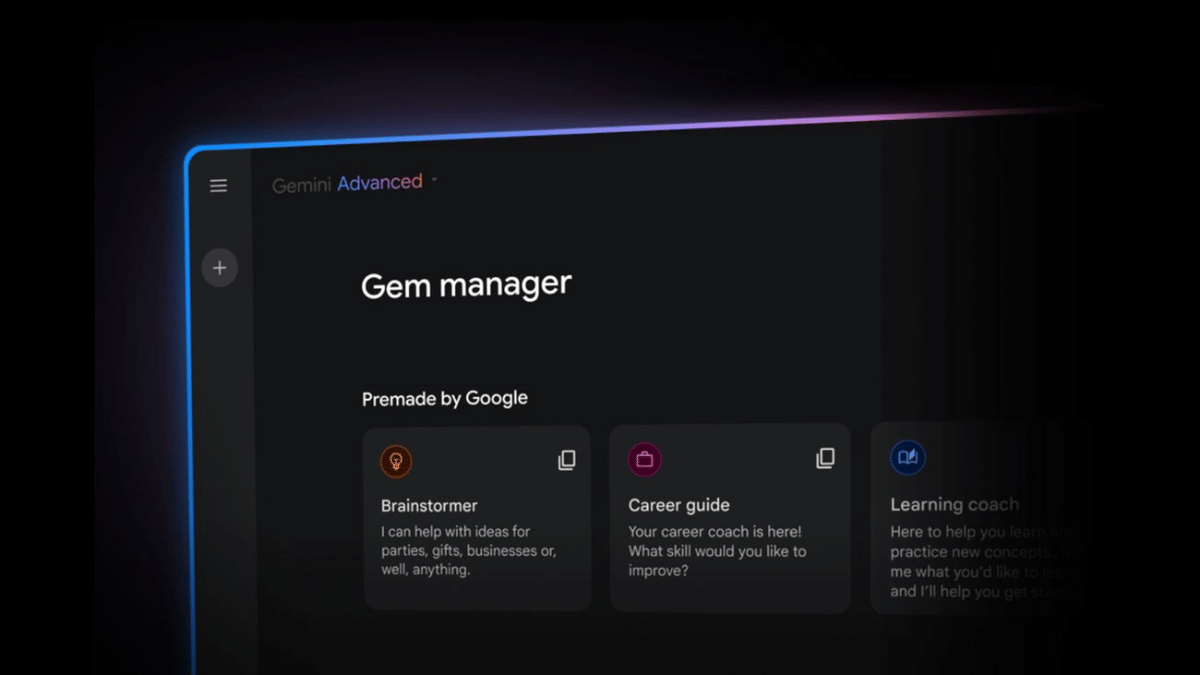
Gems is custom AI assistants built inside Gemini. Unlike regular AI chatbots, these assistants can be tailored to your specific needs by setting instructions for tone, response length, and even workflow preferences. Google provides five ready-made Gems to get started:

  • Brainstormer: Helps with creative ideas.
  • Career Guide: Offers job and career advice.
  • Coding Partner: Assists with programming tasks.
  • Learning Coach: Aids in studying and learning.
  • Writing Editor: Helps improve writing skills.

You can also create your own custom Gems and train them for specific tasks.

How To Access Gemini Gems

Step 1: On Android, go to the Gem manager inside the account menu.

Step 2: On the web, you will find it in the side panel at gemini.google.com.

Step 3: While you can use Gems on mobile, creating and customizing them is currently limited to the web version.

How To Customize A Gem

Step 1: Set instructions for tone and response style.

Step 2: Adjust response length to be brief or detailed.

Step 3: Upload files so your Gem can analyze and refer to specific documents.

This makes Gems great for automating repetitive tasks or creating a personal assistant that fits your workflow.

Google making Gems available for free users is a big deal. Previously, these features were only for paying customers, but now more people can experience AI customization without a subscription. Plus, with Google I/O 2025 coming soon, even more AI features may be announced for Gemini.

For the tech geeks, stay updated with the latest cutting-edge gadgets in the market, exclusive tech updates, gadget reviews, and more right on your phone’s screen. Join Giznext’s WhatsApp channel and receive the industry-first tech updates.

Categories
Featured How To Laptop

Enhance Your Daily Productivity: How To Pair Android Smartphones With Windows 11 PC, Laptop Without USB Cable

Key Highlights

  • Pairing PC with smartphones can be done via USB cable and wirelessly
  • Wireless pairing requires both smartphone and laptop on the same Wi-Fi network
  • Helps with productivity boost

Smartphones have emerged as the most powerful handheld gadgets. Option to call, text, web browse, gaming, and photography all at once is what makes smartphones more of a necessity these days. These handheld gadgets have also helped us to carry on with the tasks that earlier required a full size PC or a laptop. Still, you can pair an Android smartphone to a Windows 11 PC if you wish to boost your productivity. Pairing Windows and Android device is not just restricted to USB wired connections anymore. A simplified process is now available using which you can connect your Windows machine and smartphone in case of a missing USB cable. Interested in knowing the steps. Read on to find out:

Also Read: Hate Standing In Long Queues: Here’s How To Book Indian Railways Platform Ticket Online

What Is Required?

  1. If you want to transfer documents or media files from your smartphone to Windows 11 PC or vice versa, you can use the standard USB cable connection method.
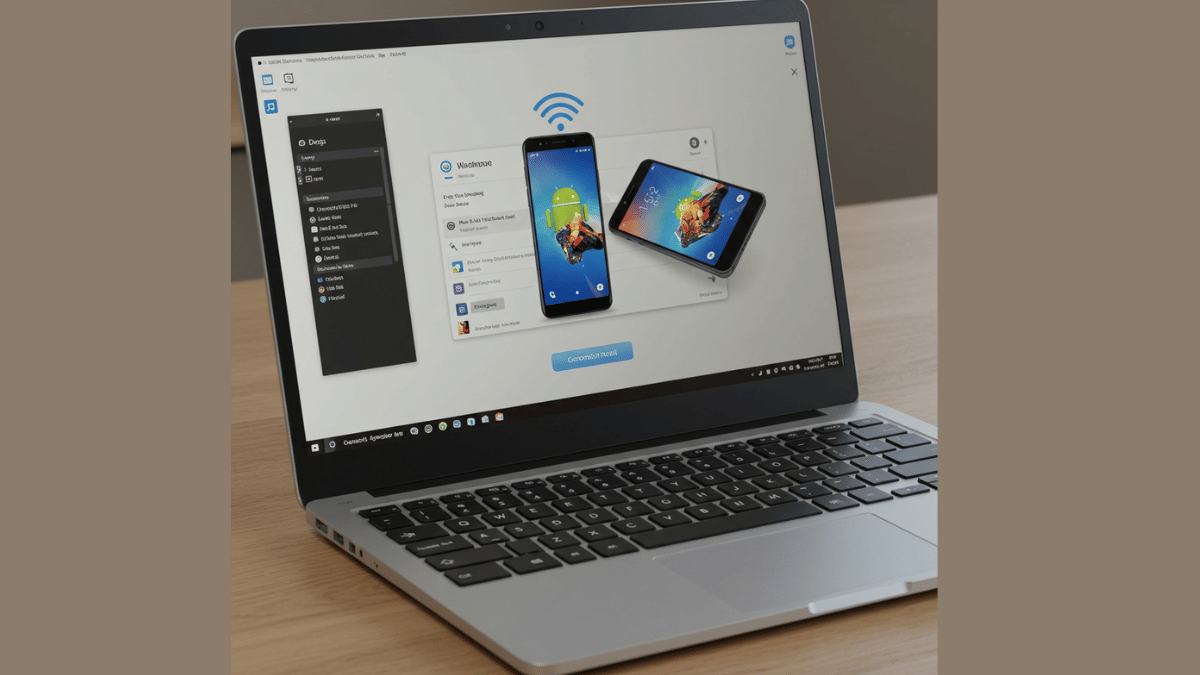
  2. There is a wireless option available for same that can be accessed using the Phone Link application on Windows 11 OS

Also Read: Worried About Heat And Water Damage? Here’s How To Protect Your Gadgets

Steps To Link Android Smartphone And Windows 11 Laptop Or PC

Step 1: Power on your Windows 11 PC or laptop and connect it to the same Wi-Fi network as your smartphone. (Note, only Android 7 or above devices can be paired with this method).

Step 2: On your Windows 11 laptop/ PC go to the taskbar and type “Phone Link”. Once the application pops up on the window, open it.

Step 3: Select the device type as “Android”

Step 4: Click on the Send notification option. This process will enable the sign-in process for Microsoft account.

Step 5: You will receive a verification prompt on your Android smartphone. Approve it to move to the next step.

Step 6: On your Windows 11 PC/ laptop, you’ll receive a new two digit code. You need to select these two digits on your Android smartphone for further approval.

Step 7: A QR will also be displayed on the Windows 11 device. Scan it using the QR code scanner on your Android phone.

Step 8: A new prompt stating “Link to Windows” will show up followed by another set of code that will be displayed on the laptop/ PC’s screen.

Step 9: Now, allow permission requests from the “Link To Windows” app and set the access permissions as required.

Step 10: Tap “Done” on the paired Android smartphone.

Step 11: Start accessing on your paired devices after clicking the “Continue” option.

Categories
Apps Featured How To

Hate Standing In Long Queues: Here’s How To Book Indian Railways Platform Ticket Online

Key Highlights

  • Platform ticket is required for station visits
  • Digital platform ticket booking process avoids long queues hassles
  • Dedicated mobile app available to book platform tickets online

Digitisation saw its peak in the country in the recent times. From paperless documentations to dedicated mobile apps for all kinds of services, India’s digital revolution has been massive. Indian Railways has also on-boarded this move making travel easier and more comfortable for the masses. Booking railways tickets and meals enroute can be done within a few minutes if you have a smartphone with an active internet connection. The same goes for platform ticket which is required when you go to see of or receive your loved ones at the station. While booking a train ticket is something you all might be aware of, but what about the procedure to purchase platform tickets online and avoid heavy penalties from the TTE avoiding long queues at the same time? Well, we have brought you the step-by-step guide to book a platform ticket online.

Also Read: Instagram Tips And Tricks: How To Share Music/ Songs As DMs With Friends On Instagram

How To Book Indian Railways Platform Ticket Online On Android And iOS

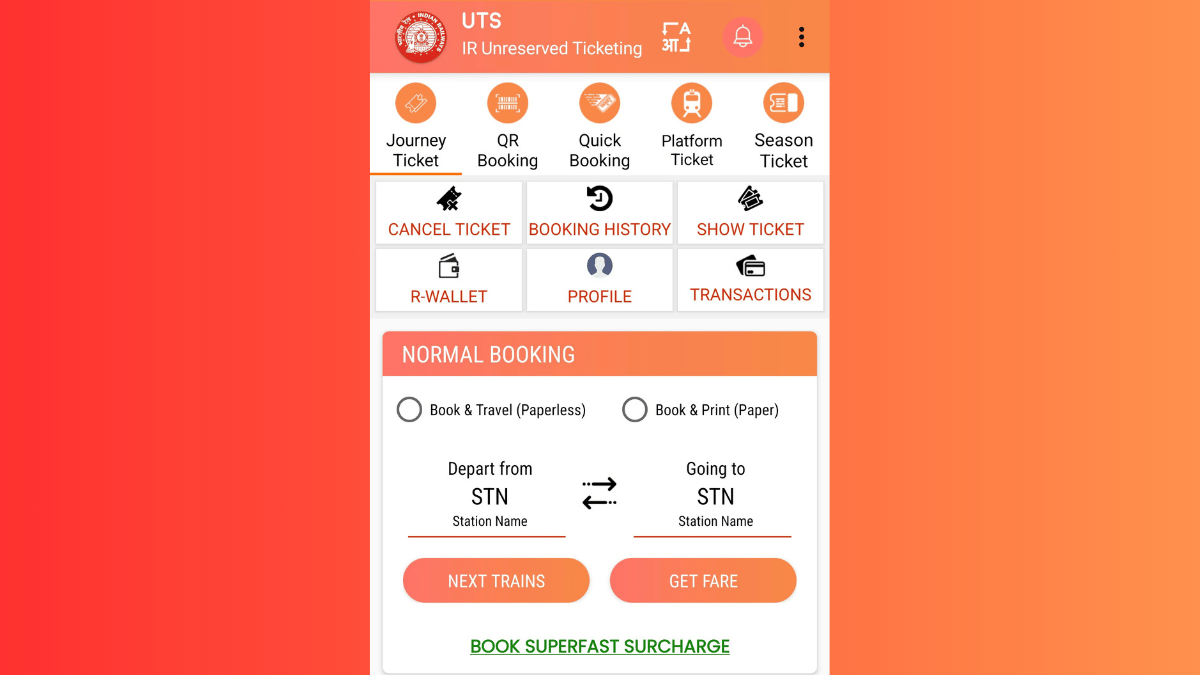
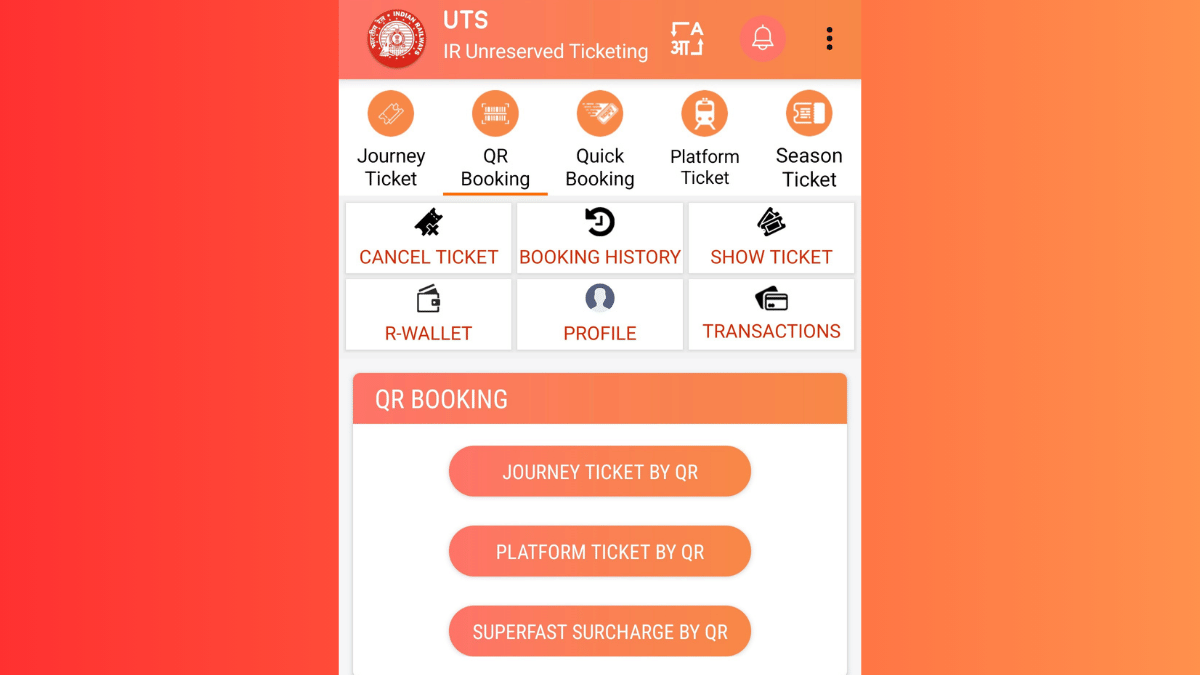
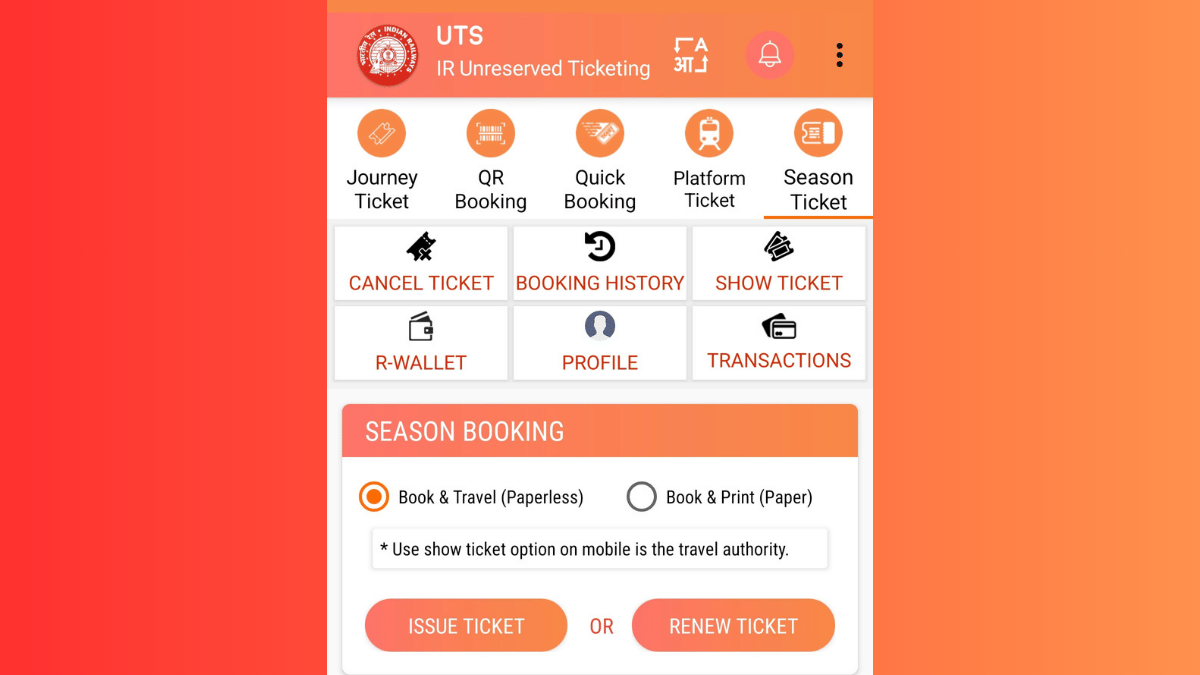
In order to book a platform ticket for your next railway station visit, you’ll need the dedicated mobile app called UTS. The Unreserved Ticketing System (UTS) can be downloaded on both Android and iOS devices via the Play Store and App Store respectively. Introduced by the government of India, the UTS mobile app integrates of host of features for convenient ticket bookings. For the unreserved travellers, this app offers the option to book platform tickets, journey tickets, season tickets, and more. Read the detailed steps to book a platform ticket using the UTS mobile app on your Android or iOS smartphone:

Step 1. Download the UTS Mobile App (Works On Both Android and iOS)

  • Search UTS app on Android Play Store and iOS App Store.
  • Download and install the app.
  • Allow all necessary permissions.

Step 2. Register (New Users) Or Log In (Old Users)

  • Launch the UTS mobile app after the installation
  • Tap on ‘Register’ if you are using the app for the first time
  • Enter the credentials including your mobile number.
  • If you already have an account, log in using your credentials.

Step 3. Navigate To Platform Ticket Section

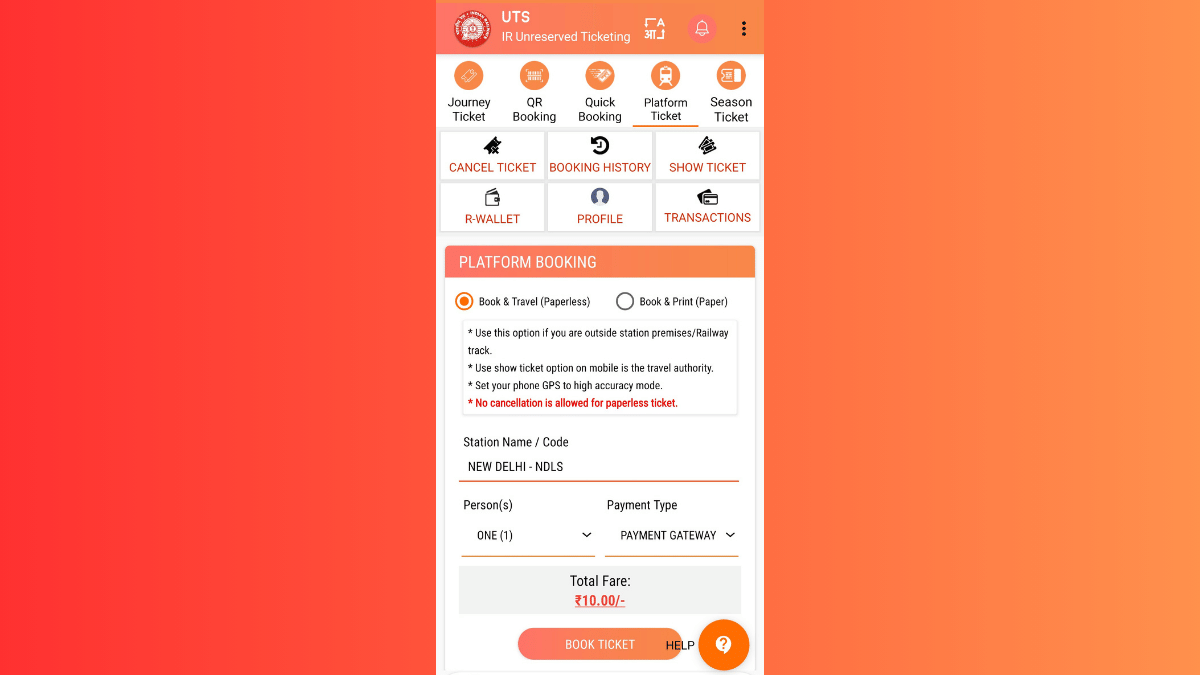
  • Once you are logged in, you’ll see the Platform ticket on the top. Tap on it.
  • You’ll see two Booking type options ‘Book & Travel (Paperless) and (Book & Print (Paper). Select the former for digital platform ticket booking.
  • Enter the railway station code or select the railway station from the available list whose platform ticket you require.

Step 4. Complete Payment

  • You can choose your preferred payment method. Options include UPI, Debit/Credit Card Net Banking, or Digital Wallet (RWALLET)
  • Make the payment and complete the transaction process
  • Ticket booking will be done once the payment is complete

Step 5. Download Platform Ticket For Quick Access

  • Go back to the app’s homepage
  • Navigate to the ‘My Bookings’ section.
  • Download or take a screenshot of the platform ticket.

How to Show Online Platform Ticket to a TTE

  • If a TTE asks you to show your platform ticket, simply launch the UTS app on your smartphone
  • Open ‘My Bookings. option’
  • Show the digital platform ticket on your smartphone.
Categories
Accessories Featured How To

Worried About Heat And Water Damage? Here’s How To Protect Your Gadgets

Key Highlights

  • Keep gadgets away from heat and water
  • Use protective covers for extra safety
  • Dry devices properly if they get wet

Our gadgets are an essential part of our daily lives. But they are also delicate and prone to damage from extreme heat and water exposure. Whether it’s the scorching summer sun or sudden rain showers, keeping your devices safe requires extra care. Here are some simple and effective ways to protect your gadgets from heat and water damage.

Also Read | Worried About Lost Bags? Vodafone Idea Offers Baggage Protection For Just Rs. 99

Keep Gadgets Away From Direct Sunlight

Leaving your smartphone, laptop, or tablet in direct sunlight for too long can cause overheating. This can lead to battery damage, slower performance, and even permanent hardware issues. Always store your devices in a cool place and avoid keeping them inside a parked car, as the temperature inside can rise quickly.

Use Protective Covers

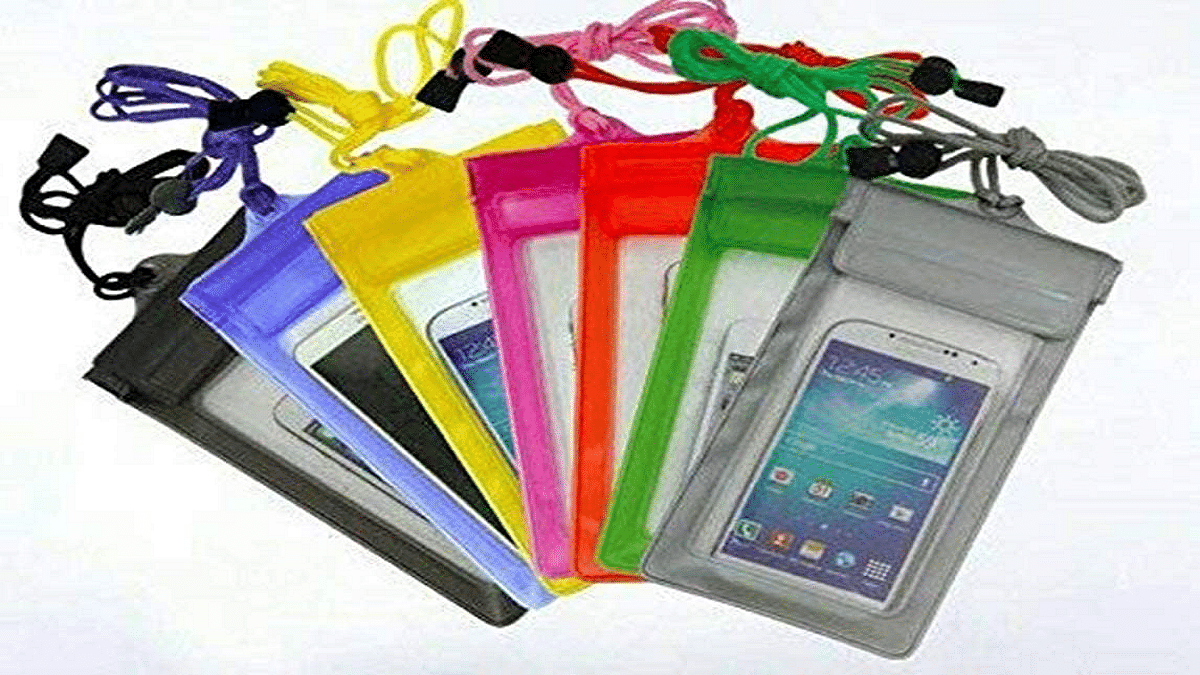
Invest in heat-resistant and waterproof cases for your devices. These cases provide a shield against extreme temperatures and accidental water splashes. For extra protection, you can also use screen protectors that prevent moisture from seeping into the display.

Avoid Charging In Hot Environments

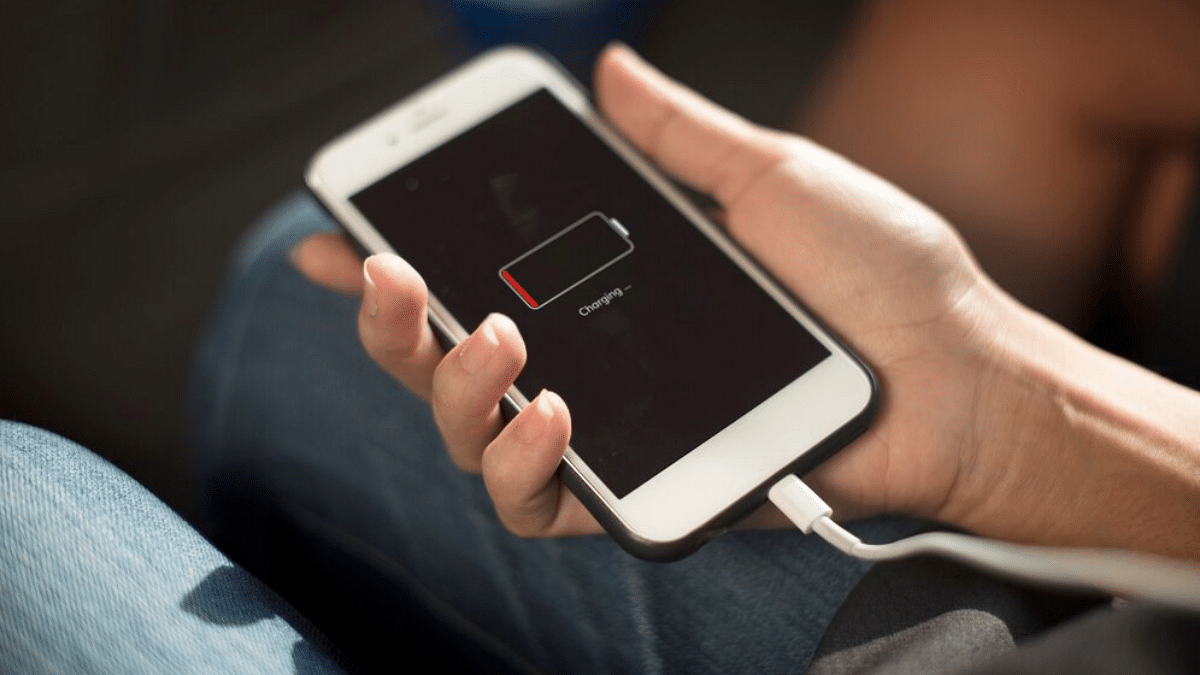
Charging your devices in high temperatures can overheat the battery, reducing its lifespan. Try to charge your devices in a well-ventilated area and avoid covering them while they are plugged in. If your phone feels too hot while charging, unplug it and let it cool down before using it again.

Keep Gadgets Away From Water Sources

Water and electronics don’t mix well. Avoid using your phone near pools, sinks, or during heavy rain. If you must use your device in a humid environment, consider using a waterproof pouch. This is especially useful during monsoons or beach vacations.

Also Read | How To Activate Spam Protection In Google Messages: Guide

Dry Your Device Properly If It Gets Wet

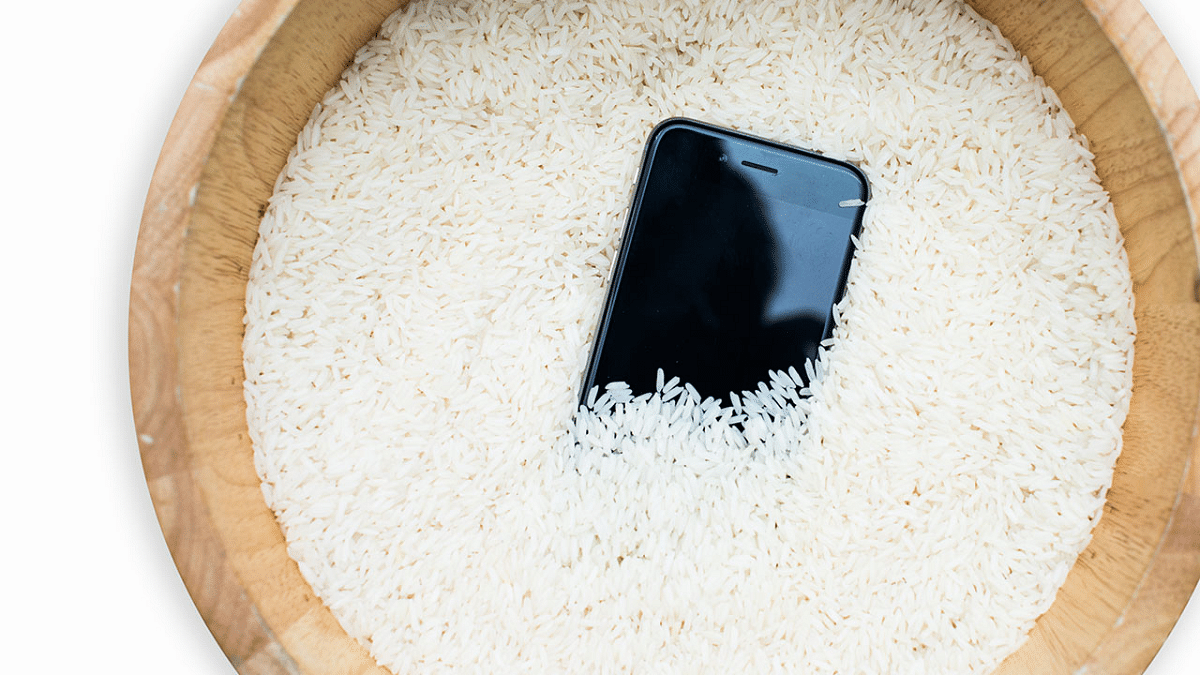
If your gadget accidentally gets wet, turn it off immediately. Wipe it dry with a soft cloth and place it in a bag of uncooked rice or silica gel packets to absorb moisture. Avoid using a hairdryer, as the heat can cause internal damage.

By following these simple steps, you can keep your gadgets safe from heat and water damage. Taking preventive measures today can save you from expensive repairs or replacements in the future.

For the tech geeks, stay updated with the latest cutting-edge gadgets in the market, exclusive tech updates, gadget reviews, and more right on your phone’s screen. Join Giznext’s WhatsApp channel and receive the industry-first tech updates.

Categories
Apps Featured How To

Instagram Tips And Tricks: How To Share Music/ Songs As DMs With Friends On Instagram

Key Highlights

  • Instagram allows music sharing to contacts
  • Feature available on Android and iOS apps
  • Music and songs can be shared as DMs (Direct Messages)

Instagram is definitely a pandora’s box when it comes to features and tools. Started as a photo sharing app, it has evolved as one of the most popular social media platforms offering option to share short videos (Reels) and more. Even a simple post upload is more intuitive and engaging on Instagram which can be downloaded and installed across Android and iOS platforms. You all must be aware that Instagram has a vast music library that one uses for Reels and even standard posts. Selecting your favorite song for your Instagram post is a process of just a few taps. But do you know that instead of uploading a song as a Reel or post, you can share it with your friends too? Interested in knowing the steps? Read on below:

For the tech geeks, stay updated with the latest cutting-edge gadgets in the market, exclusive tech updates, gadget reviews, and more right on your phone’s screen. Join Giznext’s WhatsApp channel and receive the industry-first tech updates.

Also Read: Incognito Browsing Not So Private! Steps To Check Incognito Mode Browsing History And How To Delete

Steps To Share Songs/ Music As DMs On Instagram

Step 1: On your smartphones launch the Instagram mobile app. Make sure you are logged in to your profile

Step 2: Go to the DM (Direct Messaging section)

Step 3: Open the chat window where you want to send the song

Step 4: In the message type section tap on Sticker icon

Step 5: Now, click on the Music feature (Note, this a new feature addition)

Step 6: Search for the song or music that you wish to send to this contact as a DM

Step 7: If the song shows up in the music library, just tap on it to send to the contact

Categories
Apps Featured How To

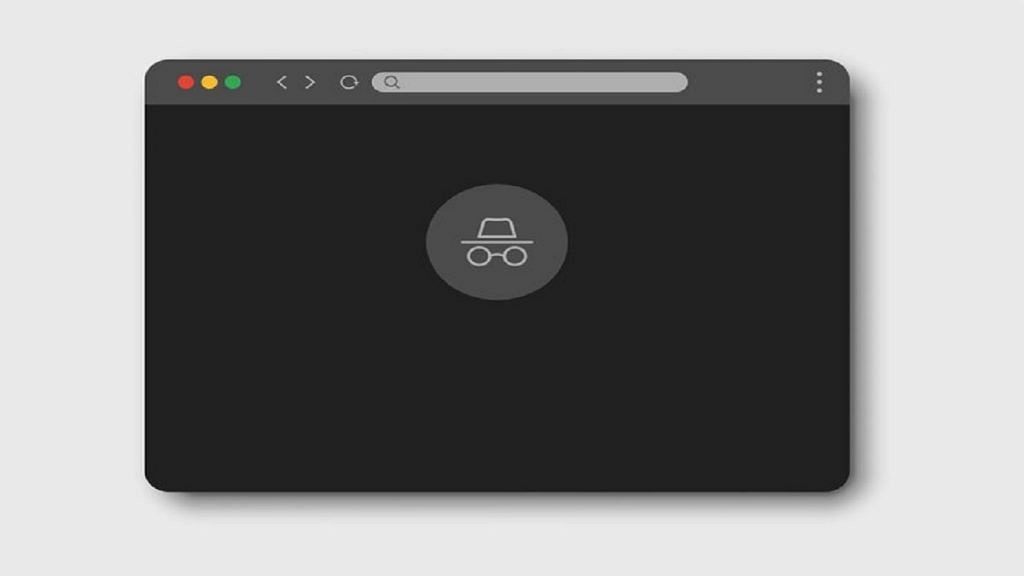
Incognito Browsing Not So Private! Steps To Check Incognito Mode Browsing History And How To Delete

Key Highlights

  • Incognito Mode offers extra privacy during wen browsing
  • Using Incognito mode search history is hidden from local directory
  • Search history is stored in Google account or network admin
  • Using Incognito mode in Google as guest provides maximum privacy

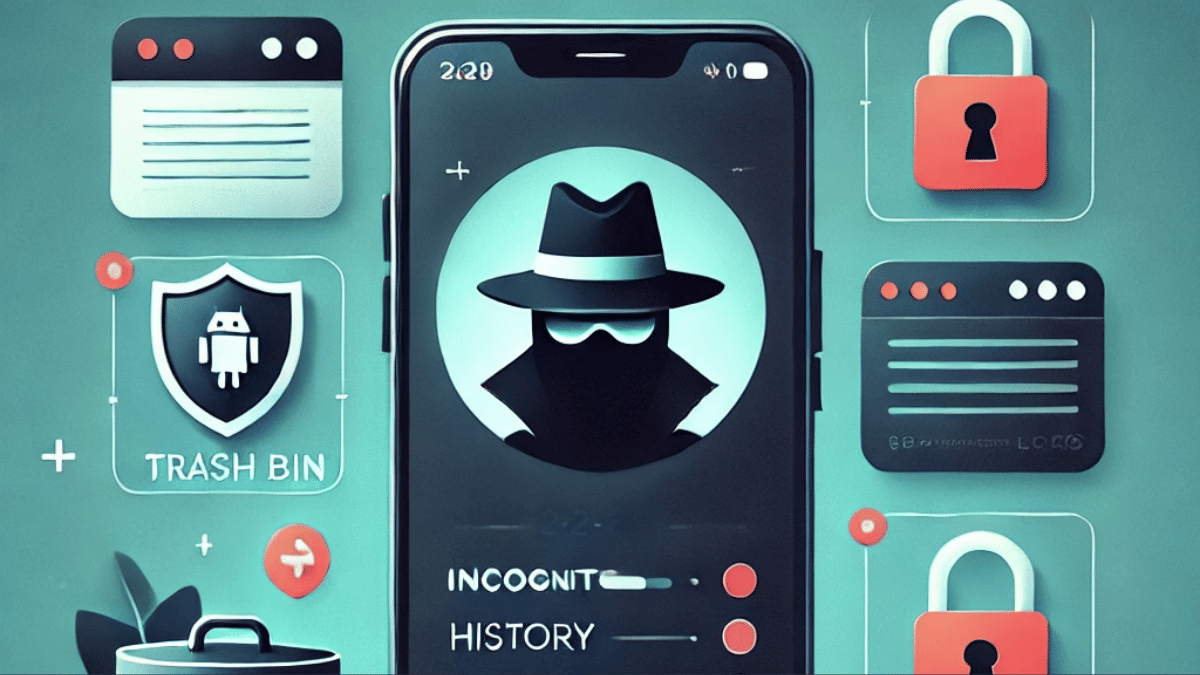
Incognito Mode aka the Private Browser is a saviour when you want to do discrete web browsing. Available as a built-in feature in most of web browsers such as Google Chrome, Opera, and others, this privacy feature has also made its way to the Android and iOS platforms. But if you believe that browsing anything in Incognito mode is as private as claimed? Well, here’s a reality check. While the search history remains invisible from the local directory, it does get saved on your Google Account. So, you aren’t entirely invisible when you are browsing privately in Incognito mode. Surprised right? Read on here to know how can you look at your Incognito Mode’s search history and how can you delete it:

Also Read: Merge Two Different PF Accounts Into One: How To Guide

What Is Incognito Mode?

Incognito Mode is a safe browsing option where one can search one’s keen interest privately. A new private window is initiated where users can search the required topics without the history getting saved locally. While the browsing date is private from the public devices or users, website and Internet Service Providers, and the network admins will still be able to access all the information. Below is the list of information that is kept private in the Incognito mode.

  • Search and browsing history
  • Cookies and site data from any website
  • Data filled in any form or application

Is There Any Way Check Search History in Incognito Mode?

If we speak of Android smartphones, there isn’t any direct way that allows one to view Incognito mode’s search history. But that doesn’t mean there isn’t any other way to do so. The activity log is stored in Google account or network admins. The traceable activities in Incognito mode includes:

  • Via Google Account Activity (if a user is signed in while browsing in Incognito mode)
  • In the Wi-Fi/network logs of the device
  • If there’s any third-party monitoring app installed on the device

Also Read: Printer Not Working Right? Here’s Top Five Printing Issues And How To Solve Them

How To View Google Activity History (If Logged In):

  1. Open Google My Activity in a browser.
  2. You can also open the Google mobile app and go to My Activity option
  3. Head to the “Web & App Activity” section to see the detailed timeline of searches
  4. Note, the search history will only be visible of the above option is enabled

Also Read: DigiYatra Tips And Tricks: How To Add Flight Boarding Pass For Hassle Free Travel

How To Delete Incognito History On Android

While there is no direct method to view and delete Incognoto mode’s search history, you can follow the steps below to disable web activity tracing and deleting any saved history from Google Account.

Step 1: On your Android phone launch the Settings menu

Step 2: Navigate to Privacy And Setting tab

Step 3: Scroll down to the Privacy Controls settings and tap on it

Step 4: Head to the Activity Controls option

Step 5: Select the Google Account that you have been using for private browsing/ Incognito mode

Step 6: Disable Web & App Activity option

Step 7: Set the Auto Delete duration as per your preference


Categories
Featured How To Info

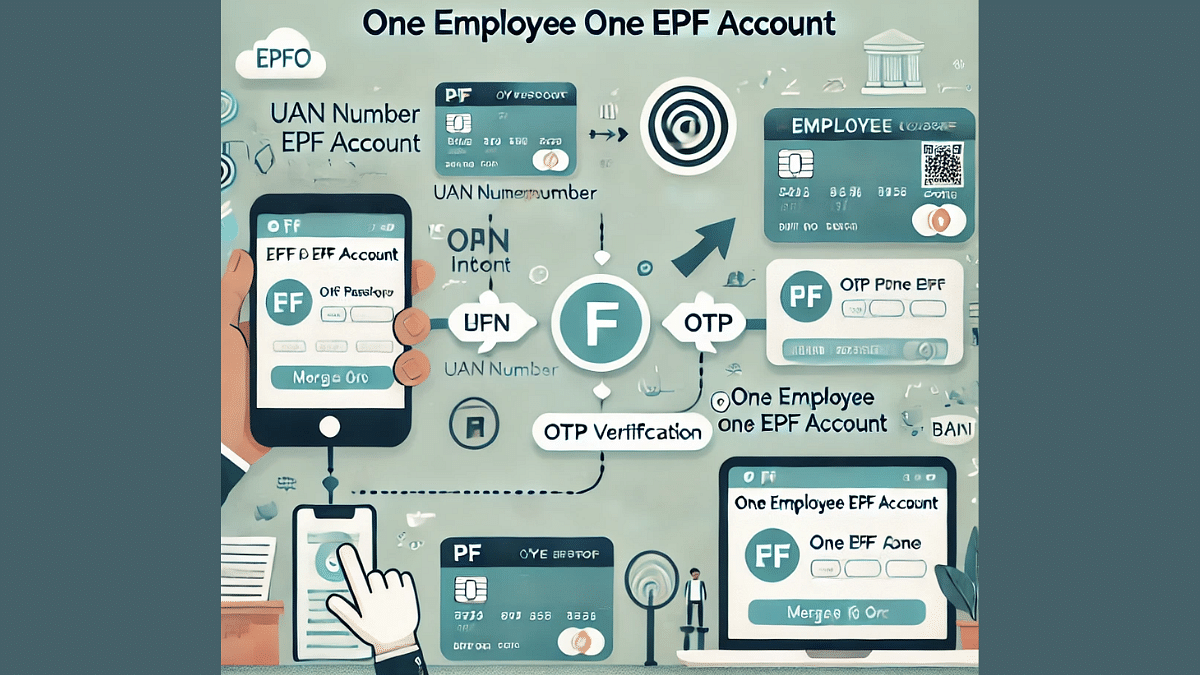
Merge Two Different PF Accounts Into One: How To Guide

Key Highlights

  • Both PF accounts have to be linked with the same UAN
  • Aadhaar verification and link with UAN account is must
  • Digital approval required from old employers

Employees switching jobs often end up with multiple Provident Fund (PF) accounts, making it difficult to manage and track their retirement savings. The Employees’ Provident Fund Organisation (EPFO) now allows users to merge multiple PF accounts into a single Universal Account Number (UAN) for easy access and better financial planning. Here’s how you can merge your PF accounts seamlessly online.

For the tech geeks, stay updated with the latest cutting-edge gadgets in the market, exclusive tech updates, gadget reviews, and more right on your phone’s screen. Join Giznext’s WhatsApp channel and receive the industry-first tech updates.


How To Merge Two PF Accounts Under One UAN

Step 1: Activate UAN ( Necessary Step)

Activating a UAN account is a necessary step to merge two different PF accounts to a single account. You can simply visit to the EPFO Unified Member Portal( https://unifiedportal-mem.epfindia.gov.in) to activate your UAN. Not, Keep your PF number and registered mobile number handy for the UAN activation.

Step 2: Log in to the EPFO Member Portal using your credential

Step 3: Go to the ‘One Member – One EPF Account (Transfer Request)’

  • Click on the dashboard and select ‘Online Services’ option
  • Now tap on the ‘One Member – One EPF Account (Transfer Request)’.

Step 4: Provide Accirate Previous Employer Details

  • Cross check the current employer details that will be auto-filled
  • Enter the UAN-linked details of the previous employer.
  • Simply select the option to transfer claim verified by the old or current employer.

Step 5: Verify and Submit OTP

  • Review all the details before you submit the verification request
  • Tap on the Submit option
  • Enter the OTP received on your registered mobile number to complete the request

Step 6: You can now track the status from the “Track Claim Status” option from the Services tab

Categories
Featured How To Printers

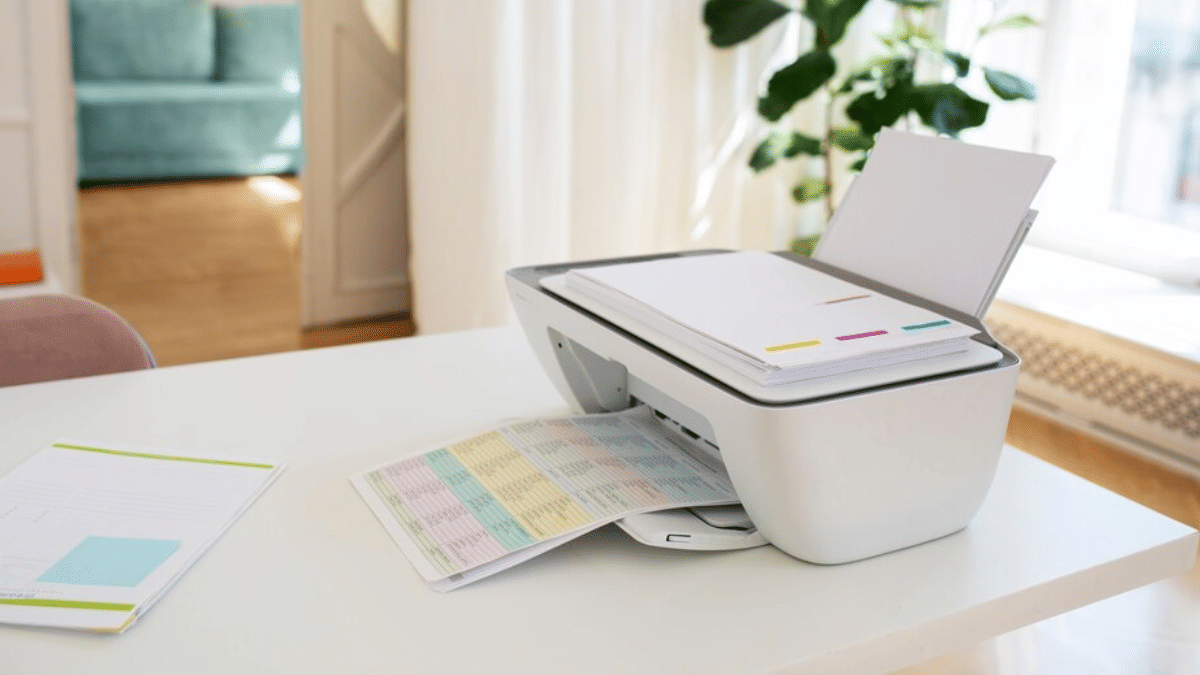
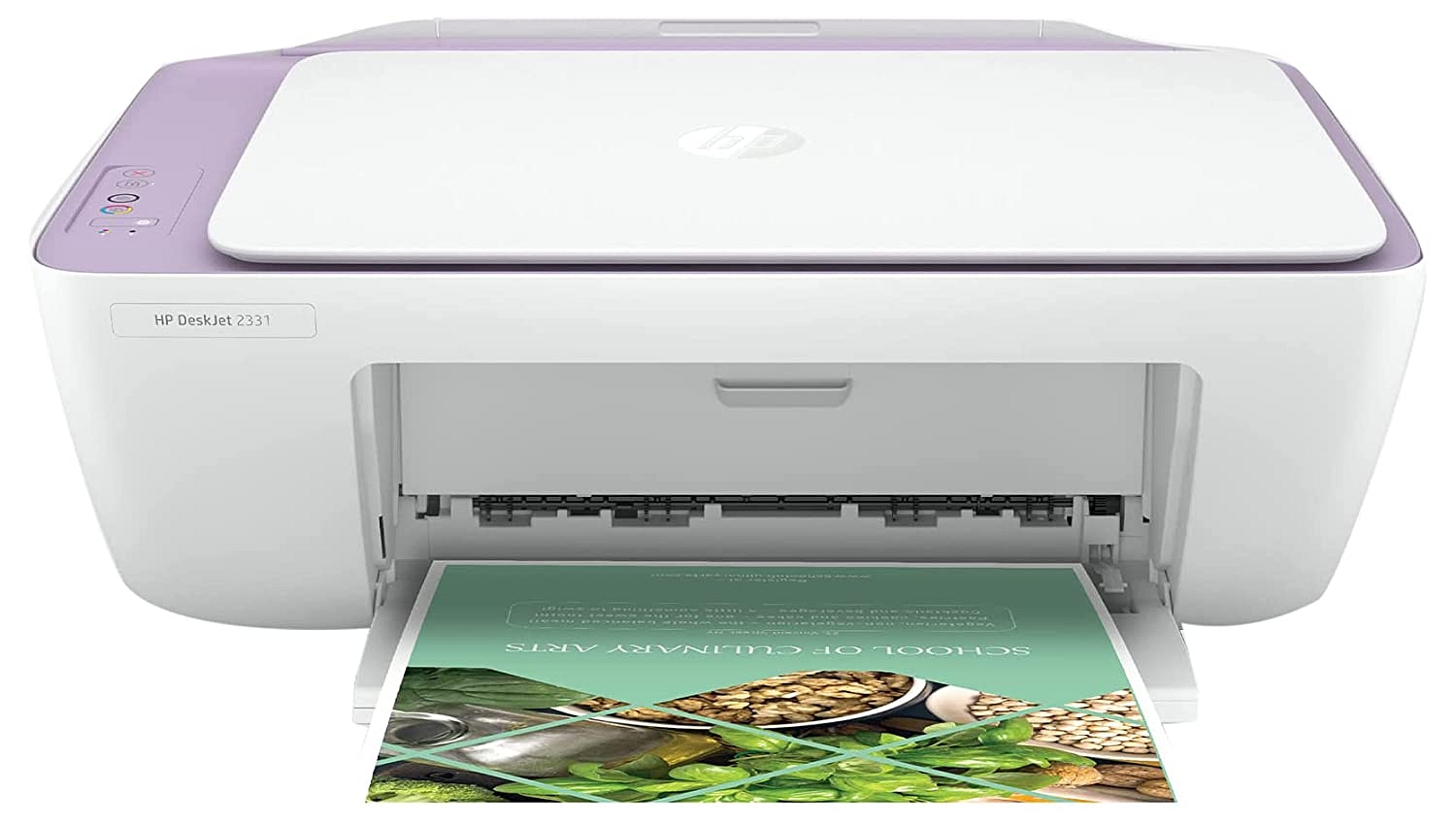
Printer Not Working Right? Here’s Top Five Printing Issues And How To Solve Them

Key Highlights

  • Check connections, ink levels, and paper placement regularly
  • Restart the printer and cancel stuck print jobs when needed
  • Use draft mode for faster printing and clean printheads for better quality

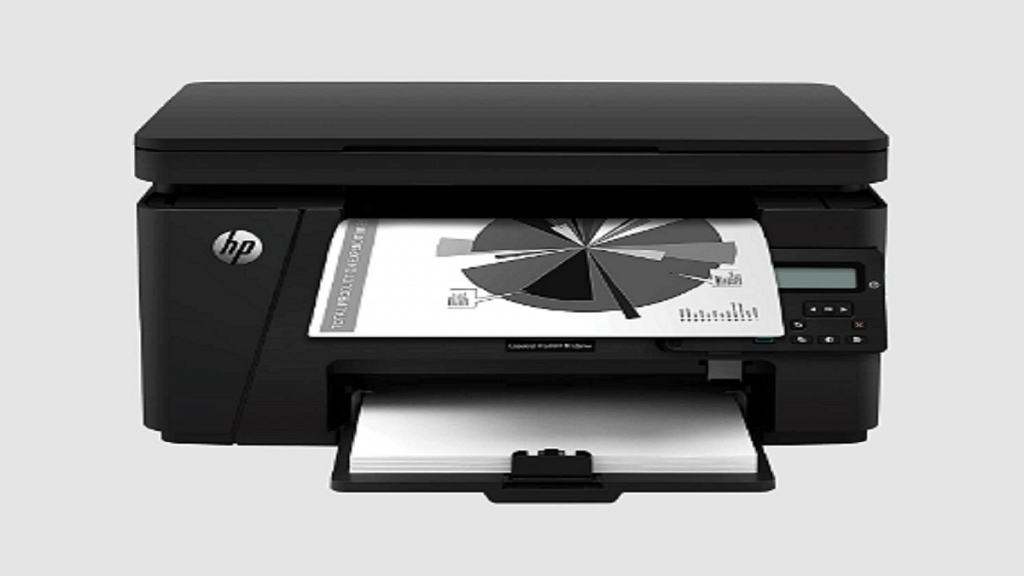
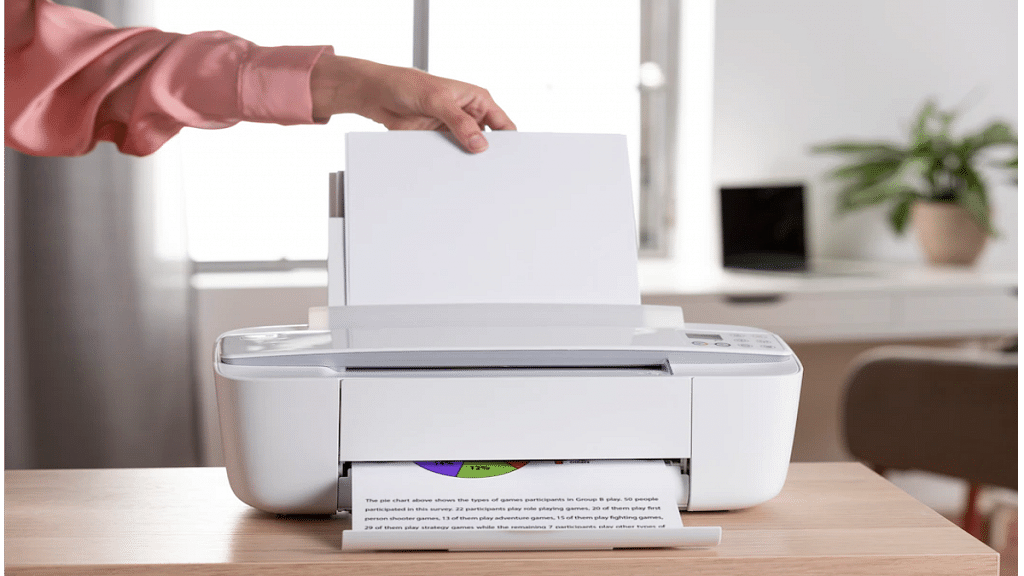
Facing printing issues when you need a document urgently can be really frustrating. Whether you are printing from home or office, some problems seem to pop up often. Thankfully, fixing the majority of them is simple. Here, we will provide you with basic troubleshooting tips for the most frequent printing issues.

Also Read | Thermal Printers: Explore Types, Uses, & Key Features

Printer Not Responding Or Showing Offline

This is one of the most common problems. Your printer may appear offline even when it’s turned on.

How to fix:

  • Check that the cable or Wi-Fi connection between the printer and your computer is correct.
  • Restart both the printer and computer.
  • Verify that your printer is selected as the Default Printer under “Devices and Printers” on your computer.
  • If using Wi-Fi, make sure both devices are on the same network.

Paper Jam Issues

Paper getting stuck inside the printer is a classic problem.

How to fix:

  • Carefully remove the jammed paper by opening the printer lid.
  • Don’t pull the paper forcefully as it might damage internal parts.
  • Check if the paper is loaded properly in the tray and that it’s not too thick or wrinkled.
  • Avoid packing the tray with too many sheets and keep it tidy.

Low-Quality Or Faded Printouts

If your prints look too light or have missing spots, the problem might be with ink or toner.

How to fix:

  • Verify the toner or ink levels and replace if necessary.
  • Use the printer’s maintenance menu to clean the printhead.
  • To check that all colors are functioning correctly, try printing a test page.

Slow Printing Speed

Sometimes, even small print jobs take forever to finish.

How to fix:

  • Set the printer to Draft Mode for quicker prints (suitable for non-official use).
  • Reduce image quality or remove unnecessary graphics in the document.
  • Check if multiple devices are sending print commands at once, it may slow down processing.

Also Read | Top Four Photo Printers Under Rs. 15,000 In India: List Inside

Printer Not Printing At All

Your document shows “printing” status, but nothing comes out.

How to fix:

  • Restart the printer after cancelling all print jobs.
  • Make sure there is adequate paper and ink in the printer.
  • Double-check if the correct printer is selected from the list before hitting “Print.”

Most printing problems have simple solutions. With regular maintenance and basic checks, you can avoid major interruptions. So, next time your printer acts up, try these quick fixes first before calling a technician.

For the tech geeks, stay updated with the latest cutting-edge gadgets in the market, exclusive tech updates, gadget reviews, and more right on your phone’s screen. Join Giznext’s WhatsApp channel and receive the industry-first tech updates.

Categories
Apps Featured How To

DigiYatra Tips And Tricks: How To Add Flight Boarding Pass For Hassle Free Travel

Key Highlights

  • DigiYatra initiative allows seamless and faster air travel process
  • Identity veification can be done without any physical ID card or document
  • Flight boarding pass can be added to DigiYatra app

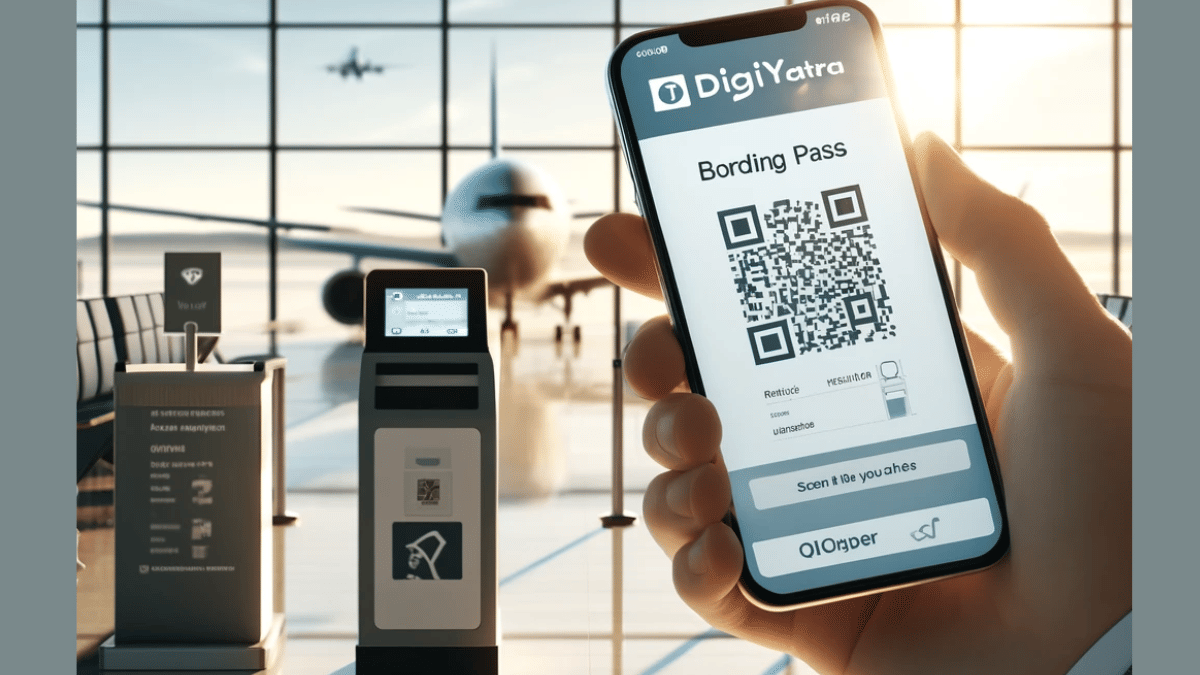
The Ministry of Civil Aviation in India has introduced a special initiative to ease the air travel process in India. The DigiYatra app developed by a private non-profit organisation called Digi Yatra Foundation helps the travellers to commute paperless. With this platform, passengers get a smooth air travel exprience where they don’t need to carry physical documents and identities for check-in. We previously explained the DigiYatra app in detail and also shared the steps guide to update your credentials and documents in the app. But are you aware that DigiYatra also allows the consumers to add boarding pass making their flight travels a seamless experience. What all steps you would need to follow to add a flight boarding pass in the DigiYatra app? We have shared the steps below:

For the tech geeks, stay updated with the latest cutting-edge gadgets in the market, exclusive tech updates, gadget reviews, and more right on your phone’s screen. Join Giznext’s WhatsApp channel and receive the industry-first tech updates.

Also Read: Google Maps Detailed Voice Navigation: What It Is & How to Use It on Android and iPhone

How To Add Flight Boarding Pass In DigiYatra App For Seamless Airport Travel Experience

One can easily access DigiYatra services via the mobile app. Both Android and iOS users can download and install the DigiYatra app on their respective smartphones and access all the available services including the option to add a flight’s boarding pass.

Step 1: Launch the DigiYatra app on your respective smartphones

Step 2: Add your credentials (as required)

Step 3: Once the credentials are added and you are logged into your profile tap on the “Add Boarding pass” option

Step 3: Click in the checkbox in front of the “Agree to the terms and conditions”

Step 4: A new option will pop up to add the Boarding Pass PDF. You can also scan the Boarding Pass QR code to add it to the app.

Once the boarding pass is successfully added to the DigiYatra app, you’ll be shown all of the important travel details including the Flight name/ number, booking ID/ PNR, and seat number, etc. All the information will be displayed on the DigiYatra app’s homepage.