Categories
Featured How To Telecom

Lost Your Vi SIM? Here’s How To Block Your Vodafone SIM

Key Highlights

  • If you loose your Vi SIM card blocking it is the first step you need to follow
  • New Vi Sim can be ordered both online and offline
  • You can block Vi SIM using both online and offline methods

Losing your SIM can be an upsetting experience. From bank OTPs to work calls, everything comes to that number. As a result, it’s natural for you to be concerned about someone using your phone number to commit fraud. The good news is that it’s now easy to block your Vodafone number online or offline.

Not only it’s easy to block a lost or stolen Vi SIM but you can even get a replacement SIM with the same number. Users can also contact customer service or go to a Vi store to have their lost number blocked. Here are the offline and online methods through which you can block your Vi SIM.

How To Block Vi SIM Offline?

Vi users can also get their lost SIM blocked at their local Vodafone Idea store. Here is the step-by-step guide to getting your Vi SIM blocked through the Vi-Store.

Step 1: Visit the official Vi-Store Locator to find the nearest store.

Step 2: Go to the store.

Step 3: For OTP verification, the executive at the store will ask for an alternate mobile number or email ID.

Step 4: After the OTP verification, your lost SIM card will be blocked.

Step 5: You can then pick a new Vodafone Idea SIM with the same number.

Also Read: Vi Max Postpaid Plans Launched: Here’s What The New Plans Offer

How To Block Vi SIM Online?

This is the simplest way to block your Vi SIM from the comfort of your own home. You will, however, require the alternate mobile number or email address linked with your Vi number. Follow the mentioned steps to block your Vi SIM online.

Step 1: Visit the official Vi SIM block page.

Step 2: Enter the Vi number you want to block.

Step 3: Click on ‘get OTP to block SIM’.

Step 4: The OTP will be sent to the alternated mobile number or email ID provided during the Vi SIM purchase.

Step 5: Enter the correct 4-digit OTP and click Confirm.

Also Read: Here’s How To Block Airtel SIM: See All Steps

Your Vi number is now blocked. You’ll receive a reference number and a confirmation message after blocking your number online. The reference number can be used to apply for duplicate SIM within 15 days for prepaid users and 60 days for postpaid users.

For the tech geeks, stay updated with the latest cutting-edge gadgets in the market, exclusive tech updates, gadget reviews, and more right on your phone’s screen. Join Giznext’s WhatsApp channel and receive the industry-first tech updates.
Categories
Featured How To Info

WhatsApp Will Allow You To Exit Group Silently: Here’s How To Do

WhatsApp adds new features to improve its users’ experience and make it more convenient. If you use WhatsApp on your smartphone, you must be a member of at least one WhatsApp group. However, there are times when you’d wish to leave a group without notifying other members. Well, that is not possible as of now. However, with the introduction of a new feature one can silently exit a WhatsApp group without notifying others.

According to the WABetaInfo report, users can now leave a WhatsApp group without notifying other members of the group. Only group admins will be able to see who leaves the group but others do not.

In the report, it has also been told that this feature is currently in the development stage and will take some time to reach beta users. It is believed that the feature to leave the WhatsApp group secretly will come out to all the platforms, including iOS, Android, Mac, and desktop users. However, it remains to be seen when it will be introduced.

How To Exit WhatsApp Group Silently?

Although this feature is still in a testing phase, we can expect the mentioned steps can be followed to exit the chat groups:

Step 1: Open the WhatsApp group chat.

Step 2: Click on the group chat group subject.

Step 3: Tap Exit group. You will see a pop-up before you leave the group that will inform you that admins will know about their exit.

Step 4: Click Confirm.

Apart from that, WhatsApp is now testing the ability to filter messages based on unread messages, contacts not saved in the phonebook as well as saved numbers, and groups. On both its mobile and desktop platforms, the Meta-owned app already has conversation filters, but only for WhatsApp business. The platform now plans to make the same filters available to non-business users as well.

Recently, the instant messaging app included an emoji reactions feature that allows users to respond to messages in individual and group chats with an emoji. When responding to a message on WhatsApp, you may now choose from six pre-selected emojis.

Categories
Featured How To Info

How To Remove Channels From Tata Sky: Tips To Save Extra Bucks

Key Highlights

  • To remove a channel from Tata Sky, customers can either call the customer care helpline or log in to their Tata Sky account
  • Users can choose the channels they wish to remove from their subscription
  • Any changes made will be reflected in the next billing cycle

Tata Sky is one of the leading DTH service providers that have been providing decent services to its users. It is most preferred over cable TV. It provides its users with a better way of removing or adding channels from their pack if they don’t wish to have it in their subscription. If you have a Tata Sky DTH connection, here’s a step-by-step guide on how to remove the channel. Also Read | Want To Reset Your Dish TV HD Set Top Box? Here’s How To Do It

How To Remove Channel In Tata Sky?

Step 1: Visit tatasky.com/wps/portal

Step 2: Click on the “Select packs” option.

Step 3: Enter your registered mobile number or Tata Sky subscriber ID.

Step 4: You will receive an OTP once you have entered the mobile number.

Step 5: Enter the OTP and the accounts screen will open in the window.

Also Read | Airtel Digital TV: How To Add Or Remove Airtel DTH Channels

Step 6: A box called “Your Pack” can be seen on the right. Tap on View to see the entire channel packs to which you are currently subscribed.

Step 7: Click the link in the box to get to the next page, where you can deactivate channels in Tata Sky. Each category will have a “+” sign beside it.

Step 8: Uncheck the box to eliminate undesirable channels from your Tata Sky account’s existing list, then click “Select and Proceed” at the bottom.

Step 9: The next window will show you all the channels you’ve unsubscribed to, and then you’ll need to click the confirm button. A message of confirmation will display on the screen, and the new pack will be enabled after some time.

A user can also unsubscribe from a channel in Tata Sky DTH by SMS. Follow the steps below to remove a channel:

Send an SMS to 56633 using the Android or iOS app. Send an SMS from your registered cell number to 56633 with the channel code, such as ZEE14 or STARPLUS12. The pack will be activated on your connection after you receive a confirmation message.

You can also call the customer service number, 1800-208-6633, via your registered mobile number and request that the channel is removed from your pack.

Also Read: Change Registered Mobile Number In Tata Sky: Here’s How To Do It

Categories
Apps Featured How To

Want To Delete Your PhonePe History? Read Step-By-Step Guide Here

Key Highlight

  • PhonePe is a secure app for payments and utility bill payments
  • Users can link their bank accounts and generate a UPI ID in PhonePe
  • If you’re concerned about privacy, learn how to delete transaction history in PhonePe

PhonePe is one of the most secure apps to use when it comes to the part of payments. It also allows users to pay utility bills, recharge phone numbers, and more. You just need to feed in the details of your bank account and generate a UPI ID in PhonePe.

PhonePe is one of the popular digital wallet applications that help with online money transactions via UPI. Now, every online transaction via PhonePe is saved in its transaction history by default. This contains details like transaction ID and the amount sent or received. But due to privacy concerns, many users wonder how to delete their PhonePe history. If you cannot find out how to delete the transaction history of your PhonePe account, we have you covered.

Also Read | PhonePe Charging Processing Fees On Mobile Recharges: Details Here

How To Delete Transaction History in PhonePe?

Sadly, there is no direct option to delete the transaction history in PhonePe. However, you can contact their Support Team regarding the same. Below is the step-by-step guide on how to clear your PhonePe transaction history on Android and iOS. Note, the steps mentioned only delete a specific transaction history and not the entire page:

Step 1: Open the PhonePe app on your mobile phone.

Step 2: Log in to your account using the mobile number linked to your bank account and password.

Step 3: Tap on History at the bottom of the Home Page. This will open a list of all your transaction done to date.

Step 4: Select the specific transaction you want to erase and click on the Contact Support option.

Also Read | How To Create A UPI ID On Google Pay? Here’s A Step-By-Step Guide

Step 5: In the chat window, you have to mention the reason to erase the transaction history.

Step 6: Tap on Send and a new ticket for your request will be created.

Step 7: For confirmation of your request, the PhonePe support team will contact you within 24 hours.

Once the support team has verified the details, your request would be accepted and that particular transaction would be erased from your account.

Categories
Featured How To

Lost Or Stolen Airtel SIM: See All Steps To Block Airtel SIM Easily At Home

Key Highlights

  • Misplaced Airtel SIM or your smartphone containing Airtel SIM can be recovered
  • A stolen sim can be used to engage in unlawful activity on your behalf
  • Airtel provides numerous ways to disable your Airtel SIM

In case you are looking for ways to block your Airtel SIM, then there is good news for you as India’s second-largest telecom operator allows its users to block their SIM cards. But still, if you are looking for ways to do that, then you should go through the steps that have been written in this article.

Also Read | Stop Call Recording Announcement On Realme Smartphones: Here’s How

Steps To Block Airtel SIM Card Or SIM Via Customer Care Services

Step 1: First, you need to call the company’s customer care number, i.e. 198 or 121.
Step 2: Now, you have to tell them to deactivate your mobile number.
Step 3: After that, they will verify your mobile number, ID proof, and address.
Step 4: Once verified, your SIM will be blocked.

Also Read | How To Turn Off Call Recording Announcement In Vivo Smartphone

Steps To Block Airtel SIM From Reliance Jio, Vodafone-Idea, And BSNL Mobile Numbers

Step 1: You need to dial 1800-103-4444 (toll-free number).
Step 2: Again, you will have to give your details like ID proof, address, and more.
Step 3: You have to verify all details on the same call to deactivate your Airtel SIM Card.

Also Read | OnePlus Call Being Recorded Notification: How To Stop ‘Call Is Now Recording’ Message On OnePlus 10T, 10 Pro, OnePlus 9, 8 Series

Steps To Deactivate Airtel Via Airtel Store

Step 1: First, you have to visit the company’s store along with your ID and Address proof.
Step 2: You have to ask the store manager to deactivate the SIM card.
Step 3: Submit your documents proofs and give your lost airtel number along with details of the last recharge amount.
Step 4: Now, your details will be verified, and your number will be deactivated.

Also Read | How To Upload WhatsApp Status In High Quality (Images, Videos) On Android, iOS?

Step To Apply For New Airtel SIM Card

Step 1: Visit a nearby store and take your ID along with the original documents and address proof with you.
Step 2: Submit all details; after that, you will get a new SIM.
Step 3: You can insert the SIM into your phone and now, you are allowed to enjoy the calling and the data services on the company.

Also Read | Download Music From Instagram To Your Phone: Here’s How

New Update

Not just Airtel, you can also block SIM cards from other popular telecom operators in a similar manner. Vodafone, Jio, and BSNL are the primary players in the mobile telecom sector, And if you are using a SIM card from any of these operators, you can quickly block the SIM cards in case of any thefts and mishaps. If in case you want to know the steps to block your lost Vodafone VI SIM or Reliance Jio sim cards, you can read our latest coverage on the same.

For the tech geeks, stay updated with the latest cutting-edge gadgets in the market, exclusive tech updates, gadget reviews, and more right on your phone’s screen. Join Giznext’s WhatsApp channel and receive the industry-first tech updates.

Categories
Featured How To Mobile

Aadhaar Not Linked To Mobile Number? Here’s How To Do

Key Highlight

  • Linking Aadhaar to your phone number is now mandatory in India and serves as a common ID proof
  • Visit the nearest Aadhaar enrolment center for biometric verification to complete the process
  • Note that there is a fee of Rs. 50 for upgrading or adding a mobile number to Aadhaar

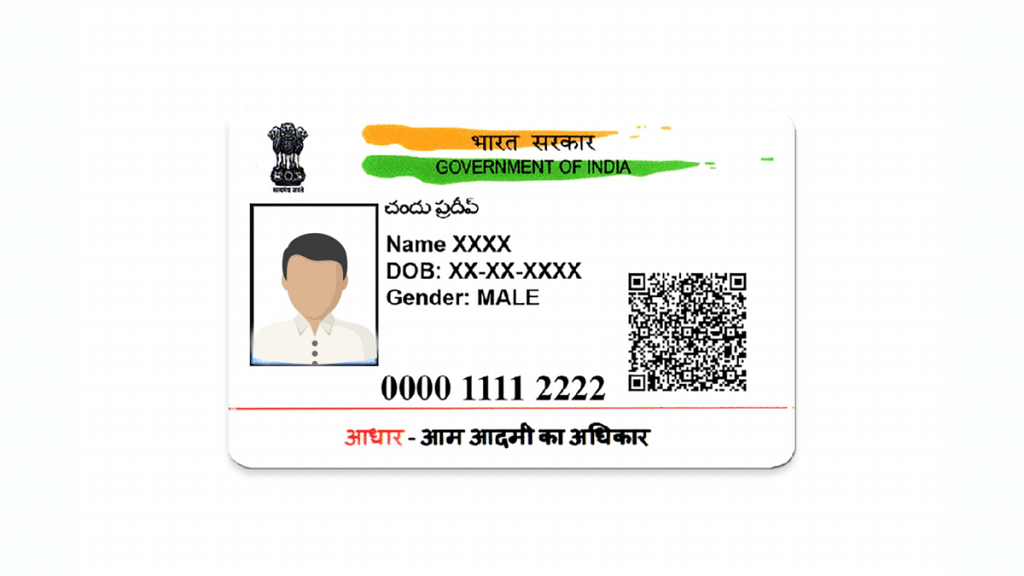
Linking the Aadhaar card to your phone number has become mandate in India. This is used as an ID proof at many private and public institutions across the country. To link linking Aadhaar with a phone number, a citizen first need to locate and then visit their nearest Aadhaar enrolment centre. It is a document-free procedure, but a physical visit is needed. Because the biometric verification is compulsory for linking a mobile number with the Aadhaar card. It should be noted that upgrading or adding a mobile number to the Aadhaar would incur a fee of Rs. 50. Also Read | How To Change Your Aadhaar Card Photo: A Step-by-Step Guide

How To Link Aadhaar To Mobile Number

Mentioned below are the five simple steps to linking your Aadhaar card to your phone number.

Step 1: Go to the official UIDAI website at to book an appointment at your nearby Aadhaar Enrollment Centre or Aadhaar Seva Kendra.

Step 2: At the Aadhaar Enrolment Centre or Aadhaar Seva Kendra, request the presence of an official or operator. Fill and submit the application form.

Step 3: The presence of Aadhaar holder is necessary for the Biometric authentication. At present there are no online facilities available for linking Aadhaar to the phone number.

Step 4: Individuals who want to link their Aadhaar with their phone number must pay a fee of Rs. 50. It needs to be submitted to the authorized operator present at the Aadhaar Kendra to finalise the linking procedure.

Step 5: Once your request has been processed, you will receive a Unique Request Number. You can check your requests’ status by using the URN.

Also Read | Need To Lock And Unlock Your Aadhaar Card Biometrics? Here’s How To Do It

Note: To add or update a new number or update, no additional documents are required for linking Aadhaar with the mobile number. However, you must carry the Aadhaar Card when you visit the Aadhaar Enrollment Centre.

Besides mobile number, an Aadhaar Card holder can also change their name, e-mail ID, address, and biometric details on the Aadhaar. For maximum changes, an individual have to visit a nearby Aadhaar Seva Kendra.

Categories
Featured How To

Here’s How To Change Airtel Xstream Wi-Fi Password Via Thanks App And Website

Key Highlights

  • To change your Airtel Xstream Wi-Fi password, you can use the Airtel Thanks app or website
  • Make sure your new password is strong and unique to ensure the security of your network
  • You may need to reconnect your devices with the new password to access the network

Airtel is known for providing the best offers to its customers in India. The second-largest telecom operator is also providing access to internet services. In fact, the company allows you to change your Wi-Fi password in case you want to increase security or are looking for a stronger password.

Notably, changing the password of Airtel WiFi is quite easy as you can change it via a web browser or the company’s application. However, in order to help you, we are writing all steps so that you can change the Wi-Fi easily.

Also Read | Don’t Remember Password For WhatsApp Encrypted Backup? Here’s What You Can Do

StepsTo Change Airtel Wi-Fi Password Via Airtel Thanks Application

Step 1: You need to download the Airtel Thanks app via App Store or Play Store. Now, log in via your registered mobile number or the service ID of your connection.

Step 2: After that, you will get an OTP on your registered mobile number.

Step 3: Now that your account details are available on the screen, tap on the Account option and see the connection.

Step 4: Tap on the manage services option and you will find the change the password option.

Step 5: Click on the option and write the new password you want to reset. Now, you have to submit the request and wait to connect the device to get the Wi-Fi Connection.

Also Read | Recharge Your Delhi Metro Card Using Airtel Thanks App: Here’s How

Steps To Change Airtel Wi-Fi Password Via Website

Step 1: You need to open a web browser on your personal computer or laptop and write the 192.168.1.1 in the address bar and tap on entering.

Step 2: The page in the username section and type Admin to log in. Now, you’ll see the Network option and tap on select your network, and in the WPA field, you can change the WiFi password.

Step 3: Now, save all changes you have made and after completing the steps wait for a few minutes before logging into all devices with the new password.

For the tech geeks, stay updated with the latest cutting-edge gadgets in the market, exclusive tech updates, gadget reviews, and more right on your phone’s screen. Join Giznext’s WhatsApp channel and receive the industry-first tech updates.

Categories
Apps Featured How To

WhatsApp Message Emoji Reaction: How To React With Emoji To Any WhatsApp Text

WhatsApp is one of those instant messaging applications which has you might find on every next Android or iOS smartphone. Even laptop and PC users are widely relying on this Meta-owned instant messaging service. WhatsApp is frequently getting new services and tools in form of updates that have been improving the user experience. WhatsApp has borrowed some features from Facebook and Instagram. One of the most recent features that WhatsApp has introduced is the message reaction. This new option has been long-awaited as is borrowed from both Facebook and Instagram.

WhatsApp Message  Emoji Reaction Feature: How To React To Any Message On WhatsApp?

WhatsApp has been working on the message reaction feature for a while. This feature was earlier in the testing phase and was available with the beta version. But now, WhatsApp has started rolling out the stable update in a phased manner and you should get the option to react to messages soon.

With the latest feature, WhatsApp users will now be able to react with different emojis. Currently, users are only able to only reply to a message. The option to react to any text has been missing all this while. With the surging demand, WhatsApp has finally brought this option to the audience on a mass level. But what exactly do you need to do to use the emoji reaction feature on WhatsApp? Below are the steps:

How Can You React To Any Message With Emojis On WhatsApp?

Step 1: In order to use the emoji react feature on WhatsApp messages you will need to have the latest version of WhatsApp installed on your smartphone. If you already have WhatsApp installed check if it’s updated to the latest version. You complete the manual update via Google Play Store or Apple App Store.

Step 2: From the WhatsApp home page, open any chat window where you wish to use the emoji reaction feature.

Step 3: Press and hold the text message on which you want to react with an emoji. You will see the emoji tab pop up. Select the emoji that you want to send as a reaction. That’s all you need to do to react to any message with an emoji on WhatsApp.

Do let us know your thoughts in the comments below. You can follow the GizNext Tech Enthusiast Telegram group and GizNext Tech Enthusiast WhatsApp group for all the latest developments across the tech world.

Categories
Apps Featured How To

Here’s How To Rent Movies From Amazon Prime Video: Check All Steps Here

Key Highlights

  • Amazon Prime Video has announced the launch Amazon Prime Store
  • It allows users to rent regional and international movies
  • The prices of the movies on Prime Video range from Rs. 69 to Rs. 499

Amazon Prime Video has announced the launch Amazon Prime Store for its customers and non-customers in India. The newly launched Amazon Prime Store will allow you to rent regional and international movies on its platform. This newly launched Store allows users to pay for one movie instead of paying for the entire platform.

It is worth noting that this is quite similar to Google’s rent a movie option. Plus, it is for Prime and non-prime users, which means you don’t need to buy Amazon Prime access. The prices of the movies range from Rs. 69 to Rs. 499.

Also, if you rent a movie, then it will be available for 30 days, but if the user starts watching the movie, then he or she will lose access in 48 hours and if you miss the deadline, then you will no longer get the access of the film. However, to rent the movie, you have to follow these steps.

Also Read | What Are Netflix Secret Codes: How To Watch Hidden TV Shows And Movies On Netflix Using Secret Codes

Steps To Rent Movie Via Amazon Prime Store

Step 1: You need to open the application on the phone or in the browser on your personal computer or laptop.

Step 2: After opening the app, you will see the new Store tab. Now, you have to choose the movie you want to rent from all categories in the store.

Step 3: Now, click on the movie and click on the rent button. However, for that, you need to sign in to the Amazon account.

Step 4: After signing in, you need to choose the payment mode to clear the rent. You are allowed to make clear payments via your credit or debit cards. Notably, the company does not support any UPI payments at the moment.

Also Read | Here’s How To Rent Movies From Amazon Prime Video: Check All Steps Here

Categories
Apps Featured How To

Nothing Launcher For Android; How To Download And Use Nothing Launcher On Any Android Smartphone

Nothing is gearing up for its first smartphone launch this year which might be dubbed Nothing Phone (1). The rumor mill has been giving insights on the upcoming Android phone by the London-based startup founded by Carl Pei. Nothing already has hosted an event for its upcoming smartphone where the brand revealed a few details. Nothing has revealed its first smartphone will offer a near-stock Android experience which is one of the biggest highlights expected from the upcoming phone.

During the event, Nothing also revealed users will get to experience the Nothing OS launcher even before the handset goes official across the globe. Its expected availability was due in April 2022 which is now being processed in a phased manner across all the markets. The Nothing Launcher has been made available for the audience so that they can have an experience beforehand. This is one of the brand’s strategies to bring a maximum number of users on board.

The company has currently released the beta version of the Nothing Launcher for Android users all across the globe. The dedicated launcher for Nothing Phone (1) and all upcoming Nothing series phones can be downloaded from the Google Play Store on Android smartphones. But what are the steps to download and use the Nothing Launcher on any Android smartphone? Is the Nothing Launcher compatible with all Android smartphones from different brands? Details are as follows:

Nothing Launcher Android: Are All Android Phones Compatible With Nothing Launcher (Beta Build)?

The Nothing Launcher is now available for download via Google Play Store on all Android phones. This launcher is currently available in its beta build. The stable version will be introduced alongside the first Nothing smartphone, i.e, the Nothing Phone (1). While the launcher is available for download at the Google Play Store, it isn’t compatible with all Android smartphones.

The Nothing Launcher is currently supported on a handful of premium Android phones, including the Google Pixel 6 and Pixel 5. The beta version of the Nothing Launcher is also supported on the high-end Samsung Galaxy S21 and the Galaxy S22 series.

You might get a compatibility error if you try and install the Nothing Launcher beta build using Google Play Store on any other Android phone apart from the aforementioned models. The brand has assured more devices will be added to the compatibility list but hasn’t confirmed which devices are next in the pipeline.

Nevertheless, multiple Android users have reportedly successfully installed and used the Nothing Launcher (beta) via APK file. You can give this a try if in case you don’t own a Pixel or Samsung Galaxy S series model mentioned above.

How To Install And Use Nothing Launcher On Any Android Smartphone?

Step 1: Open Google Play Store and search Nothing Launcher by Nothing Technology Limited.

Step 2: Click on ‘Install’. Make sure you have toggled on the “trusted source” settings on your handset.

Step 3: Once the app is installed, you can try out the features.

Now, if you don’t own any of the above-listed Pixel series or Samsung Galaxy S series models, you can download the APK file separately via the web to use the Nothing Launcher.

Step 1: Open any web browser and go to the Google homepage.

Step 2: Type in Nothing Launcher APK file download and hit enter.

Step 3: You’ll get multiple links offering free APK files for the Nothing Launcher. If you have been using any specific website to download third-party Android apps APK, use it to download the Nothing Launcher APK.

Step 4: Complete the remaining setup process to use the Nothing Launcher on any brand’s Android smartphone.

Do let us know your thoughts in the comments below. You can follow the GizNext Tech Enthusiast Telegram group and GizNext Tech Enthusiast WhatsApp group for all the latest developments across the tech world.