Categories
Featured How To Laptop

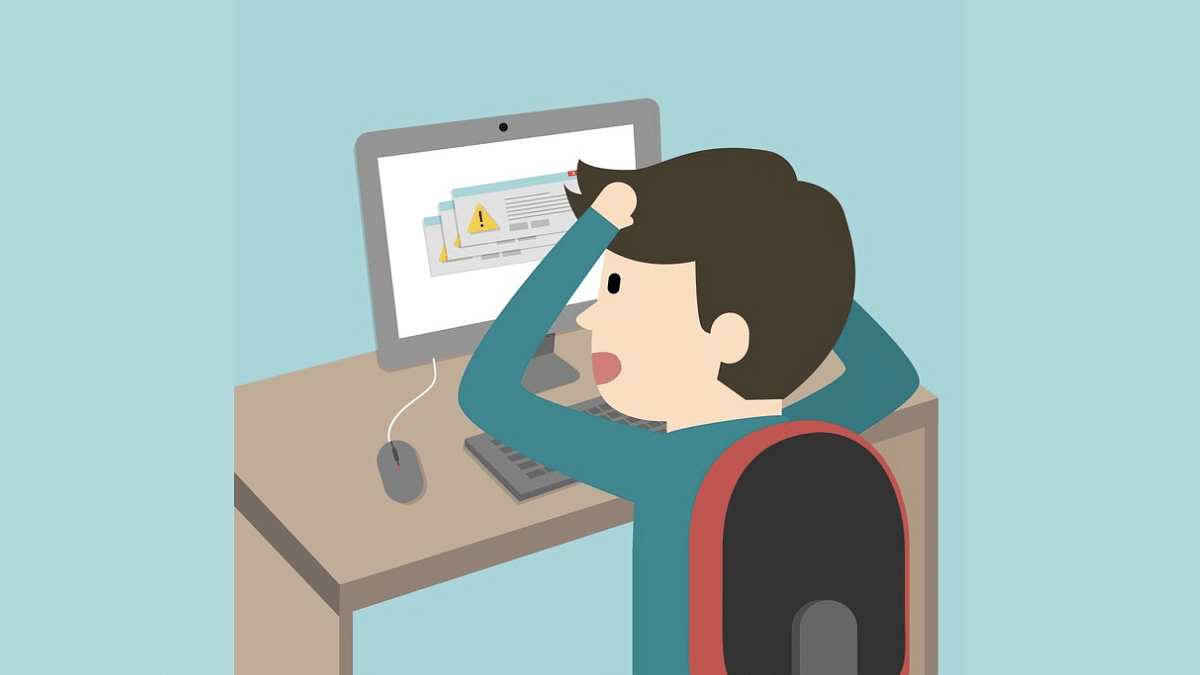
Windows PC Getting Unresponsive? Here’s How To Emergency Restart Windows Laptops/ PCs

Key Highlights

  • Windows OS offers emergency restart option
  • Comes to rescue when laptop/ PC becomes unresponsive
  • Safer way to restart Windows laptop/ PC compared to hard reset
  • Emergency restart can be performed with just a few steps

You probably would have experienced your Windows powered laptop or PC going getting unresponsive at times. In such scenarios, none of the popular tricks work to restart PC and eventually, it’s the hard reset method that most of us resort to for a quick reboot. But this could hamper your laptop/ PC’s performance in a longer run affecting motherboard and other crucial hardware.

For the tech geeks, stay updated with the latest cutting-edge gadgets in the market, exclusive tech updates, gadget reviews, and more right on your phone’s screen. Join Giznext’s WhatsApp channel and receive the industry-first tech updates.

Also Read: Windows 11 Laptop, PC Reset Guide: How To Perform System Reset Without Loosing Data

Windows Emergency Restart: What Exactly Is This Feature?
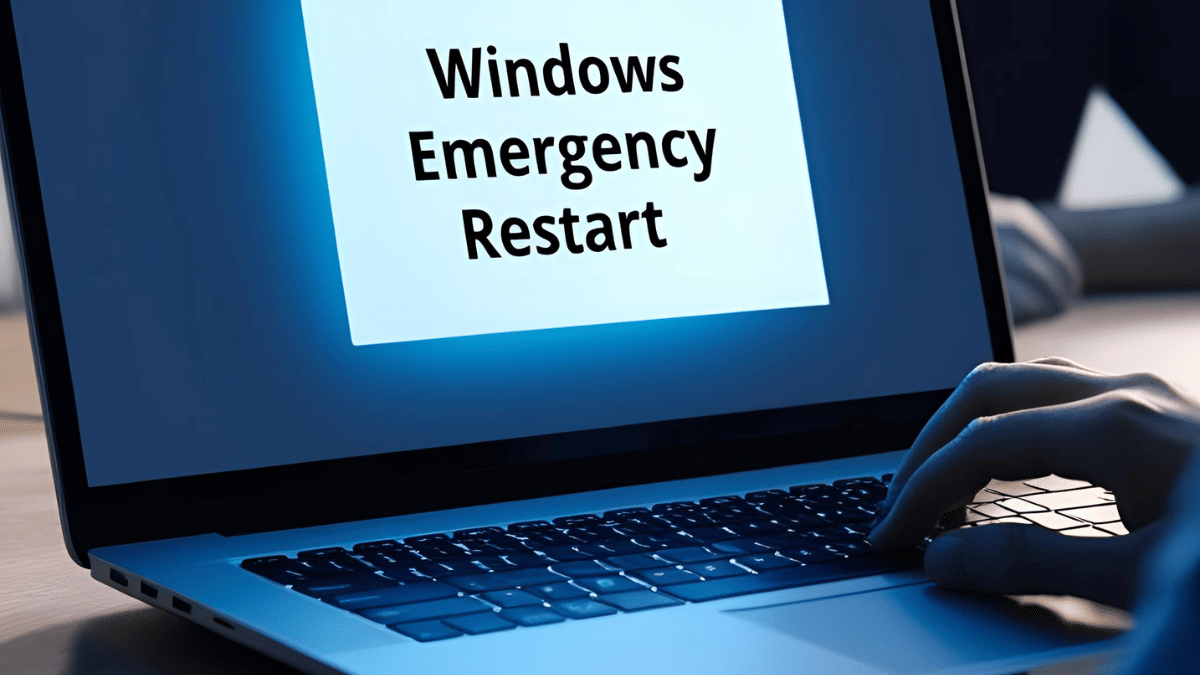
Emergency restart is one of those crucial Windows feature that helps with PC/ laptop reboot when they become unresponsive to all commands. This feature is designed to ensure that the laptop/ PC can be shut down while bypassing the standard shut down procedure. While this is an extreme method to power off any Windows laptop or PC, it comes handy in emergency scenarios when the system fails to recognise any command for closing apps or device shut down.

Windows Emergency Restart Tricks: Check Steps Here

Step 1: When you need to emergency restart your Windows laptop/ PC, simply press and hold Ctrl+ ALT+ Delete keys.

Step 2: Wait for the Windows Task manager pop-up to show up on the screen

Step 3: Now, while pressing and holding down the CTRL key, also tap on the Power key that is located at the bottom right of the task manager window.

Step 4: A new prompt for Emergency Restart will be displayed on the screen

Step 5: Tap on OK for emergency restart

Also Read: Your Aadhaar Details Compromised? Here’s How To Instantly Check For Data Leaks, Unauthorized Aadhaar Use

Key Points To Note

  • Data Loss: If data is not saved, emergency restart can lead to data loss.
  • Not suitable for frequent reboots: Not to be used frequently for device laptop/ PC shutdowns
  • Use case: Abrupt screen freeze or unresponsive device
  • Safe to use: Yes if used occasionally. No, if used frequently.
Categories
Featured How To Laptop

Laptop Overheating Issues: Top 5 Quick Fix To Keep Laptop Temperatures Stable

Key Highlights

  • Laptop overheating a common issue
  • Increased temperatures can hamper laptop’s speed and overall performance
  • Dust and dirt, extensive usage, battery degradation common reasons

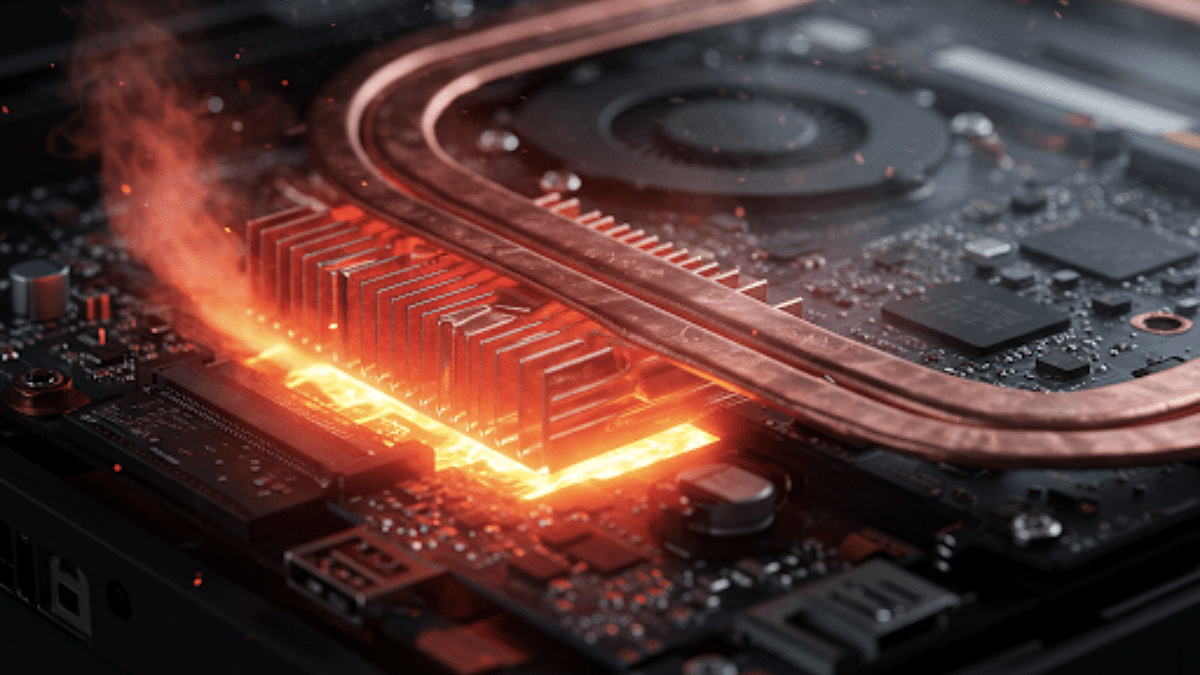
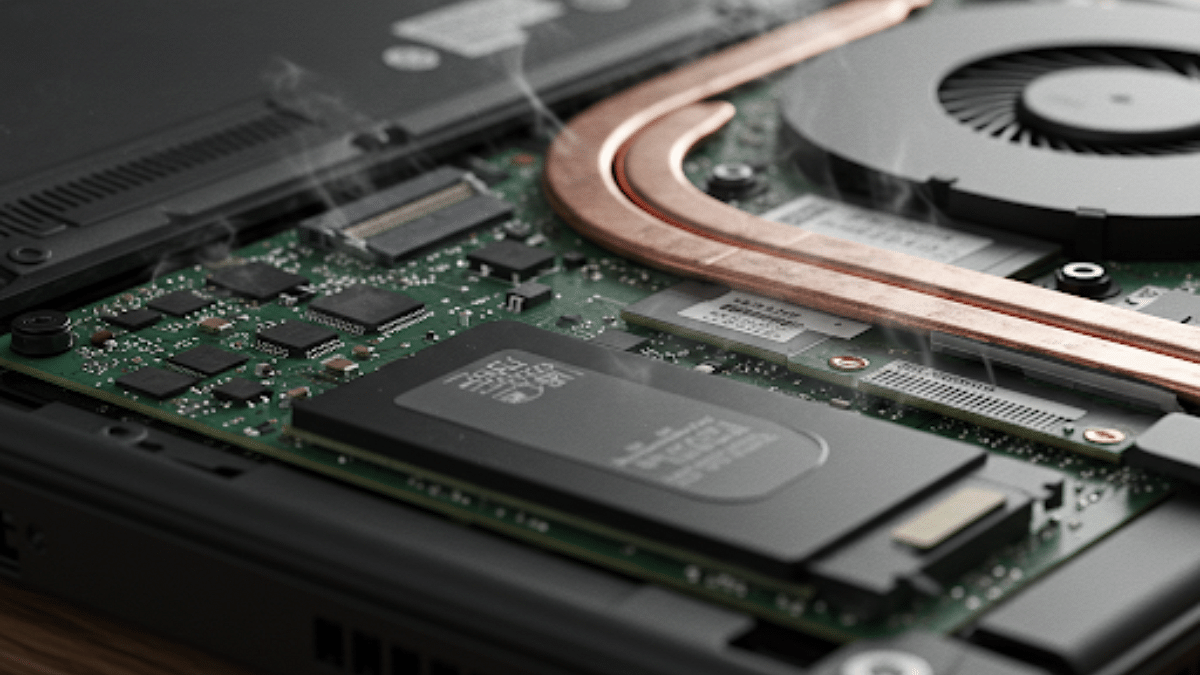
Soaring summer temperatures is something that affects both human and machines. Increased workloads often leads to machines break down due to high temperatures with continuous operations. The same applies to laptop and PCs where extensive usage in peak summers can lead to frequent crashes, app shutdowns, and more. Excessive heat can even lead to damages further affecting the performance of your laptop. If you already are experiencing frequent laptop heat up and shut down issues due to the same, here’s the guide to fix this issue. We have listed top 5 effective methods that can help you fix laptop heat up issues without paying a visit to service centre.

For the tech geeks, stay updated with the latest cutting-edge gadgets in the market, exclusive tech updates, gadget reviews, and more right on your phone’s screen. Join Giznext’s WhatsApp channel and receive the industry-first tech update.

Also Read: Android Auto Customization: How To Change Wallpaper With And Without Smartphone

Top Effective Methods To Protect Laptop From Overheating

Method 1: Restrict App Running In Background (Extensive or Heavy apps)

Try to keep all the unused apps and software closed when not in use. Closing down unnecessary apps running in the background not only ensure swift performance but also keep your laptop’s temperature steady. It is one of the effective ways to ensure the laptop doesn’t get heated up with continuous usage.

Also Read: Asus ZenBook S13 OLED Laptop Review: A Compact Beast Machine!

Method 2: Use A Laptop Stand Or A Cooling Pad

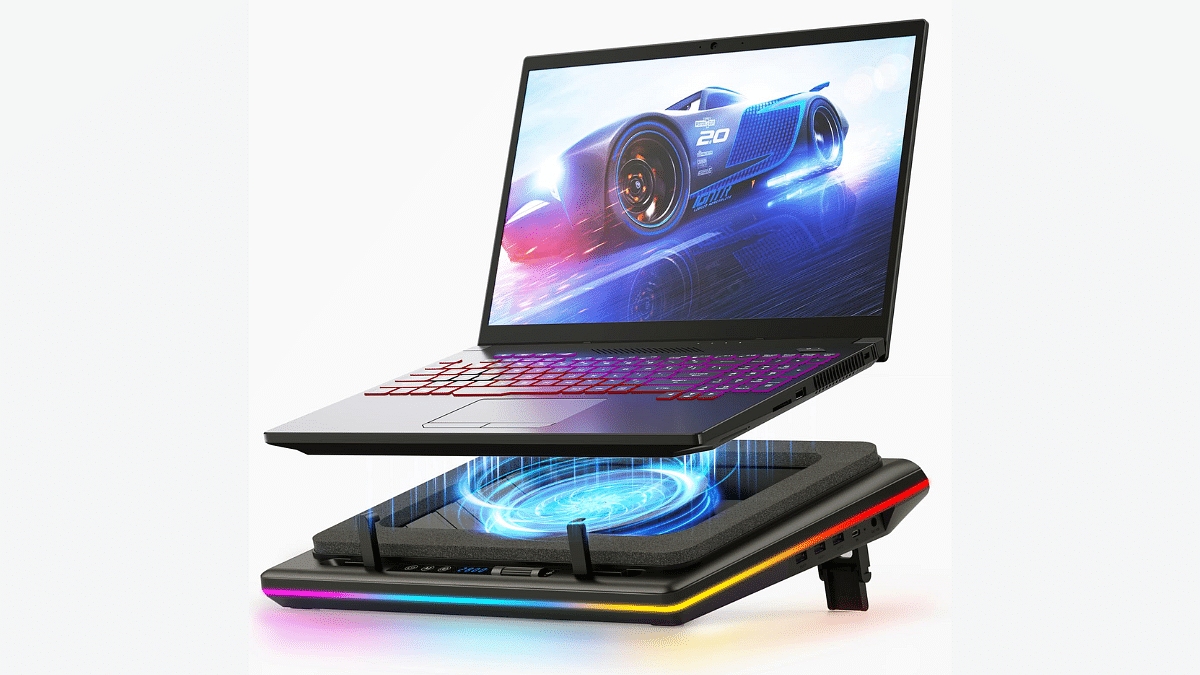
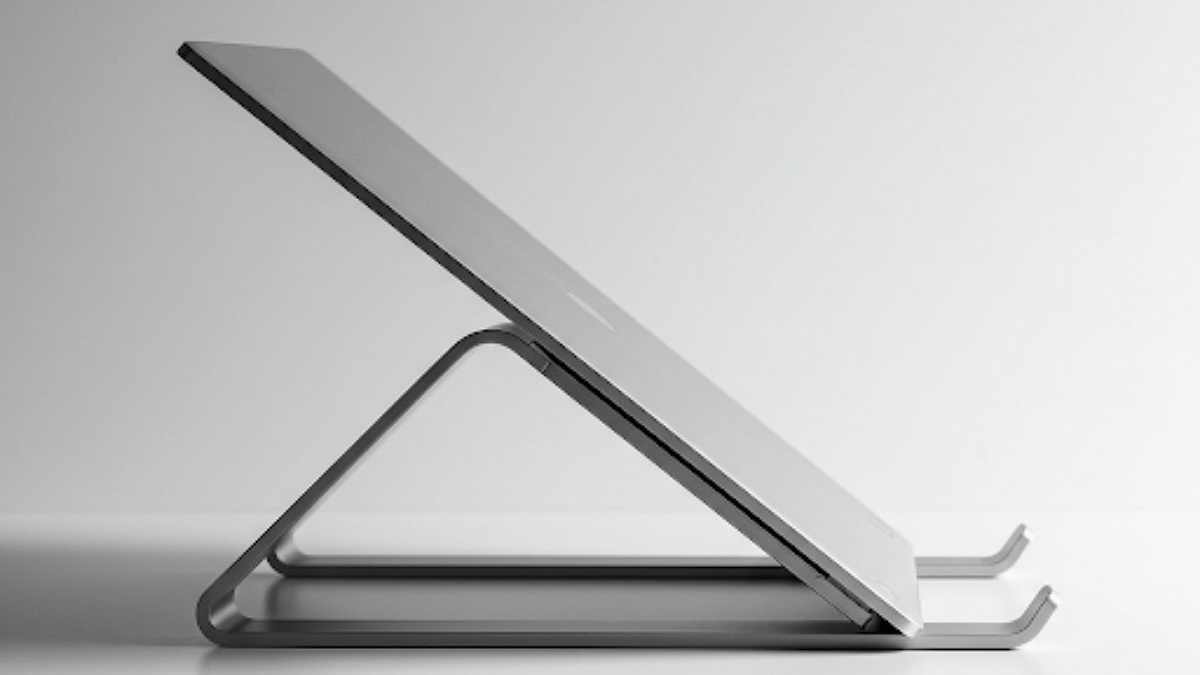
Try using laptop with a cooling pad or a stand. You can buy a USB-powered cooling pad if your laptop usage is extensive. These pads and stands allows with a lifted placement of the laptop which further helps with proper airflow to keep the temperatures stable. These stands and cooling pads are ideal for extensive gaming and similar tasks that requires heavy processing.

Also Read: ASUS ZenBook S 14 OLED Laptop Review: Efficient Productive Notebook

Method 3: Keep AirVents Clean From Dust

Often clogged air vents of a laptop also leads to increased temperatures. Hence, it is advised to keep your laptop’s vents clean to allow proper air flow. Also, try using laptop on a flat hard surface instead of your lap, bed, or blankets for long. Doing this can block the air vents and the air flow hampering speeds and overall performance.

Also Read: Windows 11 Tips And Tricks: How To Change, Reset Old Password In Windows 11-Powered Laptops/ PCs?

Method 4: Ensure All Apps And Software Are Updated To Latest Version

Older OS and software versions can also lead to laptop overheating. Downloading the latest updates ensure your device doesn’t lag with performance and also maintain stable temperature levels.

Also Read: How To Use Telegram Without Internet? Top 5 Working Tricks In 2025

Method 5: Uninstall Unnecessary Apps And Softwares

Remove or uninstall any app of software which is not in use. Specifically, if the app size is large and it takes up extra storage space. Also, try setting up and using your laptop in a cool room to keep the components functioning well.

Also Read: How To Remove An Image Background On Windows 11

Laptop Overheating Common Signs:

If your laptop is experiencing overheating issues, you will notice the following changes:

  • Abrupt laptop shutdown or restart
  • Laggy performance
  • Frequent app crashes
  • Extreme heat generating through the laptop’s bottom
  • Error messages on screen
  • Slow app launch speeds
  • Loud fan noise or fan continuously operating
Categories
Featured Info Laptop

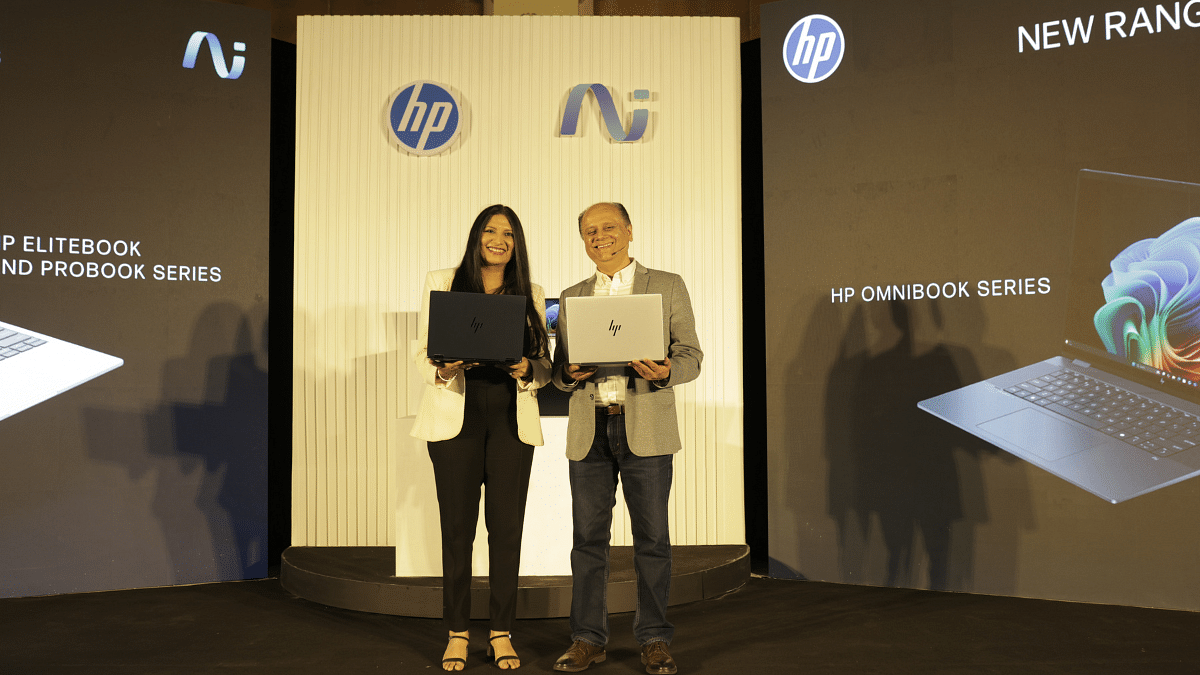
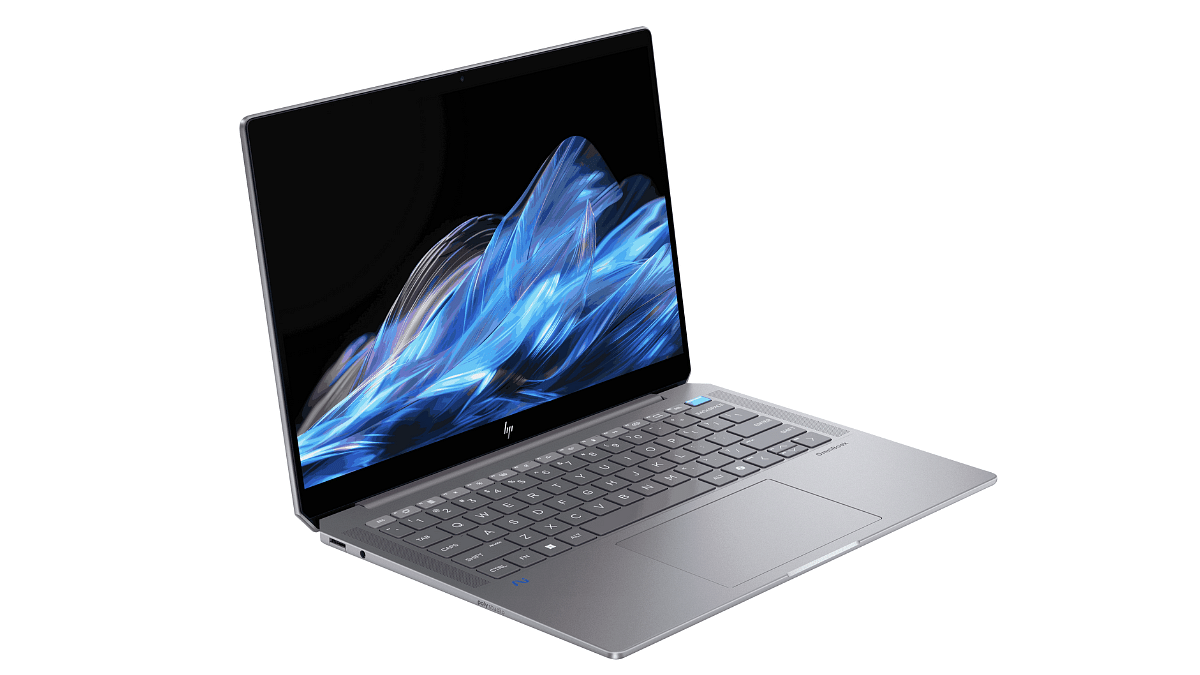
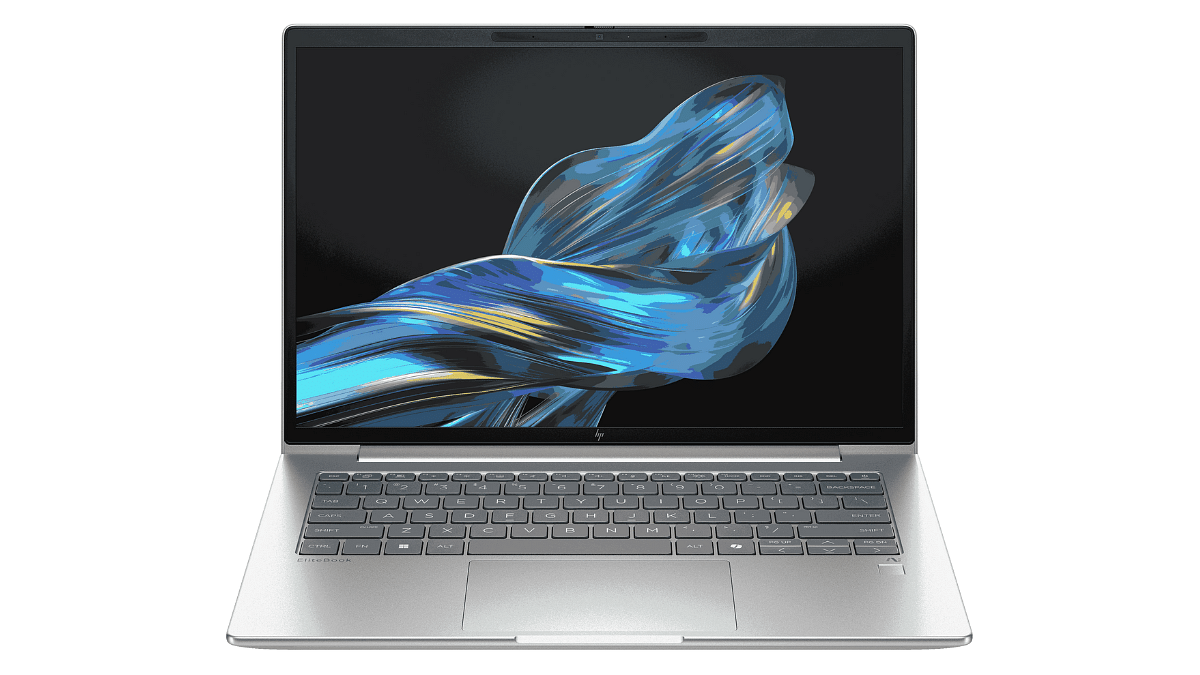
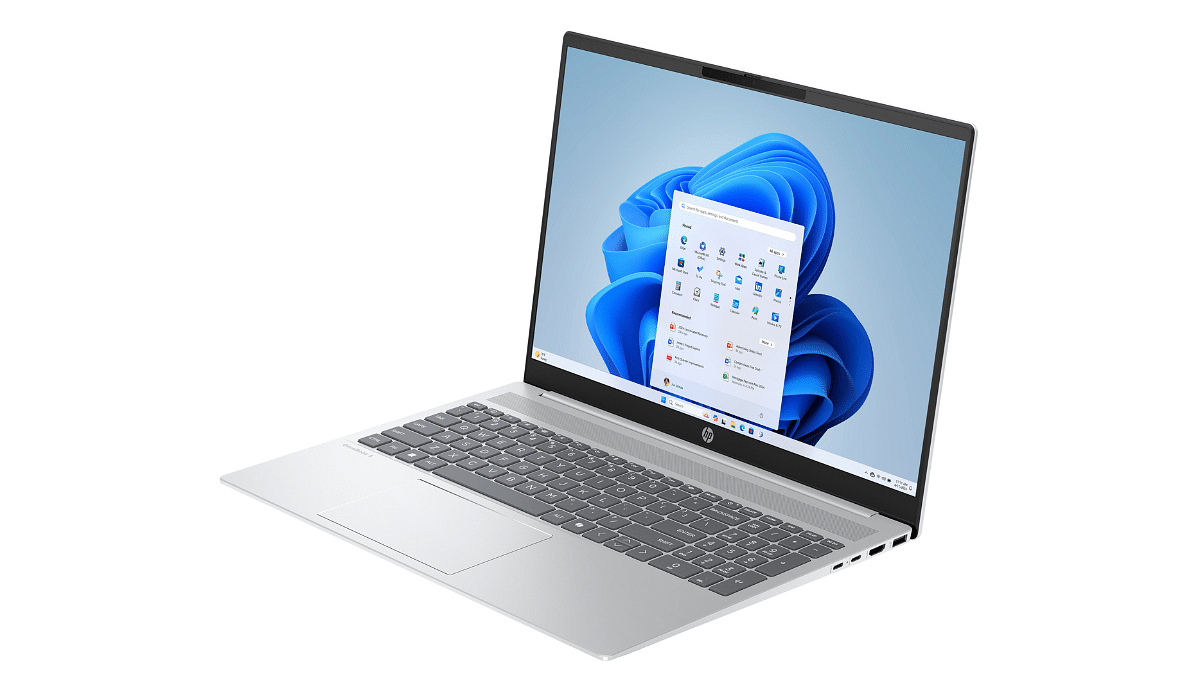
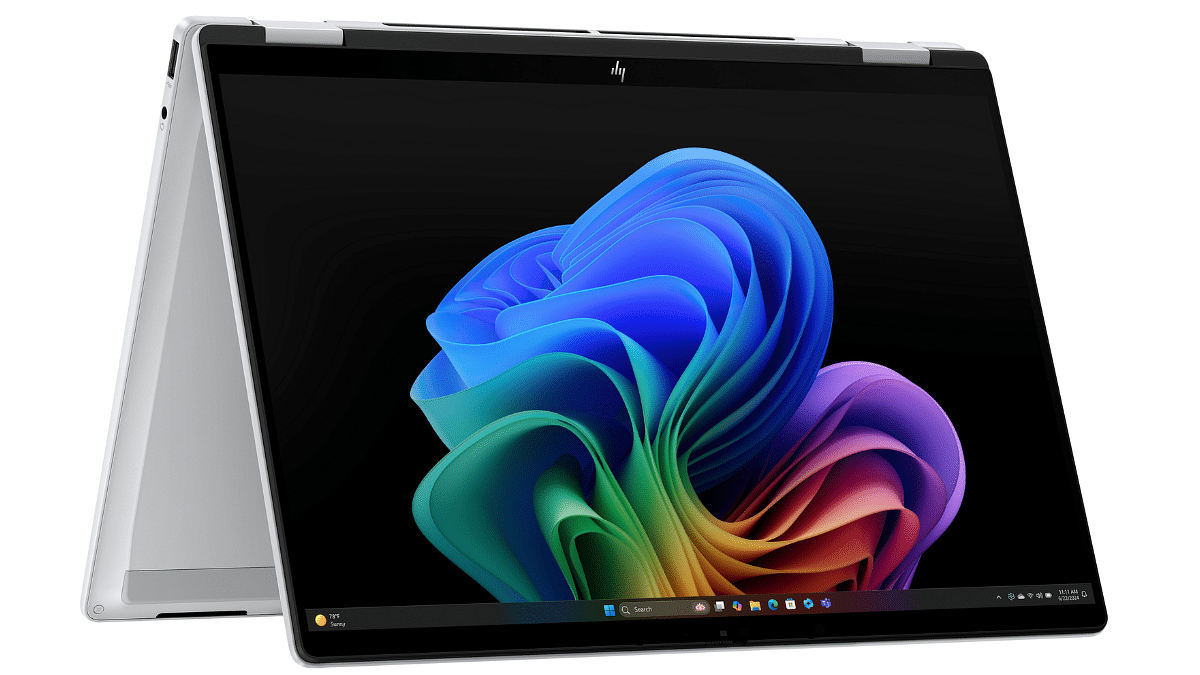
HP Launches Its Most Powerful AI PCs In India: Everything You Need To Know

Key Highlights

  • HP launches new AI laptops in India
  • EliteBook, ProBook, and OmniBook series included
  • Prices start at Rs. 77,200

HP has just raised the bar in India’s PC market with the launch of its next-generation AI-powered laptops. The company’s new line of EliteBook, ProBook, and OmniBook laptops is made for everyone, from entrepreneurs and corporate executives to regular users and creative. These new AI PCs are packed with advanced features, smart tools, and high-end performance to make work, creativity, and collaboration smoother and faster. Let’s break down what makes these laptops truly next-gen.

Also Read | ASUS ZenBook S 14 OLED Laptop Review: Efficient Productive Notebook

Built For Performance And Productivity

  • Top processors: The AMD Ryzen AI 300, Qualcomm Snapdragon X series, and Intel Core Ultra 200V power it.
  • AI at the core: Every laptop has specialized NPUs with a 40–55 trillion operations per second capability.
  • Copilot+ PCs: These laptops offer real-time AI support to improve productivity, creativity, and collaboration.

EliteBook And ProBook Series: For Business Professionals

  • Enterprise-grade design with remote work features like real-time noise cancellation and auto-framing during video calls.
  • With screen blur, onlooker detection, Sure View, and HP Wolf Pro Security.
  • Long battery life, adaptive performance, and rugged build.

OmniBook Series: For Creators And Everyday Users

  • Ideal for streaming, video production, graphic design, multitasking, and distance learning.
  • AI tools support dynamic work styles, improve calls, and maximize performance.
  • Stylish, powerful, and lightweight, made for today’s fast-moving lifestyle.

Smart Software Features

  • HP AI Companion: An on-device AI assistant that works even offline.
  • Poly Camera Pro: Improves video calls with auto-framing, multi-camera support, and more.
  • Poly Audio: Smart audio that cancels background noise and auto-adjusts volume.
  • myHP Platform: Personalizes battery, performance, keyboard shortcuts, and more.

Also Read | Infinix InBook X1 Pro Laptop Full Review: Does It Fit All The Bills?

Secure And Sustainable

  • Built with recycled materials including ocean-bound plastic and recycled metal.
  • Comes in sustainable packaging and is ENERGY STAR & EPEAT Gold certified.

Price In India

ModelStarting Price
HP EliteBook 8 G1iRs. 1,46,622
HP EliteBook 6 G1qRs. 87,440
HP ProBook 4 G1qRs. 77,200
HP OmniBook Ultra 14-inchRs. 1,86,499
HP OmniBook X Flip 14-inchRs. 1,14,999
HP OmniBook 7 Aero 13-inchRs. 87,499
HP OmniBook 5 16-inchRs. 78,999

For the tech geeks, stay updated with the latest cutting-edge gadgets in the market, exclusive tech updates, gadget reviews, and more right on your phone’s screen. Join Giznext’s WhatsApp channel and receive the industry-first tech updates.

Categories
Featured How To Laptop

Windows 11 Laptop, PC Reset Guide: How To Perform System Reset Without Loosing Data

Key Highlights

  • Windows 11 laptop/ PC reset helps boost speeds and performance
  • Windows 11 laptop, PC can be reset without loosing data
  • Can also help with system reboot in case of failed startups

Performance issue is the last ting you want to deal with your laptop or PC. Especially, when you need to complete any crucial task or want to play games. Microsoft with Windows 11 have made it easier to reset laptops and PCs which allows for performance boost and speed improvements. This can be done without paying a visit to the service centres. Often, system reset is asscociated with data loss. That’s not the case with Windows 11 OS. Bonus is, you don’t have to pay a visit to the nearby service centre to reset your Windows 11-powered laptop or PC. In this guide, we’ll take you through the steps to reset your Windows 11 laptop or PC with few simple steps while keeping all data safe.

For the tech geeks, stay updated with the latest cutting-edge gadgets in the market, exclusive tech updates, gadget reviews, and more right on your phone’s screen. Join Giznext’s WhatsApp channel and receive the industry-first tech update.

Also Read: Instagram Reels In WhatsApp? Here’s How To Watch Them Using Meta AI

Is It Possible To Reset Windows 11 PC or Laptop Without Loosing Data?

The answer is yes. Windows 11 OS is more optimised and user friendly compared to previous-gen Windows OS. With Windows 11 OS, it is possible to reset the system without loosing local files and data. But, it’s essential to pick the right option while resetting the PC or laptop.

Also Read: Android Auto Customization: How To Change Wallpaper With And Without Smartphone

Method 1: Windows 11 System Reset Via Settings Menu

Step 1: On your Windows 11 laptop/ PC’s taskbar, click on the Start menu

Step 2: Tap on the Settings menu

Step 3: Scroll to the System menu

Step 4: Go to the Recovery section

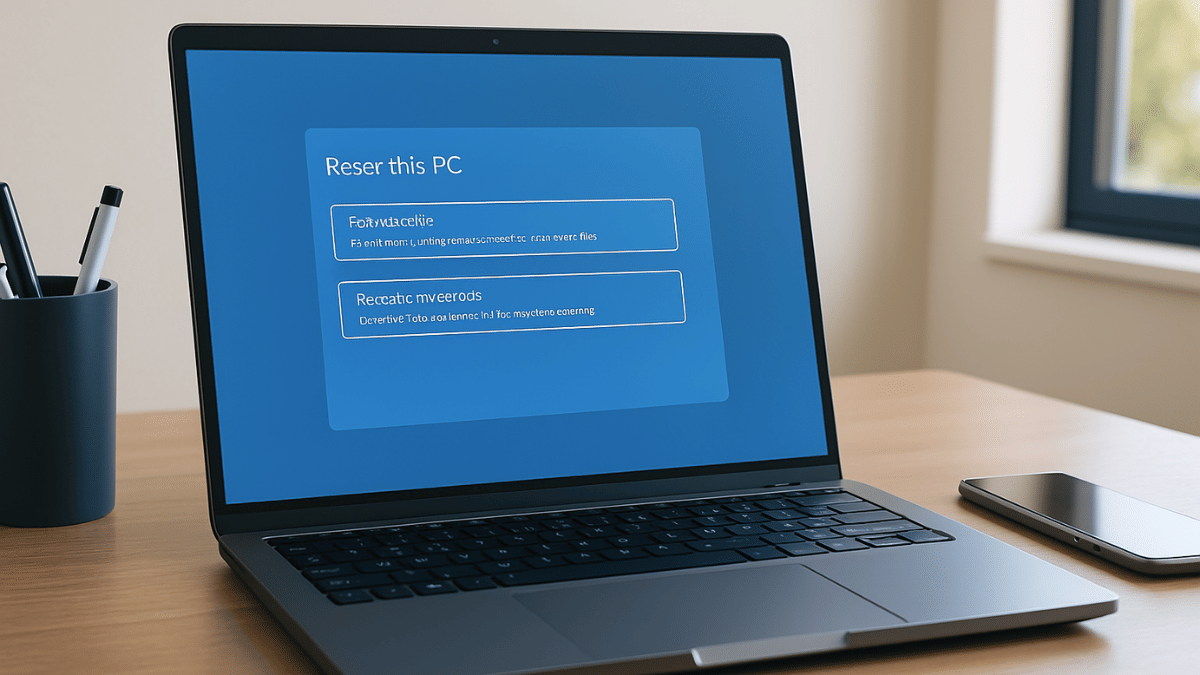
Step 5: Click on the Reset this PC option

Step 6: You’ll see two option on the screen including “Keep My Files”, and “Remove EVerything”. You need to select the former to avoid data deletion during the reset.

Step 7: In the next step, you’ll need to select if you wish to re-install program files via “Cloud” or “Local re-install“. Select as per your preference. Note, the former consumes data, hence, ensure your laptop/ PC is connected to Wi-Fi.

Step 8: Tap Next

Step 9: Click on Reset.

Also Read: How To Use Telegram Without Internet? Top 5 Working Tricks In 2025

Method 2: Advanced Hard Reset Option

This is the method which works best with resetting Windows 11 laptop and PCs that are unable to boot. Using this method one can reset the laptop or PC to a previous timeline where it was functional.

Step 1: Ensure the laptop or PC is turned off

Step 2: Initiate the boot process. However, press and hold the power button while tapping on Shift key.

Step 3: Tap on the Torubleshoot option

Step 4: Select Reset this PC option

Step 5: Complete the steps shared on the screen and wait for the laptop/ PC to reset.

Categories
Featured How To Laptop

Three Effective Ways To Restore Deleted Games And Apps On Windows 11 Laptops And PC: How To Guide

Key Highlights

  • Windows 11 offers extensive app and software compatibility
  • Microsoft store allows downloading official PC apps and games
  • Provision to restore accidentally deleted files available
  • Multiple methods for restoring deleted apps and games on Windows 11 listed below

Microsoft has been developing Windows OS ecosystem to meet all user requirements for an efficient PC user experience. Over the last few years, Windows OS has been optimised for enhanced security and smooth work flow. A dedicated space has also been created by Microsoft from where users can download trusted apps and games on their laptops and PCs. Downloading an app or game from Microsoft Store comes with an added advantage of easy restore in case of accidentally deletes. But if you have deleted your favourite app or game from your Windows 11 powered laptop or PC, the Microsoft Store isn’t the only way that can help you restore. Here in this article, we have shared the methods with which you can easily restore your deleted apps and games on Windows 11 PC or laptop.

Also Read: Accidentally Deleted Your Favourite Game Or Mobile App With Active Progress: Here’s How To Restore On Android

Method 1: Head To Official Microsoft Store

If the deleted app or game was downloaded from Microsoft Store, it will be easiest to re-install. Follow these steps:

Step 1: Power on your laptop/ PC

Step 2: From the task bar, tap on the Start menu

Step 3: Open the Microsoft Store app. If you have the shortcut on the desktop, open it directly.

Step 4: Tap on the Profile icon

Step 5: Go to the Library option

Step 6: From the “Not Installed” list, search for the app or game that has been deleted.

Step 7: Tap on Install

Also Read: Measure Distance Between Two Points With Pinpoint Accuracy On Google Maps: How To Guide

Method 2: Via OneDrive

You can restore your deleted apps and games on Windows 11 laptop or PC via OneDrive. Note that this method only works when the File History or OneDrive option has been enabled.

Step 1: Tap on the Start menu and go to the Control Panel

Step 2: Now, Click on the File History option

Step 3: Now, locate the folder where the app data was saved (this could be either in App Data or Program Files folder).

Step 4: Once the app or game’s folder is located, tap on Restore

Step 5: You can also directly log into OneDrive and download or restore the deleted app/ game.

Also Read: No Microsoft Account? No Problem: Here’s How To Install Windows 11 Your Way

Method 3: Via Windows System Recovery Tool

This is a built-in feature offered by Windows 11 which allows resetting the system settings and also recover older files, apps, or games.

Step 1: Power on your laptop or PC

Step 2: Open Settings

Step 3: Head to the System option

Step 4: Tap on About and then select System Protection option

Step 5: Click on the System Restore option

Step 6: Now, select the restore point to the point before which the app was deleted accidentally.
Step 7: Perform the steps mentioned on the screen

Step 8: Wait for the System restore to be completed.

Categories
Featured How To Laptop

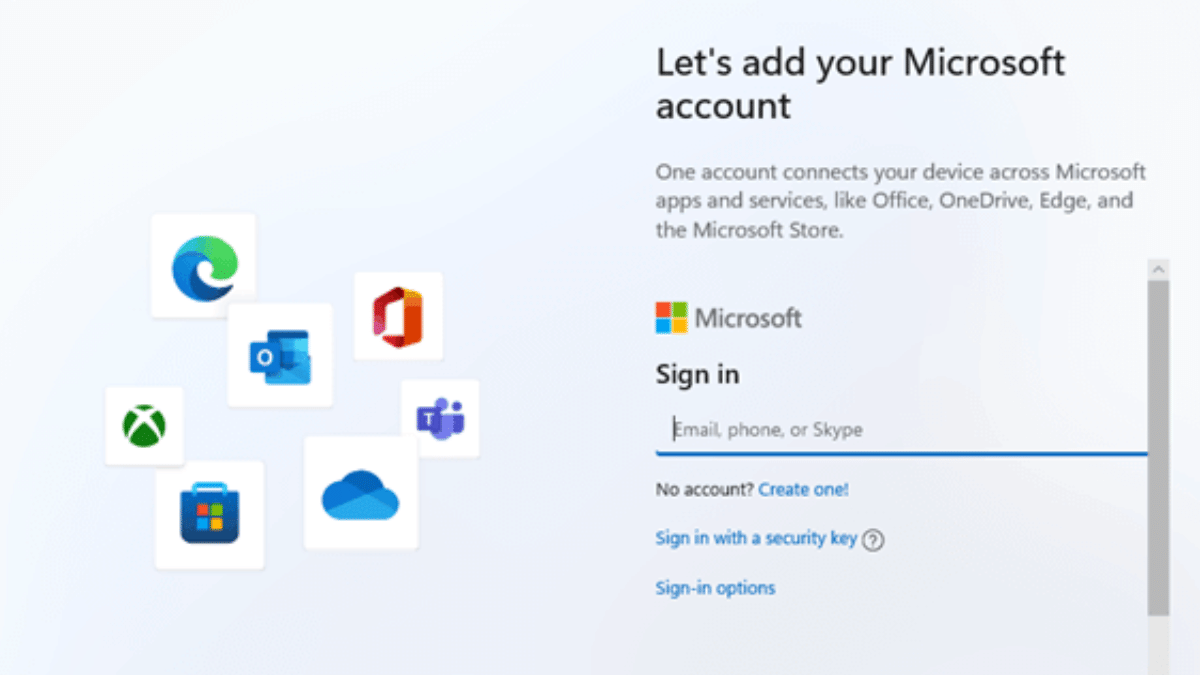
No Microsoft Account? No Problem: Here’s How To Install Windows 11 Your Way

Key Highlights

  • Use OOBE\BYPASSNRO to skip Internet check
  • Disconnect Internet during setup
  • Create a local account to finish installation

Want to install Windows 11 but don’t want to create or sign in with a Microsoft account? Well, you are not alone. With Microsoft pushing users towards its online account system, many people prefer a good old local account for privacy and simplicity. However, there’s still a clever workaround that works with the latest Windows 11 24H2 update. Whether you are doing a clean install or setting up a new laptop, this guide will walk you through the current method to bypass the Microsoft account requirement.

Also Read | 30+ Windows 11 Essential Keyboard Shortcuts: Speed Up Your Workflow

Step-by-Step: Install Windows 11 Without A Microsoft Account

Here’s how to do it:

Step 1: Begin the Windows 11 installation. When you reach the ‘Choose your country or region’ screen, pause. This is where you prepare to block the mandatory Internet connection check.

Step 2: Press Shift + F10 to launch the command prompt window.

Step 3: Type this command exactly: OOBE\BYPASSNRO and press Enter. Your PC will restart and bring you back to the same setup screen, now with the Internet check bypassed.

Step 4: Once the system reboots, press Shift + F10 again. In the Command Prompt, type ipconfig /release and hit Enter. This will disable the network. Alternatively, unplug your Ethernet cable or turn off your Wi-Fi.

Step 5: Close the command prompt and go through the region and keyboard selection screens as usual.

Step 6: When Windows asks to connect to a network, click on ‘I don’t have Internet’.

Also Read | How To Remove An Image Background On Windows 11

Step 7: You will be prompted with ‘Continue with limited setup.’ Click it, and Windows will let you create a local account.

Step 8: Now you will see the screen asking ‘Who’s going to use this device?’ Enter a name, set a password (optional but recommended), and continue the installation.

With this method, you can successfully install Windows 11 without a Microsoft account, even on the latest 24H2 build. It’s a simple trick but gives you full control over your setup and privacy.

For the tech geeks, stay updated with the latest cutting-edge gadgets in the market, exclusive tech updates, gadget reviews, and more right on your phone’s screen. Join Giznext’s WhatsApp channel and receive the industry-first tech updates.

Categories
Featured Laptop

Best Laptops Under Rs. 80,000 For Designers And Creators In India (2025)

Key Highlights

  • Powerful processor and good graphics are key
  • High-quality display and long battery life matter
  • Pick based on your needs, design, editing, or 3D work

If you are a creative professional or an aspiring artist, a powerful laptop is a must for tasks like graphic design, video editing, and digital art. Under Rs. 80,000, you can find decent laptops with high-performance processors, great displays, and strong graphics. Here are four of the best laptops for creativity in India.

Also Read | Best Laptops For Online Learning In India

Top Laptops For Creativity

LaptopsPrice
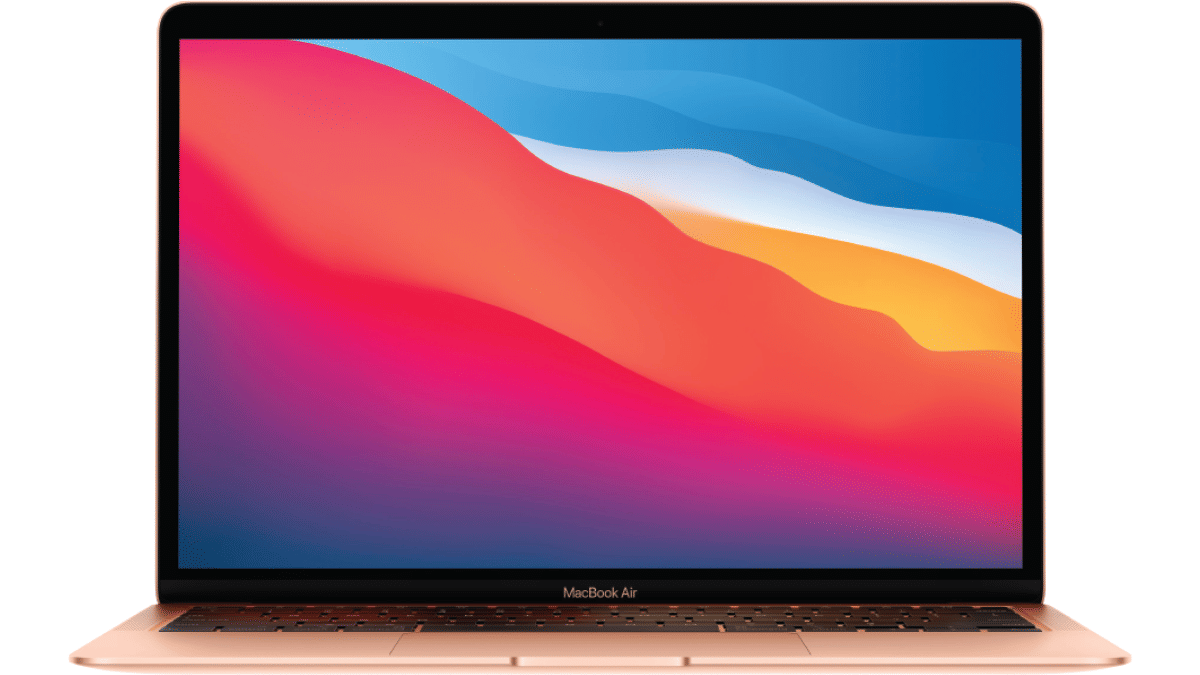
Apple MacBook Air M1Rs. 62,990
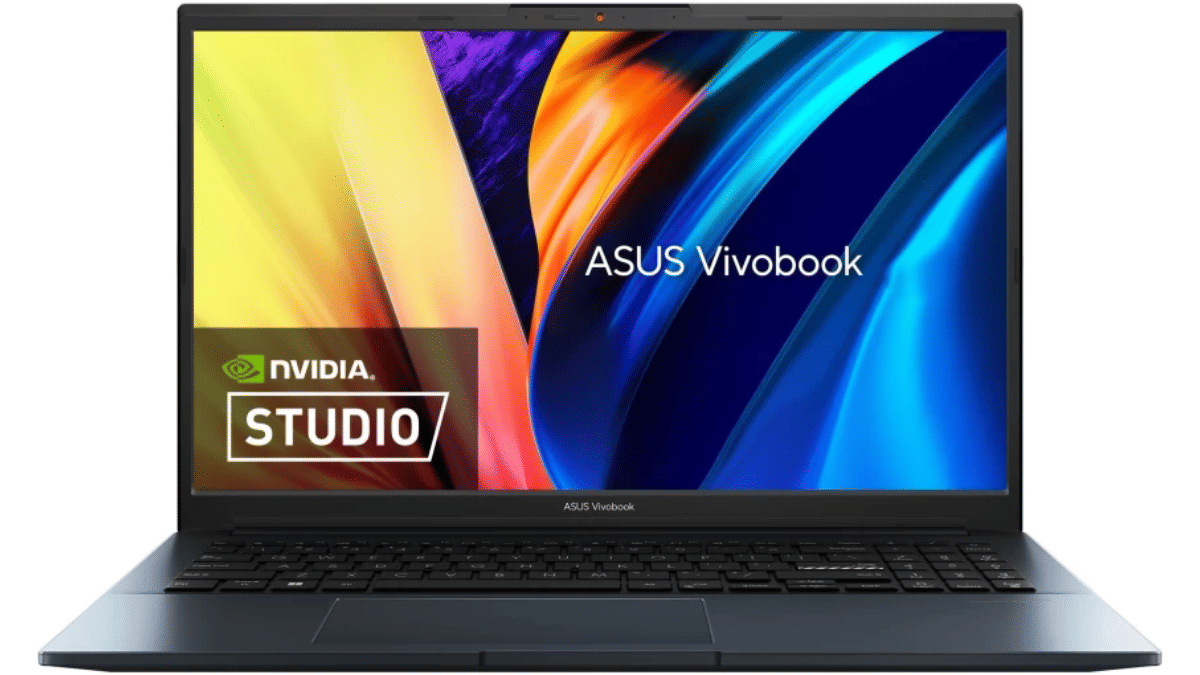
ASUS Vivobook Pro 15Rs. 66,990
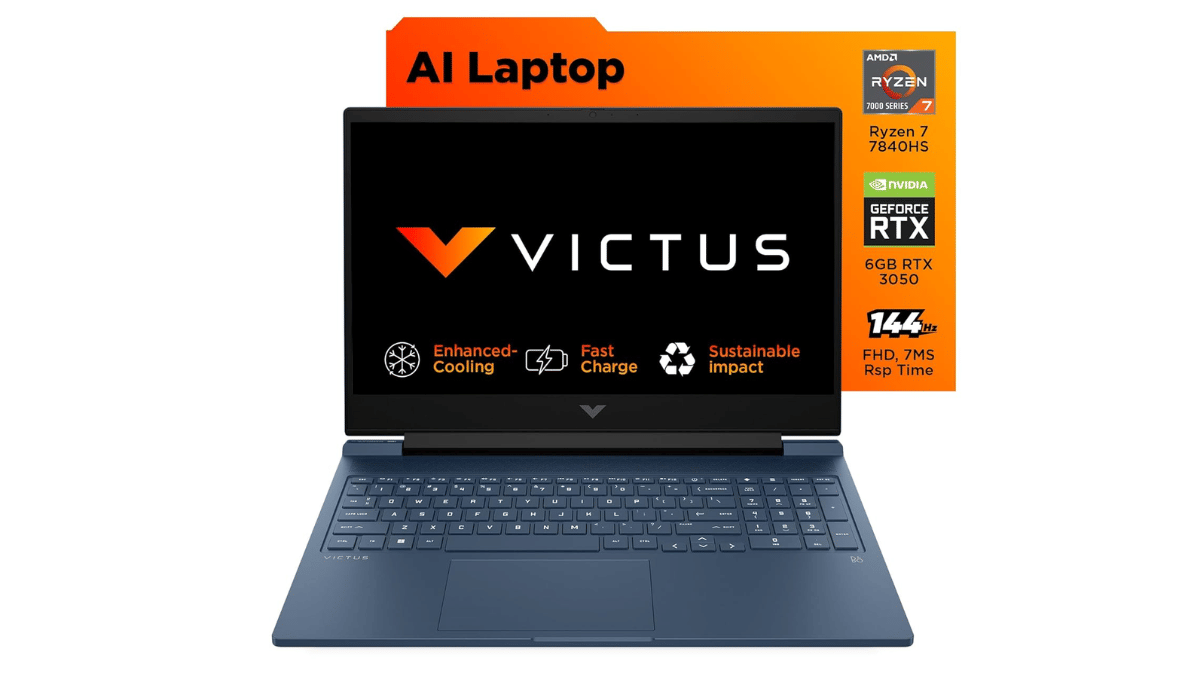
HP VictusRs. 78,490
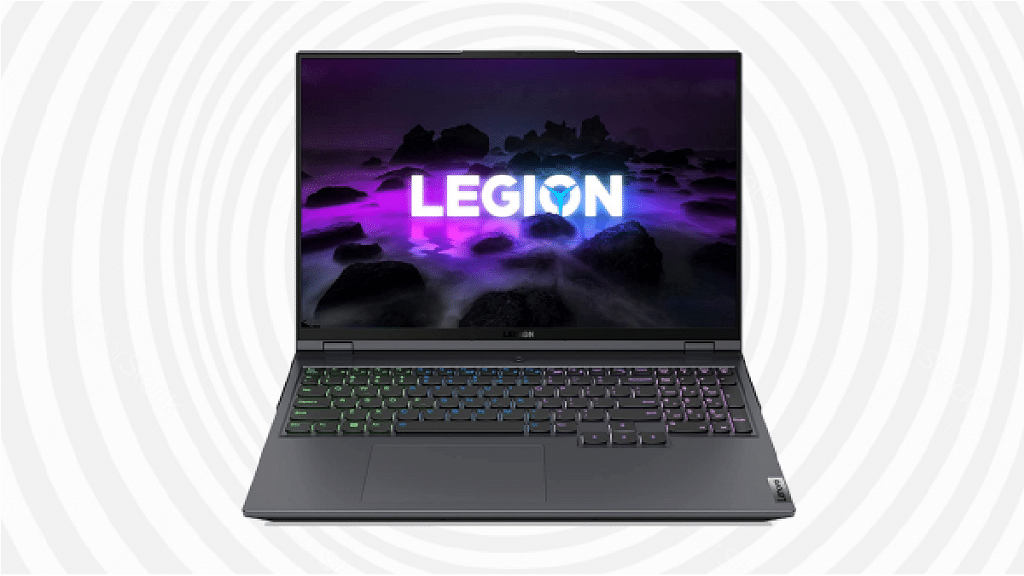
Lenovo Legion 5Rs. 79,990

Apple MacBook Air M1: Best For Designers

If you want a smooth experience with macOS and great battery life, this is a top choice.

  • Display: 13.3-inch Retina display with vibrant colors and sharp details.
  • Processor: Apple M1 chip for fast and efficient performance.
  • Battery Life: Up to 18 hours on a single charge.
  • Build & Portability: Lightweight and premium design, easy to carry.

MacBook Air M1 is ideal for graphic designers, illustrators, and video editors using software like Adobe Photoshop, Premiere Pro, and Final Cut Pro.

ASUS Vivobook Pro 15: Best For Video Editing

A powerful option for creatives who need high performance and good display quality.

  • Display: 15.6-inch Full HD IPS-level Panel with 144Hz refresh rate, 250nits, 45 percent NTSC color gamut.
  • Processor: AMD Ryzen 7 4800H for smooth multitasking.
  • Graphics: NVIDIA GeForce GTX 1650 Max Q, great for video editing and 3D work.
  • Cooling System: Efficient thermal management for long creative sessions.

The Full HD display ensures deep blacks and rich colors, making it a great choice for video editors and photographers.

HP Victus S0089Ax: Best For Heavy Graphics And 3D Work

A gaming laptop that doubles as a creative powerhouse.

  • Display: 16.1-inch large screen for better workspace.
  • Processor: AMD Ryzen 7 7840HS for powerful multitasking.
  • Graphics: NVIDIA GeForce RTX 3050 with 6GB VRAM for 3D modeling.
  • Memory & Storage: 16GB DDR5 RAM and 1TB SSD for fast performance.

Great for 3D artists, animators, and those working on heavy creative projects.

Lenovo Legion 5: Best For 3D Artists And Gamers

A high-performance laptop with strong graphics for 3D modeling and animation.

  • Display: 15.6-inch FHD screen with up to 165Hz refresh rate.
  • Processor: AMD Ryzen 5 5600H for high-speed computing.
  • Graphics: NVIDIA GTX 1650 for handling creative software.
  • Cooling System: Advanced cooling to prevent overheating.

This laptop is perfect for 3D modeling, rendering, and even gaming when you need a break.

Also Read | Best Laptops To Buy For Programming In India

Choosing the right laptop depends on your creative needs. Pick the one that suits you best and unleash your creativity.

For the tech geeks, stay updated with the latest cutting-edge gadgets in the market, exclusive tech updates, gadget reviews, and more right on your phone’s screen. Join Giznext’s WhatsApp channel and receive the industry-first tech updates.

Categories
Featured How To Laptop

Enhance Your Daily Productivity: How To Pair Android Smartphones With Windows 11 PC, Laptop Without USB Cable

Key Highlights

  • Pairing PC with smartphones can be done via USB cable and wirelessly
  • Wireless pairing requires both smartphone and laptop on the same Wi-Fi network
  • Helps with productivity boost

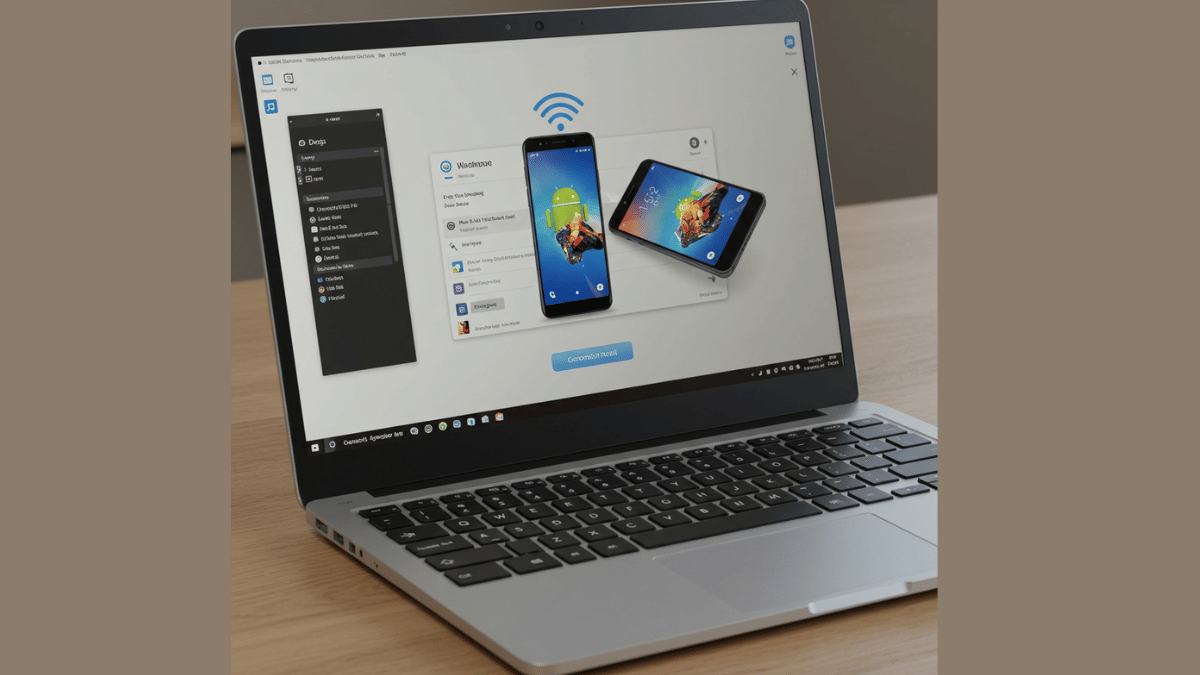
Smartphones have emerged as the most powerful handheld gadgets. Option to call, text, web browse, gaming, and photography all at once is what makes smartphones more of a necessity these days. These handheld gadgets have also helped us to carry on with the tasks that earlier required a full size PC or a laptop. Still, you can pair an Android smartphone to a Windows 11 PC if you wish to boost your productivity. Pairing Windows and Android device is not just restricted to USB wired connections anymore. A simplified process is now available using which you can connect your Windows machine and smartphone in case of a missing USB cable. Interested in knowing the steps. Read on to find out:

Also Read: Hate Standing In Long Queues: Here’s How To Book Indian Railways Platform Ticket Online

What Is Required?

  1. If you want to transfer documents or media files from your smartphone to Windows 11 PC or vice versa, you can use the standard USB cable connection method.
  2. There is a wireless option available for same that can be accessed using the Phone Link application on Windows 11 OS

Also Read: Worried About Heat And Water Damage? Here’s How To Protect Your Gadgets

Steps To Link Android Smartphone And Windows 11 Laptop Or PC

Step 1: Power on your Windows 11 PC or laptop and connect it to the same Wi-Fi network as your smartphone. (Note, only Android 7 or above devices can be paired with this method).

Step 2: On your Windows 11 laptop/ PC go to the taskbar and type “Phone Link”. Once the application pops up on the window, open it.

Step 3: Select the device type as “Android”

Step 4: Click on the Send notification option. This process will enable the sign-in process for Microsoft account.

Step 5: You will receive a verification prompt on your Android smartphone. Approve it to move to the next step.

Step 6: On your Windows 11 PC/ laptop, you’ll receive a new two digit code. You need to select these two digits on your Android smartphone for further approval.

Step 7: A QR will also be displayed on the Windows 11 device. Scan it using the QR code scanner on your Android phone.

Step 8: A new prompt stating “Link to Windows” will show up followed by another set of code that will be displayed on the laptop/ PC’s screen.

Step 9: Now, allow permission requests from the “Link To Windows” app and set the access permissions as required.

Step 10: Tap “Done” on the paired Android smartphone.

Step 11: Start accessing on your paired devices after clicking the “Continue” option.

Categories
Apps Featured How To Laptop

WhatsApp Web Tips And Tricks: Quick Keyboard Shortcuts Chats, Replies, And More

Key Highlights

  • WhatsApp allows several keyboard shortcuts
  • Keyboard shortcuts makes using WhatsApp web super easy
  • Keyboard shortcuts on WhatsApp can be applied on Windows, Mac laptops/ PCs

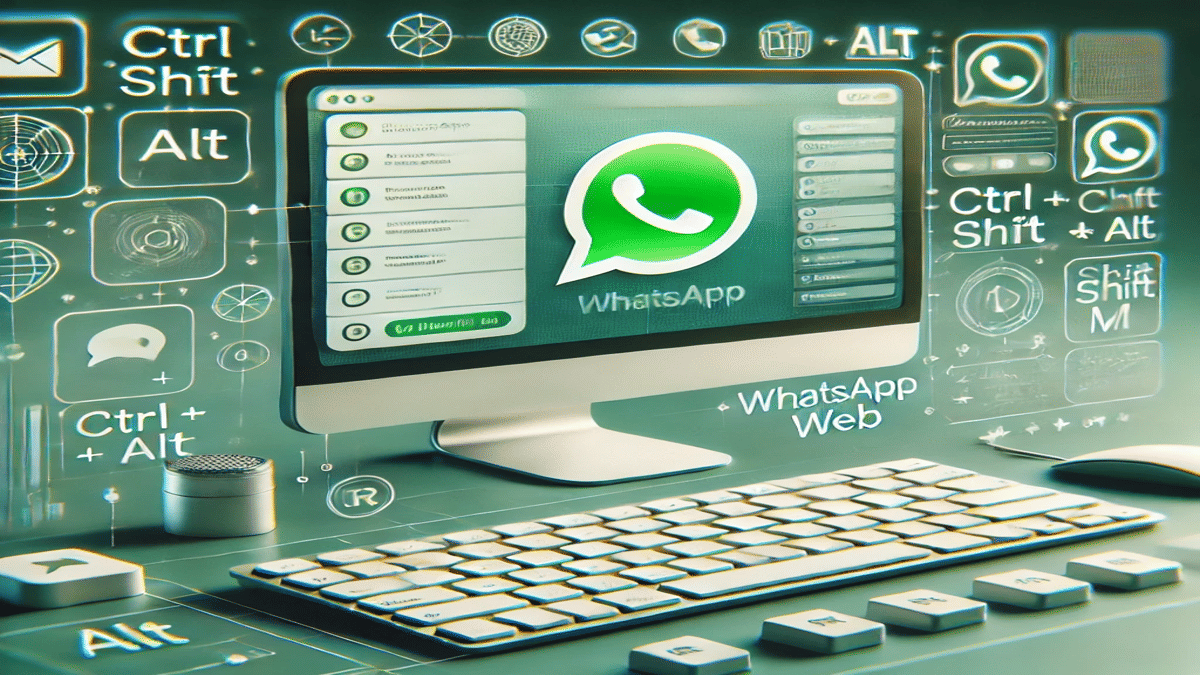
WhatsApp Web is a convenient way to stay connected on your desktop, and knowing a few handy keyboard shortcuts can make your messaging experience even faster and smoother. Whether you’re replying to messages in a flash, muting noisy chats, or jumping between conversations, these time-saving shortcuts can seriously boost your productivity. In this article, we bring you the most useful WhatsApp Web keyboard shortcuts for Windows and macOS users—so you can chat smarter, not harder.

For the tech geeks, stay updated with the latest cutting-edge gadgets in the market, exclusive tech updates, gadget reviews, and more right on your phone’s screen. Join Giznext’s WhatsApp channel and receive the industry-first tech update.

Also Read: WhatsApp Introduces Document Scanning: Here’s How To Use It

WhatsApp Web Keyboard Shortcuts For Windows Laptops And PCs

WhatsApp Keyboard Shortcut keys Function (Windows)
Ctrl +Alt+ NStart a new chat
Ctrl+ Alt+ TabStart next chat
Ctrl+ Alt+ Shift+ MMute any chat
EscapeClose chat
Ctrl+ Alt+ Shift+ FSearch in specific chat
Ctrl+ Alt+ /Search
Alt+ KExtended search
Ctrl+ Alt+ LLock screen shortcut
Ctrl+ Alt+ Shift+ NCreate a new group
Ctrl+ Alt+ Shift+ EArchive chat
Ctrl+ Alt+ backspace Delete any chat
Ctrl+ Alt+ Shift+ PPin chat
Ctrl+ AltOpen settings
Ctrl+ Alt+ EOpen emoji tab
Ctrl+ Alt+ SOpen sticker pack
Ctrl+ Alt+ GOpen gift panel
Ctrl+ Alt+ PView profile and about section
WhatsApp Web Keyboard shortcuts

WhatsApp Web Keyboard Shortcuts For Mac Laptops And PCs

WhatsApp Keyboard Shortcut keys Function (Windows)
command+ NStart a new chat
command+ shift+ ]Start next chat
command+ option+ MMute any chat/call
EscapeClose chat
command+ option+ FSearch chat/calls or status
command+ FSearch in chat
command+ shift+ FSend a file
command+ +magnify text size
command+ Shift+ NCreate a new group
command+ 4Archive chat
command+ 5for ‘Starred’ messages
command+ shift+ [Go to previous chat
command+ 6Open settings
command+ option+ Venable or disable camera
command+ left arrowSwitch between stickers and GIFs
command+ shift+ FSend a file
command+ shift+ WHide chats
WhatsApp Web Keyboard shortcuts
Categories
Featured How To Laptop

30+ Windows 11 Essential Keyboard Shortcuts: Speed Up Your Workflow

Key Highlights

  • Windows 11 keyboard shortcuts helps boost productivity
  • Multiple tasks can be done with just a few key taps
  • Shortcuts can be applied in apps and softwares
  • Multimedia, text editing, settings app, and other shortcuts supported via keyboard

If you are using a laptop or a PC, there is a high probability of it being a Windows-powered machine. Microsoft’s PC operating system, Windows has been evolving with a steady pace bringing in host of friendly features. Windows OS over the year has also become more reliable and fast. Thanks to the updated keyboard shortcuts getting some of the complex tasks done has become as easy as a few key taps.

You all must be aware of the basic keyboard shortcuts such as undo, redo, and copy/ paste texts, documents. But that’s just the tip of the iceberg. You can perform a plethora of tasks typing in keys collectively. Here in this article, we have listed over 30 essential Windows 11 keyboard shortcuts that will help speed up your workflow while boosting your overall productivity. Let’s take a look:

For the tech geeks, stay updated with the latest cutting-edge gadgets in the market, exclusive tech updates, gadget reviews, and more right on your phone’s screen. Join Giznext’s WhatsApp channel and receive the industry-first tech updates.

Also Read: Google Maps Quick Hacks: How To Enable Google Maps 3D View On Desktop

Top Windows 11 Keyboard Shortcuts For Accessibility

Windows 11 Keyboard Shortcut Actions
Press Right Shift key for eight secondsEnable or disable Filter Keys
Press Left Alt+left Shift+Print screenHigh Contrast on or off
Press Left Alt+left Shift+Num lockMouse Key on or off
Hit Shift key five timesSticky Keys on or off
Press Ctrl+ETo Open Search bar (works with most apps and webpages)
Press Windows logo  key+ATo open Quick Settings menu
Press Windows logo  key+Ctrl+CTo Turn on or off color filters
Press Windows logo  key+HActivate voice typing feature
Press Windows logo  key+Ctrl+NTo open Narrator settings
Press Windows logo  key+Ctrl+STo enable Windows Speech Recognition
Press Windows logo  key+Ctrl+OTo enable On-Screen Keyboard
Press Windows logo  key+UTo open Accessibility Settings
Windows logo  key+WTo open Widgets

Also Read: How to Draft Emails with Voice in Gmail: A Step-by-Step Guide

Windows 11 Quick Keyboard Shortcuts For Music And Videoplayback in Apps

You can use Windows 11 keyboard shortcuts to manage your media play back as well. This can be done in any of the apps including Windows media player on which you are watching movies or shows.

Windows 11 Keyboard shortcuts for Movies and TVActions
Press Alt + EnterPlay videos in full-screen
Press EscTo exit full-screen
Press EnterTo select the object in focus
Press Spacebar/Ctrl + PTo Play or pause videos ( works only when a video is in focus)
Press Alt + Left arrow key or Windows logo key  + Backspace To go back to the previous screen
Press Ctrl + TTo enable or disable repeat mode
Press F7Mute
Press F8Increase volume levels
Press F9Decrease volume levels

Also Read: Android Tips And Tricks: How To Check And Share Wi-Fi Password

Windows 11 Keyboard Shortcut For Game bar

You can summon the Game bar during a gaming session and make use of multiple key combinations for quick actions.

Windows 11 Keyboard ShortcutActions
Press Windows key  + GTo launch Game bar during gaming
Press Windows logo key  + Alt + GTo record the screen (last 30 seconds)
Press Windows logo key  + Alt + RFor recording (start or stop)
Press Windows logo key  + Alt + Print ScreenCapture screenshot of the gameplay
Press Windows logo key  + Alt + TRecording timer (show or hide)
Press Windows logo key  + Alt + MMicrophone (turn on or off)
Press Windows logo key  + Alt + BBroadcast (enable or disable)
Press Windows logo key  + Alt + WCamera activate