Categories
Featured Mobile

Realme C33 Under Rs. 10,000 Can Be Your Best Buy: Launched With 50MP Camera, HD+ Display In India

Realme has once again expanded its budget smartphone series in India with the launch of the Realme C33. The latest Realme C series phone is launched in the sub Rs. 10,000 price bracket and offers a slim profile along with some modern set of features. The Realme C33’s key highlights include a 50MP AI camera, an HD+ display, and a massive 5,000 mAh battery capacity. Here are the upgrades the Realme C33 brings to the table:

Realme C33 Price In India, Buying Guide

The Realme C33 has been launched in India with a starting price tag of Rs. 8,999. The brand sells the handset with 3GB RAM and 32GB storage at this price. The latest budget Realme C series phone can also be purchased with a higher 4GB RAM and 64GB storage option that can be purchased at Rs. 9,999.

The affordable price tag combined with good features has been the selling point of the Realme C series. The same will likely be the case with the Realme C33. As for the color variants, the Realme C33 can be purchased in Aqua Blue, Sand Gold, and Night Sea shades. Realme will be hosting the Realme C33’s first sale on September 12. The handset will be sold online via Flipkart and realme.com. It will also be available for sale via partner retail channels.

Realme C33 Specifications And Features: Here’s What’s Upgraded

The Realme C33 has been launched with a 6.5-inch display. Now, this has been a standard screen size we have seen with budget Realme phones including a couple of older Realme C series models. The display comes with a standard 720p HD+ resolution and 60Hz refresh rate.

First Budget Phone With 50MP Camera Under Rs. 10,000

We have seen smartphone OEMs upgrading their game with budget smartphones. With the C33, Realme has done the same. The company has packed the C33 with a 50MP AI camera which is first for any budget handset in this segment. The main camera gets multiple shooting modes for an enhanced user experience.

Some of the modes are HDR, Panorama, Bokeh, and Time Lapse. The camera also has a dedicated Night mode for low-light photography. For the selfie fans, this budget Realme phone uses a 5MP selfie snapper. It features an AI Beauty mode for bright and vivid self-portraits.

Powerful Chipset Tucked Inside Ultra Slim Profile

The Realme C33 is one of the slimmest phones in its league. It comes with an 8.3mm ultra-slim profile that allows for a lightweight comfortable grip. The handset flaunts a uni-cover and comes void of a camera bump. The Unisoc T612 octa-core chipset is packed inside this ultra-slim body for power delivery.

The Realme C33 will ship with Realme UI-based Android 12 OS and will have up to 4GB RAM and 64GB storage configuration. The device gets its fuel from a 5,000 mAh battery which has around 37 days of standby.
Categories
Featured Mobile

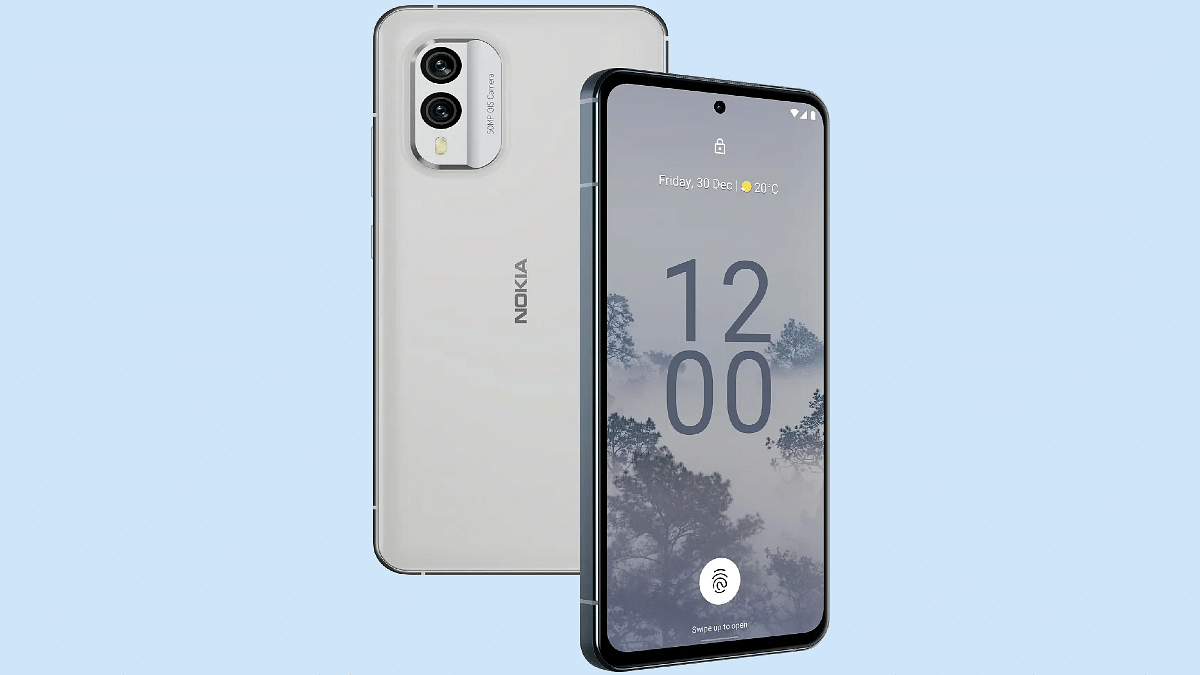
Nokia X30 5G With Snapdragon 695, 50MP Dual Cameras Marks Debut At IFA 2022: Features That Make It Unique

At the IFA 2022 ( Internationale Funkausstellung Berlin) event, the Finnish smartphone giant HMD Global revamped its product lineup with the launch of three new Nokia smartphones. The brand unveiled the Nokia X30 5G alongside the Nokia X60 5G, Nokia T1, and the Nokia C31. The company is touting the Nokia X30 5G as one of the world’s most environmentally friendly phones. How does the handset redefine smartphone designing technology and what all features does it offer? Also, when can we expect the company to release the Nokia X30 5G in the Indian market and how much is it expected to cost? Read on here:

Nokia X30 5G Design And Specifications: What’s Different?

The Nokia X30 5G is designed using recycled materials. The company has used 100 percent recycled aluminum and 65 percent recycled plastic material to craft the X30 5G. Using recycled material makes it stand out from the crowd for being environmentally friendly. The environment-friendly design is further complemented by an IP67 certification that safeguards it from dust and water splashes.

Speaking of the features, the Nokia X30 5G is a premium mid-range Android phone that is packed with an AMOLED screen. The display on the latest Nokia 5G handset measures 6.43-inches. It supports 1080p FHD+ screen resolution and has 700 nits peak brightness level that makes it sufficiently bright under direct sunlight.

The X30 5G’s display further supports a 90Hz refresh rate and is layered with the Corning Gorilla Glass Victus protection against scratches and drops. Under the hood, the Nokia X30 5G employs the latest Qualcomm mid-range 5G chipset, i.e., the octa-core Snapdragon 695 chipset.

The processor comes with Adreno 619 GPU support for graphics. For multitasking, this handset has 6GB/ 8GB RAM compatibility. Nokia has launched the X30 5G with 128GB and 256GB storage configurations and has also added support for an external microSD card for additional storage requirements.

Moving on to the camera hardware, the Nokia X30 5G has a dual-lens camera module at the back. The setup includes a 50MP main sensor and a 13MP secondary lens which is an ultrawide sensor. The device is packed with a 16MP camera up front to capture selfies and for video chats on the go.

The device will come pre-loaded with Android 12 OS and will offer a stock Android UI. This is another big highlight of the latest Nokia X series phone. Lastly, a 4,200 mAh battery unit drives the handset which has 33W fast charging support.

Nokia X30 5G: Expected Price In India, Sale Date

The Nokia X30 price is around Rs. $529 which if translated into Indian currency is around Rs. 42,200. However, Nokia is yet to announce the X30 5G’s official India launch date and the pricing details. The exact price could be lower compared to the international market. This is based on our speculation considering the hardware features. We are expecting Nokia to announce the X30 5G availability details soon for the Indian market and will keep you posted with the details.

Categories
Featured Info Mobile

Secret Codes To Check Chinese Smartphone Sensors

There’s more to the dialer screen on your smartphone than meets the eye. Besides its obvious purpose of calling people, there’s a vast array of secret codes you can input to troubleshoot your device, reveal important information, make anonymous phone calls, and so much more.

The secret codes mentioned here are applicable to any brand of Android phone including Chinese mobile phones like OnePlus, Vivo, and Xiaomi. Let’s check them out:

List Of Useful Secret Codes For OnePlus, Vivo, And Xiaomi

Secret CodePurpose of Use
*#*#4636#*#*Battery information, Phone information, Battery History, Wi-Fi information, Usage statistics
*#*#7780#*#*For Factory Reset: System and app data and settings; Google account settings kept in the smartphone; All downloaded apps
*#*#34971539#*#*To get information about the camera of the mobile phone: Update camera firmware on SD card; Update camera firmware in the image; Get firmware update count; Get camera firmware version
*2767*3855#The data, files, and settings on the phone’s internal memory will be formatted and deleted. The firmware of the phone will also be reinstalled.
*#*#273283*255*663282*#*#*This code will launch a File copy screen where you can back up media files including movies, songs, photographs, and more.
*#*#7594#*#*To modify the “End Call / Power” button option, enter this secret code.
*#*#197328640#*#*This code is used to enter service mode so that various tests and setting adjustments can be made.

Useful Secret Codes For Factory Tests

Secret CodePurpose of Use
*#*#0*#*#*LCD Test
*#*#3264#*#*RAM Version
*#*#0673#*#*Melody Test
*#*#0588#*#*Proximity Sensor Test
*#*#0283#*#*Packet Loop Back
*#*#2664#*#*Touch Screen Test
*#*#2663#*#*Touch Screen Version
*#*#0842#*#*Vibrator and Backlight Test

WLAN, GPS, And Bluetooth Secret Codes

Secret CodePurpose of Use
*#*#1472365#*#*GPS Test
*#*#232339#*#*WLAN Test
*#*#8255#*#*To launch GTalk Service Monitor
*#*#232338#*#*Displays WiFi MAC Address
*#*#232337#*#To Display Bluetooth Device Address
*#*#232331#*#*Bluetooth Test

Please take note that one should use these secret codes at their own risk. If you are a beginner, then we suggest obtaining the advice of some professional or experienced user before using these codes. These helpful secret codes are designed to be used by knowledgeable users, not novices.

Categories
Featured How To Mobile

Forgot Vivo Phone App Lock, Screen Lock Password? Here’s How To Reset Password With Or Without Security Code

Smartphones nowadays are one of the most commonly used gadgets by the masses for communication and also entertainment, photography, and gaming. Vivo is one of the largest players in the smartphone industry that has several lineups catering to affordable and premium users. The Chinese maker is consistently improving the user experience with its smartphones by integrating the best and newest technologies.

Vivo also provides a secure ecosystem for its smartphones and users. Most Vivo budget smartphones are packed with basic security features such as PIN and password protection. Face Unlock is another common security feature that you will find on Vivo handsets.

If you buy a mid-range or premium range Vivo smartphone, you’ll get an additional physical security feature including a side, rear, or under-display fingerprint scanner. While setting up a Vivo smartphone, you get the option to add any of the aforementioned security layers. You can set up File Safe or privacy app lock for specific apps to safeguard your data.

If you are using a Vivo phone, you can also add a screen lock that can be unlocked using the PIN and password protection. It’s difficult to breach the security layers on Vivo smartphones. This is why it could be a task for you to login into a locked Vivo smartphone. Only a correct password or fingerprint is required to unlock the Vivo phones. But what if you have forgotten the password if you have modified it recently? In that case, you can reset the password by following the steps below:

What To Do If Forgot Privacy Space Or App Lock, File Safe Password On Vivo Phones?

 Step 1: Open the Settings menu on your respective Vivo smartphones. Note, that the steps mentioned here will work for Funtouch OS 3.0 and above versions.

Step 2: Scroll down to the Fingerprint, face, and password option.

Step 3: Click on Security.

Step 4: Tap on Privacy and app encryption.

Step 5: Select the Forget password option.

Step 6: You’ll get the security answer option where you can enter the answer that you must have added while setting up the app lock. Simply verify and reset the password set for apps or file safe. If in case, you don’t remember the security answer, you can follow the on-screen steps to retrieve and change the old password for app lock.

How Can You Unlock Vivo Phones’ Screen Password If Forgotten?

The steps to reset the password on any Vivo handset if you don’t remember it is quite easy.

Step 1: Lock your Vivo phone to launch the lock screen. If it’s already locked and you have forgotten the password, follow the remaining steps listed below.

Step 2: Enter the incorrect password five times. This will take you to the password reset screen.

Step 3: You will see the Forgot password option. Tap on it.

Step 5: The password recovery option will open up. Enter the security answer and reset your password.

How To Reset Vivo Phone Password If You Don’t Remember Security Answer?

Step 1: You can use perform these password reset steps if you don’t remember the security answer on FunTouch OS 3.0 and above versions.

Step 2: Open the Settings menu.

Step 3: Click on the Fingerprint, face password option.

Step 4: Tap Security.

Step 5: Click ‘turn off Lock Screen password and Privacy and app encryption.

Step 6: Reset the security question and use when the next time your device is locked and you don’t remember the password. Notably, these steps will only work if you are able to enter the phone.

Categories
Featured How To Mobile

OnePlus Call Being Recorded Notification: How To Stop ‘Call Is Now Recording’ Message On OnePlus 10T, 10 Pro, OnePlus 9, 8 Series

Key Highlights

  • Call recording is one nifty feature in OnePlus devices
  • The audio message notification can be annoying and might affect the secrecy aspect
  • Users can turn off the call is now recorded message on their OnePlus 10 series

OnePlus is one of the most advanced players in the Android smartphone market. The brand has earned a high rapport for being a flagship killer with its value flagship phones. The OnePlus 10 series is currently the brand’s latest bid in the flagship smartphone category.

The OnePlus 10R, OnePlus 10 Pro, and the OnePlus 10T 5G are the latest generation premium range 5G smartphones by OnePlus in India and the global markets. Like most of the premium range smartphones, the latest lot is also available with top-tier hardware and firmware.

Also Read: WhatsApp Call Recording: Here’s How You Can Easily Record Call On Android And iOS

OnePlus uses Google’s Android services for both its mid-range premium smartphones and tops it with a custom OxygenOS interface on top. And like most of the OEMs, OnePlus also makes sure to add additional security features to its smartphone lineups. Be it the OnePlus Nord or the high-end OnePlus handsets, you’ll get all kinds of privacy aspects present. The same is the case with the new OnePlus 10 models.

With OnePlus devices, call recording is one nifty feature that can be useful in numerous scenarios. However, as soon as you push the recording key on any OnePlus handset, specifically the recent models, you will get a warning notification saying “this call is now being recorded”. We got this notification while recording calls using the latest OnePlus 10T.

Also Read: OnePlus 11 5G Full Review: A Step Ahead In The Right Direction!

This audio message notification can be annoying and might affect the secrecy aspect. However, strict guidelines have been issued by the Indian government for recording calls and audio without other user’s concern. Google has also released similar guidelines and removed third-party apps that support call recording from the Play Store.  

Also Read: OnePlus 10T Review: Speed Performance And Reliability At Its Best

Also, the “call is now being recorded” announcement is not just with the OnePlus 10T but other recent and previous-gen models including the OnePlus 10 Pro, OnePlus 10R, OnePlus 9 series (all models), OnePlus 8 series, and the OnePlus Nord models. Is there any way with which you can turn off the call is now recorded message on your OnePlus 10 series or any of the aforementioned models? We have listed the working way for the same:

Cal Now Being Recorded Message On OnePlus 10 Series And Other Models

Stop OnePlus Automatic Voice Call Recording Message Notification Via Different Text-To-Speech Engine

You can alter the default dialler app engine and start making calls on the OnePlus 10 series and previous-generation models including the OnePlus 9 and OnePlus 8 series and also the OnePlus Nord models. TTSLexx is one of the best options for the same. You can download this using the Google Play Store and then follow the remaining steps listed below:

Step 1: Open the Google Play Store and search the TTSlexx app.

Step 2: Once the app is installed go back to the OnePlus 10 and other models’ settings menu.

Step 3: Scroll to the Text-To-Speech option.

Step 4: You’ll see the service engine option. Tap on it and select TTSlexx instead of Google.

Step 5: Now, open the phone’s settings app again and go to the App’s page.

Step 6: Select Google Phone dialler.

Step 7: Clear the cache and storage. If you don’t clean the Google dialler app’s cache files, the TSSlexx wouldn’t function properly.

Step 8: Now, make calls and record audio without notifying the end users on your OnePlus 10 and other recent models.

Also Read | Here’s How To Stop Call Recording Warning On Android Phones

Using OnePlus Stock Dialler App

As mentioned above, OnePlus uses Google’s dialler app on all its smartphone lineups. The same is the case with the OnePlus 10 series phone and the previous-gen models. But the stock dialler app isn’t available on the Google Play Store for direct download. You’ll need to download the apk file separately online.

Also Read: Unable To Cast Screen On OnePlus TV? Quick Fix Guide To Resolve Chromecast/Miracast Issue With OnePlus Smart TVs

To do so, you can open any web browser on your respective smartphones and download the stock OnePlus dialler app. We are adding a new link here with which you can easily download the secondary dialler app for OnePlus. Make sure you have allowed outside sources from the settings to complete the installation process. The remaining steps are below:

Step 1: To make a call, open the stock OnePlus dialler app on your respective OnePlus 10 or other models.

Step 2: Make sure you set this app as default to record calls. You can do so from your phone’s setting menu.

Step 3: Now, toggle on the automatic recording option within this app. To do so, click on the app’s setting menu and scroll to the call recording option.
Step 4: Set automatic recording on. With this, the calls will be recorded without any sound as soon as it’s received/made.

Also Read | Stop Call Recording Announcement On Realme Smartphones: Here’s How

Categories
Featured How To Mobile

How To Turn Off Call Recording Announcement In Vivo Smartphone

Key Highlights

  • Many phones come with Google Phone or dialer as the default calling/dialing app
  • Google dialer app comes with a lot of unpleasant features
  • The call recording announcement is arguably the most irritating feature

Many Android phones today come with Google Phone or dialer as the default calling/dialing app. The Google dialer app has a lot of unpleasant features. The call recording announcement, however, is arguably the most irritating. As soon as you begin recording a call, the app plays a pre-announcement to both parties saying “This call is now being recorded.” When you end the call recording, it similarly plays “Call recording ended.”

Many individuals assert that if the other party finds out that the call is being recorded while it is happening, what use will it serve to record the call? We have therefore developed a fix for this issue that enables you to turn off call recording announcements. Let’s find out:

Also Read | Here’s How To Stop Call Recording Warning On Android Phones

How To Mute ‘This Call Is Now Being Recorded’ Announcement On Vivo Phones?

Method 1: Steps To Turn Off Call Recording Announcement On Google Dialer

Step 1: Open the Google Dialer app, then go to Setting.

Step 2: Next choose to uninstall updates.

Step 3: Download TTSlexx App from the Google Play Store.

Step 4: Open the phone’s settings, and search for text to speech option.

Also Read | OnePlus Call Being Recorded Notification: How To Stop ‘Call Is Now Recording’ Message On OnePlus 10T, 10 Pro, OnePlus 9, 8 Series

Step 5: Tap on the preferred engine.

Step 6: Select TTSlexx, it’ll show a caution warning, just let it be.

Step 7: Restart your Vivo phone.

Step 8: You have successfully finished all the necessary actions.

Step 9: Call someone now and try recording the call; it won’t make the previous announcement.

Method 2: Steps To Turn Off Call Recording Announcement Via Third-Party App

Downloading a third-party dialer and setting it as your default dialer on your Vivo smartphone is another approach to stop the announcement. You can covertly record calls with this. The app also allows you to activate the automatic call recording option.

Method 3

Flash the operating system of your smartphone with an appropriate ROM created for your country to permanently disable the call recording announcement. You must do this because, in an effort to avoid being sued, some manufacturers do not include this type of ROM with their dialers.

Also Read | Stop Call Recording Announcement On Realme Smartphones: Here’s How

Categories
Apps Info Mobile

WhatsApp To Stop Working On These iPhones: Here’s Why And List Of Models

Key Highlights

  • WhatsApp to drop support for iPhone 5, iPhone 5C
  • iPhones running iOS 10, iOS 11 will not be able to use WhatsApp
  • To continue using WhatsApp, users need to upgrade their devices

Do you use an iPhone? If so, you could end up in trouble. Here is a word of caution for many iPhone users. On select outdated devices, WhatsApp will stop functioning by October. It would prevent many users from using the Meta-owned messaging platform to send and receive media, messages, and other types of communication. Therefore, if you like using WhatsApp but have an older iPhone model, you need to update it.

Apple is reportedly alerting some iPhone owners that WhatsApp support for their handsets is ending, according to WABetaInfo. The messaging feature will no longer work on iPhones running iOS 10 and iOS 11. After that, WhatsApp won’t work on any of these older devices that don’t support iOS 12 or higher. This means anyone using an iPhone 5 or iPhone 5C will be blocked from accessing the messaging app after that.

In addition to this, there are numerous additional iPhone models that are not running iOS 12 or newer versions. These models are also in danger, but they can survive by updating their devices. The next software update, iOS 12 and higher is not compatible with the iPhone 5 and iPhone 5C.

As per the reports, the messaging app has started to inform iPhone users who are running iOS 10 or iOS 11 versions of the app. Users of the messaging service have already been informed via a message that they can no longer access the app on their smartphones.

The report has been shared by WABetaInfo, a WhatsApp development tracker. They have also shared a screengrab of a pop-up reading, “WhatsApp will stop supporting this version of iOS after 24 Oct 2022. Please go to Settings > General, then tap Software Update to get the latest iOS version.”

This isn’t a new thing for the Meta-owned app. This has happened in the past as well where WhatsApp also ended support for a list of Android phones running Android 4.0.4 or older versions. The platform says that such devices are not capable to work with the latest app versions and pose a threat to the user’s security.

Categories
Featured How To Mobile

How To Check Number Of Sim Cards Registered On Your Name And ID: How To Block Unauthorized SIM Cards Issued On Your Name?

Key Highlights

  • Check and block linked SIM cards.
  • 18 SIM cards per ID/Aadhar.
  • TRAI’s portal for SIM verification.

If you are a smartphone user, chances are you must be using one primary SIM card for your smartphone. If it’s a dual SIM phone, you might have two SIM cards from a single or different operator. But have you ever wondered if unauthorized SIM cards are issued in your name or ID cards? If yes, how many of them are there is one big query that every single user has.  

Safeguarding Against SIM Card Fraud With TRAI’s Dedicated Portal

This is one concern that is constantly rising amongst smartphone users with the increasing digital and cyber attacks. You might land in trouble if any fraudulent activity is being carried out using the SIM card issued under your ID and name that you are unaware of. And to check if any SIM card is issued on your ID or is linked to your Adhar Card, you don’t have to visit any operator store physically.

Also Read | Lost Reliance Jio SIM Card? Here’s How To Block And Resume Your Jio Number

You can easily check how many SIM cards are linked to your ID and block them using your smartphone or laptop/PC. This will not only save you time but also extra hassles and physical effort. Just for reference, the Telecom Regulatory Authority Of India (TRAI) has also certain guidelines set for SIM card registry in India. A user can have 18 SIM cards issued on the same ID or Adhar Card.

To minimize such fraudulent activities, TRAI has created a dedicated portal where you can not only check the exact number of SIM Cards registered with your ID and also block the ones you aren’t aware of.

Also Read | No SIM Card Error: How To Fix No SIM Card Detected/ SIM Toolkit Issue With Smartphones

How To Check The Number Of SIM Cards Issued On Your Name Or ID

Step 1: On your laptops/ PCs or smartphones, launch any web browser such as Google Chrome, Firefox, or Opera.

Step 2: Type www.tafcop.dgtelecom.gov.in and hit enter.

Step 3: Now, enter your primary mobile number on the home screen.

Also Read | Annoyed With Unwanted Calls On Your IPhone? Here’s How To Block Any Phone Number On iPhone

Step 4: Tap on the Request OTP option.

Also Read |Want To View Instagram Story Secretly Without Notifying Contacts Or Followers: Here’s How

Step 5: Now, enter the OTP that you have received on your primary mobile number.

Step 6: As soon as you complete step 5, you will see the list of the mobile numbers that have been issued on your Aadhar card or are linked to your name and ID.

Step 7: If you see any unknown mobile number, you can proceed to raise a complaint request to block it.

Also Read | How To Disable the ‘This Call Is Now Being Recorded’ Warning On OnePlus

How Can You Block Or Deactivate Extra/ Unauthorised SIM Cards Registered With Your Name Or Aadhar Card

Step 1: Identify the number that you haven’t purchased or got issued under your Aadhar Card or name.

Step 2: Select the number on the TRAI portal.

Step 3: Raise a complaint that it doesn’t belong to you or is fraudulent.

Step 4: TRAI will process the request to block or deactivate the SIM and will also provide a specific ticket ID for this request. You can easily keep a track of the request and see how long the deactivation process will take.

Also Read | Stop Call Recording Announcement On Realme Smartphones: Here’s How

Categories
Featured How To Mobile

Apple iPhone eSIM: How To Convert Physical SIM To eSIM, Transfer eSIM/Physical SIM During And After New iPhone Setup?

Smartphones nowadays are all advanced with the brands embedding their new products with myriads of features for a better user experience. You can do all possible things if you own a modern generation smartphone right from gaming to photography and more. Even communication with these handheld gadgets isn’t restricted to just voice calls or texting. You get the option to make or receive video calls and also use dedicated messaging apps for voice and video calls using the internet.

Smartphone OEMs are also gradually routing towards adding an eSIM support instead of a physical SIM. This is one of the major changes that we have seen with smartphones; specifically, the new-generation models. Apple has also been integrating eSIM support with iPhones. The iPhone XS, iPhone XS Max, and the iPhone XR and above models are equipped with the eSIM feature. Just yesterday, we covered the procedure to set up and manage eSIM on iPhones.

This article is centered around the ways with which you can transfer your eSIM or physical SIM during setup. We also have mentioned the method to convert your physical SIM to an eSIM on iPhone and the steps to transfer a physical SIM or eSIM to a current iPhone after setup.

Steps To Transfer eSIM or Physical SIM While Setting Up An iPhone

 While setting up an iPhone, you will be asked to Transfer your Cellular Plan. This will be done in the Quick Start setup.

Step 1: You need to select the mobile numbers that you wish to transfer to the new iPhone during the setup process. Click on Continue from the bottom of the page. You can also select the option to decide later.

Step 2: You will see a set of instructions on the screen with which you can finish the setup process.

Step 3: Make the first call using your new iPhone. This is to check if you have active cellular connectivity before removing the cellular plan from the previous iPhone.

As soon as the cellular services are activated on your new iPhone, they will be discontinued from the old iPhone. You can then discard the physical SIM from your previous phone.

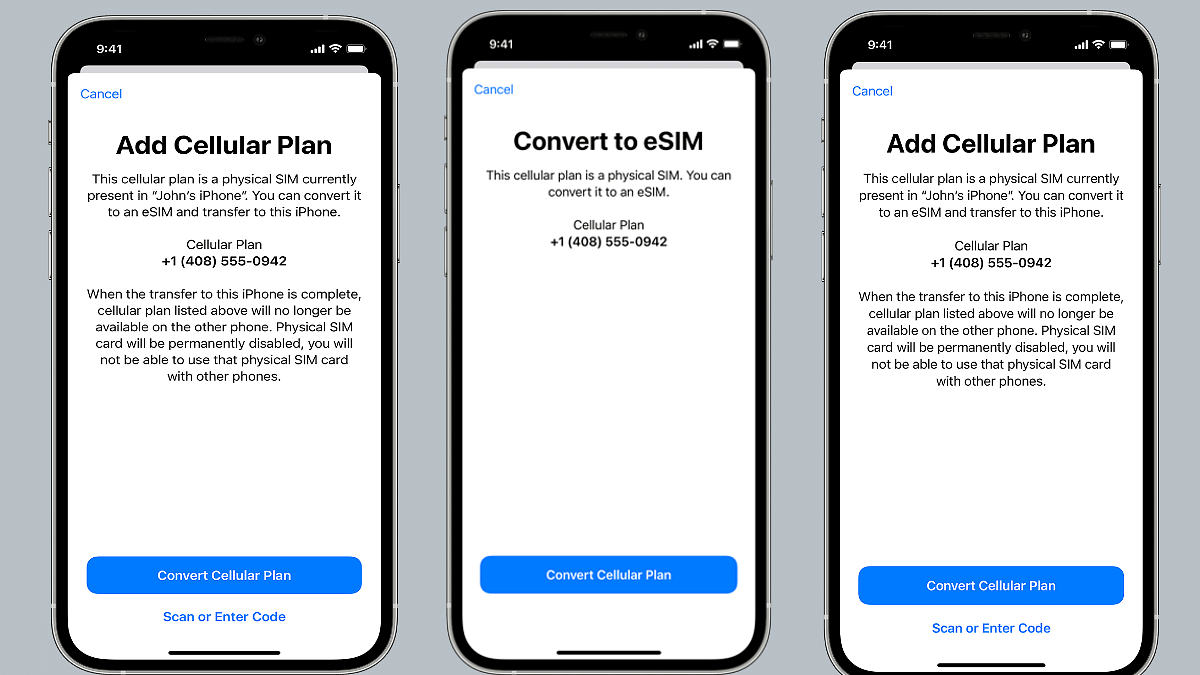
Steps To Transfer Physical/ eSIM On Your Current iPhone To eSIM On New iPhone Post Setup

Step 1: Unlock your iPhone and scroll to the Settings menu.
Step 2: Move to the Cellular option.

Step 3: Tap on Add Cellular plan option.

Step 4: Select the Convert Cellular Plan option.

Step 5: Click on the Convert eSIM tab.

Step 6: You will now need to hit the OK tab. A notification will pop up asking for transfer approval on the previous iPhone.

Step 7: Now, on your older iPhone, select the transfer option.

Step 8: You will have to wait for the eSIM to activate. Once it is done, you can remove the physical SIM from your iPhone.

Step 9: Now, wait until the cellular plan is activated on your new iPhone. The previous SIM card will be deactivated when the new cellular services are active.

Step 10: A new notification will show with Finish Setting Up Your Carrier’s Cellular Plan. Select this option.

Step 11: Click Continue and you will be redirected to the carrier webpage to transfer your eSIM.

How Can You Convert Physical SIM to eSIM On Same iPhone Model

Step 1: Open iPhone and scroll to the Settings menu.

Step 2: Click the Cellular option.

Step 3: Tap on Convert to eSIM.

Step 4: Tap Covert To eSIM in the next step.

Categories
Featured How To Mobile

eSIM iPhone: How To Setup And Manage eSIM On iPhones, Install Assigned Cellular Plans

Smartphones are constantly evolving; specifically with the advancements in the tech field. The OEMs are embedding their devices with the newest of technologies for improved user experience with photography, gaming, and more. But communication is one prime usage of smartphones right from the beginning. Brands have been focusing to bring the fastest internet and better connectivity with mobile communication. Most of you must be using a SIM card from one of the telecom operators for calling, texting, or mobile internet.

Smartphone OEMs have started integrating the eSIM feature so that one can start using cellular services instantly after purchasing a new device. This can be done without inserting any other physical SIM card. The use of eSIM (electronic SIM) is on the rise and brands are adopting this new technology gradually for their product lineups. Apple is one of those smartphone brands that is going full-fledged with eSIM for its iPhones.

The iPhone X series including the iPhone XR, iPhone XS Max, iPhone 11 series, iPhone 12 series, and the iPhone 13 series are all enabled with the Dual SIM feature with which you can use both a physical micro or nano SIM card along with the eSIM for communication.

But do you know the procedure to set up an eSIM if you own any of these aforementioned Apple iPhone models? If now, we are helping you with the process to set up an eSIM on iPhones and also install an assigned cellular network. We have also listed the steps with which you can transfer an eSIM from one of your previous iPhones to a new one.

Steps To Setup An eSIM On Supported iPhone Models

By Scanning A QR Code

You can easily set up an eSIM on your iPhone by using the camera scanner.

Step 1: On your iPhone, launch the camera app.

Step 2: Scan the QR code for the eSIM.

Step 3: Once the scanner detects the Cellular Plan, a notification will pop up. Select it.

Step 4: From the bottom of the screen, click continue.

Step 5: Tap on the Add Cellular Plan option.

You will then receive a confirmation code using which you will be able to activate the eSIM. Now, enter the mobile number that your mobile carrier has provided.

Steps To Install An Already Assigned Cellular Plan On iPhone eSIM

Step 1: You will get a notification on your respective iPhones stating Carrier Cellular Plan Ready to be installed. Once you see this message on your iPhone, click on it.

Step 2: You would need to click on the Carrier Cellular Plan Ready to Be Installed from the Settings app.

Step 3: Now, click on Continue.

Step 4: To check the status of the cellular connectivity on eSIM, you can make a call. If in case, the call is not being placed, you would need to contact the dedicated mobile carrier.

Step 5: You can also remove the physical SIM, if the activated mobile plan replaces the one on the physical SIM.  

Notably, you can also enter the plan details manually for your eSIM. Follow the steps below for the same:

Step 1: Unlock your iPhone and go to the Settings menu.

Step 2: Select either Mobile or Cellular data.

Step 3: Click on Add Cellular plan option.

Step 4: Now, enter the required details manually.