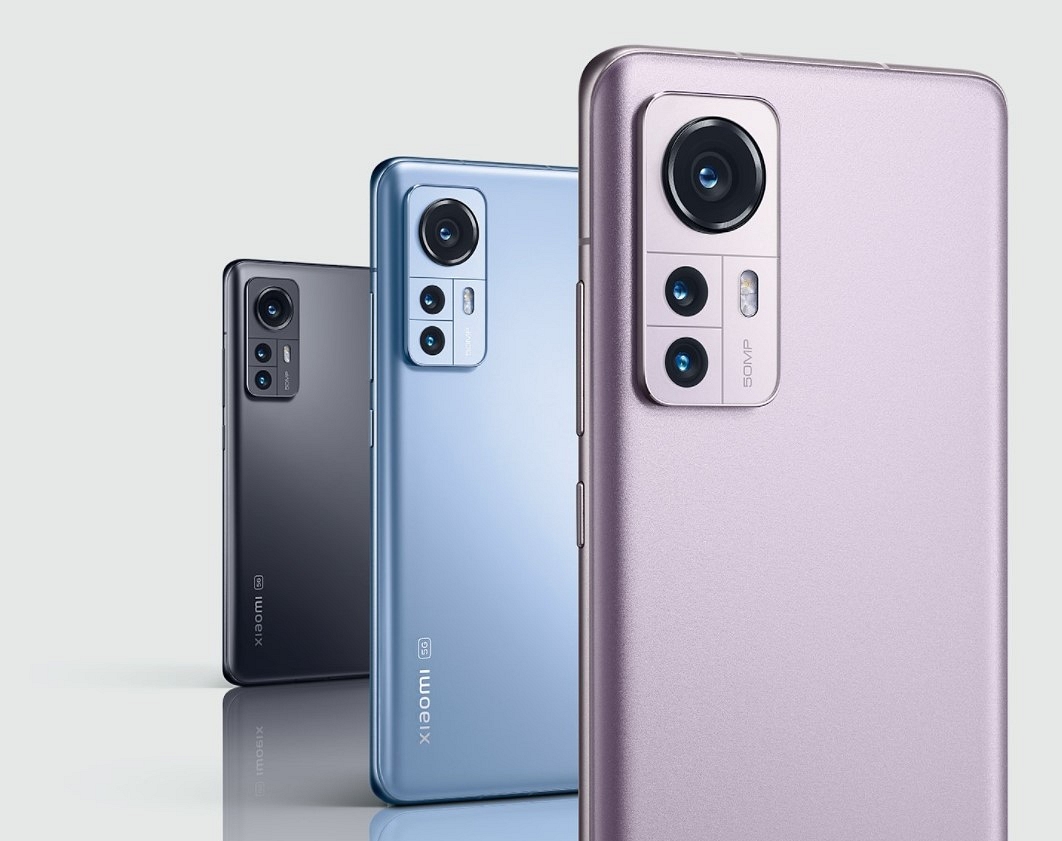
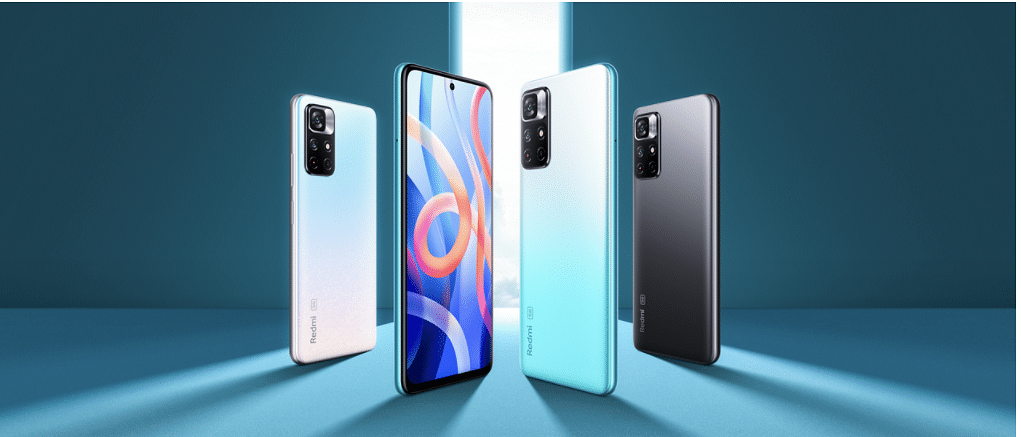
Xiaomi 13 series is expected to launch in China before the year’s end
The lineup is said to have two models – a standard and a Pro variant
Xiaomi 13 has been spotted on India’s BIS certification website, suggesting an imminent India launch
Xiaomi is reportedly working on its next flagship phone lineup which it intends to introduce in China before the year’s end. According to sources, the Xiaomi 13 will debut in the nation sometime in December 2022. There are numerous rumors claiming that Xiaomi will release at least two devices in the series, i.e., Xiaomi 13 and Xiaomi 13 Pro. However, given that the Xiaomi 13 has just been spotted on the Indian BIS certification website, it appears that Xiaomi may soon also launch (at least) the vanilla Xiaomi 13 in India.
Xiaomi 13 Spotted On BIS Certification Website
The Xiaomi 13 (with the model code Xiaomi 2210132G) has recently been certified in India. We may expect Xiaomi to launch its next flagship in India, as it has done with its past flagship handsets, even though the certification listing does not ensure a launch. Additionally, the letter “G” in the model number of the smartphone denotes the global variant of the product. Therefore, we may anticipate that Xiaomi will import the global variant of the product to India rather than manufacturing the device locally in the country.
Xiaomi 13 Specifications (Expected)
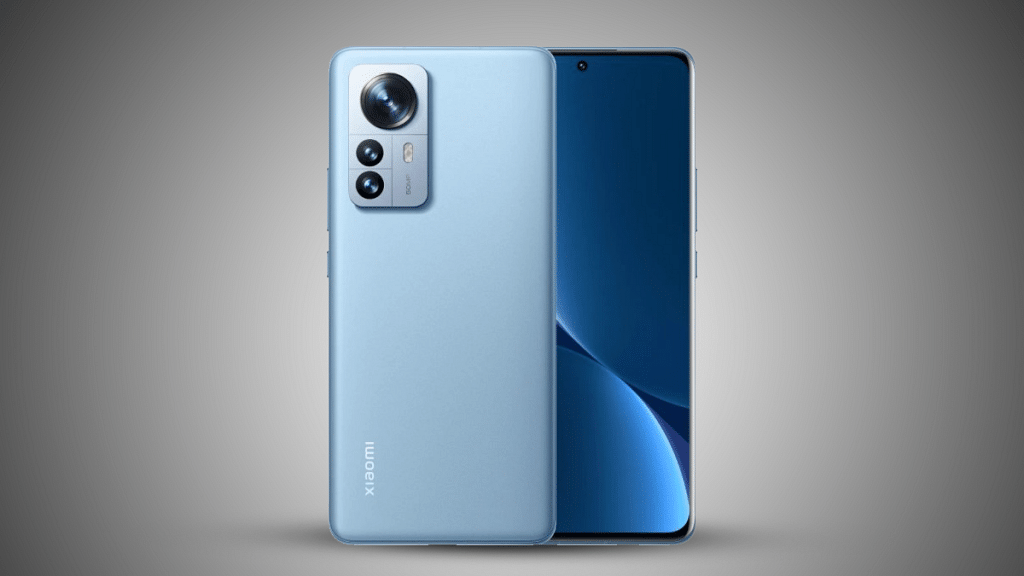
Regarding the device’s features, the Xiaomi 13 is expected to feature a 6.2-inch FHD+ AMOLED display with a single punch-hole cutout positioned in the center for the selfie camera. The smartphone is tipped to offer a 120Hz of refresh rate.
According to rumors, the Xiaomi 13 series will have Qualcomm’s upcoming Snapdragon 8 Gen 2 chipset. It might be the first company to provide the Snapdragon 8 Gen 2 chip if rumors are to be believed.
Coming to the cameras of the device, it is said that the Xiaomi 13 would have a 50MP primary camera. As for the OS, Xiaomi 13 will likely book Android 13-based MIUI 14 skins out of the box. Last but not least, the Xiaomi 13 is said to offer 67W fast charging support.
Xiaomi 13 Price (Expected)
The starting price of Xiaomi 13 in India is expected to be Rs. 31,990 whereas Xiaomi 13 Pro’s expected price in the country starts from Rs. 66,990.
Unique color changing back panel with Polychromatic Photoisomer technology
64MP triple rear cameras capture clear shots
32MP massive selfie snapper
5,000 mAh battery with 33W fast charging technology
Cons
Average low light cameras
Pre-installed bloatware
India is one of the biggest markets for budget smartphones. Entry-level and mid-range Android phones have the largest user base in the country. The brands that are ruling this segment, specifically the sub Rs. 20,000 price category include Xiaomi, OPPO, Vivo, and others. But lately, Tecno has emerged as a powerful contender in the mid-range smartphone market in India and global regions with its value-for-money products.
Tecno is bringing in some unique models for a budget price point. The recently introduced Tecno Camon 19 Pro Mondrian is the best example of the same. This affordable Android handset sets itself apart from the crowd with its color-changing design and mid-range gaming chipset. The Tecno Camon 19 Pro Mondarian edition can be purchased at Rs. 17,999 in India with 8GB RAM and 128GB storage configuration. Is the unique style statement enough to recommend this handset? Let’s find out in this review:
Tecno Camon 19 Pro Mondrian Edition Review
Design
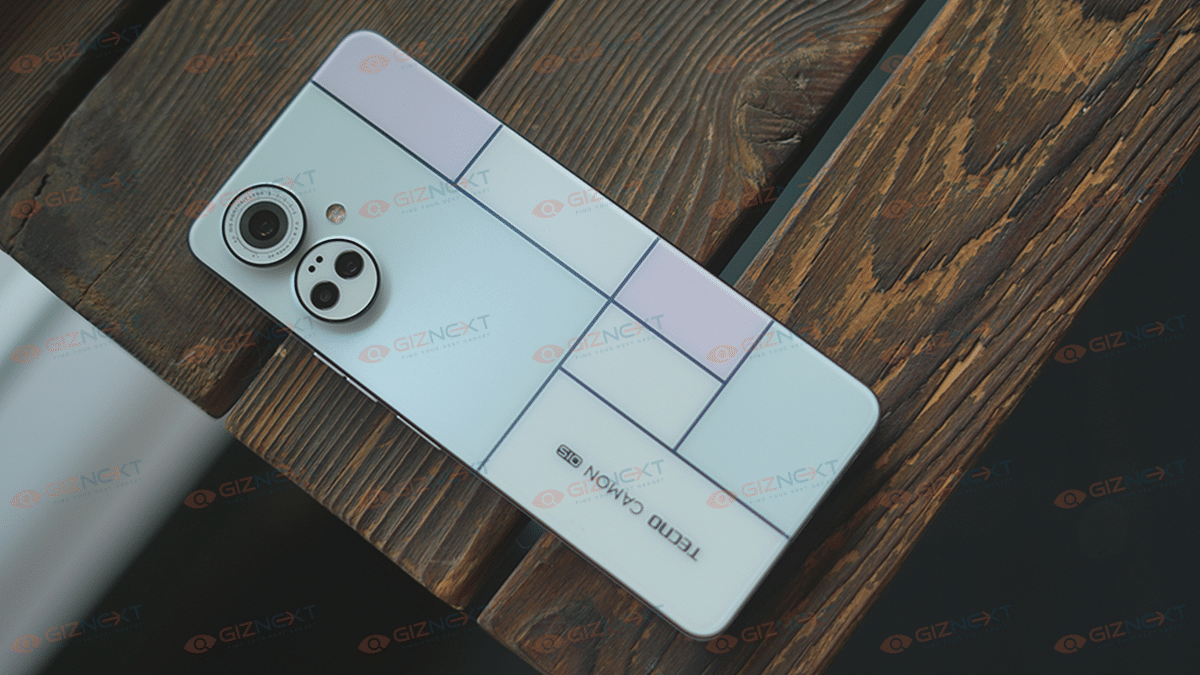
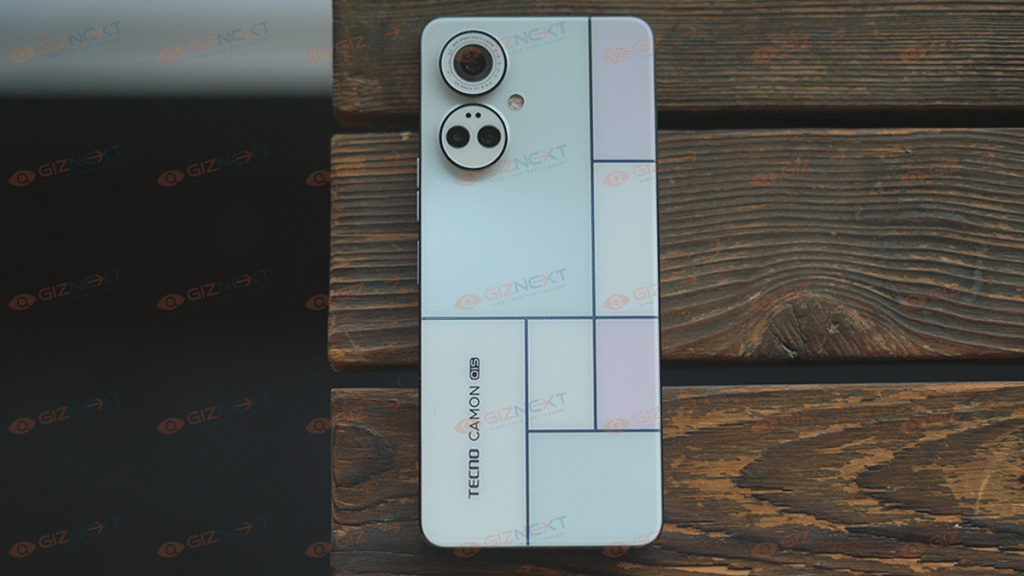
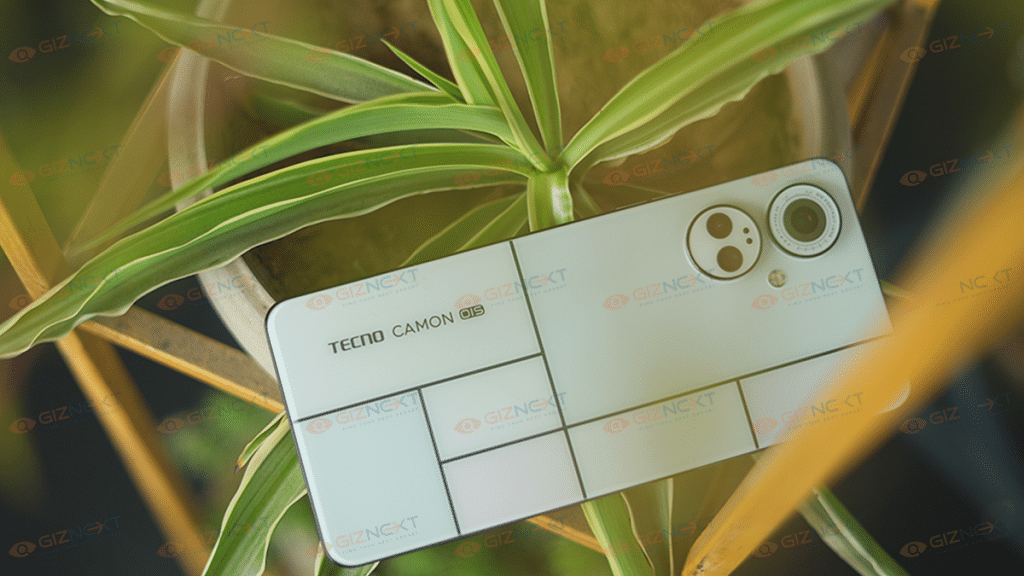
The Tecno Camon 19 Pro Mondrian isn’t any standard-looking mid-range handset. Tecno has brought in a color-changing design which is the most unique design aspect that you can find in the mid-range segment. Until now, the Vivo V25 series took center stage with a color-changing back panel. However, Tecno has taken this design approach a step ahead and has improved the overall theme that is based on Mondrian art.
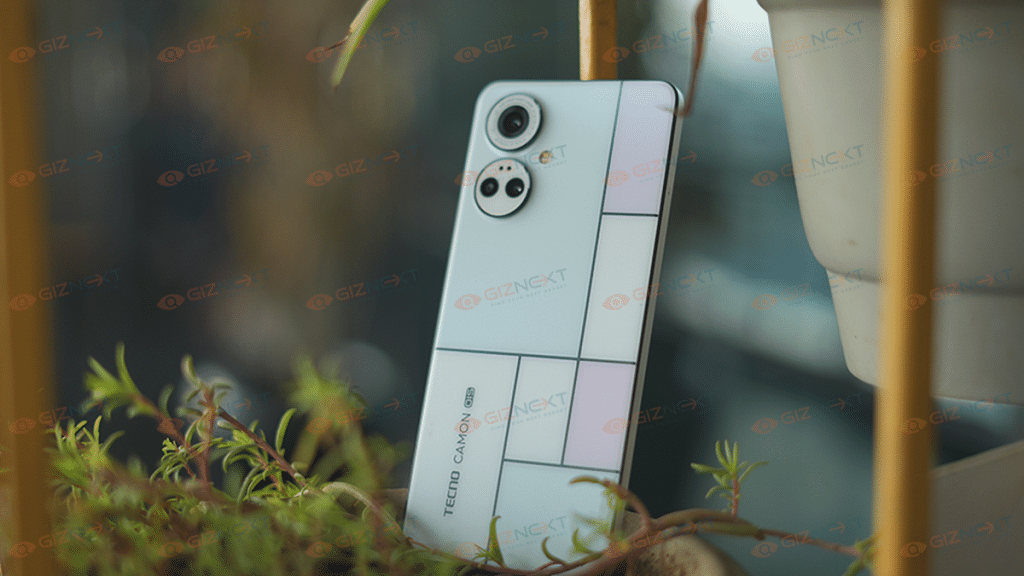
The Camon 19 Pro Mondrian edition’s back panel is painted in white and you will see a blocked pattern (square blocks) that itself makes the design unique. You don’t see the colors changing right away, the trick is to see the back panel in sunlight.
As soon as you expose the Camon 19 Pro in direct sunlight, you will see the white blocks changing to pink and purple shades. It’s for the first time we have seen a brand using Polychromatic Photoisomer technology to design a mid-range phone. This is what aids with the color change in the back panel when directly exposed to sunlight.
Not just the color changing theme, the Tecno Camon 19 Pro Mondrian Edition’s white matte surface and a flat frame thin profile add all the necessary pointers to the design. The rear panel is protected from dust and dirt and also isn’t a fingerprint or smudge magnet, unlike the other phones in this segment. Its 200 grams body weight makes it easily portable and you don’t feel any extra bulk inside your pockets while carrying it around.
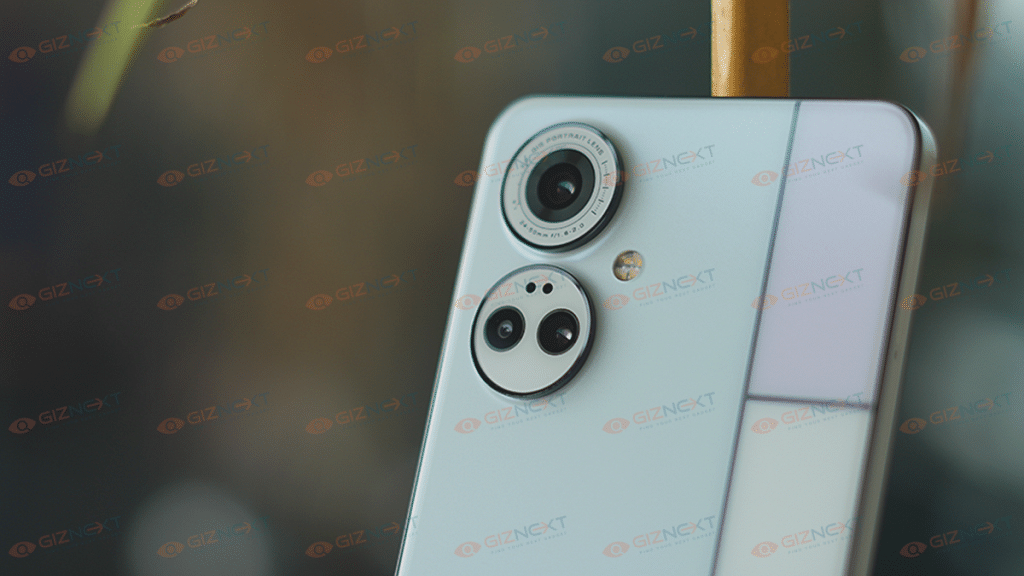
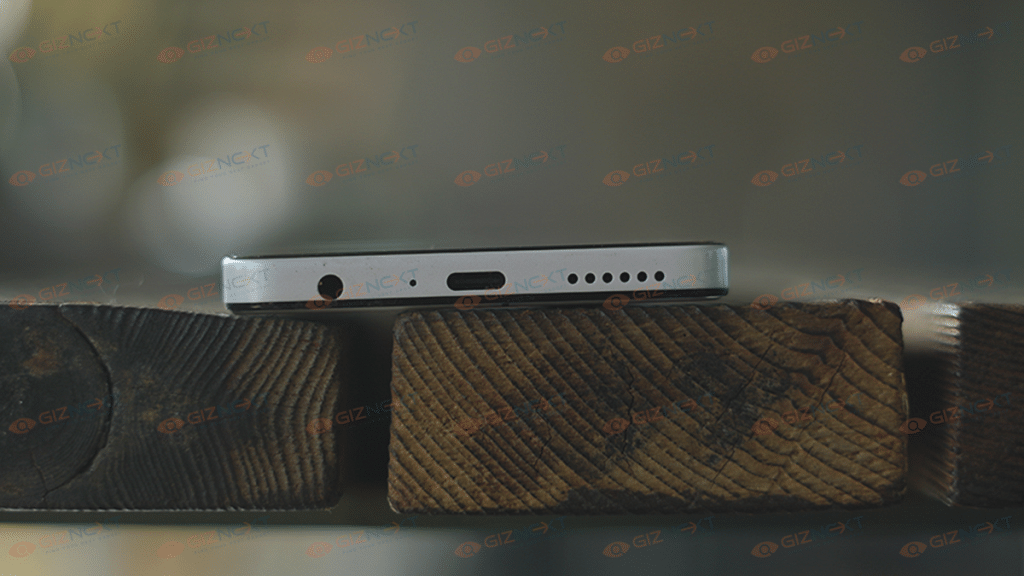
Even the rear camera module featuring two massive camera rings protruding from the body enhances the appeal of this handset. The remaining design aspects include the volume and power keys on the right spine and a dedicated microSD card slot on the left. At the bottom, it stores the USB Type-C port, a 3.5mm headphone jack, and the speaker grille.
Overall usability factor is good with the flat frame design and the large yet reasonably sized screen that makes it slightly easy to operate with a single hand. Of course, extensive tasks require both your hands, but the majority of the basic tasks such as web page scrolling and messaging is easy.
Display
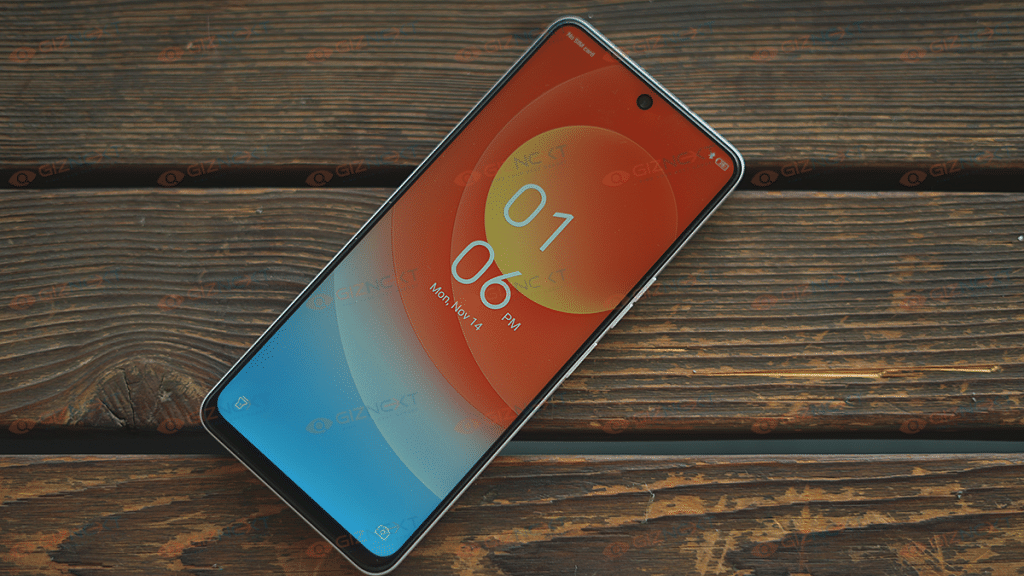
Tecno has added a tall 6.8-inch display on the Camon 19 Pro Mondrian Edition. The panel used is IPS LCD which is a common panel type for affordable and mid-range Android phones. The screen resolution offered is 1080 x 2460 pixels FHD+ and the pixel density is 395 PPI. While the panel type is standard LCD, a higher 120Hz refresh rate enhances the user experience with this screen. We experienced no issues with video playback.
The Tecno Camon 19 Pro Mondrian Edition has a responsive display that shows high levels of clarity despite it being an LCD screen. While the blacks aren’t as deeper as an AMOLED panel, it does a good job overall with displaying colors. The tiny punch-hole camera cutout further hampers the least with visuals.
The brightness levels are average. That’s one of the only drawbacks we could find with the screen. The visibility is good when you are indoors, however, with the outdoor settings you will experience slight issue with viewing content; specifically, under direct sunlight. The display performance has been apt with both video playback and gaming and also streaming content via OTT platforms.
Camera Performance
Tecno is amongst those brands that integrate a high-end camera setup even in its mid-range offerings. The Camon 19 Pro Mondrian Edition is a good example of the same with a triple rear camera module. The device is equipped with a 64MP main camera that has an f/1.65 aperture and a 50MP secondary lens that has an f/1.9 aperture.
This wide-angle sensor is further clubbed with a 2MP lens with an f/2.4 aperture for depth mapping. If you look at the spec sheet, it’s quite powerful for a mid-range Android handset that retails below Rs. 20,000. And when we speak of the camera performance, you aren’t left disappointed with the overall image quality.
The clarity levels aren’t compromised anyhow when the shots are captured in areas with good lighting conditions. The 64MP main camera is capable of capturing minute details. Thanks to the additional OIS (Optical Image Stabilization) and laser autofocus, the scene detections are improved and overall imaging quality also enhances.
The combined triple lens setup offers great accuracy with color production with the captured images. The quality doesn’t deteriorate when you try to capture some complex backgrounds or with moving shots. The fast shutter speeds handle the latter.
The bokeh shots are also well-defined with the dedicated 2MP sensors. The background blur intensity can be adjusted manually and the blur effects don’t seem artificial. The camera app integrates a dedicated Super Night mode if you wish to click detailed images in low light. The quality of the night shots aren’t bad either. There are slight distortion and background noise that gets captured with low light photos but they can be ignored.
Tecno has designed the Camon 19 Pro to please the shutterbugs; specifically, the selfie fanatics will be happy with the massive 32MP selfie camera. The selfie snapper captures brilliant self-portraits with high-clarity levels and balanced color production.
Hardware, Software, Battery Backup
At its core, the Tecno Camon 19 Pro Mondrian Edition integrates the MediaTek Helio G96 chipset as its brain of operations. This is a standard 4G chipset with an octa-core CPU cluster designed for a premium gaming experience. Now, the Camon 19 Pro Mondrian Edition is a well-equipped handset overall, but the 4G chipset is a shortfall. We wouldn’t say it’s an entirely wrong pick as a processor, but a 5G processor would definitely have given it an edge against the competition.
The processing speeds are decent and you aren’t made to experience delays or lags with app loading or usage. Even with multiple apps launched at once, the phone’s speeds are hardly hampered which is impressive. You can easily play games in HD settings with no stutters or lags in sight.
But the slight warm-up issues are noticeable when the handset is being used extensively while gaming. With its sole 8GB RAM configuration, the Camon 19 Pro Mondrian Edition easily takes on multitasking as well. Whereas, the 128GB onboard storage space is ample to store files and documents in addition to videos and photos.
But if you are amongst those users who are frequently with downloading large apps and games, adding up an external microSD card would make sense. The expandable storage support is up to 512GB which should suffice all the storage requirements.
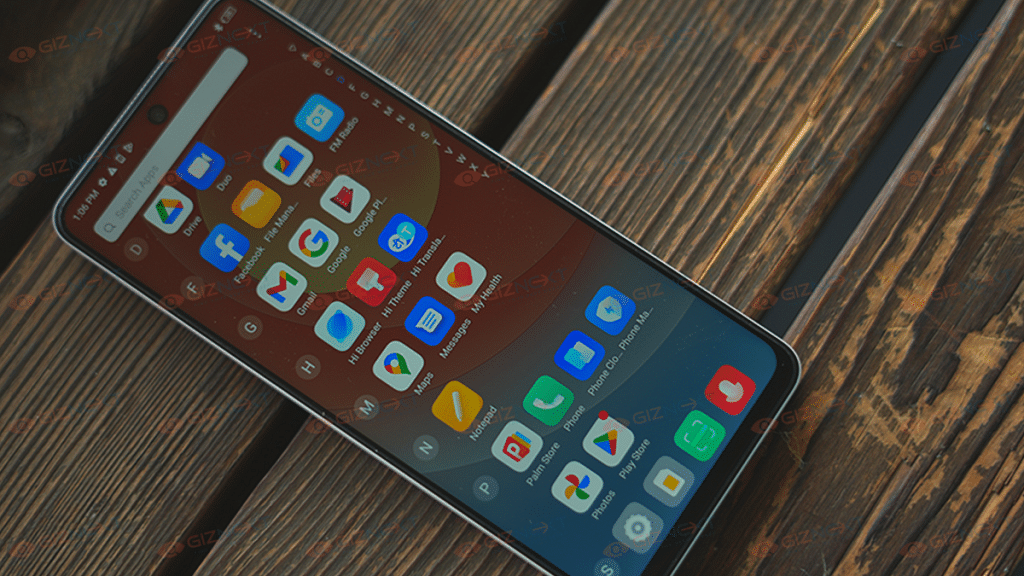
Tecno has installed the Android 12 OS as the firmware on the Camon 19 Pro Mondrian Edition. The UI pre-loaded on top is HiOS which is customized specifically for Tecno phones. The device has a bunch of pre-installed bloatware which clutters the UI. But thankfully, Tecno has improved multiple aspects of the UI for a premium user experience.
Lastly, the battery capacity packed inside the Tecno Camon 19 Pro Mondrian Edition is a 5,000 mAh unit. The large battery capacity along with mid-tier hardware is suitable for a long-lasting backup. The maximum backup on a single charge is over eight hours on a single charge. This is when you use the device for basic tasks including web browsing. But if the usage is extensive such as gaming, the backup reduces significantly. The battery refuel time with the 33W fast charging is around an hour.
Tecno Camon 19 Pro Mondrian Edition: Final Verdict
For buyers with a budget under Rs. 20,000, the Tecno Camon 19 Pro Mondrian Edition makes for a decent buying option. And if in case you are okay with a non-5G phone that offers a unique design language, a powerful camera setup, and a responsive display, this color-changing Camon series model is a good fit.
This is one of those phones that you can flaunt easily out in the crowd and at the same time, there is least of compromises with the overall performance. The Tecno Camon 19 Pro Mondrian Edition gets our recommendation for its out-of-the-box design and feature-rich camera module.
iPadOS 16 has the most useful features of iOS 16 on iPhone
The background removal feature works well on the iPad’s large display
This feature eliminates the need to use photo editing apps to emphasize the subject in the image
iPadOS 16 is available for all eligible iPads. One of iOS 16’s key features is now available on iPads thanks to the iPadOS. This feature allows you to obtain a png format of the subject you just lifted away from the backdrop of a photo.
If you are a photo editor or simply want to play around with the pictures of you or your pet, this tool is far too convenient. Apple claims that in order to clearly define the subject and distinguish it from the background, it uses artificial intelligence. Here’s how to make a photo’s subject pop out of the background.
Steps To Remove Subject From Background In Photos
Step 1: Open the picture in the position where you want the background to be blurred and the subject to stand out. It can be a portrait shot of yours or of your family/friends.
Step 2: Simply tap and hold on to the picture’s subject—say, a balloon—after you’ve opened it.
Step 3: Open the Notes, Messages, or Mail app while continuing to tap and hold on to the object in the shot. Swiping from the bottom to the top while holding the subject will allow you to achieve that. After that, open any of the aforementioned apps.
Step 4: Place the newly divided subject in a new note, chat, or email. Keep in mind that you can copy a subject directly from a photo once you tap and hold on it and then paste it anyplace on your iPad.
Step 5: Lastly, save the photo from the Note/Chat/Mail. And you are all done.
That’s how quickly and effortlessly your subject can be made to stand out from the background, giving you a picture without a background. With iOS 16, this feature was first made available on iPhones.
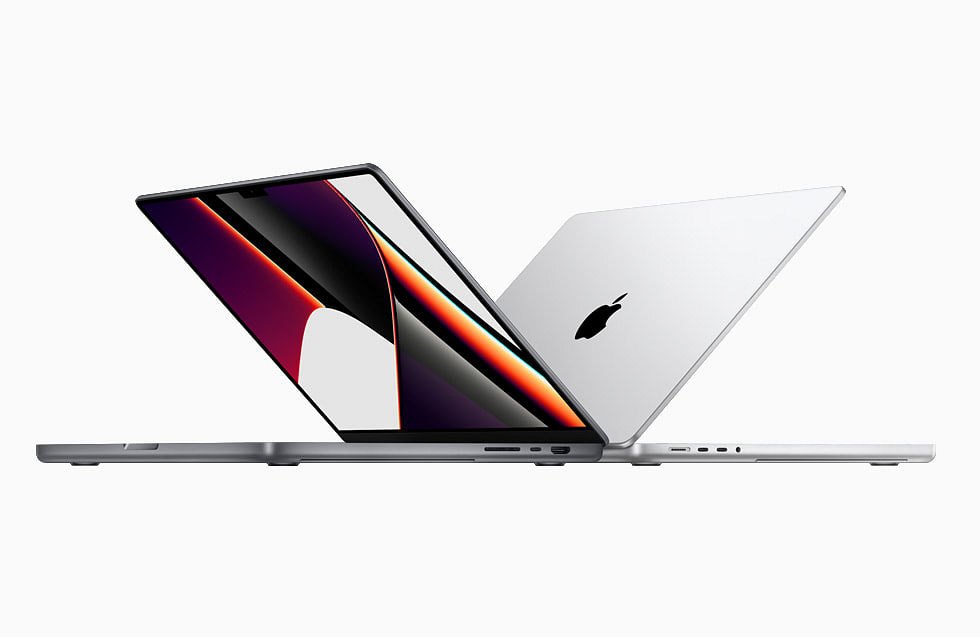
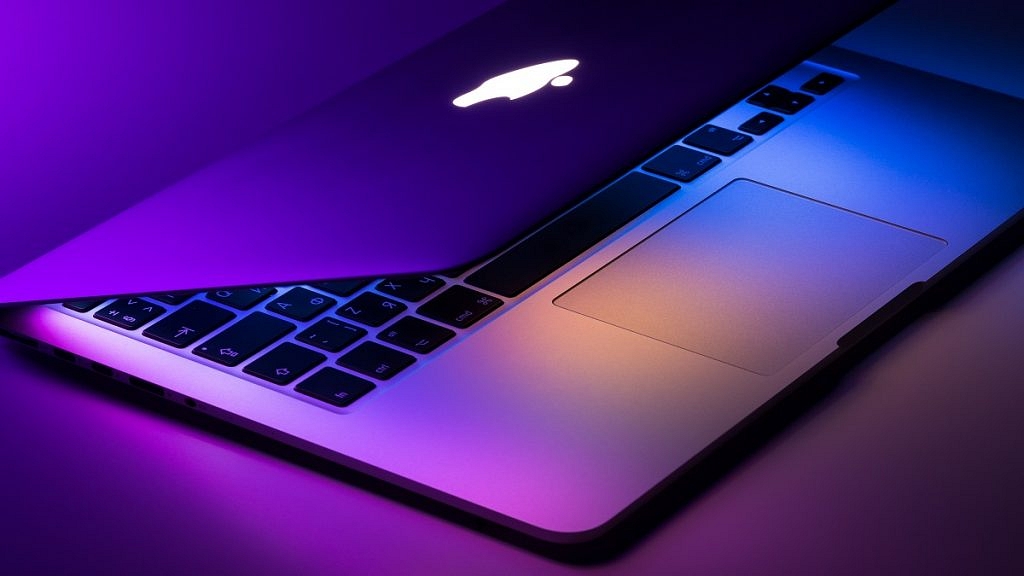
Wipe your MacBook screen with recommended materials such as a clean, lint-free cloth and water
The screen can also be wiped with specific cleaning products designed for computer monitors
Be careful to keep water and other cleaning agents away from the monitor connectors
Over time, the accumulation of dust, filth, crumbs, and fingerprints causes your laptop to lose its luster and shine that it used to have. Therefore, it’s a good idea to clean your computer’s screen when the dirt and blurriness start to get too bad in order to preserve the best picture quality possible.
Before you begin, make sure you are not using any abrasive materials including the liquid or the cloth you are using. Anything containing “acetone, window cleaners, home cleaners, aerosol sprays, solvents, ammonia, or cleaners containing hydrogen peroxide,” according to Apple, should not be used. So, if you have a MacBook laptop and want to keep it organized and clean in a safer manner, here are some tips.
Turn off your Mac and make sure all of its attachments, including the power cord, are unplugged
Wipe your Mac’s screen after wetting a dry, lint-free, clean cloth. Do not use rough clothing, towels, paper towels, etc.
Spraying directly on the screen could damage it if the liquid seeps into the display
Avoid spraying cleaning agents directly onto the MacBook
Avoid wiping the device extensively because doing so could harm it
Use water or other liquids only when specifically instructed to do so during the process
Prevent moisture from getting around speaker grills, ports, and other openings
Allow any remaining moisture to dry completely before plugging in or turning on your MacBook
Even though your device is composed of a substance that is meant to repel grease, fingerprints nonetheless manage to get on them. Most fingerprints ought to be removed using merely a dry, lint-free cloth. Use a very small amount of water if you need more cleaning power, being cautious not to get moisture into the openings of the gadgets. Simply avoid using glass cleaners or other cleaning agents because they could harm the finish and touch screen.
The Vivo X90 series is likely to release in December
The series include Vivo X90, Vivo X90 Pro, and Vivo X90 Pro Plus
Vivo X90 Pro Plus’s camera features have been tipped online
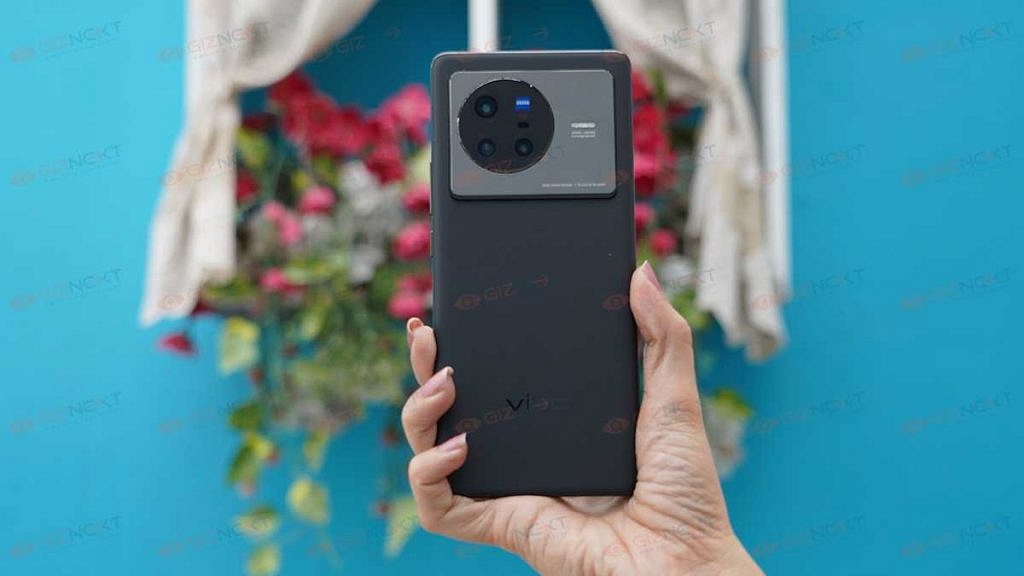
The Vivo X90 series is expected to arrive in December this year. The lineup includes the Vivo X90, Vivo X90 Pro, and Vivo X90 Pro Plus. The smartphones are tipped to be powered by the MediaTek Dimensity 9200. Recently, the Vivo X90 Pro Plus’s camera specifications have been leaked online. Here’s what it says.
Yogesh Brar, an Indian tipster, revealed the upcoming smartphone’s camera specifications on Twitter. According to him, Vivo and Zeiss have been working together on the upcoming X90 series’ flagship camera technology.
Vivo X90 Pro Plus Tipped Specs
According to the tipped details, the smartphone might have a quad rear camera setup. It will have a 48MP ultra wide-angle sensor and a 50MP Sony IMX989 sensor.
Moreover, a 64MP periscope telephoto sensor and a 50MP 2X telephoto sensor. Additionally, the camera module can bear the Zeiss logo. The phone might also include Vivo’s V2 image processing chip. This is from a previous leak.
Earlier this week, the leaked renders and live images suggested that the speculated Vivo X90 Pro Plus would have a quad rear camera configuration co-engineered by Zeiss.
The MediaTek Dimensity 9200 SoC might power the smartphone. A 4,700mAh battery with compatibility for both 50W and 80W wireless fast charging could be included in the smartphone.
Vivo X90 Pro Plus Design Teased
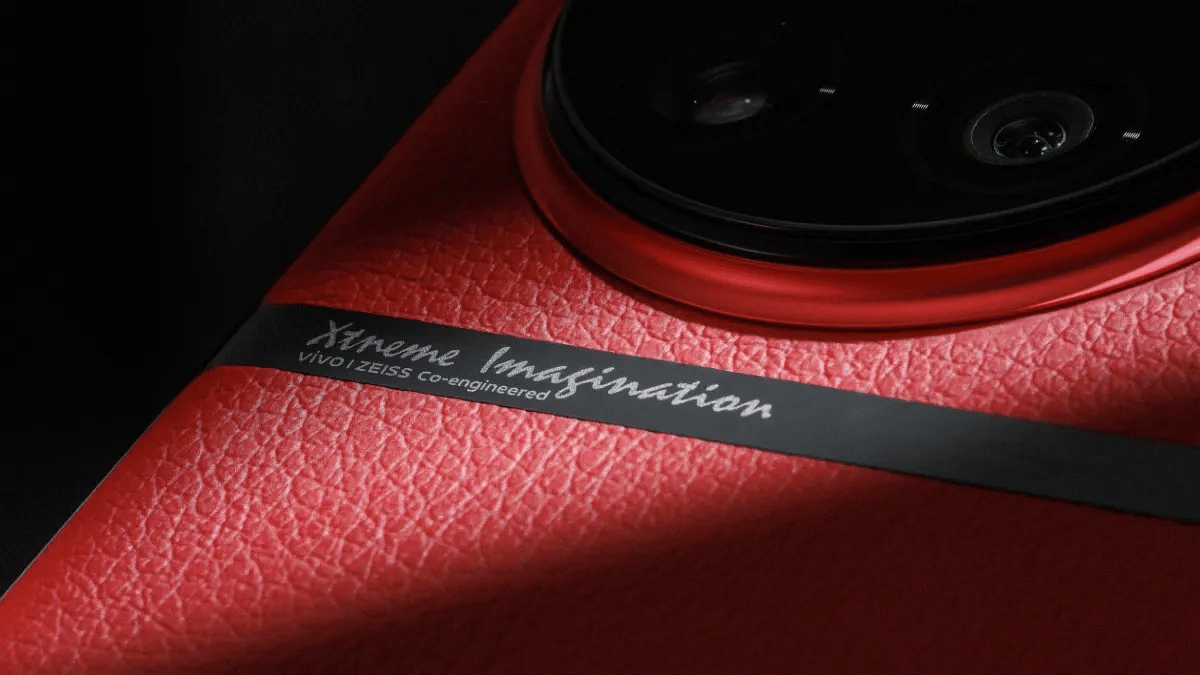
A teaser image and alleged live shots of the Vivo X90 Pro Plus leather red color option have been made public, courtesy of tipster Digital Chat Station. The entire back panel is visible in the live photographs, and the teaser that was given is consistent with the allegedly leaked images.
The company released the teaser image as a promotional content for the soon-to-be-released OriginOS skin. Additionally, the telephoto lens’s little rectangular cutout is visible. The metal strip is also visible in the image that the company teased.
Vivo X90 Series: Release Details
It is anticipated that the Vivo X90 series would get launched by the end of the year. The Vivo X90 could include a few improvements over this year’s Vivo X80 series phones.
More details about the phone, including price and sale date, are expected to be revealed at the launch event.
Apple has released iOS 16.1.1 for supported iPhone models
Apple has released iPadOS 16.1.1 for supported iPad models
The latest update brings bug fixes and security updates
Apple has released iOS 16.1.1 and iPadOS 16.1.1 updates for all compatible iPhone and iPad devices. The recently released updates do not add any new features; instead, they fix bugs on the supported devices.
Apple hasn’t given a thorough description of the flaws that iOS 16.1.1 and iPadOS 16.1.1 are aimed to address. The tech giant has stated that these upgrades fix a flaw that may allow a “remote user to trigger unexpected app termination or arbitrary code execution,” according to the release notes.
iOS 16.1.1 Availability
As far as availability is concerned, the iOS 16.1.1 and iPadOS 16.1.1 updates are for iPhone 8 and newer iPhone models, all iPad Pro models, third-generation iPad Air and newer models, iPad fifth generation and newer models, and the fifth-gen iPad Mini and newer models.
Steps To Download iOS 16.1.1 On iPhone
Step 1: Get your iPhone’s Settings app open.
Step 2: Select General Settings by tapping it.
Step 3: Select Software Update from the General Settings option by tapping it. You will then see the most recent software update that is available to you.
Step 4: Select “Download and Install” from the option.
Step 5: There, you will be asked to enter your passcode. Type in your iPhone password.
Step 6: To accept Apple’s terms and conditions, tap on Agree. To make sure of your decision, tap the Agree button one more.
Step 7: To complete the installation procedure, adhere to the on-screen instructions.
It is worth noting that the iOS 16.1.1 update comes roughly two weeks after the company released iOS 16.1 which included a number of new features and changes. This update brought new charging settings that help users reduce their carbon footprint by selectively charging when cleaner power is available.
The update also brought support for the new Matter standard for connecting smart home devices and support for Apple Wallet key-sharing capabilities. It allows a user to securely share keys for cars, hotel rooms, and other items in the Wallet using Messages and messaging apps like WhatsApp.
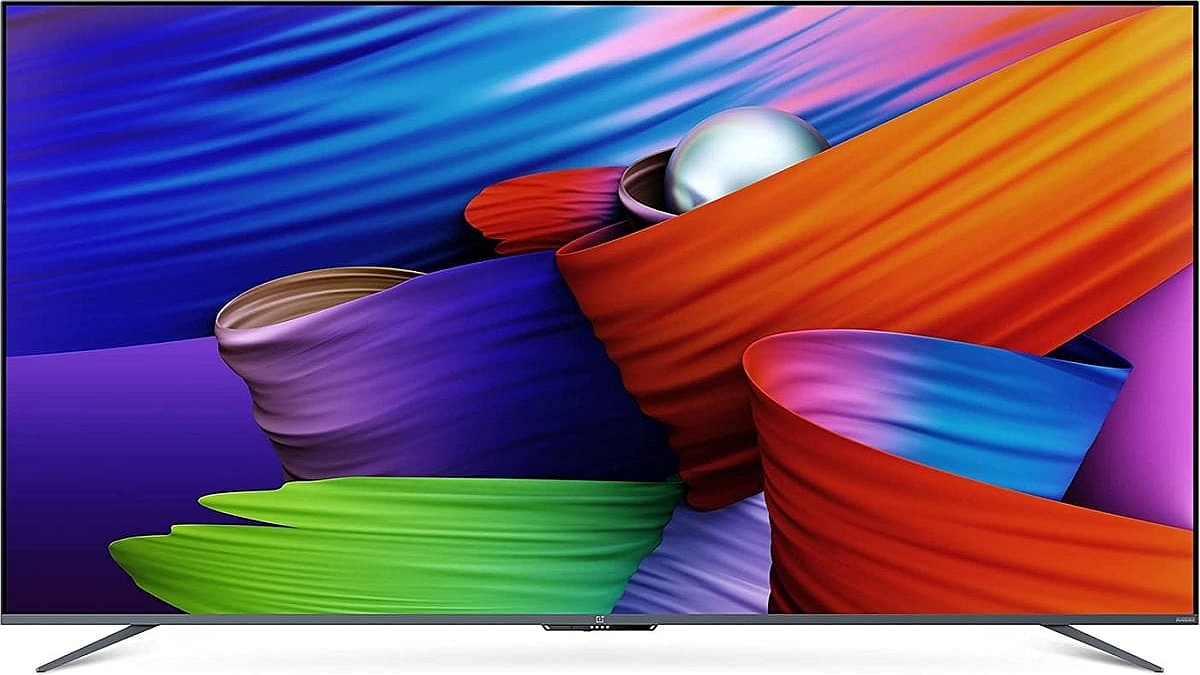
OnePlus is one of the biggest smartphone manufacturers across the globe. We have seen the brand launching top-of-the-line handsets equipped with high-end internals including the flagship grade MediaTek and Qualcomm chipsets and premium display and camera features too. In addition to smartphones, the company is also aggressively getting hold of the market in other consumer goods markets.
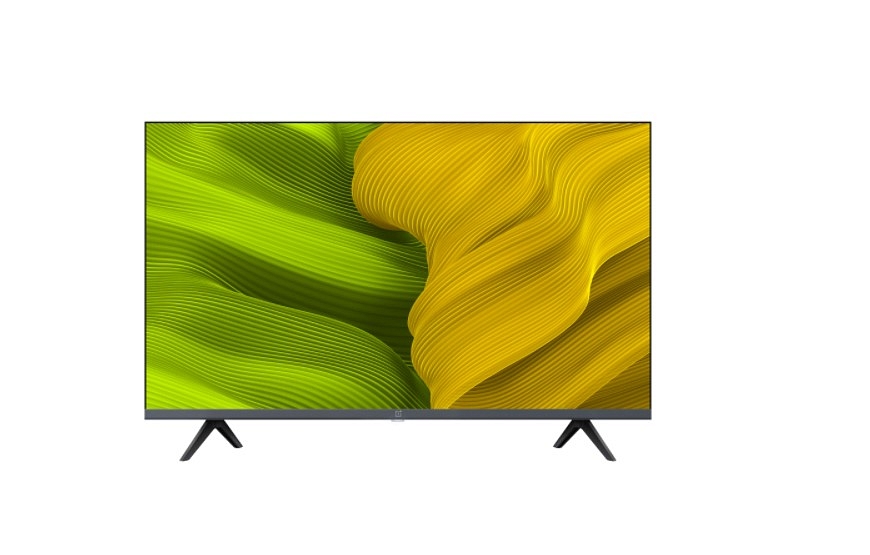
OnePlus smart TVs are also giving tough competition to most of the premium TVs available in the premium and mid-range segments. The brand has a bunch of TV lineups for all categories of users. Despite an affordable price range, OnePlus smart TVs don’t compromise anyhow with delivering rich audio-video output.
All OnePlus smart TVs have multiple connectivity options. You also get wireless connectivity options with OnePlus smart TVs (both Wi-Fi and Bluetooth). With this, you can not get access to the internet for OTT and streaming platforms but also get the option to add wireless accessories such as remote control or a speaker. All OnePlus smart TVs also offer HDMI port connectivity. Some of the OnePlus smart TVs even offer HDMI (ARC) ports for seamless connectivity.
But have there been any situations where you have experienced issues with HDMI ports and connectivity on your OnePlus smart TVs? If yes, are you aware of the quick fixes of troubleshooting steps to resolve HDMI issues with OnePlus smart TVs? Well, we have listed down all the ways in which you can easily resolve the HDMI interface and abnormal picture quality with OnePlus smart TVs. Read on below:
How To Fix Abnormal HDMI Interface Issue With OnePlus Smart TVs
Step 1: The first step is to unplug and re-plug the HDMI cable connection between the OnePlus TV and the supported device. If this doesn’t resolve the issue move to the next step.
Step 2: On your OnePlus smart TV, open the Settings menu and then click on the More option.
Step 3: Click on Settings and then the Input option. Now, switch the “Signal Format” settings. This should resolve the issue and if not you should try performing the next step.
Step 4: Restart the paired HDMI device and also unplug and replug the TV and reboot. This should resolve the abnormal HDMI issue with your OnePlus smart TV.
How To Resolve HDMI Picture Issues With OnePlus Smart TVs
Step 1: Power off and unplug the OnePlus TV from the power source and reboot after re-plugging.
Step 2: Try connecting the device to another HDMI interface/port.
Step 3: If the picture quality issue persists, try switching the Signal Format settings from the TV.
Step 4: Also, try resetting the default picture settings operations.
Step 5: Restart the connected HDMI device and also reboot the TV to fix the abnormal picture quality issue with the OnePlus smart TV HDMI.
OnePlus Ace 2 and Realme GT Neo 4 are likely to launch in early 2023
Brands such as Oppo, OnePlus, and Realme are under the same company, BBK Electronics. One device is frequently rebranded and released under a different name. The next generation Realme GT Neo 4 appears to debut with the same features as the OnePlus Ace 2.
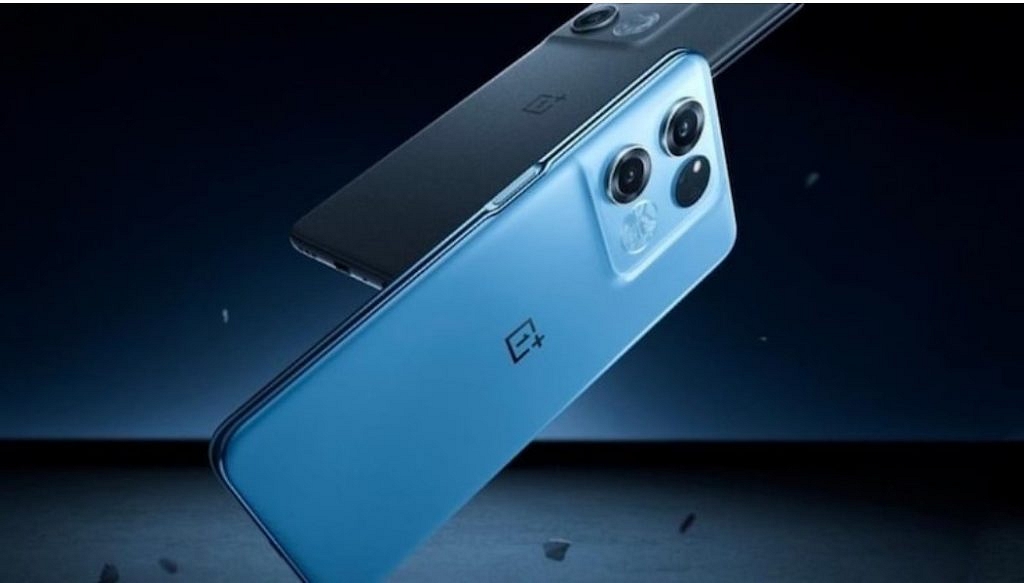
Popular tipster Digital Chat Station disclosed on Weibo the details of a new smartphone but avoided disclosing the name. However, they stated in the comments area that the smartphone being discussed will be a Redmi K60 rival which sparked suspicion that it might be the Realme GT Neo 4. However, the upcoming OnePlus Ace 2 will likewise generally have the same set of specs with the design being the main area of variation. For all we know, the OnePlus smartphone might debut in the global market as the OnePlus 11R.
Given that both devices are expected to have nearly identical specifications and features, it is possible that the OnePlus Ace 2’s details were also revealed by the informant. Let’s look at it.
According to the leak, the 6.7-inch OLED screen on the Realme GT Neo 4 / OnePlus Ace 2 will have a 1.5K resolution (2,772 x 1,440 pixels) with 2160Hz PWM dimming. A Snapdragon 8+ Gen 1 processor will power the smartphones.
In terms of optics, the devices are said to have a 16MP front camera and a triple rear camera configuration with a 50MP + 8MP + 2MP resolution. Lastly, both devices will reportedly boot Android 13 out of the box, but they will have different custom skins.
As far as the device’s battery is concerned, we can expect the Realme GT Neo 4 and OnePlus Ace 2 to boast a massive 5,000mAh battery with 100W fast charging support.
Instagram is a popular social media platform for Android and iPhone users globally. The photo-sharing app has evolved over the last few years with new tools and features that have majorly improved the user experience. Instagram has released multiple such features to boost its popularity at the same time giving opportunities to its user base to get monetary benefits from the platform.
This is one of the biggest reasons we are witnessing a surge in content creators and social media influencers choosing Instagram as a primary business module. The Meta-owned photo-sharing has brought in the provision for users to create a dedicated business profile wherein they can showcase, promote, and even sell their products.
If you have created an Instagram business account, you get the option to have a complete insight into your business and see which audience engagement is higher and how good your product is performing. The Instagram business account also lets users access a Professional Dashboard that lets them keep a track of the business performance.
Using this Professional Dashboard, users can also discover new tools and learn market strategies from Instagram that will eventually help with a boost in the business. But how can you create a new Instagram Business account? Or is there any method with which you can transform your existing Instagram account into a business or professional account? This article covers the procedure for the same. Let’s take a look:
Steps To Set Up Or Update An Existing Instagram Account To A Business Account
Step 1: Launch the Instagram application and log into your profile. If you don’t have an Instagram account yet, create one.
Step 2: Head over to your Instagram profile from the app and select the More (three horizontal lines) icon. This can be located on the top-right of the profile page.
Step 3: Click on the Settings menu (gear icon).
Step 4: Scroll to the Accounts options.
Step 5: Select the “Switch to professional” account option.
Step 6: Now, tap on the Continue option.
Step 7: In the next step, you would need to select a category for your business.
Step 8: Once the appropriate business is selected, click on OK to confirm.
Step 9: Now, tap on the Business option and hit Next.
Step 10: You now need to update your contact details for the business. If you don’t wish to update your contact details yet, select the “Don’t use my contact info” option.
Step 11: You can also link a Facebook page to boost the reach of your Instagram business account.
Step 12: Click on the “X” option on the top-right corner to return to your original profile.
Dell has become a preferred brand for laptop and PC users in India and global markets. The PC brand has been bringing in good options for performance-oriented users and is proactively releasing new models in different lineups targeting all segments of users. For budget and mid-range consumers demanding high-end performance, the Dell Vostro and Inspiron series offer the best options. Whereas, for high-end consumers and gaming professionals, the Dell XPS and Alienware laptop lineups have suitable models.
Dell PCs are also all potent and offer a premium-class user experience. What gives Dell an edge over other PC brands in India is the widely available support ecosystem and post-sale services to help users resolve any issue with their laptops and PCs. Dell also offers remote support services to laptop and PC users to minimize the visits to a nearby service center in case of any issue with the hardware or firmware.
One of the common issues with Dell laptops and PCs that can be easily fixed at home without necessarily heading to an authorized service station is the display issue. This is a random issue where in the screen doesn’t turn on or you see a blank or black screen. In some cases, the images displayed on the Dell laptops and PCs could be distorted and blurry and in other cases, you might see horizontal or vertical lines on the screen.
If you aren’t aware of the quick fixes that can easily help fixing display issues with Dell PCs, you are at the right place. We have listed down the troubleshooting steps to resolve display issues with Dell PCs in this article.
Quick Troubleshooting Steps To Fix And Resolve Display Issues With Dell Monitors
Step 1: The first step would be to check if there is any physical damage on the laptop or PC’s screen. If there is any visible crack, you might have to get the panel replaced. If there is no display breakage, you can move to step 2.
Step 2: Try to plug in the Dell monitor (for PC) to any other wall outlet. Also, do not supply power using a power strip or surge protector to check if the display turns up.
Step 3: If the above step doesn’t work, try bypassing Dell docking station. Connect the Dell PC monitor to the computer using an HDMI, DisplayPort, or USB Type Cm and other supported video cables.
Step 4: Try changing the video source of the Dell monitor using the menu buttons on the monitor. Change the brightness and contrast levels. This should fix the temporary issues with the display configurations.
Step 5: If still you see a black/ black display or blurred images, check the monitor as a stand alone device and see if its working properly.
Step 6: Try downloading or updating the display drivers to the latest version,
Step 7: If the display issue persists, run the Support Assist hardware test for the video card. If there is some issue with the panel and it fails the test, you would need to contact Dell technical support for a permanent fix.