Categories
Info TV

TCL S Series Google And Android TVs Launched In India: Feature-Rich Smart TVs Under Rs. 15,000

Key Highlights

  • TCL has announced the launch of new S Series Google and Android TVs in India
  • The company launched the industry’s first 32-inch Bezel-less Google TV and Android 11 TV
  • The product features HD resolution with built-in Google voice assistant and much more

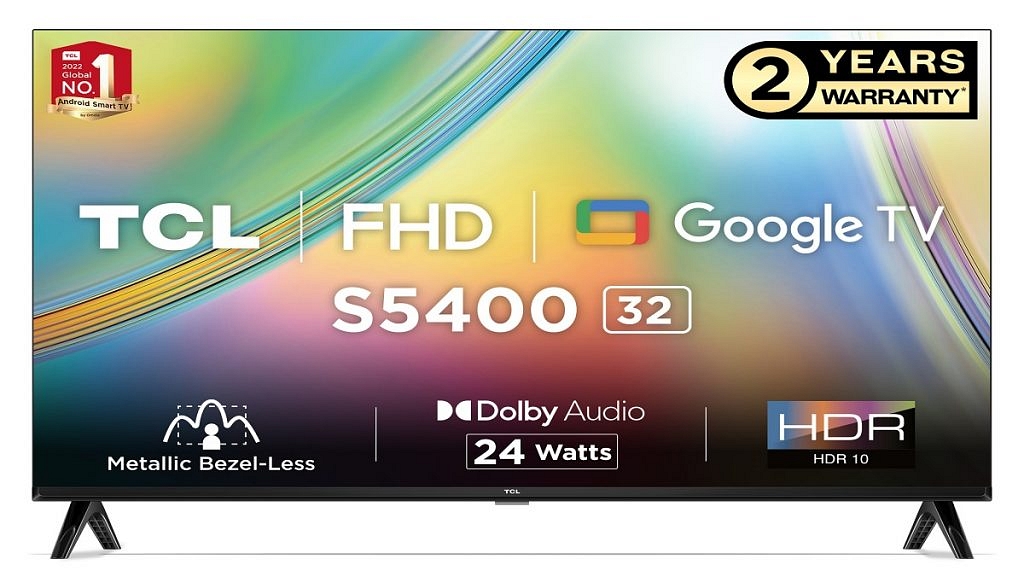
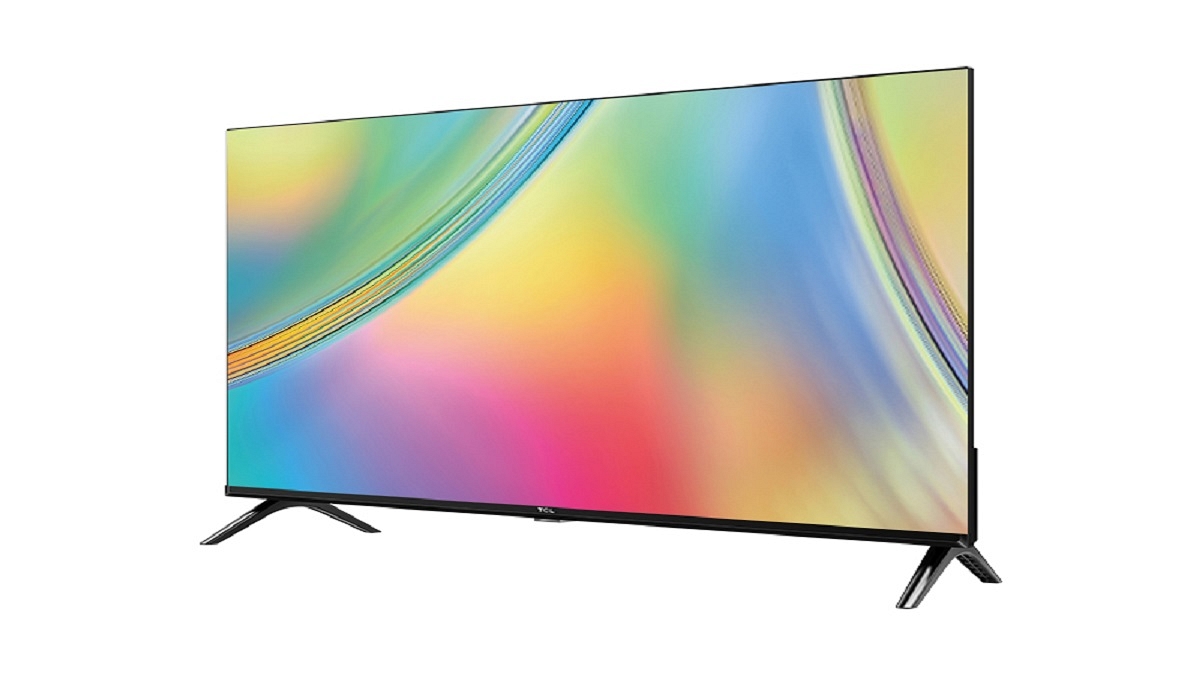
The launch of TCL’s renowned S series of Google and Android TV in India was recently announced. With its HD resolution and a wealth of smart features, the launch promises to provide its customers with a first-class experience. The three recently released S series TV models, the S5400 Google TV, the S5400A Premium A+, and the S5403A, all have a lightweight, compact design that exudes style.

Also Read | Best Smart TVs To Buy On EMI And Zero Down Payment: Samsung, OnePlus, And More

TCL S5400 32-inch FHD Google TV Specifications

Viewers can find new movies and TV series from their subscriptions and content on the new S5400 32-inch FHD Google TV. Using Google Watchlist, viewers can now add content to their libraries. Google Kids mode also provides security with kid-specific profiles and appropriately filtered content. The TCL TV further has a Chromecast built-in that enables the casting of music, videos, and apps from any device to the TV.

TCL S5403A And S5400A 32-inch HD Android 11 TV Specifications

TCL S5403A and S5400A 32-inch HD Android 11 TV have an A+ HD-ready display. With access to more than 7,000 apps and 7,00,000 shows and movies in one location, the next-generation Android TV has speed and security upgrades. The TV features Chromecast built-in, Google Play games, Google Play movies and TV, and Google Play Store.

The entire series is powered by Dolby Audio. An integrated 24W speaker system is built into each TV. Additionally, it has an intelligent sound mode that allows for a variety of sound settings depending on the content selected including Standard, Dynamic, Music, Movie, Voice, Game, and Sports sound modes.
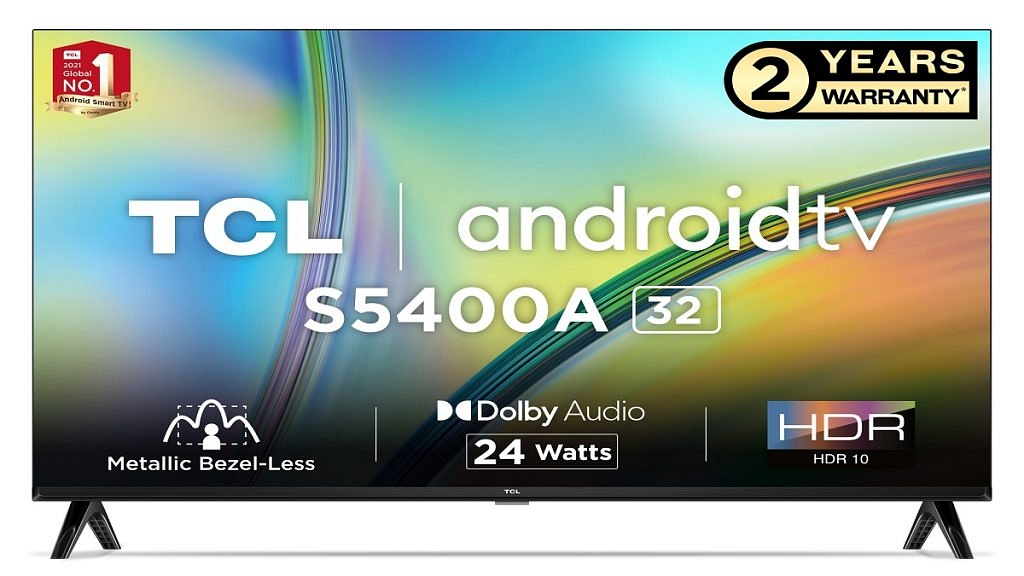
The next-gen Google TV and Android 11 TV also boast micro-dimming features. This analyzes TV content in 2,304 separate zones and intelligently adjusts brightness and darkness. The dynamic color enhancement in TV features a 1.07 billion color display. The TVs enable faster streaming with efficient connectivity via 5.0 Bluetooth, Wi-Fi, HDMI x 2, and USB 2.0.

Also Read | Best Smart TVs For Zoom Meetings In 2022

While the Android 11 TV is equipped with a 64-bit quadcore processor, G31MP2 GPU, 8GB storage, and 1GB RAM, the Google TV has 16GB storage, 1.5GB RAM, and a 64-bit Quad Core processor.

Price And Availability

TCL’s S5400 Google TV is available at offline retail and brand stores as well as leading marketplaces including Amazon and Flipkart with price starting at Rs. 15,990.

On the other hand, S5400A and S5403A start at Rs. 13,490 and Rs. 13,990, respectively, with additional cashback. Variant S5400A is available at Amazon and Flipkart as well as Online Brand Store while S5403A is available at offline retail & brand stores across India. Both the models S5400 and S5403A also offer exciting offers with up to 10 percent instant cashback.

Also Read | Smart TV Buying Guide: Best Smart TVs With Voice Control Feature In India In 2022
Categories
Featured Info TV

Blaupunkt Unveils 24-inch 3-in-1 Smart TV In India: Check Price And Specs

Key Highlights

  • Blaupunkt launches 3-in-1 24-inch Smart TV in India
  • The smart TV can operate as a Monitor and offers smart features
  • Blaupunkt 3-in-1 Smart TV can be availed at a special discount of Rs. 6,999 from February 7 till February 12

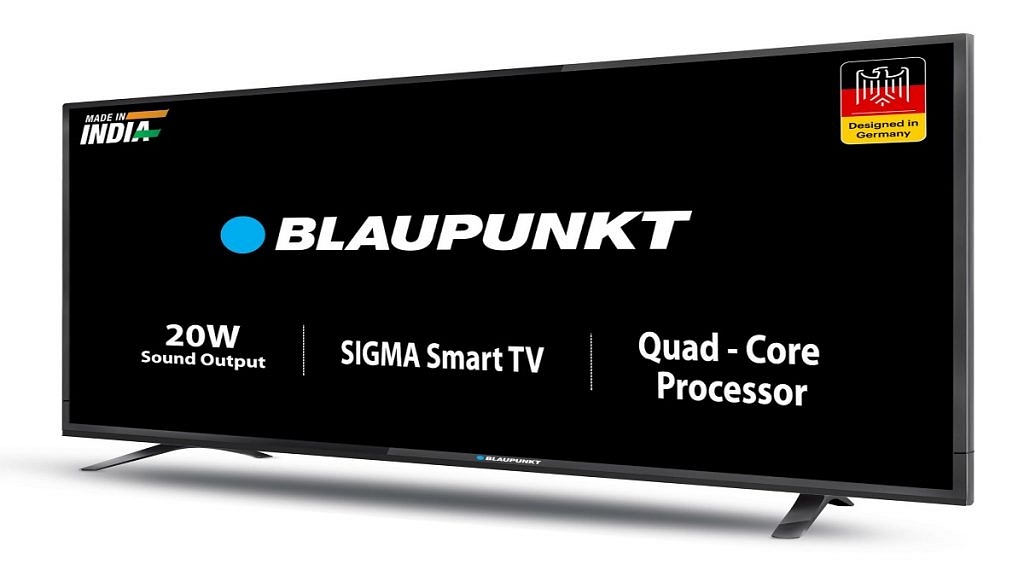
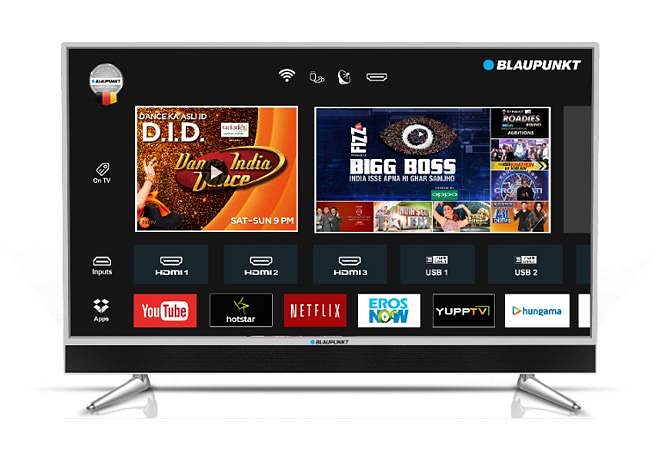
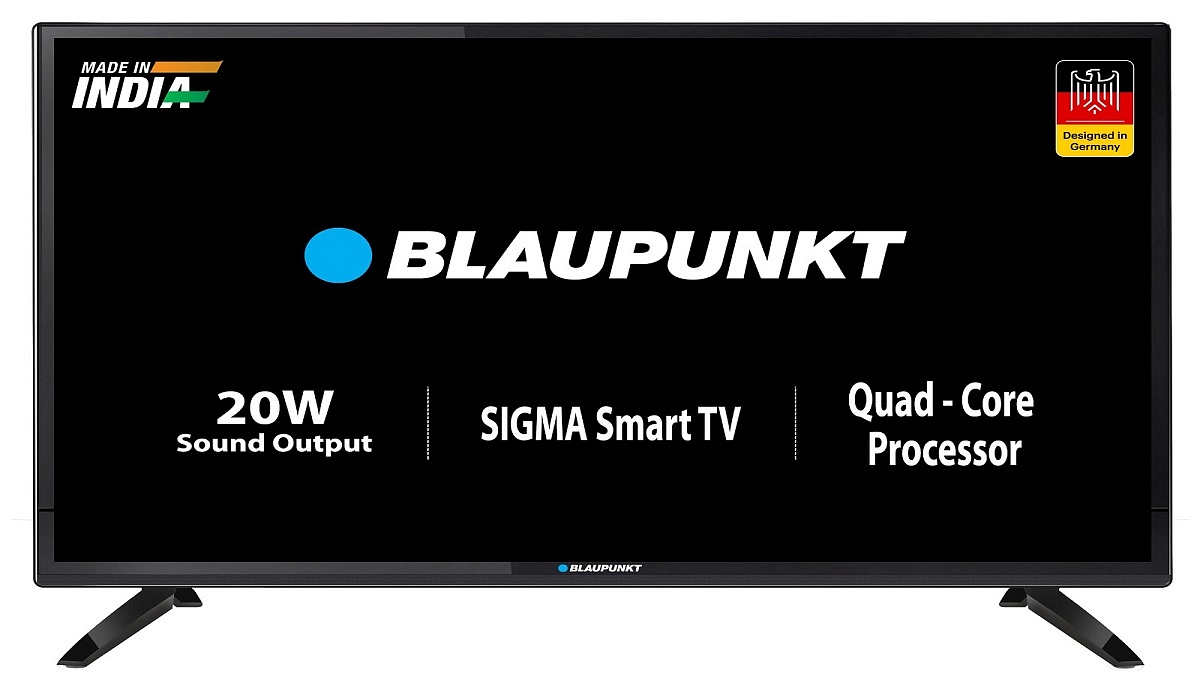
Blaupunkt has just launched a new product for the Indian market. The company’s latest product is the 3-in-1 Sigma Smart TV, which has a 24-inch display and HD resolution.

The new 3-in-1 Smart TV was introduced by the company and is intended to enhance productivity, leisure, and binge-watching of your favorite movies or shows. The brand-new Smart TV, which is a part of its premium line, provides a great watching experience. Additionally, it provides optimized content, high-quality sound, and personalized recommendations. This smart TV has an HD display, bottom-firing speakers that provide 20W of sound, and even supports surround sound technology. Here are all the details. Also Read | Blaupunkt 4K UHD Vs Motorola Revou 2 50-inch Vs VU 50PM 4K TV: Best High-Res Smart TV Available Under Rs. 30,000

Blaupunkt Sigma Smart TV Specifications

The Airslim design on the Sigma 3 in 1 smart TV gives it a classy and streamlined appearance. It features WiFi 2.4GHz compatibility, 512MB of RAM, and 4GB of internal storage. The smart TV is powered by an A35 X 4 processor.

The display has an A+ panel, a digital noise filter, and a maximum brightness of 300 nits. Additionally, the Sigma Smart TV is compatible with PCs, smartphones, and laptops. Apart from this, the TV is compatible with online streaming services like YouTube, Prime Video, and other online streaming services.

Blaupunkt Sigma Smart TV Price And Availability

The Blaupunkt Sigma 24-inch 3-in-1 Smart TV has an official introductory price tag of Rs. 6,999. This special discounted price will be live from February 7 to February 12 on Flipkart. The regular price tag is Rs. 10,999.

Also Read | Blaupunkt Moksha BTW TWS Earbuds Review: Worth Buying For Daily Usage?

Categories
Featured TV

OnePlus Q2 Pro 65-inch QLED Premium Google TV Launched In India: Priced Under One Lakh?

Key Highlights

  • OnePlus Q2 Pro 65-inch QLED TV launched
  • Made In India Product priced at Rs. 99,999
  • Features 65-inch QLED screen with HDR 10 and 120Hz MEMC

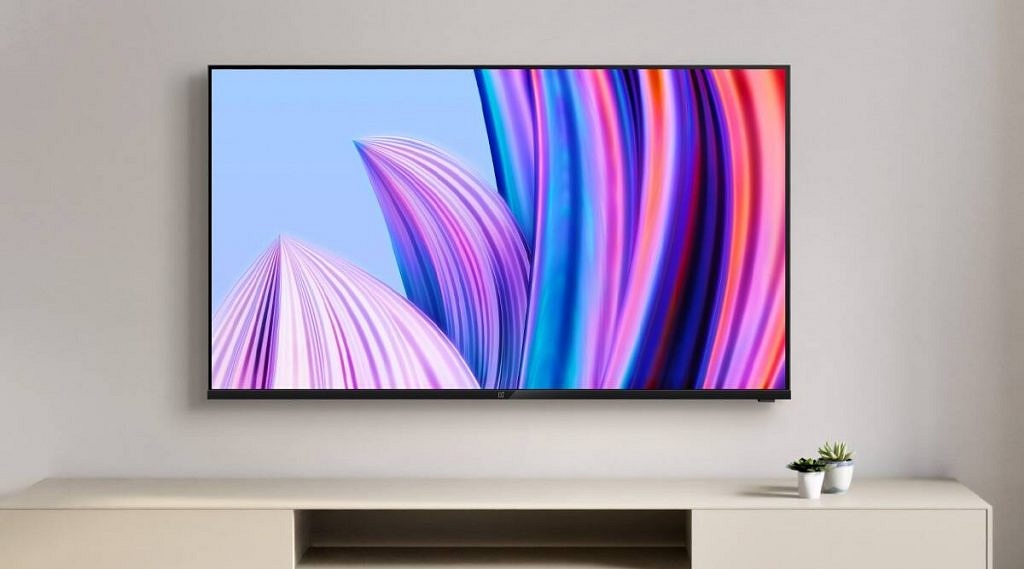
OnePlus has finally refreshed its flagship product lineup for the Indian as well as global markets with the launch of the OnePlus 11 5G series. The vanilla OnePlus 11 and the OnePlus 11R are the latest premium Android phones from the Chinese brand. Additionally, the OnePlus Buds 2 Pro, OnePlus Pad, and the OnePlus TV 65” Q2 Pro. For the first time, OnePlus has launched a 65-inch high-resolution QLED TV which is an India-exclusive product and a successor to the OnePlus Q1 Pro. Below are the features and pricing details of the latest OnePlus Q series flagship TV.

Also Read: Blaupunkt 50-inch Cybersound UHD Android TV Vs Mi TV 5X Vs OnePlus TV Y1 Pro: Specifications Comparison

OnePlus Q2 Pro 65-inch QLED TV Key Specifications

OnePlus Q2 ProSpecifications
Display65-inch QLED, 120HZ MEMC, HDR10
Resolution4K resolution
PlatformGoogle TV
Image ProcessorMediaTek 4K Image processor
Audio70W, 30W subwoofer
HDMIHDMI 2.0
PriceRs. 99,999

The OnePlus Q2 Pro is a Made In India smart TV with flagship display features. This is the company’s first QLED TV with a gigantic 65-inch screen size. The premium QLED display on the OnePlus Q2 Pro smart TV supports 4K resolution and a 97 percent DCI-P3 color gamut which is an upgrade over the Q1 Pro.

This is said to offer better color accuracy and brightness levels (1200 nits) allowing for a rich viewing experience. Furthermore, the high-res display of the OnePlus Q2 Pro supports a 120Hz MEMC and has Dolby Vision, HDR 10 support as well.

Also Read: OnePlus Factory Reset: How To Use Recovery Mode In OnePlus Phones To Wipe All Data

The OnePlus Q2 Pro 65-inch QLED TV is based on Google TV platform and has Android 11 firmware which is tuned by OxygenPlay 2.0. There is a dedicated MediaTek 4K image processor combined with 3GB memory. This new premium OnePlus TV will offer up to 270 live channels.  

The Q2 Pro QLED TV has 32GB flash storage and an integrated horizontal soundbar. The audio system featuring a 2.1 channel stereo churns out 70W output. There is also an additional 30W subwoofer integrated at the back panel. The audio setup on the OnePlus Q2 Pro QLED TV has Dolby Atmos support and Dynaudio tuning. It has HDMI 2.0 and Digital voice assistant support.

Also Read: OnePlus Call Being Recorded Notification: How To Stop Call Is Now Recording Message On OnePlus 10T, 10 Pro, OnePlus 9, 8 Series

OnePlus Q2 Pro 65-inch QLED Smart TVPrice In India

The OnePlus Q2 Pro 65-inch QLED smart TV is launched in India at Rs. 99,999. This latest high-end OnePlus QLED TV is going up for pre-orders starting March 6 in India and will be available for sale starting March 10.

Also Read: How To Disable the ‘This Call Is Now Being Recorded’ Warning On OnePlus

Categories
Featured How To TV

Want To Ditch Your TV Remote? Here’s How To Setup Google Assistant On Smart TVs For Voice Controls

The TV industry has seen major developments with the improving technologies. From big boxy frames to sleek large-screen designs, the TV viewing experience is all elevated in modern times. We don’t have to rely on cable TV operators to watch our favorite shows or movies. OTT apps support and USB playback is now possible with the new-generation smart TVs. Android smart TVs are the latest hype for offering endless possibilities with video playback. In fact, if you have the latest Android smart TV, you get the option to use the internet for online video streaming and also Bluetooth connectivity for pairing wireless accessories including audio devices and RF remotes.

But that’s not all, operating smart TV without using your hands is also now a feature that you can make use of. Yes, you read that right. You can use voice commands for different controls and tasks on your Android smart TV. Brands such as Samsung, Xiaomi, Realme, and TCL have several such TV models that are integrated with digital voice assistant support.

Most of the smart TV models which offer Google voice or digital assistant support have the feature enabled by default. But in some models, it needs to be activated manually. The process to activate Google Assistant on any smart TV is mentioned below:

Also Read: Want To Install Jio TV On Your Smartphone? Here’s The Step-By-Step Guide

Steps To Setup Google Assistant On SmartTV For Voice Controls

With the Google Assistant feature, users can launch any app, adjust the volume or complete any other supported task with just voice commands. You can also select the preferred language including English, French, German, Indonesian, Italian, Japanese, Korean, Portuguese, and more.

Step 1: Power on your smart TV

Step 2: From the TV remote, hit the Google Assistant key

Step 3: If the dedicated voice assistant hotkey is absent on the remote, you will see the microphone icon on the screen. Click on it

Step 4: You will see a bunch of on-screen instructions. Complete the steps.

Step 5: Once the setup is finished. Hit Ok.

You can now start using the digital voice assistant on your smart TV for completing tasks without using your hands. As mentioned above, a wide range of operations can be performed using just voice commands.

Also Read: Want To Reset Your Dish TV HD Set Top Box? Here’s How To Do It

Categories
Comparison Featured TV

Blaupunkt 4K UHD Vs Motorola Revou 2 50-inch Vs VU 50PM 4K TV: Best High-Res Smart TV Available Under Rs. 30,000

Smart TVs have become very popular since they are perfect for your entertainment demands, however many customers are searching for smart TVs within a certain price range. Finding the greatest TV for under Rs. 30,000 can be difficult. Even so, we’ve put together a comparison of the finest TVs under Rs.30,000 that are widely regarded as having amazing features like Ultra-HD 4K resolution, a superb refresh rate, and other things.

Furthermore, these TVs come loaded with entertainment apps like Amazon Prime, Netflix, and Hotstar. Consequently, if you’re searching for a smart TV for around Rs. 30,000, have a quick look at these popular options.

Also Read: Blaupunkt TV Launches Three Affordable QLED TVs On Flipkart Ahead Of Big Billion Days

Model Blaupunkt Motorola Revou 2 VU 50PM
Display55-inch 50-inch50-inch
Resolution3840×21603840×21603840×2160
RAM1GB2GB2GB
OSAndroidAndroidAndroid
price29,19927,99929,440

Design And Display

The Blaupunkt 55-inch TV features an LED display, a 60Hz refresh rate, and a 3840 x 2160 Ultra HD (4K) resolution. It has a 280-nit maximum brightness rating. The TV supports popular HDR specs like HDR10/10+ and HLG with 10-bit color depth.

The Motorola Revou 2 has a 50-inch Ultra-HD (3840 x 2160 pixel) LED-backlit screen and supports Dolby Vision and HDR10+ high dynamic range codecs.

The VU comes with a 50-inch LED screen along with a 4K resolution. It also offers an Ultra HD display and HDR10+, HDR10, and HLG format support for an improved viewing experience.

Also Read: Xiaomi TV 5X Vs Motorola 55 UHD Vs OnePlus TV U Series 55-inch: Best Affordable Smart TV’s Under Rs. 40,000

Operating System And Features

The Blaupunkt 55-inch TV is powered by a Mediatek SoC with four Cortex-A53 cores running at 1.5GHz each and a Mali-G52 GPU. You get 1GB RAM and 8GB of internal storage, with some of the latter being used by the Android TV 10 OS and pre-installed apps.

Consequently, there’s a little bit more than 4GB of extra space for additional uses, like installing new programs. Like all approved Android TVs, it has Chromecast built-in, enabling you to cast content from compatible apps on your phone or tablet to the TV.

The Motorola Revou 2 features a Quad-core processor, along with Mali G522 graphic processor. Users can download any of the more than 5,000 available apps from the Google Play Store for Android TV, and all well-known apps are supported.

The VU 50PM is powered by the Android TV 9 operating system. The VU TV’s Game Mode enables you to activate the distinctive ALLM function for an immersive gaming experience with low latency by connecting your gaming console to the VU TV via HDMI.

Also Read: Redmi 43-in 4K UHD Vs Oneplus TV 43-in 4K UHD Budget Smart TV Comparison: Best TV For Your Living Room

Audio And connectivity

The output of the Blaupunkt 55-inch TV Sound system is 60Watts RMS and supports the Dolby Digital and DTS:X standards. You may stream music wirelessly from your phone through the TV speakers or through Bluetooth earphones or speakers thanks to the two-way Bluetooth on this TV.

This feature is quite helpful, and the TV’s speakers are quite good. The wireless remote control makes use of both IR and Bluetooth. The power button is the only control that doesn’t require Bluetooth after that. The specified button will activate Google Assistant, allowing you to make voice requests.

The Motorola Revou 2 two speakers feature a 40W rated sound output and support Dolby Atmos and DTS-HD. Dual-band Wi-Fi ac and Bluetooth 5 are available for communication, and one of the HDMI connections supports HDMI ARC.

The VU PM offers dual-band Wi-Fi with Bluetooth 5.0, 3x HDMI 2.1 (1x eARC), 2x USB 2.0, and ethernet connections. Both Alexa and Chromecast are supported.

Also Read: Blaupunkt 50-inch Cybersound UHD Android TV Vs Mi TV 5X Vs OnePlus TV Y1 Pro: Specifications Comparison

Categories
Featured How To TV

Want To Install Jio TV On Your Smartphone? Here’s The Step-By-Step Guide

Key Specifications

  • The Jio network comes with the company’s suite of apps
  • There is no official app to play Jio TV on a PC or desktop
  • You can install the Jio TV application on your smartphone and watch all the Live TV channels for free

On JioTV, customers can watch their preferred TV series and movies on their smartphones, laptops, and Smart TVs. It is one of the best entertainment platforms. The app is an online streaming platform where you can watch free live cricket events as well as your favorite movies and TV shows, particularly Indian daily dramas.

The JioTV app is available for free on Android and iOS devices. However, a Jio SIM is required to use the app. We have also covered how to use the app without a Jio SIM in case you don’t have one. Also Read | JioTV App On Laptop: Here’s How To Install And Use

Steps To Install Jio TV On Android Smartphone

Step 1: Download the Jio TV app from the Google Play store.

Step 2: Open My Jio TV and sign in with your Jio number to finish the signup procedure. An OTP verification will follow.

Step 3: You can now choose a language and grant access to the media and storage on your phone.

Step 4: After then, you can use your smartphone to watch every live concert for free.

Note: To use Jio TV, you either need a Jio SIM or the login information for an existing Jio TV account.

How To Use Jio TV Without Jio Sim?

Step 1: Install the JioTV app on your Android or iOS smartphone from the respective app stores.

Step 2: Now open the app and select the Jio ID option instead of Jio Number and here enter your Jio ID and password. These details can be fetched from Jio’s website in case you previously had access to the Jio SIM card.

Step 3: If not, you might ask your pals who own Jio SIMs for credentials. You can access these credentials by logging into your Jio account on the MyJio app or the website.

Jio TV cannot be accessed on any Windows or macOS desktop or laptop, though. There isn’t yet a specific app for these devices; one is being developed.

Also Read | Airtel Digital TV: How To Add Or Remove Airtel DTH Channels

Categories
Featured Leaks TV

OnePlus Q2 Pro QLED TV Leaked Specs Hints Premium Model: India Launch Soon?

Key Highlights

  • OnePlus is expected to launch the OnePlus TV Q2 Pro QLED in India soon
  • The OnePlus Q2 Pro QLED Smart TV series has screen options of up to 65-inch
  • The exact launch date of the OnePlus Q2 Pro QLED TV is unknown

OnePlus is preparing to launch the OnePlus 11 in India. At the Cloud 11 launch event in India, the company will also introduce its high-end truly wireless stereo earbuds, the OnePlus Buds Pro 2. On February 7, both gadgets are expected to go on sale.

Additionally, OnePlus is also working on another high-end product. Later this year, the OnePlus Q1 Pro smart TV series, which debuted back in 2019, will finally get a refresh. It is anticipated that the company will soon introduce the OnePlus TV Q2 Pro QLED in India.

The company has not issued any official statements. However, a recent report by 91Mobiles has provided some information regarding the OnePlus smart TV that will soon be released. Let’s look at the OnePlus TV Q2 Pro QLED specifications, release date, and other information that is currently known. Also Read | OnePlus TV Y1s Pro Vs Xiaomi MI TV 4X: Best 43-inch Smart TV Model Under Rs. 30,000 In India

OnePlus Q2 Pro QLED TV Specifications And Price

The OnePlus Q2 Pro QLED TV is reported to have a 65-inch QLED panel with 4K resolution and a high 120Hz refresh rate for smooth animations. Its predecessor had a 55-inch 4K panel with support for Dolby Vision.

According to the report, Google TV would be implemented on top of the OnePlus Q2 Pro’s own proprietary firmware. Additionally, the brand’s own content curation tool OxygenPlay is referenced. The TV reportedly has a Dolby Atmos-tuned 70W speaker. The motorized soundbar that was visible on the OnePlus Q1 Pro’s bottom may or may not come with the new TV. The Smart TV is also said to come with 3GB of RAM and 32GB of storage.

Details regarding the TV’s design and pricing are not available now. It can be assumed that smart TVs will adopt a frameless design and use high-quality materials for the housing. It is said to support various apps such as Netflix, Prime Video, Hotstar, and other OTT platforms.

Also Read | Unable To Cast Screen On OnePlus TV? Quick Fix Guide To Resolve Chromecast/Miracast Issue With OnePlus Smart TVs

Categories
Featured Info TV

TCL Republic Day Sale 2023: Best Deals You Can Get On Smart TVs, LED TVs, And Mini LED TVs

Key Highlights

  • TCL kicks off its Republic Day sale on January 15 and runs through January 31
  • The sale will help you get up to 55 percent off Smart TVs, LED TVs, and Mini LED TVs.
  • TCL also offers instant cashback of up to 10 percent on select TCL products

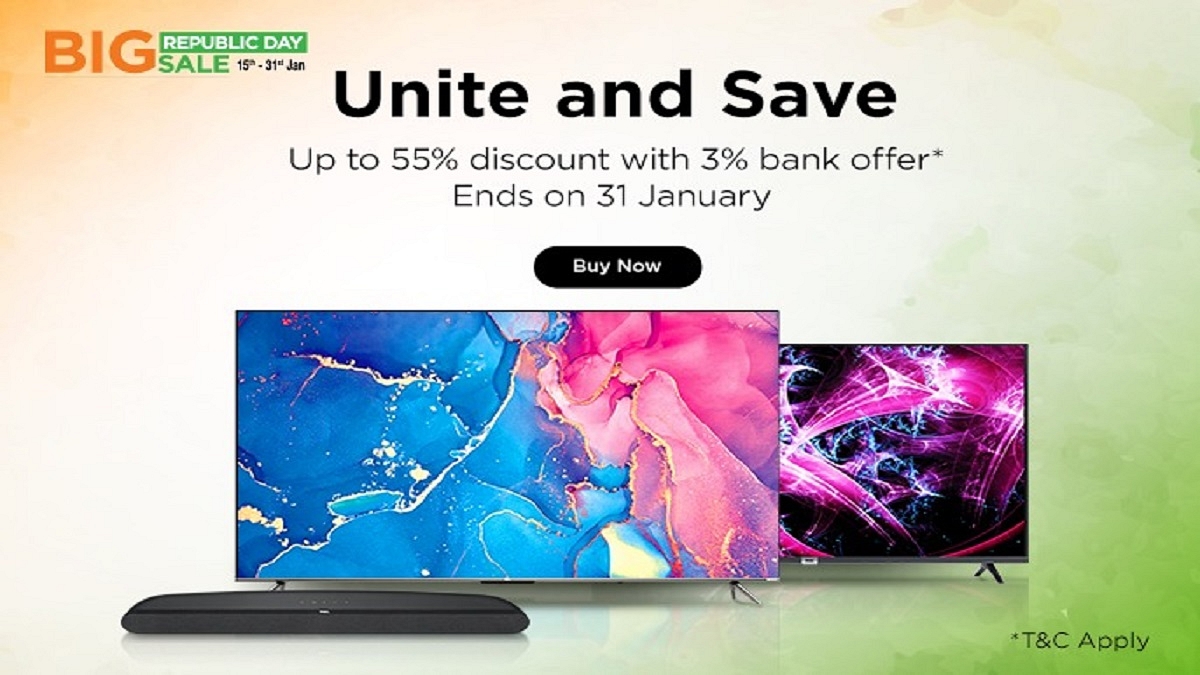
TCL has announced exciting offers and discounts as part of its Republic Day Sale. The sale is live from January 15 to January 31, 2023. On its selection of Smart TVs, LED TVs, and Mini LED TVs, you can get up to 55 percent off.

TCL’s physical and online stores in India offer a wide selection of the latest and most affordable 4K smart TVs. The 15-day sale offer is featured on 4K mini LED TVs, 4K QLED TV, 4K HDR TVs, 2K FHD TVs, and Soundbars. Each device has cutting-edge technological features and comes in great colors.

Also Read | Best Smart TVs In India With 120hz Refresh Rate: Popular Options From LG, Samsung, And More

Apart from this, the company is offering heavy discounts and up to 10 percent instant cashback on selected TCL products via the UPI mode of transaction. Additionally, TCL is offering special deals on a few credit/debit cards during the Republic Day Sale. Credit and debit cards from ICICI, SBI, HDFC, and Axis banks as well as Internet Banking are all eligible for bank offers.

ModelOffer PriceAdditional Cashback
TCL 4K HDR Google TV (43P635)Rs. 27,9905% Cashback
TCL 4K QLED Google TV (43C635)Rs. 34,99010% Cashback
TCL 4K HDR Google TV (55P635)Rs. 36,99010% Cashback
TCL 4K HDR Google TV (65P635)Rs. 49,99010% Cashback

Customers can use their credit cards from Bajaj Finserv, ICICI Bank, Federal Bank, Bank of Baroda, and other financial institutions to make purchases from TCL offline brand and retail stores with zero percent down payment. Additionally, only prepaid orders are eligible for discounts and offers. Customers may take advantage of the deals and discounts at TCL’s online shop, as well as offline brand and retail locations across India on Amazon, Flipkart, Reliance Digital, and Croma.

Also Read | Amazon Great Republic Day Sale India 2023: Best Offers To Grab On Smartwatches

Categories
Featured How To TV

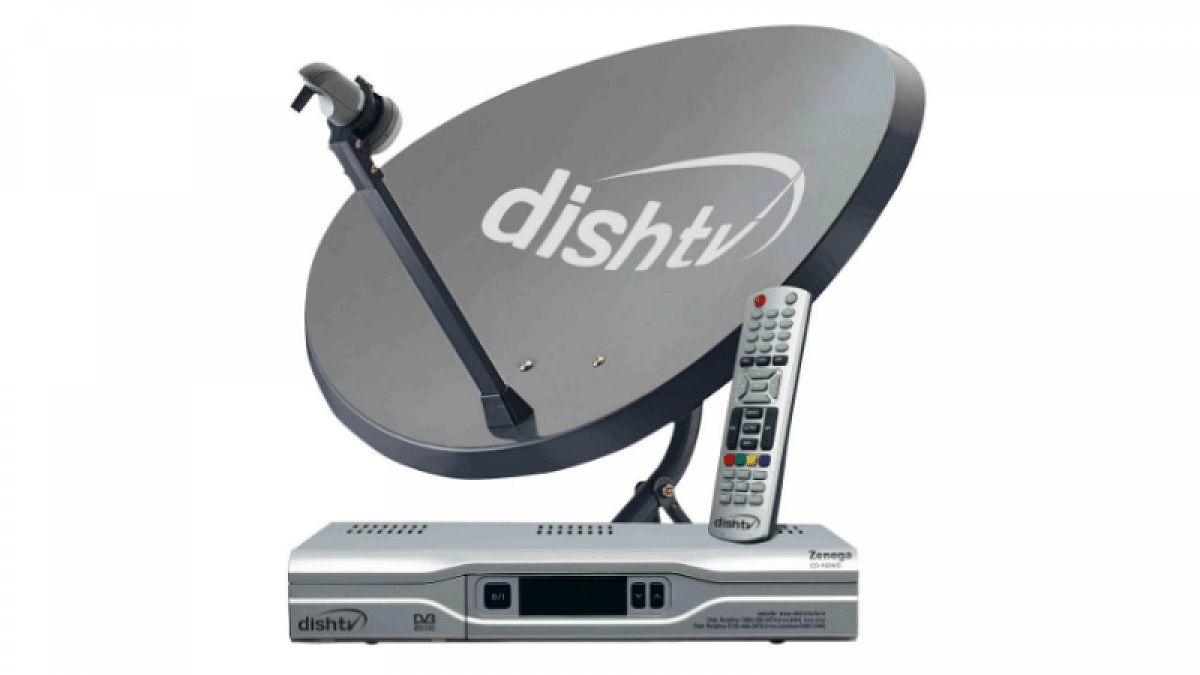
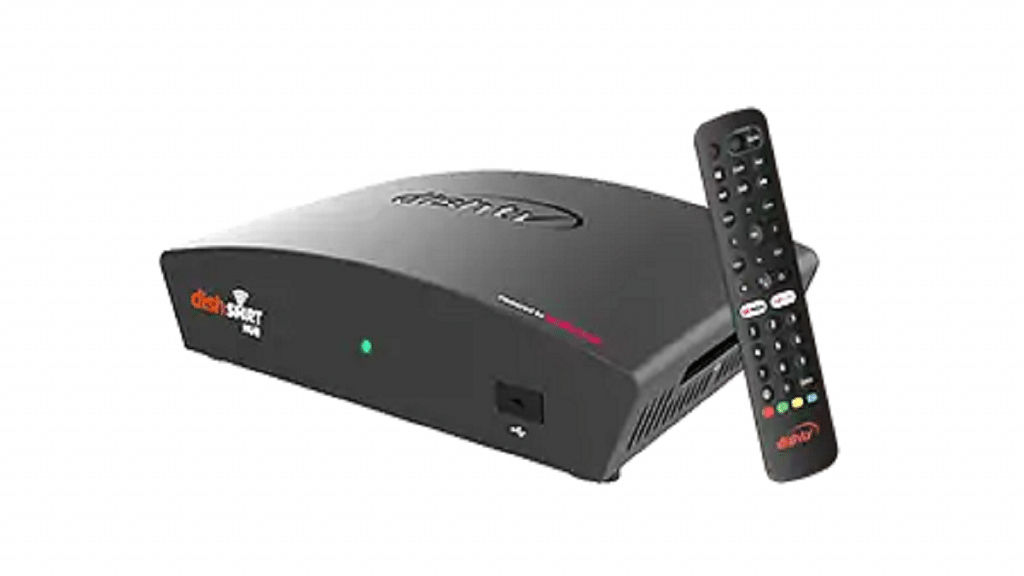
Want To Reset Your Dish TV HD Set Top Box? Here’s How To Do It

Key Highlights

  • Dish TV HD set-top box are still popular amongst Indian consumers
  • Dish TV set-top box can become slow over time
  • Resetting a Dish TV set-top fixes slow speed issues

Do you use a Dish TV connection? If so, there’s a good likelihood that your Dish TV set-top box has slowed down over time to the point that even the most basic remote commands require several seconds to be processed. It takes a while to switch channels, and it always takes forever to load the program guide.

When you are browsing channels, it can be really aggravating since you never know if your remote input was received by the box or if it is simply sitting there happily processing an old command. Let us assure you that there is a solution if you have encountered this problem and have wondered if there is a method to resolve it. All it requires is to clear up the box’s cache and do a reboot to freshen it up.

Also Read | How To Remove Channels From Tata Sky: Tips To Save Extra Bucks

How To Reset Dish TV HD Set-Top Box?

Prerequisite: Verify that your TV and set-top box are both on and that the boot process for your set-top box is complete. Before beginning, you can turn on your set-top box for 10 to 15 minutes.

Step 1: Press and hold down the “Menu” button on the remote control of your set-top box. Hold it there until the TV displays a menu with the title “Installation Main Menu” or something similar.

Step 2: Select “System Setup” from this option and then click “OK.” You’ll reach the “System Setup” menu screen as a result.

Step 3: Select “Erase EPG” from the menu options in the “System Setup” menu screen, then click “OK.” A warning message will be shown on the screen by the system. Click “OK.”

Step 4: As directed by the message, press “OK” or one of the Color buttons on the remote. As soon as you click “OK,” a notice letting you know that the erasing is in progress will appear on the screen.

Step 5: Once complete, the system will immediately return to the “System Setup” menu screen. Choose “Erase flash FS” from the menu options here.

Also Read | How To Get Tata Play Binge App Access At Rs. 59; See All Steps Here

Step 6: The system will need your confirmation once more. To continue, click Confirm.

Step 7: The box will restart automatically after Step 6 is finished. The system will download the program guide and other data from the network, which could take a while for the reboot to finish.

Step 8: Your set-top box is ready to use and faster than before after the update is finished. That’s all.

Also Read | Airtel Digital TV: How To Add Or Remove Airtel DTH Channels

Categories
Apps How To TV

YouTube Video Playback Error On TV: How To Fix Error Code 3, Error Code 5 Issue With YouTube TV App

YouTube has logged itself as the primer entertainment source for smartphone and laptop users. But with the availability of smart TVs, it also is now has taken up the big screen market too with a storm. Most new-age TVs are pre-installed with the YouTube TV app. Users can log-in with the registered e-mail address to access premium content without any ads.

If you own a smart TV that has Wi-Fi network support, you can log-in to the app and stream videos in just a few taps. While streaming videos via YoutTube is a hassle-free experience, a random issue is frequently reported by smart TV users while playing videos on YouTube. The common issue or error code which has been known to disrupt the YouTube streaming experience is Error Code 3 and Error Code 5.

These two YouTube Error codes are seen across smart TVs of all makes and kinds. Thankfully, both Error Code 3 and Error Code 5 on YouTube aren’t hardware related. This definitely saves you a visit to the repair center and also replacement concerns. But what exactly are YouTube Error Code 3 and Error Code 4 and how can you fix them? Read details below:

Also Read: YouTube Account Hacked: What Should You Do? How You Can Protect Your YouTube Account If Hacked?

What Are YouTube Error Code 3 And Error Code 5?

YouTube Error Code 3 and Error Code 5 are playback-related issues with the YouTube TV app. These error codes force stops video playback and also the app. As mentioned above, this isn’t any hardware-related issue and can often be fixed with just a few troubleshooting steps.

The major reasons for this playback error are the unstable internet connection and corrupted cache files of the YouTube TV app. In some cases, disrupted YouTube server services are also known to cause Error Code 3 and Error Code 4 playback errors in the YouTube TV app.

Also Read: Remove Copyright Claim On Your YouTube Video: Here’s How

How To Fix YouTube TV Error Code 3, Error Code 5 Playback Issues?

Step 1: Check the internet connection. Unstable connections bring up this error.

Step 2: Slow internet speeds could also be a reason. Try to check the internet speed on other devices and then re-launch the app (once speeds are good).

Step 3: Check for any pending TV or app updates. If there is any, make sure you update both TV and the app firmware to the latest version. This should fix the issue.

Step 4: If it’s a server side error, you will have to wait until the services are restored.

Step 5: Clear app cache data from the TV settings.

Step 6: Reboot the TV and the issue should be fixed.

Also Read: 100 Best YouTube Channel Names For Travel Vloggers