

Key Highlights
- WhatsApp allows media sharing in the form of images, videos, and audio files
- Editing tool available for media on WhatsApp
- Images can be blurred on WhatsApp mobile and desktop app for privacy
Media sharing is one of the best features offered by WhatsApp where you can send high resolution photos and videos to your friends and contacts on WhatsApp. Privacy has been the critical factor for WhatsApp’s success where the end-to-end encryption keeps all the chats private. Even the media files shared including photos and videos are end-to-end protected which makes it a safer platform for such transfers. But are you aware that WhatsApp allows blurring photos before you send them forward to your friends and contacts. This is an extra protection layer that enhances the privacy of a user while transferring images. And this feature is not just limited to the mobile app but also WhatsApp’s desktop version. This article has the step-by-step guide explaining the procedure to blur background in any image while sharing it on WhatsApp.
Also Read: Top 5 Ways To Verify If Your Instagram Account Is Hacked
Steps To Blur Images Before Sharing It On WhastApp Mobile App (Android and iOS)
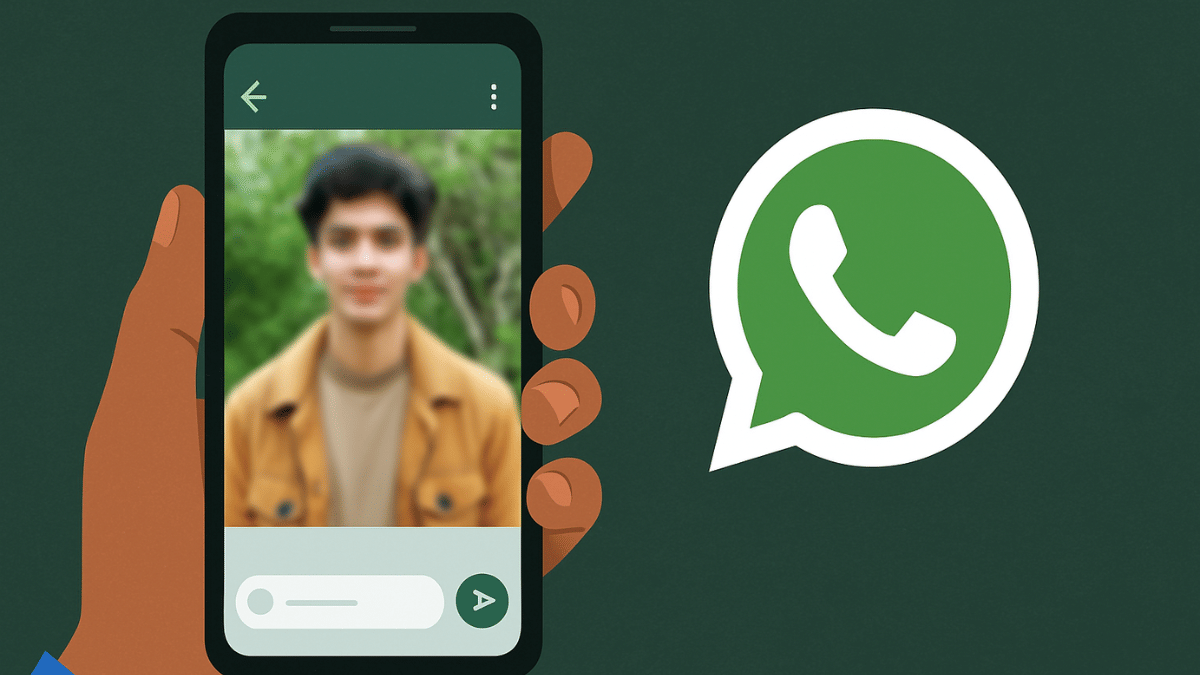
Step 1: Open WhatsApp mobile app (on Android or iOS devices)
Step 2: Click on the Attachment icon (paperclip icon)
Step 3: Tap on “Gallery” if you wish to send photos from device gallery. Or click on Camera if you want to capture a new image.
Step 4: Select the Image that you want to send
Step 5: Locate the Edit icon (Pen icon) at the bottom. Tap on it.
Step 6: Now, a bunch of editing tools will show up at the bottom including markers and the blur tool. Tap on the blurring tool icon.
Step 7: Now, scroll on the part of the image that you want to blurr.
Step 8: Once done, tap on Done.
Also Read: Three Effective Ways To Restore Deleted Games And Apps On Windows 11 Laptops And PC: How To Guide
Steps To Blur Images Before Sharing It On WhastApp Desktop Version (For Laptop And PC)
Step 1: Open WhatsApp desktop version on your browser
Step 2: Go to the chat window where you want to send an image
Step 3: Click on the Attachment icon
Step 4: Open the Gallery
Step 5: Select the image that you want to share. Editing tools will show up before sending the image.
Step 6: Tap on the Blurr image option
Step 7: Adjust the Blurr intensity
Step 8: Adjust the blurr area on the image
Step 9: Once done, tap on Send.
