

Key Highlights
- Digilocker is authorized app for personal ID and document storage
- Is available on Android and iOS platforms
- School and university exams can be checked online
Digilocker is the safest platform to keep all crucial identity documents. Authorised by the government of India, this mobile app allows storing personal IDs (Aadhaar card, driving licence), vehicle documents, etc. Digilocker is also offering services to check and download school and university results. And with the exam result season kickstarting, Digilocker is the safest bet to verify and download results directly from the issuing organisation/ authority. Be it class 10th and 12th CBSE or ICSE or ISC or UPMSP board results, you can easily see your exam results and also download it for future use.
For the tech geeks, stay updated with the latest cutting-edge gadgets in the market, exclusive tech updates, gadget reviews, and more right on your phone’s screen. Join Giznext’s WhatsApp channel and receive the industry-first tech updates.
Also Read: IRCTC Helicopter Reservations Begin For Char Dham Kedarnath Yatra 2025: Ticket Prices, How To Book
How To Check And Download Any Exam Result Using Digilocker Mobile App
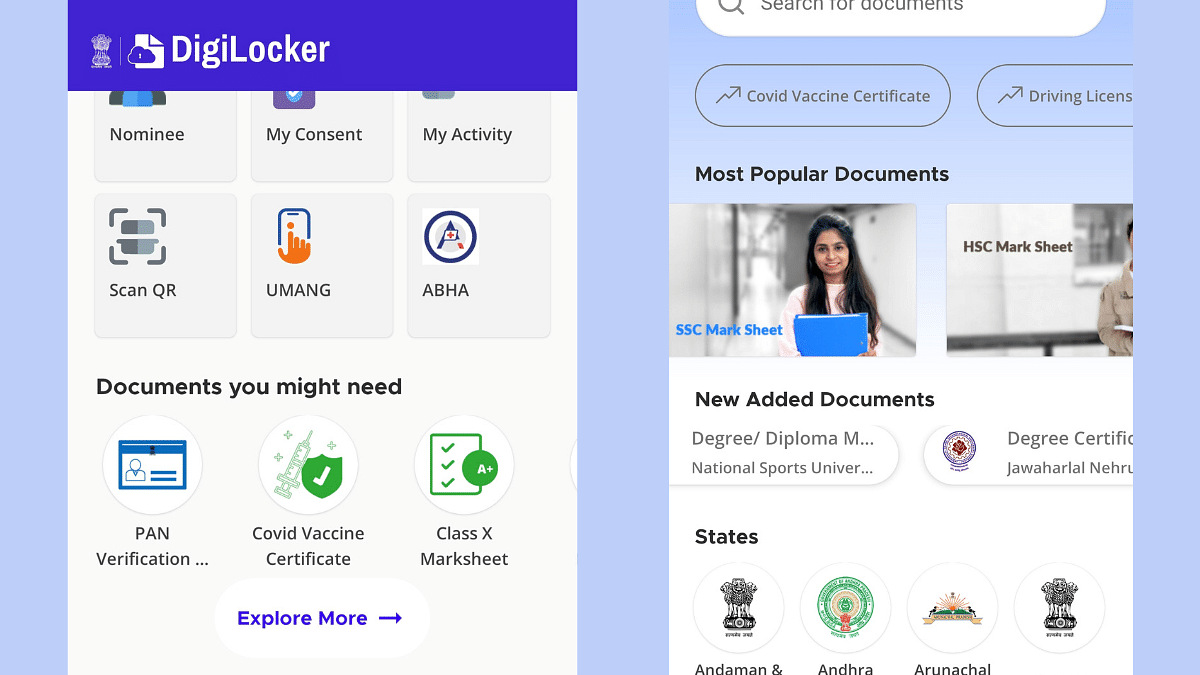
Step 1: Download and install Digilocker app. You can download this app on both Android and iOS platforms.
Step 2: You can also access its desktop version by visiting www.digilocker.gov.in
Step 3: Login using valid credentials or register if you are a first time user.
Step 4: Scroll down on the hompage to the ‘Documents your might need’ section. Look for your ‘Class marksheet’. You will get multiple options for different exam results such as SSC, HSC, Class X, etc.
Step 5: Select the board of examination.
Step 6: Alternatively, tap on search and directly type in CBSE, ICSE, ICS or other board exam result.
Step 7: Enter student’s name, roll number, and year of exam.
Step 8: Tap on Get Document option
Step 9: The exam result with authorised signature will be issued which you can download as a PDF on your device.
Step 10: Get the print of the result if required
