
Key Highlights
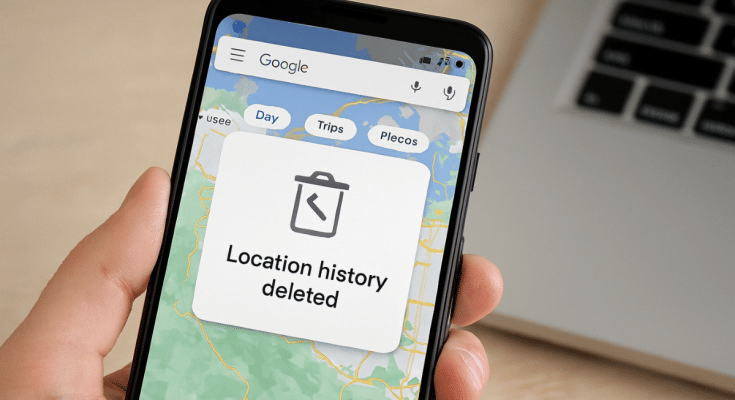
- Google accidentally deleted Maps timeline data
- Users impacted globally
- Timeline data can be restored
- Works only if backup is enabled
Google has been proactively improving navigational features and services offered by Maps. The search giant has also incorporated AI to optimize Maps’ overall performance and to stay in line with the modern technologies. However, multiple users recently flooded the internet citing lost timeline data on Google Maps. Addressing this concern of the Maps users globally, Google recently confirmed the Maps Timeline data got deleted due to technical snag at its end. The brand also has reached out to the affected users guiding them with the methods to restore deleted Maps timeline data. But there’s a catch. Read below to know the steps with which you can restore your deleted Google Maps timeline data on your smartphones.
Also Read: Android Auto Customization: How To Change Wallpaper With And Without Smartphone
Steps To Restore Deleted Google Maps Timeline History
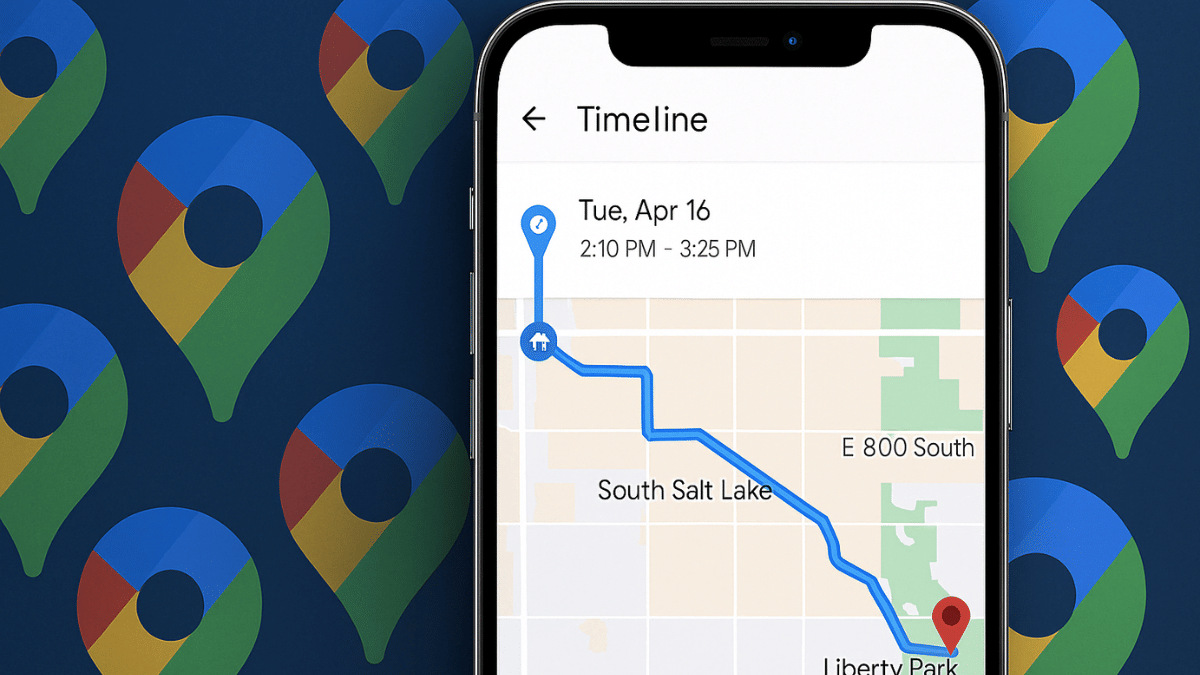
Google Maps timeline is one of those crucial data that can help you keep a log of your travel details. This feature tracks the locations that you have visited on a particular day or time. Last month, multiple users took it to social media platform and online forums revealing how they are unable to access their Maps timeline.
Google in a response admitted that a technical issue led to timeline data loss affecting multiple users globally. All the users impacted with this technical glitch have been notified from Google regarding the same via emails. While restoring data is an option, it comes with a catch. If you have the backup enabled only then you will be able to restore the timeline data otherwise there is no other way to get it back.
Step 1: Open Google Maps application
Step 2: Tap on the Profile picture icon (on the top left)
Step 3: Navigate to “Your Timeline” option and tap on it
Step 4: Now, locate the cloud icon on the top. Click on it.
Step 5: Select the backup type for data import
Step 6: Wait for the timeline data to be restored.
It is worth adding that Google Maps needs to be updated to the latest version before you try to restore the deleted Maps timeline. You can check for any pending updates manually visiting the PlayStore.
