
Key Highlights
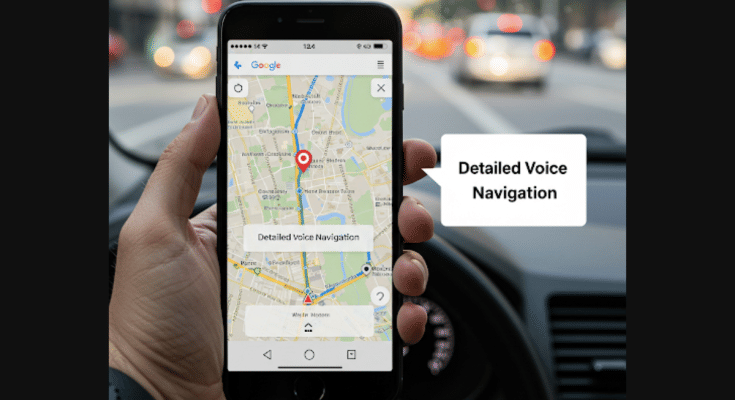
- Google Maps offers a Detailed Voice navigation feature
- Option helps with easy navigation via turn-by-turn voice guidance
- App-compatible feature accessible on both Android and iOS platforms
Google Maps is certainly the most advanced navigation tool for modern users with an access to smartphone or even laptop/PC. From showing shortest routes to unknown destinations, Maps over the year has received multiple upgrades making it more easy to get navigation guidance. Google has been refining Maps to keep users least distracted while driving. Of course, it gets difficult to take a glance at the screen while navigating through high traffic.
If you have also come across similar issues using Google Maps while driving to a new destination, then we are saving up the hassle for you. In this article, we’ll be explaining the “Detailed Voice Navigation” feature in Google Maps which you can use for a distraction-free navigation guide. The steps are mentioned below:
For the tech geeks, stay updated with the latest cutting-edge gadgets in the market, exclusive tech updates, gadget reviews, and more right on your phone’s screen. Join Giznext’s WhatsApp channel and receive the industry-first tech updates.
Also Read: ChatGPT Maps Feature: Here’s How To Explore Local Spots Easily
Google Maps Detailed Voice Navigation: Functionality
Google Maps has a dedicated feature that helps the users with turn-by-turn direction instructions via voice. This features gives voice guides to keep the user notified of the turns, street names, distance remaining for the destination (ETA), and emergency alerts and notifications such as lane change, traffic congestions, stalled vehicle alert, etc.
Also Read: Google Maps Hidden Tricks: How To Measure Elevation Of Any Location Using Google Maps
Steps To Use Google Maps Detailed Voice Feature On Android Smartphones
Step 1: Unlock your Android smartphone and open Maps application
Step 2: Click on the Profile icon located on the top right
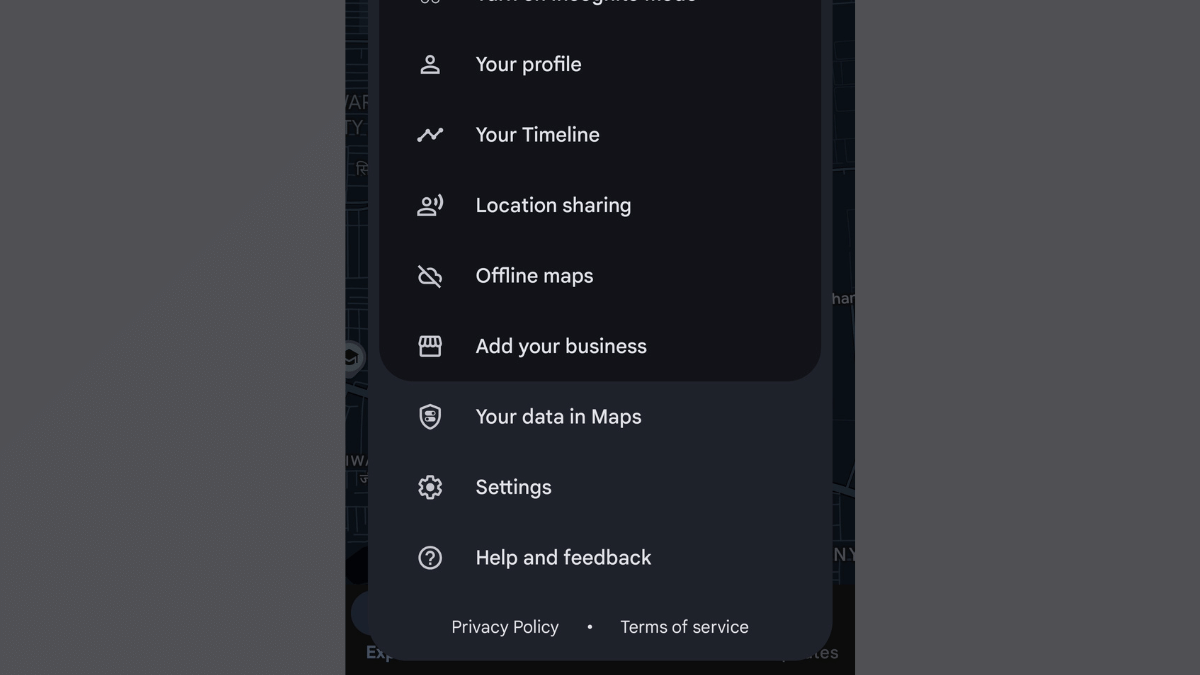
Step 3: Click on Settings menu
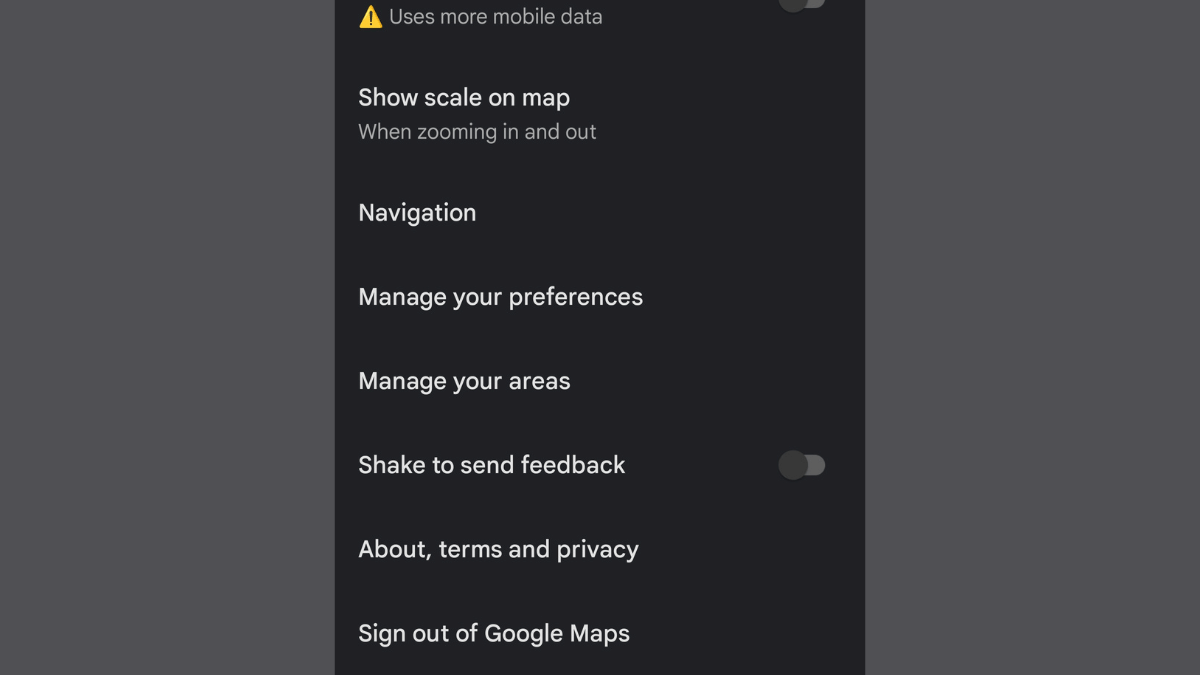
Step 4: Scroll down and locate the Navigation menu. Tap on it.
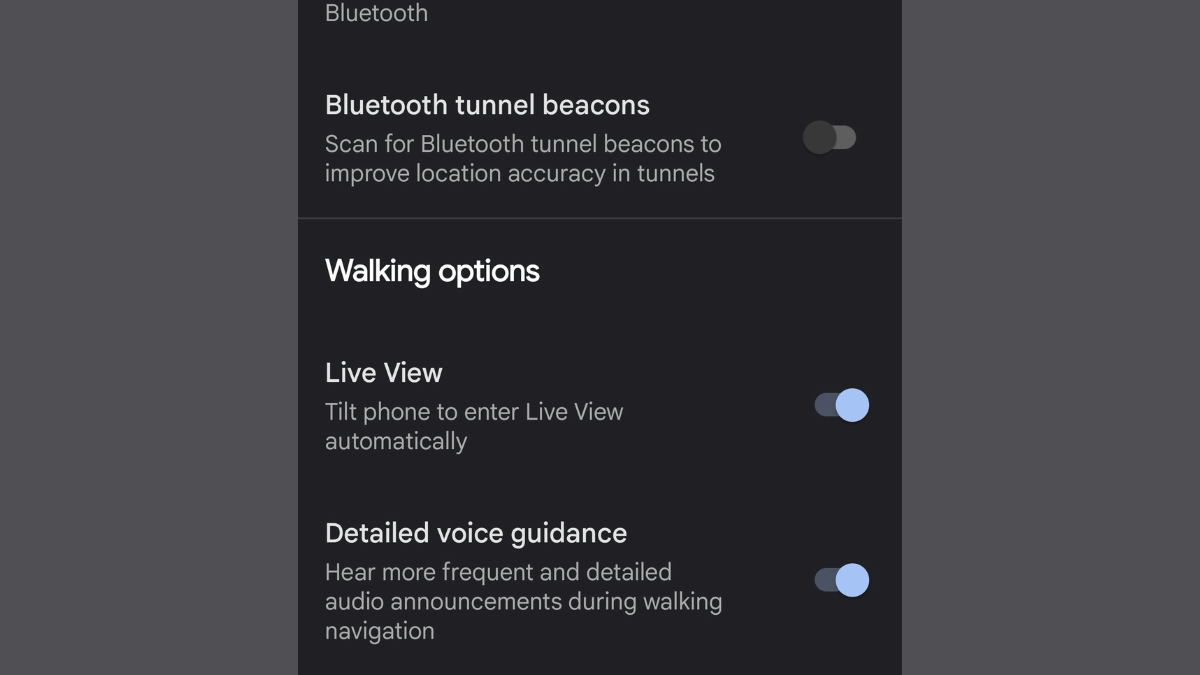
Step 5: Scroll down again to locate the ‘Detailed Voice Navigation’ option. Toggle it on.
Also Read: Can’t Find Parking? Google Maps’ New Feature Comes To The Rescue
Steps To Use Google Maps Detailed Voice Feature On Android Smartphones
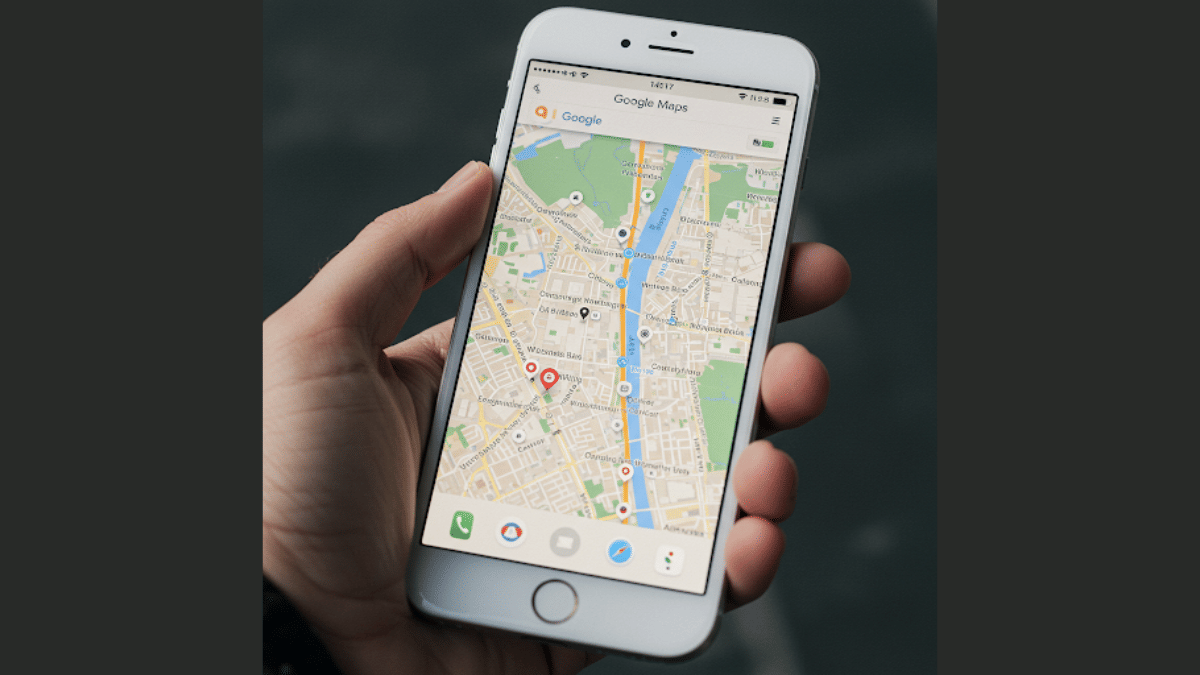
The steps are same to enable the Detailed Voice Feature on iPhones as the Android. You just need to visit to the Settings menu and enable this voice navigation feature.
Step 1: Unlock your Apple iPhone and launch the Google Maps application
Step 2: Head to the Settings menu and scroll to the Navigation tab
Step 3: Locate the Detailed Voice navigation feature and enable it
Once you have activated the ‘Detailed Voice Navigation’ feature on your respective Android and iOS devices, you’ll listen frequent and detailed navigation guides, alerts, and more.
