
Key Highlights
- Pairing PC with smartphones can be done via USB cable and wirelessly
- Wireless pairing requires both smartphone and laptop on the same Wi-Fi network
- Helps with productivity boost
Smartphones have emerged as the most powerful handheld gadgets. Option to call, text, web browse, gaming, and photography all at once is what makes smartphones more of a necessity these days. These handheld gadgets have also helped us to carry on with the tasks that earlier required a full size PC or a laptop. Still, you can pair an Android smartphone to a Windows 11 PC if you wish to boost your productivity. Pairing Windows and Android device is not just restricted to USB wired connections anymore. A simplified process is now available using which you can connect your Windows machine and smartphone in case of a missing USB cable. Interested in knowing the steps. Read on to find out:
Also Read: Hate Standing In Long Queues: Here’s How To Book Indian Railways Platform Ticket Online
What Is Required?
- If you want to transfer documents or media files from your smartphone to Windows 11 PC or vice versa, you can use the standard USB cable connection method.
- There is a wireless option available for same that can be accessed using the Phone Link application on Windows 11 OS
Also Read: Worried About Heat And Water Damage? Here’s How To Protect Your Gadgets
Steps To Link Android Smartphone And Windows 11 Laptop Or PC
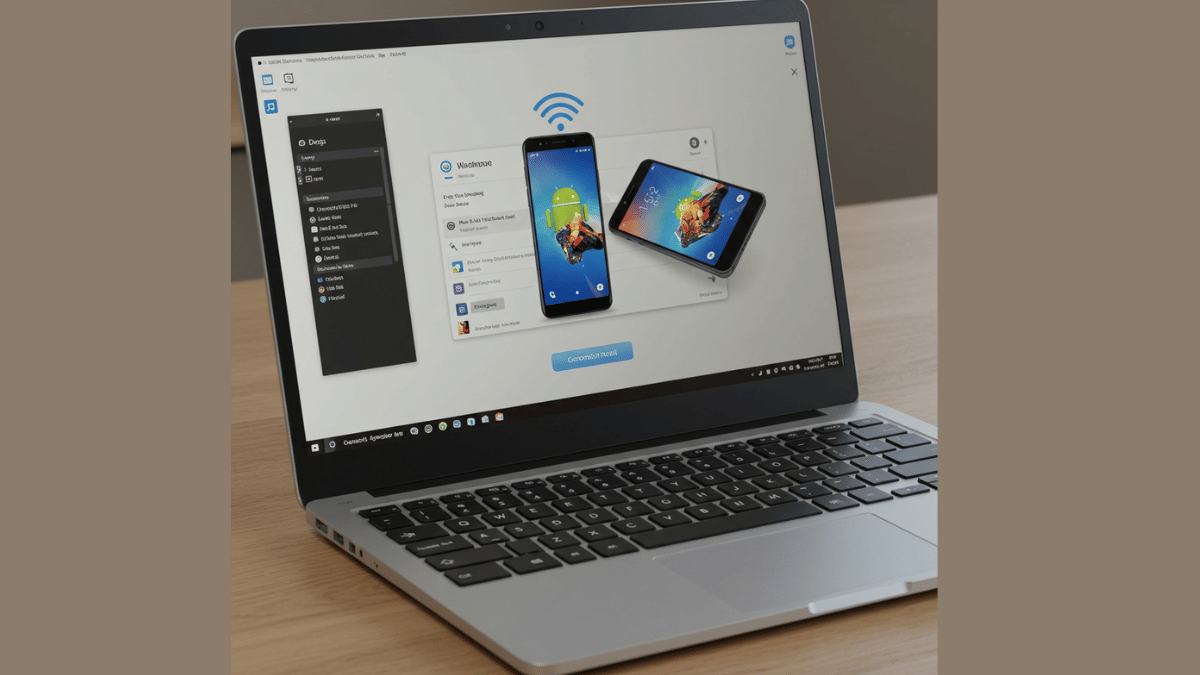
Step 1: Power on your Windows 11 PC or laptop and connect it to the same Wi-Fi network as your smartphone. (Note, only Android 7 or above devices can be paired with this method).
Step 2: On your Windows 11 laptop/ PC go to the taskbar and type “Phone Link”. Once the application pops up on the window, open it.
Step 3: Select the device type as “Android”
Step 4: Click on the Send notification option. This process will enable the sign-in process for Microsoft account.
Step 5: You will receive a verification prompt on your Android smartphone. Approve it to move to the next step.
Step 6: On your Windows 11 PC/ laptop, you’ll receive a new two digit code. You need to select these two digits on your Android smartphone for further approval.
Step 7: A QR will also be displayed on the Windows 11 device. Scan it using the QR code scanner on your Android phone.
Step 8: A new prompt stating “Link to Windows” will show up followed by another set of code that will be displayed on the laptop/ PC’s screen.
Step 9: Now, allow permission requests from the “Link To Windows” app and set the access permissions as required.
Step 10: Tap “Done” on the paired Android smartphone.
Step 11: Start accessing on your paired devices after clicking the “Continue” option.
