
Key Highlights
- WhatsApp requires an active internet connection for message sending messages and media
- It can also be used without internet
- This method required workaround via linked devices feature
WhatsApp is the modern day messaging app on which we rely for daily texting and media transfers. The instant messaging mobile app has definitely simplified our lives and remain the top preferred choice for all personal and professional conversations. But to use all WhatsApp services a smartphone with working internet is must. Or not? Ever imagined using WhatsApp without both internet and your smartphone? That too, without compromising on privacy and security aspects keeping your chats all private? What if we tell you there’s a workaround where you can use WhatsApp without your smartphone and internet. Fone out more below:
For the tech geeks, stay updated with the latest cutting-edge gadgets in the market, exclusive tech updates, gadget reviews, and more right on your phone’s screen. Join Giznext’s WhatsApp channel and receive the industry-first tech updates.
Also Read: Call Merge Scam Alert: Here’s How To Stay Safe From OTP Fraud
Is It Possible To Use WhatsApp Without Internet Or Your Smartphone?
While there is no direct option to use WhatsApp without internet on your smartphone, there are a bunch of few features that can help you with all your conversations. There is the Schedule messages feature that comes handy when you know you won’t be able to access internet for WhatsApp and yet need your messages to be delivered on time.
But if in case your smartphone battery is drained and it can get switched off any moment, then the Linked Devices feature is what comes to the rescue. You can continue with your chats on a separate smartphone/ laptop, or PC via this WhatsApp feature. This paired device functions independently from the primary device while providing all levels of safety.
Also Read: Forgot Your ATM Card? Don’t Worry! Here’s How To Withdraw Cash From ATM Using Smartphone
How to Use WhatsApp Without Internet on Android, iOS
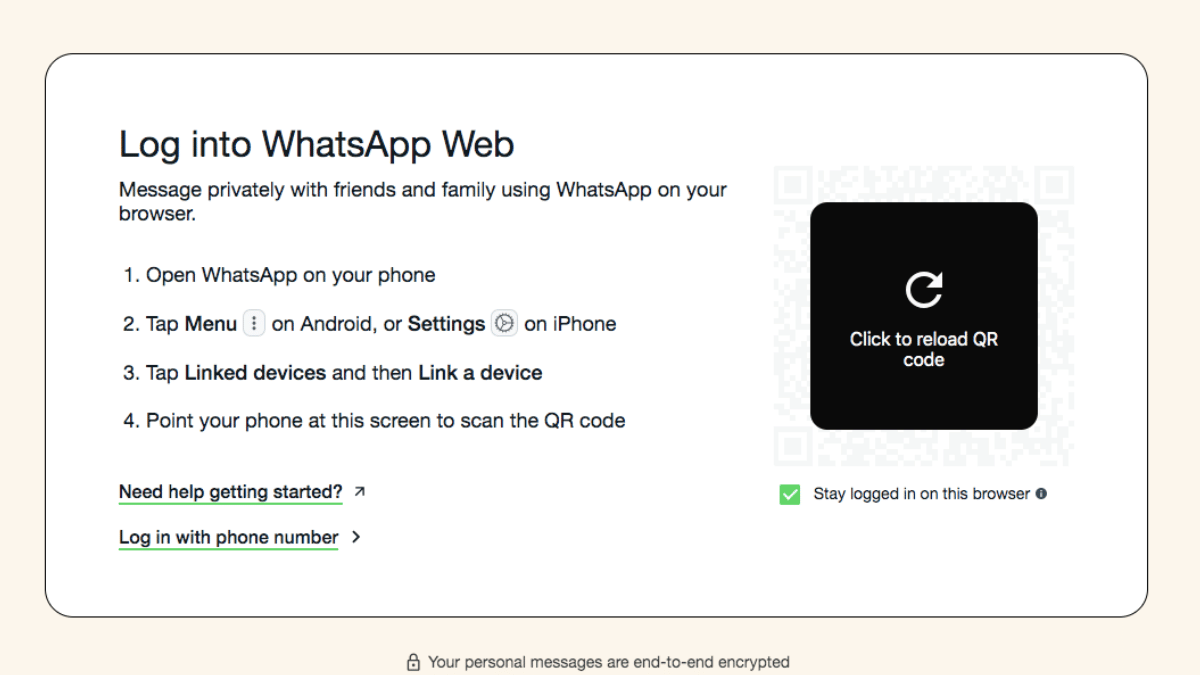
Step 1: Open WhatsApp Mobile App On Primary Phone
- On your Android or iOS smartphone, launch WhatsApp app
Step 2: Tap the More Option Placed On The Top Right (Three Dots)
- On Android devices select the “Linked Devices” option .
- On iPhones navigate to Settings and select Linked Devices.
Step 3: Link a Secondary Device (Laptop/ PC)
- Tap on the “Link a Device” option.
- On your laptop or PC launch Chrome or any web browser
- Open web.whatsapp.com
- You can also install the WhatsApp Desktop App.
Step 4: Scan the QR Code Shown On The Screen
- Open the QR scanner on your primary device
- Scan the code shown on the laptop/ PC
- Wait for the connection to be established
What All Can Be Done With Linked Devices On WhatsApp
All the standard messaging and media feature available for mobile app can be done via the Linked devices.
| WhatsApp Feature | Availability |
| Send Messages | Yes |
| Receive Messages | Yes |
| Media sharing | Yes |
| Voice calls | Yes (on supported systems) |
| Video Calls | Supported systems with web cam |
