
Key Highlights
- Apple allows iPhone and iPad syncing for seamless user experience
- Synced devices gets calls/ messages together
- Safari can also be synced on iPhones and iPads simultaneously
- Photos, contacts, calendar, and notes are also synced
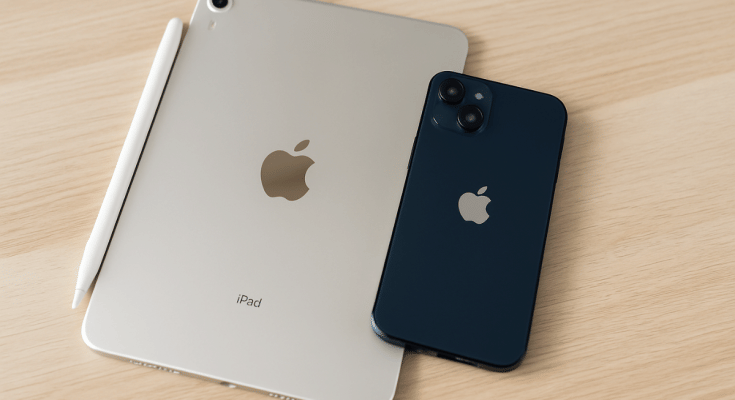
Apple has one of the strongest ecosystems where the Cupertino giant offers a seamless user experience across iPhones, iPads, and MacBooks. Staying connected simultaneously on multiple Apple devices with same Apple ID helps with the same. If you own both an iPhone and a iPad, you can sync both these gadgets together to sync calls, messages, browsing tabs on Safari, notes, contacts, and much more. In this guide, we are sharing the steps with which you can sync your iPad with iPhone.
For the tech geeks, stay updated with the latest cutting-edge gadgets in the market, exclusive tech updates, gadget reviews, and more right on your phone’s screen. Join Giznext’s WhatsApp channel and receive the industry-first tech update.
Also Read: Enhance WhatsApp Privacy: How To Blur Images On WhatsApp Mobile, Desktop App
How To Sync Apps And Data iPhone With iPads With iCloud?

Step 1: On both your iPad and iPone, log in with the same Apple ID.
- Follow these steps to log in to the Apple ID on both devices
- Open Settings menu on both the iPhone and the iPad
- Enter Apple ID’s username and password
- Login on both devices
Step 2: Open Settings menu again on both iPhone and iPad
Step 3: Tap on your profile
Step 4: Enable iCloud Sync
Step 5: Toggle on iCloud Drive option to sync all documents and app data across your iPhone and iPad
Step 6: Enable iCloud Keychain (this will synch password and credentials on both devices)
Also Read: How To Use Telegram Without Internet? Top 5 Working Tricks In 2025
How To Sync Apps And Data On iPad and iPhone Without iCloud?
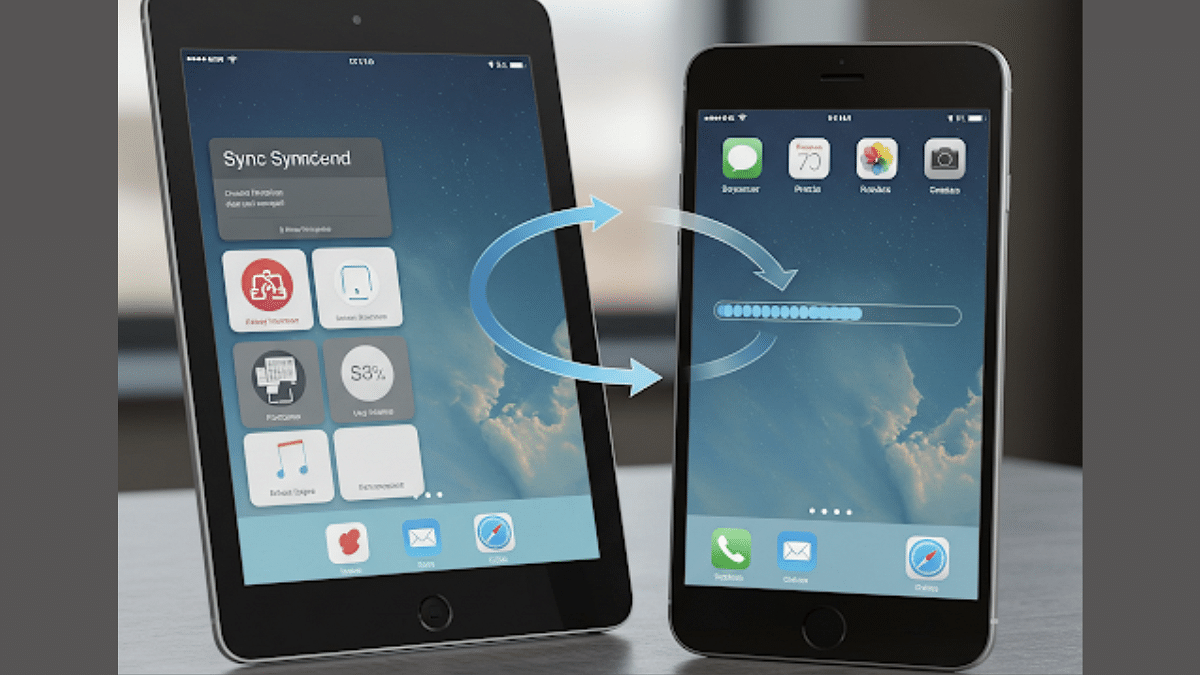
If you don’t wish to use iCloud to sync your iPad with iPhone, you can also use alternative methods listed below:
Method 1: Via AirDrop
Use this option to transfer and share apps data and files across iPad and iPhone seamlessly. This option allows instant data transfer wirelessly.
Method 2: Via Third Party Apps
You can also use Google Drive and similar apps to sync and transfer data on your iPad and iPhone.
Method 3: Via iTunes or Finder Sync
If you are transferring data such as books, music, and movies via Mac or PC to your iPad and iPhone, iTunes and Finder Sync options helps you with the same.
Also Read: iOS Tips And Tricks: How To Set Up And Use Sleep Schedule On iPhone
