
Key Highlights
- Google Maps gets screenshot save feature
- Helps with finding locations from saved screenshots
- This feature is Gemini-AI backed
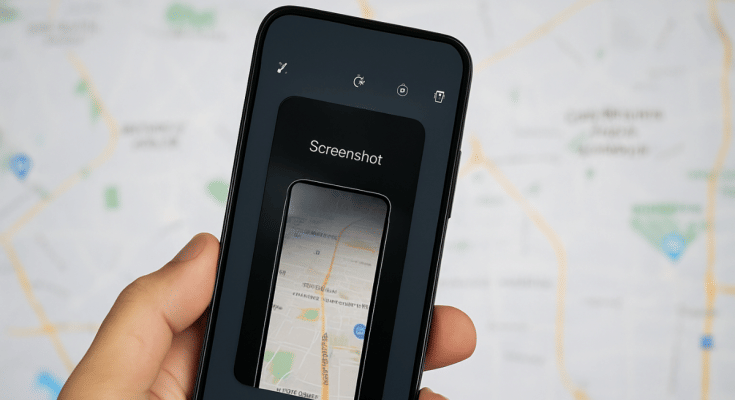
Google Maps is getting is routine update. Now, the navigation app has become more smarter in terms of finding locations and guiding you with the routes, nearby places, and more. Google has introduced a new feature that will allow users to save screenshots directly to Maps app and use the same to find the destination. Let’s dive into more details below:
For the tech geeks, stay updated with the latest cutting-edge gadgets in the market, exclusive tech updates, gadget reviews, and more right on your phone’s screen. Join Giznext’s WhatsApp channel and receive the industry-first tech updates.
Google Maps Screenshot Saving Feature Explained
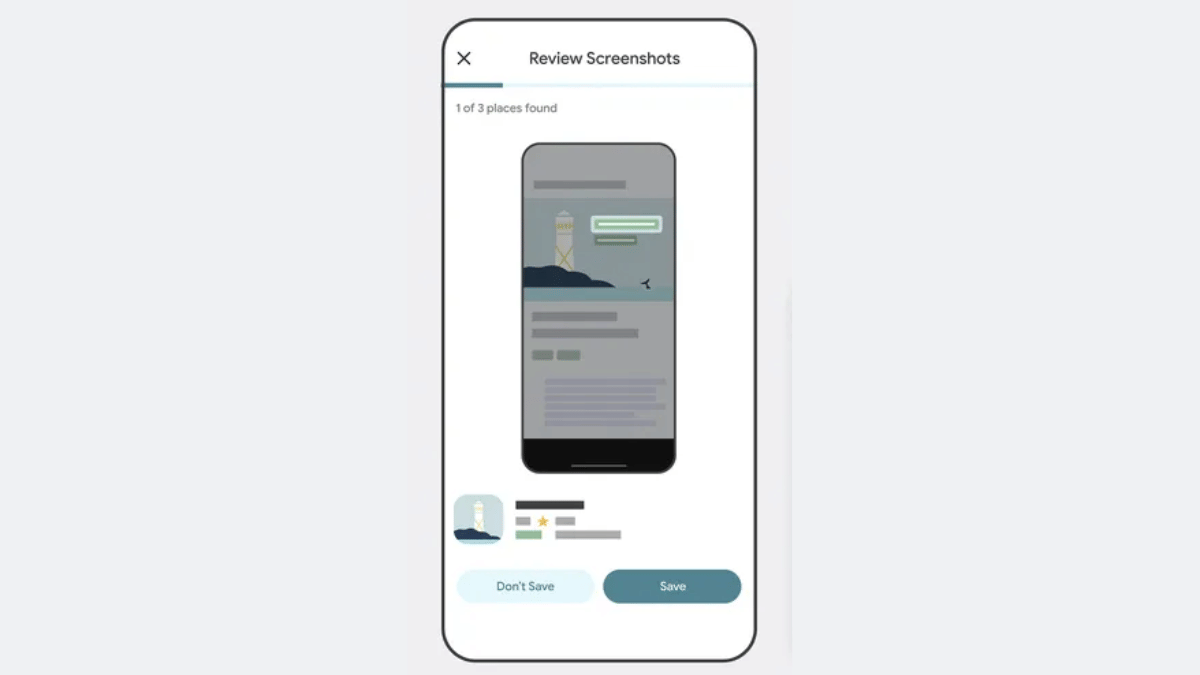
The screenshot saving feature is introduced for Maps where a user can easily keep a track of all the screenshots grabbed from a travel blog, news article, or social media posts for planning a vacation or trip. Instead of saving that location’s screenshot into your device’s gallery and then going through a whole long log of photos to find the same, you can do it directly into the Maps app. This will not only save extra hassle but make it much convenient for planning travels. Note, This feature is currently released only for iOS users and will likely be made available to Android in the coming months.
How To Use Google Maps Screenshot Saving Feature On iOS
Step 1: Open Google Maps and ensure it’s updated to the latest version
Step 2: Head to the ‘You’ tab at the bottom
Step 3: Once you perform the step 2, a new badge with ‘Try it out’ (with a screenshot list) will be visible. Tap on it.
Step 4: A video will be played explaining how the feature works. There’ll be a provision to try it out along with the video tutorial.
Step 5: Grant the permission to Google Maps to access your device gallery and photos.
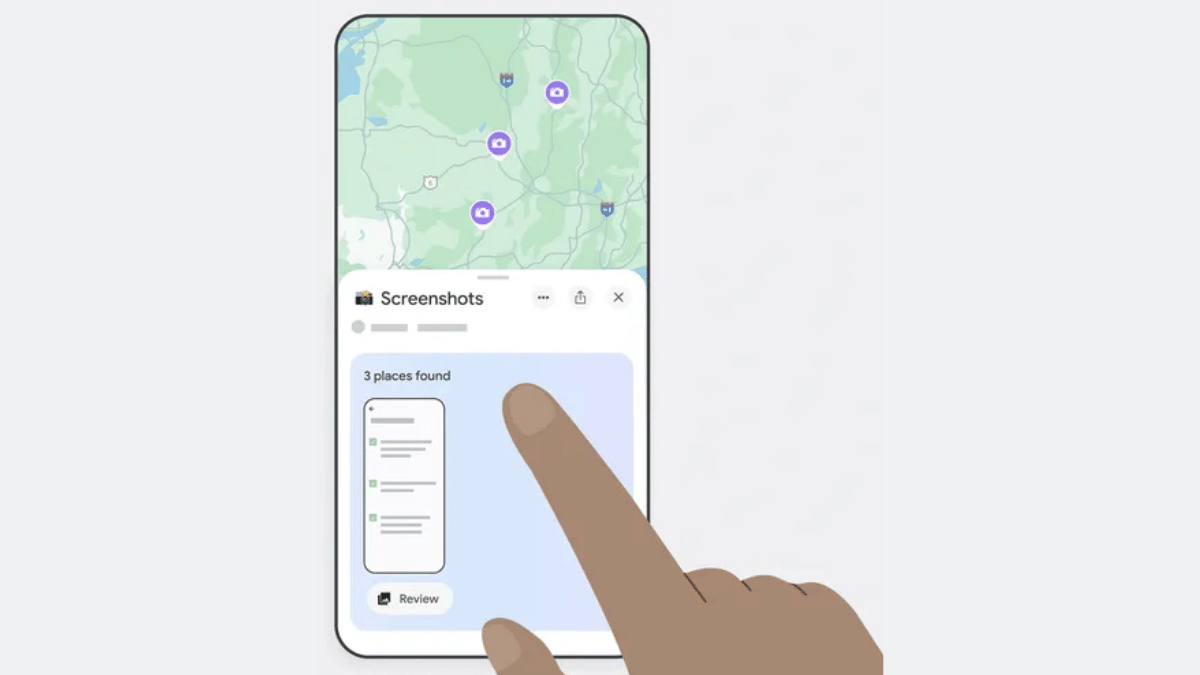
Step 6: You’ll see the list of screenshots on Maps along with the suggestions once the scanning is complete
Step 7: Click on the Review tab if you wish to add the screenshot to Google Maps list.
Step 8: Once all the screenshots are saved, you can later see the list directly by tapping on the You tab.
