
Key Highlights
- Apple CarPlay allows seamless pairing between iPhone and car infotainment system
- SharePlay an CarPlay can be clubbed for music playback
- Pairing allowed via QR code
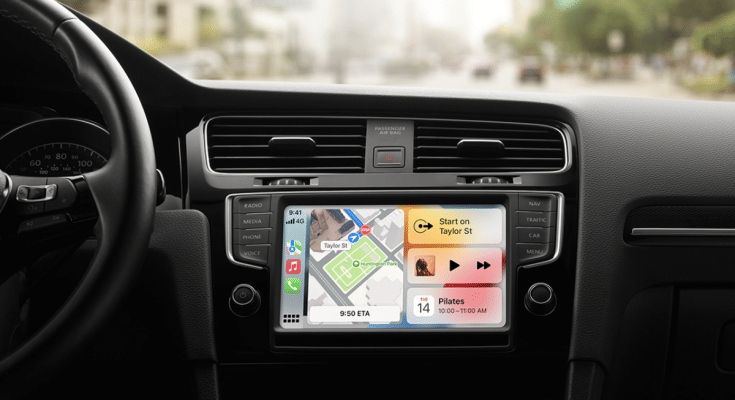
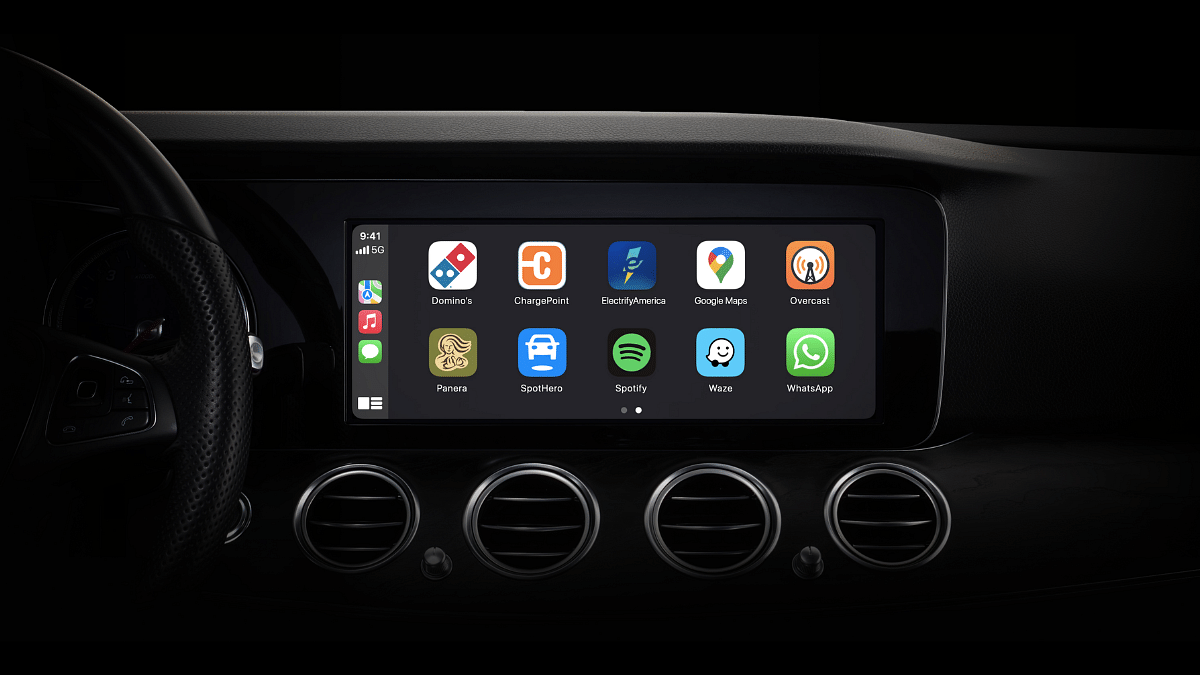
Apple Car Play is definitely an advanced ecosystem designed for the connected car technology allowing us to mirror iPhone application on the car’s infotainment system. With Apple Car Play we can make use of advanced navigational features and also entertainment on-the-go with just a few taps. Apple has also made SharePlat compatible with CarPlay giving passengers an exclusive music playback control during their car rides. This is one of those features that will surely make your road trip memorable. Let your friends and family control and queue songs together and get the road trip rolling. But before that, take a quick look at the specs and see how this feature can be enabled using your iPhone.
For the tech geeks, stay updated with the latest cutting-edge gadgets in the market, exclusive tech updates, gadget reviews, and more right on your phone’s screen. Join Giznext’s WhatsApp channel and receive the industry-first tech updates.
Also Read: How To Maximize iPhone Battery Health: Tips & Tricks
iOS, iPhone Requirements, Compatibility
iOS Version: iOS 17 and above
iPhone Variant: All iPhone models running on iOS 17 or iOS 18
Apple Music Subscription: Required
Also Read: Apple Maps Address Update: How To Setup, Modify Home Address On Apple Maps
Steps To Activate And Sync SharePlay And Car Play
Everyone using the iPhone in the car should make their contacts discoverable which will allow easy pairing and sync between SharePlay, CarPlay, and he infotainment module of the car. To make the contacts discoverable the steps should be followed on all the iPhones that are being used for the simultaneous music playback
Step 1: Open Settings menu on your iPhones.
Step 2: Go to the Apps sections.
Step 3: Scroll to the Music option and enable Discoverable by Nearby Contacts option.
Step 4: A notification will pop up on the respective iPhones’ Lock Screen. Hit the ‘Connect’ option.
Step 5: Click on the passenger’s device name and hit the Okay icon. Once this step is completed, the passenger will be able to synch and queue songs using their iPhones.
Also Read: How to export WhatsApp chat as pdf
Steps To Generate QR Code For SharePlay Joining
Step 1: On the CarPlay’s Now Playing screen, locate the  key and tap on it.
Step 2: A QR code will be displayed on the infotainment screen
Step 3: Using the iPhone camera app, passengers in the car can scan the QR code and get connected with SharePlay and CarPlay for music playback.
