Categories
How To Mobile

How To Stop/ Deactivate Airtel, Vodafone, BSNL, JIO SIM Flash Messages On Android, iOS?

Key Highlights

  • Flash messages are short, text-based messages that are designed to grab your attention.
  • Most of these flash messages are promotional.
  • The following steps will help the users to disable any kind of promotional messages on Android phones.

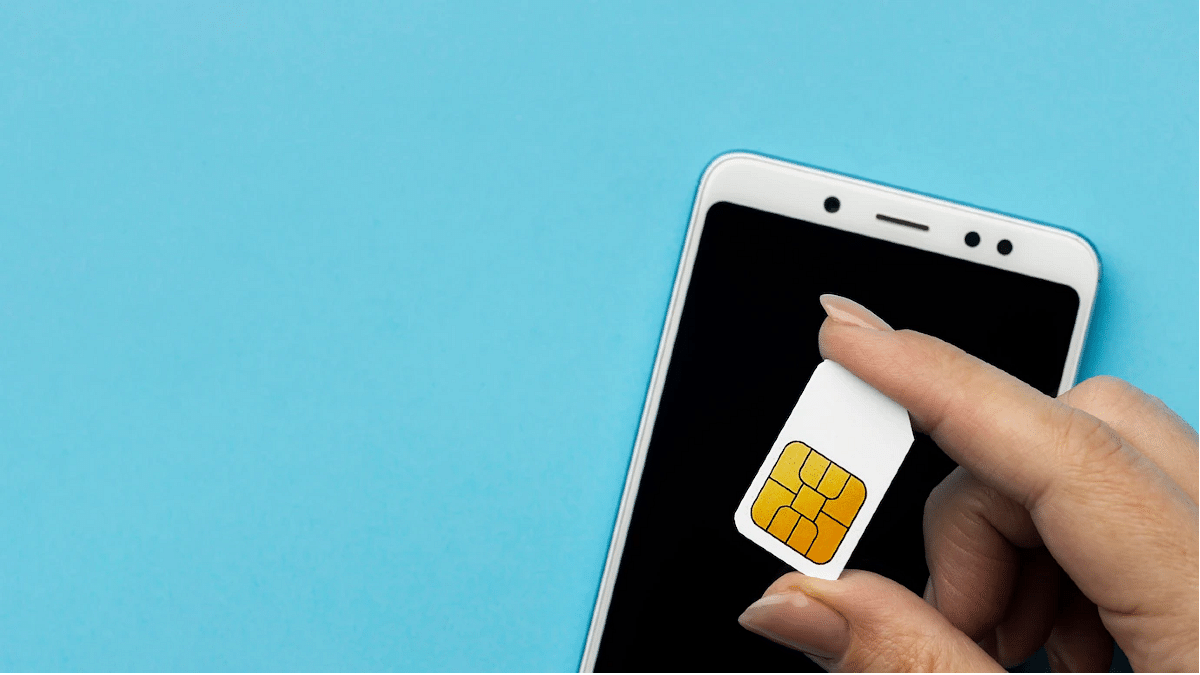
Whether you own an Android or iOS smartphone, it can’t be complete without a SIM card. Not just for smartphones, SIM cards have been the heart and soul of mobile communication from the initial days. Just as smartphone technology is evolving, we have seen developments on a large scale with SIM cards as well. All the large-sized SIM cards are now being replaced with micro and E-Sim.

Using a SIM card with any smartphone is fairly easy. You just have to insert a SIM card from any carrier and take care of the pack recharges to get access to all services. If we speak of the major players in the mobile communication market in India then Airtel, Vodafone, BSNL, and Jio are some names.

Also Read: Airtel Digital TV: How To Add Or Remove Airtel DTH Channels

Now, you can use any of the carrier’s SIM cards with your Android and iOS smartphones. You often don’t get any service messages or calls from the mobile carriers unless your existing plan is getting expired or there are some new services that the brand wants a customer to be aware of. But one of the most annoying messages that you get from Airtel or any other mobile carrier is flash messages.

Is there any direct way in which you can turn off flash messages from Airtel, Vodafone, Jio, and other mobile carriers in 2022? The answer is yes. We have shared fresh methods with which you can easily disable flash messages on any Android and iOS smartphone.

Also Read: Recharge Your Delhi Metro Card Using Airtel Thanks App: Here’s How

How To Disable Airtel Flash Messages On Any Android Smartphone?

The first and direct way to disable Airtel flash messages on your smartphone would be using the SIM toolkit settings on your Android smartphone. This method will work for both Airtel prepaid and postpaid customers.

Step 1: On your Android smartphone, open the App drawer.

Step 2: Locate the Airtel Services app. Tap on it.

Step 3: Select the Airtel Now option.

Step 4: You will get a bunch of options from where you need to click on Start/ Stop.

Step 5: Select the Stop option.

Now, go back to the home screen and start using the smartphone as usual. You will not get any flash messages from Android after completing all these steps. Notably, if you own a Vodafone, BSNL, or JIO SIM card, the steps would remain the same to deactivate flash messages using the carrier app.

Also Read: Airtel Gives The Best Download Speed, Jio Leads In Availability: OpenSignal
Categories
How To Tablet

How To Hard Reset Android Tablet Without Using Volume Button?

Key Highlights

  • Hard resetting Android tablet is required in case of cluttered storage
  • Hard reset also improves slow speed performance
  • Factory rest on Android tablets can be performed without the volume keys

Tablet sales have gradually picked up in the last few years. Even the smartphone manufacturers are now eyeing this market and contributing with capable devices. OPPO, Realme, and Xiaomi are the latest brands that have joined this race in India with affordable and premium mid-range Android tablets.

All the brands are focusing on performance delivery with the new-generation tablets. However, the large screen size and support for external accessories such as keyboard and stylus pen have been giving tablets an edge over smartphones. This is specifically when you need a gadget for creative work.

You can easily use any third-party application on your tablet and use it as you would on any smartphone. While the user possibilities are endless, clogging the tablet’s memory could hamper the performance. Performing a factory reset in such scenarios is one of the best ways to boost performance. Most of the new generation tablets have a built-in option to perform a factory reset. We’ll speak of the steps below. These methods will also make it easy to factory reset any Android tablet without a power key. Take a look:

Also Read: Lost Reliance Jio SIM Card? Here’s How To Block And Resume Your Jio Number

How To Factory Reset Android Tablet Without Volume Keys

Before you perform the factory reset on your Android tablet, it is advised to take a backup of the data. This will make sure you don’t lose any of your important data during the factory reset.

Step 1: Unlock your Android tablet and go to the Settings menu.

Step 2: For backup, scroll down to the Backup & Reset option.

Step 3: Click on Backup up my data and complete the data backup process. Note, you can also make required changes to settings for future backup.

Step 4: Once the backup is complete, go back to the Backup and Reset option.

Step 5: This time, select the Factory data reset option.

Step 6: Keep your device battery over 50 percent to make sure the reset process is completed smoothly.

Step 7: Your tablet will reboot once the data rest has been completed.

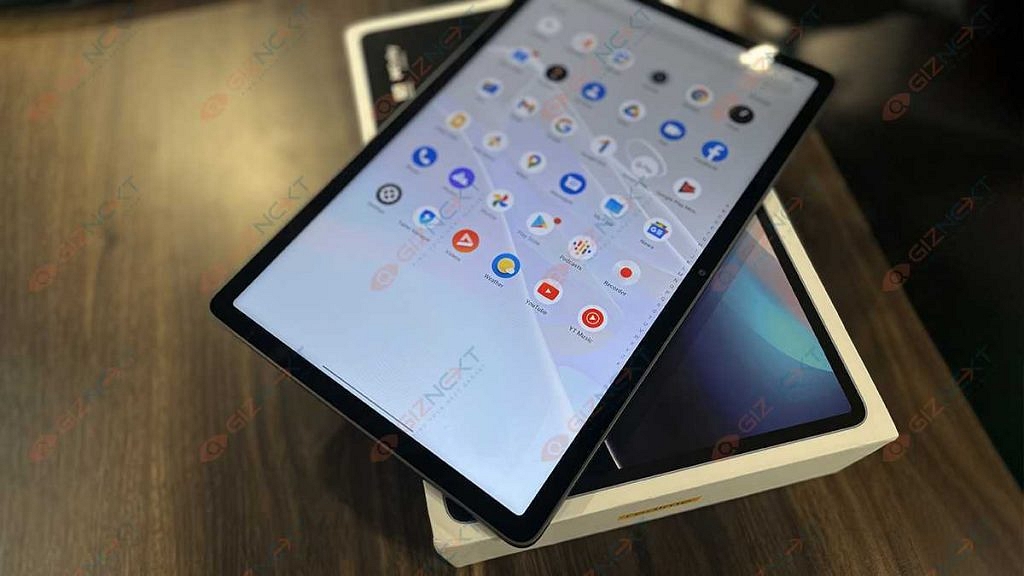
Also Read: Realme Pad X 5G Android Tablet Review: An All-Rounder Mid-Range 5G Tablet

How To Factory Reset Android Tablet Without Volume Keys Using Recovery Mode

The recovery mode is another way out to hard reset any Android tablet without using any volume key.

Step 1: On your Android tablet, press and hold the Home and the power key simultaneously.

Step 2: Wait until the boot menu pops up. You’ll see a bunch of options including Power off and Restart. Here, you would need to press and hold the Home button again along with the Power off option on the screen. This step will reboot the tablet in Safe mode.

Step 3: Repeat step 1 for the tablet to enter recovery mode.

Step 4: Press the Home button to scroll down to the Wipe Data/ Factory reset option and select it using the power key. Once the reset is complete, your tablet will reboot and you can complete the setup from the beginning.

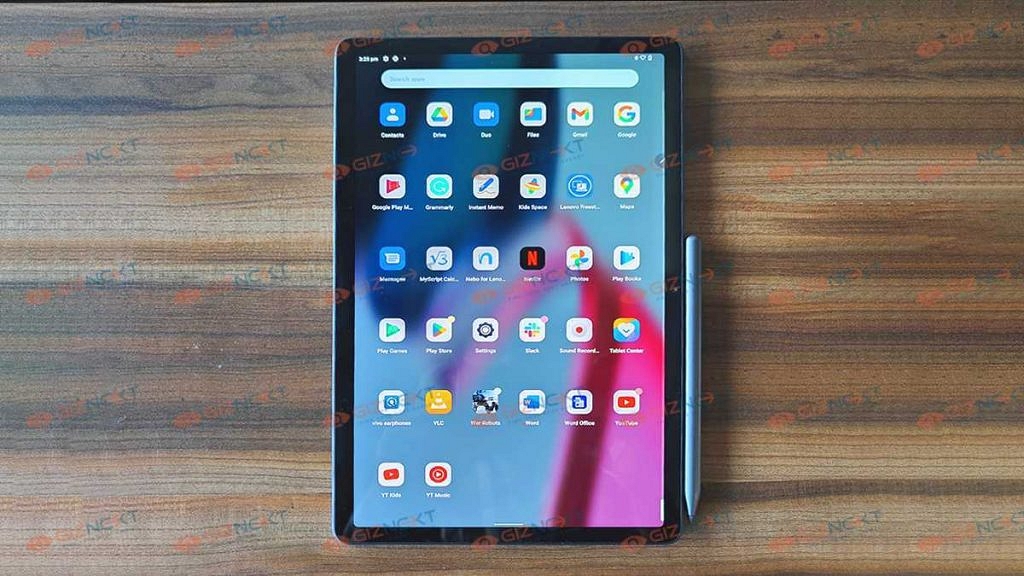
Also Read: Lenovo Tab P11 Pro (2nd Gen) Tablet Hands On Review: A Fully Loaded Package

Categories
Leaks Mobile

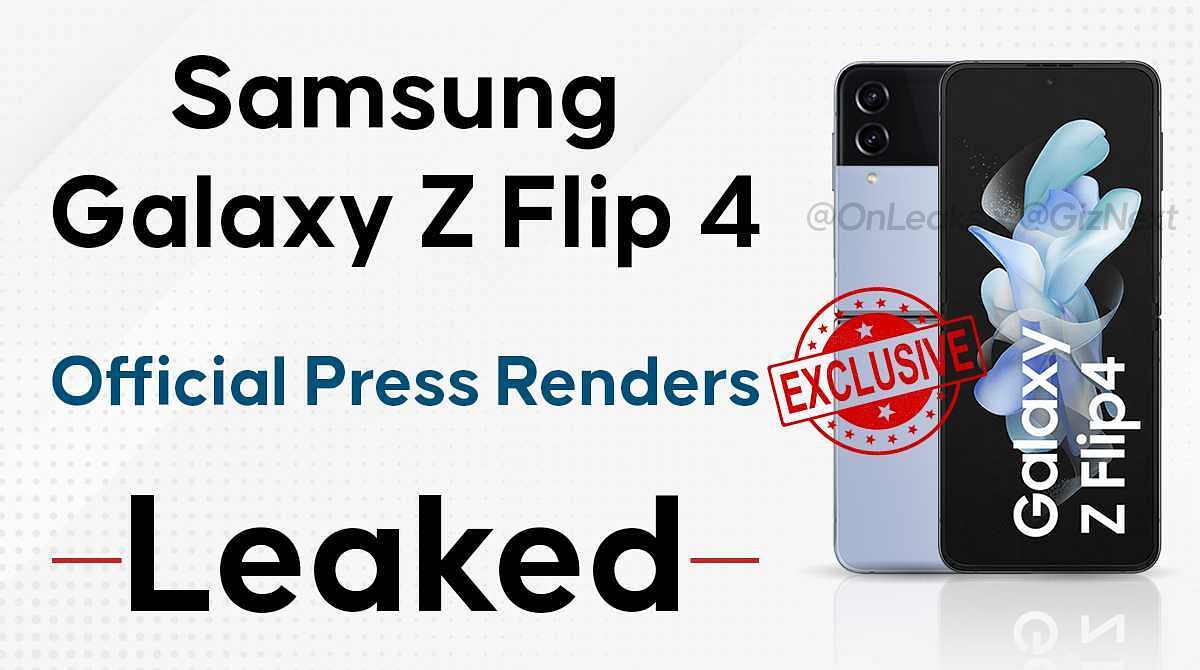
[Giznext Exclusive]: Samsung Galaxy Z Flip 4 Official Press Renders Reveals All Colors, Full Design

Samsung is hosting its Galaxy Unpacked Event 2022 next month. The South Korean tech giant has scheduled the launch event on August 10 where it is expected to introduce the new-generation foldable smartphones including the Galaxy Z Fold 4 and the Galaxy Z Flip 4. We are also expecting the company to release the new version of its flagship smartwatch called the Galaxy Watch 5 series and also the latest TWS earbuds dubbed the Galaxy Buds 2 Pro.

The new-age foldable flagship smartphones are taking the primary center stage at the Galaxy Unpacked Event 2022. With just a few weeks remaining for the official launch, the internet is getting flooded with details related to both the Galaxy Z Fold 4 and the Galaxy Z Flip 4. Contributing to all the leaks is Giznext’s latest exclusive report where we can confirm the exact color variants and the entire design language of the Galaxy Z Flip 4. Take a look:

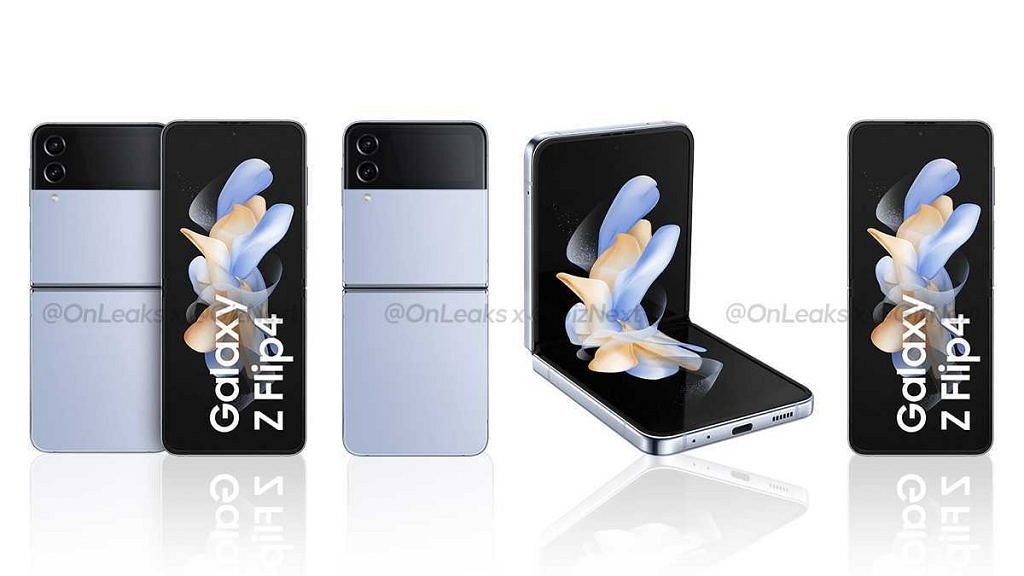
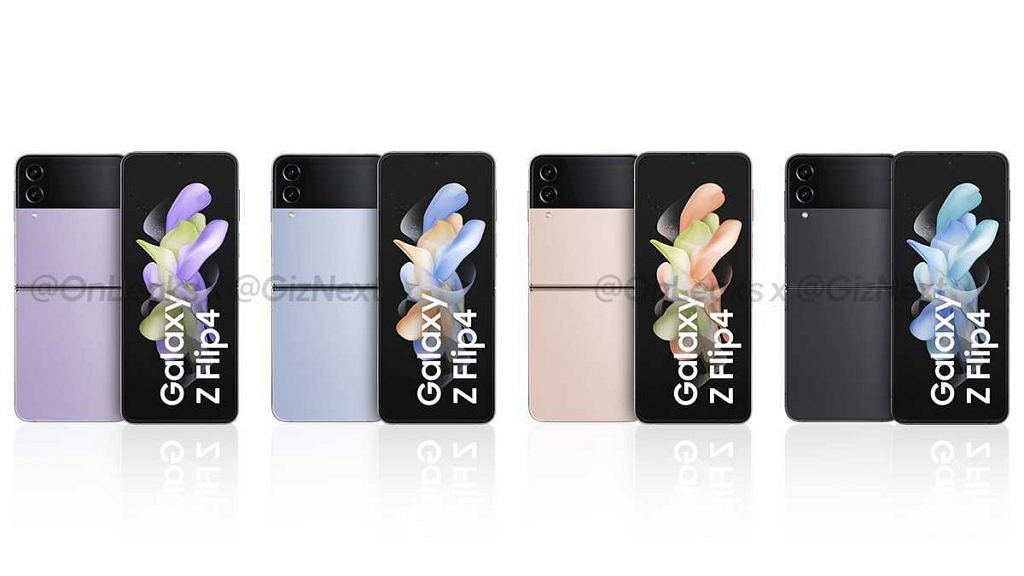
Exclusive Leak: Samsung Galaxy Z Flip 4 Design  Color Options Are Out

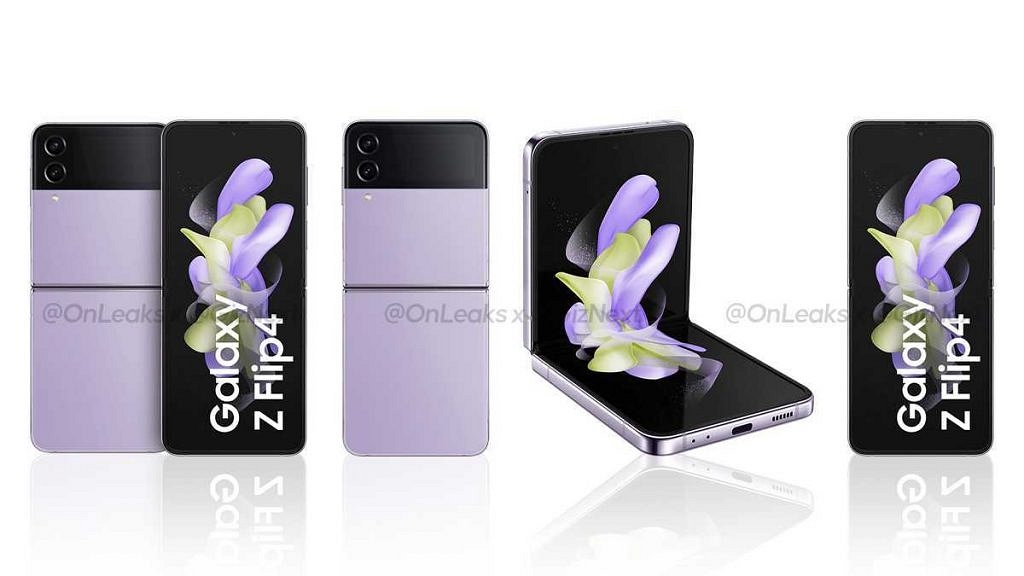
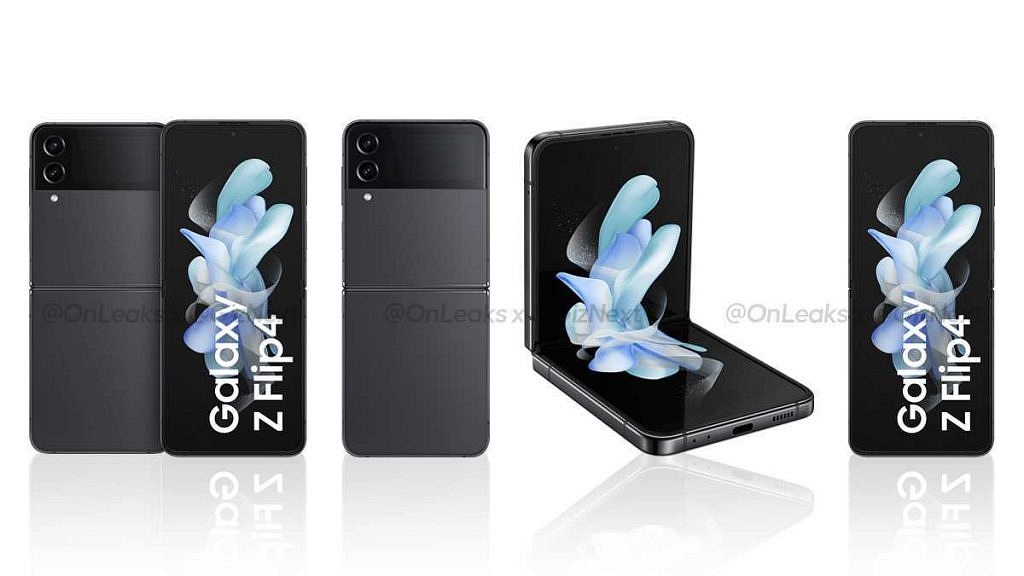
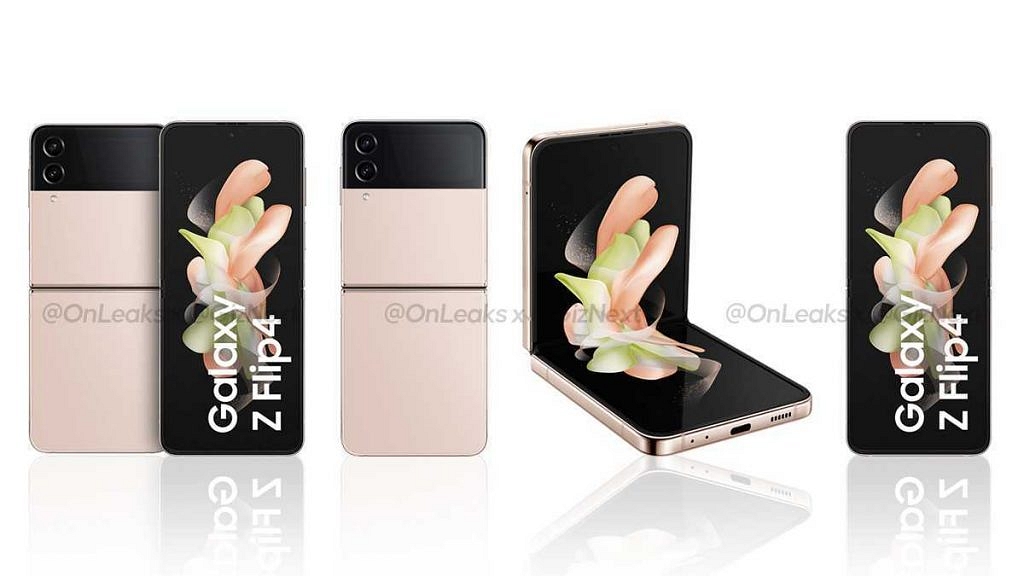
Giznext has once again collaborated with noted tipster Steve Hemmerstoffer @onleaks to reveal the Galaxy Z Flip 4’s official press renders. The render images shared by the tipster show the complete design language of the next Galaxy foldable phone along with the color options. The Galaxy Z Flip 4 will feature the same clamshell foldable design as the previous generation model, i.e., the Galaxy Z Flip 3.

It flaunts the same centrally folding design but a new camera module. The vertical camera strip is placed in the outer top of the handset and painted in black. This adds to a dual-tone effect with design. The outer camera module is seen with two large sensors.

The right panel of the Galaxy Z Flip 4 can be seen housing the volume keys along with another key (likely dedicated digital Assistant), while the SIM card tray is placed on the left. The bottom panel has the USB Type-C port along with the speaker grille.

Coming to the color option, our source has suggested as many as four different color options including black, golden, purple, and light blue. These color options are likely to be called Graphite, Pink Gold, Bora Purple, and Blue.

Samsung Galaxy Z Flip 4: Expected Price

As per the recent reports, the Samsung Galaxy Z Flip 4 will be available in three different models including 8GB+ 128GB, 8GB+ 256GB, and 8GB RAM+ 512GB storage options.

The prices tipped are EUR 1,080 (approx. Rs. 88,100), EUR 1,158 (roughly Rs. 94,000), and EUR 1,275 (around Rs. 1,05,000) respectively. Notably, these are the speculated prices and the actual amount could vary post its launch in India.

Samsung Galaxy Z Flip 4: Rumored Specifications

As for the features, it is currently known the Galaxy Z Flip 4 will bring some major upgrades over its precursor, i.e, the Galaxy Z Flip 3. One of the major hardware differences will be the chipset. Samsung is said to use the latest Qualcomm flagship processor, i.e., the Snapdragon 8 Gen 1 Plus to drive the Galaxy Z Flip 4.

The software version could be Android 12 OS topped with a custom One UI interface. The configuration expected is up to 8GB RAM and 512GB storage configuration. The rumors have also suggested a total of three cameras on the Galaxy Z Flip 4. The rear camera module is speculated to ship with dual 12MP sensors, while for selfies, the front camera is said to measure 10MP. The display and battery details are at large at the moment, but we are expecting some more details ahead of the Galaxy Unpacked event 2022.

Categories
How To Tablet

iPad Tips And Tricks: What Are The Steps To Create Screen Recording On iPad?

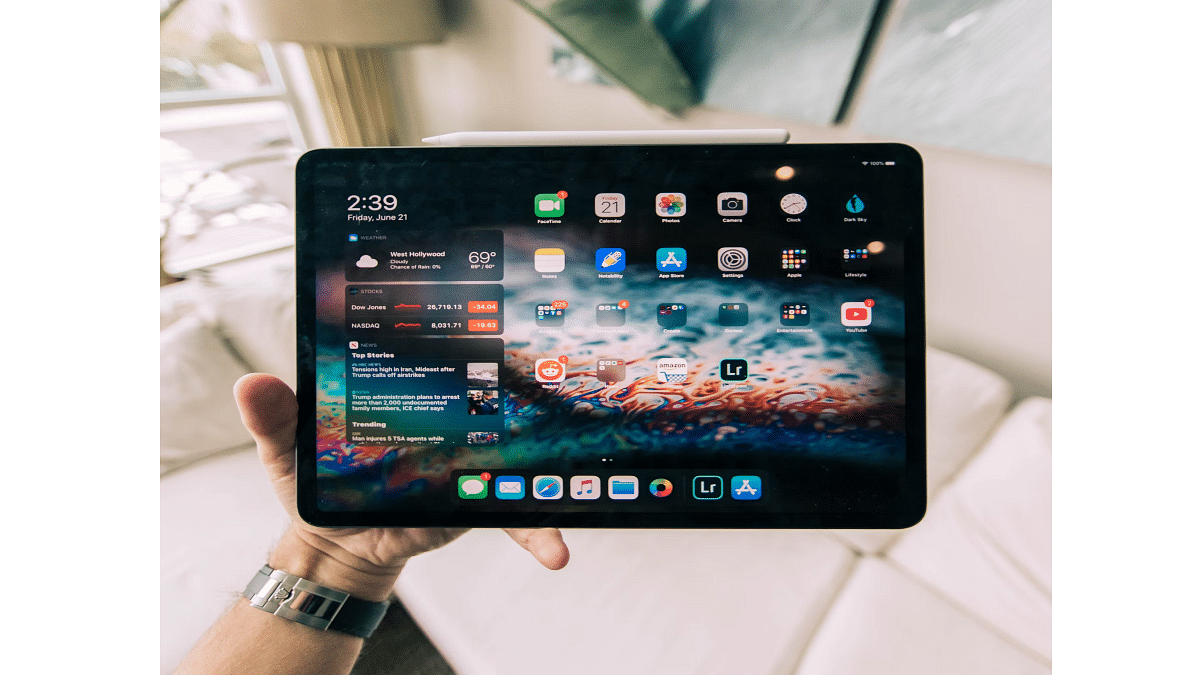
Apple iPads are the top-of-the-line Android tablets that one can buy in the markets nowadays. There are numerous iPad models that you can select depending on your daily requirements. Apple has released different iPad tablet lineups for the masses. Amongst the several available Apple iPad series are the iPad Air, iPad Pro, and iPad Mini. The price range for each Apple iPad lineup is different; so are the internal features.

For affordable audiences as well, Apple has a dedicated iPad lineup, i.e., the Apple iPad Air and the iPad Mini. The iPad Pro models are designed for the premium category users that can’t compromise anyhow on performance. All the iPad tablets are packed with Apple’s newest hardware and software technologies to deliver the best-in-class performance.

You can perform numerous tasks with an iPad. The most common usage to date with Apple or even Android tablets remains web surfing and multimedia playback. These big-screen tablets are also well loaded to handle gaming and complete most of the professional tasks for which you would otherwise have required a laptop or PC.

Now, the capability of any Apple iPad can’t be measured just with the specs. It’s with the functions that you can perform. Grabbing a screen (screenshot) is one of the most common features that every iPad user must have tried using once. But with the advancements in this tech space, Apple iPad users also get the provision to record an entire screen.

We already have shared the procedure with which you can capture a single page or a full-page screenshot on iPads and also save the latter as PDF files. Adding on to the iPad tips and tricks, we have now listed the method with which you can record the entire screen on your iPads. Below are the steps:

How Can You Create A Screen Recording On iPads?

Before we proceed with the steps, we would like to add that you can not only record the screen video but also audio on your iPads.

Step 1: Open the Settings menu on your respective iPads.

Step 2: Click on the Control Center.

Step 3: Tap on “+” icon placed next to the Screen recording option.

Step 4: Now, you will need to launch the Control Center app.

Step 5: Tap on the record option. Make sure you wait for the countdown to begin. It will be a three-second timer following which the screen will start recording.

Step 6: Once you are done, re-launch the Control Centre and select the recording tab or the red status bar on the top of the screen. Click Stop.

Step 7: Now, open the Photos option and select your screen recording that has just been captured.

Categories
How To Tablet

How To Capture A Full Page Screenshot On iPad And Save It As A PDF?

The Apple iPad series is amongst the most powerful tablets available in the market today. Apple has released multiple iterations of iPads in the last few years. Now, you don’t need to empty out your pockets to buy a new Apple iPad. Apple is not only focusing on the premium range tablets but also mid-range iPads that don’t really burn a hole in your pockets.

Apple has been using all the latest technologies with the new-generation iPads. You get more powerful and versatile tablets if you buy the new-generation Apple iPads. Performance delivery is never an issue with Apple iPads. This is one of the biggest reasons why iPads are among the first preferences amongst professionals and users with creative skill sets.

Apple iPads can support almost all formats of documents which makes our lives easier with professional tasks. In one of our previous articles, we explained the steps to capture a screenshot using an Apple iPad.

This time we will be guiding you with another useful trick that will further simplify the process of keeping records in a paperless format. Yes, you read that correctly. This article will be your guide to not only capturing a full-page screenshot on Apple iPad as a PDF file but also the steps to record a screen. Here’s how:

Steps To Take Full Page Screenshot As PDF On Apple iPad

For the Apple iPad With Home Button

Step 1: Unlock your Apple iPad.

Step 2: Now, press and hold the top button and the Home button simultaneously and release instantly.

Step 3: Repeat Step 2 again properly if the screenshot of the page or document isn’t captured.

For the Apple iPads Without the Home Button

Step 1: Press and hold the top button and either of the volume keys and release simultaneously.

The next step is common for both iPad models with or without the Home Button.

Step 1: From the bottom left corner of the home screen, click on the Full Page option.

Step 2: Click on Done to save the screenshot. Select save PDF to files.

Step 3: Now, choose the appropriate location where you want the full page screenshot to save as a PDF file.

Step 4: You can also share the captured full page screenshot as PDF by clicking on the  symbol. You will get the option to share the screenshot PDF via Messages, AirDrop, and Mail.

Categories
How To Tablet

iPad Tricks: How To Capture A Screenshot On Ay Apple iPad?

Tablets are among the top-selling consumer electronics gadgets in the modern markets. Similar to the smartphone industry, Android and Apple iPad tablets hold the major chunk of the market in the tablet industry as well. While Android tablets grab the larger share, Apple iPads aren’t any less popular amongst consumers.

Apple is known for releasing new iPad models and supported OS every year. This year as well, Apple had introduced the iPad OS 16 for the new-generation iPads and the eligible older models. The latest firmware brings several new useful features for easy and improved usage with the iPads. And tablet usage is similar to smartphones in many ways. You can use these large screen gadgets for web surfing, calling (with the LTE models), gaming, and also creative tasks such as designing, etc.


Since the functionality and usage of tablets and iPads are quite identical to a smartphone, the features available are also similar. While using any iPad, you might want to take a screenshot of any document that you are accessing on the web or have received via mail or any other format. Capturing a screenshot on any Android tablet is fairly simple, but are you aware of the procedure to grab the screen on any Apple iPad?

We bet you might have tried capturing screenshots using the Apple iPad and if you haven’t succeeded yet, you don’t have to worry at all. In this article, we are making it super easy for you to grab any screen on your Apple iPad. We also have listed the method to capture a screenshot with iPads. Take a look:

Steps To Capture Screenshot On Apple iPads

Step 1: Unlock your iPad. Go to the page or document whose screenshot you want to capture.

Step 2: if your iPad has the Home button then simultaneously press and release the Home and the top button.

Step 3: For the iPads with no Home button, press and release the top button (placed on the top right edge of the iPad) and any one of the volume keys.

Step 4: You’ll see the screenshot capture on the lower-left of the home screen. Tap on it followed by Done.

Step 5: Select the appropriate option from Save to photos, Save To Files, or Delete screenshot.

Just for reference, upon clicking the Save to Photos, the captured screenshot will be visible in the Screenshot album that you can later access from the Photos app. The second option will save the screenshot to File Manage, while the last option will delete the captured screen.

Categories
How To TV

No Network Adapter: How To Connect A Samsung Smart TV To Internet/ Wi-Fi Without Integrated Network Adapter?

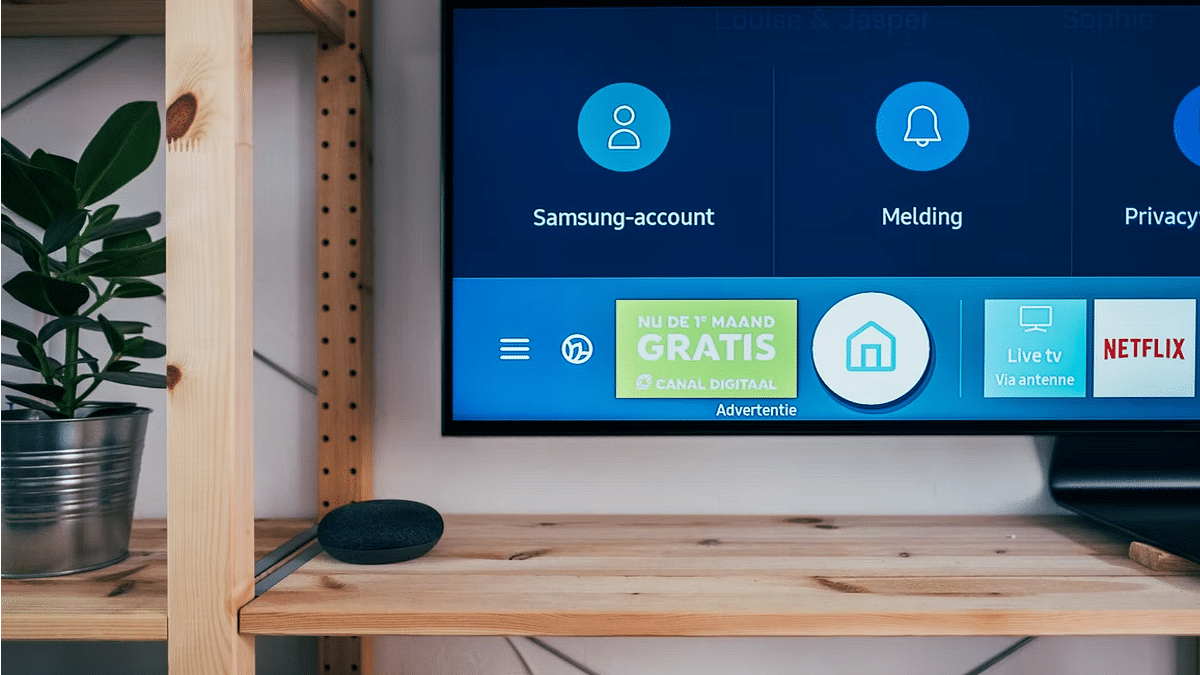
Samsung is one of the biggest players in the display industry in the global markets. The brand has gained huge popularity with its high-resolution smart TVs. In India as well, Samsung has a whole range of powerful smart TVs that can easily render 4K and 8K videos besides FHD resolution. Samsung TVs are not just popular for the high-resolution panel that they pack but also for the plethora of features they offer for a premium user experience.

Samsung’s new-age smart TVs are all capable with high-resolution panels, Wi-Fi, and Bluetooth connectivity, and also a whole lot of user-oriented features for an overall improved user experience. We just shared an article detailing the steps to pair any new Samsung smart TV with an available Wi-Fi network.

Now, the steps mentioned in the previous article will work perfectly fine with the smart TVs enabled with a network adapter. But in some cases, the LAN card or the network adapter is missing from the TVs. This is specifically the case with old-generation TVs. What can you do in such scenarios? Is It Possible to connect your Samsung TV with Wi-Fi without a network adapter? Well, the answer is yes. And to do so, you can either use a wireless Wi-Fi card or the WPS Key option.

How To Pair Samsung Smart TV To Internet With WPS

Step 1: The first step is to switch on the TV.

Step 2: Now, with the TV’s remote scroll to the Menu option.

Step 3: From the Menu tab, locate the Network option. Select it.

Step 4: Tap on the Network Settings.

Step 5: Locate the WPS option and move the remote cursor over it.

Step 6: Click Next.

Step 7: Press and hold the WPS button using the remote. Wait for a few seconds to get connected to the internet. This is all you need to do in order to pair your Samsung smart TV to the internet without the network card.

Notably, to make sure you get a successful internet connection with a Samsung smart TV that doesn’t come with a built-in Network access card, you can buy a third-party Wi-Fi receiver that you can easily plug into the USB slot of your TV and complete the internet connection setup.

Categories
How To TV

How To Connect Samsung And Other Smart TVs With Wi-Fi Easily: Step By Step Guide

The smart TV market is getting populated across India with multiple brands launching new devices frequently. Samsung, Sony, and LG are the major players in this market known for their premium range of smart TVs. There are multiple other smart TV brands in the country that have a wide portfolio of affordable, mid-range, and flagship-grade TVs.

Samsung is well known for launching feature-rich TVs that can give a theatre-like experience from the comfort of your room. Most of the new-generation smart TVs be it from Samsung or other brands comes with Wi-Fi network connectivity. This allows users to connect the TV with the internet to use all the services including third-party app downloads or streaming content via OTT websites such as Netflix and Amazon Prime videos.

Making an internet connection with smart TVs isn’t a super tricky process. You just have to make sure there is an active internet connection within the vicinity and TV range. Also, you should be aware of the Wi-Fi user ID and password for a successful connection. If you have bought a new Samsung or any other brand’s smart TV and aren’t aware of how to complete the internet connection process, then we have made it simple for you in this article. We have listed down the steps with which you can easily pair your Samsung smart TV with any available Wi-Fi network.

How To Manually Connect A Samsung Smart TV With Internet/ Wi-Fi?

Step 1: Power on your Samsung smart TV and wait until the home screen loads up.

Step 2: Use the TV’s remote to go to the Menu or TV Settings option.

Step 3: Scroll down to the Network menu.

Step 4: Select the Network Settings tab.

Step 5: Tap on the Wireless option. Wait until the TV reads the available connections and shows the list on the screen.

Step 6: Select the Wi-Fi network with which you want to connect your smart TV.

Step 7: Now, you will need to type in the Wi-Fi network password. Hit Done once you have entered the password. That’s all you need to connect your smart TV to the internet.

Categories
Comparison Mobile

Google Pixel 6a Vs OPPO Reno8 Pro Vs Xiaomi 11T: Best Premium Mid-Range Camera Phone In India?

After a long break, Google revamped its smartphone portfolio in India with the launch of the Google Pixel 6a. The latest affordable Pixel handset has been launched with Google’s in-house Tensor chipset and improved hardware features compared to the last model. The Google Pixel 6a has been announced at an asking price of Rs. 43,999 in the country and is one of the most powerful camera phones in the Indian market.

Recently, OPPO also upgraded its photography-centred Reno8 series in the country with two models namely the Reno8 Pro and the Reno8 Pro 5G. The Pro variant goes up against the Google Pixel 6a with its premium hardware features including flagship-grade cameras. Now, both these smartphones are powerful contenders in the premium mid-tier smartphone market.

We are pitting down both the OPPO Reno8 Pro 5G and the Google Pixel 6a alongside the Xiaomi 11T to see which one fairs the competition. This spec-sheet based comparison will also help you decide which is the best buy under Rs. 45,000 price range.

Google Pixel 6A Vs OPPO Reno8 Pro Vs Xiaomi 11T Pro: Display Features Comparison

The display on all three smartphones is high-end in this list. But if you are bent toward a compact form factor then the Google Pixel 6a with a 6.1-inch pOLED display will be the best fit. Both OPPO Reno8 Pro and the Xiaomi 11T Pro flaunt a massive 6.7-inch AMOLED display which is rather best for high-resolution video consumption on the go. The Google Pixel 6a’s display offers 1080 x 2400 pixels screen resolution and a 429 PPI pixel density.

On the other hand, the OPPO Reno8 Pro and the Xiaomi 11T Pro’s display also offer an FHD+ resolution of 1080 x 2412 pixels and 1080 x 2400 pixels respectively. The brightness levels of the Reno8 Pro and the Xiaomi 11T Pro are higher compared to the Pixel 6a. Overall, if you wish to buy a high-resolution big-screen phone, the OPPO Reno8 Pro and the Xiaomi 11T Pro will make for a good pick on this list.

Google Pixel 6A Vs OPPO Reno8 Pro Vs Xiaomi 11T Pro: Camera Configuration

All three phones in this list offer the best photography experience. If you go by the spec sheet, the Google Pixel 6a is packed with a dual-lens camera module comprising a 12.2MP main sensor with an f/1.7 aperture. The main camera on the Google Pixel 6a further supports PDAF (Phase Detection Autofocus), and OIS (Optical Image Stabilization) and is combined with a 12MP additional sensor with an f/2.2 aperture. The Google Pixel 6a’s dual-lens camera module can record both 4K and 1080p videos and have multiple built-in shooting modes.

The OPPO Reno8 Pro 5G shows its camera expertise with the triple rear camera module housing a 50MP main sensor with an f/1.8 aperture with multi-directional PDAF. The primary sensor on the Reno8 Pro 5G is accompanied by an 8MP secondary ultrawide sensor with an f/1.4 aperture and a 2MP macro sensor with an f/2.4 aperture.

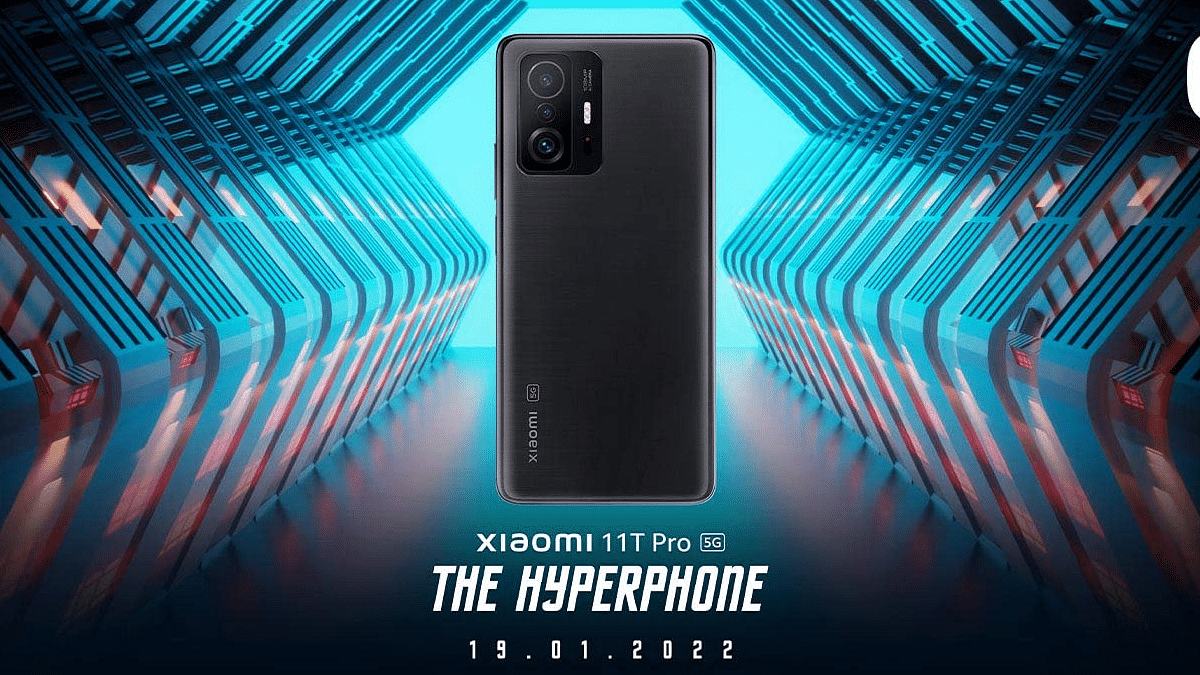
Moving on to the Xiaomi 11T Pro, it has the biggest primary camera sensor of all three. It is packed with a 108MP main camera which has an f/1.8 aperture combined with an 8MP ultrawide sensor with an f/2.2 aperture, and a 5MP macro lens with an f/2,4 aperture. The Xiaomi 11T Pro is capable of recording up to 8K@30fps videos.

Google Pixel 6a Vs OPPO Reno8 Pro Vs Xiaomi 11T Pro: Chipset, Software Comparison

The Google Pixel 6a is packed with the Google custom-made Tensor chipset which is built in 5nm fabrication processor. The octa-core processor is combined with Mali-G78 MO20 GPU which helps with smooth graphics rendering in all scenarios. The Pixel 6a comes with 6GB RAM and 128GB storage configuration which is sufficient for multitasking and gaming without any lags. The Pixel 6a boots on Android 12 OS and offers a stock Android user experience.

The OPPO Reno8 Pro 5G gets its power from the MediaTek Dimensity 8110-5G Max chipset. This processor is also built on 5nm fabrication process which has Mali-G610 MC6 GPU support. The smartphone is capable of delivering powerful performance with no noticeable lags. The chipset on the Reno8 Pro 5G is clubbed with up to 12GB RAM and 256GB storage configuration. This handset also boots on Android 12 OS and has a custom ColorOS interface on top.

The Xiaomi 11T Pro has an equally capable chipset. It is powered by the Qualcomm Snapdragon 888 5G chipset which is based on 5nm fabrication like the remaining two models. The octa-core flagship Qualcomm processor is combined with Adreno 660 GPU for graphics and up to 12GB RAM for multitasking. The Xiaomi 11T Pro firmware is dated compared to the remaining two models in this list, i.e, Android 11 OS topped with MIUI interface.

Google Pixel 6a Vs OPPO Reno8 Pro Vs Xiaomi 11T Pro: Battery, Fast Charging

The battery capacity is the smallest on the Google Pixel 6a. It packs a 4,410 mAh battery unit with 18W fast charging. The OPPO Reno8 Pro 5G has a bigger 4,500 mAh battery unit which is accompanied by 80W fast charging. The Xiaomi 11T Pro has the largest battery in this list which measures 5,000 mAh and is combined with the fastest 120W fast charging. The Xiaomi 11T Pro is the clear winner in the battery race.

Categories
Home Appliances Leaks

Realme Flat Monitor HD Full Features Uploaded On Flipkart Just A Day Ahead OF Launch; How Much Will It Cost?

Realme is bringing its first ever 5G Android tablet to the Indian audience. The Chinese tech giant has already announced the upcoming tablet’s launch on July 26 in the country. In addition to the first 5G tablet, Realme is also expanding its consumer electronics market with as many as four new products. The company will be launching the Buds Air 3, Buds Wireless 2S, and the Realme Watch 3 smartwatch. Realme is also introducing its first flat monitor with FHD resolution during the event. Just a day ahead of its official launch, the Realme Flat monitor has been listed on the e-commerce platform Flipkart. The specifications of the Realme flat monitor have also been uploaded by the online retailer. Here’s what’s all revealed:

Realme Flat Monitor FHD Resolution Specifications Listed On Flipkart

The Realme Flat Monitor FHD will be coming as an affordable option for users looking to buy a high-end display for their PCs at an affordable price range. The Flipkart listing of the upcoming Realme Flat Monitor has detailed the display specifications as well as the design. Going by the Flipkart product page listing, the Realme Flat Monitor will have a screen size of 23.8-inches.

The Flat Monitor as the name suggests will have a slim and flat profile. The bezels surrounding the panel are also thin as per Flipkart’s product page listing. Furthermore, the company has used an anti-glare screen on the Realme Flat monitor which will protect the eyes from extra strain during extensive usage. The entire profile of the Realme Flat monitor is super slim at 6.9mm thickness levels.

Coming to the Realme Flat Monitor display properties. In addition to the 23.8-inch screen size. The Realme Flat monitor FHD will offer a 75Hz refresh rate. This is ample for smooth gameplay with rich graphic titles. The monitor will offer a peak brightness level of 250 nits and come with 8ms fast response time.

This will definitely enhance the gaming experience on the Realme monitor. Additionally, the Realme Flat monitor will also feature multiple connectivity ports including a USB Type C port and HDMI. It will take power via the DC input port. It can be mounted on a metal stand which is expected to ship with the monitor itself.

Realme Flat Monitor FHD Price In India

The Realme Flat Monitor FHD TV’s Flipkart listing (likely accidental) also gave an insight into the pricing. The Realme monitor is spotted with Rs. 10,799 price tag which confirms it’s an affordable product for the Indian audience.