Categories
Accessories Featured Smart Watch

Realme Buds Air 3S, Watch 3 Pro Launched In India: Check Features And Price

Key Highlights

  • Realme Buds Air 3S, Watch 3 Pro unveiled in India
  • Realme Watch 3 Pro is priced at Rs. 4,999
  • Realme Buds Air 3S is priced at Rs. 2,499

The Chinese tech giant Realme has launched the latest wearable and audio devices in India. The brand unveiled its latest TWS Realme Buds Air 3S and smartwatch Realme Watch 3 Pro today along with the launch of the Realme C33 budget phone at a virtual launch event. Here’s all you need to know about the newly launched devices:

Realme Buds Air 3S Features

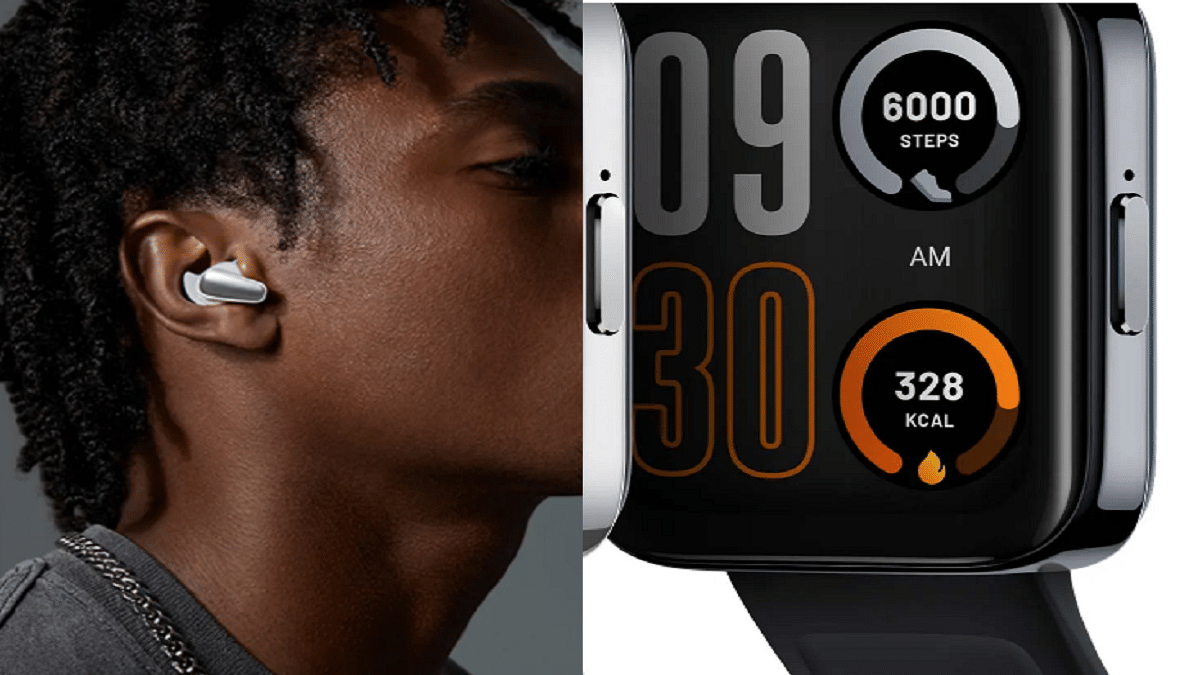
The new TWS from Realme boasts a trendy and comfortable music box-inspired design, and the silicone used to make the earbuds is skin-friendly. For a compact appearance, it has a novel short earbud design, and the silicon ear wing tip ensures a secure fit.

It provides the deep sound quality possible and enables users to enjoy high-end stereo surround sound thanks to its 11mm Triple Titanium Bass Drive and Dolby Atmos compatibility.


The Realme Buds Air 3S is equipped with Bluetooth 5.3, a new generation technology that offers better communication efficiency and extremely low latency of just 69ms.

The 4-Mic AI ENC noise canceling algorithm helps its effective noise reduction technology. Besides this, the buds come with 30 hours of playback time with a large battery capacity of 43mAh for a single earbud. It further supports 10 minutes of fast charging lasting up to 5 hours in a normal mode.

The new Buds Air 3S also has smart features like dual device connectivity which lets you select the device based on your needs. Its Open up auto connection feature connects the device automatically as soon as the user opens the charging case, and google fast pairs assists with connection setup when pairing for the first time.

Price & Availability

Bass Black and Bass White are the two colors in which the Realme Buds Air 3S will be sold. It will be available on September 14, 2022, from 12 PM on realme.com, Amazon, and mainstream outlets. The device is priced at Rs. 2,499.

Realme Watch 3 Pro Features

The 1.78-inch AMOLED HD curved display on the Realme Watch 3 Pro has a slimmer chassis and fewer bezels. It has the first multi-system standalone GPS in its class and Cywee’s expert GPS positioning technology to accurately record bodily movements. Additionally, it can run continuously for up to 20 hours with GPS.
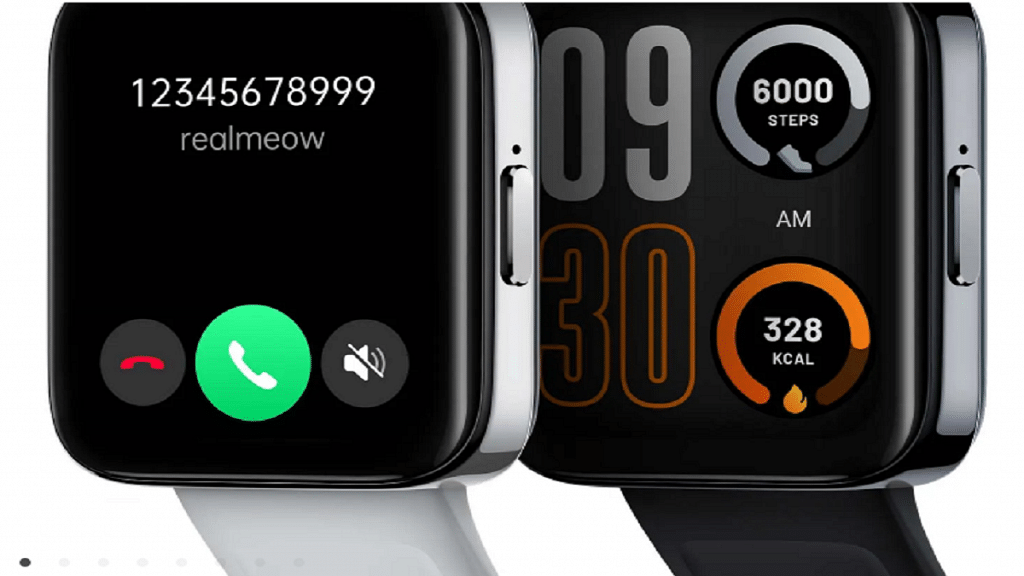
It offers an efficient Bluetooth calling feature and an integrated smart power amplifier. With a 345mAh battery capacity and a 10-day battery life, the Watch supports magnetic charging.

The Realme Watch 3 Pro includes an extensive collection of over 100 Stylish Watch Faces. Additionally, it is IP68 water resistant and offers 110+ Sports Modes for the athlete in you. Users can also count on the device for accurate health monitoring such as SpO2, heart rate, stress levels, and sleep quality.

Price & Availability

The Realme Watch 3 Pro will be available in two colors, i.e., Black and Grey. It is priced at Rs. 4,999 and will be on sale on realme.com, Flipkart, and mainstream channels on September 9 at 12 noon.


Categories
Apps Featured How To

How To Get Verified On Instagram: Here’s A Step-By-Step Guide

Getting verified on Instagram is the best way for brands and social media creators to be validated. By making sure your profile is the only one representing your company, getting the blue tick not only confirms your authenticity but also provides you more control over your online visibility.

So, if an Instagram account has a blue tick in its bio, it indicates that you are viewing the official account of that brand or personality, as opposed to a fake, unofficial, or fan account.

What Are The Pre-Requisites To Get Verified?

In addition to Instagram’s Terms of Service and Community Guidelines, your account must also be:

Authentic: Your account must represent a legitimate individual, organization, or other entity.

Unique: The account you create must accurately reflect the person or company it represents. Verification is limited to one account per person or entity; language-specific accounts are an exception. We don’t check accounts with a broad range of interests (like @puppymemes).

Complete: You need a bio, a profile picture, and at least one post on your account, which must be made public. Links to other social media platforms that say “add me” are not permitted on your profile.

Notable: Your account should represent a well-known and frequently searched person, brand, or entity. The platform review accounts that are featured in multiple news sources, but do not consider paid or promotional content for review.

How To Get Your Instagram Account Verified?

Step 1: Open your Instagram account and log in.

Step 2: In the bottom right corner, click on the profile picture.

Step 3: In the top right corner, tap on the horizontal lines to open the menu.

Step 4: Go to Settings > Account > Request Verification.

Step 5: Enter your name and upload any required identification documents such as photo ID or business documents.

Step 6: Once done, tap on ‘Submit’.

You will be notified if your account has been verified within 30 days of submitting your request. If your request is turned down, you have 30 days to reapply. Instagram has made it clear that “Applying for a verified badge several times before receiving a decision will cancel your application,” which is noteworthy.

It’s important to keep in mind that after your account has been confirmed, neither the username nor your verification can be changed or transferred to another account. Additionally, having your Instagram account verified does not also verify your Facebook account.

Categories
Featured Laptop

Asus ROG Strix Scar 17 Special Edition Laptop Launched In India: Check Features, Price

Key Highlights

  • Asus ROG Strix Scar 17 Special Edition announced
  • It features Intel 12th Gen Core i9 HX series of processors
  • The laptop has NVIDIA RTX 3080 Ti

Asus has announced the upgrade to its ROG Strix Scar 17 PCs with the Special Edition (SE) launch in India. The new laptop offers gamers enthusiasts of the nation gameplay experiences and unmatched performance. Here’s everything you need to know about the newly launched Asus ROG Strix Scar 17 Special Edition Laptop:

Asus ROG Strix Scar 17 Special Edition Laptop Specifications

The lid design of the Asus ROG Strix Scar 17 Special Edition has been updated. It is powered by an NVIDIA GeForce RTX 3080 Ti and an Intel 12th Gen Core i9 12950HX CPU. The laptop sports a 17.3-inch QHD screen with a 240Hz refresh rate, a 3ms response time, and Dolby Vision HDR compatibility.

It contains a 4TB PCIe Gen4 SSD and 32GB of 4800MHz DDR5 RAM, which can be expanded to 64GB. On the audio front, the ROG Strix Scar 17 Special Edition has a quad-speaker audio system with Dolby Atmos support.

The keyboard allows users to change light settings based on the game they are playing, supports Aura Sync, and offers per-key RGB lighting. The switches are designed to last more than 20 million presses, claims Asus.

It has a 90Whr battery which Asus claims can be quickly charged to 50 percent in just 30 minutes. Along with the laptop, the company is including a bunch of peripherals, including a ROG Backpack, ROG Delta Headset, a FullHD 60FPS camera, and a ROG Strix Impact Mouse.

The Taiwanese electronics brand Asus says they used Conductonaut Extreme Liquid Metal thermal paste from Thermal Grizzly on the GPU and CPU. This helped to lower the ambient temperature by about 15 degrees Celsius.

Asus ROG Strix Scar 17 Special Edition Laptop Price In India

The ROG Strix Scar 17 Special Edition Laptop can be purchased online from Asus, Amazon, and Flipkart for a starting price of Rs. 3,59,990. The device is also available from all Asus authorized dealers as well as Asus Exclusive Stores, ROG Stores, Vijay Sales, Croma, and Reliance Digital.

Categories
Featured Info Mobile

Secret Codes To Check Chinese Smartphone Sensors

There’s more to the dialer screen on your smartphone than meets the eye. Besides its obvious purpose of calling people, there’s a vast array of secret codes you can input to troubleshoot your device, reveal important information, make anonymous phone calls, and so much more.

The secret codes mentioned here are applicable to any brand of Android phone including Chinese mobile phones like OnePlus, Vivo, and Xiaomi. Let’s check them out:

List Of Useful Secret Codes For OnePlus, Vivo, And Xiaomi

Secret CodePurpose of Use
*#*#4636#*#*Battery information, Phone information, Battery History, Wi-Fi information, Usage statistics
*#*#7780#*#*For Factory Reset: System and app data and settings; Google account settings kept in the smartphone; All downloaded apps
*#*#34971539#*#*To get information about the camera of the mobile phone: Update camera firmware on SD card; Update camera firmware in the image; Get firmware update count; Get camera firmware version
*2767*3855#The data, files, and settings on the phone’s internal memory will be formatted and deleted. The firmware of the phone will also be reinstalled.
*#*#273283*255*663282*#*#*This code will launch a File copy screen where you can back up media files including movies, songs, photographs, and more.
*#*#7594#*#*To modify the “End Call / Power” button option, enter this secret code.
*#*#197328640#*#*This code is used to enter service mode so that various tests and setting adjustments can be made.

Useful Secret Codes For Factory Tests

Secret CodePurpose of Use
*#*#0*#*#*LCD Test
*#*#3264#*#*RAM Version
*#*#0673#*#*Melody Test
*#*#0588#*#*Proximity Sensor Test
*#*#0283#*#*Packet Loop Back
*#*#2664#*#*Touch Screen Test
*#*#2663#*#*Touch Screen Version
*#*#0842#*#*Vibrator and Backlight Test

WLAN, GPS, And Bluetooth Secret Codes

Secret CodePurpose of Use
*#*#1472365#*#*GPS Test
*#*#232339#*#*WLAN Test
*#*#8255#*#*To launch GTalk Service Monitor
*#*#232338#*#*Displays WiFi MAC Address
*#*#232337#*#To Display Bluetooth Device Address
*#*#232331#*#*Bluetooth Test

Please take note that one should use these secret codes at their own risk. If you are a beginner, then we suggest obtaining the advice of some professional or experienced user before using these codes. These helpful secret codes are designed to be used by knowledgeable users, not novices.

Categories
Apps Featured Info

Looking For Trending Gamer Names? 100 Best Instagram Usernames For Gamers

Key Highlights

  • Cool and unique Instagram usernames are the identity of a gamer
  • Instagram username must be according to long-term goals
  • Here you will find classy Instagram name ideas for your inspiration

Choosing a cool username on Instagram for your game might seem simple, but most catchy usernames are already taken. It could take you some time if you’re new to online gaming to realize how important having a catchy username for games is.

Gaming names should be chosen with consideration, taking into account your personality and playstyle. With all that in mind, we’ve put together a list of game names for players to choose from or get inspired by. Browse through our extensive selection of the top gaming names to find one that suits your preferences.

Also Read: 100 Best And Unique Instagram Names For Fitness Freaks

Cool Gaming Instagram Names To Pick From

DaredevilKevlarFoot SlamArtemis
Red Light AreaRedl light gaming zoneBenelliCannon
Beta ModeGraveHatchetSexyShooter
AzraelSongbirdFataleDemolitionBlevins
KneecapUnicorns25GorgonKiddo

Also Read: Instagram Names For Tech Geeks: 100+ Catchy And Unique Usernames

Amazing Gaming Names For Instagram Users

Dark LordDark MethosPunk DevilIce Queen
I Am Too Pretty To DieCursed WingsKiller RabbitGlock
DementedNight WatcherRuthless SlayerLance
Harry PutterThe DamnedHitterElement
AlgonquinLadyPhantomCenterfireMurray

Also Read: 100 Best Instagram Name Ideas For Graphic Designers

Powerful Gaming Names For Instagram Profiles

WarriorPriestessNoToleranceGunnerr GurrlCutiePatootie
PsychoRangerClinkCobra
CrankRipleyCreepWarriorPrince
RoadKillDragonSlasherSurge
FlackTrooperGunnerVoid

Also Read: 100 Best Instagram Names For Food Bloggers To Get More Followers

Trending Instagram Names For Gamers

CrankVeinIroncladLightning
HurricaneSteel ForgeIronsidesBreaker
RebellionAcid GoslingAlpha ReturnsArsenic Coo
Back BettBearded AnglerBlacKittenBlood Eater
BuckshotCandy ButcherBallisticSavage

Also Read: Instagram Hashtags For Likes: Best Hashtags To Get More Likes And User Engagement For Instagram

Trending Gamers Names For Instagram

CocktailCriss CrossCupid DustDark Horse
Devil ChickDrop StoneFifthHarmonyFast Draw
ThorDisco ThunderDarkoConqueror
LeonidasMatrixJawboneCraniax
KneecapTorqueBulletBattle Thunder

Choose a name that you know has been liked for years and reflects your personality. For instance, if you generally play as a sniper in a Battle Royale game, you can pick a name like ‘Deadly Sniper’ etc. Besides, many websites and applications are available that help generates game names based on keywords, you can also search for them.

Also Read | Need A Cool Instagram Boy Name? Top 100 Instagram Boys Name With Alphabets A To L

Categories
Featured How To Mobile

How To Turn Off Call Recording Announcement In Vivo Smartphone

Key Highlights

  • Many phones come with Google Phone or dialer as the default calling/dialing app
  • Google dialer app comes with a lot of unpleasant features
  • The call recording announcement is arguably the most irritating feature

Many Android phones today come with Google Phone or dialer as the default calling/dialing app. The Google dialer app has a lot of unpleasant features. The call recording announcement, however, is arguably the most irritating. As soon as you begin recording a call, the app plays a pre-announcement to both parties saying “This call is now being recorded.” When you end the call recording, it similarly plays “Call recording ended.”

Many individuals assert that if the other party finds out that the call is being recorded while it is happening, what use will it serve to record the call? We have therefore developed a fix for this issue that enables you to turn off call recording announcements. Let’s find out:

Also Read | Here’s How To Stop Call Recording Warning On Android Phones

How To Mute ‘This Call Is Now Being Recorded’ Announcement On Vivo Phones?

Method 1: Steps To Turn Off Call Recording Announcement On Google Dialer

Step 1: Open the Google Dialer app, then go to Setting.

Step 2: Next choose to uninstall updates.

Step 3: Download TTSlexx App from the Google Play Store.

Step 4: Open the phone’s settings, and search for text to speech option.

Also Read | OnePlus Call Being Recorded Notification: How To Stop ‘Call Is Now Recording’ Message On OnePlus 10T, 10 Pro, OnePlus 9, 8 Series

Step 5: Tap on the preferred engine.

Step 6: Select TTSlexx, it’ll show a caution warning, just let it be.

Step 7: Restart your Vivo phone.

Step 8: You have successfully finished all the necessary actions.

Step 9: Call someone now and try recording the call; it won’t make the previous announcement.

Method 2: Steps To Turn Off Call Recording Announcement Via Third-Party App

Downloading a third-party dialer and setting it as your default dialer on your Vivo smartphone is another approach to stop the announcement. You can covertly record calls with this. The app also allows you to activate the automatic call recording option.

Method 3

Flash the operating system of your smartphone with an appropriate ROM created for your country to permanently disable the call recording announcement. You must do this because, in an effort to avoid being sued, some manufacturers do not include this type of ROM with their dialers.

Also Read | Stop Call Recording Announcement On Realme Smartphones: Here’s How

Categories
Featured How To Laptop

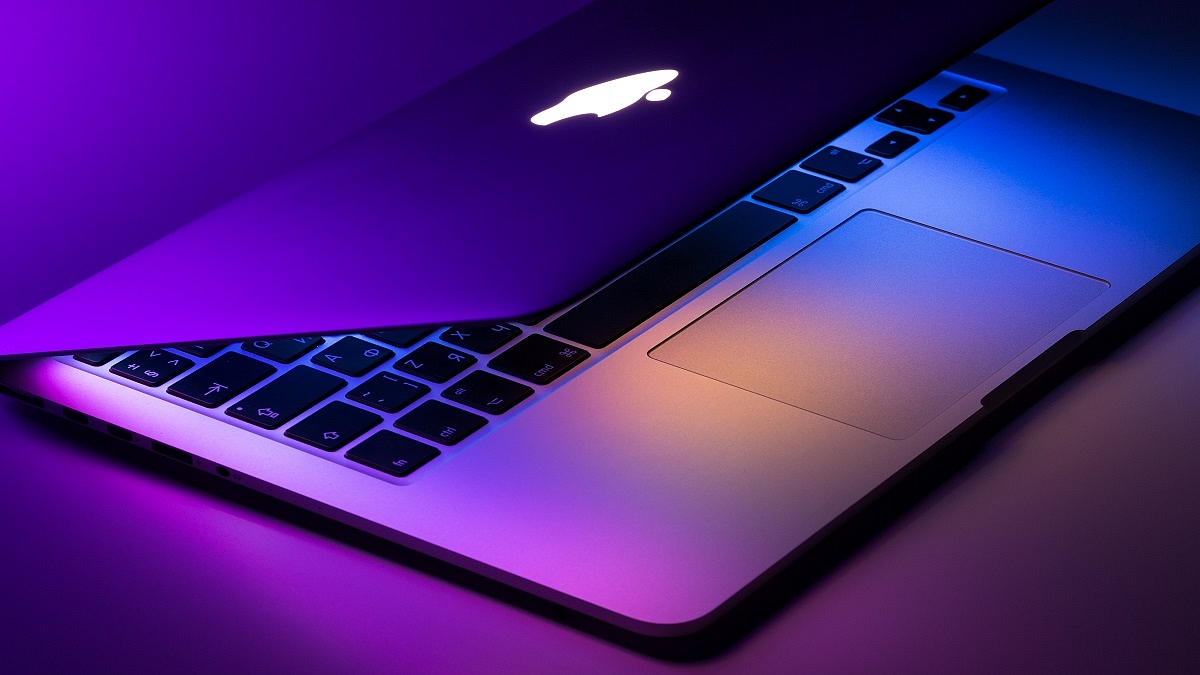
Here’s How To Activate Low Power Mode In macOS

MacOS Monterey brought a fair amount of developments to the platform. Low Power Mode is one of the more crucial changes for people who need to get the most battery life out of their devices. The feature is already well-known to anyone who owns an iPhone. By doing this, the device is set up to preserve as much battery life as possible.

By automatically reducing screen brightness and slowing the CPU clock speed, this lowers energy usage. This not only aids in lowering energy use but also keeps your MacBook quieter because the fans won’t be running (thanks to the lower CPU clock speed). Here’s how you can toggle on the Low Power Mode on macOS Monterey. Let’s check out:

Steps To Turn On Low Power Mode On macOS Monterey

On macOS Monterey, activating the Low Power Mode is a rather simple process. Although we will manually demonstrate how to toggle it on, you can also ask Siri to turn it on immediately.

Make sure you are using the most recent stable macOS Monterey version before we begin because it will probably work better.

Step 1: In the top left corner, click on the Apple icon.

Step 2: Tap on ‘System Preferences’.

Step 3: Now, click on ‘Battery’. It is located at the bottom next to the ‘Printers & Scanners’ and ‘Date & Time’ options. If you still don’t find it, simply search for it in the top right corner.

Step 4: Once you open the Battery settings, at the left bottom of the sidebar, tap on ‘Battery’.

Step 5: After you follow the above step, you should be able to see the ‘Low Power Mode’ option. To turn it on, tap on it.

The Low Power Mode will then be turned on and will start working. Turning on the Low Power Mode may provide you with a little additional juice, but you should be aware that the performance might not be exactly the same as previously. Don’t worry, though; your Mac will continue to operate in much the same way while using less energy.

Categories
Featured How To TV

Remove Pre-Installed Apps On Android TV: Here’s How To Do It

Key Highlights

  • Android TV offers similar benefits to Android smartphones but can also have preinstalled apps
  • Users have the option to mass-delete or disable pre-installed apps on their Android smart TVs
  • This allows them to remove unwanted bloatware and customize their TV experience according to their preferences

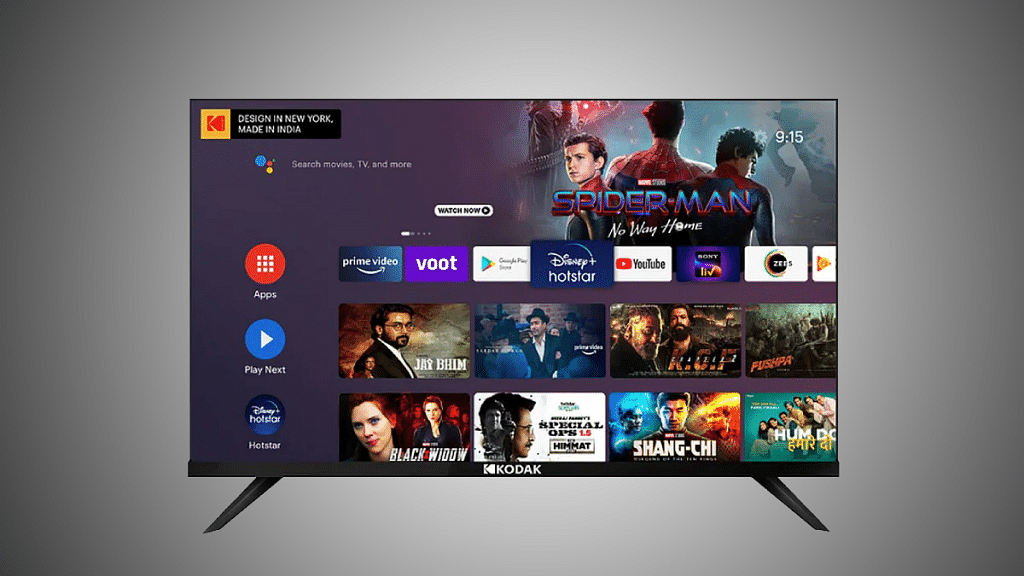
Android TV is essentially Android on a television. This has many benefits that we enjoy with Android smartphones, but it also has drawbacks, such as preinstalled apps that we don’t want, commonly known as “bloatware.”

On your Android smart TV, there is a simple option to mass-delete all of these pre-installed apps or, if you’d like, just disable them. Follow this post to learn how to remove bloatware from your Android TV if you’re looking for exactly that. Let’s find out:

Also Read | Buying A New Smart TV: Top Premium 43-inch. 50-inch, 55-inch Smart TVs Under Rs. 50,000 In 2023

How To Uninstall Apps On Android TV?

Let’s first go over how to remove an app using the Settings menu. Every app you install on your devices, including several that come preinstalled by the manufacturer, will function after you follow this procedure. To start:

Step 1: Go to the Settings menu. You can get there by tapping the gear-shaped icon in the home screen’s upper right-hand corner.

Step 2: To go to that sub-menu, click on Apps.

Step 3: You’ll need to tap ‘See All Apps’ and scroll down until you find the one you’re looking for.

Step 4: Click on the app you want to uninstall to get to its detail page.

Step 5: Tap on ‘Uninstall’ to continue.

Step 6: A new screen will pop up and the system will ask if you really want to uninstall this app from your Android TV. Click ‘OK’ to continue.

The screen will temporarily flash white while it’s removing the application. Once finished, the app will no longer be listed when you return to the Settings screen.

Read Also | How To Set Up Google Duo On Your Android TV: Follow These Steps

Disable Apps On Android TV

It’s likely that you’ll run into applications that don’t have the ‘Uninstall’ option available. You will discover Deactivate in its place. Disabling an app means that it will no longer appear anywhere and will still stream on TV even though its data has been removed.

The majority of the TV bloatware should now be gone, but there will always be preinstalled system apps that you cannot remove or disable from the menus. Although there are a few extra stages, you can also skip them.

Also Read | Best 55-inch High-Res Smart TVs Under Rs. 40,000 In 2023

Categories
Featured Gaming How To

Want To Make A Book In Minecraft? Here’s How

Normally, it doesn’t seem like books and gaming are things that go together in the actual world. However, books are a crucial game mechanic for advancement in the world of Minecraft. You require them for adornment, enchantments, and—thanks to the contentious report system—also for self-expression. But that can wait until later. It’s time to learn how to create a book in Minecraft for the time being, as well as how to get a large number of them quickly as a bonus. Let’s dive in.

Items Required To Make A Book

To make a book in Minecraft, you need the Listed three items:

  • Leather
  • Crafting Table
  • Enchanting Table

Craft Your Paper

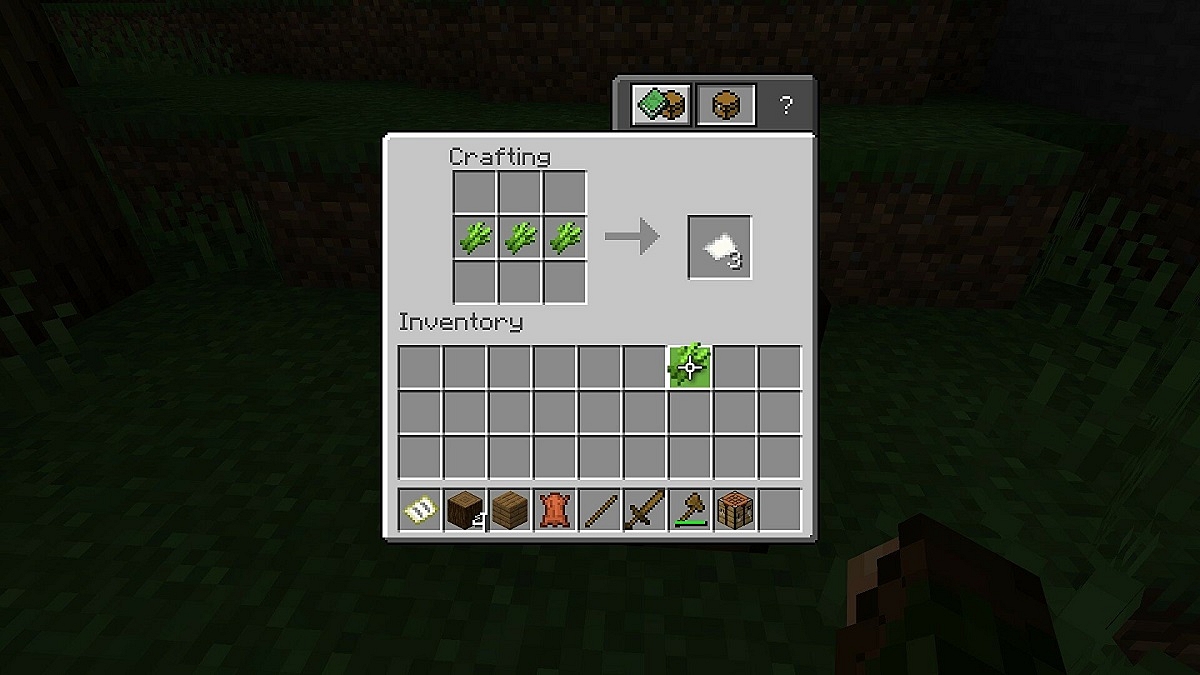
Step 1: Open your Crafting Table.

Step 2: Put one sugar cane into each of the three blocks in the middle row.

Step 3: You have to drag the three sheets of paper into your inventory. All three sheets are required for your book.

Craft Your Leather

Step 1: Open your Crafting Table.

Step 2: Fill the top and middle squares of the first column with one rabbit hide.

Step 3: Into the top and middle squares, place one rabbit hide each in the second column.

Step 4: Drag the resulting leather down in your inventory.

Craft Your Book

Step 1: Open your Crafting Table.

Step 2: In the top and middle squares, place one rabbit hide in the first column.

Step 3: In the top and middle squares, place one rabbit hide each in the second column.

Step 4: Then, drag the resulting leather down in your inventory.

How To Make A Minecraft Bookshelf?

When you have a book, it makes sense to build a bookshelf in Minecraft. Fortunately, it’s just as simple as creating a book. First, arrange three books side by side in the center row of the creating space. After that, you must construct the bookshelf by enclosing them with planks. When you have enough bookcases, you can use them in Minecraft to level up your enchanting table.

You are now prepared to create your own Minecraft collection of books. They make the ideal addition to your Minecraft home. On the top Minecraft servers, some players use it to communicate ideas. For the best Minecraft unlocks, others rely on them for unlocking.

Categories
Apps Info Mobile

WhatsApp To Stop Working On These iPhones: Here’s Why And List Of Models

Key Highlights

  • WhatsApp to drop support for iPhone 5, iPhone 5C
  • iPhones running iOS 10, iOS 11 will not be able to use WhatsApp
  • To continue using WhatsApp, users need to upgrade their devices

Do you use an iPhone? If so, you could end up in trouble. Here is a word of caution for many iPhone users. On select outdated devices, WhatsApp will stop functioning by October. It would prevent many users from using the Meta-owned messaging platform to send and receive media, messages, and other types of communication. Therefore, if you like using WhatsApp but have an older iPhone model, you need to update it.

Apple is reportedly alerting some iPhone owners that WhatsApp support for their handsets is ending, according to WABetaInfo. The messaging feature will no longer work on iPhones running iOS 10 and iOS 11. After that, WhatsApp won’t work on any of these older devices that don’t support iOS 12 or higher. This means anyone using an iPhone 5 or iPhone 5C will be blocked from accessing the messaging app after that.

In addition to this, there are numerous additional iPhone models that are not running iOS 12 or newer versions. These models are also in danger, but they can survive by updating their devices. The next software update, iOS 12 and higher is not compatible with the iPhone 5 and iPhone 5C.

As per the reports, the messaging app has started to inform iPhone users who are running iOS 10 or iOS 11 versions of the app. Users of the messaging service have already been informed via a message that they can no longer access the app on their smartphones.

The report has been shared by WABetaInfo, a WhatsApp development tracker. They have also shared a screengrab of a pop-up reading, “WhatsApp will stop supporting this version of iOS after 24 Oct 2022. Please go to Settings > General, then tap Software Update to get the latest iOS version.”

This isn’t a new thing for the Meta-owned app. This has happened in the past as well where WhatsApp also ended support for a list of Android phones running Android 4.0.4 or older versions. The platform says that such devices are not capable to work with the latest app versions and pose a threat to the user’s security.