Categories
Comparison Featured TV

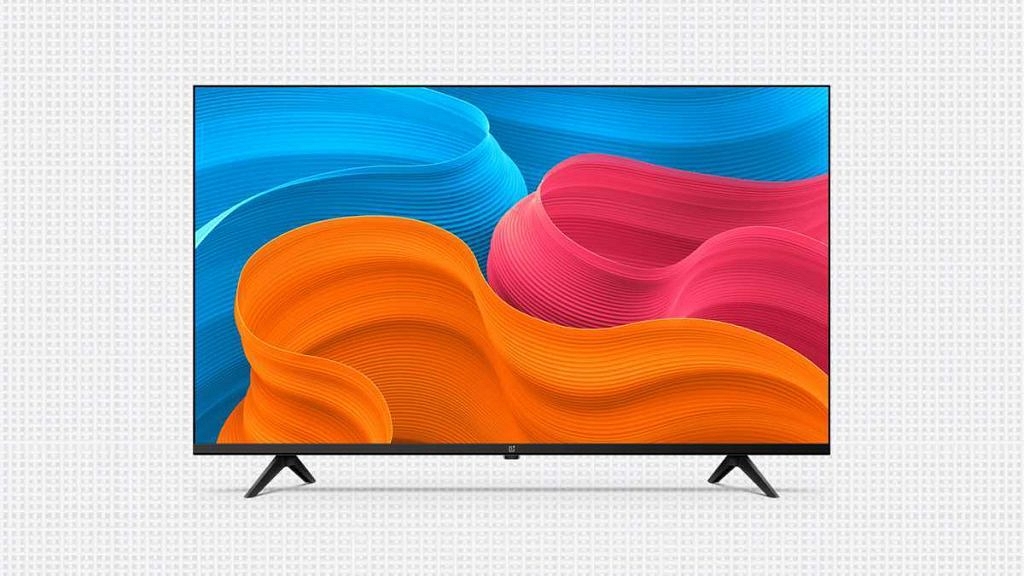
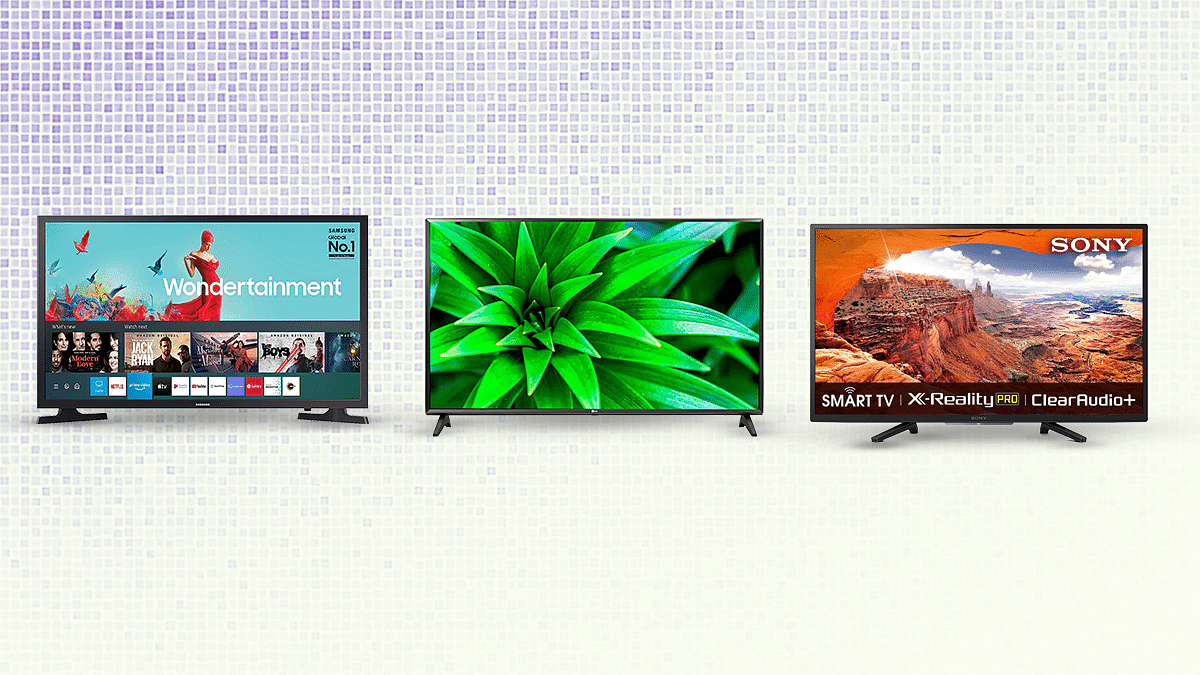
Samsung HD Ready LED Smart TV Wondertainment Series Vs LG HD Ready Smart LED TV Vs Sony Bravia HD Ready Smart LED TV: Best 32-Inch Smart TV?

Key Highlights

  • The Samsung HD Ready LED Smart TV Wondertainment Series is perfect for families with children.
  • Comes with mega contrast, PurColor, and HD picture quality.

Unlike smartphones, TVs have significantly decreased in price, making the great new TV technology affordable to everyone. Additionally, three stand out among the various TV manufacturers on the market, i.e., Samsung, LG, and Sony. They set the bar for the best TVs out there with smart TV technology, high picture quality, a sleek and elegant design, and some pretty remarkable screen sizes.

In this article, we are comparing three smart TVs, i.e., Samsung 32 Inches HD Ready LED Smart TV Wondertainment Series, LG 32 Inches HD Ready Smart LED TV and Sony Bravia 32 inches HD Ready Smart LED TV. Every brand has models that stand out in particular categories. But the bottom line? We’ll tell you here.

Design And Display

The Samsung HD Ready LED Smart TV Wondertainment Series sports a slim and stylish design. It has a 32-inch HD Ready (1366 × 768) LED panel with a 60Hz of refresh rate. The display further has mega contrast, PurColor, and HD picture quality.

On the other hand, the LG HD Ready Smart LED TV has a standard plastic frame style. If hung on a wall or even just placed on a flat surface, its wider and blockier shape takes up room. It is a 32-inch Smart TV with an HD resolution that is natively supported. This TV’s feature set is better than most entry-level 32-inch TVs.

Moving to the Sony Bravia HD Ready Smart LED TV, its design is more classical with narrow bezels on all four sides and an elongated chin underneath the company logo on the bottom bezel. It has a 32-inch panel with a resolution of 1366 x 768 pixels and a 50Hz refresh rate.

Also Read: LG India Launches OLED 2022 Smart TV Series: See Here For Price And Other Details

OS And Features

The Samsung HD Ready LED Smart TV Wondertainment Series comes equipped with features like voice assistants, SmartThings app, personal computer, home cloud, live cast, screen share, and music system. As for connectivity, it has two HDMI ports to connect the set-top box, Blu-Ray players, and gaming console. Also, it comes with one USB port to connect hard drives and other USB devices.

The Samsung TV has 20W sound output with Dolby Digital Plus. It further has Alexa built-in. Simply ask Alexa to play music, control smart home devices, find movies, get sports updates, and more.

On the other hand, the LG TV’s latest version of the operating system has received a webOS Notify feature that works like the notification feature on our phones. From texts, incoming calls, and emails, to software updates, you can check notifications right away. The LG TV’s AI ThinQ function is its most intriguing feature. The built-in AI features in this TV, according to LG, will handle more than 800 voice search requests. It includes three HDMI ports in total, including one HDMI ARC port, and one USB port.

The quad-core processor within the Sony Bravia HD Ready Smart LED TV has four ARM Cortex A55 cores and a Mali-G31 GPU. You get 1.5GB RAM and 16GB of internal storage, of which the OS and preinstalled apps use around half and the remaining third is left over for your use. Moving on to connectivity, this Sony TV has the majority of common input/output ports. A 3.5mm headphone jack, an optical audio out, coaxial A/V inputs, a LAN connector, and three HDMI ports, one of which supports ARC, two USB 2.0 ports, and other ports are included.

Also Read: Samsung HD Ready LED Smart TV Wondertainment Series Vs LG HD Ready Smart LED TV Vs Sony Bravia HD Ready Smart LED TV: Best 32-Inch Smart TV?

Verdict

All three models, i.e., Samsung HD Ready LED Smart TV Wondertainment Series, LG HD Ready Smart LED TV, and Sony Bravia HD Ready Smart LED TV, are priced under Rs. 30,000. However, the LG Smart TV is filled to the brim with premium features. A motion remote, HDR and other technologies like AI ThinQ are uncommon on low-cost TVs or any other models with a comparable price. The LG HD Ready Smart LED TV is a serious contender if you were looking to upgrade to a smart TV because it offers great value for the money along with a good picture and audio quality.
Categories
Apps Featured How To

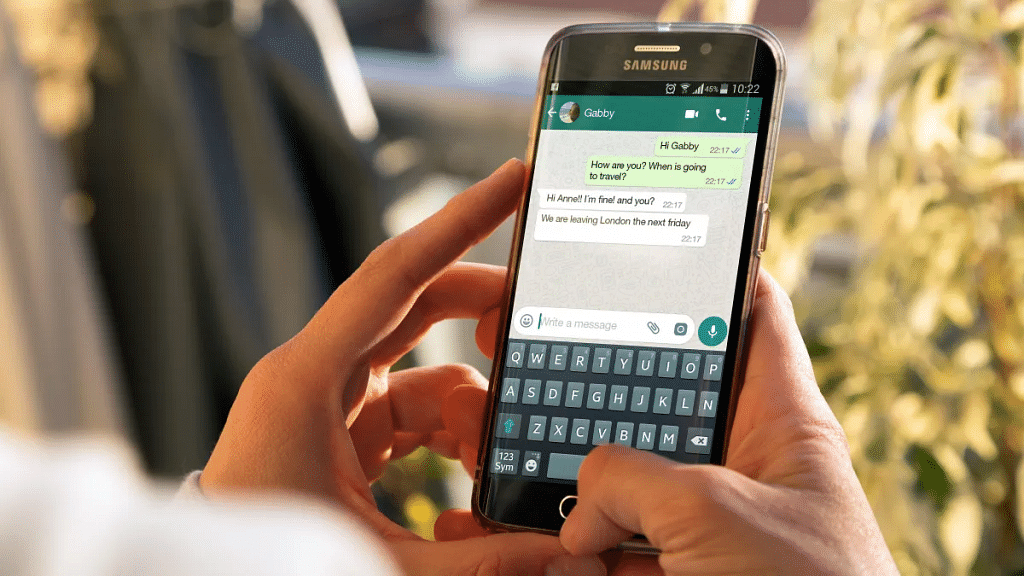
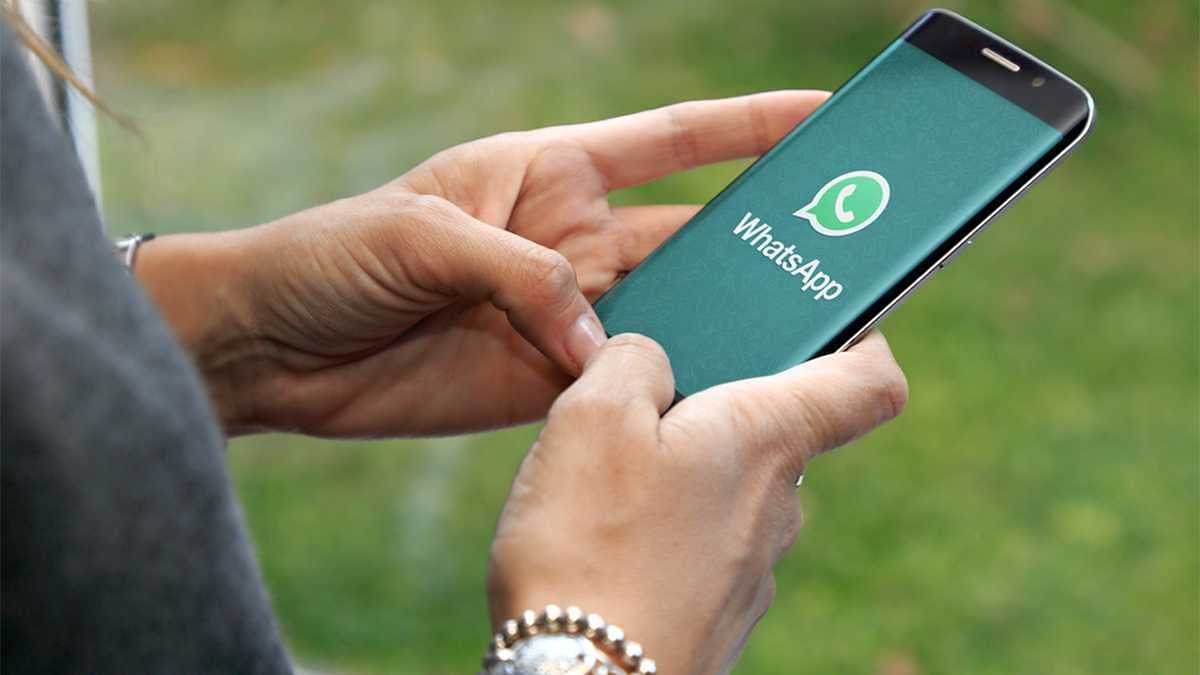
How To Use Two WhatsApp Accounts On One iPhone: Check Out The Steps

Key Highlights

  • Most new smartphones offer dual-SIM functionality
  • You can’t use two distinct WhatsApp accounts on one smartphone
  • Android users use app cloning or third-party apps, while iOS users face challenges due to lack of built-in or third-party tools for app cloning

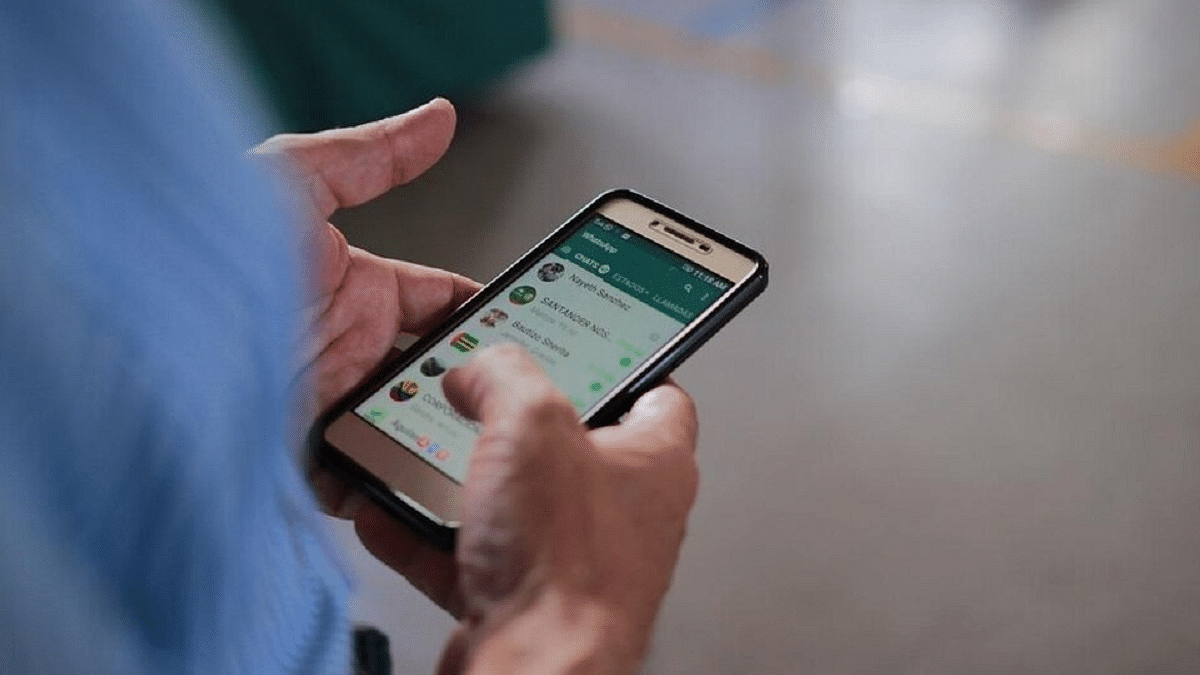
In the past few years, almost all new smartphones have had dual-SIM functionality. You can use two separate numbers on the same device thanks to the feature. Unfortunately, you cannot use two distinct accounts on a single smartphone using WhatsApp, one of the most widely used messaging apps worldwide. The majority of Android users choose “Dual WhatsApp” by using the app cloning feature or installing third-party apps to use two WhatsApp accounts.

With iOS, this might not be the case, though, as there aren’t any internal or third-party tools that let users clone their apps, making it challenging for users to have multiple accounts for the same app. Let’s find out how you can use two WhatsApp on a single iPhone. Also Read | WhatsApp Tips & Tricks: How To Unblock Yourself And Regain Access

Steps To Use Two WhatsApp Accounts On A Single iPhone

Using WhatsApp Business is the only way to use two WhatsApp accounts on a single iPhone. Similar to the standard version, WhatsApp Business has a few more features that make it appropriate for business owners.

You can currently use these two versions of the platform with two separate numbers on a single device with the Meta-owned app. Follow these steps to learn how to use two WhatsApp accounts on a single iPhone. This way you can lastly make use of your iPhone’s second SIM for WhatsApp.

Step 1: On your iPhone, open App Store and search for WhatsApp Business.

Step 2: Click on the Get icon and install the app on your iPhone.

Step 3: Open the application after downloading it and tap on Agree & Continue button.

Step 3: There will be two choices available to you in a new window. Click the second choice. You can use your current WhatsApp account as a business account if you choose the first option. You can create new WhatsApp Business accounts with a different number using the second option.

Step 4: Simply log on with your second number as you would on the standard WhatsApp app.

Also Read | WhatsApp Pay Tips And Tricks: How To Check Bank Account Balance On WhatsApp App

Following setup, you can use the regular WhatsApp for your primary contact number and WhatsApp Business for your secondary contact number. You will find it simple to sort through messages in this manner. Additionally, it is simple to maintain two WhatsApp accounts on a single iPhone if you run a business or wish to use one for personal usage and the other for work.

Categories
Apps Featured

Draw Away! Here’s The List Of Best Drawing Apps For Your iPad

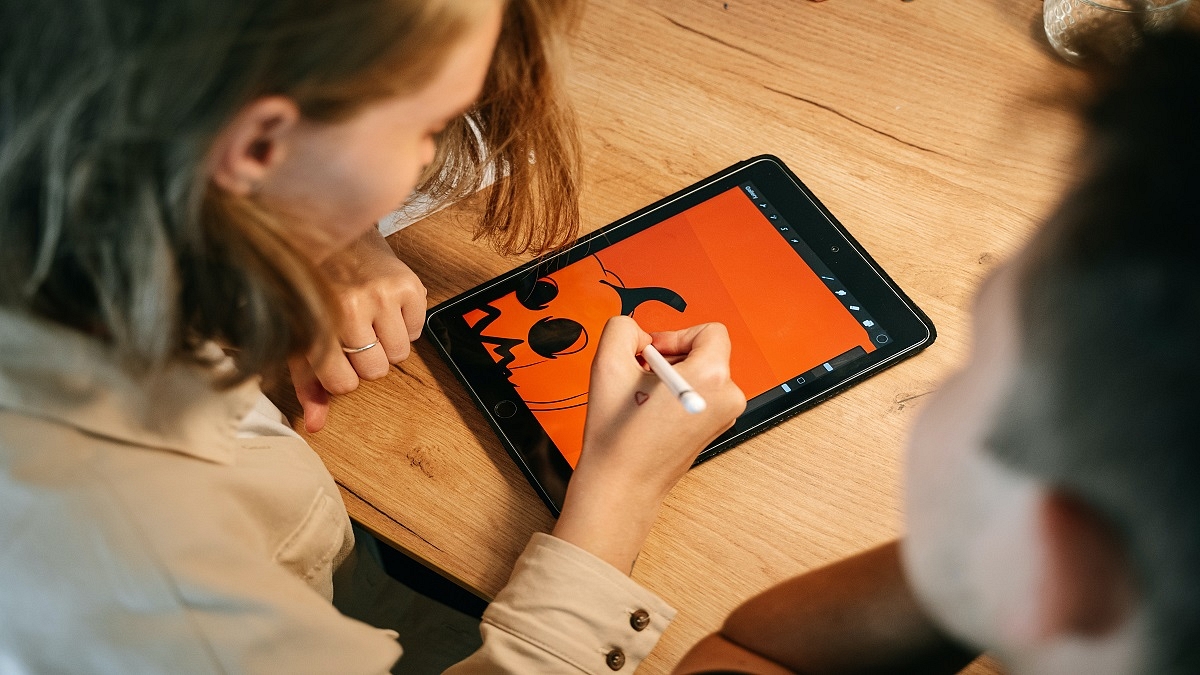
Sketching and drawing are one of the things that many iPad owners do. You can be a budding artist eager to use your Apple Pencil and enthusiasm, or you might be a newcomer to this field. In any case, we have compiled a useful list of the top iPad drawing applications that you may use to further your artistic endeavors.

Adobe Illustrator Draw

Adobe Illustrator Draw is a good option for users looking for iPad drawing apps. There are a variety of formats available in this practical drawing tool, including ones that are ready-made for the iPad in both portrait and landscape orientations. Although a little more straightforward, Illustrator Draw’s design serves its goal nicely and the app even gives a quick 30-second intro before you start using it.

Procreate

One of the top drawing apps for the iPad is Procreate. For artists that enjoy manipulating their paintings in a variety of ways and drawing, it demonstrates to be a comprehensive package. This cleanly designed app has a very simple goal and offers many canvas possibilities and pre-made creations to spark your imagination and demonstrate what Procreate is capable of.

Linea Sketch

Linea Sketch is a drawing app for the iPad that was created with simplicity and ease of use in mind. It offers both while still being appropriate to provide a pleasant sketching and drawing experience. Similar to Adobe Draw, Linea has a straightforward layout with the tools on the right and a color palette on the left. Users can draw on a pre-made set of five layers.

Adobe Fresco

The company’s other addition to its collection of drawing tools is Adobe Fresco, a drawing software designed just for the iPad and the Apple Pencil. Artists can quickly create raster and vector-based drawings using Fresco and even combine them. Fresco is compatible with Adobe’s Cloud system, so any drawings you make will be synced across all platforms, including desktops.

Concepts

Concepts is an iPad sketching software that emphasizes versatility and is designed not just for drawing but also for brainstorming and note-taking. Since Concepts is infinite in nature, you have an endless canvas on which to create infinite layers, and even if you make a mistake, you may undo it an infinite number of times.

Categories
Featured Gaming

Minecraft Alternative Games: Best Sandbox Games You Should Check Out

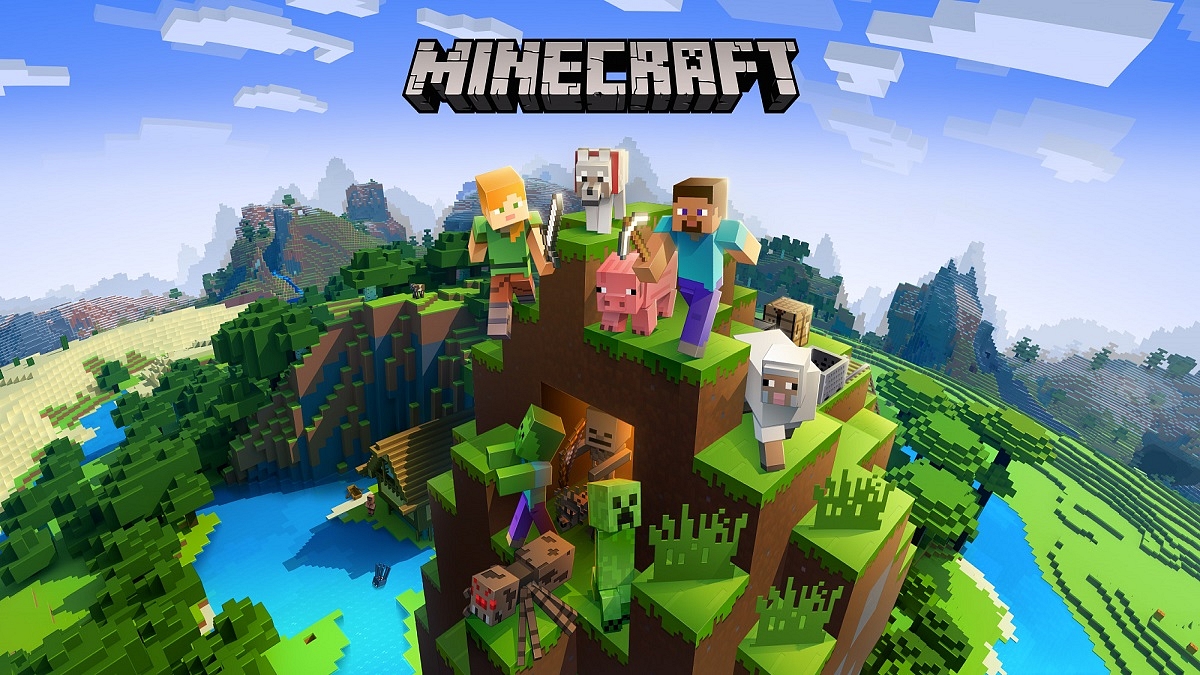
Minecraft is undoubtedly one of the most played games on the planet right now. Furthermore, it has every right to be there. It offers us truly open and distinct landscapes full of extraordinary mobs, fantastic Minecraft enchantments, and infinite ways to play the game. When it comes to inspiring creativity, nothing compares to Minecraft.

But after a decade of successful runs, it’s time for a change. For that, we have some incredible sandbox games like Minecraft that might not dethrone the king but they undoubtedly put up a fierce fight. Let’s check them out.

Terraria

Because the two games have many similarities, Terraria is frequently referred to as the 2D version of Minecraft. Similar to Minecraft, Terraria enables players to explore the expansive game world while also mining, crafting, and building. There are a few different game types available for it. Boss battles and NPCs who will trade you services are additional game features.

Eco

Eco extends to every facet of Minecraft, making it a more sophisticated and environmentally conscious version of the Sandbox game. Players must start from the beginning and build a whole civilization. This idea is turned on its head in Eco which mandates that players only cut down trees in areas where doing so won’t harm the soil. Because of this, it ranks among the top sandbox games like Minecraft.

Roblox

Roblox is a free-to-play online game that has millions of players worldwide. In that it’s a sandbox game with a focus on user-generated content, the game is comparable to Minecraft. Players in Roblox have the option of creating their own games or playing those made by others in the community. The ROBLOX website and the Studio, where players can develop their own games, are the two primary sections of the game.

Subnautica

Subnautica is a survival game that is based on oceanic underwater exploration and figuring out novel ways to survive on an alien planet. You can search the seas for unusual stones, supplies for crafts, and other things. In this place, you have to deal with various ocean monsters, just like you do in Minecraft.

Categories
Featured How To TV

How To Send Files From Smartphone To Your Smart TV: Check Steps Here

Key Highlights

  • Sending files from a phone to a smart TV is easy
  • There are several ways to do it including using a USB cable
  • Ensure both devices are on the same network

Smart TVs, mainly Android TVs, have become popular, with their sales skyrocketing due to the smart features with integration across multiple platforms. You may wish to stream music, watch videos, or even view documents on your Android television straight from your phone if you have one. But how?

Once you know how to get around it, transferring files from your Android phone to a smart TV is simple. Two methods for transferring files from your Android phone to your Android smart TV will be covered in this article. Let’s quickly dive in.

Also Read | Buying New Smart TV? List Of Best 32-inch Smart TVs Under Rs. 10,000 In India

How To Send Files To TV From Your Phone?

First things first, you need to download and install the necessary app on your Android TV and Android smartphone. To do this, all you have to do is follow the listed steps:

Step 1: Open the Play Store on both your TV and your Android phone.

Step 2: Search for the ‘Send Files to TV’ app.

Step 3: Open the app on your TV and select ‘Receive’.

Step 4: On your phone, go select the files you’d like to send to your TV and hit Share.

Step 5: Choose ‘Send Files to TV’ from the resulting window.

Step 6: Now, select your Android TV from the list. The files will be sent over.

Note: The ‘Send Files to TV’ app is not yet available for iOS devices.

Also Read | Best Smart TVs In India With 120hz Refresh Rate: Popular Options From LG, Samsung, And More

Mirror Your Phone’s Screen To Chromecast Or Firestick

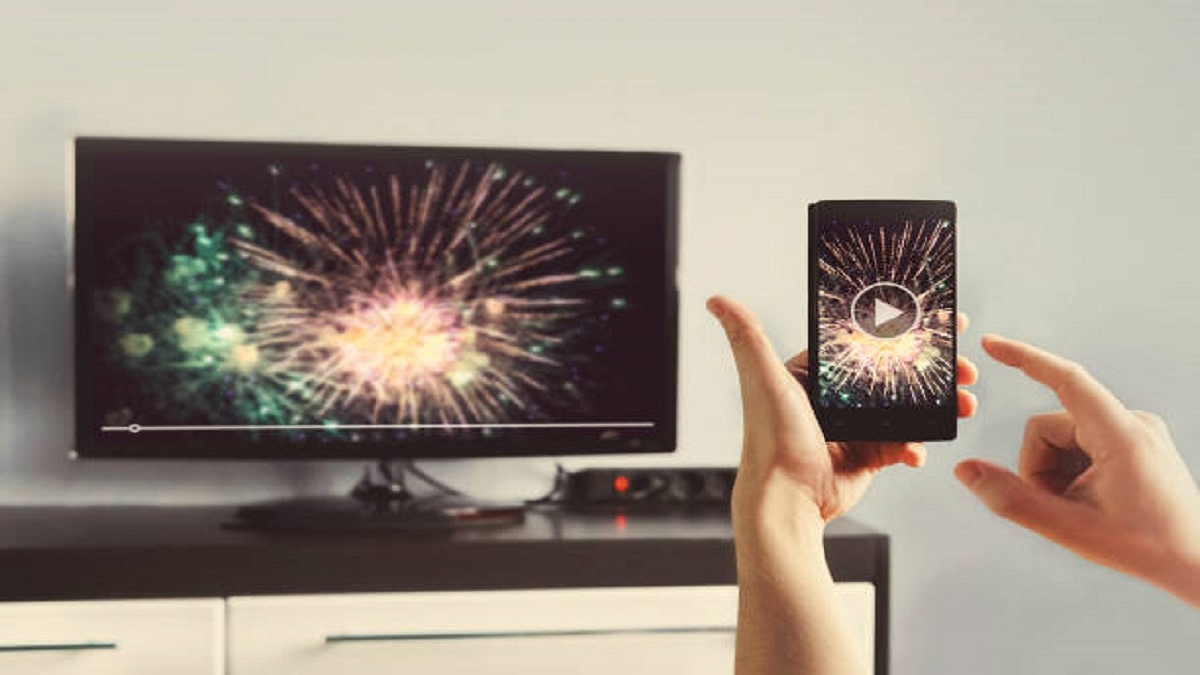
Mirroring is another method for watching content from your phone or computer on your TV. If you only want to play videos or view images on the big screen, you can mirror your mobile device to your TV. Also, note that the file will not be transferred to the TV.

For mirroring, you must connect your TV and mobile phone to the same Wi-Fi network, locate the casting option on your smartphone, press on it, and choose your smart TV from the list of connected devices. You can play the movie on your smartphone, which will then be played on the TV, and it will mirror your device to the screen.

For the tech geeks, stay updated with the latest cutting-edge gadgets in the market, exclusive tech updates, gadget reviews, and more right on your phone’s screen. Join Giznext’s WhatsApp channel and receive the industry-first tech updates.

Categories
Apps Featured Info

Snapchat Lays Off Around 1,300 Employees: All You Need To Know

Key Highlight

  • Snap lays off 20 percent of its workforce
  • It has roughly 6,400 employees
  • Snap was appointing Jerry Hunter as COO

The maker of the ephemeral messaging app Snapchat, Snap, announced that it will be laying off 20 percent of its workforce, ceasing production of at least six products. In addition to this, the social media giant is recruiting its first chief operating officer (COO) in seven years.

Nearly 1,300 of Snap’s 6,400 employees are expected to be affected, the company said. The segment of Snap that created exclusive short shows with famous people and other influencers, as well as its social mapping app Zenly, its music creation app Voisey, and hardware like its Pixy drone camera, are all being shut down.

The company claimed its most recent quarter’s revenue growth of 8 percent was “well below” projections and that the cuts were part of a worst-case plan for how the sluggish advertising market will continue to affect it in the coming year.

The company known as Snap has been particularly hard struck by Apple’s crackdown on ad tracking across apps, just like Facebook, which has also made personnel reductions.

Evan Spiegel, the CEO of Snap, told his team that the company had anticipated a ten-fold increase in revenue and a doubling of its social media following, but that neither had happened.

According to a note to investors from Snap, the company will save $500 million in annualized cash costs compared to the April-June quarter as a result of the layoffs, project cancellations, and another restructuring (for which Snap posted lackluster earnings results). The amount reflects a $50 million decrease in content expenses.

The restructuring costs will be around $110 million to $175 million. Approximately $95 million to $135 million of that will be expected to be acquired in adjusted operating expenses, mostly in the current quarter.

At the same time, Jerry Hunter, a senior vice president for engineering, was appointed chief operating officer by Snap. Mr. Hunter will succeed Snap’s CEO and co-founder Evan Spiegel as the company’s No. 2. Since 2015, the position of chief operations officer had been vacant.

Categories
Accessories Featured How To

Claustrophobic While Using TWS Earbuds: Here’s How To Tune Into A Single Earbud

Let’s face it. Nobody enjoys listening to music with just one pair of headphones plugged in. However, sometimes when you want to listen to audiobooks or podcasts but need one ear free for outside noise. Therefore, you only insert one earbud.

It feels more natural to listen to music and podcasts in stereo which reproduces sounds with directionality. Additionally, if Streamed Hams’ music, podcast, or binaural ASMR dub is in stereo, some noises will only come through the earphone you are not currently using. As a result, it will sound as though you are missing half of the song if you are listening with just one pair of headphones.

In the accessibility settings on your phone or computer, you can turn a switch to hear everything. Here’s how to do it:

How To Listen To Music In One Earbud On iPhone?

For Apple mobile users, you can toggle this feature on by following these simple steps:

Step 1: On your iPhone, launch the ‘Settings’ app.

Step 2: In the third block of options, click on ‘Accessibility’.

Step 3: Under Hearing, tap Audio/Visual.

Step 4: Toggle ‘Mono Audio’ on.

How To Listen To Music In One Earbud On Android?

Step 1: On your Android phone, launch the Settings app on.

Step 2: Tap Accessibility.

Step 3: Under Audio & on-screen text, toggle Mono audio on.

How To Listen To Music In One Earbud On Mac?

Step 1: On your Mac, open System Preferences.

Step 2: Now click on ‘Accessibility’.

Step 3: Under Hearing on the left, tap on ‘Audio’.

Step 4: Click Play stereo audio as mono.

How To Listen To Music In One Earbud On Windows?

Step 1: Open Settings.

Step 2: Click Ease of Access.

Step 3: Click Other options.

Step 4: Toggle Mono audio on. That’s all.

The audio will now play in both earphones on both channels. So even with one earbud in your ear, you can hear every click and ting of Pink Floyd’s “Money” or all sides of the conversation on a well-scripted podcast.

Categories
Featured How To TV

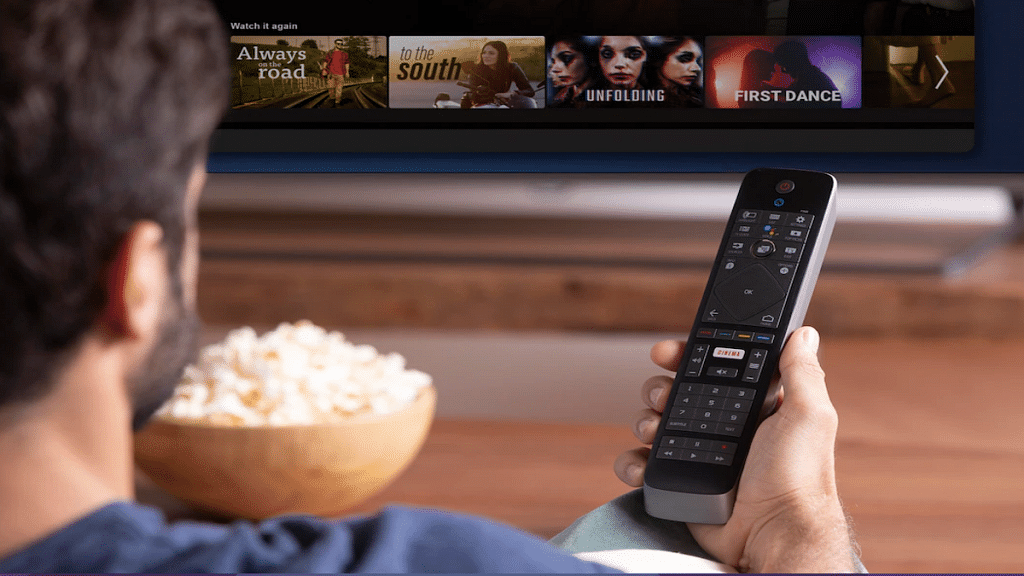
Use Your Smartphone As A Smart TV Remote: Here’s How

Key Highlights

  • Juggling multiple remotes is frustrating
  • Use your phone to control your smart TV
  • Phones with IR blasters control various devices

Are you ready to binge-watch your favorite TV shows? Now imagine all the remotes that currently reside on the coffee table. One for the cable, DVD player, video game console, or television. Additionally, there must have been times when you couldn’t find the remote or its battery died. It’s annoying, isn’t it?

Gratefully, smart as they are, Android smart TVs can also be controlled by Android phones and even iPhones. Users of smartphones with IR blasters can download TV remote apps to operate not just their smart TVs but also set-top boxes, cable TV boxes, DVD players, Blu-ray players, stereo equipment, projectors, air conditioning systems, cameras, and other devices that receive IR signals or light beams.

According to the Google blog page, here’s how you can use your smartphone as a remote for your smart TV.

How To Control Smart TV With Your Android Smartphone?

Step 1: On your mobile phone, download the Android TV Remote Control app from the Google Play Store.

Step 2: Connect your Android phone and smart TV to the same Wi-Fi network.

Step 3: Open the smart TV Remote Control app on your phone and tap the name of your smart TV.

Step 4: A PIN will appear on your smart TV screen.

Step 5: Enter the PIN on your phone. Click on pair to connect both devices.

How To Control Smart TV With Your iPhone?

Step 1: Download the ‘Smart TV Remote’ app from the App Store to your iPhone.

Step 2: Your phone and smart TV should be connected to the same Wi-Fi network.

Step 3: On your phone, open the Smart TV Remote Control app.

Step 4: To access your smart TV, tap its name.

Step 5: Your smart TV’s screen will display a PIN.

Step 6: On your phone, enter the PIN that is displayed on your TV.

Step 7: To link the two devices, tap pair.

Once paired, users can turn their TV on or off with the remote. They can easily use their mobile phone to view the same menu that is available on the remote control.

For the tech geeks, stay updated with the latest cutting-edge gadgets in the market, exclusive tech updates, gadget reviews, and more right on your phone’s screen. Join Giznext’s WhatsApp channel and receive the industry-first tech updates.

Categories
Chipset Featured Info

AMD Makes Ryzen 7000-Series Gaming CPUs Official: All Details Here

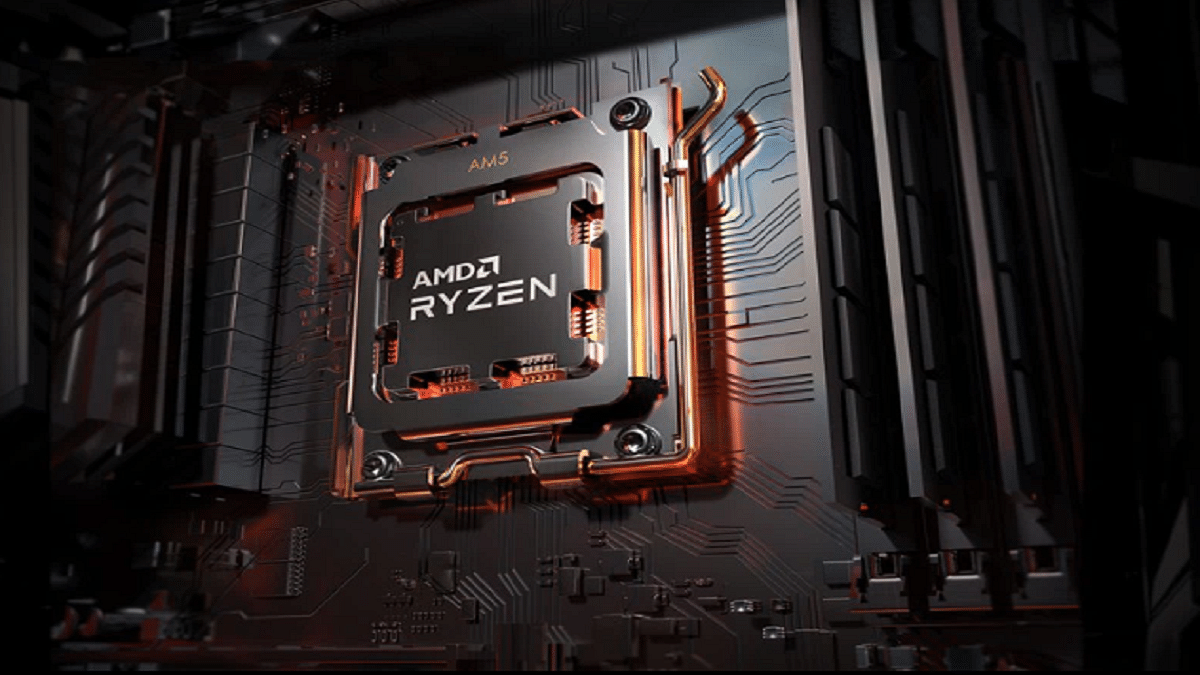
AMD has introduced its new 7000-series CPUs which succeed the 6000-series chips from the previous year. It uses the company’s brand new AM5 platform and is based on the new Zen 4 architecture. Along with significant speed and efficiency gains, this upgrade is expected to introduce cutting-edge connection capabilities like support for new DDR5 memory and PCIe 5.0 technology.

There are currently four processors in the newly announced Ryzen 7000-series. Here is all the information you need to know regarding the new processors, including the release date, price, and other specifics.

AMD Ryzen 9 7950X

The Ryzen 9 7950X has 32 threads and 16 cores. It features a 4.5GHz base clock frequency and up to a 5.7GHz maximum boost clock. It comes equipped with an 80MB cache, 170W TDP, and PCIe 5.0 storage capabilities. The AMD Ryzen 9 7950X will cost you at $699 (approx. Rs. 55,731).

AMD Ryzen 9 7900X

The AMD Ryzen 9 7900X comes with 12 cores and 24 thread configurations. It is clocked at 4.7GHz with a 5.6GHz boost. It comes with a 76MB cache and supports PCIe 5.0 storage. As for price, the Ryzen 9 7900X is priced at $549 (approx. Rs. 43,767).

AMD Ryzen 7 7700X

The AMD Ryzen 7 7700X packs eight cores and 16 threads. It is clocked at 4.5GHz and can go up to a 5.4GHz boost. Also, it supports PCIe 5.0 storage and 105W TDP. It is priced at $399 (approx. Rs. 31,809).

AMD Ryzen 5 7600X

The Ryzen 5 7600X has a six-core and 12-thread architecture. It has a 4.7GHz clock speed with support for a 5.2GHz boost. The processor has a 38MB cache as well as a 105W TDP. Additionally, PCIe 5.0 storage is supported. For now, it is the most affordable chipset model on this list with a $299 price tag (approx. Rs. 23,837).

AMD Ryzen 7000-Series CPUs: Availability

The new AMD Ryzen 7000-series processors will be available for purchase starting from September 27, 2022. It is currently unknown whether Indian users will be able to purchase the Ryzen 7000-series processors on the same date. AMD is anticipated to give further information on regional availability in the coming weeks.

Categories
Featured Home Appliances

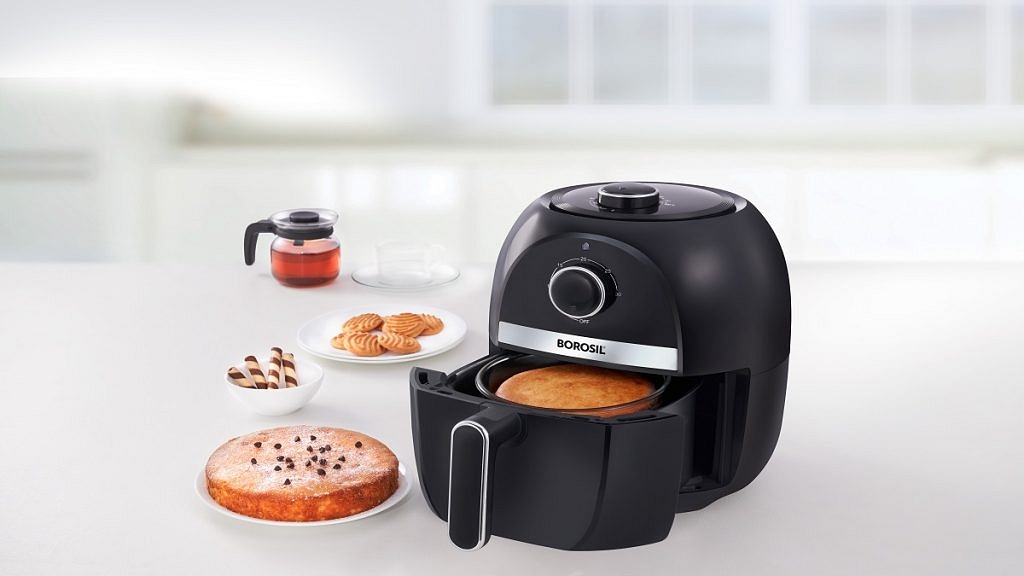
Borosil Unveils Its All-New 4-In-1 ‘Best Air Fryer’: All Details

Key Highlights

  • Borosil launches its new Air Fryer
  • It uses 90 percent less oil while preparing food
  • The Air Fryer is available at Rs. 7,390 in India

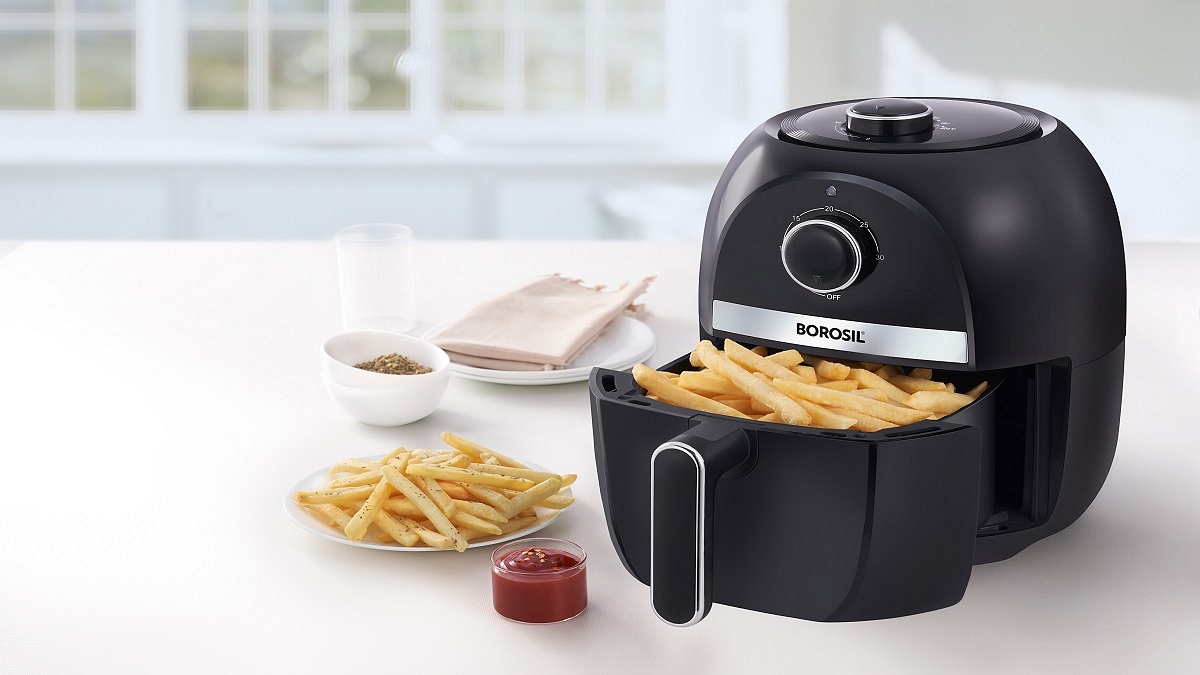
India has seen a rise in the popularity of healthy cooking, and air fryers enable health-conscious individuals to indulge in some of their favorite foods guilt-free. Now, to help you enjoy preparing quick, simple, and wholesome meals for your family, Borosil has released its brand-new 4-in-1 ‘Best Air Fryer’.

The new Air Fryer is a multipurpose device that uses 90 percent less oil than conventional frying techniques to help fry, bake, grill, and even roast culinary items. Here’s all you need to know about Borosil’s all-new 4-in-1 Best Air Fryer:

Borosil 4-In-1 Best Air Fryer: Features

Instead of really deep-frying food, air fryers use hot air to swiftly cook and crisp up food to resemble the results of deep-frying. The Quick Fry technology in Borosil’s Air Fryer allows for the healthiest and tastiest meal preparation while using 90 percent less oil.

The device is safe to handle because the ‘cool-touch’ handle of the basket does not heat up, and it comes with a frying pan and tray. This air fryer aids in maintaining the same flavor and crispiness whether making samosas, french fries, or muffins.

Apart from this, Borosil’s Air Fryer has a 2.8-liter capacity basket that weighs around 3.2kg. It has an ABS body, a non-stick-coated steel fryer basket, and a tray. The Air Fryer is capable of handling temperatures up to 200°C. It supports baking, defrosting, and reheating apart from air frying.

The Air Fryer is equipped with 30 min integrated timer with an auto-off function. Some specific features of the Borosil Best Air Fryer are listed below:

  • Power: 1200W
  • Net Weight: 3.2 kg
  • Voltage: 230V AC / 50 Hz
  • Smart design with cord winder
  • Easy to clean accessories
  • Air vents at the rear
  • Space-saving design
  • Auto-off function
  • 1m long power cord

Borosil 4-In-1 Best Air Fryer: Price And Availability

The Borosil Air Fryer is priced in India at Rs. 7,390 and is available for sale on Amazon India and the official website of Borosil.