Categories
Apps Featured

Best Instagram Features That Are Worth Trying

Did you know you could schedule future Instagram posts? Or tweak your bio so that it shows up on the Explore tab? There is a ton of lesser-known Instagram settings, hacks, and search tools that can help you step up your Instagram game to the next level. And we’ve gathered them all together here.

There are Instagram features available for everyone, whether you’re a recruiter trying to highlight the culture of your business, an e-commerce marketer, or someone who just wants to use Instagram as effectively as possible. Let’s check some of the best Instagram features that are worth giving a try:

Reply While You Browse

While viewing your feed, a new message can come in. Also, you can respond to them instantly without having to go to your inbox and lose your place. Chatting while on the phone is now even simpler and more practical thanks to this feature.

Send Silent Messages

By including “@silent” in your message, you can send silent messages without notifying friends late at night or during a busy time. Now you can communicate without worrying about sending unnecessary notifications.

Instagram Reels

Reels are currently driving Instagram’s viral growth. It gives followers a means to produce and find quick, interesting films. Users are drawn to the entertaining videos and share them right away with audio, effects, and new artistic tools.

Play, Pause, And Replay

You can now post a 30-second preview of the song you can’t stop thinking about, and your friends can listen to it immediately from your chat. This feature is made possible by integrations with Apple Music, Amazon Music, and Spotify that are coming soon.

See Who’s Online

You can see who is available to talk to at the moment by looking at the top of your inbox. This will make it easier for you to connect with pals inadvertently.

Hide, Delete, Or Disable Comments On Posts

Twitter may have a more open-ended remark culture, but it’s far simpler to manage who comments on your content on Instagram. If you oversee a business account, this is extremely crucial.

Create A Poll

Choosing a restaurant for supper or a time to meet? One of Messenger’s most popular group chat features is coming to Instagram. You can use this to make a poll right in your group chat.

Categories
Apps Featured How To

How To Migrate YouTube Channel And Videos To A Different Account

Key Highlights

  • YouTube is the most popular platform for online video streaming and entertainment
  • Users can earn money by creating and sharing videos on YouTube
  • You can create a YouTube channel or move an existing one to a new email account

YouTube can be deemed the best streaming service for online video streaming. Users from all over the world have been using Google’s this video streaming platform for entertainment. Google has also made it possible for the general audience to earn a good sum of money by uploading videos and sharing them with the public.

Also Read | Top YouTube Channels For Exploring Hindu Mythology

If you want to earn money by creating videos on YouTube, you would need to create a channel. The wider popularity and audience reach are one of the best ways to make the most of monetization on YouTube. You can create your YouTube account and a brand channel using a Gmail or supported email address. If in case you already have an existing channel that you wish to move to any other email account, you have the provision to do so. You can move the videos as well to a different account. But what are the steps to migrate your old channel to a new account? Read the steps here.

Steps To Migrate Old YouTube Channel To A New Account

In order to move your old YouTube channel to a new account, you would need to be aware whether the channel is created using a Google or Brand account. If you don’t have the latter, you can create one by following the steps below:

Step 1: Sign in to your YouTube account and head to the channel list.

Step 2: Tap on the Create a channel.

Step 3: You would need to fill in all the necessary details related to your Brand Account.

Step 4: Complete the account verification process.

Step 5: Tap on Create option and your Brand Account will be created.

Also Read | Not Sure What To Watch? YouTube’s Play Something Button Picks For You

How To Move Any Brand Account To A Different Google Account

Step 1: Open the YouTube app and sign in to your Brand Account.

Step 2: Tap on the profile picture option from the app’s home page.

Step 3: Click on the Settings (gear icon).

Step 4: Scroll down to the Account option.

Step 5: Tap on the Add or remove manager tab.

Step 6: You will see the Manage Permissions settings. Click on it. You might be asked to verify your credentials such as password and email address. Complete the process.

Step 7: A new option will show up on the screen called Invite new users. Tap on it.

Step 8: Type the new email address or the Google Account to which you wish to migrate your old channel and its content.  

Step 9: Now, enter the name of the user and the profile’s role in the channel. If you are the primary owner, add your details.

Step 10: Click on Invite.

Step 11. Select Done and then open the new email address. Accept the invitation.

Step 12: After a time period of seven days, you will be able to sign in to the YouTube channel using the new account.

Step 13: Open the Settings menu and head back to the Manage Permissions option.

Step 14: From the drop down arrow, select the primary owner and tap on Transfer option.

For the tech geeks, stay updated with the latest cutting-edge gadgets in the market, exclusive tech updates, gadget reviews, and more right on your phone’s screen. Join Giznext’s WhatsApp channel and receive the industry-first tech updates.

Categories
Apps

Here’s How You Can View Private Instagram Profiles Without Request To Follow

Are you trying to find how to access private Instagram profiles? This post has you covered.

Instagram is quite popular these days for posting visually appealing content, whether you’re trying to remain in touch with family or friends or you’re wanting to engage with others in your niche in order to promote your brand. There are over 1.3 billion active users on Instagram every month.

Most Instagram accounts are kept private, especially those that are personal. Users are always free to choose who can view particular posts and information. Let’s look at how to browse private Instagram profiles without sending requests to follow.

How To View Private Instagram Account Posts?

Can someone view a private Instagram account’s content without following it? It is, indeed. There are various methods for doing this, let’s check them out:

View Instagram Profile From Friends Account

This is a legit way to view a private Instagram post. Consider, for instance, that one of your friends or members of your family has an Instagram account and that friend list includes the target Instagram user (private Instagram account). They might then be able to view their posts, including any pictures and videos. In that situation, using your friend’s Instagram account will allow you to read private Instagram postings.

Make A Fake Instagram Profile

Making a fake Instagram profile to check other users’ posts is the best course of action if the account owner is unwilling to accept your follow requests. When making a fake Instagram account, you might choose a different name to prevent the owner from knowing to whom it belongs. Additionally, include some decent images to make your profile appear authentic. Send a follow request now and observe the outcome.

Wait For The Profile To Get Public

Wait for the Instagram account to go public if the aforementioned strategies don’t work for you. Instagram’s private account posts, stories, and reels cannot be viewed in any other way besides just following the account.

Finally, it is usually advised to go the proper route in order to view any private accounts. You won’t run any risks, and there won’t be any problems. Try to follow the profile of the account you want to view, whether it is a private or public account.

Categories
Apps Featured How To

Instagram Reel: How To Create And Share Instagram Reel Videos Using Templates On Android, iOS

Instagram is currently a fan-favorite app for social media content creators. The photo-sharing app has evolved on a large scale in the last few years; specifically, after coming under Meta (Facebook) umbrella. The company has garnered all the fame ever since it released Reel, a short video feature introduced as a TikTok rival globally.

Instagram has been making improvements with Reels, similar to other in-app features in a bid to make Reels more interactive. Looking at the rising popularity of Reel, Instagram even extended the time limit to up to 90 seconds for recording. Furthermore, the company has also allowed using multiple audio video effects, location tagging, and much more to enhance the quality and for better reach.

Amongst several such provisions is template usage. Instagram has added the option for users to create their version of any Reel video by using a pre-loaded template. For the unaware, the templates feature on Instagram allows creators to remix a reel by adding their own photos and videos while using the same musing and timing from an original Reel.

The templates are not available for all Reel videos specifically the short-length ones. You will be able to use templates only with the Reel videos that comprise at least three clips with music in the background. So if you want to create a new Reel video using a template, this article will guide you with the steps:

How To Create A New Instagram Reel Video Using Available Set Of Templates

Step 1: Open the Instagram app. Note, you can perform these steps on both Android and Apple iPhones.

Step 2: From your profile’s home page, go to the Reel video that you want to remix with the template. Note, you can add templates to the new Reel video that you are creating.

Step 3: Click on the more option (three horizontal/ vertical dots) on the Reel video.

Step 4: Select the Use as template option.

Step 5: In the next step, you will get the option to add the photos or video clips to the Reel video. You will also be able to sort the order in which you wish the images or photos to appear in the video.

Step 6: Click on Done. Now, preview and share your Reel video on your Instagram account.

Categories
Apps Featured Info

WhatsApp Latest Update Will Let You Share Voice Notes As Status: Here’s How

Key Highlights

New WhatsApp feature coming soon

Option to add voice notes as status

To be available for both Android and iOS

WhatsApp is regularly releasing new updates for its Android and Apple iOS mobile applications adding new aesthetics and user-friendly features. Just recently, the company was reportedly testing a new feature that will allow users to edit sent messages. But this isn’t the only new option that WhatsApp is working on. Previously, the company was rumored to be working on the option to add voice notes as a status update. However, the feature was being tested for the iOS app back then. Now, the company is also testing this new status update option for the Android app.

WhatsApp Voice Note Status Update Feature Coming Soon

WhatsApp’s next update will be adding the support to upload voice notes as a status. This update’s development has been shared with WaBetaInfo which has been consistent with sharing the latest WhatsApp updates in work. WhatsApp has already been testing this new status feature for iOS users and is apparently expanding its reach to the Android ecosystem as well.

WhatsApp currently only allows users to share images, texts, and short videos as statuses on their profile. With this new feature upcoming, users will also be able to share any important message as a voice note. The report shared by WaBetaInfo suggests the company has been testing this new feature with the Android 2.22.21.5 beta build.

WhatsApp has not confirmed any new development on this feature. But since it has been working already and testing it with the beta build, chances are we get some official nod soon. We can expect WhatsApp to release a stable update to set voice notes as status in the coming weeks.

According to the report, WhatsApp has also kept a short timeframe for the voice notes that will be shared as status updates. Users will be able to record and share up to 30 seconds of voice notes as a status on WhatsApp. Also, voice note statuses will have the same privacy options as the standard status updates.

Users will get the option to select from whom they wish to hide the voice note status and who can listen to the status. The process to share the voice notes as messages would also be the same as with the general status update on WhatsApp.

Categories
Apps How To

Create And Use Your Personalized Instagram Avatar: Here’s How To Do It

Key Highlights

  • You can create your avatar on Instagram
  • The avatars can also be shared on Stories and DMs
  • Here’s a step-by-step guide for the same

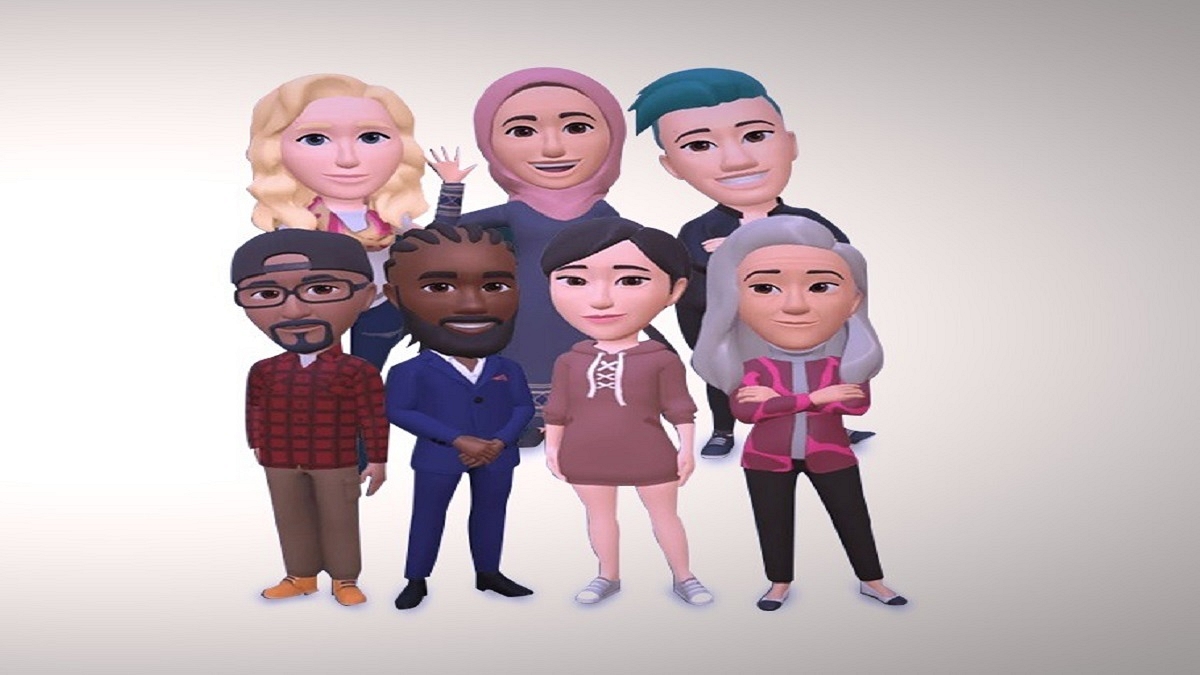
With Meta introducing Avatars to their apps, Instagram is one of the places you can use this digital image of yourself. You can create your own avatar to enjoy conversations with your contacts or use it as your profile picture.

You can design your own avatar however you like, choosing your own hairstyle, skin tone, eye color, clothing, and accessories. You can use the same avatar across apps, from Facebook and Messenger to Instagram, even if you sync it in the Accounts Center.

In this post, we focus on Instagram which allows you to not only make your own avatar but also share it in DMs and Stories as a unique creative element of your own. Let’s check out here how to create your own Instagram avatar and share it on Stories and DMs.

How To Create Your Instagram Avatar?

Step 1: Go to the Instagram app and go to your profile by clicking on your profile picture in the bottom right.

Step 2: Then, at the top, click on ‘Edit Profile’ and choose ‘Setting.’

Step 3: Click ‘Create Avatar’ from the Accounts setting and then click on ‘Get Started.’

Step 4: You can customize your avatar here by selecting the skin tone, hairstyle, face color, eye, eyebrow, nose, mouth, facial hair, body, dress, hat, and a variety of other accessories. While creating your avatar, you can tap to see yourself on camera.

Step 5: When you’ve finished customizing your avatar, tap ‘Done’ and select ‘Save Changes’ to keep any changes you’ve made to your avatar.

And it’s done. Your own avatar was made by you. At any time, you can edit your avatar from your profile by selecting Edit Profile, followed by Edit avatar.

How To Share Your Instagram Avatar On Stories?

Step 1: Open the story creation UI and click on the sticker icon.

Step 2: From the list of stickers, you need to choose ‘Avatar’ to access your created avatar.

Step 3: This will display the stickers that were created using your unique avatar. Simply place an avatar from the list and share it like any other sticker.

How To Share Your Instagram Avatar On DMs?

Step 1: Open your Instagram chat box.

Step 2: On the right corner, tap on the sticker icon.

Step 3: Emojis based on your avatar can be viewed by selecting ‘Avatar’. You can tap to send it. That’s all.

Categories
Apps Featured How To

WhatsApp Privacy: How To Activate Or Deactivate End-To-End Cloud Backup For Google Drive, iCloud On WhatsApp

Whatsapp has become the go-to application for instant messaging for smartphone users globally. Meta (Facebook) acquired WhatsApp a few years ago and since then has been focusing majorly on improving the overall user and messaging experience. But what has been working in favour of WhatsApp right from the initial days is the end-to-end encryption platform that is best suited for personal and private conversations.  

But recently, one of the cybersecurity researchers pointed out a major loophole with WhatsApp’s end-to-end private ecosystem. It was revealed the brand is only proving the end-to-end encryption for the chats and media on the devices. The cloud server where the chat backups are stored doesn’t have this security layer. Soon after, WhatsApp added the end-to-end encryption service to the cloud backup as well. Now, users have the provision to add an extra layer of security to the Google Drive or iCloud backups on WhatsApp.

If you want your messages to stay protected from hacks and other security attacks, it would be wise for you to turn on the end-to-end encryption for the chat backups on Google Drive or iCloud. Since this feature isn’t activated by default, you’d need to toggle on this option manually. If you wish to enhance your WhatsApp security by adding the end-to-end security layer to chat backups, this step-by-step article will be your guide.

How To Turn On End-To-End Encryption Security For Chat Backups On WhatsApp

Just for reference, you can turn on the end-to-end chat encryption for both Google Drive and iCloud on WhatsApp. All you need is a working internet connection and the WhatsApp application installed on your respective Android smartphones or iPhones.

Step 1: Launch the WhatsApp application.

Step 2: Head to the Settings menu.

Step 3: Scroll down to the Chats option.

Step 4: Select the Chat Backup option.

Step 5: Tap End-to-end Encrypted backup.

Step 6: Hit the “Turn On” option.

Step 7: You’ll get prompted on the screen to create a new password or key. Do that.

Step 8: Click on the Create option. Wait for a while for WhatsApp to complete enabling your end-to-end encrypted backup for Google Drive or iCloud. Do note that you won’t be able to restore any backups if you lose WhatsApp chat or even forget the password or key. This is because WhatsApp doesn’t currently have the ability to reset or restore the backup.

How Can You Turn Off End-To-End Encrypted Chat Backup On WhatsApp

Step 1: Open WhatsApp mobile application and go to the Settings menu.

Step 2: Click on Chats and then select the Chat Backup option.

Step 3: Select the End-to-end Encrypted Backup menu.

Step 4: Click on Turn off. You would need to enter the password that you had setup initially.

Step 5: Confirm the changes and tap on Turn off.

Categories
Apps Featured How To

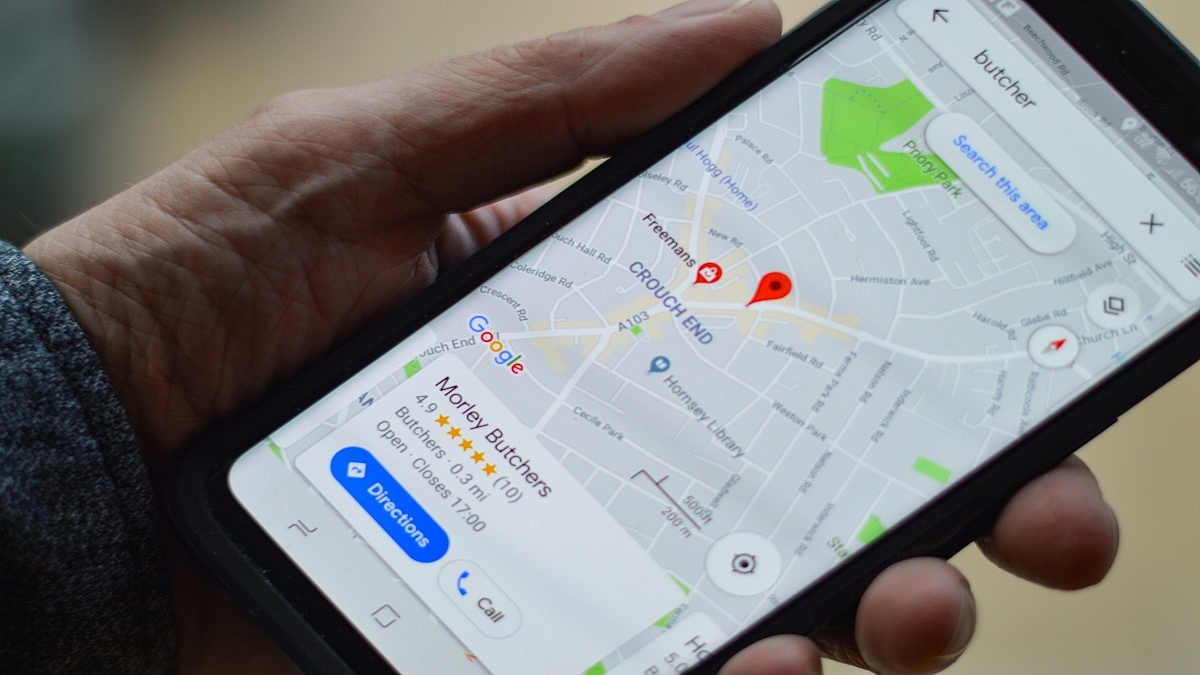
Google Maps Location Sharing Alert Notification: How To Notify Your Contacts Of Your Arrival And Departure Using Maps

Google has released multiple apps and tools for smartphone and PC/laptop users. The brand has introduced services ranging from entertainment to health, lifestyle, and more. Amongst the most commonly used services from Google is Maps. With Google Maps, our lives have become easier with navigation. Traveling to unknown destinations isn’t a hassle or time-consuming process as you don’t have to frequently ask for directions.

Google Maps has also got several facelifts in the last few years and besides an updated UI, the navigation app has also got several new features for an easier commute. And with the Google Maps integration with messaging apps, sharing locations with our family and or friends has also been simplified.

Sharing a location using Google Maps has been made possible via WhatsApp and other messaging applications. With the instant messaging applications, you can share not just share the current but also the live location. Google had recently refined the location sharing feature and now lets users notify their contacts of their arrival and departure details. This advanced location-sharing feature has been released a couple of months back and is compatible with both mobile as well desktop versions of Google Maps.

With this new Location Sharing notification feature, the selected contacts would know of your arrival and departure from specific locations. You can also easily stop these location-sharing notifications once you are at the designated location. But how exactly can you just send notifications for your arrival or departure from the select destination using Google Maps? Read on here for the steps:

How To Setup Or Turn On Location Sharing Notification On Google Maps

Step 1: On your respective Android/ iOS smartphone or tablet launch the Google Maps application.

Step 2: Click on the profile option.

Step 3: Select the Location sharing option.

Step 4: Now, click on the profile of the contact with whom you wish to share the location alert.

Step 5: Tap on the “Notifications” option.

Step 6: Click on Add notification icon.

Step 7: Now, select the “Choose a location” option and then select the address. You can also manually add the location details by clicking on the “+” option.

Step 8: Set the location by dragging the maps and tap on Done.

Step 9: Now, select the duration as to when you want to receive the notification. You will get to select from “Every time they arrive” and “Every time they depart”. Once done, tap on save. It is worth adding that up to five location sharing notification is allowed for each contact who shares the location with you.

Categories
Apps Featured

100 Best YouTube Channel Names For Travel Vloggers

Key Highlights

  • Here’s the list of 100 travel bloggers’ youtube channels.
  • The list consists of Inspirational travel videos that can inspire you to visit places.

Most of us would consider it a dream come true to be paid to travel and have delectable meals. Starting a YouTube channel or blog about these themes sounds like a tempting way to live if you’ve ever wanted to travel the world, experience its delights, and consume local cuisine and beverages while doing so.

If a YouTube Vlog channel does not have a strong name, it will not be successful. Therefore, if you’re thinking about creating a travel vlog channel and need suggestions for names, this list of the best YouTube channel names is for you. Ideal for individuals seeking something original, catchy, and current. There are many other name types on this list, including book titles, movie titles, and everything else you have in mind.

Also Read: 100 Gaming Channel Name Ideas For YouTube You Can Use: Here’s The List

Unique YouTube Channel Names For Travel Vloggers

Solo FriendlyTravel with funSolo Travel Dude
Fast pace TravelWandering EarlLegal Nomads
Go See writeOnly tourTraveling Buzz
Dream view sitesPause The MomentMini Tour
Fearful AdventurerTravel MamasThe Professional Hobo
Y Travel BlogDesired spotsNotes from the Road
Good CruiseLife CruiserBook your seats
Never Ending FootstepsTraveling FluencyJourneys and Tours

Also Read | 100 Best Instagram Name Ideas For Graphic Designers

Cool YouTube Channel Names For Travel Vloggers

Two-way ticketWandering EducatorsStories Of The Shoe
Ready your bagsHappy HotelierTwin City Travel & Tourism
Sharing Travel ExperiencesLeave Your Daily HellJust Travelous
Go NomadWilderness ExplorersWest Wild Camper
Family On BikesChris Around the WorldYoung Adventuress
Buckle upThe Highway ResidentThe life of Traveling
Up Up and Away ClubSomewhere Down The RoadNowhere Somewhere
Tour Guide ClubTour GuideThe Path Finder

Also Read | 100+ Best Catchy And Unique Instagram Names For Your Pets

Trendy YouTube Channel Names For Travel Vloggers

Time To TravelSailoring The WorldThe Pocket Traveler
Practical NomadDestiny Travel InternationalSoar High Adventures
Travel and TasteStories Of The EarthHappy Feet’s Diary
My Itchy Travel FeetThe Road ForksTales Of A Traveler
Lost And FoundTravelcationsEars Of The Wall
Camping CatalystWhere to Go Travel ToursPlaces Untold
Happy RollingLost In The WoodsAt One Point
The In-Depth WorldTimeless TourismEvergreen Travel Insurance

Also Read | 100 Best Instagram Names For Food Bloggers To Get More Followers

Attractive YouTube Channel Names For Travel Vloggers

Time Travel TurtleAlmost FearlessTriumph Club
Night WalkerMigrant MusingsWhat a Trip
Where Bean Has BeenWisdom Of The WorldFinding The Universe
Travel and ShareChanges in LongitudeTravel Right
Fate Of The FearlessBest Picked PlacesWill Fly For Food
Travel Bucket ListHe Who Dares To TravelBucket List Journey
Backpack BuddiesWorld Wide TravelThe Road Forks
Off Track PlanetMayflower ClubNever Ending Voyage
TraveloggedGoats On The RoadSavored Journeys / Hecktic Travels

Also Read | Are You A BTS Fan? Here Are The 100 Best Instagram Names For BTS Army

Categories
Apps Featured How To

Recharge Your FASTag On WhatsApp: Here’s How To Do It

Key Highlights

  • WhatsApp users can now recharge FASTag directly from the app
  • IDFC FIRST Bank announced the launch of an integration with WhatsApp payments
  • This service is available on the IDFC FIRST WhatsApp chatbot

Recharging FASTags has become a common occurrence for vehicle owners. Banks are creating novel and simple techniques for including user-friendly payment options. Now, IDFC FIRST Bank and WhatsApp have teamed up to make FASTag recharge on the instant messaging app simple.

Notably, while the service has been introduced by IDFC FIRST bank, only IDFC FIRST users will be able to use it. Users won’t need to close WhatsApp in order to recharge their FASTag thanks to the service. With “payments on WhatsApp,” users of the service will also be able to recharge their phones without logging into another mobile app or a net banking website.

Steps To Recharge Your IDFC First FASTag Via WhatsApp

Step 1: IDFC FIRST Bank customers can get started by simply texting ‘Hi’ to the bank’s official WhatsApp chatbot number +919555555555.

Step 2: Select the recharge option in the WhatsApp chat.

Step 3: Now, you will have to enter the amount and provide an OTP for transaction authentication. A notification verifying the transaction will be sent to you.

This new feature will enable users to pay for their recharge using “payments on WhatsApp” without having to sign into any other mobile app or Netbanking platform. This will make the recharge process easier and faster for millions of the Bank’s FASTag users.

Users can send and receive money from friends on WhatsApp using the UPI by just sending a WhatsApp message. They will need to input a different UPI-PIN for each payment.

Through IDFC FIRST Bank’s WhatsApp banking channel, users can also access over 25 services like savings accounts, credit cards, loans, and FASTag.

The bank has so far distributed nine million FASTags. Thanks to IDFC FIRST Bank, which has a 40 percent market share in the processing of monthly toll values, about 420 toll plazas and 20 parking lots accept payments via FASTag. The Bank is also the biggest parking grabber with a 45 percent market share.