Categories
Apps Featured How To

Spending Too Much Time On Instagram? Here’s How To Check The Screen Time And Limit The Usage

Key Highlights

  • Instagram users can track their time spent on the app
  • Check the process here

Instagram, a popular photo and video-sharing app, has a huge fan base. The Meta-owned platform has been used by users all over the world to keep themselves entertained. Instagram users get access to the updates and posts from the people they follow, and the other way around.

However, if your Instagram account is public, anyone can view your posts since they are not just visible to your followers. It is often incredibly entertaining. As a result, there can be times when you navigate through the app’s homepage for several hours without realizing it. Well, Instagram too is worried about how its users use the platform as well. Thus, it released a feature that shows users how much time they are spending using its app.

Read on for information on how to check your Instagram usage if you’re attempting to break an Instagram addiction or simply want to see how much time you are wasting on the platform.

Steps To Know How Much Time You Have Spent On Instagram

Instagram offers a feature to track users’ activity so they can maintain tabs on how much time they spend using the app. The average amount of time spent on Instagram during the previous seven days is visible. How Instagram users can track their usage time is as follows:

Step 1: On your mobile phone, open the Instagram app.

Step 2: Click on your profile or profile picture in the bottom right.

Step 3: Click on the Menu.

Step 4: Tap ‘Your Activity’ and then click on ‘Time’.

By following the above steps, you will be able to see the average time you spent on Instagram in the last week.

How To Set A Reminder To Limit Time Spent On Instagram?

Step 1: Tap on the ‘Profile’ option and click on the three-bar option at the top.

Step 2: After that, tap ‘Your Activity’.

Step 3: Select the time frame for using the app by clicking ‘Set Daily Reminder.’

Step 4: Tap on Set Reminder.

Step 5: Lastly, click on the Ok option. And you are all done.

Categories
Apps Featured How To

Instagram Hacks: How To Hide Your Instagram Stories From Specific Or Multiple Unwanted Users on Android, iOS

Instagram is currently one of the best platforms for social media enthusiasts. This photo-sharing app owned by Meta has multiple user-oriented features most of which were released in the last few years. Amongst the most popular segments or features of Instagram are the Reels and Stories. Instagram has borrowed some of its trending features from its rivals including Snapchat and TikTok. However, over the years Instagram users are making the most of it and flooding the online space with new content.

With the public (if your account isn’t private). Whenever you upload a story on Instagram it is automatically visible to all of your contacts by default. But thanks to the enhanced privacy aspects, you can also block some of the unwanted users from whom you wish to keep your story upload hidden.

Hiding Instagram stories is one of the best ways to keep stalkers at bay. But you should know the right steps to hide your Instagram story from a specific person of contact added to your follower/ following list. How can you do so? Here in this article, we have listed all the steps. Take a look:

How To Hide Instagram Stories From A Specific Person Or Contact

Using Instagram Android/ iOS App

Step 1: Launch the Instagram application on your respective iPhones or Android smartphones.

Step 2: Tap on the profile option. On both Android and iOS, the profile picture icon is located on the bottom right of the app’s homepage.

Step 3: Click on the menu option (three horizontal lines).

Step 4: Tap on the Settings menu (gear icon).

Step 5: Now, select the Privacy tab.

Step 6: Scroll down to the Story option.

Step 7: Go to the Hide Story option.

Step 8: You can select either one or multiple users from whom you wish your Instagram story to be hidden.

Step 9: Tap on the  backword arrow symbol to go back. The list of users blocked from viewng your Instagram status will be updated.

Step 10: You can also update this list after uploading the Story. Just tap on the three vertical dots option in the Instagram story and select the Hide your story option. Click on Hide and you have blocked all unwanted users from viewing your Instagram story post update.

Categories
Apps How To

Hide Online Status On WhatsApp: Here’s How To Do It

WhatsApp, which is a Meta-owned is rolling out a new feature, where users can manage who can see when they are online. The development was reported by an online platform called WaBetaInfo, which tracks all upcoming features of WhatsApp.

The report also claims that the hiding online status is already available on Android for beta testing and it comes with a 2.22.20.9 version.

It is important to note that it was first announced this year in August under the privacy options in the settings and enabled last seen status to everyone to Nobody.

“Seeing when friends or family are online helping us feel connected to one another, but we’ve all had times when we wanted to check our WhatsApp privately. For the moments you want to keep your online presence private, we’re introducing the ability to select who can and can’t see when you’re online. This will start rolling out to all users this month,” WhatsApp said. However, if you are still looking for steps to Hide your Online Status, then you should follow these steps.

Steps To Hide Online Status

Step 1: First, you need to go to the setting option on WhatsApp. Now, you have to click on the privacy tab and then click on the last seen option.

Step 2: After that, you have to choose the Nobody option amongst several options, including My Contacts, Everyone, and My Contacts except, and Nobody.

WhatsApp Features: Details

Apart from hiding online status, the messaging app is planning to provide blocking screenshots of view once and quiet exit from groups. For the unaware, the hiding features were first spotted for Apple users and then, for Android.

.

Categories
Apps Featured How To

Delete WhatsApp Account: Here’s How You Can Permanently Delete Your WhatsApp Account

WhatsApp is crawling up all the ladders in terms of popularity amongst users globally. And Meta has got aggressive with releasing new features and services so that the masses get the best user experience throughout. WhatsApp has also been ramping up privacy aspects on its Android and iOS apps. The same set of new features has also been added to the WhatsApp web version.

Using WhatsApp has its own set of perks which is why it is still preferred over other similar instant messaging applications. But despite all the merits, you might wish to uninstall or stop using this application due to several reasons. Compromised security in most cases is one of the biggest reasons for WhatsApp users to delete their accounts or break from social networks. Most of you must be aware of the procedure to download and use WhatsApp and also create a user account.

But what if you want to permanently get rid of WhatsApp and not just rely on uninstalling the app? Deleting the user account in such scenarios is the only workaround. No stalker or unwanted person will be able to find your account and stalk you unnecessarily. If you aren’t aware of the procedure to delete your WhatsApp account. We have listed the method below. Take a look:

Steps To Permanently Delete WhatsApp Account

Step 1: On your mobile or laptop/PC, open the WhatsApp application.

Step 2: Select the menu option from the app’s homepage (three dots).

Step 3: Tap on the Settings tab.

Step 4: Select the Account option.

Step 5: Scroll down to the “Delete my account” option.

Step 6: Enter the phone number registered with your WhatsApp account. Make sure you enter the country code along with the mobile number. For India, the country code is +91.

Step 7: Now, click on the Delete My Account option. As soon as you perform this step, WhatsApp will initiate the process to delete your account.

Notably, once you delete the account, WhatsApp will complete this process within 90 days. However, your account will be unavailable for other users during this period. Also, deleting your account won’t remove the chat history or media sent to other contacts.

Categories
Apps Featured How To

How To Send Live Location To Your Contacts On WhatsApp: Check Here

Key Highlights

  • The live location feature of WhatsApp can be really useful for safety purposes
  • It is one of the easiest and most popular ways to share your location
  • WhatsApp allows users to share their current location with any of their contacts

One of the most crucial things our smartphones enable us to perform is location tracking, whether for security, surveillance, or any other purpose. And one of the simplest and most common methods to communicate your whereabouts with someone is using WhatsApp’s Live Location feature.

The feature is beneficial for people who need to disclose their location for any reason even though it is not always 100 percent accurate. Additionally, over 400 million people in the nation use WhatsApp, so chances are good that the person you want to contact has already downloaded the app. Also Read | Google Maps Location Sharing Alert Notification: How To Notify Your Contacts Of Your Arrival And Departure Using Maps

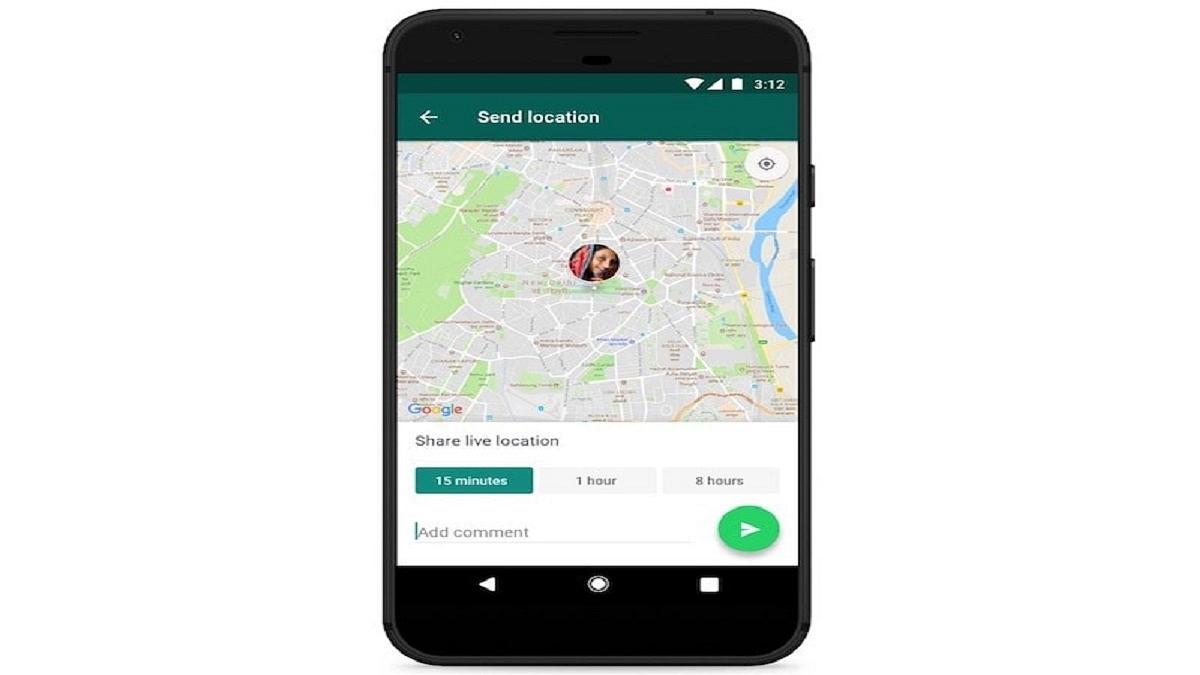
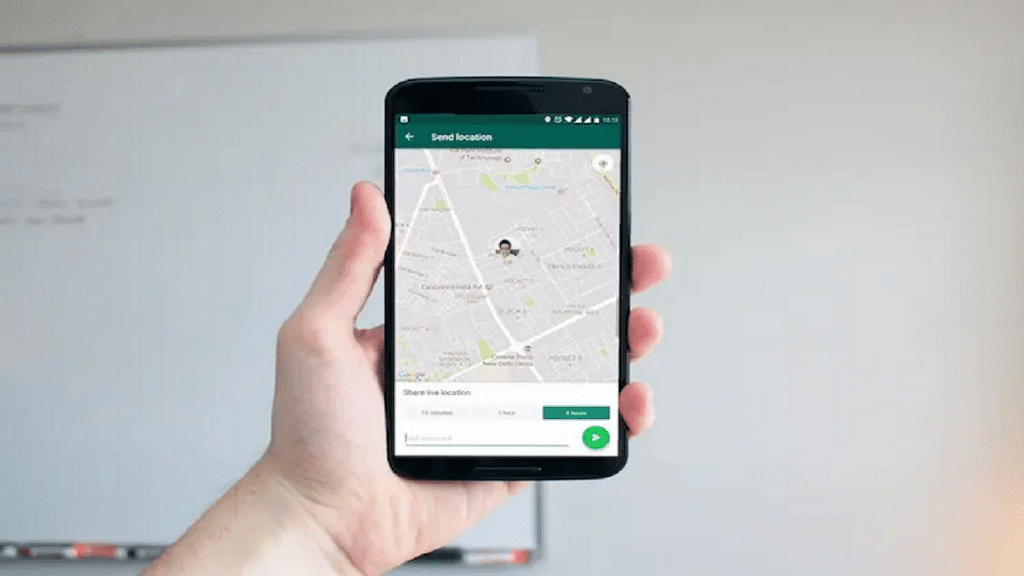
You get a choice over whether and how long your live location is shared. At any time, you can decide not to reveal your present location. Only the people you shared this feature with will be able to see your current location because it is end-to-end encrypted. Here is a step-by-step guide on how to share a live location on WhatsApp with an iPhone and Android user.

How To Share Your Current Location Via iPhone?

Step 1: Fire up WhatsApp on your iPhone.

Step 2: Tap on ‘Chats’.

Step 3: Select the person or group you want to share the location with by tapping on their name.

Also Read | Best Mobile Apps To Easily Find Parking Spot For Your Car

Step 4: Tap on the plus sign in the bottom-left corner.

Step 5: Tap on ‘Location’.

Step 6: If you choose to disclose your location always, it will ask you whether you also want to do so ‘Only While Using the App.’

Step 7: Choose ‘Share Live Location’ or ‘Send Your Current Location.’ Tap ‘Send’.

How To Share Your Current Location Using An Android Phone?

Step 1: Fire up WhatsApp on your iPhone.

Step 2: Tap on ‘Chats’.

Step 3: Select the person or group you want to share the location with by tapping on their name.

Step 4: In the message field at the bottom of the screen, tap the paperclip icon.

Step 5: Click on the ‘Location’ icon.

Step 6: Select a location from the list or click ‘Share live location’ to proceed. Click ‘Send’.

To stop sharing your location, simply reopen the group or individual chat and select Stop sharing > STOP. End-to-end encryption safeguards the location-sharing feature, but you can always disable it by simply turning off WhatsApp’s location permissions on your iPhone or Android phone.

Also Read | Want To Pin Location In Google Maps? Here Are The Steps

Categories
Apps Featured How To

Instagram Tricks: Here’s How You Can Save, Download Instagram Reels With Audio On Android, iOS

Instagram has been fairly active in releasing new updates and features to its mobile and desktop app. Instagram has evolved its platform beyond just being a photo-sharing app and now offers some other trendy features such as Reels. Instagram Reels was announced soon after TikTok got a blanket ban in India.

Meta has made several improvements with Reels since its release. The app now allows users to upload long Reels videos with different audio/ video effects. You can customize your Reels video while creating it. Instagram Reels popularity is not just among the content creators but also among the general public. Instagram Reels is a new-age entertainment source for the public.

 If you are an Instagram user, you must follow some of your favorite creators and see their Reels and other uploaded content on your Feed. Sometimes, you might wish to download or save the Instagram Reels offline on your device’s memory but can’t do so.

This is because there is no direct way to download Reels or stories using the in-app tool to your phone’s internal memory. But if you still wish to download Reels videos from your Instagram with audio, you can follow the steps listed below.

Steps To Download And Save Instagram Reels With Audio

Using Built-In Screen Recorder App

Most of the latest Android smartphones and iPhones have a built-in screen recorder tool. You can use this feature to save Instagram Reels videos with audio on your respective smartphone’s internal memory.

Step 1: On your iPhone or Android smartphone. Turn on the launch screen recorder app.

Step 2: Open Instagram.

Step 3: Go to the Reel video you wish to save in your phone gallery for offline viewing.

Step 4: Hit the recording icon as soon as you play the Reel video.

Step 5: Tap Stop recording once the Reel video playback is complete.

Step 6: Open your phone’s gallery and play the Reels video from the saved screen recording folder.

Save Instagram Reels With Audio Using Preview App

Step 1: Launch the Instagram app and go to the Reels section.

Step 2: Click on the Add “+” icon.

Step 3: Select “Repost”

Step 4: Now, search the Reels video on Instagram

Step 5: Tap on the menu (three dots) tab.

Step 6: Select the “Copy Link” option.

Step 7: Go back to the Preview screen. That’s it the Reels video is saved in the galley with audio.

Categories
Apps Featured How To

Google Hangouts Shutting Down In November: Here’s How To Download Your Old Data

Google will discontinue Hangouts in the coming months. According to a statement made by the company earlier this year, Google Chat will replace Hangouts and users will be upgraded. The tech giant has begun inviting users to its new communication service Google Chat via app notification.

Google Chat was released in 2022, and the company is urging Hangouts users to migrate to it or download the Chat web app. Google is also advising users to back up their chat logs, media, and all other data. The company stated that all discussions from Hangouts will be transferred automatically to the Chat app, although users must still preserve their crucial information or data.

Google advises users to use Google Takeout to remove their data before January 1, 2023, when all of the data for Hangouts will be deleted. So, if you use Google Hangouts and want to save all of your chats and media before the app closes, use Google Takeout to save the archive. Here’s how to transfer your data from Hangouts and download it as an archive file.

How To Download Google Hangouts Data?

Step 1: Use the Google Account you use for Hangouts to sign in to Google Takeout.

Step 2: Choose Hangouts and deselect the other apps from the list that appears.

Step 3: Click Next Step.

Step 4: Select how frequently you wish to download the backup under Delivery method. We advise a one-time download because Google Chat will shortly replace Hangouts.

Step 5: Choose the file type.

Step 6: Click Export.

Step 7: You receive a notification informing you that Google is copying files from Hangouts. When the takeout procedure is finished, you will get an email. Download the file to save your Hangouts data.

Additionally, users can transmit messages between Google Chat and Google Hangouts until the two services work together. The way that Chat and Hangouts are synced ensures that if any data in Hangouts is deleted, equivalent data in Chat will likewise be wiped. Users should delete their data from either of the apps only if they choose to erase their data from both apps.

Categories
Apps Info

Netflix To Launch New Plan With Ads On November 1st: See Here For All Details

Netflix, the leading OTT website in India is all set to bring a new plan at pocket-friendly prices according to new a report by Variety. Notably, the report claims that the OTT platform is likely to launch a new plan in November this year. However, the new plan will be known as the ad plan and will be available in select countries.

This plan is expected to take on Disney+ Hotstar which provides similar plans lined up. Netflix has shared its plan to bring the ad-supported pack at the beginning of the next year.

Disney+ Hotstar Ad-Based Plan: Details

Disney+ Hotstar is also providing access to the free-ad-based plan and is likely to launch the same plan for Rs. 639 in the United States on December 8. However, it is worth noting that the American OTT player will be launching the same plan in a few countries like the US, Germany, the UK, Canada, and France.

For the unaware, Netflix wants to see the consumer reactions; however, there is no information on when the same plan will be launched in India. According to the report, Netflix is likely to run ads for four minutes in all series. There will be pre-ads for the movies.

Netflix Plans In India: Details

Let’s start with Rs. 149 plan, where Netflix offers standard video quality that provides up to 480p streaming on smartphones and tablets. However, the users are allowed to watch content only on one device at one time.

Netflix Rs. 199 Plan In India

The Rs. 199 plan offers 480p streaming on the computer, TV, phone, and tablet. Again, the streaming is only available on one device.

Netflix Rs. 499 Plan In India

The Rs. 499 plan offers 480p on a tablet, computer, television, and phone. Similary, the device is restricted to one device. And, offers 1080p streaming on two devices at one time.

Netflix Rs. 649 Plan In India

This is one of the most premium plans that offer 4K HDR streaming on devices like TV, tablet, computer, and phone. This also provides access to four devices at one time. Notably, this plan is affordable and designed for big families.

Categories
Apps Featured How To

WhatsApp UPI Payment: How To Setup Bank Account, UPI For Money Transactions On WhatsApp

WhatsApp has integrated numerous new features into its messaging application on the Android and iOS mobile ecosystems. The brand has also released multiple of these features to the WhatsApp Web version as well in the last few years. WhatsApp is amongst those few messaging applications that is based on an end-to-end encryption chat system with which it becomes most secure for personal and private messaging.

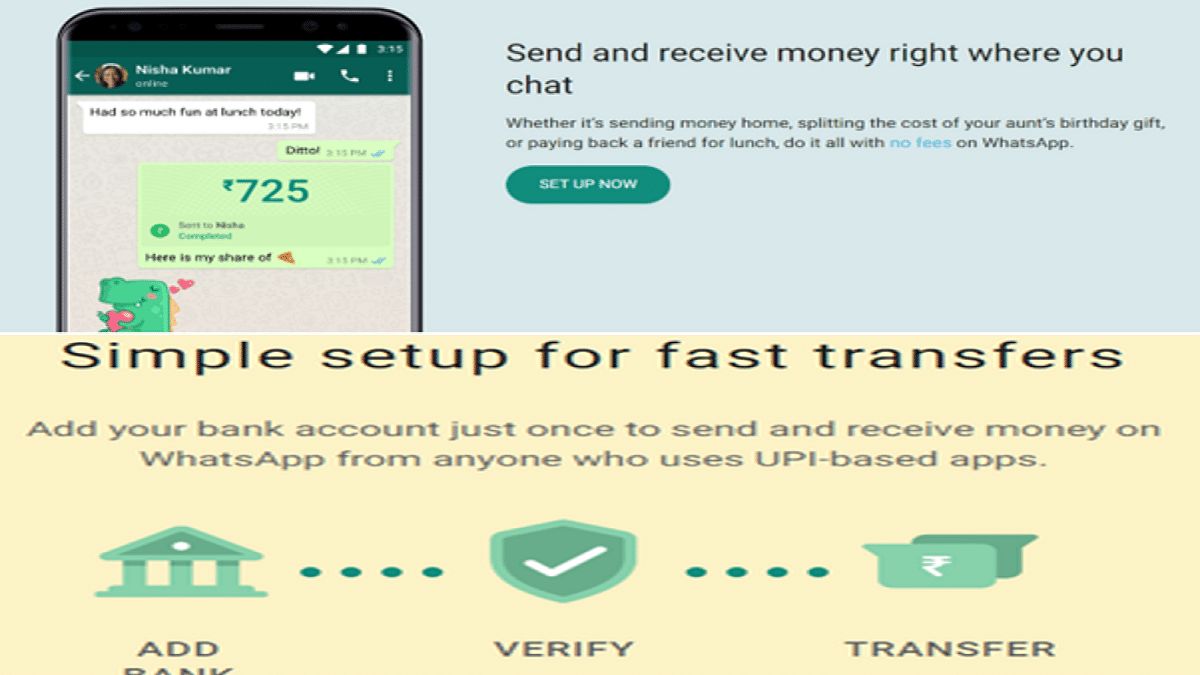
WhatsApp isn’t solely upgrading its platform for an improved texting experience. The changes and features added in the last few years have also enhanced the experience of voice/video calling directly from the app and sharing data such as media files and location. But that’s not it, WhatsApp is modernizing itself with the given market trend and has also integrated payment services including UPI.

With the WhatsApp UPI integration, users now can easily make payments at local retailers and vendors easily. Suppose you are a frequent WhatsApp user and want to send or receive money from any of your friends or family who isn’t using any other specific UPI or digital payment app.

In that case, WhatsApp will be of great use. WhatsApp has simplified the payment transfer process using the messaging application directly. A dedicated option has been added for UPI payments on WhatsApp. If in case, you wish to use WhatsApp as the primary app for UPI transfers beyond messaging, you should know the steps to set up this feature. In this article, we have listed the method to set up payments on WhatsApp and send/ receive money using WhatsApp UPI. Take a look:

How To Setup Bank Account For WhatsApp UPI Transactions

You must make sure the bank account you are planning to link to your WhatsApp for UPI payments. The account should be of an Indian bank in order to support UPI payments. Also, the primary phone number registered with the bank and WhatsApp should be the same.

Step 1: Launch WhatsApp and open the chat window or the tap on the contact to whom you wish to send money.

Step 2: Select the Payments option. You can also do this by tapping on Attach and then Payment.

Step 3: Enter the amount that you wish to send as UPI via WhatsApp and click Next.

Step 4: You’ll see Get Started option. Tap on it.

Step 5: The Terms and Privacy Policy window will open up. Click Accept and Continue.

Step 6: Now, the list of banks will show up on your screen. Select your bank name.

Step 7: Tap on the Verify via SMS option and then select Allow.

Step 8:  Select the bank account from which you want to send or receive money.

Step 9: Click Continue to verify your debit card details.

Step 10: Once the card is added cross check the details and then tap  Verify card.

After the card has been added and UPI has been setup, you’ll be able to send money using WhatsApp. The remaining steps are listed below:

Step 1: Open the chat or the contact to whom you wish to send money via WhatsApp UPI.

Step 2: Tap on the Payments Icon (Rupee symbol)

Step 3: Enter the amount that you want to transfer.

Step 4: Select Next and then tap on Send Payment option.  You will need to enter the UPI PIN to complete the payment transfer.

Categories
Apps Featured

Are You A BTS Fan? Here Are The 100 Best Instagram Names For BTS Army

Key Highlights

  • BTS, a successful South Korean band, has seven members
  • For BTS fans starting groups or Instagram accounts, a unique username is crucial
  • The username not only defines identity but also serves as the account’s URL

BTS, also known as Bangtan Boys, is a South Korean musical band comprised of seven members: Jin, Suga, J-Hope, RM, Jimin, V, and Jungkook. Debuting under Big Hit Entertainment in 2013, they are currently experiencing immense success. However, all members of BTS have now officially enlisted in the South Korean army and are fulfilling their mandatory service.

If you are a BTS fan or member of the BTS Army and you plan to start a group for BTS fans, then you must choose a good username. You should pick a distinctive username that gives you a distinctive identity. Additionally, a username serves as your account’s URL. When someone searches for your username on social media, they can locate your profile. Finding a captivating username, however, is not simple.

So, if you’re looking for a username for your Instagram account, then you should definitely check out our BTS usernames list. Let’s dive into it. | Also Read: 100 Best Instagram Boys Name With Alphabets M To Z

Cool BTS Usernames For Your Instagram Profile

Boxviceoverlord_btsarmytwinkle.btsarmy
Cold As VenusIamapostSummate
Double TroubleAwakejinMinyoongie
Wish A FishCurlemFreckles On My Skin
FantashSnowYourJiminskies
HappyhoseokTragic Chroniclesjnope / jdope
BloggeryalThe Dream Clubrapokemon
BabynamjoonDream Angelsagustdee

Also Read | 100+ Best Instagram Names For Boys

Creative BTS Usernames For Your Instagram Profile

BtshiteuJimochiOnemama
smolminBombSpacehope
strawverrymilktaeBeauty BlastKiss-My-Axe
shookookieEyeliner VisualsSizzlinylin
hoppinessTwin NeutronsHero Of Itching
monihyungScoobyConnJhopesmiles
ilikeyoo(ngi)Fizzysodastuliptae
strawberryjaminStarryjiminGone With The Win

Also Read: Looking For Trending Gamer Name? 100 Best Instagram Usernames For Gamers

Trendy BTS Usernames For Your Instagram Profile

Cherry-PickedDazzling AestheticsProudie
FusimeshEpicSushyPrecision Painters
Furiously FamousHeart TickerGreatLucy
Red SalsaUntanterShipber
HeyyounotyouyouKim ChiJeonjk
Sweet WhimsyButternut SquashMobicon
BuddyanLogydgStarryjin
RyothWasSuruWaveparkjm

Also Read: 100+ Best Usernames Ideas For Instagram Account Dedicated To Lord Shiva

Amazing BTS Usernames For Your Instagram Profile

Dolly DangerousIMHObtsarmySoccerki
weaver_btsarmyBunny PassionNot James Bond
CuteBitCherry-Pickedbuddie_btsarmy
Study BuddiesGenius-Generalchubbs_btsarmy
WielderDirtyMybtsarmy_dante
PeatorksFinalDreamsparky_btsarmy
HexadedGone With The Wintito.btsarmy
DercologyHero Of Itchingsnoop.btsarmy

Also Read: 100 Best Instagram Name Ideas For Graphic Designers

Catchy BTS Usernames For Your Instagram Profile

that_btsarmybtsarmy_bulletbtsisinmyheart
curry.btsarmybtsarmy_sugar_babynotsobangtanish
chubbs_btsarmybtsarmy_alfiebtswantstotalk
chilibtsarmybtsarmy.DDbtsarmyfam
btsarmyspookeybtsarmy.cricketbtssatisfaction
btsarmychaunceybtsarmysnoopbangtan8thmember
btsarmy_chesterbtsarmybuzzyblushkook
yellow.btsarmybangtanbangbangSweet Whimsy

Conclusion

BTS, the famous South Korean band with seven members, has achieved huge success. Though each member has joined the South Korean army, their music legacy remains strong. Picking a unique username helps build a great and growing profile.

Also Read: 100+ BTS Suga-inspired Username Ideas For Your Instagram Fan Account