Categories
Apps Featured How To

Here’s How You Can Restore Accidentally Deleted Google Drive Files On Android, iOS

Google’s Android ecosystem is quite vast and offers users a whole range of services and tools. If you are one of the Android phone users, you must have accessed the different apps available on the Play Store. You not just get apps from third-party developers but also from the search giant itself. Google has a whole host of useful applications that helps the masses with different tasks. One of such applications offered by Google is the free cloud storage service called Google Drive.

The Google Drive application is available for both Android and iOS users. This storage app lets users save documents and other files on the cloud which can be accessed when required. This app not just allows the provision of storing files but also make necessary changes and share it with other users via different modes. You can delete unwanted files to free up some additional space.

While removing unnecessary files definitely helps with storage management, there are scenarios when we accidentally delete important documents on Google Drive. Thankfully, Google doesn’t permanently delete the files once removed from the app. A 30 days grace period is offered to restore deleted documents on Google Drive. How do you restore accidentally deleted files on Google Drive? Read on the steps below:

Steps To Restore Accidentally Deleted Google Drive Files On Android Phones

Step 1: Launch the Google Drive mobile application on your respective Android devices.

Step 2: Click on the menu option (three horizontal bars).

Step 3: Tap on the Trash/ Bin option.

Step 4: Scroll down to the file that you wish to restore and click on the three dots icon next to it.

Step 5: Select the restore tab. The file will be restored on your Google Drive application.

Steps To Recover Deleted Google Drive Files On iOS Devices

Step 1: Unlock your iPhones and launch the Google Drive app.

Step 2: Repeat the same steps as mentioned above for Android OS.

In addition to Android and iOS devices you can also use Google Drive services on laptops and PCs. You can access all the features that you get on the mobile version. Also, you can restore the deleted files on Google Drive using the desktop version.

Categories
Apps Featured How To

How To Make Your Android Smartphone A Document Scanner? Step By Step Guide

Smartphones are becoming powerful with each passing day. What was earlier used for communication is now capable of delivering a powerful gaming experience and photography experience. The new-generation smartphones are capable enough to replace laptops and PCs to some extent. That’s specifically with the usage of professional tools such as MS office and others.

And the market is majorly dominated by Google‘s Android and iOS devices. The former has a larger ratio due to the affordability factor and also the availability of numerous third-party mobile applications. We now have some of the popular PC apps available for download on the Google Play Store. And you get multiple options if you go to download any such app.

Document scanning is one such key task that a modern-day smartphone is capable of performing. And you wouldn’t require a PC or laptop for the same if you own a new-age Android phone. There are a plethora of Android applications that allow document scanning. But how exactly can you turn your Android smartphone into a document scanner? Here in this article, we have listed all the steps:

How To Scan Documents Using Android Smartphone?

In order to turn your Android smartphone into a document scanner, you will need either need to download a third-party application or use the Google Drive app. If you don’t want to use the dedicated Google app then Adobe Scan and Microsoft Office Lens are the two other popular options. We have listed the steps to use the Google Drive document scanner since this is a pre-installed app on most Android phones.

Step 1: Unlock your Android phone and launch the Google Drive application.

Step 2: On the bottom right corner, you will see the “Add” option. Click on it.

Step 3: Select the “Scan” button.

Step 4: Capture the photo of the document of which you need a scanned copy.

Step 5: Now make the required adjustments to the scanned document.

Step 6: Click on Done.

The process of scanning a document using the remaining two apps, i.e., Microsoft Office Lens and Adobe scan is almost similar. You would need to capture the image of the document and make a scanned copy.

Categories
Apps Featured

100+ Best Instagram Names For Kids Influencer

Key Highlights

  • Instagram has emerged as the favorite social media app in India and globally
  • Influencers from all age groups have joined Instagram for a wide audience reach
  • Below are the best Instagram names for Kids Influencer

Instagram is the most popular social media platform. Because of its new features like filters, music videos, live options, stories, etc., its popularity is growing every day. And, if you think that the only users on this platform whose images and videos can attract an army of online followers are adults, think again.

Times have changed. Today, kid influencers are beating the algorithm and bringing their best game to the influencing space. And a unique username is crucial if you want to take your Instagram account to the next level. In this post, we have curated a list of the best username suggestions for kids influencers in case you want to join Instagram to inspire your ideas. Take a look:

Also Read: Best Instagram Features That Are Worth Trying

Unique Instagram Usernames For Kids Influencer

AquaLassieFiremon
BabyliciousBizzyFuzzy-bunny
Giggle-bearBunnyBadass
TitanLil’ GuyStrady
RedSweetyLady
RacerShozeeChatterbox
RavenSweetheartVoldypants
ButtercupBlossomTinkerbell

Trendy Instagram Usernames For Kids Influencer

Tiger LilyHazelSmiley
TiggerShiraxEllie-Belly
Tough GuySilly-gooseCheese Ball
Scrappy-dooSweetpeaMs. Fierce
Rainbow BrightSilly-pickleHoney Badger
BubbaSugarplumGem
BearShortcakeBriar Rose
BabbuStretchSuper Stylistic

Catchy Instagram Usernames For Kids Influencers

Cutie Sweety PrincessSwiss Army ManLil Ones Network
Out of this worldButterfly FairiesSmile Buddy
Gossip NetworkDuring SwagDrama Drones
Graceful LightingNinja StrikerTutty Fruity Gorgeous
Glacier ExpressMister MakerKitty Party
Rainbow ShimmerRed Carpet ButterflyCoca Cola
Young The GiantCrazy CrockerSummer Friends
Lion KingHeart ConnectionFriendship Band

Also Read | 100 Best Instagram Name Ideas For Graphic Designers

Cool Instagram Usernames For Kids Influencers

Being A FriendSeven Star LifeBrave & Beautiful
Always & ForeverRavish PleasureLife to express
Treasure Of LifeMagical ShadesForever world living
Network StationFloating LoveHappily ever after
Joy VillaDiamond in the skySwiggy Swine
Passionate FairyStars on earthDzire Tour Lift
Colors of JoyLive RainbowMelody Favorite
Evil AwesomeRise of happinessLive LivoLife

Also Read | 100 Best Instagram Boys Name With Alphabets M To Z

Expressive Instagram Usernames For Kids Influencers

Wings of DesireDragonHoney
PeanutDukeLilozaur
PookieJumpbeeLittle Monkey
Rock StarBruiserLovey
Rollie-pollieWigglesLollypop
RolipazyAmoreInfant
Cocoa PuffPikalchuChild
PlumPumpkinJocko

More Instagram Usernames For Kids Influencer

CountessRogueQueenie
SpikePippinScooby Doo
PeppermintDayseeJazzy
LelolunZippyWiggle-worm
Flo-JoChunky MonkeyFireFly
YogiLadybugGiggles
MusclesLemon DropGiggle Bunny
TeenagerKingJuvenile
Wookie-bearWalo-MaloYoungster
YouthYoungsterZiggy Stardust

Also Read: Need A Cool Instagram Boy Name? Top 100 Instagram Boys Name With Alphabets A To L

The above-mentioned are some of the most unique Instagram usernames for kids influencers. However, we suggest you take inspiration from the list and add your ideas to it as most of these names are already taken.

For the tech geeks, stay updated with the latest cutting-edge gadgets in the market, exclusive tech updates, gadget reviews, and more right on your phone’s screen. Join Giznext’s WhatsApp channel and receive the industry-first tech updates.

Categories
Apps Featured How To

How To Activate Call Forwarding On Android, iOS Smartphones?

Smartphones today are one of the most commonly used commodities of the modern world. With numerous brands competing in the smartphone industry, users are flooded with options to choose from. We now can do much more than simple voice calls and messages with the new mobile phone age. Despite smartphones offering a plethora of services and tools, the primary function till date remains audio calling. Different telecom operators in India offer calling and messaging services.

The advancements in the tech field now allow users to divert calls on different mobile numbers. This is a useful option that comes to the rescue when you wish to avoid some calls or are traveling and might be unreachable due to bad networks or no battery.

Most Android OEMs are now pre-loading the call forwarding feature on their devices that you can use at your convenience. Similarly, Apple iPhones also offer the call forwarding option for you to divert calls on a different mobile number. But how do you start and stop call forwarding on your respective Android and iOS devices? Read on to know:

How To Start Call Forwarding On Android Smartphones?

Step 1: Unlock your respective Android phones and launch the Phone dialer application.

Step 2: Launch the phone application.

Step 3: From the top right corner click on the three dots option.

Step 4: Select the “Settings” option.

Step 5: Now, click on “Call Settings”.

Step 6: Select the “Call Forwarding” option,

Step 7: Set the option as required. You can either set Always Forward, Forward when busy, Forward when unanswered, and Forward when unreached.  

Step 8: You will now get an option to enter the mobile number on which you need to divert the calls.

Step 9: Click on Ok to save the settings.

How To Activate Call Forwarding On Apple iPhones?

Step 1: Open the settings menu on your iPhone.

Step 2: Select the Phone option.

Step 3: Tap on Call forwarding. While performing these steps, you need to make sure you have access to the cellular networks and are within range.

That’s all you need to do to activate call forwarding on your Android and iOS smartphones.

Categories
Apps Featured How To

Change Snapchat Username On Android And iPhone: Here’s How

You make a Snapchat account, pick a goofy username, gain followers, and all of a sudden you realize you no longer like your username. That brings you here – to try and modify your Snapchat username.

You choose your username when you first sign up for a Snapchat account. A username is a distinctive identifier that Snapchat uses to identify users. Your display name, which is how you appear on the app, is different from your username. Your display name can be changed whenever you desire. But you can change your username only once a year. We’ll go over how to modify or change your Snapchat username in this post.

Steps To Change Snapchat Username on Android, iOS

Users of Snapchat could previously only modify their display names. For those who are unaware, Snapchat now allows us to change our username. This feature is available for both Android and Apple mobile phone users. As we have mentioned earlier, this can be done only once a year. The steps to change your username on Android or iPhone are the same. Here’s what you should do.

Step 1: On your mobile phone, open your Snapchat app.

Step 2: At the top left corner of the screen, click on Bitmoji to go to your profile.

Step 3: Then, click on the settings icon which is placed at the top right corner.

Step 4: Now, go to the Username section and tap on the change username.

Step 5: Give a new name. Then, to change, click on the ‘next’.

It’s also vital to keep in mind that once you change your username, you cannot change it back. In addition to this, you can modify your Snapchat display name as well as other personal information like your birthday, email address, and mobile number from the settings menu.

When creating a new username, there are certain conditions. For example, there may be restrictions on the number of characters allowed, the character types that can be used, etc. You must adhere to these rules in order to choose a random name. The display name, linked email ID, profile settings, and other critical aspects of your account is unaffected by changing the username.

Categories
Apps Featured How To

How To Pay Utility Bills Using Google Pay? Here Are The Steps

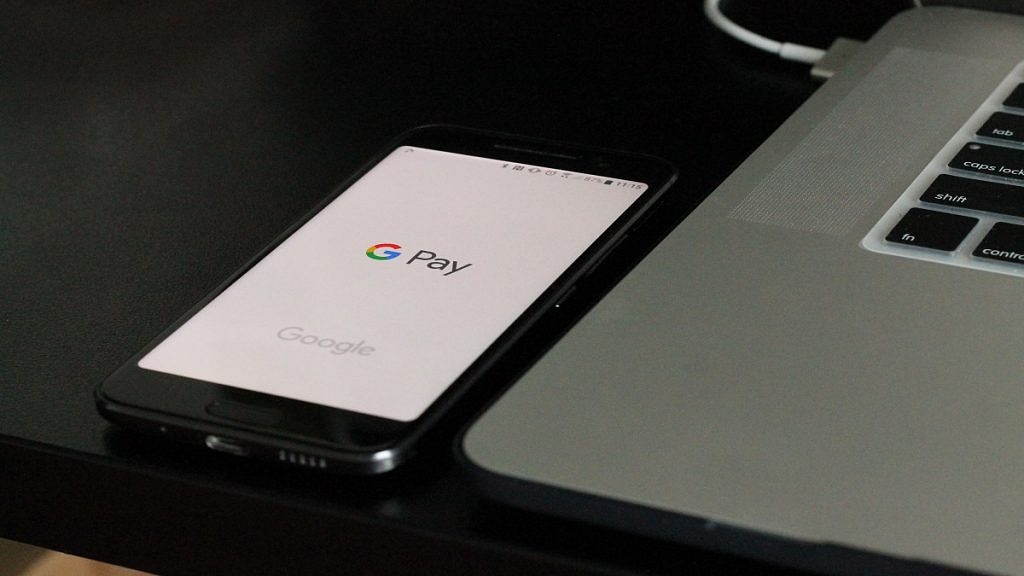
Google Pay is one of the most popular UPI apps which is being used to conduct online payments using either a phone number or bank account, a QR code, or both. Today, every business, from a flagship grocery shop to a local fruit vendor, takes online payments. By just following a few easy steps, Google Pay enables you to make utility payments online, making the app more useful for you.

Google Pay lets consumers pay for their bills using the mode of payment they are most comfortable with, i.e., UPI or Debit or Credit Card and Wallet. On Google Pay, customers can also pay electricity bills for various electricity boards. So, if you are a Google Pay user and need to pay your utility bills online, here are the steps you need to follow:

How To Pay Utility Bills Via Google Pay

Step 1: Navigate to Google Pay on your mobile phone.

Step 2: Scroll to the bottom of the screen.

Step 3: Locate and tap on the option ‘+ New payment’.

Step 4: Now, select the ‘Bill Payments’ option.

Step 5: Tap the name of the biller from the search results. Then, make payment.

Step 6: Select an account.

Step 7: One of the following options is available: Pay a custom amount. Enter the desired payment amount and tap Make Payment.

Step 8: Pay an available bill. On the bill, tap Pay Bill.

Step 9: Depending on the biller, you can have the ability to select from several bill alternatives. These payment choices can be made for different time periods. Follow the on-screen steps.

Step 10: Once done, view the bill to confirm that the payment was successful.

The amount will be deducted from the primary account that you have set on the Google Pay app.

How To View Bills On Google Pay

You can also view your bills using Google Pay. Listed are the steps you should follow to see your bills:

Step 1: Open Google Pay on your device.

Step 2: Scroll to the bottom of the screen and click on a biller.

Step 3: You will see the list with details of paid and pending bills if any. That’s all.

Categories
Apps How To

Amazon Prime And Uber Partnership: How To Book UberPremier For The Price Of UberGo

Amazon Prime has joined hands with Uber ahead of the upcoming Prime Day sale on July 23 in India. Under this partnership, Uber, the ride-hailing app will provide exclusive offers or benefits to Amazon Prime users. Notably, the Prime members will get access to UberPremier at the price of UberGo. In addition, Prime users will get discounts on a few rides every month.

Amazon Partnership With Uber: Benefits For Prime members

According to the e-commerce website Amazon, all Prime members will receive exclusive offers with the ride-hailing app Uber. It said that Prime users will be able to upgrade their UberGo ride to UberPremier three times a month. In addition, Prime users will get a discount of 20 percent of up to Rs. 60 on three trips in a month. This discount will be available on rentals, intercity, and Auto. 

However, there is a catch. These offers can be availed via Amazon Pay Wallet and used for booking trips. “Discounts will be automatically applied to rides for Amazon Prime members when they pay with their Amazon Pay balance,” as per the company blog. However, to get discounts on Uber rides you have to follow these steps.

Steps To Discounts On Uber Rides

Step 1: First, you should have an active Amazon Prime account. Now, you have to link your Amazon Pay with your Uber wallet. 

Step 2: You have to pay via Amazon Pay balance and you will receive discounts automatically.

In case you are looking for ways to link Amazon Pay Wallet With Uber, then you have to follow these steps.

Steps To Link Amazon Pay Wallet With Uber

Step 1: First, open the app and click on the account icon. Now, select the Wallet and click on the Add Payment option.

Step 2: Tap on Amazon Pay and sign into your Amazon Prime account. Now, you have to add money via Add funds options. 

Categories
Apps How To

Twitter Users Can Now ‘Unmention’ Themselves From Threads: Here’s How To Use

Key Highlight

  • Twitter rolls out ‘unmention’ feature
  • It is meant to prevent unwanted replies
  • Users can now remove themselves from a conversation

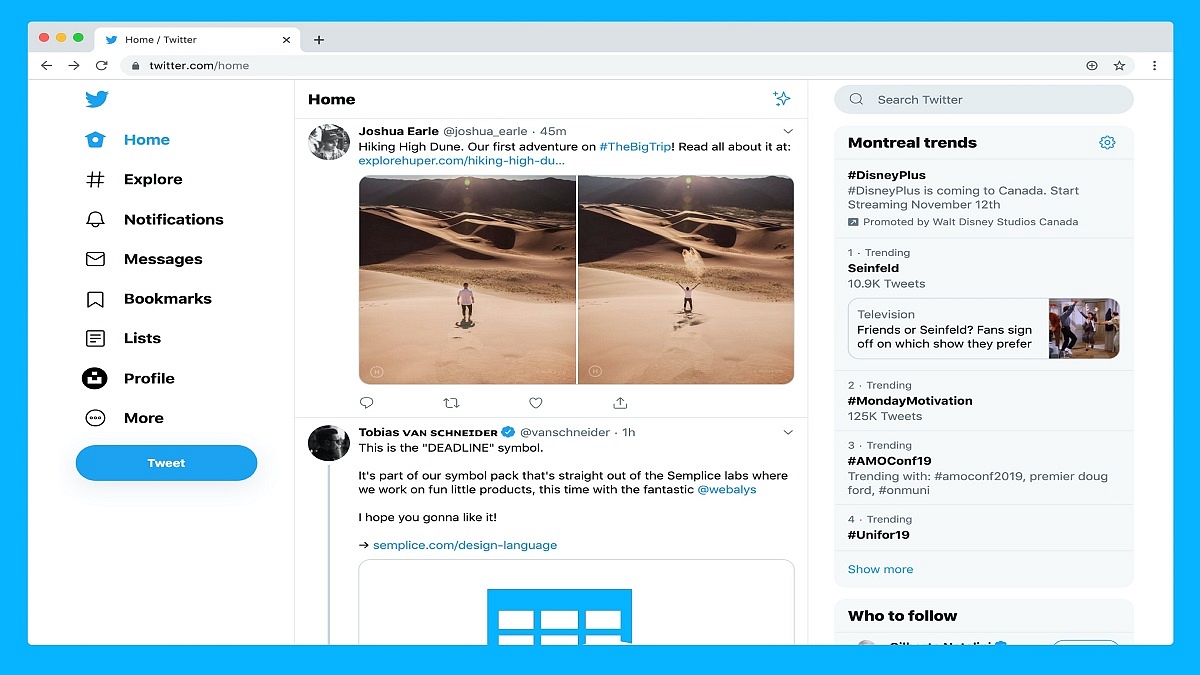
Twitter is widely rolling out its ‘unmentioning’ feature to all its users. With the help of this new feature, you can leave a conversation that you don’t want to be a part of. The feature has been in development for more than a year.

Last summer, Twitter first hinted at the notion, saying it was designed to stop the kind of “unwanted attention” that frequently results in harassment. In April of this year, the social media app started testing this feature. However, it was only limited to a small group of users on the web only.

Now, with this update, anyone can remove themselves from a thread regardless of whether they are using Twitter’s apps or website. The official launch of the feature comes as the micro-blogging site has been building out anti-abuse features into its platform.

Twitter describes ‘unmention’ as the option to remove an undesired conversation on the platform. When used, it unlinks the handle of the users from the Twitter thread. This prevents other users from replying to them from the same thread or tagging them in subsequent tweets. Though it won’t stop people from joining the chat at least it will hide the person’s replies and notifications.

Here’s How To ‘Unmention’ Yourself From A Twitter Thread

If you wish to use this feature, here we will help you learn how to ‘unmention’ yourself from a Twitter thread. You simply have to follow the listed steps:

Step 1: Open Twitter on your device.

Step 2: Go to the Twitter thread that you don’t wish to be a part of.

Step 3: In the thread, open the tweet that you are mentioned in.

Step 4: Click on the option ‘Leave This Conversation’.

Step 5: Now, by selecting the ‘Leave option’ once more, you can confirm your choice.

It’s important to note that Twitter will remove your username from the original tweet and all replies once you leave a conversation. Additionally, it will stop others from bringing up your Twitter handle again in the same discourse. You won’t receive any notifications at all about the Twitter thread, either.

Categories
Apps How To

Here’s How To Get YouTube Premium Access At Rs. 10 For Three Months: See All Steps

Following the footsteps of Amazon Prime Music, Spotify, and more, YouTube has also launched its paid services. YouTube Premium offers ad-free services to users and its plan starts from Rs. 129 per month in India. However, due to the referral offer, the plan will cost you Rs. 10 for three months.

This is quite surprising and you should not miss this great deal, but in case you are not aware of the exact, then you should go through this article.

Steps To Buy YouTube Premium Access At Rs. 10 For 3 Months

It is worth noting that the access can be purchased at Rs. 10 for three months; however, after the billing users have to pay Rs. 129 per month. See All Steps Here.

Step 1: First, you need to go to this link and see or check the exact availability of the offer. In case, you are eligible for the offer, you will get a text as an invitation from a friend.

Step 2: If you are not eligible for the offer, then you need to create a new Gmail account and tap on the link again. Write your billing address in the country.

Step 3: You have to check Paytm and start looking for Google Play Recharge Code. Now, you have to buy Rs. 10 recharge coupon and you will get a code in your mail.

Step 4: After that, you have to check https://play.google.com/redeem and you should be logged in to the same account in which you want to access the Premium plan.

Step 5: Now, you need to enter the gift card you get into your Paytm account and click on the redeem option. Now, you have to give your confirmation if you want or wish to add Rs. 10 to the account and if yes, then click on Confirm.

Step 6: Again, check the YouTube Premium link and purchase the pack, selecting the balance. That’s it, you are done and you are allowed to use the pack.

Categories
Apps Featured How To

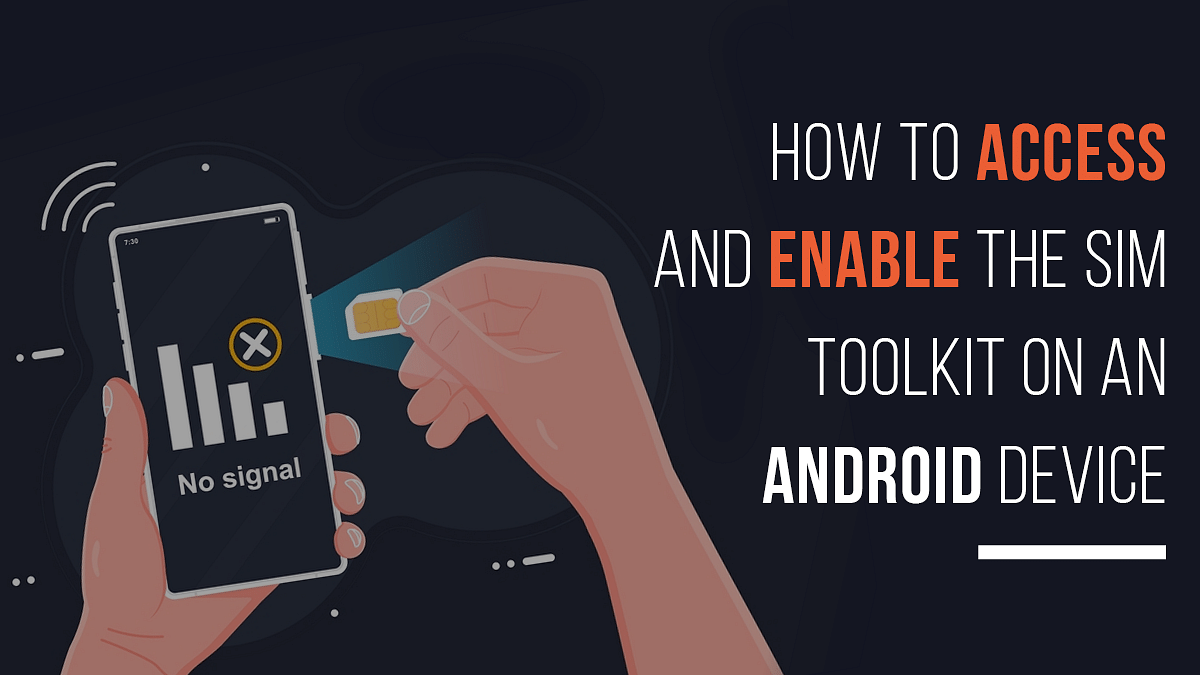
How To Access And Enable The SIM Toolkit On An Android Device?

Key Highlights

  • SIM Toolkit often overlooked by users on Android phones
  • It’s pre-installed once a SIM card is inserted
  • Allows SIM to send commands to the phone and vice versa

A feature that many users believe has no purpose on their Android phones is accessing the SIM Toolkit. But there is more to it than just a feature on your device. Usually, it is pre-installed once you put your SIM card on your mobile phone. A SIM Toolkit allows your phone’s SIM to establish and spread commands from your SIM to your mobile phone and back. Think of the SIM card as the server in a client-server connection with the SIM Toolkit and your phone as the client. In this article, we will help you learn how to access and enable the SIM Toolkit on your Android phone. Also Read | Android Auto Quick Tips And Tricks: Steps For Hassle Free Calling Experience

How To Access SIM Toolkit

The majority of individuals don’t mind controlling their phone’s SIM card. In actuality, it is not a top priority for them. You may not know that your SIM card contains a significant amount of data. When you have the SIM Toolkit app installed on your device, you can access and operate all that data with ease. As a result, it’s crucial that you keep an eye out as well. Here’s how you can access SIM Toolkit on your Android device:

Step 1: Go to ‘Settings’ on your Android phone.

Step 2: Click on ‘Apps’.

Step 3: Select ‘SIM Toolkit’.

Depending on your telecom carrier, this may occasionally go by a different name. You will then view SIM Toolkit details after clicking on the SIM Toolkit.

Also Read | How To Check Number Of Sim Cards Registered On Your Name And ID: How To Block Unauthorized SIM Cards Issued On Your Name?

How To Install SIM Toolkit

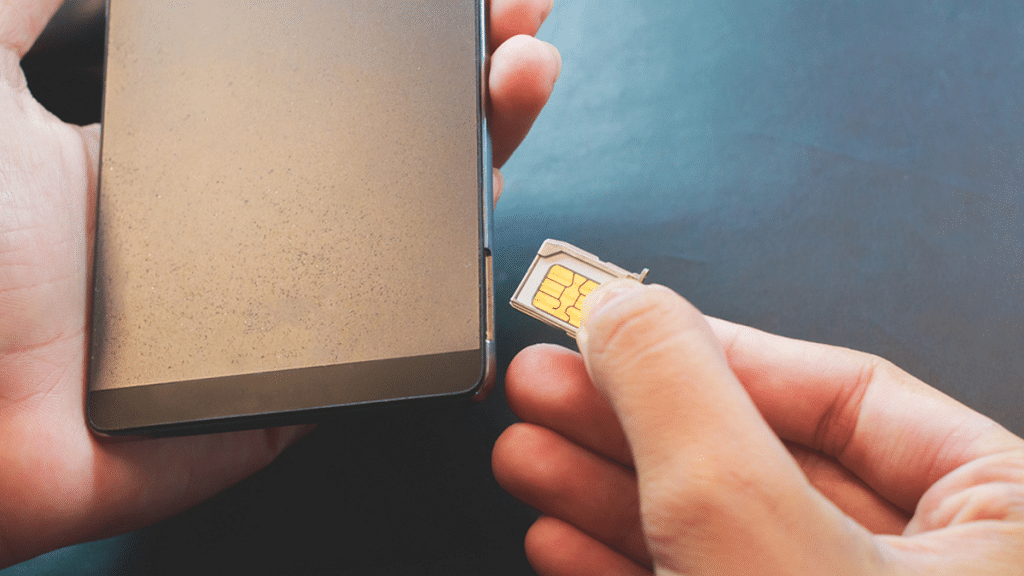
When you enter your SIM card into your phone, the SIM Toolkit is frequently already pre-installed and you don’t have to install it for yourself. It is accessible from the home screen of your smartphone. However, you can download the SIM Toolkit application from the Google Play Store.

Steps To Enable SIM Toolkit

Step 1: Open your Android phone and go to your ‘Settings’ app.

Step 2: Select ‘Wireless Setting’.

Step 3: Go to ‘SIM & Networks Settings’.

Step 4: Tap on ‘Dual SIM Settings’.

Step 4: Scroll to the bottom of the list and tap on ‘SIM Toolkit’. That’s it.

SIM Toolkit is a standard of the GSM system. This enables the SIM card to initiate actions that can be used for various value-added services.