Categories
Featured How To Mobile Tech News

How To Withdraw Money Without ATM Cards: See Here For Details

In order to help people, RBI has come up with new measures for withdrawing cash. The new method will not involve any credit or debit cards. In fact, it will allow people to use their smartphones for withdrawals.

“We’re introducing card-less cash withdrawals to evade card skimming; the proposal is to begin authentication via UPI. It can be used for withdrawal from any bank’s ATM, third-party ATM, or White Label ATM. We’re working out its system changes & instructions,” RBI Deputy Governor Rabi Sankar said.

It is worth noting that despite introducing new methods existing ways like debit and credit cards won’t change as people will continue to withdraw cashless via the earlier route. Plus, users will continue to make payments in restaurants and shops.

“We won’t stop issuing credit/debit cards, as they have many other utilities; they’re not just used for cash withdrawals, they can be utilized while at a restaurant, shop, or for payments in a foreign country. So credit & debit cards will be continued,” RBI Governor Shaktikanta Das said.

However, to access the new money withdrawn method, people will have to follow these steps.

Step 1: First, you should have a UPI ID to withdraw money as it will be authenticated through the same procedure.

Step 2: Now, you need to enter the ATM and choose the Cashless Withdrawal system option on the screen.

Step 3: Then, the ATM screen will show you a QR code, which needs to be scanned within the application.

Step 4: Now, enter, your UPIpin to withdraw the cash from the ATM.

It is important to note that ICICI and SBI are already providing the same methods or ways, but now it will be used by other banks.

Kindly follow the GizNext Tech Enthusiast Telegram group and the GizNext Tech Enthusiast WhatsApp group for all tech updates.
Categories
Featured How To Mobile

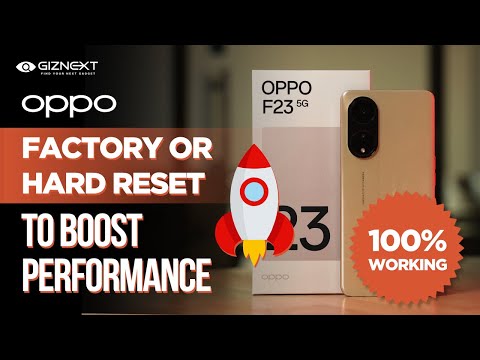
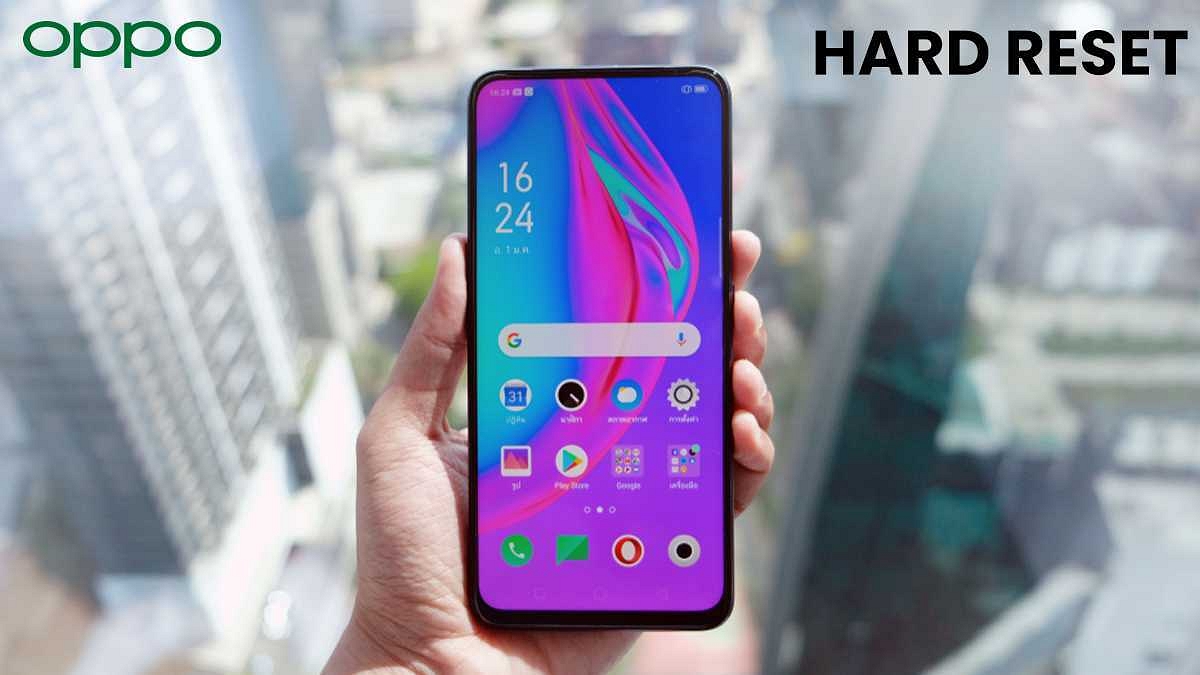
Ways To Hard/ Factory Reset OPPO Smartphones: Step By Step Guide

Key Highlights

  • You can factory reset through Settings Menu
  • The factory reset through Recovery Menu is a convenient way
  • The OPPO user can also use a third-party tool to reset their smartphones

OPPO is a seasoned player in the mobile industry and is quite popular amongst the audience for its value-for-money devices. OPPO has multiple smartphone lineups that cater to different categories of users across the globe. All the OPPO phones run on Android OS and have an in-house ColorOS user interface.

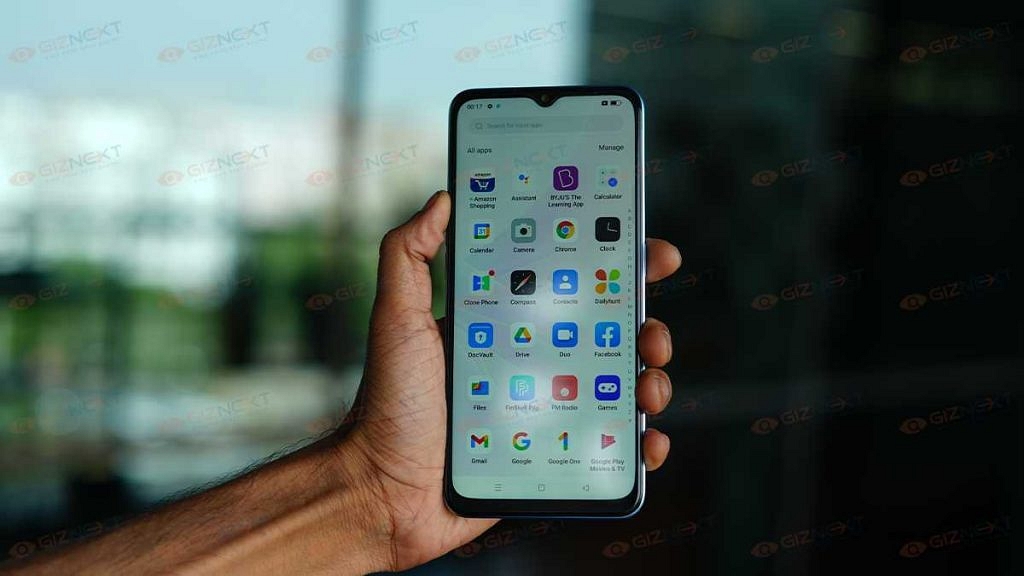
If you have used any OPPO smartphone, you must be familiar with the UI and the user-friendly features these handsets offer. The new generation of Color OS has been improved exponentially over the previous versions to deliver the best user experience. It’s now easier to perform multiple such tasks which earlier would have required some trickier steps. Capturing screenshots and doing a factory or hard reset are a few examples.  Also Read | OPPO A78 Review: Worthy Opponent Under Rs. 20,000?

We have shared a step-by-step guide to capturing screenshots on OPPO phones.  But in this article, we will be listing down the ways with which you will be easily able to factory or hard reset an OPPO smartphone. Formatting any OPPO phone isn’t a tricky task. You just need to be aware of the right steps. Below are some of the methods using which you’ll be able to hard reset or erase all data on your OPPO phone for faster speed performance.

Also Read | How To Disable the ‘This Call Is Now Being Recorded’ Warning On OnePlus

How To Factory Reset OPPO Smartphones Easily?

Step 1: Before you proceed with the hard reset or factory rest on your OPPO smartphone, make sure you have a backup of all the important data stored on the device.

Step 2: If you wish to do a simple factory reset then head to the Settings menu and search for “erase all data” or “Factory reset”.

Step 3: Tap on the “erase all data” option once you locate and click on “Ok”.

Step 4: Approve the factory-reset command. Do not that your OPPO phone needs to have sufficient battery to initiate and complete the factory reset. Plugin your smartphone if the battery levels are low.

Also Read | How Can You Pair OnePlus Buds, Nord Buds TWS With Apple Macbook Laptops (All Models)

What Are The Steps To Hard Reset OPPO Smartphones From Recovery Mode?

Hard resetting OPPO smartphones is also easy if you are aware of the correct steps. Below are the steps to access the recovery mode on OPPO smartphones and complete the hard reset procedure from there.

Step 1:  You need to power off your OPPO smartphone to get started with the hard reset. Press and hold the power key on your respective OPPO smartphone for at least 10 seconds.

Step 2: Simultaneously, press and hold both the power and the volume down key until the OPPO logo pops up on the screen. This will bring up the Recovery mode screen.

Step 3: Select the desired language and then tap on “Wipe Data”.

Step 4: You will be asked to enter the verification code (screen lock PIN).

Step 5: Complete step 4 and then select the Format data option.

Step 6: Select OK to complete the hard reset procedure on your OPPO smartphone.

Also Read: How To Stop/ Deactivate Airtel, Vodafone, BSNL, JIO SIM Flash Messages On Android, iOS?

Categories
Featured How To Laptop

Wi-Fi Hotspot For Laptop/ PC: Here’s How To Switch On Mobile Hotspot In Windows Laptops And PCs

Our reliability is mobile devices and the internet has increased exponentially over the last decade. Large-screen smartphones and tablets have somewhat replaced laptops and PCs; all thanks to their portability factor along with powerful performance delivery. However, laptops and PCs are the go to machines for high-end professional tasks. Similar to smartphones, the technological advancements are quite evident with the laptops and PCs. You can now access some of the useful features on notebooks that you might have only used on smartphones.

Making the laptop or a PC a custom Wi-Fi router using a mobile hotspot is the feature which we are speaking of. Toggling on the mobile hotspot option is quite easy if you are using an Android and iOS smartphone. But are you aware of the steps to switch on the Wi-Fi hotspot on Windows laptops or PCs? If not, then you have reached at the right spot. This article is a step-by-step guide that will help you switch on the mobile hotspot on your Windows laptop or PC.  You can perform these steps on any Dell, Lenovo, HP, Asus, Acer, and other Windows laptop/ PC. Take a look:

What Are The Steps To Switch On Mobile Hotspot On Windows Laptop Or PC?

Step 1: Switch on the laptop or PC that you want to convert into a personal mobile hotspot using the mobile hotspot option.

Step 2: Click on the Start menu from the taskbar.

Step 3: From the Start tab head to the Settings menu.

Step 4: Now, you will see the “Network and Internet” option. Click on it.

Step 5: Scroll down on the options from the next page until you locate the “Mobile Hotspot” tab. Select this option and toggle it on to make your laptop or PC into a custom Wi-Fi router.

If in case you don’t want to keep the default user name and password for the Wi-Fi hotspot in your Windows laptop or PC; follow the steps mentioned below:

Step 1: On the same ‘Network and internet’ settings page, you’ll see an ‘Edit’ tab. Click on it to modify the Wi-Fi Hotspot username and password.

Step 2: Enter the new credentials and save changes.

Do let us know your thoughts in the comment section below. You can also follow GizNext Tech Enthusiast Telegram group and GizNext Tech Enthusiast WhatsApp group for latest tech updates.

Categories
Featured How To Tech News

IPL 2022: Here’s How To Watch Free On Disney+ Hotstar

The Indian Premier League 2022 is all set to commence tomorrow (March 26). Notably, Lucknow Super Giants and the Gujarat Titans teams have been added this year, which means 10 teams are going to compete against each other in this IPL season.

Earlier, eight teams used to play the matches. But still, if you are looking for ways to watch live-streaming of the IPL matches, then you have to go through this article.

Airtel Plans For Disney+ Hotstar Access

Let’s start with Airtel prepaid plans, where you will get Disney+ Hostar with five packs of Rs. 499, Rs. 599, Rs. 838, Rs. 2,999, and Rs. 3,359. The first plan of Rs. 499 plan offers Disney+ Hotstar Mobile annual subscription for free.

This pack ships 100 messages per day, 2GB of data per day for 28 days, Wynk Music, one-year Shaw Academy access, Airtel Xstream Premium, Apollo 24|7 Circle for three months, Prime Video Mobile Edition, and Rs 100 cashback on FASTag.

The Rs.599 plan offers Disney+ Hotstar access, 3GB of data per day, 100 messages data per day, Amazon Prime Video Mobile Edition. The rest of the benefits are the same. The Rs. 838 also offers unlimited calling, 2GB of data per day, 100 messages per day for 56 days, Disney+ Hotstar access, Prime Video Mobile Edition free trial, and Airtel Xstream Premium access.

Airtel Long Term Plan Of Rs. 2,999 And Rs. 3,359 Prepaid Plans

The Rs. 2,999 plan offers 2GB of data per, 100 messages per, an annual subscription of Disney+ Hotstar application, and Prime Video Mobile Edition free trial for 30 days. However, other benefits are for 365 days.

Another plan on the list is priced at Rs. 3, 359 offers 2GB of data per day, 100 messages per day, unlimited calling, and Disney+ Hotstar Mobile access for 365 days.

Airtel Postpaid Plans With Disney+ Hotstar Access

India’s second-largest telecom operator offers Disney+ Hotstar app access with Rs. 499, Rs. 999, and Rs. 1,599 postpaid packs.

Reliance Jio Prepaid Packs With Disney+ Hotstar

Reliance Jio is leading India’s telecom industry is providing five plans to its users. These plans will cost you Rs. 499, Rs. 601, Rs. 799, Rs. 1,499, and Rs. 4,199.

The Rs. 499 pack offers benefits for 28 days. It includes unlimited calling, 2GB of data per day, unlimited calling, and 100 messages per day for the same period. This pack offers Disney+ Hotstar access for one year.

The Rs. 601 pack offers 3GB of data per day, unlimited calling, and an extra 6GB of data for 28 days. This pack also offers Disney+ Hotstar access for one year.

The Rs. 799, Rs. 1,499, and Rs. 4,199 offer 2GB and 3GB of data for 56, 84, and 365 days. These packs also have unlimited calling, message benefits, and Disney+ Hotstar access.

Vi ( Vodafone-Idea) Packs With Disney+ Hotstar

India’s third-largest telecom operator Vodafone-Idea is providing five packs under the same segment. These packs are priced at Rs. 499, Rs. 601, Rs. 901, Rs. 1,066, and Rs. 3,099. Plus, these packs are providing 2GB of data daily and 3GB of data per day.

Additionally, these packs offer Disney+ Hotstar app access for 28 days, 70 days, 84 days, and 365 days.

Categories
Apps Featured How To

Twitter Gets WhatsApp-Inspired Direct Message Search Feature; How To Use?

Twitter is a noted microblogging website accessed by millions of users globally. Like most of the modern social media platforms, Twitter is also frequent with adding new updates and features. Twitter has majorly improved services on its mobile app as well as the desktop version. We have seen a trend with social media platforms and instant messaging apps borrowing features from their rivals. Twitter is also following the same lead and has introduced a long-awaited WhatsApp-like feature for the masses. The latest feature that Twitter has announced for users will enhance the direct messaging experience on both the mobile app as well as the web version.

Here’s How Twitter Is Enhancing Direct Messaging Experience On Its Platform

Twitter has released a new update that will simplify the process to search for any specific chat in any conversation window. This feature seems to be borrowed from WhatsApp where users can easily read specific older texts in any chats by searching with a single keyword. Twitter has announced the availability of this new direct message search feature on its mobile app as well as the desktop version via its official blogsite.

It is worth adding that Twitter has been offering the direct messaging service for a while. However, it only allowed users to look for specific or multiple user names in the direct message section. But now, it will get easier for the audience to locate a particular message in any conversation window.

Twitter in a statement said, “We know you’ve been waiting for the option to search your DMs Now you can use the search bar in your inbox to find specific messages using keywords and names”.

It isn’t much of a task to use this new Twitter direct message search feature. You just have to head to the DM (direct message) section and open the required chat window. Once you are on the conversation window just click on the search option and enter the message keyword that you need to search.

Do let us know your thoughts in the comments section below. If you want to stay updated with the latest technology news, you can follow the GizNext Tech Enthusiast Telegram group and GizNext Tech Enthusiast WhatsApp group.

Categories
Featured How To Tech News

Vi Mobile Number Check : Here’s How To Find Via USSD Code

If you are a new Vi (Vodafone-Idea) customer, then there are chances that you forget your mobile number at the time of recharging and giving your number to someone. In that case, USSD codes and other options can help you to find out your Vodafone-Idea mobile number.

In addition, these options allowed you to check data, balance, validity, and more. This is why, we are listing all the steps that will help you to check your number, balance, and others.

Steps To Check Vi Mobile Number Via USSD Code

For the unaware, USSD code stands for Unstructured Supplementary Service Data. This code offers entire information about several services; however, different telecom operators have different services and in this article, we are listing the codes of Vi ( Vodafone-Idea).

Step 1: You need to open dial *199# on the Dialer from Vodafone-Idea SIM.
Step 2: Then, you will receive a flash message on your screen that will show your Vodafone-Idea mobile number.

In case, you have a feature phone, then you need to dial *199# to receive a flash message from the telecom company.

Steps To Vi Mobile Number Through Customer Care

Step 1: You need to dial 199 or 198 from your phone and now, you have to choose the language.
Step 2: Tap on the 1 and wait for more details. After that, you have to click on the 4 option to talk to a customer care representative.

Steps To Check Vodafone-Idea Number Via Mobile Application

Apart from these methods, the company allows you to check your mobile number via the company’s application.

Step 1: You have to download the company’s app from App Store and Google Play Store.
Step 2: Now, open the application and enter your mobile number. (This is for the first time only)
Step 3: Then, you will get OTP from the company. Now, enter the OTP to use the application. After that, you can see your mobile number in case you forgot.

Categories
Apps Featured How To

Facebook Tips And Tricks: Here’s How You Can Easily Change Facebook Profile Name

Facebook, now renamed Meta is amongst the most accessed social media platforms globally. Facebook has quite a large user base and is rapidly adding more profiles with each passing year. If you have been using Facebook services, then you must have definitely created one user profile with which you access all the services. While creating a Facebook profile option, you must have entered several personal information such as name, email address, and other contact details.

It’s always advised to cross-check the details while creating a profile before the final submission. However, there are instances when you might want to change your Facebook name. That could be due to an error or a change of mind. If you are having difficulties changing your Facebook name, then you have stopped at the right place. This article is the step-by-step guide that will help you change your Facebook profile name easily. Let’s take a look:

What Are The Steps To Change Facebook Name?

Step 1: Open the Facebook app or log in to the desktop version on your respective smartphones or tablets/ PCs.

Step 2: Click on the menu option (three horizontal lines) and select the “Settings and privacy” option.

Step 3: Next, tap on the “Settings” option again.

Step 4: You will now need to select the “Personal and account information” and then click on the “Name” tab.

Step 5: Enter the new name that you want to update as your Facebook name.

Step 6: Now, click on the “Review Change” option and then select the “Save Changes”.

It is worth adding that Facebook has a certain set of guidelines that need to be followed in order to change the Facebook name or any other personal information. You can read all the Facebook guidelines for changing names and other profiles details by clicking on this link. The aforementioned steps make it easy for you to change your Facebook name easily on the mobile app as well as the desktop version.

Do share your thoughts in the comment section below. You can also follow GizNext Tech Enthusiast Telegram group and GizNext Tech Enthusiast WhatsApp group for more such tech tips and tricks.

Categories
Featured How To Tech News

Airtel Payment Bank Partners ICICI Lombard: How To Get Insurance On Smartphones

Airtel Payments Bank users are now allowed to purchase a smartphone from ICICI Lombard Insurance. The insurance can be purchased via the Airtel Thanks application. With this partnership, the company is providing smartphone insurance through a fast, secure digital medium, and paperless process.

“There are over 750 million smartphone users currently in India and this number is likely to reach 1 billion by 2026, representing a burgeoning opportunity and huge potential for a product like a smartphone insurance,” Sanjeev Mantri, Executive Director, ICICI Lombard said.

Here’s The Airtel Payment Bank And ICICI Lombard Deal

Under this deal, the customers will get insurance on the purchase of smartphones between Rs. 10,000 to Rs. 1,00,000. However, customers have to pay a monthly premium of Rs. 1,299 within 10 days of buying the device. After the submission of the smartphone details, the insurance will be issued without check.

“In today’s digital age, a smartphone is our lifeline. From connectivity to photography to banking, smartphones today help us with virtually anything. Its repair cost is typically very high, and thus we need to protect it right from the beginning,” said Ganesh Ananthanarayanan, Chief Operating Officer, Airtel Payments Bank.

Categories
Apps How To

YouTube Tips And Tricks: How Can You Watch Age Restricted Videos On YouTube Mobile App, Desktop Version

YouTube is the go-to platform for masses to stream free videos online. The Google-owned video watching platform has become more popular ever since the dedicated app for Android and iOS has been introduced. If you have been using YouTube, you must be aware that you can log in using a registered account to watch restricted videos; specifically, the age-restricted ones.

For the unaware, YouTube has a plethora of content/videos that might not be suitable for kids and are tagged ‘age restricted’. Such videos might have graphic content such as violence or nudity which can have a bad impact on the young audience.

But this pop-up (age-restricted video) message barring you from watching certain videos might have hampered your viewing experience on the YouTube app. Specifically, if you are an adult and yet are unable to watch the age-restricted videos. So, what can you do to remove this ‘age-restricted’ message from a YouTube video? The steps for the same are mentioned below:

Also Read: YouTube Tips And Tricks: Best Features You Must Try On Your Phone

How To Play Age Restricted Videos On YouTube?

Step 1: Use an alternate email address. This is one of the easiest and safest ways to watch age-restricted videos on YouTube. You can log in to the YouTube app on your respective Android, iOS smartphones, and tablets or use the desktop version on laptops or PCs with an entirely new email address. YouTube will then let you stream age-restricted videos if the new email address used confirms your age to be above 18.

Step 2: Making some changes to the YouTube video URL also does the trick. However, this method will only work if you use the YouTube desktop version. As for the changes, you would need to replace the “watch?v” in the YouTube browser link with “embed/”.

Step 3: If the above method doesn’t work, you can also modify the YouTube video link by adding “NSFW” just before “youtube” in the browser link. Hit enter and you are good to go.

Do share your thoughts in the comment section below. You can also follow GizNext Tech Enthusiast Telegram group and GizNext Tech Enthusiast WhatsApp group for more such tech tips and tricks.

Also Read: Remove Copyright Claim On Your YouTube Video: Here’s How

Categories
Featured How To Info

Internet Speed Check: How To Test Accurate Wi-Fi, Mobile Internet Speed Using Google

Modern-day masses can hardly think about their day without smartphones and laptops and of course, a working internet connection. The advancement in technology has made it possible for users across to experience the fastest internet network. Both broadband and mobile internet have become potent to an extent where downloading large-sized files is now a matter of a few minutes. And Google is one of the most popular services that is accessed across the globe by users.

Google is widely known for its search engine and also its powerful mobile operating system, i.e, Android. If you are a smartphone user, we bet you must be aware of the plethora of services that Google offers to the audience. The same goes for its search engine which in itself is a hub for different tools and services. Now, you might be wondering why we are speaking of Google and the internet simultaneously?

Well, that’s because we are explaining to you a hidden trick that will allow you to test the actual speed of your mobile data or broadband (Wi-Fi) without downloading or visiting any third-party internet speed check tool. Yes, you read that right. Google’s search engine offers the provision to test the actual speed of the internet. The steps aren’t super tricky and definitely will make it easy for you to test your Wi-Fi or mobile internet quickly. Let’s take a look:

How Can You Test Wi-Fi, Mobile Internet Speed Using Google

Step 1: You need to have a smartphone, tablet, laptop, or PC handy using which you can test the internet speed on Google. Just visit the google home page or type in Google.com in any of your web browsers and hit enter.

Step 2: On the Google search bar write “run speed test” and click ok.

Step 3: As soon as you complete the above step, you will see a new dialogue box with the “Run Speed Test” tab. Click on it.

Step 4: A speed test meter will pop up on your screen which means the speed test has begun.

Step 5: Once the test is complete, you will be shown the download and upload speeds in MBPS.

Step 6: You can repeat the test by clicking on “Test Again”.

You can also follow GizNext Tech Enthusiast Telegram group and GizNext Tech Enthusiast WhatsApp group for more such tech tips and tricks.