Categories
Info Tech News

How to Fix Disconnecting Wifi Networks for Android?

If your Android keeps disconnecting your WiFi connection, in most cases, you can fix it with just a few clicks, so it shouldn’t be a big problem. How to Fix Disconnecting Wifi Networks for Android?

 However, frequent disconnections from Android can be annoying when watching significant live streams or downloading time-limited files. If your Wi-Fi connection is unstable and you’re having a bad day, you can get back on track with these comprehensive solutions in this article. Let’s start!

Restart Your Phone

As with troubleshooting any problems with your smartphone, it is a good idea to restart your phone before trying any other solutions to fix WiFi connection issues. Of course, if WiFi keeps disconnecting on Android, it’s likely a temporary software or hardware issue. But the good news is, in most cases, restarting your device will take care of the problem.

Also read: How to Disable This Call is Now Being Recorded Warning Oneplus

Forget and Reconnect your WiFi

The Android device saves network details the first time you connect to a WiFi network. This allows you to seamlessly connect to your network without having to re-enter your password each time. However, things can change suddenly, and the process can go wrong on mobile phones.

Here’s how to forget and Reconnect your WiFi

  • Swipe down twice from the top of the Android screen to open the quick settings
  • Press and hold the WiFi icon to open the WiFi network settings.
  •  From there, tap the network you want to connect to. It will be displayed under “Saved networks”
  • Select a WiFi name and tap Erase. This will remove the network from your device.
  •  Now click on the network in “Available Networks” and reconnect using your password. 

Forget Or Erase Previous WiFi Networks

As expected, your device will try to connect to the best WiFi network if it has connected before. This means that if you have multiple WiFi networks available inside, you can try jumping between devices near them if you’ve been connected at least once.

Follow these steps:-

  •  Go to Settings 
  • Then, tap on the System → Reset options 

The Reset WiFi, Mobile & Bluetooth to erase the networks at once.

Try Increasing Your Router’s Network Range

Although the network speed is faster in the 5 GHz band, the range is lower than the existing 2.4 GHz band. So if your WiFi keeps dropping on Android, you can switch the router to a lower AP band.

 To do that, you may need to examine your router’s settings in detail. In case your Android device is already connected by the mobile hotspot, follow these steps to change the AP band.

  • Access your quick settings from your home screen.
  • Now press and hold the hotspot icon. 
  • Press Hotspot Settings. 
  • Tap the AP band to change it to 4GHz.
  •  Save your hotspot settings and reconnect your Android phone to see your changes.

How to Fix Disconnecting Wifi Networks for Android?

Force Stopping The Apps That are Interfering with Your WiFi Network

On the other hand, depending on the application you use, your smartphone can sometimes disconnect from the WiFi network. This application can include most VPNs, antivirus applications, WiFi native apps. If you have any of these applications on your device, you can try disabling them for a while to see if that solves the problem or not.

Resetting the WiFi and Mobile Settings

You can reset your network settings if your Android continues to lose Wi-Fi connection. Don’t worry, no data will be lost during this process. Resetting network settings from your Android phone will only remove WiFi settings and preserved networks, paired Bluetooth devices, mobile network settings, etc.

Simply follow these steps:-

  • Access your Settings
  • Scroll down, click on Reset options.
  • Carefully select Reset Wi-Fi, Mobile & Bluetooth
  • Then, click on RESET SETTINGS below the screen to confirm the changes.

And Finally, reconnect to your WiFi.

Conclusion

Various issues can cause problems with your device. Some of the most common issues include technical failure of your WiFi router, temporary network failure, a device used for mobile hotspots or whatever. Whatever may be the cause of the problem, you can reconnect to the WiFi network through the changes described in this article and perform the required actions.


Categories
Info Tech News

Best Green Screen Apps For Android and IOS

The influence of the background you use can largely determine the quality of your video or photo. Various professional video developers use green screen applications to edit still images and short video clips. Check Best Green Screen Apps For Android and IOS

You might have wondered whether the movies and photos with the Golden Gate and White House in the background were filmed right there? Despite the abundance of free green screen apps, it’s surprising that the internet is flooded with poorly edited videos, movies, and photos.

So, we have gathered some of the best Green Screen Applications for you so that you can make high-quality videos by using them:-

Chromavoid

Compatibility: Androids 5.0+, iPhone, iPod touch, iPad

Price: $ 2.99

If you are looking for the best green screen app for your iPad, this is the app for you. The Chromavid app is equipped with some significant ChromaKey effects, such as numerous Chroma colours, limitless recording time, and image merging features. This app is equipped with a social sharing button and has the option to shoot videos on a chroma key.

Pros:
  • The Chromavid app has a snappy and easy-to-use interface.
  •  The Chromavid plus plan allows you to create unwatermarked videos and photos. 
  • The edited videos can be saved directly on your smartphone.

Also read: How to Disable This Call is Now Being Recorded Warning Oneplus

Kinemaster

Compatibility: Androids 5.0+, Chrome OS, iPhone, iPod , iPad

The Kinemaster app has been a popular choice for those looking for a high-quality green screen app. This app supports Multi-layered effects, which allows the users to place video clips, images, text, and more at once. The alpha mask function of this application is pretty unique. To remove watermarks and export unlimited backgrounds in 4K resolution, you must subscribe to the Kinemaster premium plan.

Pros
  • Recommended for sharing on social media platforms such as Instagram, Youtube, TikTok and Facebook.
  •  Loads of attractive stickers, video backgrounds, video clips, transitions and music clips are updated weekly.
  •  Supports multiple video layering
Stop Motion Studio

Compatibility. Mac, iOS, Android and Windows

Price: 

  • iOS-$4.99,
  • Windows- $1.99
  • Mac- $9.99  
  • Android – $4.99

Stop Motion Studio allows you to create 4K UltraHD videos by exporting your edited video directly to YouTube. You can export your work to your computer. The background can be easily changed by importing from any source, using the chroma key /green screen feature.

Pros
  • You can improve the quality of your video by switching between different backgrounds and foregrounds.
  •  Built-in music helps improve the sound quality of the generated videos. It can be easily used by beginners. 
  • The rotoscoping feature allows you to create more original videos.

Best Green Screen Apps For Android and IOS

Pocket Video

Compatibility: iOS 12.0+, Android 4.4 or later, PC and Mac

Price: Free

After several years, video bloggers can look forward to an app for creating YouTube video blogs, but using the Pocketvideo app. This green screen is easy-to-use and is very suitable for video production professionals and also for beginners. 

Pros:
  • Record and edit up to 10 minutes of UltraHD video. 
  • Self-explanatory user interface.
  •  Huge collection of free stickers, PNGs, GIFs.

Conclusion

Many green screen apps claim to create award-winning Hollywood-like footage and alluring photos. Note: If you haven’t used all of the above green screen apps, read user reviews and do your research widely. Proven applications on PCS, Mac and Smartphones are the only sure way to secure your device.

Categories
Info Tech News

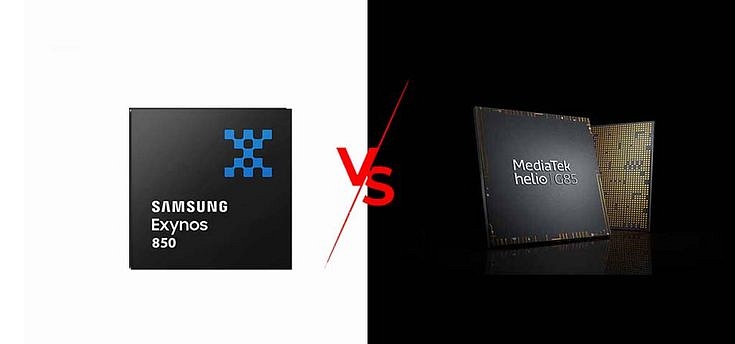
MediaTek vs Exynos Chipset Comparison: Which One Is Better? Pros, Cons, And More

Key Highlights

  • MediaTek: Cost-effective, diverse offerings.
  • Exynos: Samsung integration, powerful performance.
  • Both have unique advantages and trade-offs.

This era is witnessing a massive competition between various smartphone processors. Samsung and MediaTek are the two tech giants that are dominating the market right now. However, some new processors have also been launched by a few other companies.

 Some of them include the Exynos processor launched by Samsung or the Atom processor released by Intel. Surprisingly, apart from Exynos and MediaTek, the others haven’t achieved much success in terms of the smartphone processor market.  Even being a well-known manufacturer of desktop processors, Intel has failed to build the same quality of processors for smartphones.

Also Read: MediaTek Dimensity 9200 Processor Vs Qualcomm Snapdragon 8 Gen 1 Chipset: High-End Mobile Chipset Comparison

Mediatek Overview

It’s a fact that for budget-oriented smartphone brands, MediaTek has always been the first choice because of its low cost of production. Using Mediatek, the updated features can be provided at a lower cost compared to the other manufacturers resulting in MediaTek being the unofficial processor king for budget smartphones.

Moreover, with the release of its Helio series MediaTek has been able to completely change its presentation and the upcoming Dimensity series processors. In 2019, the Helio series is segregated in created in four categories – Helio G, Helio X, Helio P, and Helio A.

The brand’s flagship mobile-game-oriented processor is the Helio G series which has been integrated with HyperEngine Game Technology to provide its users a smooth and prolonged gaming session. 

Also Read: How to get Paid Apps For free In Android

Exynos Overview

Exynos processors are manufactured in-house by Samsung for use in their Samsung smartphones, with a few exceptions. Snapdragon SoCs are being manufactured by Qualcomm for use in third-party mobile devices.  Samsung is using the Exynos processor in the Asian market, but the SnapdragonSoC is used in Europe and North America.

MediaTek vs Exynos: Processor Comparison

Let’s start with the process technology that determines the power and performance of the SoC. Note that smaller numbers imply more efficiency in performance and battery life.

The Helio Series features the same process as TSMC’s two-year-old Helio P90, a 12nm FinFET process. To be honest, I’m disappointed with the market having 7nm and 8nm processes aimed at the medium- and low-priced performance SoC market in 2020. The Exynos 9611 boasts a 10nm process compared to its MediaTek competitors, so you can be confident that you’ll see the promising benefits of this SoC in terms of performance and battery life.

Also Read: Samsung Exynos 850 Vs MediaTek Helio G80 SoC: Budget Mobile Chipset Comparison

MediaTek Vs Exynos: CPU Comparison

Now it’s time to talk to the CPUs inside each of these two processors. The Helio P95 CPU consists of an octa-core cluster, two of which are the ARM Cortex A75 at 2.2GHz speed for the noisiest and most complex operations, and six Cortex A55 cores at 2.0GHz with more energy input.

The new Exynos 9611, on the other hand, uses the same 10nm manufacturing process as its predecessor. It is offered in a 64-bit octa-core array with four Cortex A73 cores with a maximum clock speed of 2.3 GHz and four Cortex A53 cores with a maximum clock speed of 1.7 GHz. Comparing these two SoCs, we can say that Meditek has an edge over Exynos in terms of CPU.

MediaTek Vs Exynos: GPU Comparison

When talking about the GPUs inside these two powerful processors, the Helio P95’s GPU is the same as the Helio P90, IMG PowerVR GM 9446, but with a 10% improvement in performance, according to MediaTek. It supports up to 8GB of LPDDR4x RAM and a maximum screen resolution of 2520 x 1080 pixels.

With that said, the Exynos 9611 includes a MaliG72 MP3GPU that is responsible for enhancing the graphics. This is also the same GPU present in the Exynos9610, but with higher clock speeds than the previous version. Based on this hardware configuration, the processor allows users to do more of their favorite activities, such as gaming, thanks to its powerful performance that adapts to the current mobile devices within its range.

Also Read: Best Smartphones With The MediaTek Dimensity 700 Processor To Buy In India

Conclusion

We have tried to put together some of the pros and cons of both chipsets. In a nutshell, if you are looking to get a mid-range smartphone, MediaTek chipsets should be your priority. And in case you are looking forward to buying a high-end flagship category device, Exynos still seems unbeatable.

Categories
Info Tech News

How To Disable Get Apps on Xiaomi, Redmi, and Poco Phones Effectively: Three Ways To Disable Get Apps

Key Highlights

  • GetApps notifications on Xiaomi, Redmi, and Poco phones are annoying
  • Prompts to install third party apps or features promoted
  • GetApps can be disabled on phones with MIUI interface

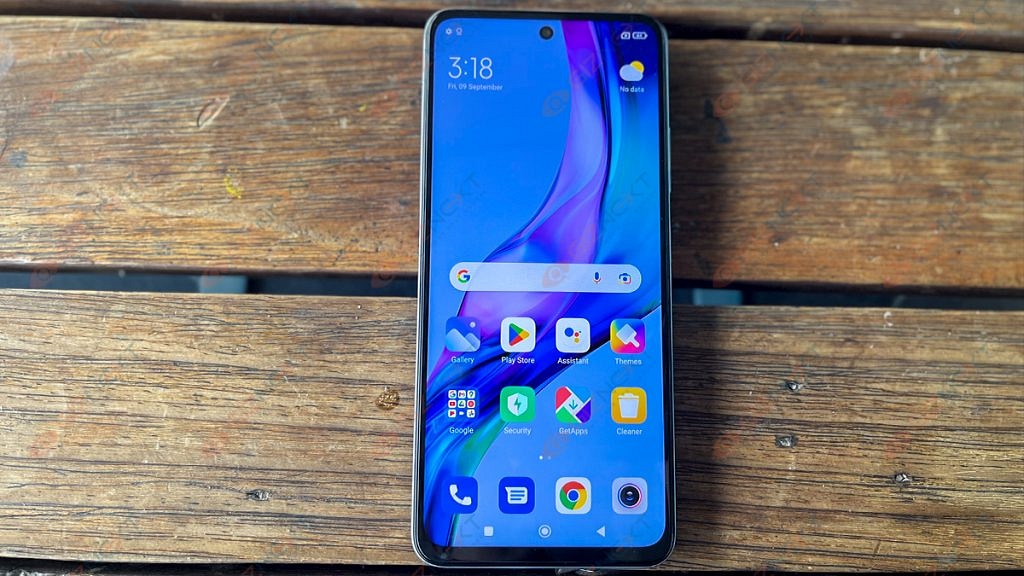
Many times you might have received unnecessary notifications from GetApps on your Xiaomi or Poco phones. Various spam notifications like “Get new features,” “install this and that, or “update now,” frequently pops up, if your device is running MIUI. Learn Effective Ways to Disable Get Apps

 Most people aren’t interested in these apps and have to deal with this nuisance. Don’t worry; we got your back. We have gathered some of the most effective ways to disable GetApps on your Xiaomi, Redmi, and Poco smartphones which are running on MIUI.

Also read: OnePlus Pad 5G Vs Xiaomi Pad 5 Premium Android Tablet Battle

Turn Off Notifications

The option to disable GetApps is not available on devices that are running on MIUI. However, you still will be able to turn off notifications for the GetApps, by following these steps:-

  • First, Open your Settings on your Xiaomi, Redmi, or Poco phone.
  • Go to Apps > Manage Apps.
  • Here, look for GetApps. Click on it.
  • On the following screen, click on Notifications
  • Then, turn off the toggle, which will disable the notifications from GetApps.
  • To take extra measures, you can force stop the app or clear its data.
Also Read: Xiaomi Redmi Note 11 Pro Long-Term Review: Justifies The Price Tag?

Disable Get Apps Through Your PC

 You can use ADB commands if you want to remove GetApps from your Xiaomi device totally. We usually use ADB commands to remove bloatware from Android devices. You can follow the three-step process given below to remove GetApps using ADB through your PC.

Step 1: Developers Options

  • First, you have to download the ADB software for your PC or laptop (Windows, Mac, Linux). Then you have to extract the zip file on your drive.
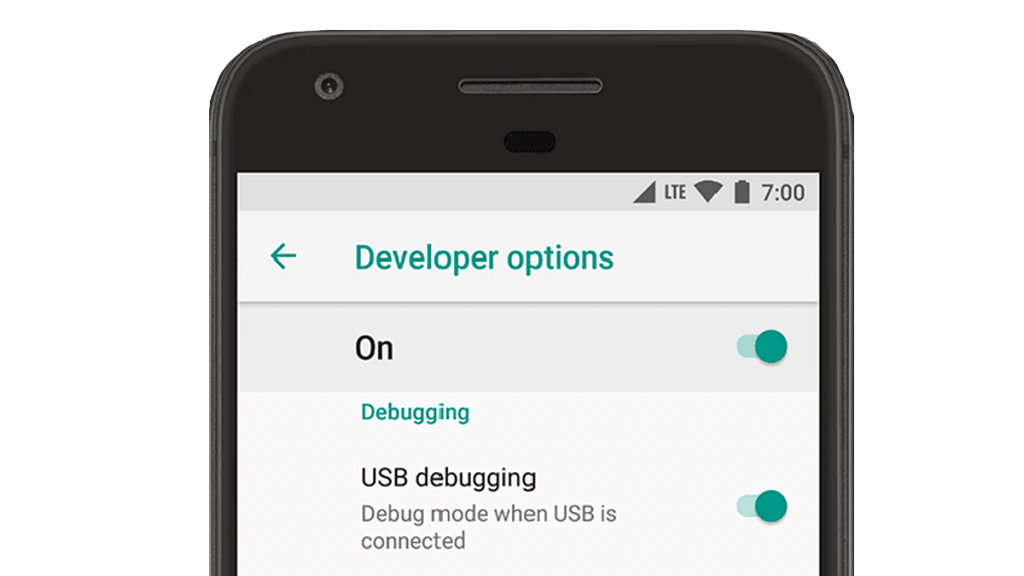
  • Now, go to your phone, and enable the Developer Options. 
  • To do that, go to your phone Settings > About device. After tapping MIUI Version 6-7 times, you will see that the “Developer options have been enabled.
  • After enabling the developer’s option, go to Additional Settings > Developer Options.
  • Then turn on USB Debugging.

Step 2: Connecting Your Device via ADB

  • Connect your PC to your PC through a USB cable.
  • And change the access to File Transfer from the option in the notification pane.
  • Now, tap on confirm when it asks you whether to allow USB debugging access on your device.

Step 3: Uninstalling Using ADB Commands

  • First, open Command Prompt on your PC or laptop. You can also go to the ADB folder by pressing Shift + Right-Click > Open PowerShell Window or Open Command Prompt Here.
  • Type and enter “adb devices” and check whether your device is connected or not.
  • Then, enter “adb shell.”
  • And, finally enter the following command: “pm uninstall –k ––user 0 com.xiaomi.mipicks

If you follow these steps carefully, then GetApps will permanently get removed from your device, and you do not need to worry about those annoying notifications.

Using The Debloater Tool

Debloater tool is quite similar to ADB, as it is also used to remove bloatware apps from Android smartphones. If that method seems too complicated to you, the debloater tool can act as an easier alternative to the ADB method discussed above.
Just Follow The Steps Given Below:-

  • First, you have to Enable USB debugging on your device.
  • Now, you will have to download and then install the Debloater tool on your PC.
  • Open the tool and connect your device to your computer through a USB cable.
  • Once your device gets detected, click on “Read Phone Packages,” which will allow you to see the list of all installed apps on your device.
  • Now, Double click on the GetApps (com.Xiaomi.mipicks) and click the Apply button.

If you follow these steps carefully, GetApps will successfully get uninstalled from your Xiaomi, Redmi, or Poco device. 

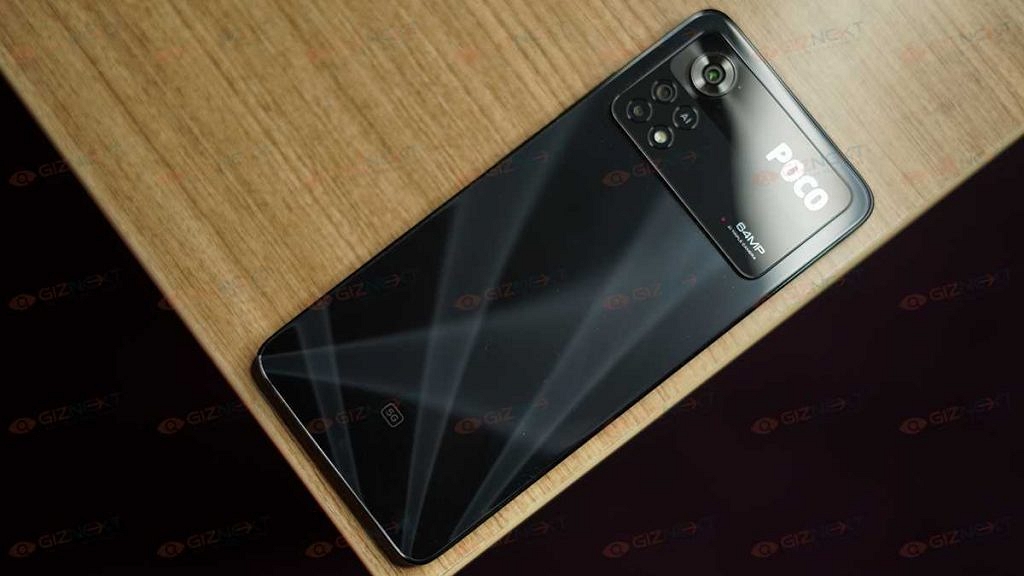
Also Read: POCO X4 Pro 5G Long Term User Review: Makes The Cut?

Conclusion

 GetApps can be really annoying, as it keeps bugging you with unnecessary and annoying notifications. Use these methods, and get rid of the GetApps notifications that keep bugging you on your Xiaomi, Redmi, or Poco devices. Moreover, other bloatware apps from your device can also be removed by using the above-discussed methods.

Also Read: Honor Pad 8 Vs Realme Pad Vs Redmi Pad: Mid-Range Android Tablet Comparison
Categories
Info Tech News

Best Indian Document Scanner Apps for android and ios

In today’s era, scanning files and images do not require the use of big machines. There are various popular Indian Document Scanner Apps for android and ios are available on your smartphone that can do this job very efficiently. 

Indian apps are highly secure and can give you a cost-effective alternative compared to other scanning tools.

As we know, recently, the CamScanner app got banned in India. However, you can choose from other scanner apps that can match your requirements.

We have gathered some of the best apps available on your smartphones that just need your phone’s camera to scan your documents and can save your documents in any format according to your needs.

Doc Scanner

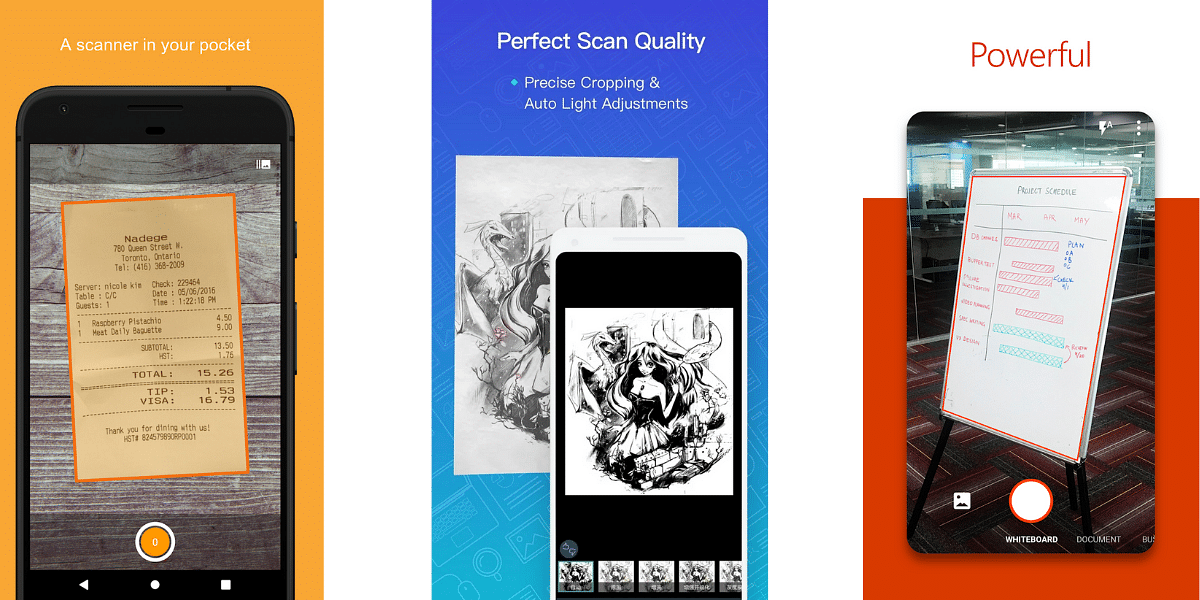
 One of the most famous documents scanning apps is Document Scanner which is used for scanning images, receipts, documents, or reports. Restoring scanned documents from this app is a piece of cake. You can also use its other features like rotating or re-cropping your scanned documents.

The Document Scanner app has a snappy and easy-to-use interface, which records all your scanned documents, which you can access at any given point of time. This app is equipped with features that allow you to change any scanned document into PDF format easily.

Also read: Best Nova Launcher Themes For Homescreen in 2021

Kaagaz Scanner

Another popular Indian document scanner app is Kaagaz Scanner, which has been widely used for scanning and converting files into PDF formats. Apart from efficient scanning, this app also allows you to share your file via emails or other social media platforms. Like CamScanner, this app supports fast auto edge detection and is one of the best Indian document scanner apps.

Moreover, there are five unique scanning modes which are available in 8 different Indian languages. This makes this app ideal for scanning bills, business cards, or other types of documents. You can also upload any previously-stored document from your storage in this app for further scanning.

AIRScanner

AIRScanner is a well-known Indian document scanner app that is equipped with a powerful AI reading technology. All your scanned files can be stored in pdf format in your phone’s storage, and this app is also very secure.

Currently, the  AIRScanner app is only available for Android devices only. This app also has features that can help you to improve your English reading experience from the documents.

Best Indian Document Scanner Apps for android and ios

Photocopy.ai

The Photocopy.ai app is quite similar to the CamScanner app. This Indian app is available free of cost and can also be used for document sharing purposes. It doesn’t require any sign-in and can act as a more secure alternative than CamScanner. The easy-to-use interface of the Photocopy.ai app has made sharing and scanning very easy.

The Photocopy.ai scanner app is available on both Android and IOS devices. You can also change images into texts using this app. Various other tools in this app support fine-tuning of your scans to improve their contrast and brightness. This app is also equipped with multiple unique filters, and you can also scan pages of your favorite books using this app.

Tap Scanner

The TapScanner scanning app converts your smartphone into a reliable pocket scanner.

You can use this app to scan almost all types of documents and save them in PDF formats. This app has a multi-functional interface and is considered one of the best scanning apps on the Google Play Store.

This app also allows you to change your image setting, making the management of your scanned documents very easy. After scanning, you can directly export your scanned files into PNG or PDF format. The AI system of this app can automatically detect the borders of your documents while scanning.

Conclusion

These Indian scanner apps are ad-free and are very secure,  as it does not store any of your important information. Almost all of these apps have free versions and are also equipped with cross-platform functionalities. You can rely on these apps for scanning your documents and export them into any desired format, according to your requirements.

Categories
Info Tech News

How to get Paid Apps For free In Android

We know that various apps and games available on the Google play store require you to pay for using them. Many people may prefer not to pay for these apps and want to enjoy them for free. And some might even like giving these apps or games a test run before buying them, How to get Paid Apps For free In Android

If you are one of these persons, who wants to enjoy the paid privileges without paying any charge, you are at the right place. We have gathered some of the best ways to download and enjoy these paid apps for free. 

Aptoide App Store

You might have heard of Aptitude App Store as it is one of the most popular third-party app marketplaces which competes directly with Google Play Store. This app Store is equipped with hundreds of paid applications, which can be used for free.

To use the paid apps, you just need to install the Aptoide app store on your device and search for the apps you want to use. Various popular paid apps like Nova Launcher Prime, Kinemaster Pro, Greenify Premium, Poweramp Full Version, etc., can be downloaded from Aptoide, absolutely for free.

Moreover, the uploaded apps on the Aptoide app store have gone through many security checks and antivirus tools. 

Also read: Best Video Compressor apps for Android Phones

Blackmart

Another popular third-party app store is Blackmart, in which almost all the paid Android apps are available for free.  This app does not require you to pay any money to register an account. This app has a snappy and straightforward interface, which can be used by everyone.

Like the google play store, this app is equipped with a feature that allows you to categorize your apps based on your preferences. On top of which, you can sort your apps between Free and Paid Apps. The most important feature is, you can even access those apps which might be banned in your country.

App Sales

AppSales is not like a third-party marketplace, which can get you free apps for free. Instead, it checks for the apps which once were pay-to-use but have recently gone free. This app notifies you about these apps, which are available at a 100% discount at the given moment on the Play Store.

This app also allows you to check the price history of different apps and compare prices over time. Apart from notifying you about the free-to-use apps, AppSales also provides you with a list of apps that are available at a high discount at that moment.

If you like an app, but its price is outside your budget, you can use this app to add them to your watchlist and keep an eye on them. 

Google Opinion Rewards

Google Opinion Rewards is quite a popular app, which works on a rewards-based program that pays you money in your Google Play account in exchange for filling surveys. The amount you receive depends upon the number of questions in the particular survey.

The Google Opinion apps will notify you about all the surveys that are available at the moment. By doing these surveys, you can keep earning through Google Play credits which you can redeem later. This can be used while buying paid apps on Google Play Store.

Conclusion

The points mentioned above are the easiest ways through which you can download and enjoy the paid apps for free on any of your Android. However, instead of downloading them from other sources, most people prefer to keep track of various paid apps that go on heavy discounts on the Google Play Store

Categories
Featured How To Info Mobile

How To Disable the ‘This Call Is Now Being Recorded’ Warning On OnePlus

Key Highlights

  • Call recording feature is available with all OnePlus phones
  • Users get notified when any call is being recorded on OnePlus phones
  • Google has already banned call recording apps on Android phones

There is no OnePlus stock dialer app on any of the latest OnePlus mobiles, including the OnePlus 8T, OnePlus Nord, OnePlus 9, OnePlus 9R, and OnePlus 9 Pro. All recent OnePlus phones come with Google Dialer and Contacts instead. There is still the option to record calls on these phones. However, Google Dialer’s call recording plays a warning audio message before it begins recording: “This call is now being recorded”. OnePlus phones such as the OnePlus 8T, OnePlus Nord, and OnePlus 9 can come with an annoying call record warning. In this article, we’ll give you a working trick to fix it.

Google Dialer notifies the other party when you press the record button that a call is being recorded, effectively defeating the purpose of recording the call in the first place. Using the standard OnePlus Dialer, you can get rid of this warning even though there is no option to disable it in Google Dialer.

Also Read: OnePlus 9RT 5G Review: A Mixed Bag Or A Complete Package?

The official dialer from OnePlus can be manually installed and switched to. It has an automatic call recording built in that doesn’t notify the other party of the recording. Using the stock OnePlus Dialer will allow you to get rid of this unwanted warning, which defeats the purpose of recording the call in the first place.

Google Dialer doesn’t offer an option for disabling this warning, but OnePlus Dialer allows you to disable it. With this functionality, you can record call audio on any OnePlus phone, including the OnePlus 8T, OnePlus 9R, OnePlus 9, OnePlus 9 Pro, OnePlus Nord, and many others. Below are three easy steps that will guide you on how to install the OnePlus Dialer so you won’t get the call record warning on OnePlus devices.

Also Read: WhatsApp Call Recording: Here’s How You Can Easily Record Call On Android And iOS

Step 1: Download And Install Oneplus Dialer

  • Download the OnePlus Dialer APK 
  • After downloading the app, you can install it like a normal APK file.
  • Apps from unknown sources may be requested from your phone during installation.
  • Grant the necessary permissions when prompted.

Also Read: Realme GT 3 Vs OnePlus 11R: Value Flagship Phones Battle

Step 2: Make Oneplus Your Default Dialer

  • Launch the OnePlus Phone app.
  • If you choose to set it as your default app, it’ll automatically prompt you.
  • At the bottom right corner, click Default Phone App
  • Click Set as Default on the OnePlus Phone.

                                OR

  • The Settings app on OnePlus phones allows you to access the phone’s settings.
  • After that, click on Apps and notifications.
  • Select Default Apps from this menu
  • Go to the Phone App screen and choose OnePlus Phone.

Also Read: Factory Reset OPPO ENCO TWS Earbuds (All Models): How To Fix Audio/ Pairing Issues With OPPO TWS Earbuds By Factory/ Hard Reset

Step 3: Activate Automatic Call Recording

  • On your phone, open the OnePlus Dialer.
  • Go to the three-dot menu on the right and click Settings
  • Activate the toggle for Call Recording by clicking on Call Recording.
  • You can also record calls automatically using the Auto-recording option.

That’s all there is to it; you won’t bother with the audio warning. The person you’re calling will never know that you’re installing the Google Dialer on your phone. Furthermore, you can disable the app if you want. You can disable Google Dialer by holding it in your hand and clicking on App Info. Then, tap Disable.

Also Read: How To Turn Off Call Recording Announcement In Vivo Smartphone

The aforementioned instructions make it simple to record OnePlus phone calls on your device without alerting the call recipient. Users of OnePlus lose that privacy when they use Google Dialer. Anyone can follow the steps because they are simple and easy to follow. However, make sure you abide by the local laws if you intend to record someone without permission.

Also Read: OnePlus Buds Pro 2 Review: Hitting The Right Notes?

You have now learned how to disable the call recording warning on OnePlus handsets. Hope you will be able to disable the notifications on your OnePlus 8T, OnePlus 9R, OnePlus 9, OnePlus 9 Pro, OnePlus Nord, or any other OnePlus handset.

Note: Google has updated its policy with call recordings on smartphones. The search giant has already removed multiple third-party call recorder apps from the Play Store. One of the primary reasons has been user privacy which was being compromised with these third-party call recorder apps.

Also Read: OnePlus 10T Review: Speed Performance And Reliability At Its Best

Categories
Info Tech News

Best Emoji Makers for android to Create Your Own Emojis

There are many different emoticons on the Internet. Some of them are already linked to the Android application, so you can easily get emojis according to your needs. However, there may be cases where you need a special emoji that might not be available on your phone for that there are some of the Best Emoji Makers for android to Create Your Own Emojis

Therefore, here we have described some of the best Emoji maker Apps of 2021. Emojis are small icons that appear on the screen and are also the best way to express emotions, perspective, or moods in your chats, photos, or videos.

BitMoji

BitMoji is one of the most popular emoji maker apps globally as it is tightly integrated with Snapchat and offers a variety of custom stickers. 

Customizable avatars created with this emoji maker app are very close to what they look like in real life. This helps to make your conversations fun and interesting. 

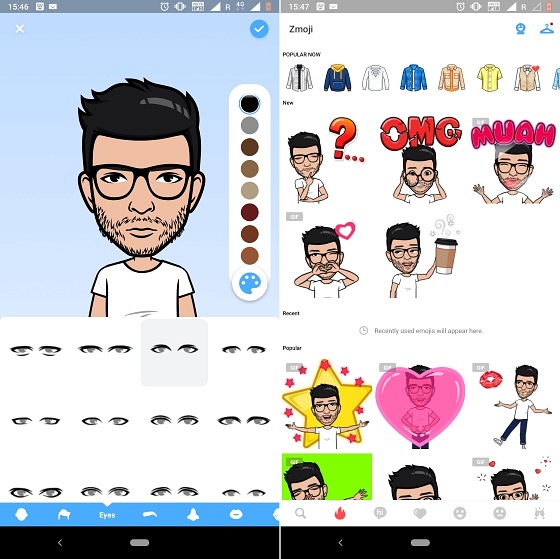
Just click on the photo to create your avatar from scratch. This will display the sticker collections in the app. You can also adjust your avatar directly by selecting items such as hairstyle, eyebrow shape, color, and other details.

This app has the :-

  • Size: 34 MB
  • Total downloads: over 10Cr
  • Supported by: Android and IOS 
  • Developed by:Bitmoji

Also read: How to mirror your Android or iPhone screen to Firestick

EMOJI MAKER

The Emoji maker app allows you to create emojis, stickers, smileys in a fun and exciting way. You need to choose a basic emoji and add the necessary accessories. You can save and share these emojis in social apps or messaging apps. 

The emoji maker app does a great job of allowing users to express their emotions in various conversations. Emoji Maker allows its users to present their inner thoughts in the best possible way.

This app has the :-

  • Size: 19 MB
  • Total downloads: over 50L 
  • Supported by: Android  
  • Developed by: Mimisoft Studio

EMOJI MAKER- FREE PERSONAL ANIMATED PHONE EMOJIS:-

Emoji Maker is one of the few apps mentioned in Vic. art. It is one of the most popular Emoji Maker apps in the Avatar category, which has features that completely replace the common smiley faces.

The hardware requirements for the app are a bit high, as it uses pretty high-quality graphics in each of the emojis. In its current state, this app is usually used on devices with high-resolution screens.

This app has the :-

  • Size: 25 MB
  • Total downloads: over 50L
  • Supported by: Android  
  • Developed by: Animoji Phone X and Emoji Maker Develop Team

Best Emoji Makers for android to Create Your Own Emojis

BOOMOJI 3D AVATAR

This app is slightly different from the other Emoji Maker apps on this list as it relies heavily on a variety of GIF stickers and accessories. The actual framework is quite basic, and it isn’t easy to create a character with similar appearances.

You can create your own 3D avatar face emoji using different skin colors, eye colors, hairstyles, hair colors, and much more. You can share these 3D emoticons on various social media platforms like TikTok, Snapchat, Instagram, etc. Create a unique 3D character that resembles you with just a few clicks.

This app has the :-

  • Size: 66 MB
  • Total downloads: over 50k 
  • Supported by: Android  
  • Developed by: Emoji voice Changer INC

MOJI POP

If you want to make your own funny cartoon stickers right away and add a pinch of humor to your daily chat, you can use this app.

Using this application, you can access thousands of caricatures and animated stickers with faces that can display various emotions. Select and send your favorite ones and surprise your friends.

This app has the:-

  • Size: 78 MB
  • Total downloads: over 10L
  • Supported by: Android  
  • Developed by: Eureka Studios

Conclusion

As social media users, we all want to speed up our typing by adding chat emoticons. This is also the reason why most people are obsessed with emojis. You can reply to a text in a fun and creative way. You can use one of these mentioned emoji maker Apps to add an exciting element to your bland chats.

Categories
Info Tech News

New Way of Living with Samsung AltZ Life Privacy Features

Aren’t you tired of that wedge every time someone puts their suspicious hands on your phone? Don’t worry, the New Way of Living with Samsung AltZ Life Privacy Features is here to solve your problems.

We usually have some sort of document, application, game, photo, or video that needs to be protected from the others.

 So privacy has always been a necessity, and this Samsung AltZLife gives you exactly what you need. SamsungAtlZ Life has got an innovative approach towards privacy, which offers many features to give the Samsung GalaxyA51 and A71 smartphones the security they need.

Also read: How to mirror your Android or iPhone screen to Firestick

Some of its major features are:-

Quick Switch

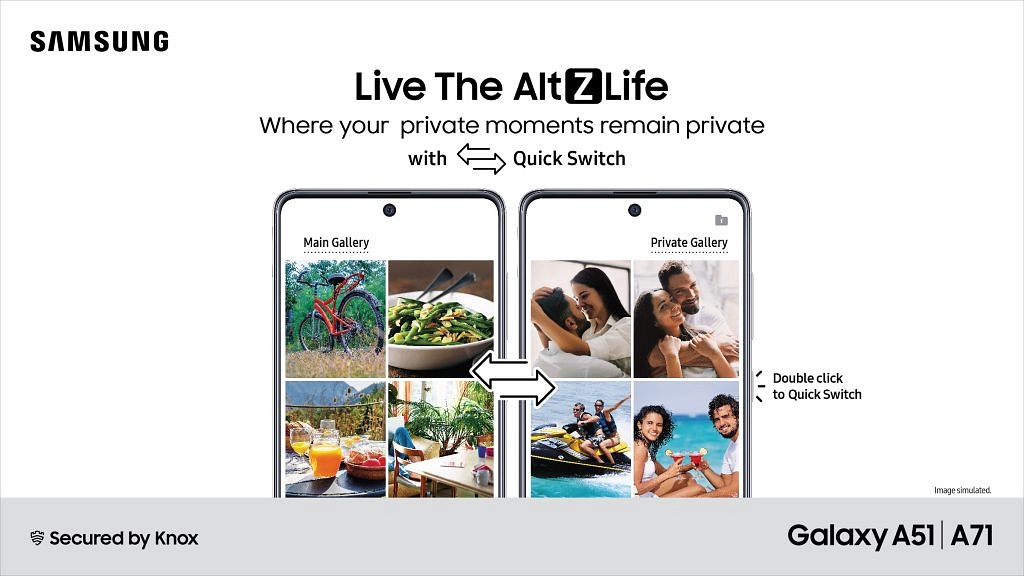
Suppose you might be working on an important document and some kid asks for your phone to play some games or watch a youtube video. With Samsung AltZ Life’s privacy protection feature, you can prevent your child from entering the private domain and keep them away from your important documents and data just by double-clicking on the power button. 

This feature allows you to create a fake space that is very easy to access and is completely separate from your personal data.

This feature can be used in your updated Samsung Galaxy A51 and A71 smartphones by:-

  • Open Settings
  • Open Quick Switch folder
  • Click Enable
  • Double click on the ‘Power  off’ button to switch between your personal and public space
Content Suggestions

If you are looking forward to hiding your important items in the gallery, let’s discuss this feature called Content Suggestion. Artificial intelligence gives you suggestions on whether to hide a certain content or not.

 Another notable feature of this update is that the user data is not shared on cloud servers and that the processes such as content delivery are performed by the phone’s personal AI.

The content suggestion feature allows users to intelligently recognize the selected object or face using AI based on the settings and identifiers which are controlled by you. Then it suggests some images for keeping them private and can instantly be transferred to the private gallery present in the Samsung AltZ Life.

This feature can be used in your updated Samsung Galaxy A51 and A71 smartphones by:-

  • Go to ‘Content Suggestion’
  • Click ‘Get Started’
  • Click on ‘private’
  • In the people section, click on the faces in your gallery to select them

Your selected files will be transferred to your private space.

New Way of Living with Samsung AltZ Life Privacy Features

Secure Folder

This feature is similar to a safe vault dedicated for your important applications, photos, and documents. This feature might also be present in your laptop or PC. The SecureFolder feature provides you with a personal private space which only you can have access to.

 Create secure and encrypted spatial memory on your SamsungGalaxy device by linking it to the Samsung great Knox security platform. Knox Security is Samsung’s famous defense-grade security system, and when it is used with the Samsung AltZ Life feature, your privacy cannot be put at risk.

This feature can be used in your updated Samsung Galaxy A51 and A71 smartphones by:-

  • Click on settings
  • Open Biometric security
  • Click on ‘Secure Folder’
  • Click on start
  • Link it with your Samsung/ Gmail account
  • Make a passcode lock or biometric

All of your important content is now stored in a safe place. Now you don’t have to feel anxious whenever you give your phone to someone for a few moments.

Better Gallery Zoom

The new Samsung’s updated GalleryZoom feature allows you to see clearer HD photos even in your gallery. Suppose you need to expand a picture of your new jewelry design. This new Samsung update enables you to zoom in on your pictures, without compromising with the pixel quality. You can see a more clearer, enhanced, and enlarged version of your photo.

Conclusion

These features provide an innovative touch to Samsung’s present security systems and gives them a competitive edge in the present smartphone market. With their enhanced security systems, your contents are now safer than ever!

Categories
Info Tech News

List of best Deep Fake Apps For Android Phones

Deep fake videos are on the rise and are taking over the internet. It allows you to create deep fake videos within seconds and the results look amazingly real. This type of application can be fun, but deep fake videos can cause serious problems, especially if it is used to deceive someone from politics. You can check the Best Deep Fake Apps For Android.

 Therefore, we have carefully selected the five best deep fake applications and websites that can be used for harmless research purposes.

Zao

Zao is the latest app that has created word of mouth in China as it is equipped with a unique feature that allows you to create deep fake videos very easily. You can select video clips in the library that contain scenes such as Chinese drama series, Big Bang theory, and popular Hollywood movies.

 In a matter of seconds, Zao creates seemingly natural deep fake videos that, frankly, seem indistinguishable from the original videos. However, it is only released in China for both Android and IOS users.

This app has the :-

  • Size: 85 MB
  • Total downloads: over 100k 
  • Supported by: Android and iOS  
  • Developed by: Changshu Shenduronghe Network Co.Ltd

Also read: See already deleted WhatsApp messages photos videos

Face Swap Live

Live Face Swap is a mobile application that allows users to exchange faces with others in real-time. The app allows users to create videos, apply various filters and share them directly on social media. 

Unlike most other deep fake apps, Face Swap Live does not use still images and can instead do a live face swap with your phone camera. . This application makes effective use of computer vision and machine learning.

This app has the :-

  • Size: 68 MB
  • Total downloads: over 10k 
  • Supported by: Android  
  • Developed by: Laan Labs

Wombo

If you don’t live under a rock, you may have seen several Wombo clips already. For those who don’t know, Wombo is a lip-syncing application that allows you to change your face and others into a singing face. 

You can make your character sing one of the 15 songs which are available in this application. This application is currently trending and has been widely used in various  Reels and TikTok around the world.

This app has the :-

  • Size: 56 MB
  • Total downloads: over 1Cr 
  • Supported by: Android and IOS
  • Developed by: Wombo Studio Inc

Best Deep Fake Apps For Android

Reface

You might remember one of the reports that released a deepfake application called Doublicat that allowed its users to create funny GIF memes. Well, the developers of Doublicat changed the app name to Reface after the name of the Reface AI.

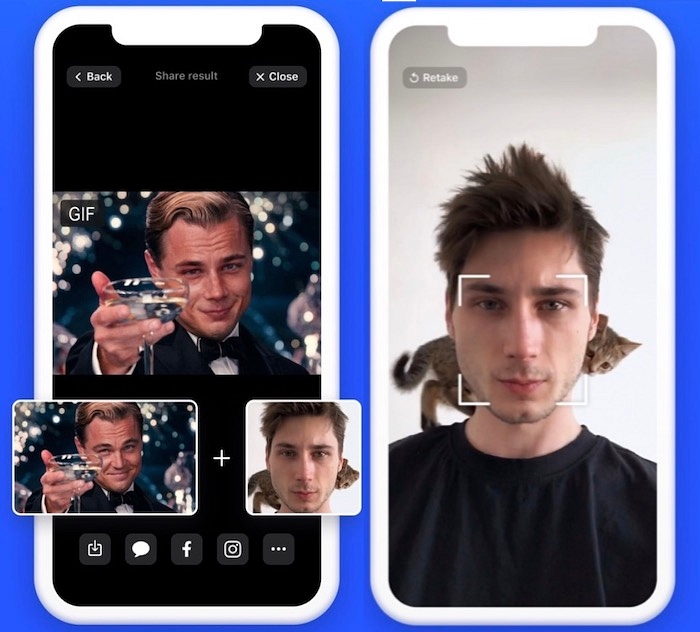
 Reface AI is basically a GAN (Generative Adversarial Network) from behind. To use the app, just take a photo and select the gif you want to use.In a matter of seconds, the app will overlay your face on the gif. However, superimposed faces aren’t entirely accurate as it depends on the symmetry of the face being used and the selected gif.

This app has the :-

  • Size: 14 MB
  • Total downloads: over 10Cr 
  • Supported by: Android  
  • Developed by: NEOCORTEXT, INC

My Heritage

Another viral deep fake app you might try out is MyHeritage. The app’s deep nostalgia feature is gaining popularity among various social media users because it allows you to animate old photos. To use this service, simply upload an image and press the Animate button.

Within seconds, you’ll get an animated version of the selected image with moving faces, eyes, and mouth as if they were popping out right away. This is very similar to Harry Potter’s The Daily Prophet Magic Newspaper.

This app has the :-

  • Size: 34 MB
  • Total downloads: over 1Cr
  • Supported by: Android  
  • Developed by: MyHeriatage.com

Conclusion

Deep Fakes are generated using artificial intelligence and machine learning software. Usually, Built-in AI and ML software are used by these deep fake applications to create deep fake videos and photos. Use these applications and surprise your friends!

There are several services that offer deep fake video, but it takes time to render and create the final video. Nevertheless, if you are interested in learning about machine learning and how your face changes, you can certainly use these advanced tools.