Categories
Featured Reviews Tablet

Lenovo Tab K11 Enhanced Edition Review: Fits All Bills?

Pros And Cons

Pros

  • Lenovo Tab K11 flaunts premium dual-tone metallic body
  • Landscape front camera positioning makes it convenient for video calls
  • Wi-Fi+ cellular 5G network option
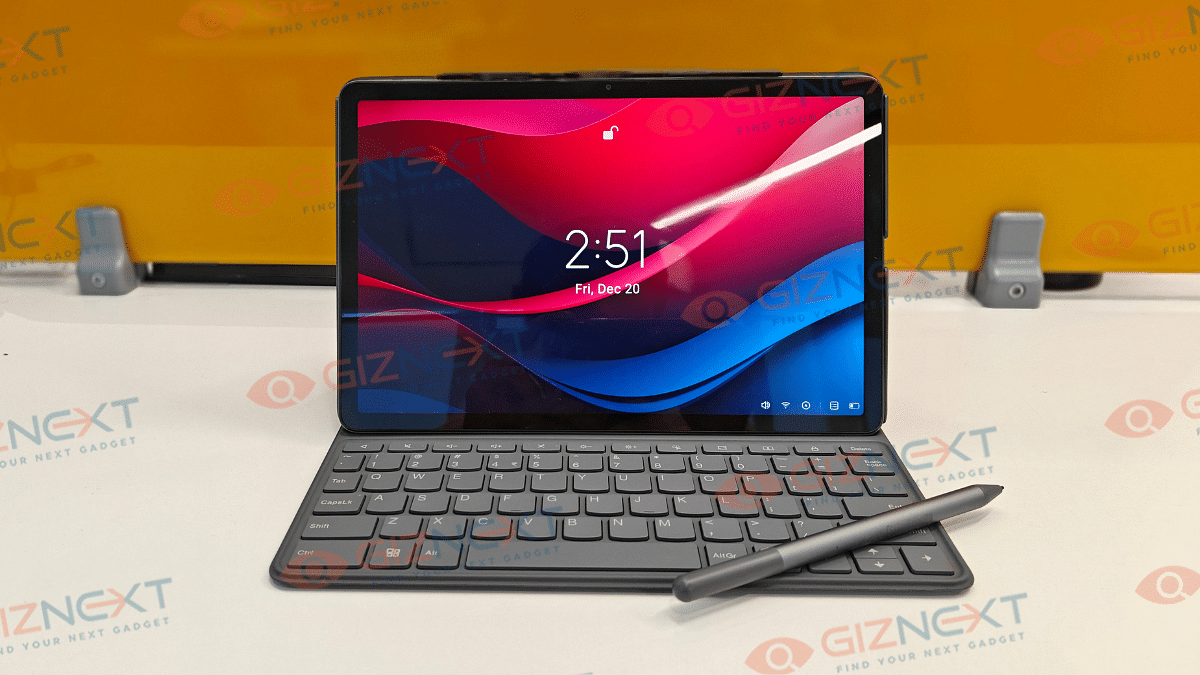
  • Comes with stylus pen and folio keyboard

Cons

  • Slow 10W charging speeds
  • Display comes void of HDR compatibility
  • Average low-light photography with primary camera
  • Dated Android 13 OS pre-installed

Lenovo has been at the forefront of PC and laptop industry and the brand has established itself as a strong player in the tablet market too. And its a wide audience segment Lenovo is catering to with its tablets range. Specifically, with the budget segment, Lenovo has been showing off its expertise and is frequently updating the catalogue as well. The Tab K11 Enhanced Edition is one of the newest members in the Tab K series that focuses on productivity and creativity aspects. At Rs. 26,999, the Tab K11 Enhanced Edition seems to be a well-rounded package specifically with the added folio keyboard and the stylus pen. But does it really justify its price tag? Its time to find out:

For the tech geeks, stay updated with the latest cutting-edge gadgets in the market, exclusive tech updates, gadget reviews, and more right on your phone’s screen. Join Giznext’s WhatsApp channel and receive the industry-first tech updates.

Also Read: Tablet Buying Guide: Top 3 Tablets With Stylus Pen Support Under Rs.30,000 In 2025

Box Contents

  • Lenovo Tab K11 (Enhanced Edition) main unit
  • Folio keyboard
  • Stylus pen
  • SIM ejector tool
  • Charging brick
  • USB Type-C cable
  • User manual and guides

Also Read: Realme 14 Pro Plus Review: Redefining Midrange Smartphone Luxury?

Lenovo Tab K11 (Enhanced Edition) Design Review
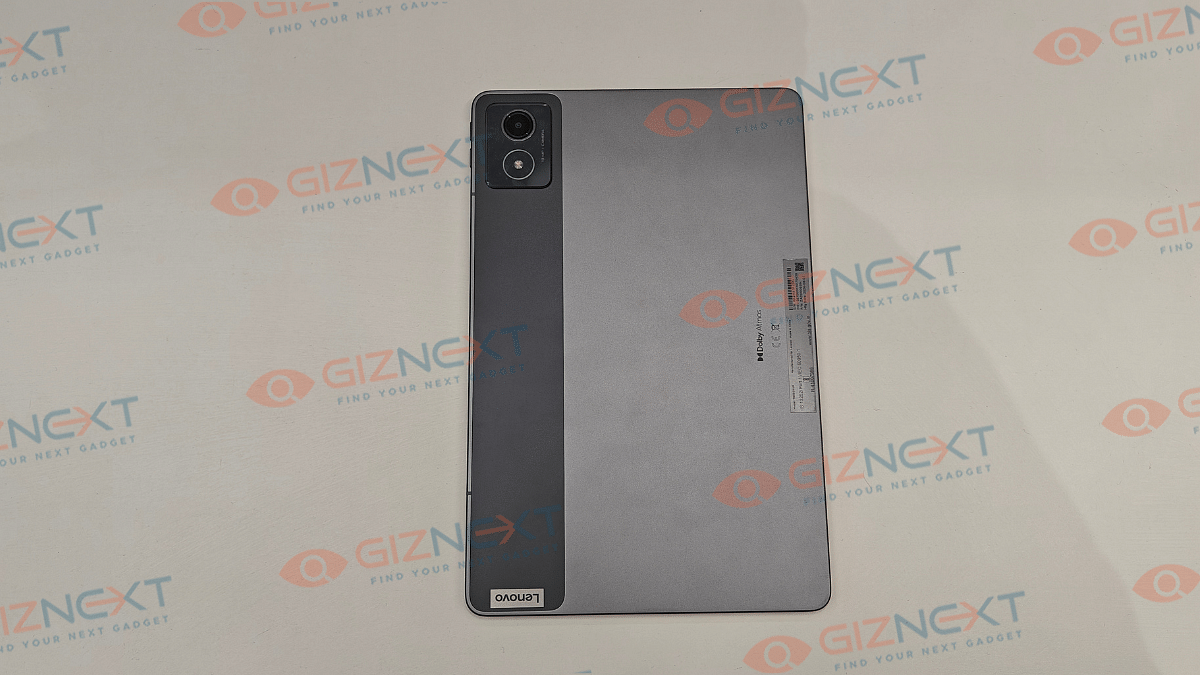
Lenovo has given a familiar design silhouette to the Tab K11 (Enhanced Edition) as its other budget-oriented tablet models. It also has a robust metallic body construction complemented with a dual-tone shade. For refrence, you ca opt from Luna Grey and Seafoam Green shades where we recieved the former for review at Giznext.

A single camera lens is housed inside the rectangular camera island on the top left of the back panel (on the dark gray vertical frosted polycarbonate strip). Right next to the camera island (housing a 13MP primary lens) on the right spine, there are the volume adjusters.

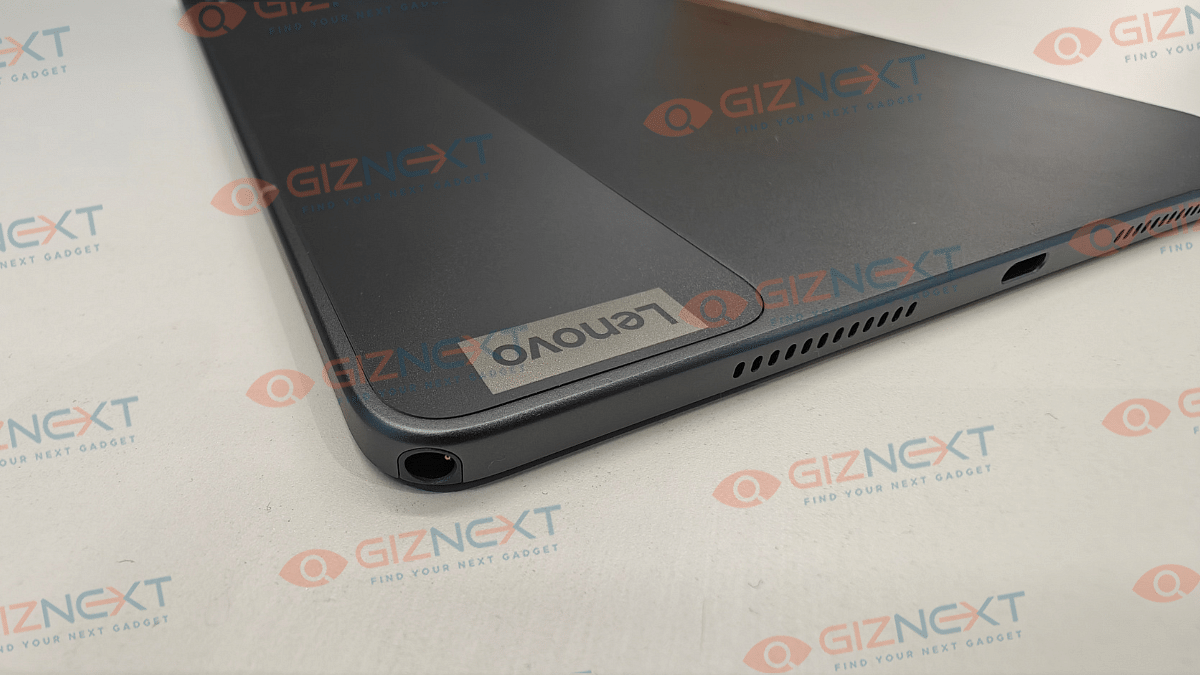
The flat frame-lightweight design along with the full-metal chassis gives confidence to hold and use the tablet with single hand. But eventually, you’ll have to use both your hands for extensive and creative tasks considering the tablet’s big form factor. Bottom panel includes a USB Type-C port sandwiched in between the speaker grilles and the stylus pen slot (on the top right bottom corner).

The Tab K11 comes void of any physical fingerprint scanner, but it offers Face Unlock as added privacy besides the standard PIN and Password protection. Summing it up, the Tab K11 Enhanced Edition while sporting a conventional design is practical for daily usage with its slim, lightweight rugged profile.

Also Read: Lenovo Tab M11 Review: A Versatile Tablet For Everyday Use

Lenovo Tab K11 (Enhanced Edition) Display Review
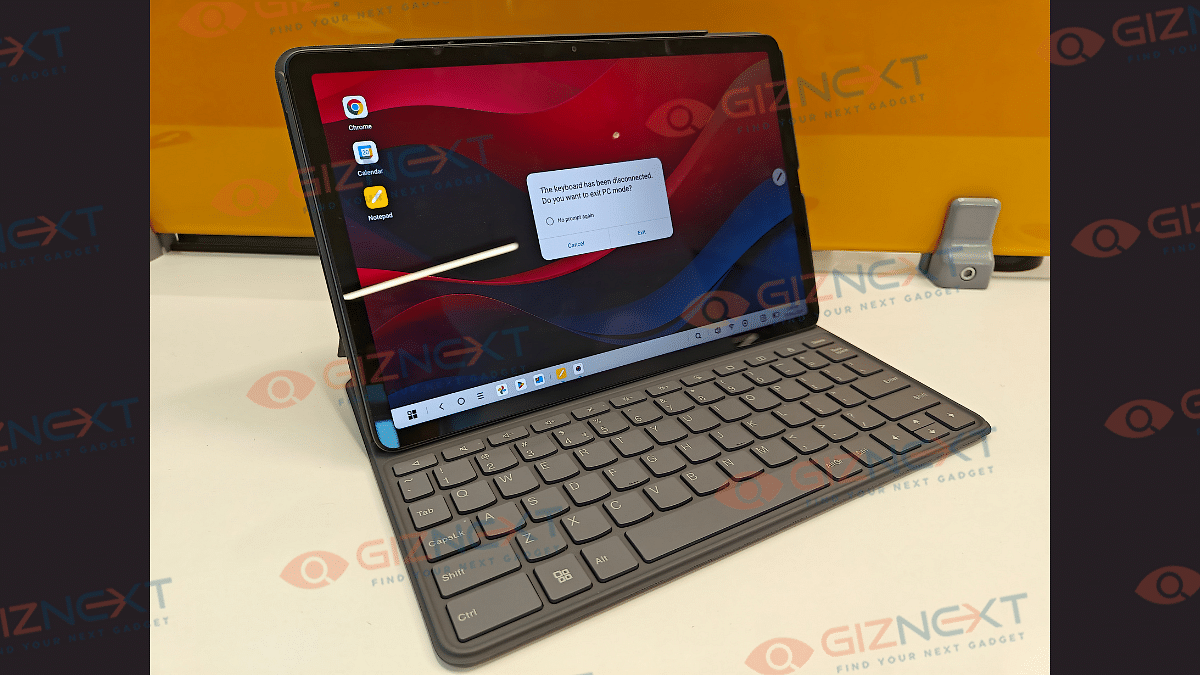
Lenovo Tab K11 Enhanced Edition has a substantially large display panel that measures at 11-inches. It is a standard LCD panel as is the case with most of the budget segment tablet. Panel specs offered by the Tab K11 Enhanced Edition includes an FHD screen resolution of 1200 x 1920 pixels and a 90Hz refresh rate. The display has Widevine L1 certification but comes void of Dolby Vision and HDR compatibility.

While two of these crucial display aspects are missing, it doesn’t mean the panel quality is compromised. The colors produced by the Tab K11 Enhanced Edition’s screen are good. The clarity levels are also satisfactory despite it being the conventional LCD screen.

The Tab K11 Enhanced Edition’s display offers 400 nits peak brightness levels. While you won’t face any difficulties with the brightness levels indoors, you might struggle a bit to view content outdoors under direct/ harsh sunlight. That’s one of the few shortcomings with the screen here.

Also Read: Lenovo Tab P11 Pro (2nd Gen) Tablet Hands On Review: A Fully Loaded Package

Lenovo Tab K11 (Enhanced Edition) Camera Review
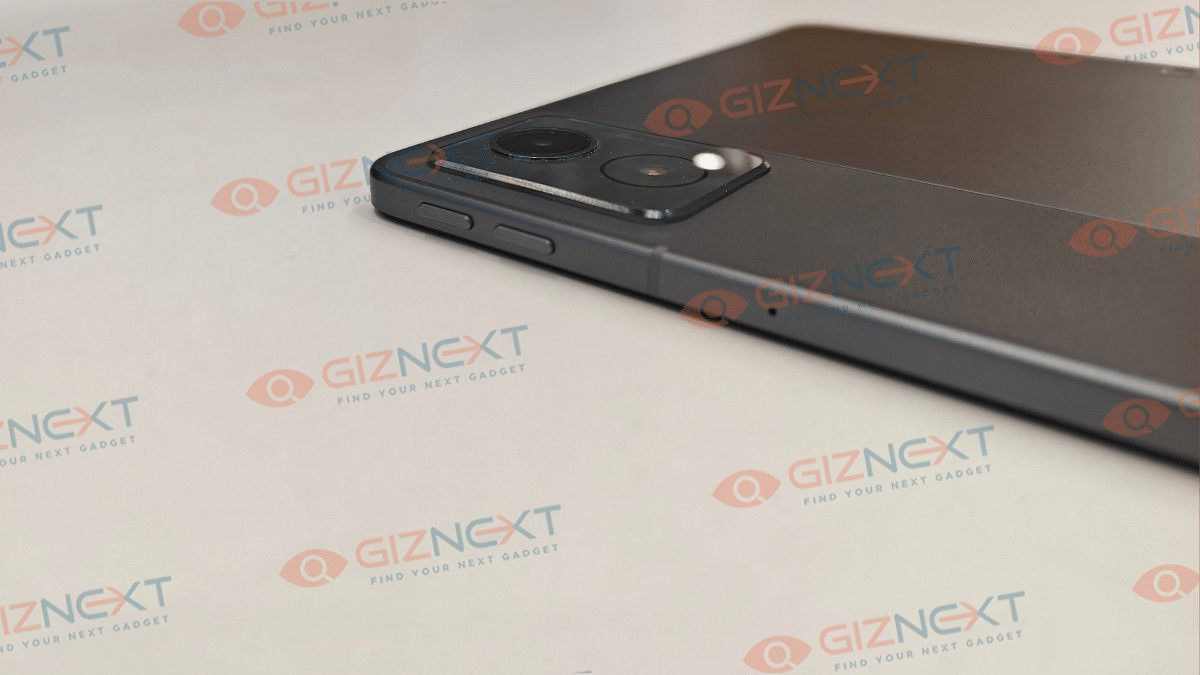
Lenovo Tab K11 (Enhanced Edition) like most of the budget and mid-range tablet’s is equipped with a single rear and a single front camera setup. The sensors are also standard where the rear panel accommodates a 13MP lens with AF (Autofocus), while at the front there is an 8MP snapper with FF (Fixed Focus) and front flash.

Optics hardware with tablets aren’t as evolved as with smartphones. However, the imaging setup on all the tablets are suitable for basic usage. The same is the case with the Lenovo Tab K11 (Enhanced Edition), where the 13MP rear snapper is apt for capturing stills, scanning documents, and similar tasks. Overall clarity offered by the primary camera is decent.

That said, the selfie snapper upfront integrated in a landscape positioning is makes it convenient for video calling or conferencing. So if you need a device majorly for online conferences and don’t wish to invest heavily into a laptop, this tablet could serve the purpose well.

Also Read: Vivo T4x 5G Review: Is This The Best Budget 5G Smartphone?

Lenovo Tab K11 (Enhanced Edition) Performance Review
Lenovo Tab K11 (Enhanced Edition) is powered by the Helio G88 chipset. This MediaTek processor has standard 4G network support and is powering a majority of low-end and entry-level Android devices. The Helio G series focuses on refining the gaming and overall performance experience which we found to be true to some extent with the Tab K11 (Enhanced Edition).

You get this tablet with 8GB LPDDR4X RAM and 128GB eMMC 5.1 storage space. Storage expansion to up to 1TB is also possible via an external microSD card. This means no storage crunch issues even if you store large sized files and documents on this tablet.

The Helio G88 chipset performs well when you throw basic tasks at it which can range from general web browsing to streaming videos on YouTube and OTT platforms. You wouldn’t notice any major lags or frame drops with the basic tasks mentioned above. However, we found the tablet struggling slightly when there is any extensive game or app launched.

The app launch isn’t instant; specifically if there are multiple apps opened in the background already. The same feedback is with gaming where lightweight titles don’t experience any lags, but on the other hand, extensive game play can feel jittery at times. That said, it still is potent as a daily driver if you use it for moderate apps and games.

Also Read: Realme P3 Pro 5G Review: An All-Rounder Under Rs. 25,000?

Lenovo Tab K11 (Enhanced Edition) Accessories (Stylus and Keyboard)
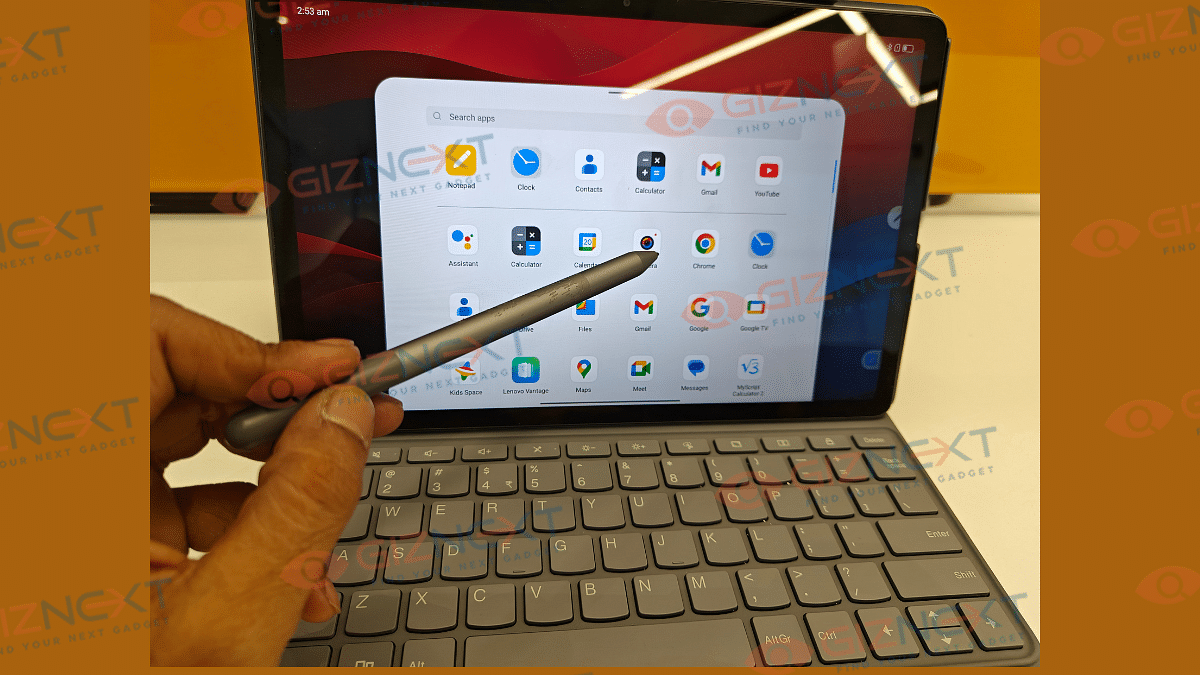
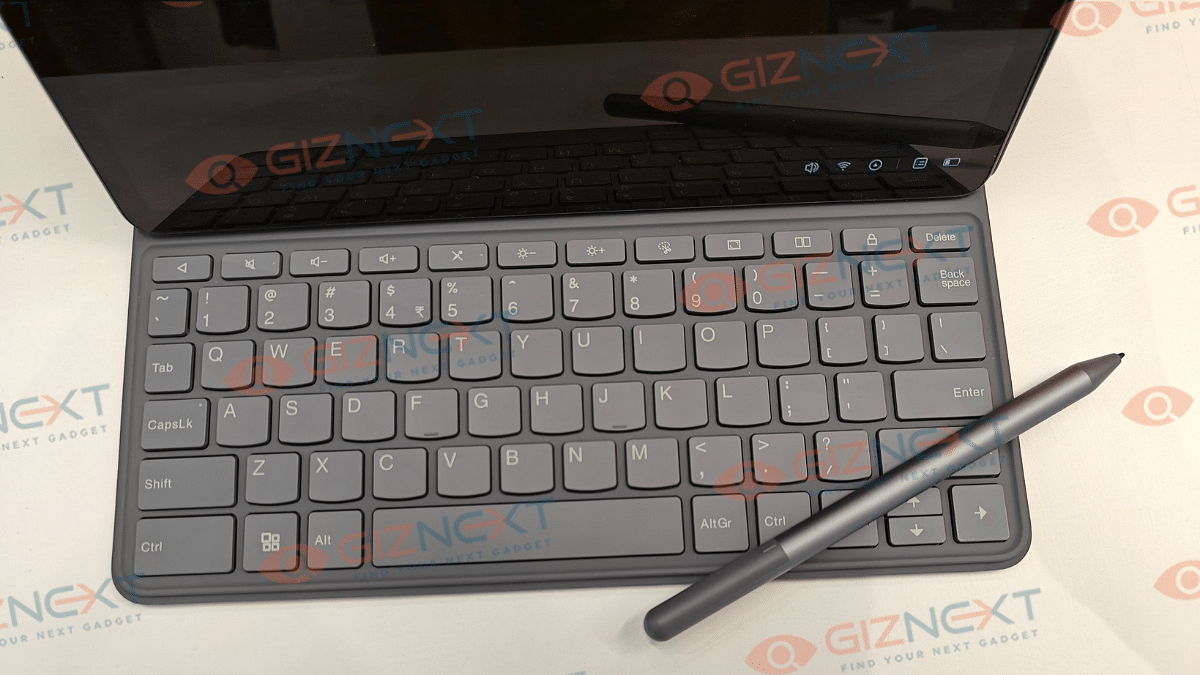
The Lenovo Tab K11 (Enhanced Edition) ships with a stylus pen and a Folio keyboard out-of-the-box. These added accessories definitely adds worth to this product. The stylus pen does’t get magnetic charging feature rather it uses a single AAA battery to power up. The thicker pen design allows ideal grip for writing and sketching. There is also a Palm rejection feature which functions well with taking notes.

There are dedicated apps to use with stylus such as Nebo (converting handwritten texts) and MyScript calculator that allows working on handwritten notes and equations. There are additional pen tips included with the stylus pen that can be replaced and used in case the default tip stops functioning properly.

Another important accessory that the Tab K11 (Enhanced Edition) ships with is the Folio keyboard. It latches on magnetically to the tablet via pogo pins. Keyboard’s functionality is good and you will find the keys nimble to press.

Also Read: Vivo T3 Ultra 5G Smartphone Review: A Flagship Experience For Less?

Lenovo Tab K11 (Enhanced Edition) Battery Backup
Backing up the Tab K11 (Enhanced Edition) is a 2-cell 7040 mAh (Li-Ion) battery pack. The big battery module tucked inside the slim tablet body is decent with backup. It is capable of lasting an entire day with a single charge with extensive usage.

You won’t necessarily need an additional plug in until the next day. Expect the battery backup to extend to up to two days if you use it lightly with basic tasks such as browsing and online conferencing. Media playback and gaming if done extensive will drain the battery by the end of the day. This brings us to the charging speeds, the Tab K11 (Enhanced Edition) comes with 10W charging support. It takes close to 4 hours to charge this tablet from 0- 100 percent.

Also Read: Vivo V40 Review: Stylish Mid-Range Smartphone With Zeiss Magic

Lenovo Tab K11 (Enhanced Edition) Final Verdict: Worth Buying?
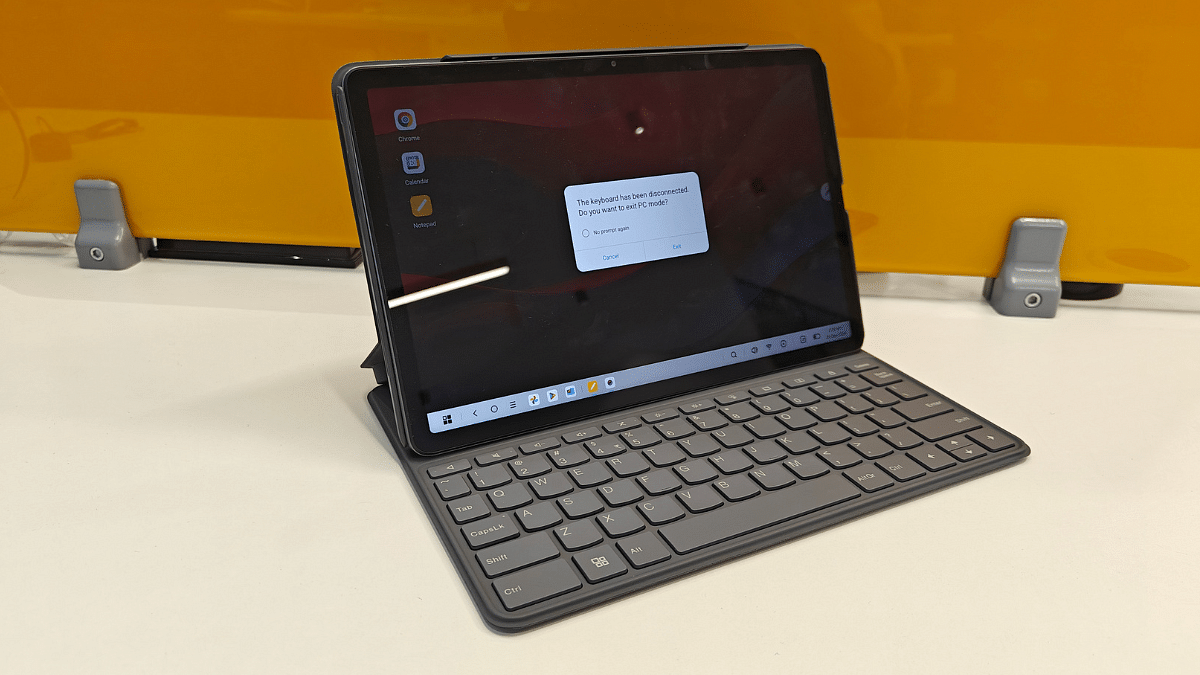
Lenovo Tab K11 (Enhanced Edition) is a well rounded package overall in the budget segment. It justifies its price tag with its robust build, vibrant screen, and the stylus pen/ folio keyboard accessories. This tablet is suitable for working professionals and students who need a daily use tablet for tasks such as online conferencing, taking notes, and media playback, etc. It wouldn’t be wrong to say that the Tab K11 (Enhanced Edition’s) added accessories is what gives it an edge over the standard version and the counterparts in this segment.

Categories
Featured Mobile

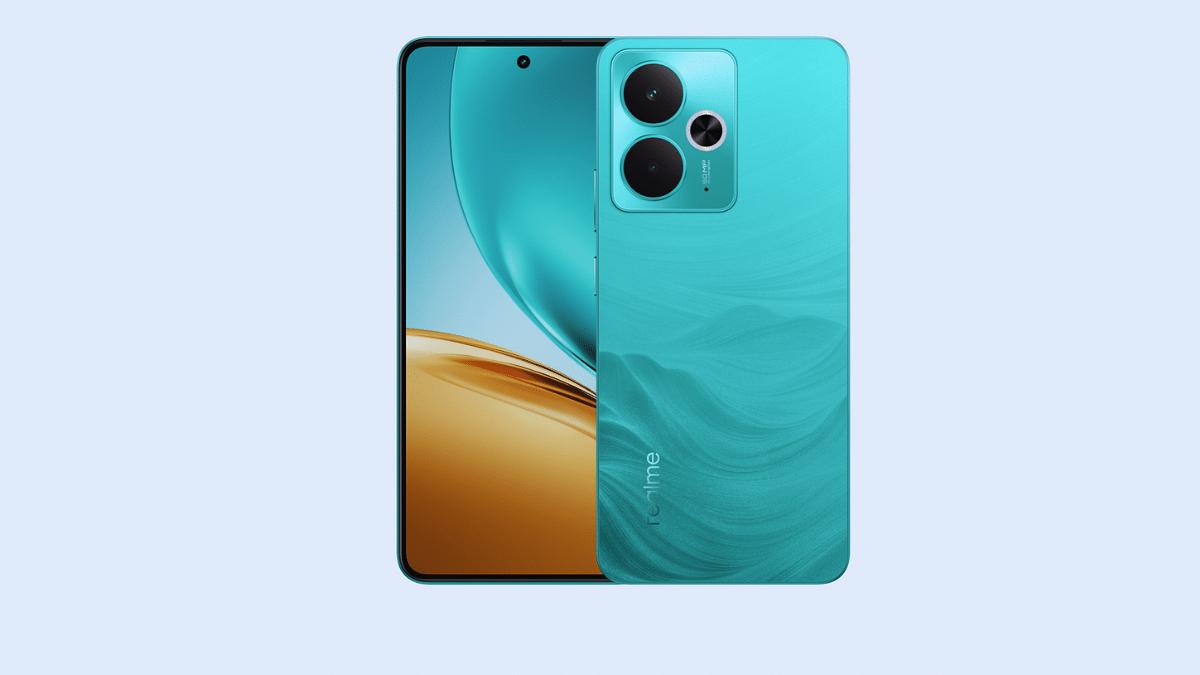
Realme 14T 5G Launched In India: Top Highlights Worth Checking Out

Key Highlights

  • Realme 14T launched with Dimensity 6300 chipset
  • Supports 120Hz AMOLED display
  • Features 50MP dual rear cameras and 16MP front camera
  • Price in India starts at Rs. 17,999

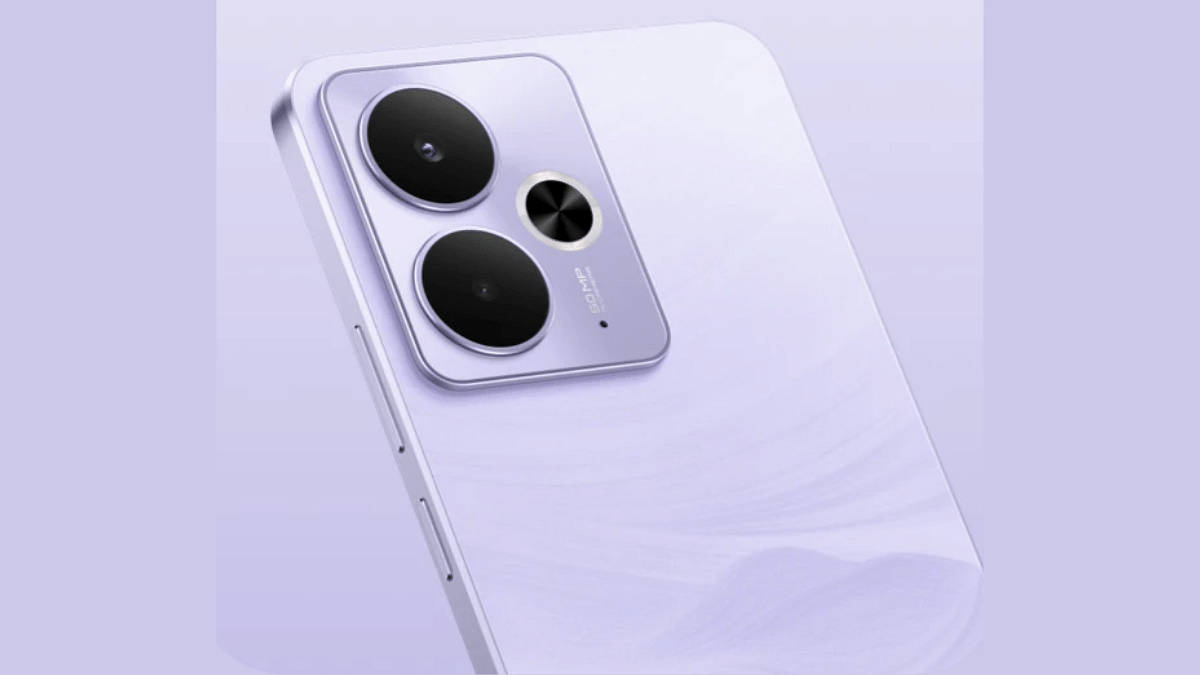
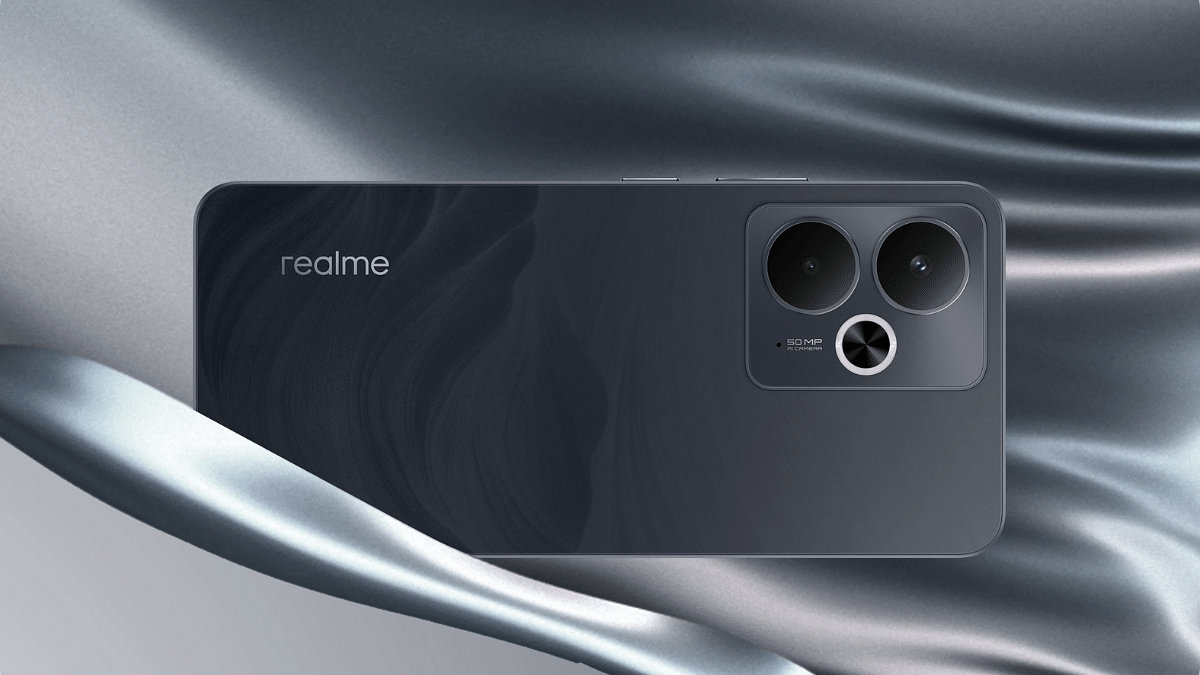
Realme has launched another new number series handset for the mid-range consumers in India. The latest member added to the Realme 14 series is the Realme 14T which is also a 5G-enabled handset with a starting price under Rs. 20,000. Realme 14T 5G is introduced with features like the Dimensity 6300 chipset, a 120Hz AMOLED display, 50MP dual rear cameras, and a massive 6,000 mAh battery combined with 45W fast charging. Here are the top highlights of the Realme 14T 5G in India:

For the tech geeks, stay updated with the latest cutting-edge gadgets in the market, exclusive tech updates, gadget reviews, and more right on your phone’s screen. Join Giznext’s WhatsApp channel and receive the industry-first tech updates.

Also Read: Realme 14x 5G Review: Solid Build, Impressive Performance All In Budget

Realme 14T 5G Display Highlights

Realme 14T 5G Display Specs
Display size6.67inch
Screen type AMOLED
Screen resolution FHD+
Refresh rate 120Hz
Peak brightness 2000 nits
Realme 14T 5G Display Specs

Also Read: Realme 14 Pro Plus Review: Redefining Midrange Smartphone Luxury?

Realme 14T 5G Optics Hardware

Realme 14T 5GDisplay Specs
Rear camera (primary)50MP
Aperture f/1.8
Rear camera (secondary)2MP monochrome
Aperture f/2.4
Video recording (rear cameras)Up to 1080p @ 60fps
Front Camera 32MP
Aperture f/2.4
Video recording (front camera)Up to 1080 p@ 30 fps
Realme 14T 5G Imaging Setup

Also Read: Vivo T4x 5G Review: Is This The Best Budget 5G Smartphone?

Realme 14T 5G Performance Hardware

Realme 14T 5G Hardware, Software
ChipsetMediaTek Dimensity 6300
CPU octa-core
RAM8GB
Dynamic RAMAvailable (Up to 18GB total)
Storage 128GB/ 256GB
Android versionAndroid 15
Custom OSrealme UI 6.0
Realme 14T 5G Performance

Also Read: Lenovo Tab M11 Review: A Versatile Tablet For Everyday Use

Realme 14T 5G Battery Specs

Realme 14T 5G Battery specs
Battery Capacity 6,000 mAh
Fast charging 45W
Realme 14T 5G Backup

Also Read: Vivo T3 Pro 5G Review: Mixed Bag Or Real Deal?

Realme 14T 5G: Variants, Price, Color Schemes

Realme 14T 5G 8GB RAM+ 128GB storage– Rs. 17,999

Realme 14T 5G 8GB RAM+ 256GB storage– Rs. 18,999

Color Options: Lightening Purple, Obsidian Black, Surf Green

Categories
Featured How To Laptop

Laptop Overheating Issues: Top 5 Quick Fix To Keep Laptop Temperatures Stable

Key Highlights

  • Laptop overheating a common issue
  • Increased temperatures can hamper laptop’s speed and overall performance
  • Dust and dirt, extensive usage, battery degradation common reasons

Soaring summer temperatures is something that affects both human and machines. Increased workloads often leads to machines break down due to high temperatures with continuous operations. The same applies to laptop and PCs where extensive usage in peak summers can lead to frequent crashes, app shutdowns, and more. Excessive heat can even lead to damages further affecting the performance of your laptop. If you already are experiencing frequent laptop heat up and shut down issues due to the same, here’s the guide to fix this issue. We have listed top 5 effective methods that can help you fix laptop heat up issues without paying a visit to service centre.

For the tech geeks, stay updated with the latest cutting-edge gadgets in the market, exclusive tech updates, gadget reviews, and more right on your phone’s screen. Join Giznext’s WhatsApp channel and receive the industry-first tech update.

Also Read: Android Auto Customization: How To Change Wallpaper With And Without Smartphone

Top Effective Methods To Protect Laptop From Overheating

Method 1: Restrict App Running In Background (Extensive or Heavy apps)

Try to keep all the unused apps and software closed when not in use. Closing down unnecessary apps running in the background not only ensure swift performance but also keep your laptop’s temperature steady. It is one of the effective ways to ensure the laptop doesn’t get heated up with continuous usage.

Also Read: Asus ZenBook S13 OLED Laptop Review: A Compact Beast Machine!

Method 2: Use A Laptop Stand Or A Cooling Pad

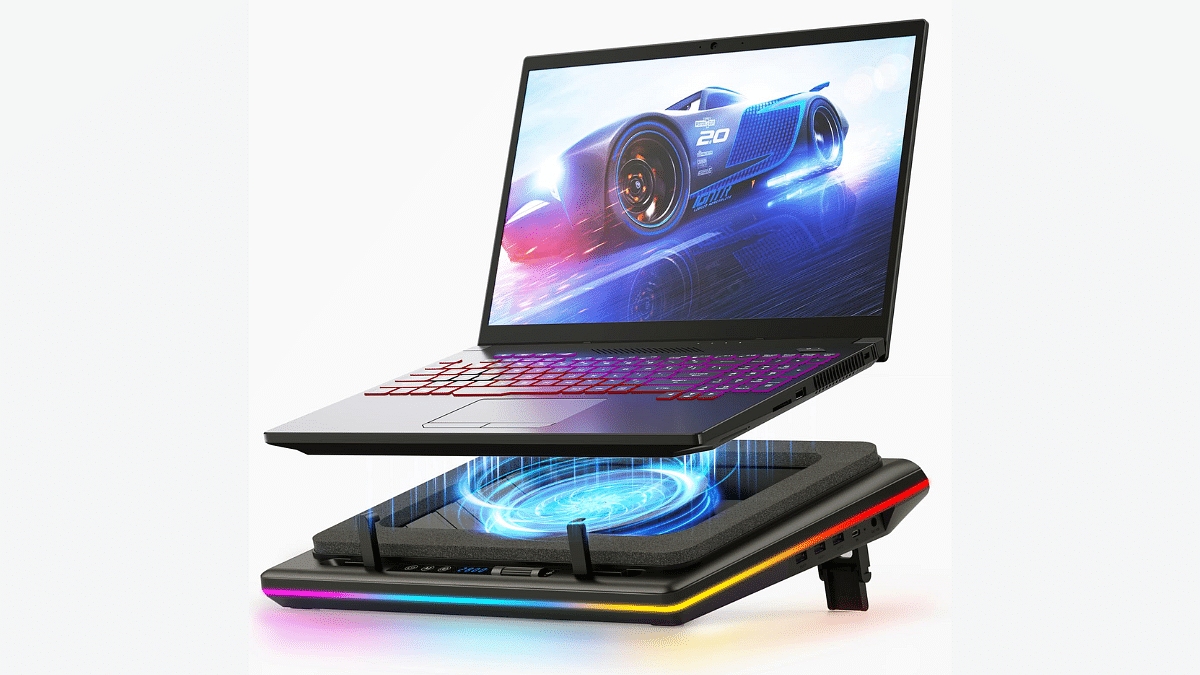
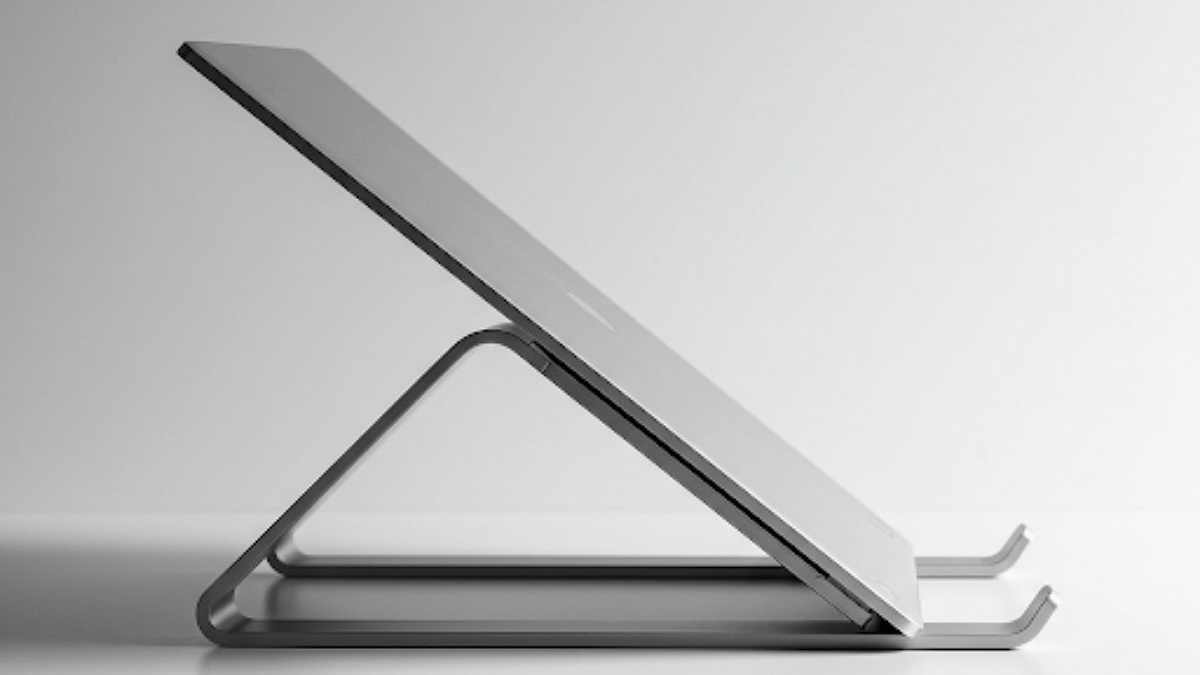
Try using laptop with a cooling pad or a stand. You can buy a USB-powered cooling pad if your laptop usage is extensive. These pads and stands allows with a lifted placement of the laptop which further helps with proper airflow to keep the temperatures stable. These stands and cooling pads are ideal for extensive gaming and similar tasks that requires heavy processing.

Also Read: ASUS ZenBook S 14 OLED Laptop Review: Efficient Productive Notebook

Method 3: Keep AirVents Clean From Dust

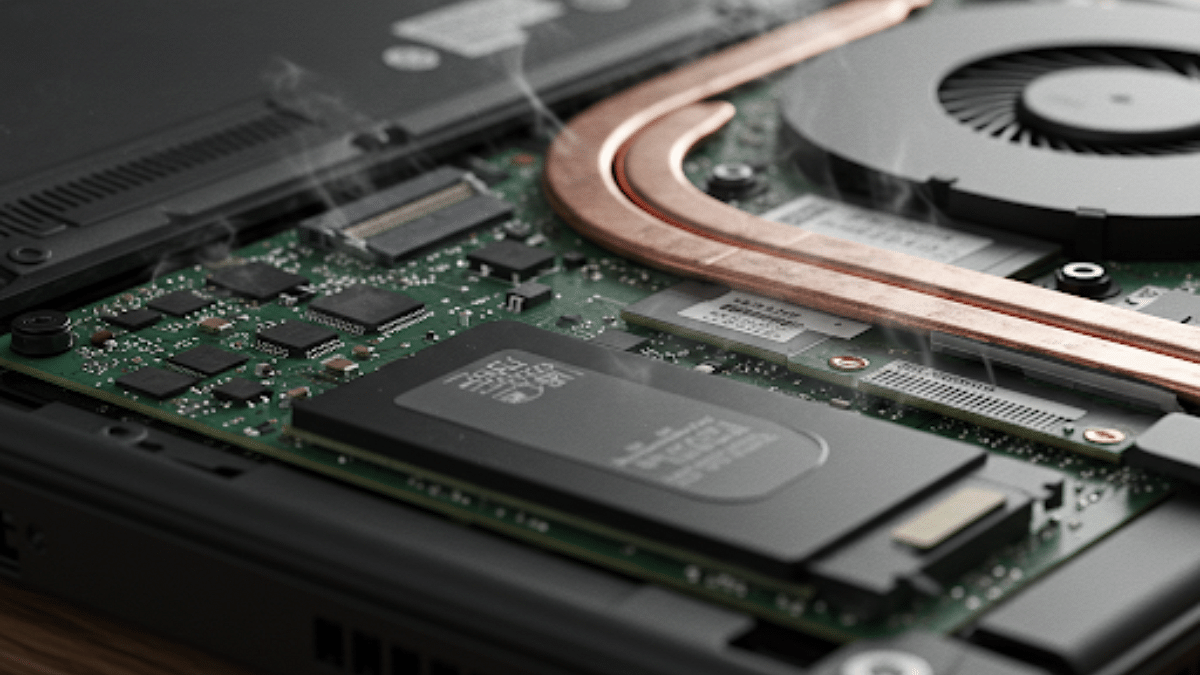
Often clogged air vents of a laptop also leads to increased temperatures. Hence, it is advised to keep your laptop’s vents clean to allow proper air flow. Also, try using laptop on a flat hard surface instead of your lap, bed, or blankets for long. Doing this can block the air vents and the air flow hampering speeds and overall performance.

Also Read: Windows 11 Tips And Tricks: How To Change, Reset Old Password In Windows 11-Powered Laptops/ PCs?

Method 4: Ensure All Apps And Software Are Updated To Latest Version

Older OS and software versions can also lead to laptop overheating. Downloading the latest updates ensure your device doesn’t lag with performance and also maintain stable temperature levels.

Also Read: How To Use Telegram Without Internet? Top 5 Working Tricks In 2025

Method 5: Uninstall Unnecessary Apps And Softwares

Remove or uninstall any app of software which is not in use. Specifically, if the app size is large and it takes up extra storage space. Also, try setting up and using your laptop in a cool room to keep the components functioning well.

Also Read: How To Remove An Image Background On Windows 11

Laptop Overheating Common Signs:

If your laptop is experiencing overheating issues, you will notice the following changes:

  • Abrupt laptop shutdown or restart
  • Laggy performance
  • Frequent app crashes
  • Extreme heat generating through the laptop’s bottom
  • Error messages on screen
  • Slow app launch speeds
  • Loud fan noise or fan continuously operating
Categories
Tech Gadgets

Google Chrome Hacks: How To Use “Listen Page” Feature To Read Aloud Content In Hindi

Key Highlights

  • Google Chrome Listen Page feature allows web page read outs
  • Multiple language including Hindi supported
  • Cuts down on hassle of reading an entire page
  • Feature available for Chrome desktop version as well

Google has been making its eco system easily accessible to the masses. And by adding on multi-lingual support with its apps and services, the search giant is further making the masses tech savvy. Google Chrome, the globally popular web browser is one such example where Google has added multiple language support making it convenient for the users across the globe. Chrome also has a user-friendly feature called “Listen to this Page” which auto-reads content from a website verbally making it convenient to understand content from a website in English or any other language that the user understands. Both mobile and desktop version of Google Chrome offer this text-reading feature; now, in Hindi too. Here in this article we are guiding you with the steps to read any web page on Chrome in Hindi:

For the tech geeks, stay updated with the latest cutting-edge gadgets in the market, exclusive tech updates, gadget reviews, and more right on your phone’s screen. Join Giznext’s WhatsApp channel and receive the industry-first tech update.

Also Read: How To Use Telegram Without Internet? Top 5 Working Tricks In 2025

How To Use Chrome “Listen to this Page” Feature To Read Out Webpage Content In Hindi (Android, iOS)

Step 1: Open Google Chrome app on your Android or iOS devices

Step 2: Launch the web page that you want to listen in Hindi

Step 3: Tap on the Menu (three dots icon)

Step 4: Locate the “Listen to this page” option

Step 5: Select the language Hindi if you recieve a prompt for the language preference.

Also Read: Instagram Account Hacked? Immediate Steps To Take If Instagram Account Is Compromised

Steps To Listen Chrome Webpage In Hindi On Laptops/ PCs (Desktop version)

Step 1: Open Google Chrome web browser on your laptop or PC

Step 2: Visit the web page that you wish to listen to in Hindi

Step 3: Tap on the three-dot menu from the top-right corner of the web page

Step 4: Click on “Listen to this page” option

Step 5: Set Hindi as the preferred language type

Note: You can use Chrome extensions such as Read Aloud if the update for Listen to this Page has not been seeded.

Also Read: Enhance WhatsApp Privacy: How To Blur Images On WhatsApp Mobile, Desktop App

Any Privacy Concerns With This Feature?

This feature on Google Chrome has least impact on your privacy or safety. Unless you are using this feature to read out content from any explicit web page at a public place. Ensure using headphones or earphones in such scenarios. Also, no data is being shared with any third party app or developer, hence privacy remains intact.

Categories
Featured Info Laptop

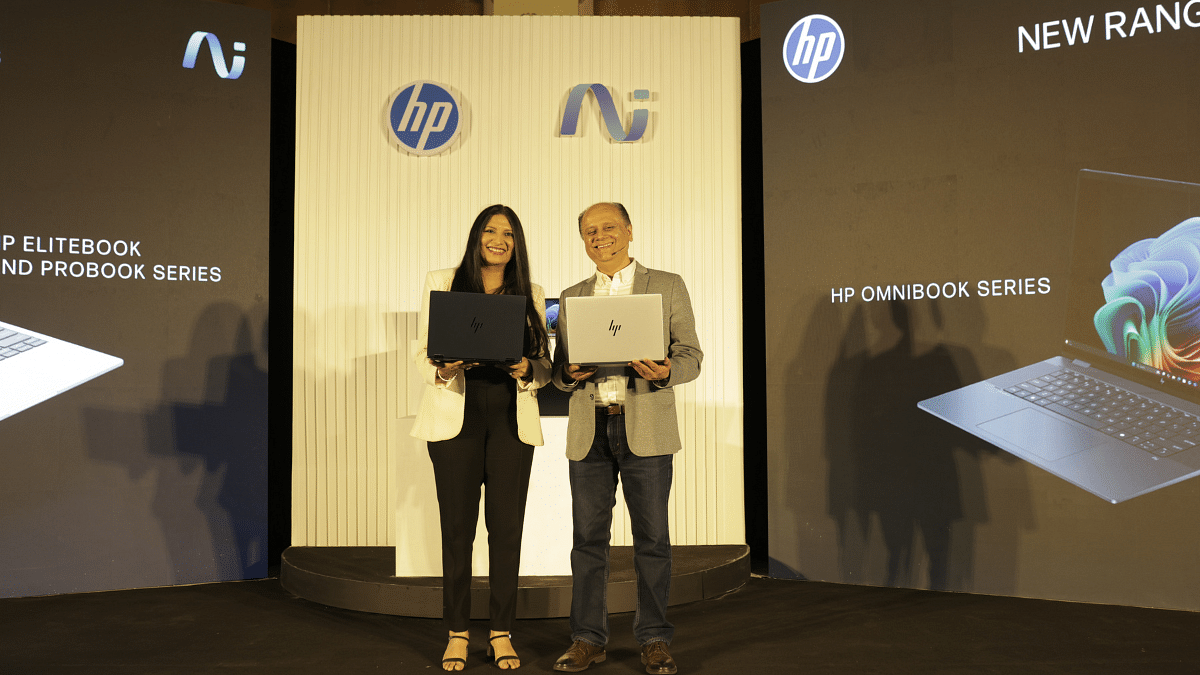
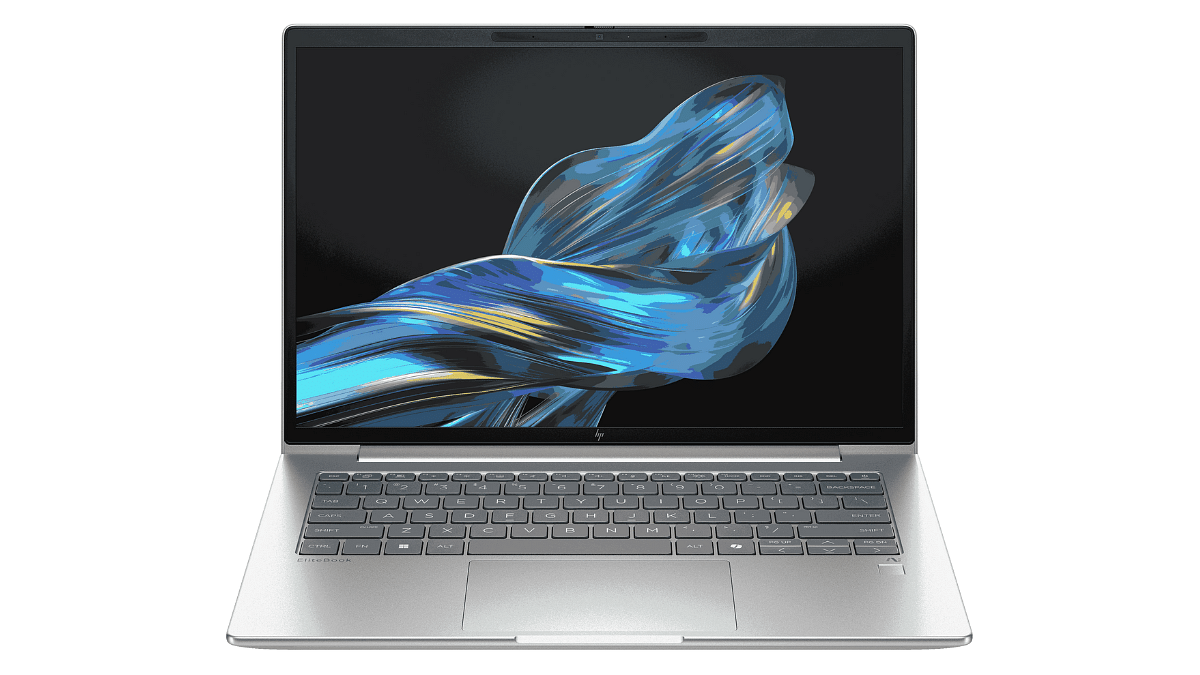
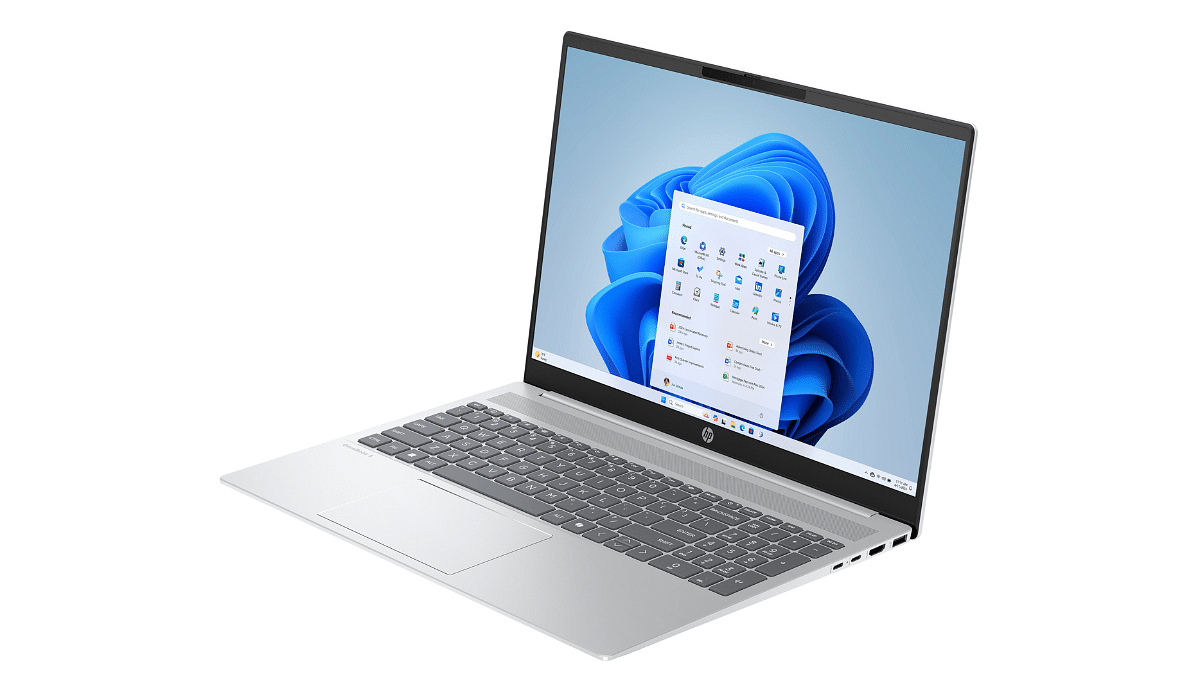
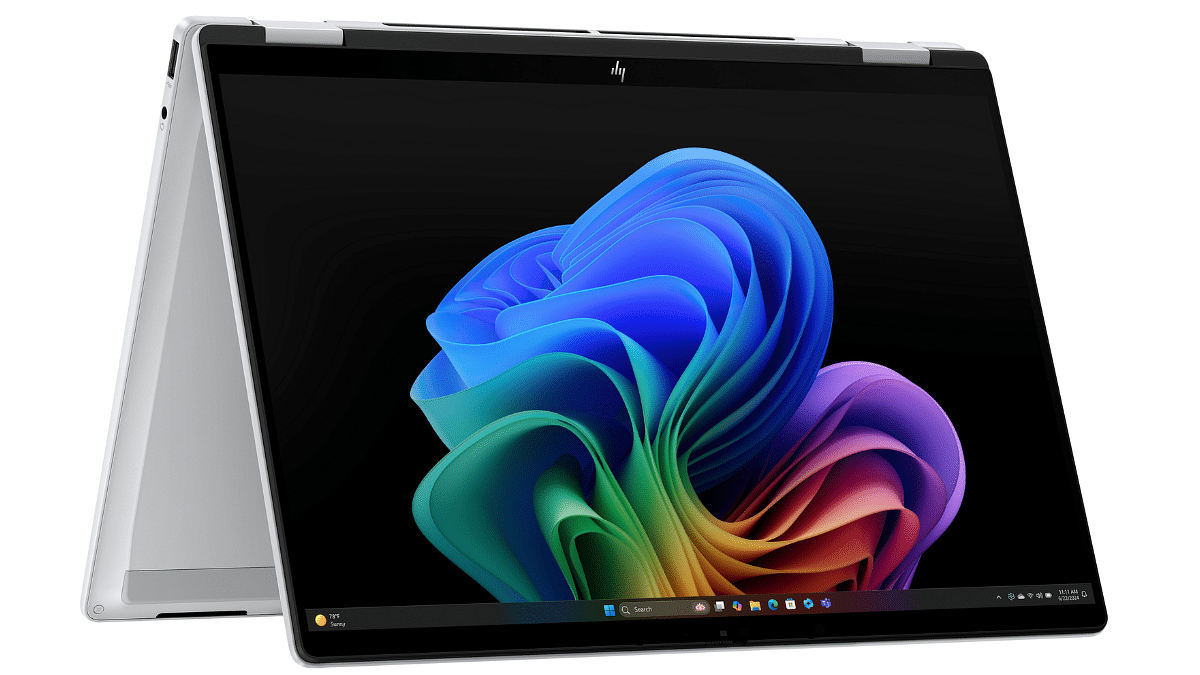
HP Launches Its Most Powerful AI PCs In India: Everything You Need To Know

Key Highlights

  • HP launches new AI laptops in India
  • EliteBook, ProBook, and OmniBook series included
  • Prices start at Rs. 77,200

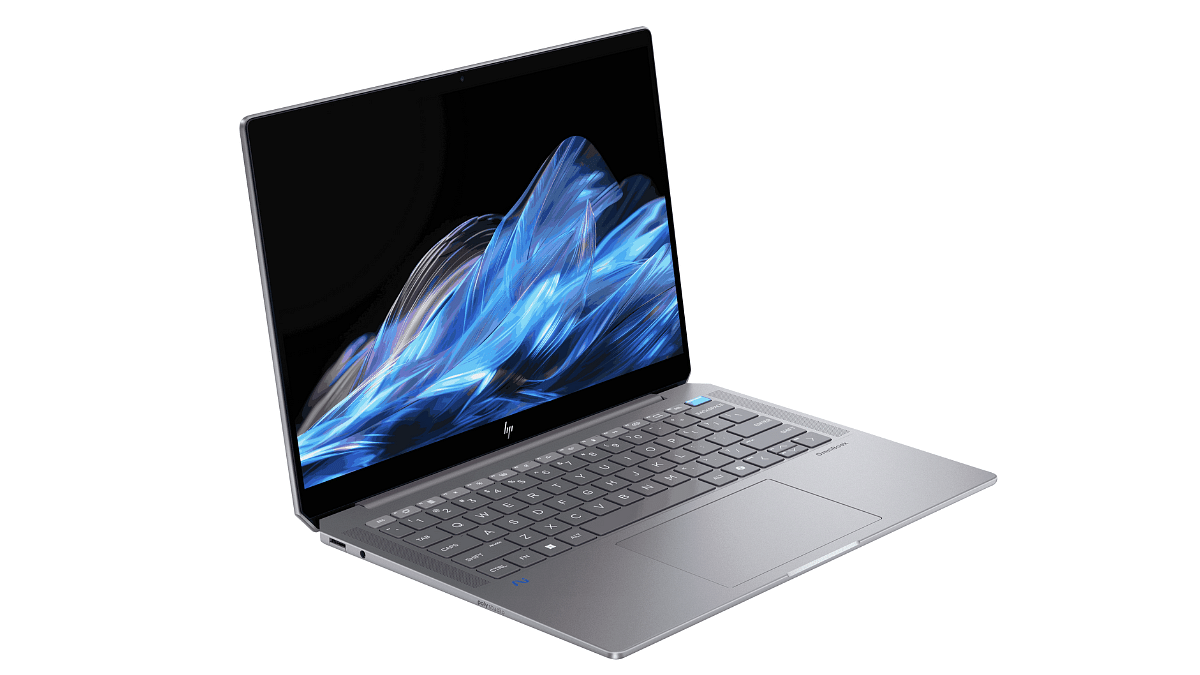
HP has just raised the bar in India’s PC market with the launch of its next-generation AI-powered laptops. The company’s new line of EliteBook, ProBook, and OmniBook laptops is made for everyone, from entrepreneurs and corporate executives to regular users and creative. These new AI PCs are packed with advanced features, smart tools, and high-end performance to make work, creativity, and collaboration smoother and faster. Let’s break down what makes these laptops truly next-gen.

Also Read | ASUS ZenBook S 14 OLED Laptop Review: Efficient Productive Notebook

Built For Performance And Productivity

  • Top processors: The AMD Ryzen AI 300, Qualcomm Snapdragon X series, and Intel Core Ultra 200V power it.
  • AI at the core: Every laptop has specialized NPUs with a 40–55 trillion operations per second capability.
  • Copilot+ PCs: These laptops offer real-time AI support to improve productivity, creativity, and collaboration.

EliteBook And ProBook Series: For Business Professionals

  • Enterprise-grade design with remote work features like real-time noise cancellation and auto-framing during video calls.
  • With screen blur, onlooker detection, Sure View, and HP Wolf Pro Security.
  • Long battery life, adaptive performance, and rugged build.

OmniBook Series: For Creators And Everyday Users

  • Ideal for streaming, video production, graphic design, multitasking, and distance learning.
  • AI tools support dynamic work styles, improve calls, and maximize performance.
  • Stylish, powerful, and lightweight, made for today’s fast-moving lifestyle.

Smart Software Features

  • HP AI Companion: An on-device AI assistant that works even offline.
  • Poly Camera Pro: Improves video calls with auto-framing, multi-camera support, and more.
  • Poly Audio: Smart audio that cancels background noise and auto-adjusts volume.
  • myHP Platform: Personalizes battery, performance, keyboard shortcuts, and more.

Also Read | Infinix InBook X1 Pro Laptop Full Review: Does It Fit All The Bills?

Secure And Sustainable

  • Built with recycled materials including ocean-bound plastic and recycled metal.
  • Comes in sustainable packaging and is ENERGY STAR & EPEAT Gold certified.

Price In India

ModelStarting Price
HP EliteBook 8 G1iRs. 1,46,622
HP EliteBook 6 G1qRs. 87,440
HP ProBook 4 G1qRs. 77,200
HP OmniBook Ultra 14-inchRs. 1,86,499
HP OmniBook X Flip 14-inchRs. 1,14,999
HP OmniBook 7 Aero 13-inchRs. 87,499
HP OmniBook 5 16-inchRs. 78,999

For the tech geeks, stay updated with the latest cutting-edge gadgets in the market, exclusive tech updates, gadget reviews, and more right on your phone’s screen. Join Giznext’s WhatsApp channel and receive the industry-first tech updates.

Categories
Featured How To Tablet

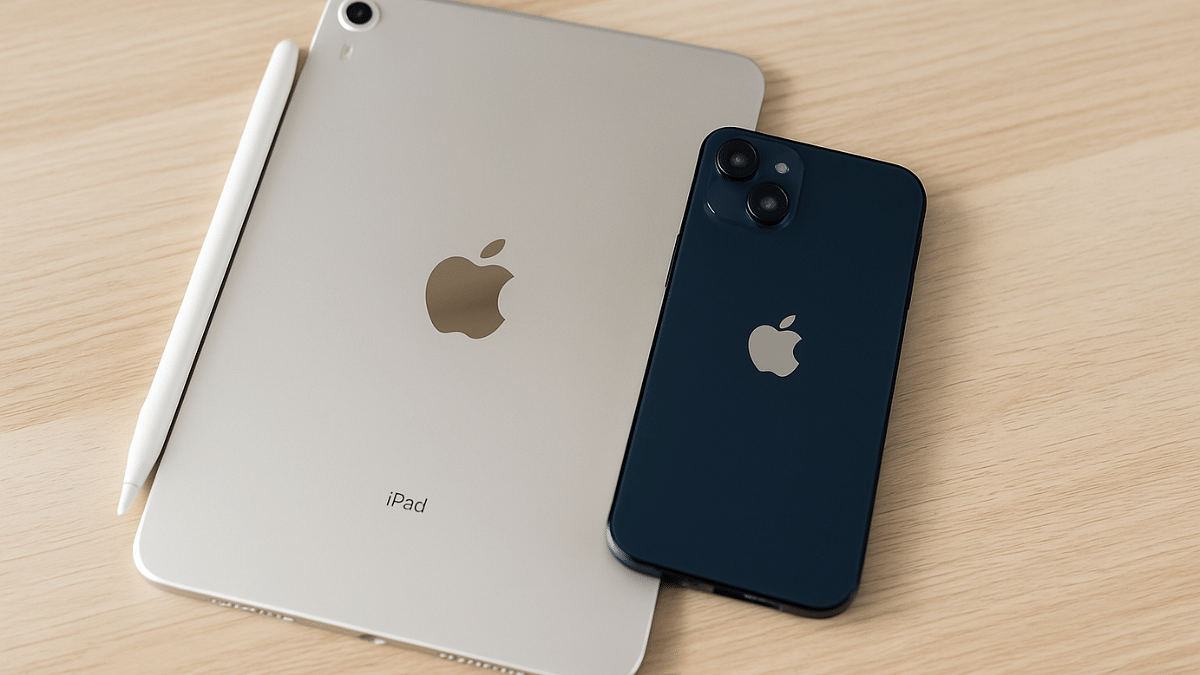
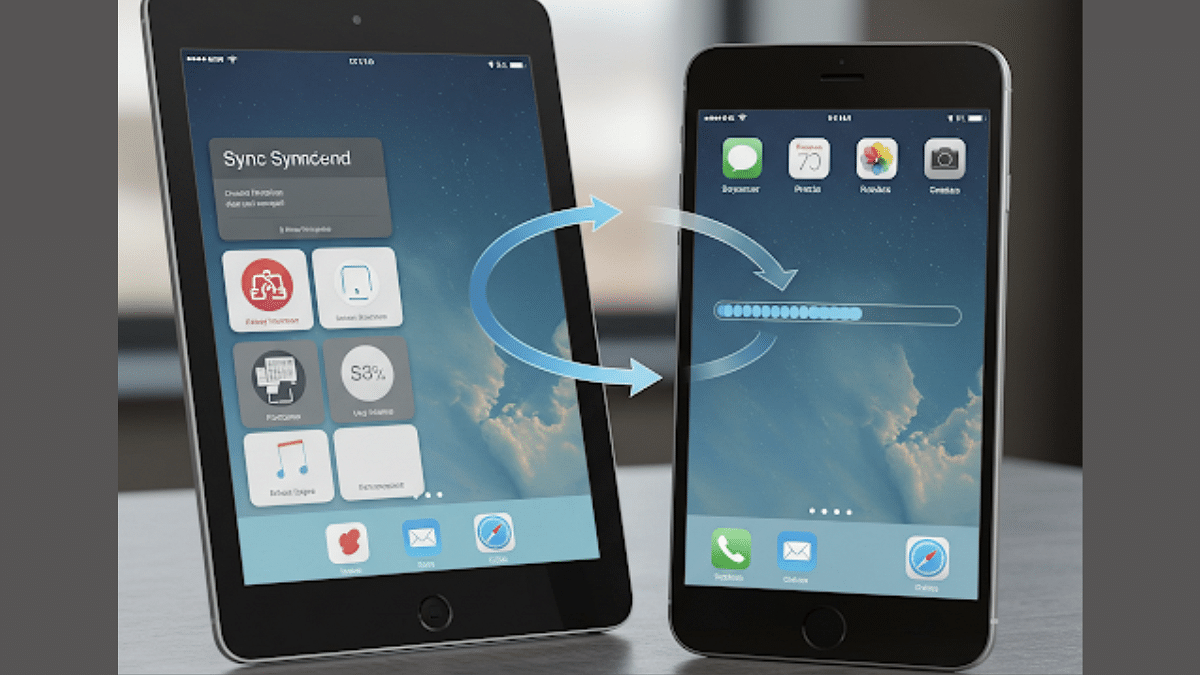
iOS Tips And Tricks: How To Sync iPad And iPhone With/ Without iCloud

Key Highlights

  • Apple allows iPhone and iPad syncing for seamless user experience
  • Synced devices gets calls/ messages together
  • Safari can also be synced on iPhones and iPads simultaneously
  • Photos, contacts, calendar, and notes are also synced

Apple has one of the strongest ecosystems where the Cupertino giant offers a seamless user experience across iPhones, iPads, and MacBooks. Staying connected simultaneously on multiple Apple devices with same Apple ID helps with the same. If you own both an iPhone and a iPad, you can sync both these gadgets together to sync calls, messages, browsing tabs on Safari, notes, contacts, and much more. In this guide, we are sharing the steps with which you can sync your iPad with iPhone.

For the tech geeks, stay updated with the latest cutting-edge gadgets in the market, exclusive tech updates, gadget reviews, and more right on your phone’s screen. Join Giznext’s WhatsApp channel and receive the industry-first tech update.

Also Read: Enhance WhatsApp Privacy: How To Blur Images On WhatsApp Mobile, Desktop App

How To Sync Apps And Data iPhone With iPads With iCloud?

Step 1: On both your iPad and iPone, log in with the same Apple ID.

  • Follow these steps to log in to the Apple ID on both devices
    • Open Settings menu on both the iPhone and the iPad
    • Enter Apple ID’s username and password
    • Login on both devices

Step 2: Open Settings menu again on both iPhone and iPad

Step 3: Tap on your profile

Step 4: Enable iCloud Sync

Step 5: Toggle on iCloud Drive option to sync all documents and app data across your iPhone and iPad

Step 6: Enable iCloud Keychain (this will synch password and credentials on both devices)

Also Read: How To Use Telegram Without Internet? Top 5 Working Tricks In 2025

How To Sync Apps And Data On iPad and iPhone Without iCloud?

If you don’t wish to use iCloud to sync your iPad with iPhone, you can also use alternative methods listed below:

Method 1: Via AirDrop

Use this option to transfer and share apps data and files across iPad and iPhone seamlessly. This option allows instant data transfer wirelessly.

Method 2: Via Third Party Apps

You can also use Google Drive and similar apps to sync and transfer data on your iPad and iPhone.

Method 3: Via iTunes or Finder Sync

If you are transferring data such as books, music, and movies via Mac or PC to your iPad and iPhone, iTunes and Finder Sync options helps you with the same.

Also Read: iOS Tips And Tricks: How To Set Up And Use Sleep Schedule On iPhone

Categories
Featured Info Mobile

Lava Days Sale Live On Amazon: Top Smartphone Deals You Can’t Miss

Key Highlights

  • Lava Days Sale live till April 27 on Amazon
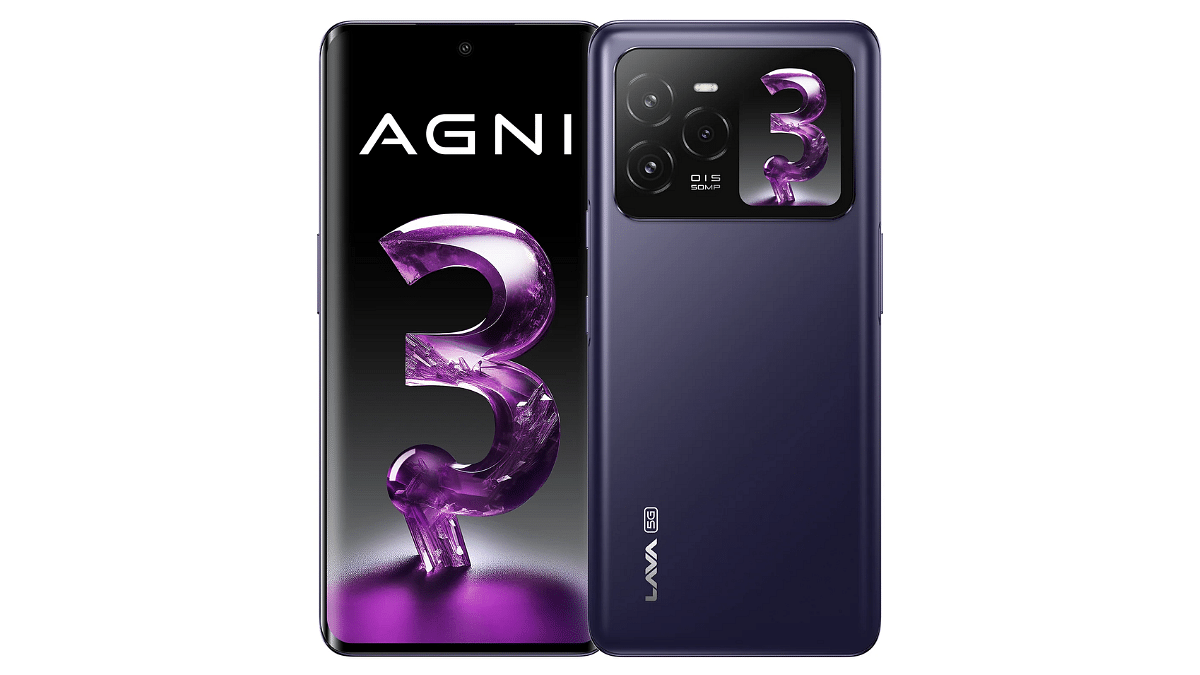
  • Up to Rs. 4,000 off on Lava Agni 3
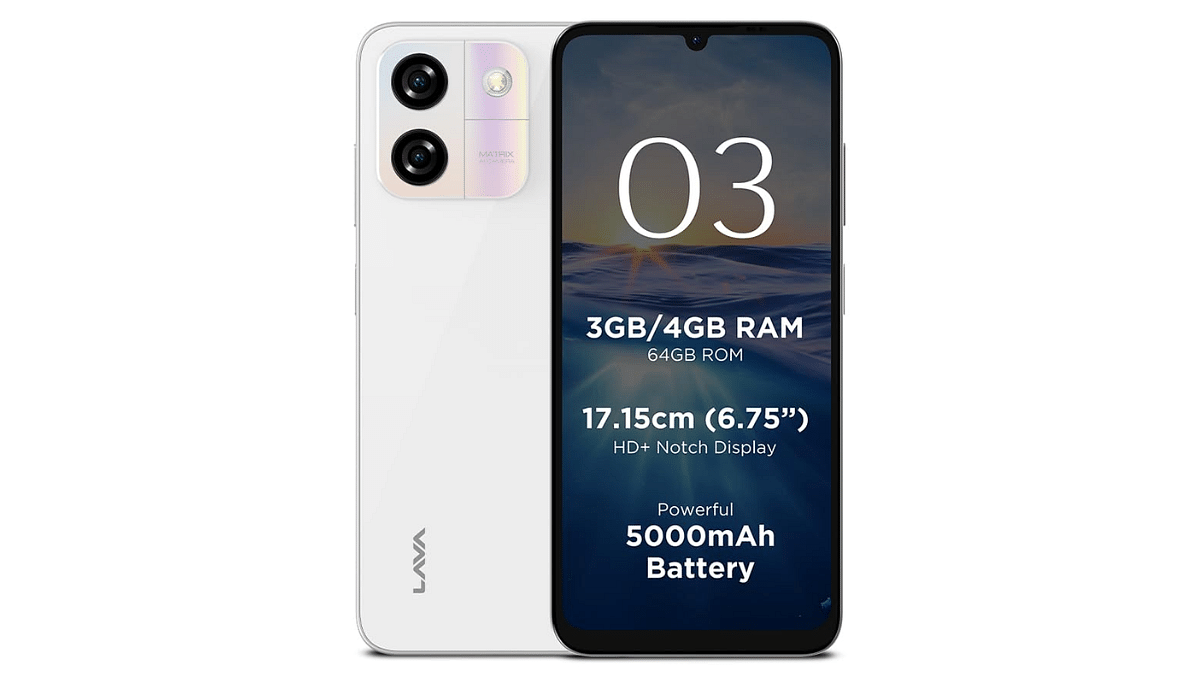
  • Lava O3 and O3 Pro also on discount

If you’re planning to upgrade your smartphone, now’s the perfect time. Lava has kicked off its festive Lava Days Sale from April 23 to 27, 2025, exclusively on Amazon India. This exciting sale brings massive savings across both flagship and budget segments, including popular models like the Lava Agni 3, Lava O3, and Lava O3 Pro. Let’s explore the best deals on offer.

Also Read | Lava Blaze Curve 5G Review: Setting New Standards For Budget Smartphones?

Lava Days 2025 Smartphone Deal

Offers On Lava Agni 3

Offer DatesVariantOffer DetailsEffective Price
Apr 23–258+128 GB (Without Charger)Flat Rs. 3,000 Coupon DiscountRs. 17,999
 8+256 GB (With Charger)Flat Rs. 3,000 Coupon DiscountRs. 21,999
Apr 26–278+128 GB (Without Charger)Rs. 2,000 Coupon + Rs. 2,000 Bank OfferRs. 16,999
 8+128 GB (With Charger)Rs. 2,000 Coupon + Rs. 2,000 Bank OfferRs. 18,999
 8+256 GB (With Charger)Rs. 2,000 Coupon + Rs. 2,000 Bank OfferRs. 16,999

Offers On Lava O3

Offer DatesVariantOffer DetailsEffective Price
Apr 23–274+64 GBFlat Rs. 300 Coupon DiscountRs. 5,899
 3+64 GBFlat Rs. 150 Coupon DiscountRs. 5,649

Offers On Lava O3 Pro

Offer DatesVariantOffer DetailsEffective Price
Apr 23–274+128 GBFlat Rs. 300 Coupon DiscountRs. 6,699

Also Read | Lava Blaze X Review: Can It Compete In The Crowded Budget Market?

Why Agni 3 Is A Hot Pick

  • Segment-first dual AMOLED displays: 6.78-inch 1.5K Curved front + 1.74-inch rear AMOLED
  • Performance powerhouse: MediaTek Dimensity 7300X
  • Camera excellence: 50MP Sony sensor with OIS
  • 66W fast charging, Dolby Atmos stereo speakers, Clean Android 14 UI

Where To Buy?

All deals are live exclusively on Amazon India, with bank offers available on HDFC and Axis Bank credit cards and EMIs (only on April 26–27).

For the tech geeks, stay updated with the latest cutting-edge gadgets in the market, exclusive tech updates, gadget reviews, and more right on your phone’s screen. Join Giznext’s WhatsApp channel and receive the industry-first tech updates.

Categories
Featured Info Mobile

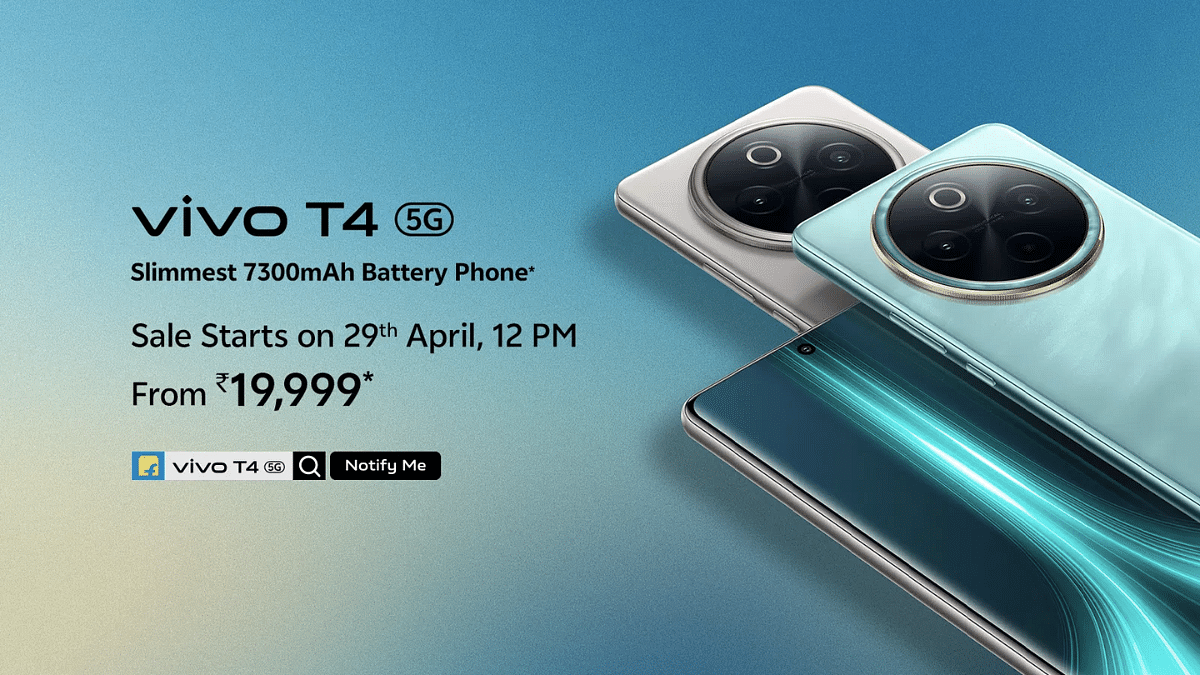
Vivo T4 5G Debuts In India: Top Highlights Worth Checking Out

Key Highlights

  • Vivo T4 5G debuts with Snapdragon 7s Gen 3 5G chipset
  • Packs segment’s largest 7,300 mAh battery pack
  • Equipped with quad-curved AMOLED display
  • Price in India starts at Rs. 21,999

Vivo today has set a new standard in the mid-tier Android smartphone segment. The company has launched the T4 5G which comes as the first handset to feature a massive 7,000 mAh battery pack. Priced starting at Rs. 21,999, the T4 5G gets some other premium-range features such as a large quad-curved AMOLED screen, a 50MP primary Sony IMX882 lens, and also smart AI features such as AI Erase, Note Assist, Live Text & Super Documents, etc. Here are the top highlights of the Vivo T4 5G:
For the tech geeks, stay updated with the latest cutting-edge gadgets in the market, exclusive tech updates, gadget reviews, and more right on your phone’s screen. Join Giznext’s WhatsApp channel and receive the industry-first tech update.

Also Read: Vivo T4x 5G Review: Is This The Best Budget 5G Smartphone?

Vivo T4 5G Display Highlights

Vivo T4 5G Display Features
Display size 6.77-inch
Screen type quad-curved AMOLED
Resolution 1080 x 2392 pixels
Refresh rate 120Hz
Brightness levels 5000 nits
Vivo T4 5G Display

Also Read: Vivo T3 Ultra 5G Smartphone Review: A Flagship Experience For Less?

Vivo T4 5G Camera Features

Vivo T4 5GOptics
Rear camera (primary)50MP Sony IMX882
Aperture f/1.8
OISYes
Secondary camera 2MP portrait
Aperture f/2.4
Front camera 32MP
Aperturef/2.0
Vivo T4 5G Camera Specs

Vivo T4 5G Performance

Vivo T4 5GHardware Configuration
ChipsetSnapdragon 7s Gen 3 chipset
Chipset Fabrication 4nm
RAM8GB/ 12GB
Storage128GB/ 256GB
Android Android 15 OS
Vivo T4 5G Hardware Performance

Also Read: ASUS ZenBook S 14 OLED Laptop Review: Efficient Productive Notebook

Vivo T4 5G Battery Pack

Vivo T4 5GBattery And fast Charging
Battery size 7,300 mAh
Fast Charging 90W

Also Read: Vivo T3x 5G: Premium Features, Lower Price

Vivo T4 5G Price, Color Options

Vivo T4 5G 8GB RAM+ 128GB: Rs. 21,999

Vivo T4 5G 8GB RAM+ 256GB: Rs. 23,999

Vivo T4 5G 12GB RAM+ 256GB: Rs. 25,999

Color Variants: Emerald Blaze, Phantom Grey

Categories
Featured How To TV

Smart TV Modern Hacks: How Transform Your Smart TV Into A Digital Photo Frame

Key Highlights

  • Smart TVs can be transformed into digital photo frame
  • Built-in features and chromecasts can help with the same
  • Third party apps available to make smart TVs a photo frame

TVs aren’t just the usual bulky boxes with a picture tube. Modern age TVs are thinner and smart equipped with advanced internet and other technologies. And internet connectivity is just one part of it. Wireless accessories support, digital voice assistant integration, etc., are some of the other advancements with modern age TVs. But do you know, you can even transform your smart TV into a digital photo frame. Wouldn’t it be refreshing walking into your room with new photo frame every time. In this guide we are exploring the top 5 methods that can help you transform a smart TV into a digital photo frame.


For the tech geeks, stay updated with the latest cutting-edge gadgets in the market, exclusive tech updates, gadget reviews, and more right on your phone’s screen. Join Giznext’s WhatsApp channel and receive the industry-first tech update.

Also Read: List Of Best Advanced Air Purifiers For Large Rooms

5 Ways To Transform Smart TVs Into A Digital Photo Frame For Your Room

Method 1: Using Built-In Photo Frame Apps And Features

Flagship grade smart TV models from premium brands such as Samsung, LG, and Sony have a built-in ambient or art mode feature that helps that setting up photos as frame and wallpaper. These apps can be found wit the names such as Ambient mode or Art mode or Gallery, etc., depending on the brand.

You just need to navigate to the app and use your desired photo as a photo frame on the smart TV. These apps can also help setting up screen savers which can further enhance your room’s appeal.

Also Read: Hacked Instagram Account? Don’t Worry! Instagram To Help Regain Hacked Account Access Easily

Method 2: Via External USB Or Storage Devices

Ensure your smart TV supports external USB and storage devices. Only then you will be able to use images from external sources as photo frame or screen saver on the TV. Also, there should a built-in app to display and set the images as background photo frame or slide show.

  • Connect your USB or the external SSD storage device to a lapptop or PC
  • Upload the set of images that you wish to use as a digital photo frame
  • Now plug the USB or the external storage device to the TV
  • Open the supported app that can let you open the image and use it as a photo frame.

Also Read: Tablet Buying Guide: Top 3 Tablets With Stylus Pen Support Under Rs.30,000 In 2025

Method 3: Via Third Party Apps

Most of the new-age smart TVs available today comes with third party installation support. If your TV also supports third party apps, you can download Plex, Fotoo, and similar apps to transform it to a digital photo frame.

  • Go to the app store on your smart TV
  • Search for Kodi, Plex, and other similar apps
  • If available download and install
  • Choose the photo that you want to set as a photo frame

Also Read: Smart TV Slowing Down? Here’s How You Can Speed Up Smart TV Performance

Method 4: Via Chromecast

If your smart TV has integrated Chromecast feature, you can use Google Photos to select and set a photo as the digital frame. If not, you can use external chromecast devices and get done with the same.

  • On your smartphones, launch the Google Home mobile app
  • Tap on add device menu
  • Now, look for your TV in the device list
  • Open the settings menu (gear icon)
  • Head to the Ambient Mode settings
  • Select Google Photos option
  • Choose the image that you want to set as photo frame.
Categories
Featured Info Tablet

Amazon India Expands Smartchoice Program To Tablets: Top Picks And Deals Inside

Key Highlights

  • Smartchoice now includes tablets
  • Expert-picked top devices from leading brands
  • Great deals with EMI and bank offers

Amazon India has taken a big step forward in simplifying tech buying decisions. After seeing massive success in the laptop segment, Amazon has now extended its Smartchoice program to tablets. This help users find the perfect device based on their needs. With India’s tablet market witnessing a 26 percent YoY growth in 2024, this move is set to benefit students, professionals, gamers, and everyday users alike. Here’s everything you need to know about the Smartchoice program and the top-rated gadgets currently available under it.

Also Read | Amazon Home Shopping Spree: Top Five Winter Essentials At Jaw-Dropping Prices

What Is Smartchoice?

  • Expert-Curated Recommendations: Devices are handpicked based on usage needs like entertainment, gaming, education, work, or everyday browsing.
  • Performance Benchmarks: An independent technical agency ensures only top performers make the cut.
  • Top Ratings, Great Value: Devices come with high user ratings, competitive prices, and offers like No Cost EMI, bank discounts, and more.
  • Trusted Brands: Includes tablets and laptops from leading names like Samsung, Lenovo, Asus, Honor, HP, and Acer.

Must-Check Tablets And Laptops On Amazon Smartchoice

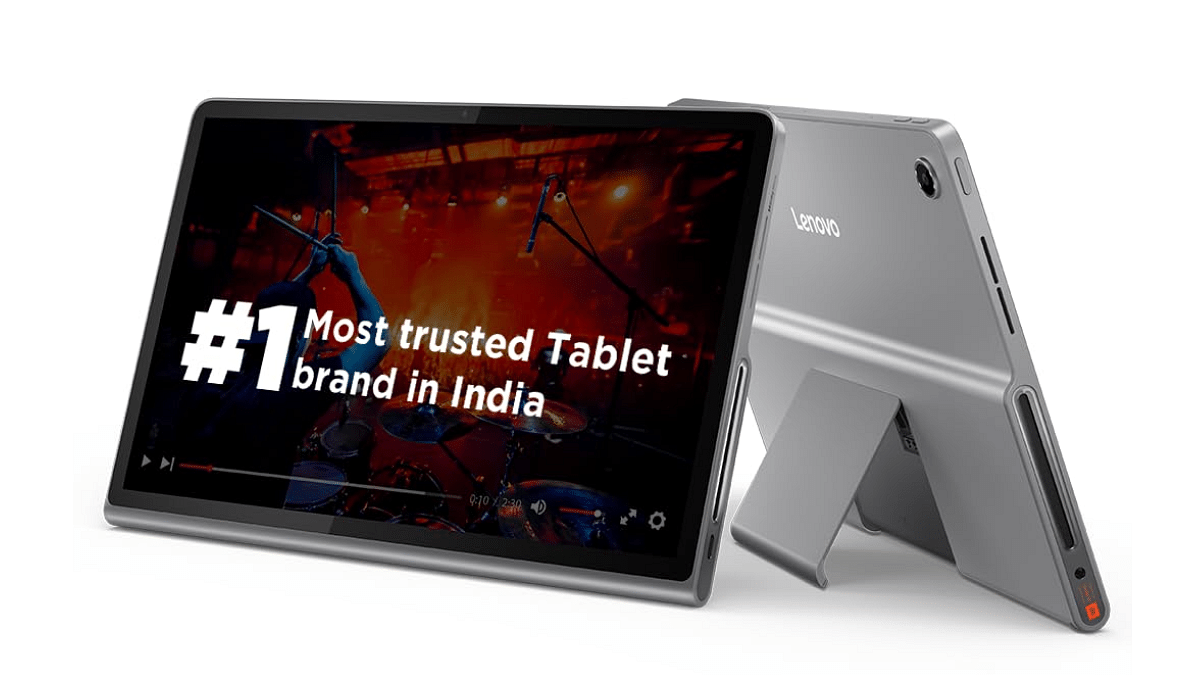
Lenovo Tab Plus (Rs. 20,998)

  • Flexible and sturdy design
  • Octa JBL Hi-Fi speakers
  • 11.5-inch immersive display
  • 8 MP front and rear camera with face unlock and autofocus

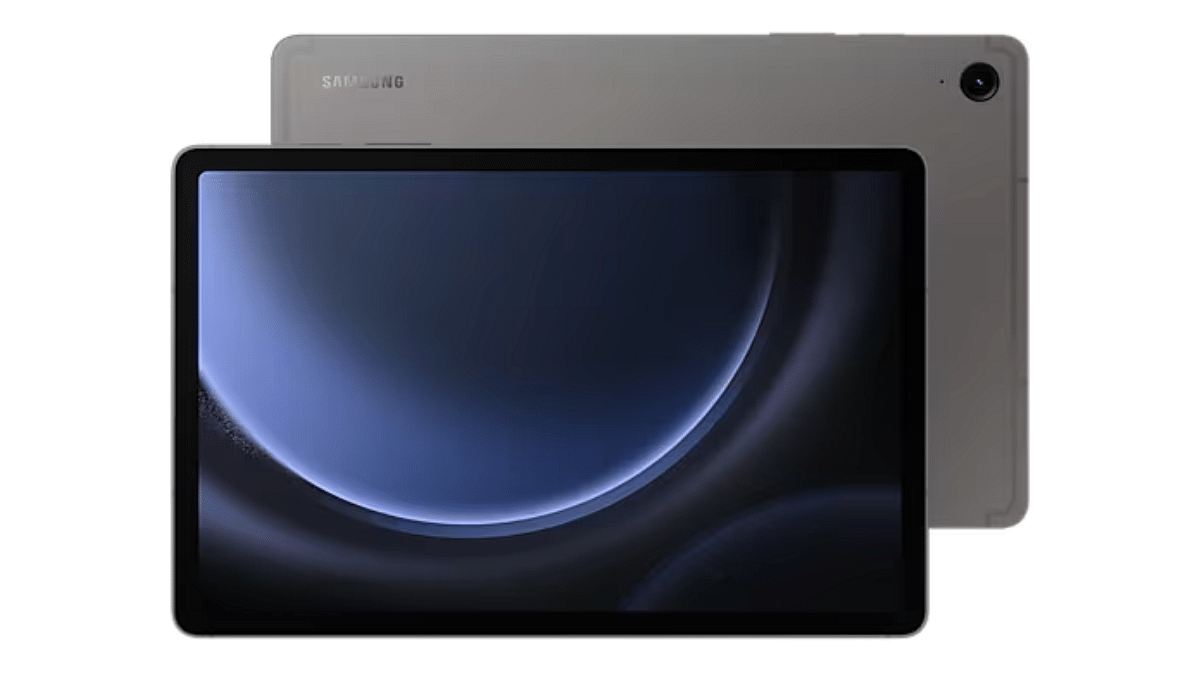
Samsung Galaxy Tab S9 FE (Rs. 34,999)

  • Dual AKG speakers
  • Durable, weatherproof build
  • S Pen with IP68 rating
  • 8 MP rear and 12 MP ultra-wide front camera

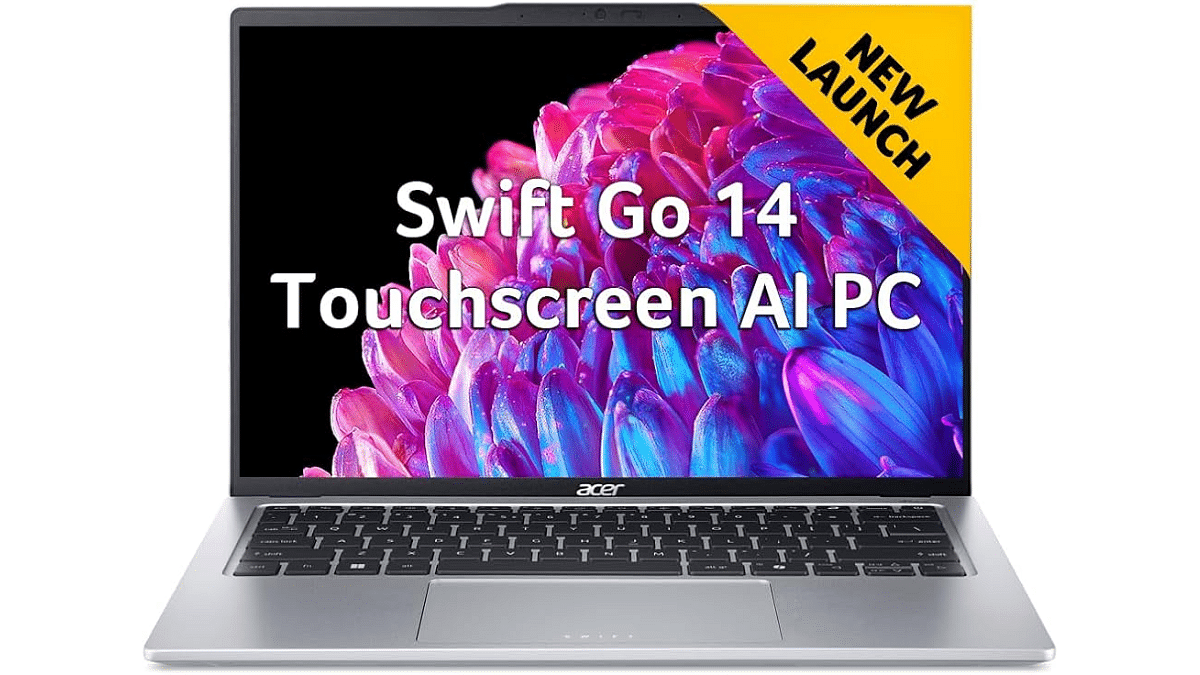
Acer Swift Go 14 (AI PC) (Rs. 92,990)

  • Intel Core Ultra 7 processor
  • QHD 1440p webcam with privacy shutter
  • 44 percent larger touchpad
  • Sleek and AI-powered performance

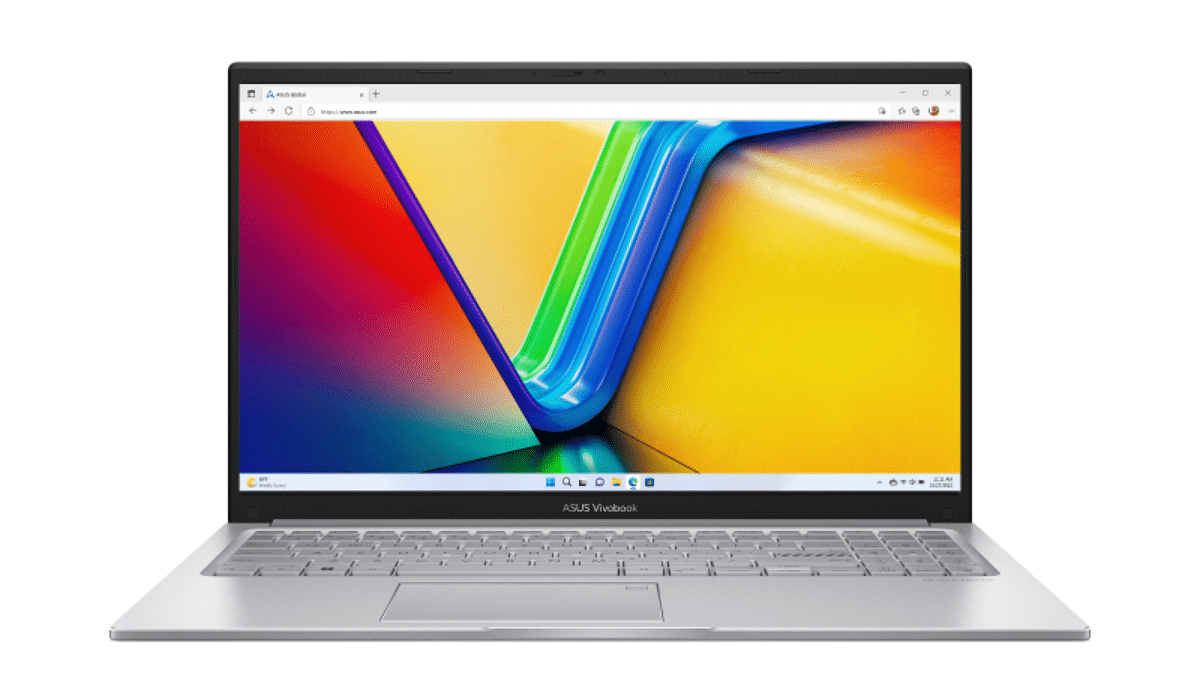
ASUS Vivobook 15 (Rs. 54,990)

  • Intel Core i5-13420H
  • 15.6-inch display
  • 16GB RAM, high-speed performance

Also Read | Asus Vivobook S15 OLED Review: Stylish Performer Or Overpriced Ultrabook?

Where To Shop?

Customers can now explore the latest Smartchoice picks on Amazon’s Consumer Electronics homepage or visit the Smartchoice Tablets and Laptops Store directly.

For the tech geeks, stay updated with the latest cutting-edge gadgets in the market, exclusive tech updates, gadget reviews, and more right on your phone’s screen. Join Giznext’s WhatsApp channel and receive the industry-first tech updates.