
Key Highlights
- Navigation is easier than ever with Google Maps
- Allows calculating distance between two points
- Option available for Android and iOS users
- Desktop version also supports distance measure feature
Google Maps is one of those reliable navigation apps that besides helping us to get directions also helps with trip planning and more. Maps have also simplified lives of tourists by offering the option to find nearby hot spots, emergency services, fuel stations, and what not. With such a long list, it might be a possibility that you miss out on some of the coolest features that Google Maps offer. One of such feature is the option to measure distance between two or more points. And Maps allows to do so with pinpoint accuracy. Here’s how you can use this simple Google Maps trick for you journey planning.
For the tech geeks, stay updated with the latest cutting-edge gadgets in the market, exclusive tech updates, gadget reviews, and more right on your phone’s screen. Join Giznext’s WhatsApp channel and receive the industry-first tech updates.
Also Read: No Microsoft Account? No Problem: Here’s How To Install Windows 11 Your Way
Steps To Measure Distance On Google Maps (Android, iOS) With Pinpoint Accuracy
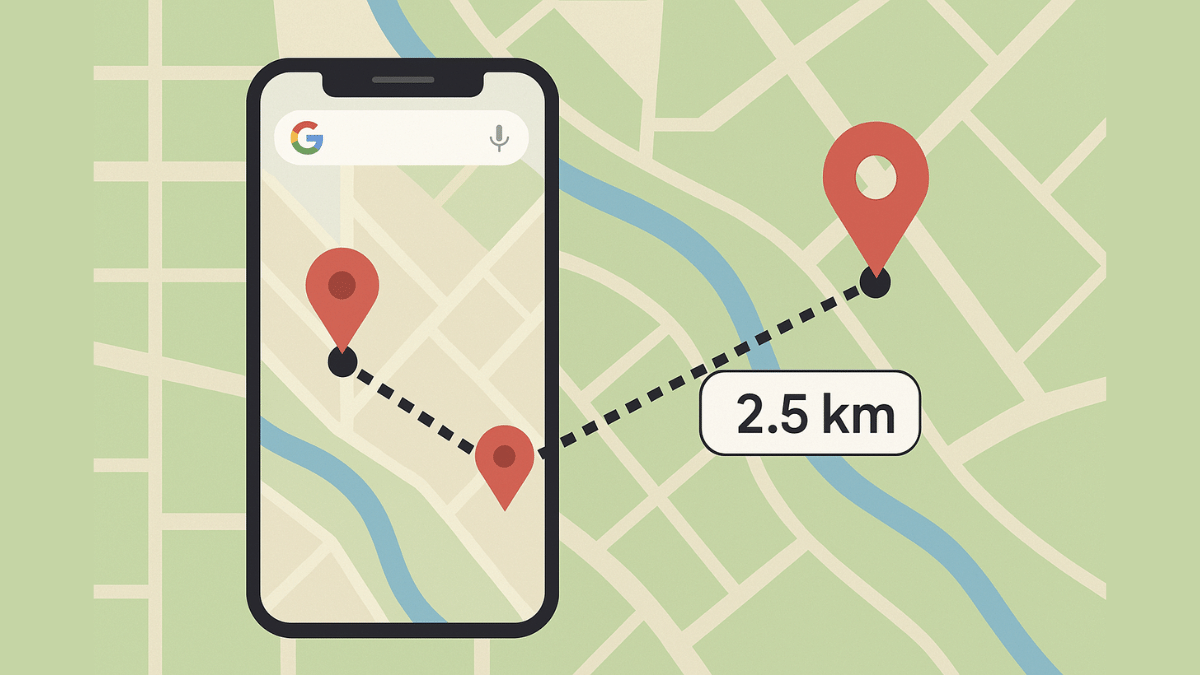
Step 1: On your smartphones, open Google Maps app
Step 2: Touch anywhere on the app’s home screen. Ensure you are tapping on an empty space instead of a place or name or icon.
Step 3: A Red pin icon will show up. Tap on it.
Step 4: Scroll down to the option list and click on the Measure distance (ruler icon)
Step 5: Now, drag or move the map bringing the black circle to the point that you want to add for distance measurement.
Step 6: From the bottom right, select the Add Point (+) option. This will allow you to add multiple options.
Step 7: The distance between the selected two points will be displayed at the bottom with pinpoint accuracy.
Also Read: How To Use WhatsApp Without Internet And Your Primary Device: Step By Step Guide
Steps To Measure Distance On Google Map Desktop Version (Laptop, PC) With Pinpoint Accuracy
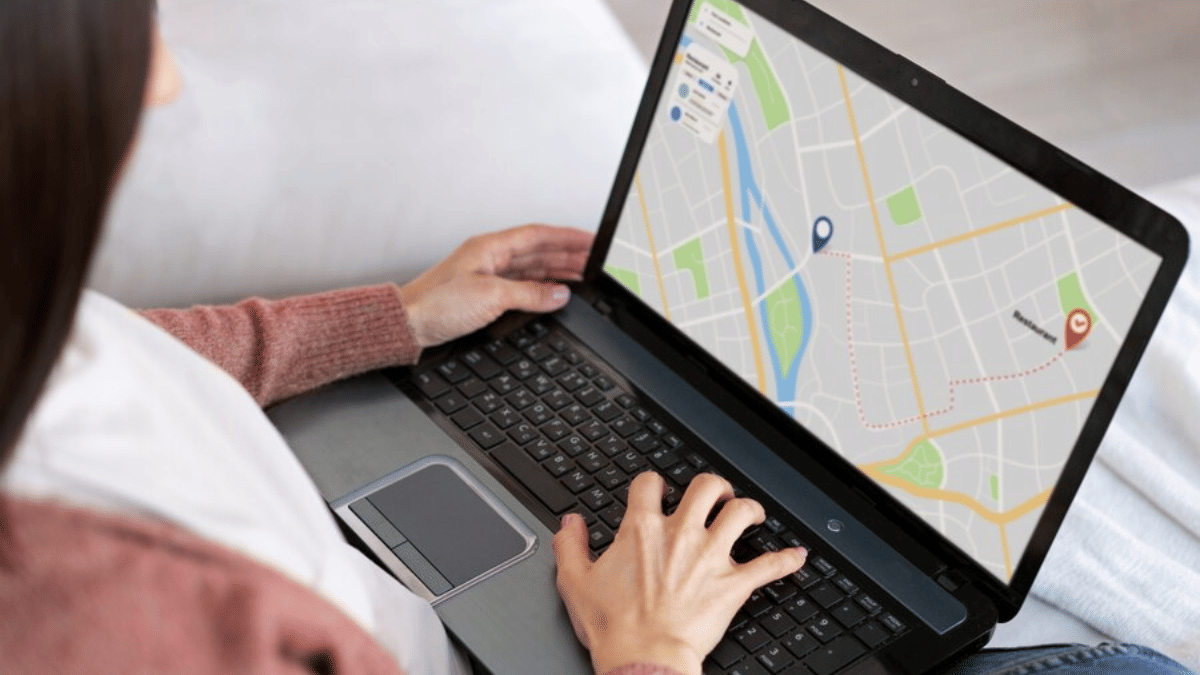
Step 1: Launch Google Maps desktop version on your laptop/ PC
Step 2: Right-click on any starting point
Step 3: Navigate to and select the Measure distance option
Step 4: Now, tap anywhere on the map to create a path to measure the distance.
Step 5: If you need another point then click anywhere again on the map.
Step 6: The distance between the point A and point B will be shown at the bottom with pinpoint accuracy.
Why Should You Use Distance Measure Feature On Google Maps?

- Allows to plan trips efficiently
- Allows tracking distances for fitness activities like running, cycling, etc.
- Can help calculating distanced between points that aren’t directly connected via roads
- Allows measuring distances between multiple points
